How to Clear the Cache on Your Samsung TV: A Complete Guide
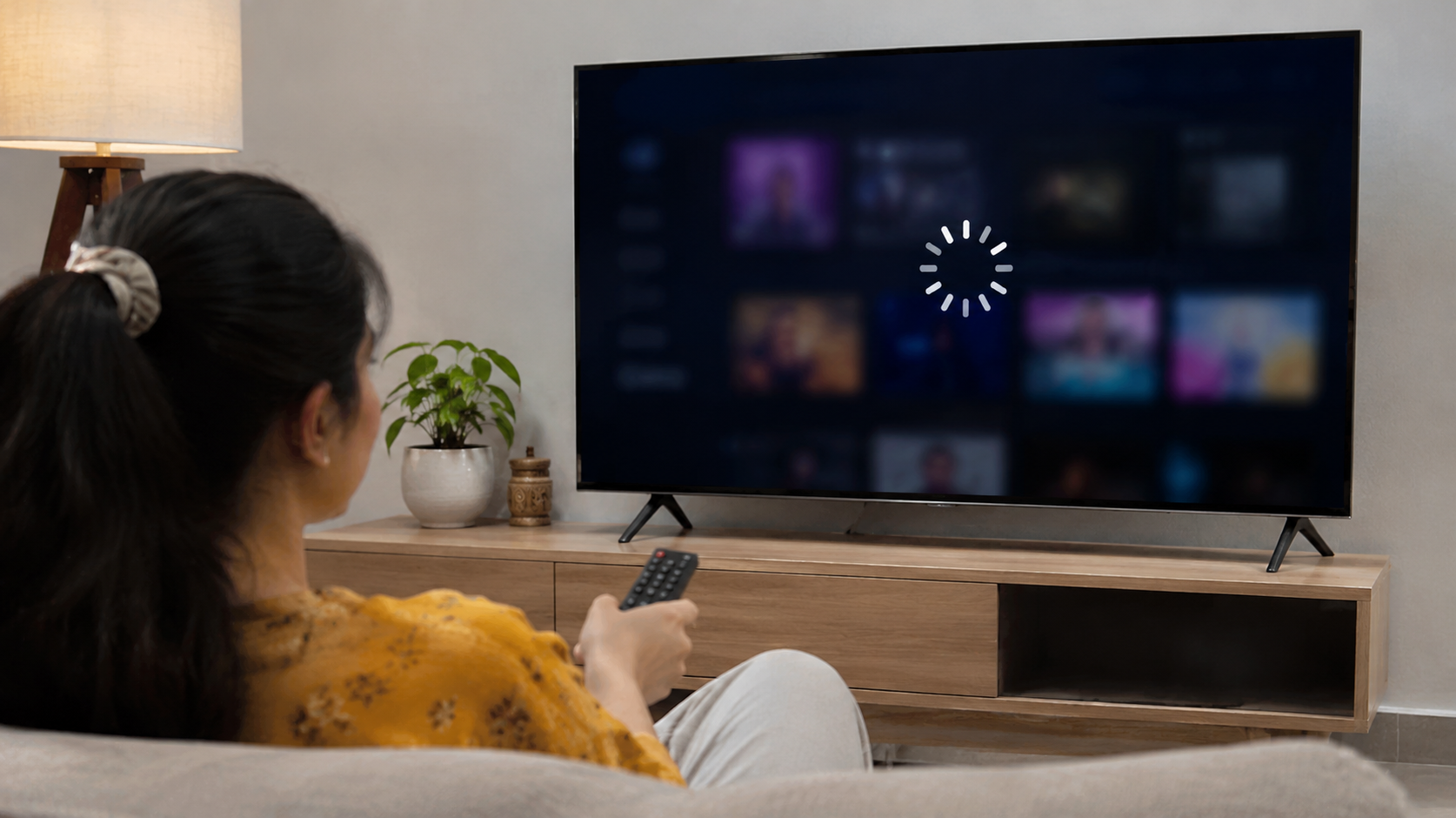
A frozen screen or an app that refuses to load can quickly ruin movie night. Over time, temporary files and background processes can affect your television’s performance. Learning how to clear the cache on your Samsung TV can help resolve sluggish menus, buffering, and app errors.
Samsung Smart TVs use internal memory to store temporary app information. This helps streaming services load content more efficiently. However, clearing cached data can help when an application becomes slow or stops responding. Samsung provides built-in maintenance options on supported models.
In this guide, we explain how to clear app cache, manage browser data, and refresh your television’s memory. You will also learn when cache cleaning helps and what information remains safe. We cover older Samsung models, potential data loss, and the disadvantages of clearing temporary files.
How Do I Clear My Cache on My Samsung TV?
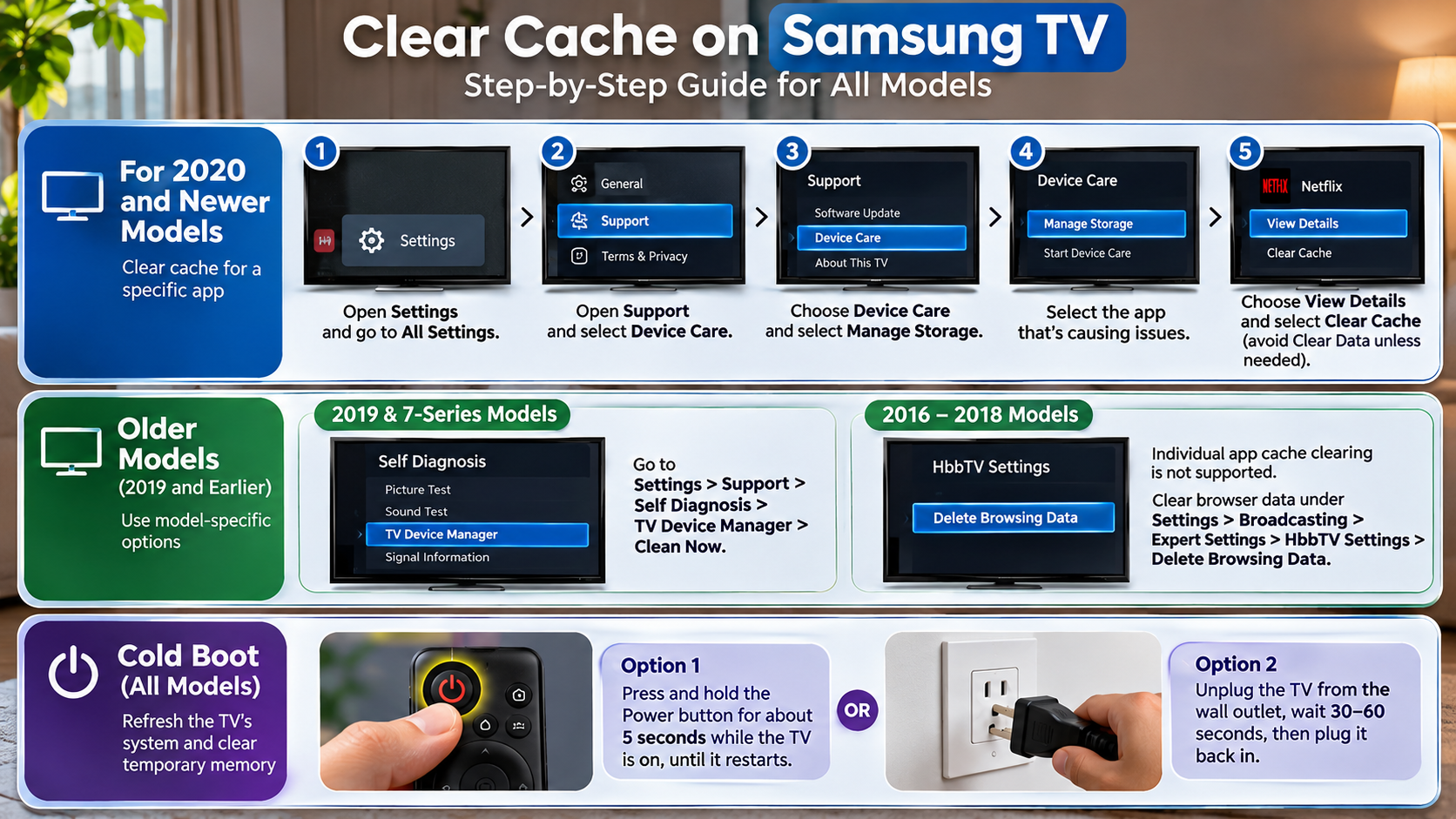
You can clear individual app caches through the Device Care menu on supported Samsung Smart TVs. This option lets you manage storage without resetting your entire television. However, menu names and available features depend on your TV model and software version. Before removing temporary files, it helps to understand the difference between clearing cache and clearing data, as both options affect app storage differently.
Follow these steps:
- Press the Home button on your Samsung remote.
- Open Settings or All Settings.
- Navigate to Support and select Device Care.
- Choose Manage Storage.
- Highlight the application you want to troubleshoot.
- Select View Details.
- Choose Clear Cache to remove its temporary files.
Repeat these steps for other applications if necessary. For example, you can clean the cache for Netflix, YouTube, or other streaming services.
Important: Some older Samsung TVs do not offer Device Care or individual cache controls. Check your model’s available settings before following these instructions. Samsung also recommends running Start Device Care to diagnose performance issues and clear temporary system memory. Samsung’s Device Care guide explains these maintenance options.
Clearing Your Samsung TV Browser Cache
Your Samsung Internet browser stores temporary website files to make browsing faster. These files include cached images and other website resources. However, outdated browser data can sometimes cause loading problems or display errors.
To clear your browser cache, follow these steps:
- Open the Internet browser on your Samsung TV.
- Select the browser’s menu or settings icon.
- Open Settings.
- Look for Privacy, Privacy and Security, or browsing data options.
- Select Delete Browsing Data if available.
- Choose Cached Images and Files.
- Confirm the deletion.
The exact menu names may differ between browser versions and TV models. Avoid selecting additional deletion options unless you understand their effects. For example, removing cookies or saved website data may sign you out of websites. Understanding how website cookies work and how long they last can help you decide which browsing data to remove. Clearing cached images and files is usually sufficient when troubleshooting slow page loading.
Should I Clear the Cache on My Smart TV?
Yes, clearing your smart TV’s cache can help when applications become slow, unresponsive, or unstable. However, you do not need to clean it regularly without a specific reason. Cached files serve a useful purpose by helping applications load frequently used information.
Your Samsung TV stores temporary data while running streaming services and other applications. Sometimes, outdated or corrupted files contribute to unexpected errors. Removing those files can help an affected application work normally again. If an app continues freezing or closing unexpectedly, understanding why apps keep crashing and how to fix them can help you identify other possible causes.
Consider clearing the cache when you experience:
- Streaming applications freezing or crashing.
- Apps taking unusually long to open.
- Repeated loading errors.
- Unexpected application behaviour.
- Storage-related performance problems.
Start with the application causing trouble rather than clearing everything. If the issue affects multiple applications, run Device Care or perform a cold boot. Also check for available software updates.
When You Should Skip Clearing Cache
Avoid clearing your Samsung TV’s cache when everything works normally. Temporary files help applications load images, menus, and other frequently accessed resources. Removing healthy cache files does not automatically improve performance.
In fact, your television may need additional time and internet data to download those resources again. You might notice slower loading during your first session after cleaning the cache. This is generally temporary.
You should also avoid unnecessary resets when troubleshooting minor issues. Resetting Smart Hub, for example, can remove downloaded apps and account information. That creates additional setup work without guaranteeing better performance.
Instead, follow a simple troubleshooting approach:
- Leave the cache alone when apps work correctly.
- Clear an individual app’s cache when it misbehaves.
- Restart the TV when temporary system glitches occur.
- Consider broader resets only when simpler solutions fail.
This approach helps you avoid unnecessary changes to your television’s settings.
Does Unplugging a Smart TV Clear the Cache?
Yes, unplugging your Samsung TV can clear temporary system memory through a process called a cold boot. This refreshes the television’s operating system and can resolve minor performance problems. Samsung recommends this method when a TV becomes slow or experiences unexpected glitches.
However, a cold boot and clearing an individual app’s cache are different maintenance actions. A cold boot refreshes temporary system memory. Device Care provides separate controls for managing cached data within supported applications.
Therefore, unplugging your television is a useful first troubleshooting step. It may resolve freezing, slow menus, and temporary application problems. However, it does not replace the individual cache controls available through Manage Storage.
If an application continues experiencing problems after restarting, try clearing its cache separately. You should also check your internet connection and install available software updates. These steps can help identify whether the problem involves temporary memory, an application, or network connectivity.
How to Perform a Proper Soft Reset
You can perform a cold boot without changing your saved television settings. Samsung supports two straightforward methods.
Method 1: Using your remote
- Turn on your Samsung TV.
- Press and hold the remote’s Power button.
- Keep holding it while the TV turns off and restarts.
- Release the button when the Samsung logo appears or the TV restarts.
Method 2: Unplugging the television
- Turn off your Samsung TV.
- Disconnect its power cable from the electrical outlet.
- Wait approximately 30 seconds.
- Reconnect the power cable.
- Turn on your television.
Both methods refresh temporary system memory. A cold boot does not factory-reset your TV or intentionally remove installed applications. You should not need to change your picture settings or reconnect your accounts afterward.
Will I Lose Anything If I Clear the Cache?
No, clearing an individual application’s cache normally does not remove your account information, watchlists, or saved preferences. It only removes temporary files that the application can download or rebuild later. When you clear the cache on your Samsung TV, your installed apps and personal settings generally remain untouched.
However, you must distinguish between Clear Cache and Clear Data. These options perform different actions, even though they may appear together in Samsung’s Manage Storage menu.
Clear Cache removes temporary information, such as stored images and other reusable files. Clear Data removes an application’s stored information and may reset its settings. You might need to sign in again or configure the application after deleting its data.
Before confirming any deletion, check the selected option carefully. If you only want to troubleshoot slow loading or minor app errors, start with Clear Cache.
If clearing the cache does not solve the problem, consider restarting or reinstalling the affected application. Reserve more extensive resets for persistent problems.
Cache vs. App Data: Know the Difference
Understanding the difference between cache and app data helps prevent accidental information loss. Although both options manage application storage, they serve different purposes.
| Feature | Clear Cache | Clear Data |
|---|---|---|
| Temporary files | Removes them | Removes them |
| Login information | Normally preserved | May be deleted |
| App preferences | Normally preserved | May be reset |
| Saved settings | Generally unaffected | May be removed |
| Setup required | Usually unnecessary | May be necessary |
App cache contains temporary files that applications use to load content more efficiently. These files can usually be recreated automatically.
App data includes stored application information and configurations. Depending on the app, it may contain login details, preferences, and other saved information.
Always select Clear Cache when you only want to remove temporary files. Choose Clear Data only when you understand the consequences and need a more extensive application reset.
What Are the Disadvantages of Clearing the Cache?
Clearing your Samsung TV’s cache has a few minor disadvantages. The most noticeable is slower loading when you reopen an application. This happens because the app must download or recreate some temporary resources.
You might also notice missing thumbnails, blank image placeholders, or brief loading animations. These effects usually disappear after the application rebuilds its cached information.
Another consideration involves browser settings. If you delete cookies or other browsing information alongside cached files, websites may require you to sign in again. Your browsing experience may also lose some saved website preferences.
However, clearing the cache does not normally damage your television or permanently reduce its performance. The main drawback is the temporary inconvenience of rebuilding deleted files.
For the best results, clean individual application caches only when necessary. Avoid repeatedly deleting temporary files when your streaming services already work correctly.
Impact on Bandwidth and Data Usage
Clearing cached files can slightly increase internet usage when you reopen applications. Your Samsung TV may need to download previously stored images, thumbnails, and interface resources again.
For most home broadband connections, this additional usage is usually negligible. However, it may matter if you use a limited mobile hotspot or have a strict monthly data allowance.
Consider these practical tips:
- Clear app caches only when troubleshooting actual problems.
- Avoid repeatedly deleting healthy temporary files.
- Use a stable internet connection when reopening streaming applications.
- Allow applications time to rebuild their cached resources.
- Monitor data usage if your television connects through a limited hotspot.
Remember that clearing an application’s cache does not automatically improve your internet speed. If videos continue buffering, check your Wi-Fi signal, router, and internet connection. Your router can also affect streaming stability, so understanding what happens if you never restart your router can help you identify potential network-related problems.
A targeted cleanup is usually more useful than repeatedly deleting every application’s temporary storage. If you need to clear the cache on your Samsung TV, focus on the apps causing problems rather than removing all temporary files unnecessarily.
Conclusion
Knowing how to clear the cache on your Samsung TV can help you fix sluggish apps, loading errors, and unexpected performance issues. Samsung’s Device Care settings make it easier to manage app storage on supported models. You can also clear browser data or perform a cold boot to resolve temporary system glitches.
Remember, clearing the cache is different from deleting app data. Always choose the correct option to avoid removing saved settings or login information. You also don’t need to clear the cache regularly when everything works properly.
If your Samsung TV continues freezing, buffering, or crashing after these steps, check for software updates, review your internet connection, or consider resetting the affected application. With the right troubleshooting approach, you can keep your Samsung Smart TV running smoothly without unnecessary resets.