Can You Use Alcohol Wipes to Clean Your Laptop Screen?
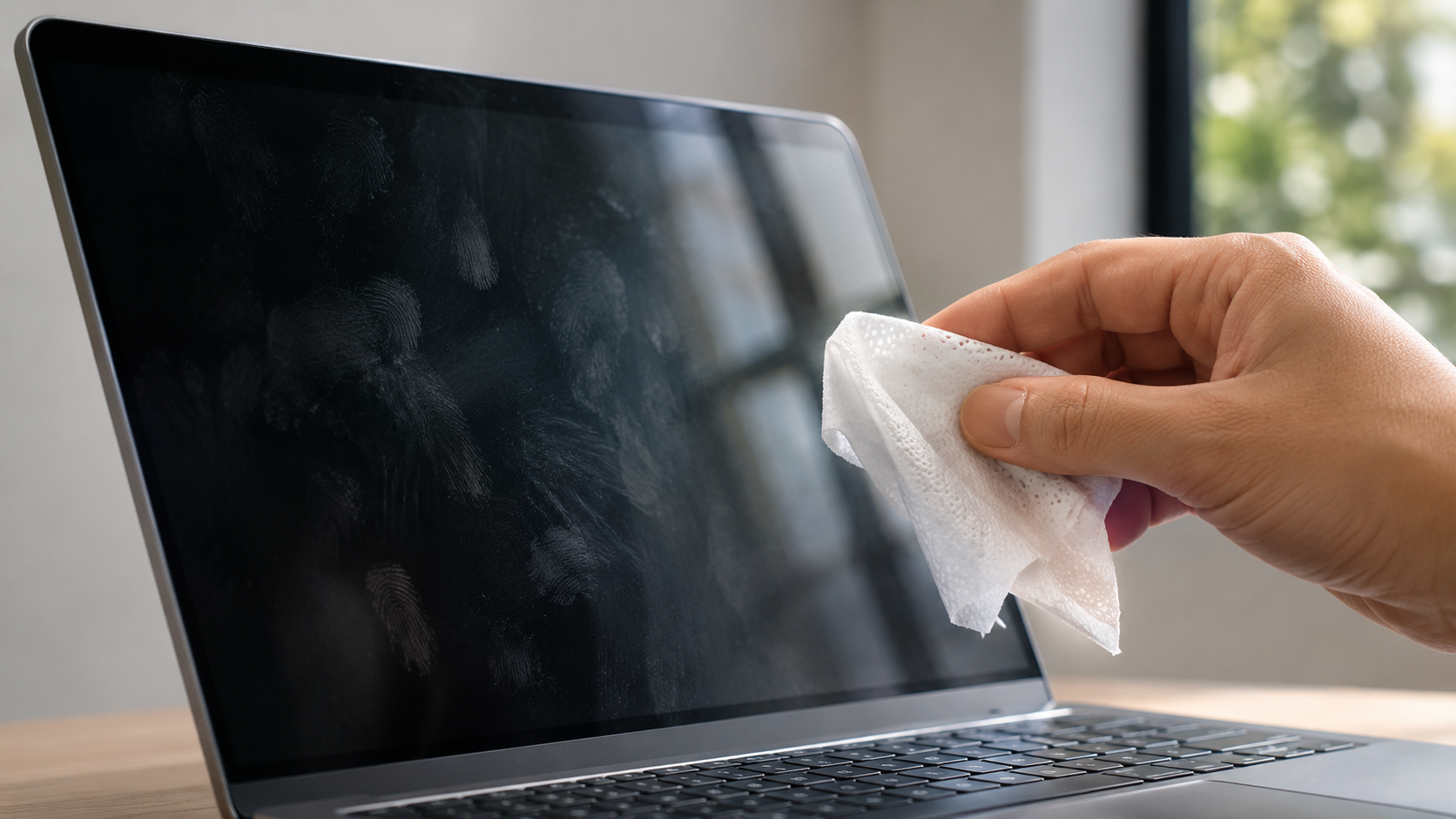
Yes, you can use certain alcohol wipes to clean your laptop screen, but you must be careful. Some manufacturers permit specific alcohol-based wipes on certain displays. However, ordinary disinfectant wipes may contain harsh chemicals that damage protective screen coatings. Repeated use can cause discoloration, streaks, or permanent damage.
The safest option for everyday laptop screen cleaning is a soft, lint-free microfiber cloth. For stubborn fingerprints and smudges, lightly dampen the cloth with distilled water. Avoid spraying liquids directly onto the display or applying excessive pressure while cleaning.
Also, remember that different laptop brands use different display technologies and protective coatings. A cleaning method that works for one model may not be suitable for another. Always use manufacturer-approved products and avoid experimenting with household cleaning solutions. A little care during routine cleaning can prevent expensive screen repairs and help keep your laptop display clear for longer.
Before using any alcohol-based cleaning product, check your laptop manufacturer’s recommendations. For example, Apple’s official screen-cleaning guidelines explain how to clean Mac displays safely.
Following the correct cleaning method helps protect your display, prevent unnecessary damage, and maintain its appearance over time.
What Can I Use to Clean My Laptop Screen?
A clean, soft microfiber cloth is the safest starting point for cleaning most laptop screens. It removes everyday dust, fingerprints, and light smudges without scratching the display. For stubborn marks, slightly dampen the cloth with distilled water. Always check your laptop manufacturer’s cleaning instructions before using liquids.
Never spray water or cleaning solutions directly onto the display. Liquid can enter the screen’s edges and damage internal components. Avoid paper towels, facial tissues, and ordinary cotton shirts. Their fibres can leave scratches or lint behind.
Before cleaning, shut down your laptop and disconnect its charger. Use gentle pressure and wipe the display slowly. Avoid pressing hard against the panel, especially on thin laptops.
Choosing the Right Microfiber Cloth
Not every microfiber cloth is suitable for delicate electronic displays. Choose a tightly woven, lint-free cloth designed for eyeglasses, camera lenses, or screens. These materials collect dust without creating unnecessary friction.
A dedicated screen-cleaning cloth also helps prevent accidental contamination. Cloths used on tables or other household surfaces may contain trapped dirt. These particles can scratch sensitive display coatings during cleaning.
Follow these simple maintenance tips:
- Use a clean, dry microfiber cloth for everyday dust.
- Wash the cloth regularly with mild detergent.
- Avoid fabric softeners and harsh cleaning chemicals.
- Let the cloth air-dry completely before using it again.
- Keep your screen-cleaning cloth separate from ordinary cleaning materials.
If your screen has stubborn fingerprints, lightly dampen one corner of the cloth with distilled water. Never soak the material or allow moisture to collect around the display edges. Replace heavily worn or damaged cloths to avoid unnecessary screen scratches.
Is 70% Alcohol Bad for Electronics?
70% isopropyl alcohol can be suitable for cleaning certain electronic surfaces. However, its safety depends on the material and manufacturer’s recommendations. Many manufacturers permit carefully applied 70% alcohol on specific exterior surfaces. These may include keyboards, trackpads, and certain laptop housings. For more PC-specific guidance, learn whether using alcohol to clean your PC is safe.
However, this does not mean you should use it everywhere. Delicate display coatings, painted surfaces, and rubber components may react differently. Repeated exposure can cause discoloration, deterioration, or permanent coating damage.
Standard 70% isopropyl alcohol contains approximately 30% water. This makes it evaporate more slowly than higher-concentration solutions. Always apply an approved cleaning solution to a cloth rather than directly onto electronics.
Why Alcohol Concentration Matters on Surfaces
Isopropyl alcohol concentration affects evaporation speed and the amount of water in the solution. A 70% solution contains approximately 30% water. A 99% solution contains considerably less water and generally evaporates faster.
However, higher concentration does not automatically mean greater compatibility. Some plastics, adhesives, rubber materials, and protective coatings can react badly to alcohol. Always consider the surface material before choosing a cleaning solution.
Here are some important differences:
- 70% isopropyl alcohol: Contains more water and evaporates more slowly.
- 90% isopropyl alcohol: Contains less water and generally evaporates faster.
- 99% isopropyl alcohol: Contains very little water and is commonly used for certain electronics maintenance tasks.
Remember that evaporation speed is not the only safety consideration. Cleaning instructions vary between manufacturers and device models. Check the manufacturer’s recommendations before applying alcohol to any electronic surface. Never assume one concentration works safely across every component.
Can I Use Wipes to Clean My Laptop Screen?
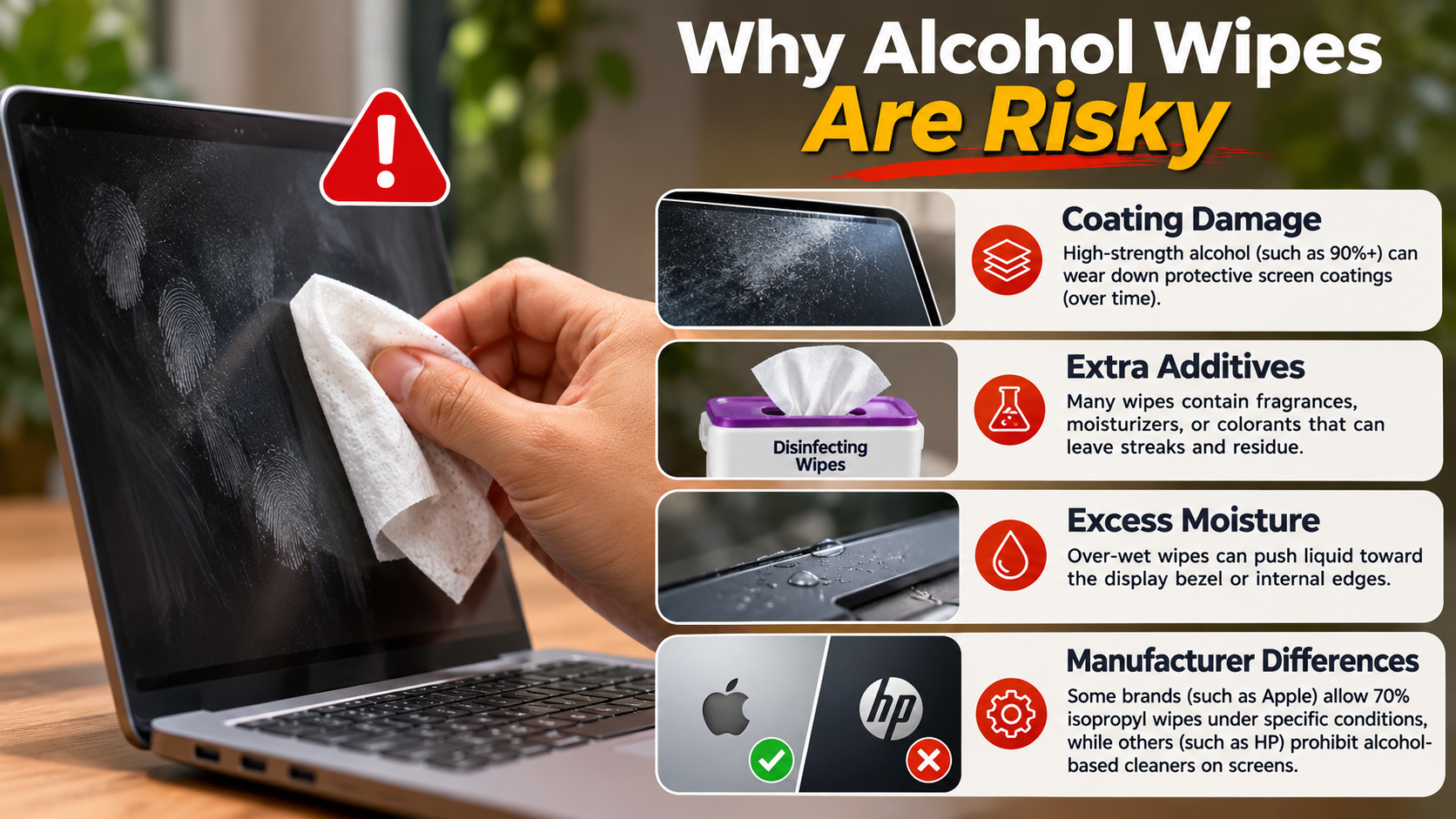
You should avoid ordinary household disinfecting wipes when cleaning laptop screens. These products may contain bleach, ammonia, detergents, or other harsh chemicals. Such ingredients can damage protective display coatings or leave unwanted residue. Before using alcohol wipes to clean your laptop screen, check your laptop manufacturer’s cleaning recommendations.
Standard alcohol wipes also require caution. Some manufacturers permit specific alcohol-based wipes on certain glass displays. Others recommend avoiding alcohol entirely. The correct choice depends on your laptop’s display material and manufacturer’s instructions.
If you prefer convenient cleaning products, consider dedicated electronics screen wipes. Look for products specifically labelled as safe for your display type. Check whether they support LCD, LED, or OLED screens. Also confirm that their ingredients are compatible with protective coatings.
Never use excessive liquid during cleaning. Even screen-safe wipes can cause problems when moisture collects around display edges. Use gentle movements and allow the screen to dry completely before switching on your laptop. When choosing alcohol wipes to clean your laptop screen, remember that not every alcohol-based product is suitable for delicate displays.
Reading Wipe Labels Before You Wipe
Checking product labels helps you avoid unsuitable cleaning chemicals. Do not assume that a wipe is screen-safe simply because it advertises disinfecting or antibacterial properties. Household cleaning products often contain ingredients designed for harder surfaces.
Before purchasing or using cleaning wipes, check the following details:
- Intended use: Look for products specifically designed for electronic displays.
- Chemical ingredients: Avoid ammonia, bleach, acetone, and other incompatible chemicals.
- Display compatibility: Confirm that the product supports your particular screen material.
- Moisture level: Choose wipes that do not leave excessive liquid behind.
- Manufacturer guidance: Compare the product instructions with your laptop manufacturer’s recommendations.
Some specialised optical wipes contain alcohol. However, their suitability still depends on the display coating. A product designed for camera lenses may not be appropriate for every laptop screen.
When uncertain, use a clean microfiber cloth and distilled water. This approach is generally safer than experimenting with household disinfecting products. Always check manufacturer instructions before choosing alcohol wipes to clean your laptop screen.
Can I Use 70% Isopropyl Alcohol to Clean My PC?
You can use 70% isopropyl alcohol on certain external PC surfaces when their manufacturers permit it. It can help remove fingerprints, skin oils, and stubborn grime. Suitable surfaces may include some metal chassis panels, keyboards, and mouse housings.
However, avoid treating every PC component as alcohol-compatible. Some plastics, painted finishes, rubber feet, and protective coatings can deteriorate after exposure. Never pour alcohol directly onto electronic components.
Internal PC cleaning requires additional precautions. Although 70% isopropyl alcohol is sometimes used in electronics maintenance, its higher water content makes it less suitable for situations requiring rapid evaporation. For removing loose dust from internal components, follow safe compressed-air cleaning methods for electronics.
For internal components, technicians generally prefer high-purity isopropyl alcohol when the component manufacturer permits its use. Always disconnect power before cleaning. Never apply liquids to an operating or connected device.
Safe Exterior PC Cleaning Steps
Cleaning your desktop PC regularly helps remove accumulated dirt and fingerprints. However, you should prepare the device before applying any cleaning solution. Incorrect cleaning methods can damage connectors, coatings, and sensitive components.
Follow these precautions when cleaning your PC’s exterior:
- Shut down your computer completely.
- Disconnect the power cable and connected peripherals.
- Check whether the manufacturer permits alcohol-based cleaning.
- Apply a small amount of approved cleaning solution to a microfiber cloth.
- Gently wipe compatible exterior surfaces.
- Avoid openings, ports, fans, and exposed connectors.
- Allow every cleaned surface to dry completely.
- Reconnect the cables only after confirming that no moisture remains.
Never spray cleaning liquids directly onto your PC case, keyboard, or mouse. Avoid allowing moisture to enter USB ports or ventilation openings. For more detailed keyboard maintenance advice, follow these safe laptop keyboard cleaning steps.
For internal components, use appropriate electronics-cleaning methods instead. Disconnect the power supply and follow manufacturer instructions before working inside the case. Remember that power supplies should not be opened for routine cleaning.
Is 100% Isopropyl Alcohol Safe for Electronics?
High-purity isopropyl alcohol, commonly sold as 99% IPA, is widely used for electronics maintenance. Technicians often use it to remove thermal paste, clean compatible circuit boards, and remove certain residues. Its low water content allows it to evaporate faster than standard 70% solutions.
High-purity isopropyl alcohol, commonly sold as 99% IPA, is widely used for electronics maintenance. Technicians often use it to remove thermal paste, clean compatible circuit boards, and remove certain residues. Its low water content allows it to evaporate faster than standard 70% solutions. Another specialised application involves cleaning battery corrosion with isopropyl alcohol, following the correct safety precautions.
High-purity alcohol also requires careful handling. It is highly flammable and should remain away from sparks, heat, and open flames. Always work in a well-ventilated area.
Before cleaning internal hardware, disconnect all power sources. Make sure the equipment is completely dry before reconnecting it. Follow component-specific instructions rather than assuming every circuit board tolerates the same cleaning method.
Best Uses for High-Purity Alcohol
99% isopropyl alcohol is particularly useful for specific computer maintenance tasks. Its low water content makes it suitable for removing certain residues from compatible electronic components. However, proper application and material compatibility remain essential. If you’re maintaining your graphics card, understanding how long GPU thermal paste lasts can also help you plan maintenance.
Common applications include:
- Removing thermal paste: Cleaning old thermal compound from compatible CPU and heatsink surfaces.
- Circuit board maintenance: Removing certain residues from compatible printed circuit boards.
- Contact cleaning: Cleaning suitable electrical contacts when the manufacturer permits it.
- Hardware maintenance: Removing certain contaminants from compatible electronic components.
Use lint-free swabs or suitable electronics-cleaning cloths when applying high-purity alcohol. Avoid excessive liquid and prevent it from reaching incompatible materials.
Never apply alcohol to powered electronics. Disconnect the equipment and allow all components to dry completely before restoring power. Also, remember that alcohol does not replace proper dust removal. Use compressed air or an appropriate electronics-safe cleaning tool for loose dust.
Store isopropyl alcohol in a tightly sealed container. Keep it away from children, heat sources, and open flames. Its high flammability makes safe storage and handling essential.
Conclusion: Should You Use Alcohol Wipes to Clean Your Laptop Screen?
Using alcohol wipes to clean your laptop screen is not always safe. Some alcohol-based products can damage delicate display coatings or leave unwanted residue. Always check your laptop manufacturer’s cleaning instructions before choosing a cleaning product.
For everyday maintenance, a clean microfiber cloth is usually the safest option. Use a small amount of distilled water for stubborn fingerprints when necessary. Avoid household disinfecting wipes, excessive moisture, and harsh cleaning chemicals.
Manufacturer recommendations can also differ between devices. For example, Apple’s official cleaning guidelines explain when certain alcohol-based solutions are suitable for Mac displays. Similarly, Dell’s cleaning guidelines provide specific instructions for cleaning its computers and displays.
Remember that different electronic components require different cleaning methods. Choosing the right cleaning products helps protect your screen, maintain display quality, and extend your laptop’s lifespan.