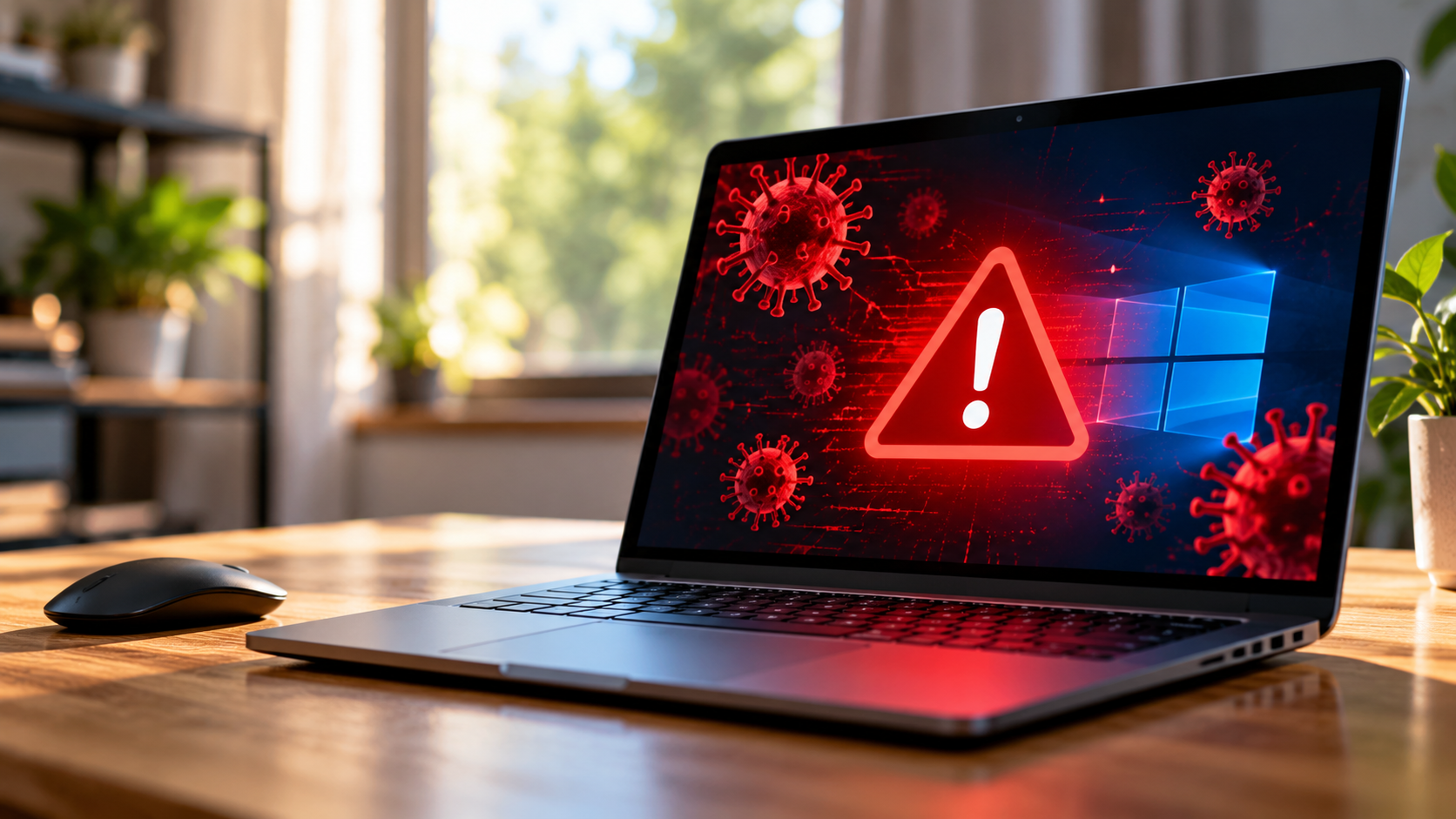
Does a Factory Reset Remove a Computer Virus?
When malware takes control of your computer, starting over can seem like the simplest solution. But does a factory reset remove a computer virus completely?
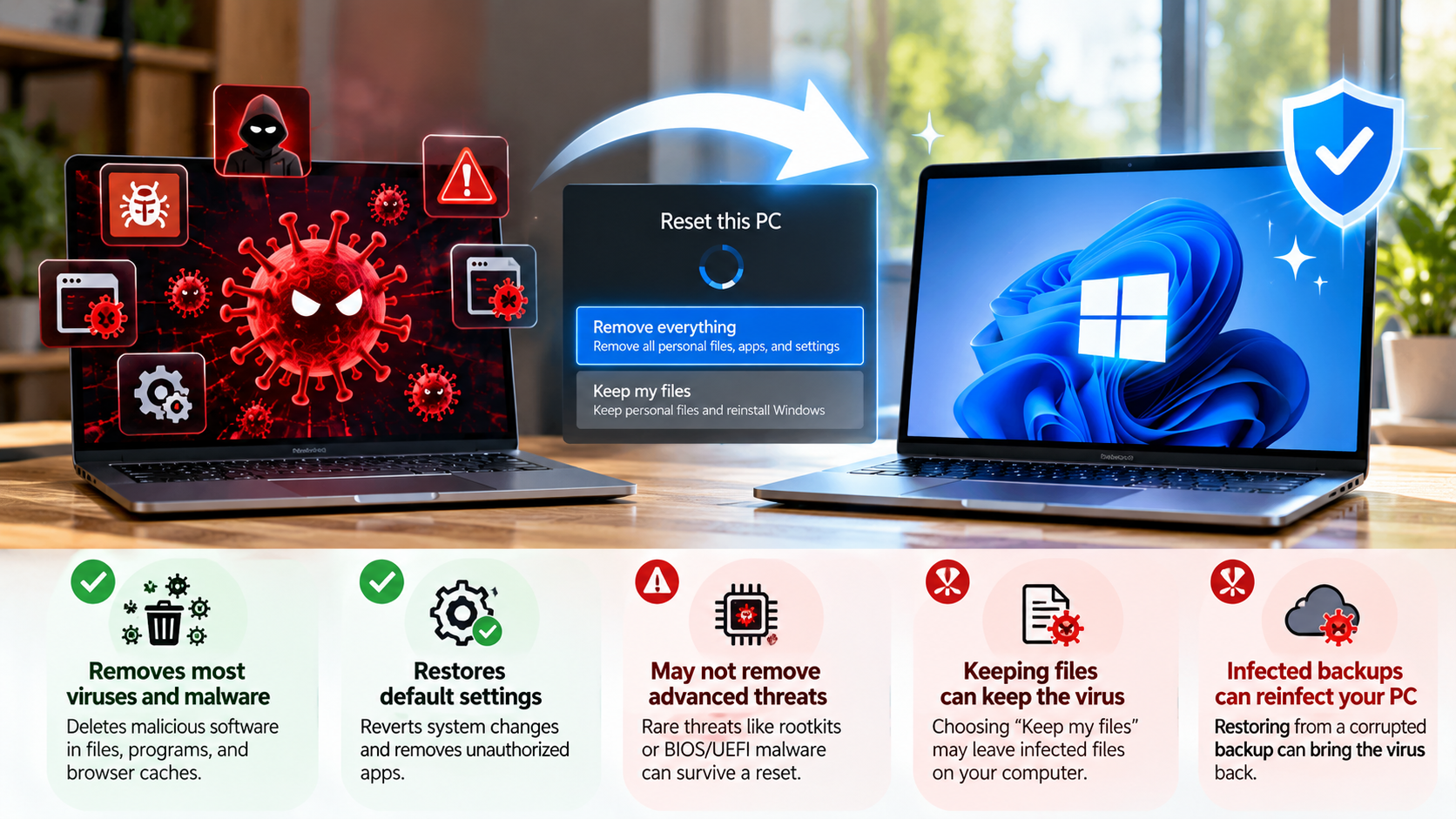
In most cases, a proper factory reset removes common viruses, Trojans, spyware, and other malware from Windows. The reset removes applications and system changes before reinstalling Windows. However, the result depends on the reset method and the type of infection.
Microsoft explains the available Windows recovery options, including resetting the PC and reinstalling Windows, in its official Windows recovery options guide. Understanding these options can help you choose the appropriate recovery method.
Some recovery options keep personal files. That can leave potentially infected files on the computer. More advanced threats may also target areas outside the normal Windows installation.
If you are asking does a factory reset remove a computer virus, you should understand what a reset actually removes. You should also know how to protect your files before starting.
This guide explains when a factory reset can remove malware, when a clean Windows installation is better, and how to handle suspicious backups safely.
Do Viruses Go Away After a Factory Reset?
If you are wondering does a factory reset remove a computer virus, the answer is usually yes for common malware. A complete reset removes the existing Windows installation, applications, settings, and other selected data.
Most ordinary malware lives within the operating system or installed applications. Removing those components can therefore eliminate the infection.
However, not every reset works in exactly the same way. Windows may offer different recovery choices, including options that preserve personal files.
Keeping personal files does not automatically mean that malware will survive. However, suspicious files could remain and become a problem later.
For a serious infection, consider a clean Windows installation from trusted installation media. This provides a fresh operating system environment.
A reset can remove many types of malware, including the threats discussed in these malware protection tips:
- Common computer viruses
- Many Trojans
- Spyware and unwanted programs
- Malicious startup entries
- Browser hijackers
- Malware-related Windows changes
Before resetting, disconnect the computer from the internet if you suspect active malware. Also avoid restoring unknown programs afterward.
A factory reset is therefore useful, but the recovery method matters. You should choose the option that matches the severity of the infection.
Choosing the Complete Clean Drive Option
Windows recovery settings can provide several options for removing data. You should understand these options before starting a reset.
The Remove everything option removes personal files, applications, and settings from the Windows installation. You may also see an option to clean the drive.
Cleaning the drive is mainly designed to make deleted data harder to recover. This can be useful when selling or giving away a computer.
It is not always necessary simply because you suspect malware. For ordinary virus removal, creating a clean Windows environment is usually more important.
If you are still asking does a factory reset remove a computer virus, remember that the reset method matters. A reset that preserves files is different from a clean installation.
For stronger cleanup, you can create Windows installation media using a trusted computer. You can then boot the affected PC from that media and reinstall Windows.
Before doing this, back up only files you trust.
Keep these differences in mind:
- Remove everything deletes personal files and installed applications.
- Clean the drive makes deleted data harder to recover.
- A clean installation replaces the existing Windows environment.
- Backup files should be scanned before restoration.
Do not assume that every recovery option provides the same level of protection.
How to Permanently Remove a Virus From a PC?
If you are asking does a factory reset remove a computer virus, a reset is one possible solution. However, you should first determine whether the infection can be removed without wiping the computer.
Start by disconnecting the PC from the internet. This can limit communication between malware and external servers.
Next, run a full scan with a reputable security product. Microsoft Defender can detect and remove many common malware threats, while these steps to remove malware from Windows 11 safely can provide additional guidance.
If normal Windows scanning does not work, use Microsoft Defender Offline. An offline scan runs outside the normal Windows environment.
If the malware continues returning, consider reinstalling Windows from trusted installation media. A clean installation removes the existing Windows environment.
Before wiping the computer, protect your important files. Do not copy suspicious programs or unknown installers.
After reinstalling Windows:
- Install Windows security updates.
- Update your security software.
- Reinstall applications from trusted sources.
- Change important passwords from a clean device.
- Enable multifactor authentication.
- Restore only trusted personal files.
If malware may have stolen passwords, removing the malware is not enough. You must also secure the affected accounts.
A factory reset can remove common malware, but no single method guarantees removal of every possible threat. Firmware-level or highly specialized attacks require different investigation.
For most home users, however, a clean Windows installation provides a strong recovery method when normal malware removal fails.
Isolating System Recovery With Offline Media
A clean Windows USB installer can provide a stronger recovery option for persistent malware. Create the installation media using a trusted, uncompromised computer.
The affected computer can then boot directly from the USB drive. This allows Windows Setup to operate independently of the existing Windows installation.
During installation, you can remove the existing Windows partitions when appropriate. This creates a fresh location for the new operating system.
However, this process should not be described as a guaranteed solution for every malware infection. It removes the existing Windows environment, but specialized threats can target components outside Windows.
Before starting the installation, make sure you have your important files and recovery information.
Follow these precautions:
- Back up essential personal files only.
- Avoid suspicious executable files.
- Create installation media on a trusted computer.
- Disconnect unnecessary external storage.
- Keep important license or recovery information available.
- Scan backups before restoring them.
After installing Windows, immediately install security updates. Then reinstall applications from legitimate sources.
If the computer still behaves strangely after a clean installation, investigate other possible causes. These could include hardware problems, compromised accounts, browser extensions, or firmware-related issues.
For ordinary Windows malware, however, offline installation media provides a reliable way to rebuild the operating system from a clean starting point.
Should I Wipe My PC?
Whether you should wipe your PC depends on the severity of the infection. If you are wondering does a factory reset remove a computer virus, a full reset can be appropriate when security software cannot remove the threat. You should also know the signs your computer has malware before deciding how serious the infection may be.
A wipe is not always necessary. Many malware infections can be removed with reputable security software.
Consider a reset or clean installation when:
- Malware repeatedly returns after removal.
- Security software cannot remove the infection.
- Windows has become seriously unstable.
- You suspect ransomware or persistent spyware.
- You no longer trust the current Windows installation.
- You have reliable backups of important files.
A complete wipe removes applications, settings, and potentially personal files. Therefore, prepare before starting the process.
Do not copy everything from an infected computer without checking it first. Suspicious installers, scripts, and executable files could reintroduce malware.
Photos, videos, documents, and other personal files can often be preserved. However, they should still be scanned before being restored.
After reinstalling Windows, install security updates first. Then reinstall your applications from trusted sources.
You should also change important passwords from a separate device. Enable multifactor authentication wherever possible.
A clean installation can save time when an infection is difficult to diagnose. But it should not be treated as the automatic answer to every slow or unstable computer.
Verifying File Backups Before You Wipe
Backing up your files before a reset is important. However, an unsafe backup can reintroduce malware after the installation.
Start by identifying the files you actually need. Personal photos, videos, documents, and spreadsheets are usually easier to review.
Be more careful with executable files. These include .exe, .msi, .bat, .cmd, scripts, cracked software, and unknown installers.
Do not assume a file is safe because it worked normally before the infection. Malware can hide inside legitimate-looking files or compromised software.
Before restoring your backup, scan it with updated security software.
You should also avoid restoring old system folders. Reinstall applications from their official sources instead.
A safer backup process includes:
- Copy only essential personal files.
- Avoid suspicious software and installers.
- Scan the backup before restoration.
- Reinstall applications from trusted sources.
- Keep an offline backup when possible.
Cloud synchronization also requires caution. If malware changed files, those changes could potentially synchronize across connected devices.
After reinstalling Windows, restore your files gradually. This makes suspicious behavior easier to identify.
If you were specifically asking does a factory reset remove a computer virus, remember that restoring infected files afterward can undermine the cleanup.
The reset itself may be successful, but unsafe backups can bring the problem back.
How Can I Remove a Trojan Virus From My Computer?
A Trojan can be difficult to identify because it often looks like legitimate software. Some Trojans can steal information, create persistence, or download additional malware. Understanding how malware spreads can also help explain how a Trojan reaches and affects a computer.
Start by disconnecting the infected computer from the internet. Then run a full scan using reputable security software.
If normal scanning does not work, use an offline security scanner. Microsoft Defender Offline can help identify threats that are difficult to remove while Windows is running.
Avoid randomly deleting registry entries or system files. Removing the wrong component can make Windows unstable.
You can review recently installed applications and browser extensions. Remove software that you do not recognize, especially if it appeared shortly before the suspicious behavior.
For a persistent Trojan, reinstalling Windows may be safer than attempting extensive manual cleanup.
After removing the infection:
- Install Windows updates.
- Update your security software.
- Change important passwords.
- Enable multifactor authentication.
- Check sensitive online accounts.
- Avoid pirated or suspicious software.
- Scan external drives before opening files.
If the Trojan may have stolen credentials, malware removal alone is not enough. Secure your accounts from a separate, trusted device.
A factory reset can remove many Trojans because it removes their installed components. However, the result depends on the reset method and whether infected files are restored afterward.
For serious infections, a clean Windows installation provides a more controlled recovery process.
Checking Persistent Startup Services and Registry Keys
Some malware tries to launch automatically whenever Windows starts. It may use startup folders, scheduled tasks, services, or registry settings.
Windows provides tools for reviewing startup applications. You can check these entries for programs you do not recognize.
However, an unfamiliar entry is not automatically malicious. Windows and legitimate applications use many background services and startup processes.
Do not delete registry keys simply because their names look strange. Research suspicious entries before changing system settings.
Security software is generally safer for identifying known malicious persistence mechanisms. Keeping Windows updated can also reduce security risks, so it is worth understanding what happens to your computer if you skip Windows updates. If malware continues returning, consider reinstalling Windows instead of manually changing many system settings.
A cautious approach includes:
- Disconnect the computer from the internet.
- Run a reputable security scan.
- Use an offline scan if necessary.
- Review suspicious startup applications.
- Remove confirmed unwanted software.
- Reinstall Windows if the infection persists.
Do not disable random Windows services. Some are required for normal system operation.
If you are unsure about a startup entry, leave it alone until you can verify it.
For ordinary users, a clean Windows installation can be safer than extensive registry editing. It removes the need to identify every malicious modification manually.
Can a Trojan Destroy My PC?
A Trojan usually cannot physically destroy modern computer hardware. Software can cause serious system problems, but hardware has protections against many forms of software-controlled damage.
The greater risk is logical damage. Malware can delete files, corrupt Windows, encrypt documents, change settings, or make the operating system unusable.
Some Trojans also download additional threats. These can include ransomware, spyware, credential stealers, and destructive malware.
Firmware attacks are possible, but they are uncommon compared with ordinary Windows malware. They also require different techniques from typical Trojans.
The biggest concern is often data and account security. Malware can steal passwords, browser sessions, financial information, and private documents.
If malware makes your computer unusable, you may need to:
- Reinstall Windows.
- Restore clean personal backups.
- Update firmware when appropriate.
- Change compromised passwords.
- Enable multifactor authentication.
- Contact financial institutions if sensitive information was exposed.
A damaged Windows installation does not necessarily mean the processor, memory, or motherboard is physically damaged.
If you were wondering does a factory reset remove a computer virus, the reset can address malware inside the Windows environment. It does not repair every possible firmware or hardware problem.
In most ordinary infections, the computer hardware can continue working after the compromised software environment is replaced.
The Threat of Irreversible Data Destruction
Malware can cause permanent data loss even when it does not physically damage your computer. Ransomware is a major example because it can encrypt personal files, so understanding how ransomware can infect a computer through email attacks is important for preventing these incidents.
Some destructive malware can also overwrite or corrupt data. Recovery may become extremely difficult when there is no clean backup.
This makes reliable backups an important part of computer security.
A backup should ideally exist separately from the computer. If ransomware infects the PC, a permanently connected backup drive could also become affected.
A safer backup strategy includes:
- Keeping multiple copies of important files.
- Maintaining at least one disconnected backup.
- Testing backups regularly.
- Scanning files before restoration.
- Keeping important documents in trusted storage.
Do not assume that paying a ransom guarantees file recovery. Attackers may not provide working decryption tools.
If malware has encrypted important files, avoid unnecessary changes to the affected storage. Depending on the malware, professional recovery options may exist.
The best protection is preparation. A clean backup can make a serious malware infection much easier to recover from.
So, does a factory reset remove a computer virus? For most ordinary Windows malware, a properly performed reset or clean installation can remove the infected operating system environment. The key is choosing the correct recovery method and avoiding unsafe file restoration.
If the infection is persistent or involves sensitive data, treat the incident as a broader security problem. Removing the malware is only one part of recovering safely.
Conclusion
So, does a factory reset remove a computer virus? In most cases, yes. A complete reset or clean Windows installation can remove common viruses, Trojans, spyware, and other malware by replacing the infected operating system.
However, the reset is only part of the solution. Choose the appropriate recovery option, back up only trusted files, scan your backups, and reinstall applications from legitimate sources. If malware may have stolen your passwords, change them from a clean device and enable multifactor authentication.
For persistent or serious infections, a clean Windows installation can provide a more reliable fresh start. Rare threats that affect firmware or other components may require additional investigation.
The safest approach is to combine malware removal, secure backups, software updates, and strong account protection. This helps ensure that your computer stays clean after the reset rather than becoming infected again.