
Thunderbolt 4 vs. 5: Everything You Need to Know Before Upgrading
Choosing the right connectivity standard can feel overwhelming as laptop specifications change every year. Comparing Thunderbolt 4 vs. 5 helps you decide whether newer hardware is worth the investment. According to Intel’s official specifications, Thunderbolt 5 doubles standard bandwidth and increases available charging power. However, these improvements do not benefit every computer user equally.
Understanding the differences between Thunderbolt 4 and Thunderbolt 5 can save you money. You can make better decisions when purchasing cables, docking stations, and new laptops. Some buyers pay extra for features they rarely use. Others experience limitations because their existing equipment cannot handle demanding displays or faster storage.
This guide explores Thunderbolt 4 vs. 5 through five important questions. You will discover their speed differences, upgrade requirements, and cable compatibility. We also explain how to choose between both docking standards. Finally, you will learn how standard USB-C devices work with Thunderbolt ports.
Is There a Big Difference Between Thunderbolt 4 and 5?
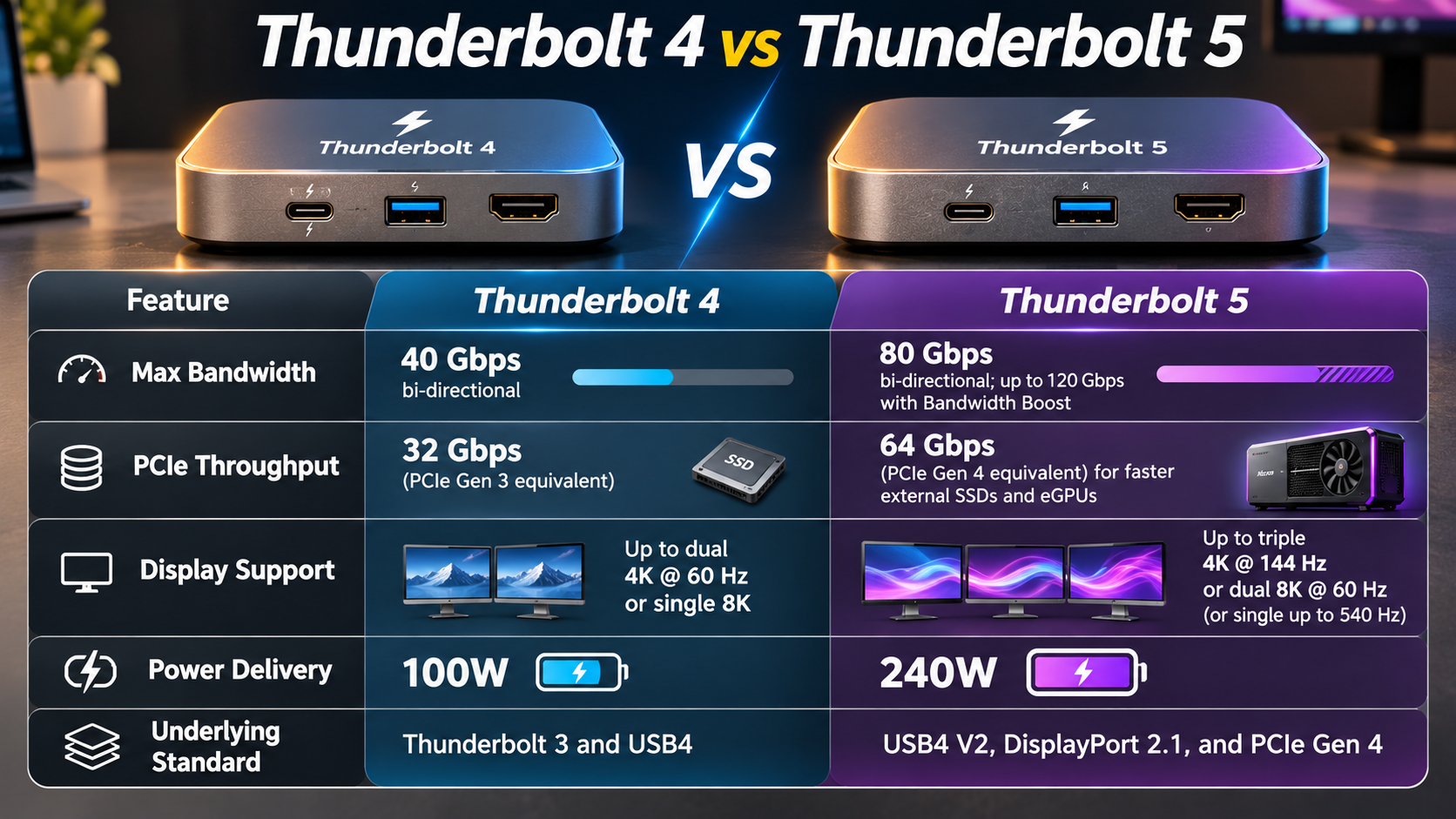
Yes, Thunderbolt 5 offers significant improvements over Thunderbolt 4. The biggest differences involve bandwidth, display support, and charging capabilities. Thunderbolt 4 provides up to 40 Gbps of bidirectional bandwidth. This is sufficient for demanding everyday tasks and professional workflows.
Thunderbolt 5 doubles that figure to 80 Gbps. Its Bandwidth Boost feature can increase bandwidth to 120 Gbps in one direction. This helps when connecting multiple high-resolution displays. It also improves connectivity for demanding creative applications.
Charging capabilities have improved as well. Thunderbolt 4 supports up to 100W of required PC charging. Compatible devices can support higher power. Thunderbolt 5 requires support for up to 140W on at least one computer port. Compatible devices can offer up to 240W.
When comparing Thunderbolt 4 vs. 5, bandwidth is one of the most important differences. However, the benefits depend on your connected devices and daily workload.
Bandwidth and Display Upgrades
Display support is another important difference between these standards. Thunderbolt 4 requires support for two 4K displays at 60Hz. It can also support a single 8K display with compatible hardware.
Thunderbolt 5 raises the standard significantly. It requires support for two 6K displays. It also offers greater bandwidth for demanding configurations. Compatible systems can support multiple 8K displays and high-refresh-rate gaming monitors. Mac users can also turn an iPad into an extra Mac monitor to create additional screen space.
Here are the main technical improvements:
- Bandwidth: Thunderbolt 4 offers 40 Gbps, while Thunderbolt 5 offers 80 Gbps bidirectionally.
- Bandwidth Boost: Thunderbolt 5 can reach 120 Gbps for video-heavy workloads.
- PCIe bandwidth: The minimum PCIe data requirement increases from 32 Gbps to 64 Gbps.
- Display support: Thunderbolt 5 supports more demanding display configurations.
- Charging: Compatible Thunderbolt 5 devices can deliver up to 240W.
Actual performance depends on the computer, dock, cable, and connected devices.
Do I Really Need Thunderbolt 5?
Most everyday computer users do not need Thunderbolt 5 right now. Thunderbolt 4 already provides enough bandwidth for browsing, office applications, video streaming, and external storage. It also handles standard dual-monitor workstation setups comfortably.
The newer standard becomes useful when your workload demands more bandwidth. Professional video editors, 3D designers, and developers working with large datasets may benefit from faster transfers. Users connecting several high-resolution displays can also take advantage of its improved capabilities.
However, buying a laptop solely for Thunderbolt 5 may not offer noticeable benefits. Your processor, graphics card, RAM, and storage also affect overall performance. Before upgrading, consider these things to consider when buying a new computer. A faster connection cannot compensate for limitations elsewhere in your computer.
Your decision about Thunderbolt 4 vs. 5 should depend on your actual workload. If your current setup handles daily tasks comfortably, replacing everything might not be worthwhile.
Who Benefits Most from Upgrading?
Thunderbolt 5 mainly benefits professionals and enthusiasts with demanding connectivity requirements. Its increased bandwidth helps people move large files and connect high-performance accessories. If you regularly work with large files, comparing cloud storage with external hard drives can help you choose the right storage solution.
The following users may notice the biggest improvements:
- Video editors: Faster transfers help when moving large video projects between computers and external SSDs.
- 3D designers: High-speed external storage and compatible PCIe expansion devices support demanding creative workflows.
- Professional gamers: High-refresh-rate displays and compatible external GPU enclosures can benefit from additional bandwidth.
- Workstation users: Higher charging capabilities help power compatible laptops through a single cable.
- Multi-monitor users: Additional bandwidth supports more demanding display configurations.
Casual users, students, and remote office workers generally have fewer reasons to upgrade. Thunderbolt 4 remains suitable for most everyday productivity setups.
Can I Use a Thunderbolt 4 Cable on Thunderbolt 5?
Yes, you can use a Thunderbolt 4 cable with a Thunderbolt 5 port. Both generations use the same USB-C connector and support backward compatibility. This means your existing Thunderbolt 4 accessories can work with newer Thunderbolt 5 computers.
However, using an older cable limits the connection to its supported capabilities. A certified Thunderbolt 4 cable supports up to 40 Gbps. Therefore, it cannot deliver the full 80 Gbps bandwidth of Thunderbolt 5.
Charging capabilities also depend on the cable and connected devices. A Thunderbolt 4 cable does not automatically provide the maximum charging power available through Thunderbolt 5.
Your devices will negotiate a compatible connection automatically. You do not need an additional adapter for standard Thunderbolt 4 and Thunderbolt 5 connections. This backward compatibility makes upgrading easier without replacing every existing accessory.
Cable Length and Speed Limits
Cable length and certification matter when choosing Thunderbolt accessories. A certified Thunderbolt 4 cable can support 40 Gbps connections at lengths up to two meters. This makes existing cables useful for most standard workstation setups.
Thunderbolt 5 introduces higher bandwidth requirements. Certified Thunderbolt 5 cables support its advanced bandwidth capabilities. These include 80 Gbps bidirectional transfers and 120 Gbps Bandwidth Boost.
Before purchasing a replacement cable, check its certification and supported power rating. Not every USB-C cable supports Thunderbolt speeds or high-power charging. If you plan to connect an external display, learn how to tell if a USB-C cable supports video before choosing a replacement.
Keep these points in mind:
- Thunderbolt 4 cable: Supports up to 40 Gbps.
- Thunderbolt 5 cable: Supports up to 80 Gbps bidirectionally and 120 Gbps with Bandwidth Boost.
- USB-C cable: Its performance depends on the specific USB standard and certification.
- Charging: Maximum power depends on the cable, charger, and connected devices.
Choosing a certified cable helps avoid unnecessary performance limitations. It also ensures better compatibility with your computer and connected accessories.
Should I Get a Thunderbolt 4 or 5 Dock?
Choosing between a Thunderbolt 4 and Thunderbolt 5 dock depends on your computer and connected accessories. If your laptop only supports Thunderbolt 4, a newer dock cannot unlock Thunderbolt 5 speeds. Your connection will remain limited by the laptop’s capabilities.
For most office users, a Thunderbolt 4 dock provides excellent connectivity. It supports multiple displays, external storage, networking, and other peripherals. It can also reduce cable clutter by connecting several accessories through one port.
However, a Thunderbolt 5 dock makes more sense with a compatible Thunderbolt 5 laptop. Its additional bandwidth benefits demanding displays and high-speed external storage. Some compatible docks also offer higher laptop charging capabilities.
When comparing Thunderbolt 4 vs. 5 docks, consider your laptop’s supported bandwidth. Check the specifications before purchasing. A dock’s charging output, display support, and port speeds depend on its individual design.
Matching Your Dock to Your Laptop
Your laptop’s supported Thunderbolt generation should guide your docking station purchase. A Thunderbolt 4 dock works with a compatible Thunderbolt 5 laptop. However, the connection operates within Thunderbolt 4’s capabilities.
Likewise, a Thunderbolt 5 dock can connect to older compatible Thunderbolt systems. You simply will not receive the newer generation’s additional bandwidth.
Before buying a docking station, check these specifications:
- Laptop compatibility: Confirm whether your computer supports Thunderbolt 4 or Thunderbolt 5.
- Monitor support: Check the maximum resolution and refresh rates supported by the dock.
- Charging output: Make sure the dock supplies enough power for your laptop.
- Port selection: Check for the USB-A, USB-C, Ethernet, and display connections you need.
- Storage support: Consider the bandwidth available for external SSDs and other accessories.
Match your dock to your actual requirements rather than buying the newest model automatically. This approach helps you avoid spending money on features your laptop cannot use.
Can I Put USB-C in Thunderbolt 4?
Yes, you can connect standard USB-C devices to a Thunderbolt 4 port. Both technologies use the same oval-shaped, reversible USB-C connector. Thunderbolt 4 also supports compatible USB standards, including USB4 and USB 3.2. If you use a Mac, understanding how Apple’s Thunderbolt ports differ from USB-C can help you identify their connectivity capabilities.
This means you can connect many everyday accessories without purchasing additional adapters. Examples include external hard drives, smartphones, flash drives, keyboards, and compatible chargers.
However, physical compatibility does not guarantee maximum performance. The connected device and cable determine the actual transfer speed and supported features. A standard USB accessory operates according to its own capabilities.
For example, connecting a USB 3.2 storage device does not automatically give it Thunderbolt 4 speeds. The connection uses the fastest standard supported by both devices.
Understanding Speed Differences with USB-C
USB-C describes a connector type rather than a specific data transfer standard. This distinction matters when comparing ordinary USB-C ports with Thunderbolt 4 connections.
A standard USB-C port might support USB 2.0, USB 3.2, or USB4. Its capabilities depend on the laptop manufacturer’s specifications. Some budget laptops offer USB-C ports with limited data speeds and display support. Before connecting an external monitor, check whether your USB-C port supports video.
Thunderbolt 4 provides more consistent capabilities through mandatory certification requirements. It guarantees 40 Gbps bandwidth and support for compatible displays, data transfer, and power delivery.
Before connecting accessories, remember these differences:
- USB-C: Describes the physical connector.
- USB 3.2: Provides different transfer speeds depending on its version.
- USB4: Offers higher bandwidth and additional connectivity features.
- Thunderbolt 4: Guarantees 40 Gbps bandwidth and defined minimum capabilities.
- Thunderbolt 5: Offers 80 Gbps bidirectional bandwidth with up to 120 Gbps Bandwidth Boost.
Look for the Thunderbolt lightning-bolt symbol or check your laptop specifications. This helps confirm whether a USB-C port supports Thunderbolt functionality.
Final Verdict: Thunderbolt 4 vs. 5
The Thunderbolt 4 vs. 5 comparison shows that the newer standard offers meaningful improvements. Its faster bandwidth, improved display support, and higher charging capabilities benefit demanding users.
Thunderbolt 4 remains a reliable choice for everyday productivity, office work, and standard multi-monitor setups. You do not need to replace existing equipment if it already meets your requirements.
Choose Thunderbolt 5 if you regularly transfer massive files, use demanding displays, or need additional connectivity bandwidth. Otherwise, save your money and continue using Thunderbolt 4.
For more technical details, visit Intel’s official Thunderbolt technology overview. It explains the differences between Thunderbolt generations, supported bandwidth, display capabilities, and charging requirements.
Ultimately, the right choice depends on your workload, connected devices, and future upgrade plans. Compare the specifications before investing in a new laptop, cable, or docking station.