Samsung Always-On Display Battery Drain: How Much Power Does It Actually Use?
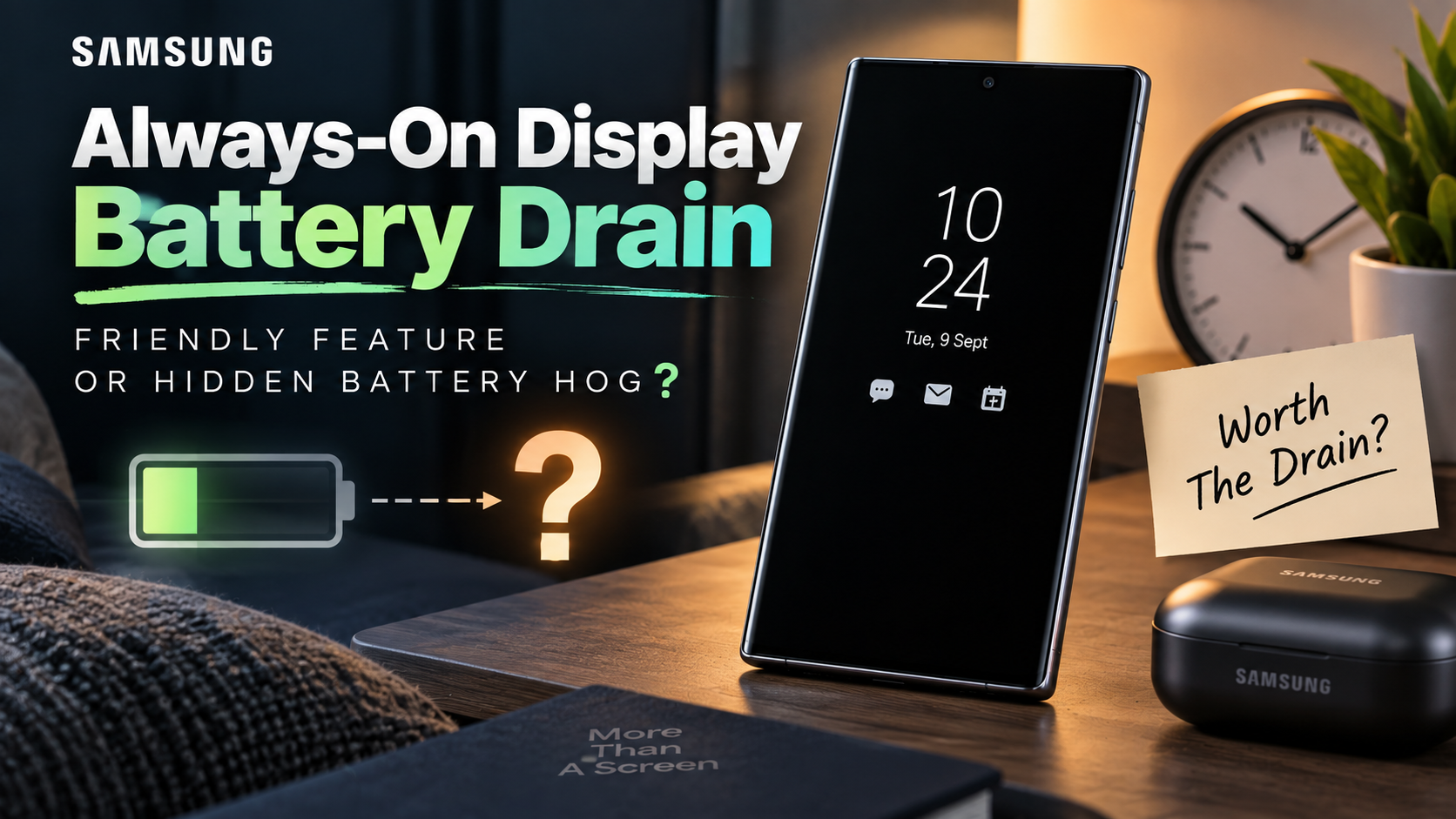
Few smartphone features divide opinion like the Always-On Display (AOD), especially when it comes to Samsung always-on display battery drain. Many Galaxy owners enjoy seeing the clock, notifications, and other details at a glance. They can check essential information without fully waking the phone.
Power-conscious users often worry that this convenience hurts daily battery life. Understanding Samsung always-on display battery drain makes the trade-off easier to judge.
Samsung designs AOD to use very little battery. Its AMOLED displays can light individual pixels without illuminating the entire panel. Black areas therefore require little or no display power.
Still, AOD is not completely free. Brightness, display content, usage patterns, and software settings can affect consumption.
This guide explains the real impact of AOD and how to reduce it. It also covers rapid battery loss, background apps, and practical Galaxy battery-saving settings.
How much does always-on display drain battery on Samsung?
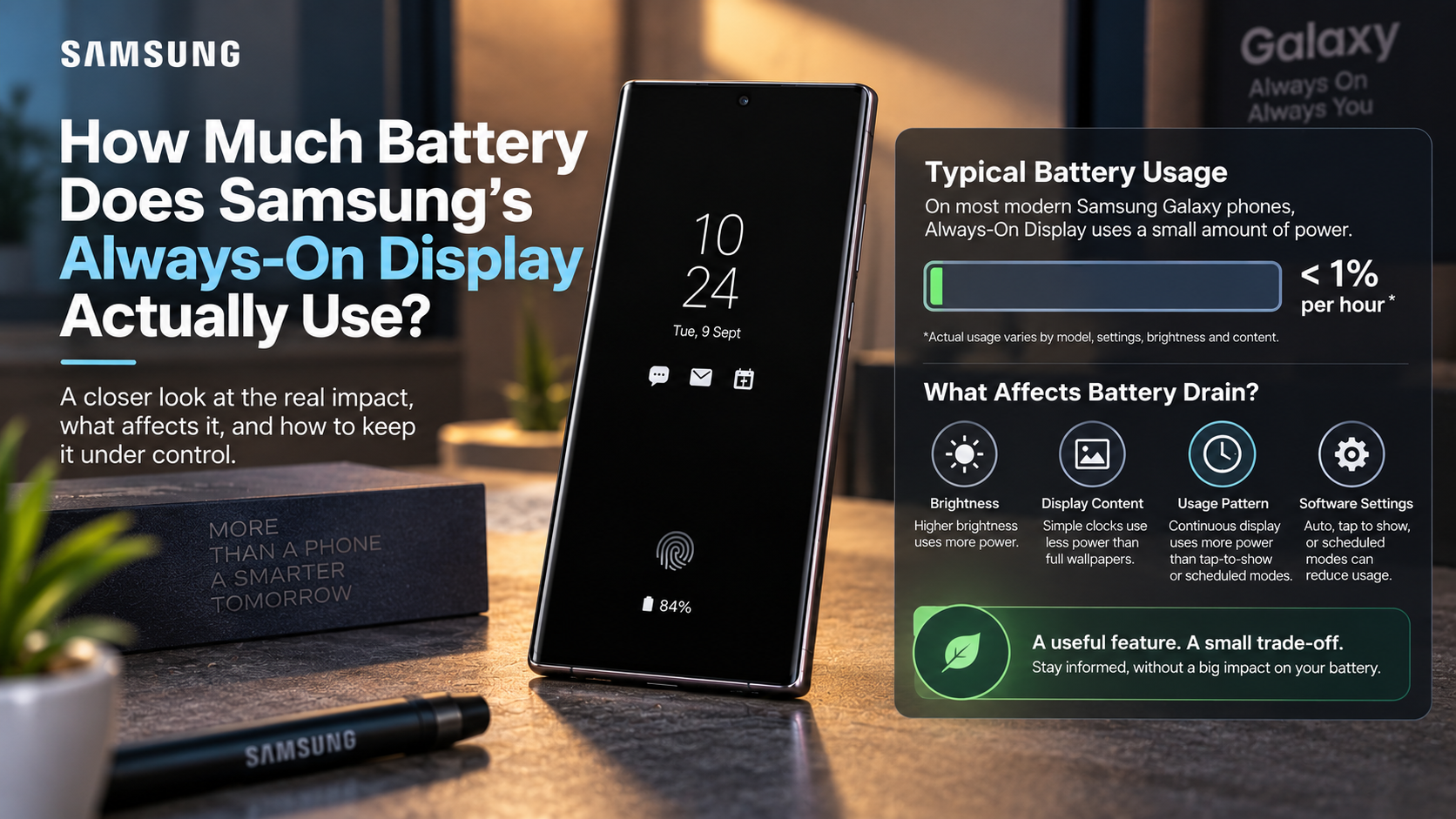
On modern Galaxy phones, Always-On Display battery usage is generally modest. AOD is designed to consume very little battery. However, actual results vary by model, settings, brightness, and usage.
A simple clock and notification icons usually consume less power than richer visual layouts. Bright environments can also increase display brightness.
The biggest difference comes from how often AOD remains visible and what it displays. Continuous AOD generally uses more energy than tap-to-show or scheduled modes.
For the lowest Samsung AOD battery drain, use a simple clock, avoid unnecessary visual effects, and limit display time. You can also use options such as Auto, Tap to show, or scheduled display on supported Galaxy devices.
The Impact of Ambient Brightness and Full Wallpaper
Brightness and on-screen content can influence AOD battery consumption. AMOLED technology helps because dark pixels require little power. However, brighter elements require more energy than dim, minimal graphics.
This becomes more important when AOD includes richer visuals. A simple digital clock uses fewer illuminated pixels than a large image or colorful lock-screen design.
Environmental lighting matters too. Bright sunlight can cause the display to increase brightness. This can raise battery consumption.
That does not mean AOD suddenly becomes a major battery drain outdoors. It simply means brightness can push consumption higher.
For better battery efficiency, consider these practical choices:
- Use a simple, dark clock style.
- Avoid unnecessary animated or image-heavy AOD content.
- Use Auto or scheduled display settings when available.
- Choose Tap to show when you rarely need constant information.
- Keep overall display brightness reasonable.
These changes can reduce unnecessary power use without disabling AOD completely.
How much battery does AOD actually use?
There is no single battery figure that applies to every Samsung Galaxy phone. Battery capacity, display technology, software, brightness, AOD design, and network conditions all affect consumption.
AOD is optimized to use very little battery. However, settings that keep the display active longer will increase consumption.
Older testing has shown that AOD can consume less than 1% per hour under certain conditions. That figure provides useful context, but it should not be treated as a universal measurement for every current Galaxy model.
The practical impact is easier to understand through battery percentage. If AOD adds around 0.5% to 1% per hour on a particular phone, continuous use could account for several percentage points over a day.
Actual results can differ substantially. Full-screen visual designs, higher brightness, and longer display periods can increase usage.
For most users, AOD is therefore a small but measurable battery cost, rather than a major source of battery loss. Managing charging habits can also help maintain long-term battery performance, which is why the 80-20 rule for rechargeable batteries is worth understanding.
Setting Tap-to-Show Mode to Minimize Energy Draw
Tap to show is one of the easiest ways to reduce Samsung always-on display battery drain. Instead of keeping AOD visible continuously, the phone shows it briefly after you interact with the screen.
This setting works especially well for people who only check the clock occasionally. You still get quick access to the time, notifications, and other supported information. You simply avoid keeping the display active throughout long idle periods.
To change the setting, open Settings, then find Always On Display or Lock screen and AOD, depending on your software version. Select When to show and choose Tap to show when available.
You can also choose a schedule if you want AOD during working hours only. This approach offers a useful balance between convenience and battery efficiency.
Tap to show is especially useful if your phone spends long periods on a desk or in your pocket. Instead of constantly displaying information, AOD activates only when you need it.
The result is a practical compromise. You retain quick access to essential information while reducing unnecessary battery consumption.
Does always-on display actually save battery?
In some situations, AOD may indirectly reduce battery use, although it does not guarantee a net saving. The main reason is simple. You can check basic information without fully waking the phone.
A full screen wake-up can activate a much brighter display and trigger additional system activity. Checking the time or notifications repeatedly can therefore add small bursts of power consumption throughout the day.
AOD provides persistent information without requiring repeated full-screen activation. This can be useful for people who frequently check their phones throughout the day.
The savings depend heavily on personal habits. Someone who checks the time dozens of times may benefit more than someone who rarely touches the phone.
AOD should therefore be viewed as a low-power alternative to repeated screen activation, not as a dedicated battery-saving feature.
If you frequently wake your Galaxy phone just to check the clock, AOD can make those checks more efficient. If you already avoid unnecessary screen activation, turning AOD off may provide slightly better battery life.
The best choice depends on how you use your phone each day.
Curtailing Habitual Screen Activation Cycles
Repeatedly waking your main display can add unnecessary battery consumption. Every activation uses the display, and brighter screens generally require more energy.
AOD provides a simpler alternative for quick checks. You can glance at supported information without opening the full interface.
This distinction matters most for habitual phone checking. If you repeatedly unlock your phone to check the time, notifications, or missed calls, those full-screen interactions can add up.
However, AOD does not eliminate all system activity. Notifications and other background processes still depend on the operating system and installed apps. Therefore, AOD should not be expected to solve broader battery-drain problems.
If battery life matters more than instant visibility, consider using Tap to show or a schedule. These options reduce the amount of time AOD remains visible.
The goal is simple: use AOD when it replaces unnecessary screen wakes. Disable or limit it when you rarely use the information it provides.
This approach lets you balance convenience with battery efficiency without making unnecessary changes to other phone settings.
Is 1% battery drain in 3 minutes normal?
A 1% battery drop in three minutes equals roughly 20% per hour. That can happen during demanding activities, but it is not normal for an idle Galaxy phone. For more common causes of excessive battery consumption, see Smartphone Mistakes That Reduce Battery Life.
Gaming, high-brightness video playback, camera recording, navigation, and other intensive workloads can produce rapid battery loss.
If your phone loses 1% every three minutes while sitting idle, investigate further. AOD alone would not normally explain such extreme consumption.
Potential causes include:
- An app running continuously in the background.
- Weak or unstable cellular reception.
- Excessive location activity.
- A software problem or crashed service.
- High background synchronization.
- An aging or degraded battery.
Start by checking your Galaxy battery usage screen. It can help identify applications or services consuming an unusual amount of energy.
Rapid idle drain deserves more attention than ordinary AOD consumption. Identifying the actual source can restore much more battery life than simply disabling AOD.
Troubleshooting Rapid Idle Power Consumption
When a Galaxy phone loses power quickly while idle, begin with the battery usage report. It can show whether a specific app or service is consuming an unusual amount of energy. Battery condition also matters, so understanding Battery Health Vs. Cycle Count can help when troubleshooting persistent drain.
Network conditions are another important factor. Weak or unstable signals can increase battery consumption because the phone works harder to maintain connectivity.
Background applications can also contribute significantly. Samsung Galaxy phones include options for placing rarely used apps into Sleeping or Deep sleeping modes.
You should also check your display settings. High brightness, longer screen timeouts, and demanding applications can increase battery use.
If the problem continues, restart the phone and install available software updates. Poorly optimized apps or software issues can sometimes contribute to inefficient battery behavior.
Most importantly, do not assume AOD is responsible. Severe idle drain usually requires broader troubleshooting, especially when the phone loses several percentage points without active use.
Checking battery usage, network strength, background apps, and display settings can help narrow down the cause.
What app is killing my battery?
Samsung Galaxy phones provide built-in tools for identifying applications with unusually high battery consumption. Open Settings, then go to Battery and review the battery usage information. Exact menu names can vary by model and software version.
Look for apps showing high consumption compared with how often you actually use them. Social media, navigation, streaming, messaging, and synchronization apps can sometimes perform substantial background activity. These are among the smartphone habits and mistakes that can reduce battery life over time.
Pay particular attention to applications with long background runtime. A program that consumes significant battery while you rarely open it deserves investigation.
Samsung also provides background usage controls. You can place infrequently used applications into Sleeping apps or Deep sleeping apps. Deep sleeping prevents an app from running in the background until you open it manually.
Do not immediately restrict essential apps. Background limits can delay notifications or other automatic functions.
If one app consistently appears near the top of your battery report, update it first. If the problem continues, consider restricting its background activity or uninstalling it.
Putting Power-Hungry Background Applications to Sleep
Samsung includes Background usage limits to help control applications that consume power while you are not actively using them. This feature can be more effective than disabling AOD when a third-party app causes serious battery drain.
To manage these settings, open Settings, select Battery, and find Background usage limits. From there, you can review Sleeping apps and Deep sleeping apps on supported Galaxy devices.
Sleeping apps have restrictions on background activity. Deep sleeping apps go further. These apps do not run in the background and only work after you open them manually.
This approach works well for applications you rarely need. Examples may include old shopping apps, infrequently used games, or services that do not need immediate notifications.
Use the feature carefully with messaging, security, navigation, and other important applications. Restricting them may delay essential updates.
If battery drain remains unusually high after controlling background apps, check network conditions, display settings, and battery health.
Managing background activity can often deliver a larger battery improvement than simply turning off AOD.
Frequently Asked Questions
Does the ambient display cause screen burn-in on Samsung devices?
No, Always-On Display does not normally cause screen burn-in on supported Galaxy devices. The system automatically repositions AOD elements over time. This movement helps prevent the same pixels from displaying identical content continuously.
The repositioning is subtle. You may not notice the clock or notification icons moving during normal use. However, those small changes help distribute pixel usage across the panel.
Burn-in is therefore not a primary reason to avoid Samsung AOD. Modern Galaxy devices include software designed to reduce this risk during normal AOD operation.
Keep in mind that display behavior varies by device and software version. Available AOD settings can differ between models.
If you want to minimize both battery use and display activity, choose a simpler AOD design. Fewer illuminated elements generally require less display power.
For most Galaxy owners, the practical concern is battery consumption rather than AOD-related burn-in. The feature is designed to provide persistent information while limiting power use.
Does Samsung’s ambient display automatically turn off in your pocket?
On supported Galaxy devices, Samsung provides an Auto AOD mode that can stop showing AOD when the phone detects a dark environment or placement inside a purse or pocket. This helps reduce unnecessary battery consumption when you cannot see the display.
The behavior depends on the phone’s sensors, software version, and selected AOD settings. Available options can also vary by device.
This means you should not assume every Galaxy phone behaves exactly the same way. If your AOD remains visible unexpectedly, check the When to show setting under AOD.
Choosing Auto can provide a useful balance between convenience and efficiency. The display remains available when conditions allow useful viewing. It can stop appearing when the phone is in a dark or enclosed location.
You can also use Tap to show if you want more control. This mode displays AOD only briefly after you tap the screen.
These options can reduce unnecessary Samsung always-on display battery drain without requiring you to disable AOD completely.
How much extra battery does a full-screen lock screen display consume?
There is no universal percentage for a full-screen AOD layout. Consumption depends on the Galaxy model, display technology, brightness, image content, software, and how long the feature remains active.
A simple clock generally illuminates fewer pixels than a larger, image-heavy design. Because AMOLED displays control pixels individually, brighter and more numerous illuminated areas can require more energy than a mostly black display.
AOD settings that keep the display active longer will also use more battery. Bright environments can increase brightness and raise consumption further.
For this reason, avoid treating figures such as 1.5% or 2.5% per hour as fixed specifications. Real-world consumption can differ substantially between devices and settings.
If battery life is your priority, choose a simple clock and limit visual elements. Tap-to-show or scheduled AOD can reduce exposure further.
The important principle is straightforward: more illuminated content and higher brightness generally mean higher display power consumption. That makes minimalist AOD designs a sensible choice for maximizing battery life.
Can running Power Saving Mode automatically disable the ambient screen?
Yes. Power saving mode disables Always-On Display on supported Galaxy phones to extend battery life. The feature also restricts other power-consuming activities, such as background data and certain performance functions.
Samsung Galaxy phones allow you to enable Power saving from the battery settings. Depending on your model, you may also see additional options for customizing how aggressively power use is reduced.
This makes Power saving mode useful when your battery level is already low. It can reduce several sources of consumption at once instead of targeting AOD alone.
If you want AOD available during normal daily use, you can leave Power saving off and manage AOD separately. Tap-to-show and scheduled modes provide more control over when the display appears.
Remember that Samsung menus can differ between Galaxy models and software versions. If the option looks different on your phone, search Settings for Always On Display or Power saving.
When battery reserves become critical, disabling AOD through Power saving mode is a simple way to conserve energy.
Conclusion
Understanding Samsung always-on display battery drain makes it easier to decide whether AOD belongs on your Galaxy phone. Samsung designs the feature to use very little battery.
Actual consumption varies by model, display settings, brightness, content, software, and usage habits. Older testing has shown that AOD can consume less than 1% per hour under certain conditions, but that should not be treated as a universal figure for every Galaxy device.
For most users, AOD represents a small but measurable battery cost. Simple clock designs and shorter display periods can reduce that cost further.
If you want to maximize battery life, try these adjustments:
- Use a simple, dark AOD clock.
- Choose Tap to show when continuous visibility is unnecessary.
- Use Auto or scheduled AOD when supported.
- Review Battery usage for unusually active apps.
- Move rarely used apps into Deep sleeping apps.
- Enable Power saving mode when battery reserves are low.
Your habits ultimately matter most. If AOD prevents frequent full-screen wake-ups, its convenience may justify the modest power cost. If battery life is your top priority, limiting AOD remains an easy optimization.