
How to Make Your iPhone Respond Only to Hey Siri
Accidental voice activations can make Siri frustrating to use every day. If your iPhone responds to nearby conversations or television voices, changing its activation settings can help. Learning how to make your iPhone respond only to Hey Siri gives you better control over voice activation.
Apple allows users to choose how Siri listens for voice commands. You can select the traditional two-word phrase instead of the single-word Siri command. This setting helps reduce unwanted activations in busy environments. You can also retrain Siri to recognize your voice more accurately.
Beyond activation settings, Siri offers several customization options. You can change its voice, explore humorous responses, and create personalized commands. Some users also wonder whether Siri recognizes specific emergency numbers or responds to unusual questions.
This guide explains everything you need to know. You will learn how to make your iPhone respond only to Hey Siri, retrain voice recognition, and customize responses. We will also explore emergency-number behavior and creative Shortcuts features.

How to make an iPhone respond to Hey Siri?
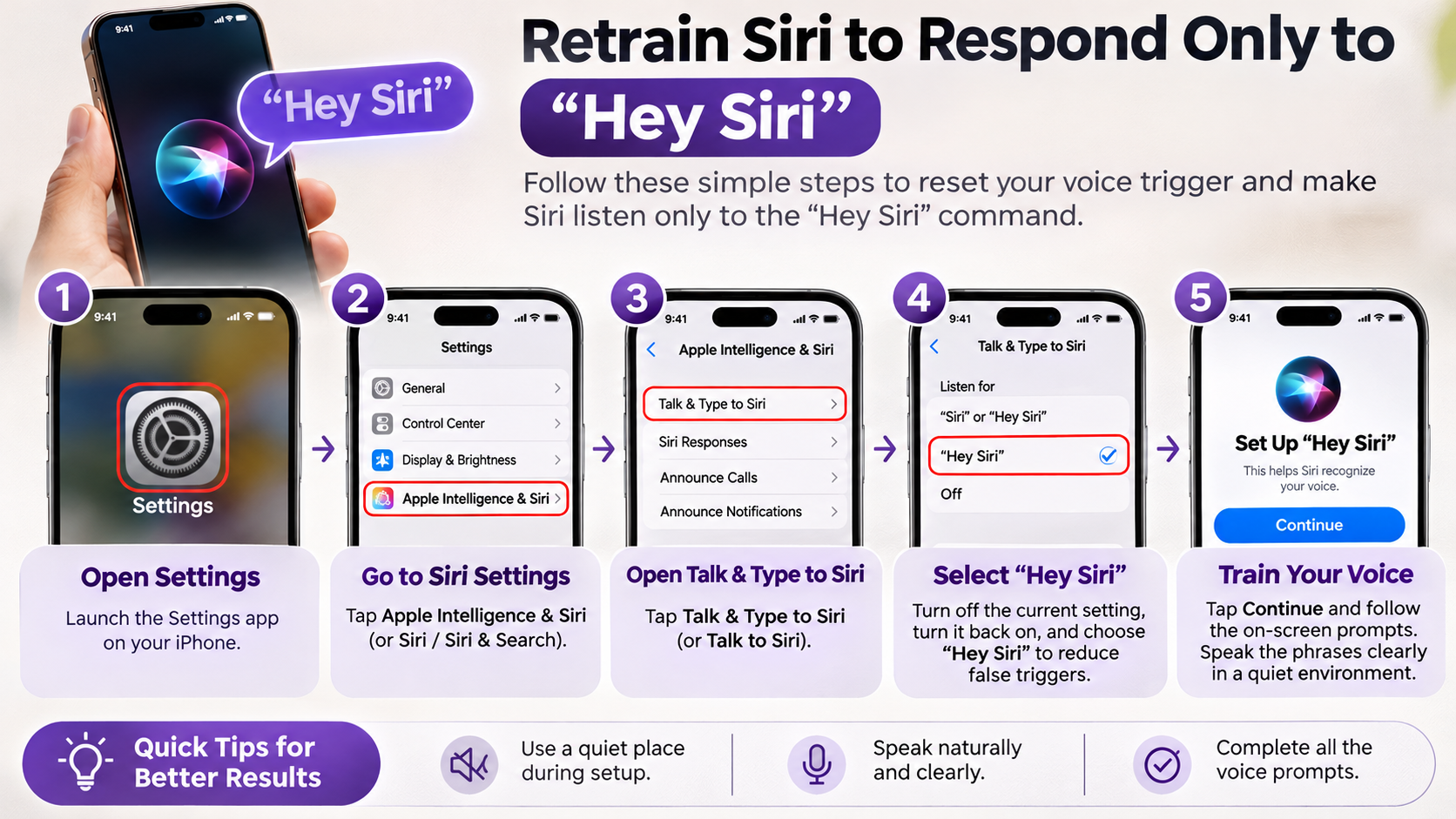
You can configure your iPhone to activate Siri only when you say Hey Siri. This prevents the single-word Siri command from triggering the assistant. However, the exact menu names depend on your installed iOS version. If you are also concerned about Apple’s AI features accessing personal information, explore these ways to protect your privacy from Siri AI.
Follow these steps to change your activation preference:
-
Open the Settings app on your iPhone.
-
Tap Siri or Apple Intelligence & Siri.
-
Select Talk to Siri or Talk & Type to Siri.
-
Choose the Hey Siri option, if available.
-
Follow the onscreen instructions to complete voice recognition setup.
Some older iOS versions display this option under Siri & Search or Listen for.
After completing the setup, your iPhone listens for the full activation phrase. It no longer uses the single-word Siri command.
One important distinction remains. This setting controls voice activation, not every way of opening Siri. Pressing the side button can still activate the assistant if that feature remains enabled. Disable Press Side Button for Siri if you want to prevent button-based activation.
Enabling Listen for Hey Siri in Settings
Your iPhone needs to complete voice recognition setup before hands-free activation works properly. During setup, Apple asks you to speak several phrases. Follow each instruction naturally and use your normal speaking voice.
For better results, consider these practical tips:
-
Complete the setup in a relatively quiet room.
-
Speak clearly without deliberately changing your accent.
-
Keep your iPhone at a comfortable speaking distance.
-
Check that the microphone openings are clean.
-
Make sure Siri is enabled in your device settings.
Low Power Mode should not be treated as a universal reason for Siri activation problems. Instead, check your actual Siri settings first.
If you want fewer accidental activations, placing your iPhone face down can also help. This provides an additional way to prevent unwanted voice activation. You can also improve notification privacy by learning how to stop Siri from reading notifications on AirPods.
Remember that voice activation and button activation are separate settings. Review both if you want Siri to respond only to your chosen voice command.
Can I set Siri to only respond to my voice?
Siri can learn your voice during its initial setup. However, this does not create an exclusive biometric voice lock. Apple uses voice recognition to improve activation accuracy, but it does not guarantee that other people cannot activate Siri.
When you enable Hey Siri, your iPhone asks you to repeat several displayed phrases. This process helps the device recognize your speech patterns. If Siri frequently activates around other speakers, retraining its voice recognition may help.
To retrain Siri, open your iPhone settings and locate the voice activation options. Turn off Hey Siri, then turn it back on. Follow the instructions to complete the setup again.
Try performing this process somewhere quiet. Background conversations and television sounds can interfere with your setup experience.
Remember that retraining improves recognition rather than guaranteeing personal-only access. If privacy is your priority, consider disabling voice activation when you do not need it. You can still activate Siri manually using the side button, if enabled. You may also want to delete your Siri AI conversation history to manage previously stored interactions.
Retraining Voice Recognition for Better Accuracy
Retraining Siri can help when your iPhone struggles to recognize your usual speaking voice. This is particularly useful after changing your speaking habits or experiencing repeated activation problems.
Use the following approach for a more consistent setup:
-
Find a quiet environment with minimal background noise.
-
Open Settings and locate your Siri activation preferences.
-
Turn off the existing voice activation option.
-
Enable Hey Siri again.
-
Repeat every phrase displayed on your screen.
-
Finish the setup and test the activation phrase.
Speak naturally instead of exaggerating individual words. Your normal pronunciation provides a more representative voice sample.
Also, avoid holding the phone directly against your mouth. Maintain a comfortable distance while completing the prompts.
These steps can improve recognition accuracy. However, they cannot guarantee that Siri will reject every other person’s voice. Voice recognition should not replace your iPhone’s security features.
What happens if you say 14 to Siri?
There is no universal iPhone feature that automatically calls emergency services whenever you say the number 14 to Siri. Emergency-number behavior depends on your country, region, and available services. Therefore, claims about 14 triggering an emergency countdown should not be treated as universally accurate.
Siri can help contact emergency services when you explicitly request an emergency call. For example, users in supported regions can say, “Hey Siri, call 911.” The correct emergency number varies by location. In India, the national emergency response number is 112.
You should never experiment with emergency commands using actual emergency services. Accidental calls can occupy emergency communication resources and create unnecessary work for dispatchers.
If you want to understand emergency calling on your device, review the Emergency SOS settings on your iPhone. Check your country’s emergency numbers before relying on voice commands. You can also explore how to disable Apple Intelligence on your iPhone if you prefer more control over Apple’s AI features.
Why You Should Never Test Emergency Codes
Testing emergency numbers for entertainment is unnecessary and potentially disruptive. Emergency services exist to help people facing immediate danger. Accidental calls can create confusion for operators and consume valuable resources.
Keep these precautions in mind:
-
Never call an emergency number just to test Siri.
-
Avoid creating shortcuts that automatically contact emergency services.
-
Learn your local emergency number before travelling.
-
Use Apple’s Emergency SOS feature only when necessary.
-
Explain accidental emergency calls honestly if you contact emergency services.
Remember that emergency numbers differ between countries. A number used for emergencies in one location might have an entirely different purpose elsewhere.
If you accidentally initiate an emergency call, follow the instructions displayed on your iPhone. If the call connects, explain the situation to the operator instead of simply disconnecting.
Understanding these precautions helps you use Siri responsibly. It also prevents unnecessary emergency calls while exploring your iPhone’s voice assistant features.
How to get sassy Siri?
Siri does not have a dedicated attitude or sarcasm setting. However, you can discover humorous responses by asking unusual questions. Apple’s assistant includes several playful responses that make everyday interactions more entertaining.
Try asking Siri questions such as:
-
“Do you have a boyfriend?”
-
“What is zero divided by zero?”
-
“Where do babies come from?”
-
“Do you like me?”
-
“Can you tell me a joke?”
-
“What is your favourite movie?”
The responses can vary depending on your iOS version, language, and region. Some questions produce funny answers, while others receive straightforward explanations.
You can also experiment with Siri’s available voice options. Open Settings, select Siri, and explore the available voice variations. Depending on your device and language, you may find different accents and voice styles. If you use an Android device, you can also explore Samsung’s alternatives to Siri and compare their voice assistant features.
Another option is Apple’s Shortcuts app. It lets you create personalized voice commands and humorous spoken responses. This gives you more control over what your iPhone says.
Crafting Custom Witty Answers Using Shortcuts
The Shortcuts app lets you create personalized responses that sound funnier than standard assistant replies. You can build a shortcut containing your own jokes, punchlines, or sarcastic comments. These customization options are part of the growing collection of popular iOS AI features iPhone users enjoy.
Follow these steps:
-
Open the Shortcuts app on your iPhone.
-
Tap the plus (+) button to create a shortcut.
-
Select Add Action.
-
Search for the Speak Text action.
-
Enter your preferred funny response.
-
Give the shortcut a recognizable name.
-
Save your shortcut.
Now activate Siri and speak the shortcut’s name. Your iPhone should execute the shortcut and read your custom response aloud.
For example, name your shortcut “Tell Me a Joke” and enter a funny sentence. Saying that phrase to Siri runs your personalized response.
You can create several shortcuts for different situations. However, these shortcuts do not replace Siri’s built-in personality. They simply add your own responses through Apple’s automation tools.
How to make Siri respond rudely?
Apple designs Siri to maintain a generally polite and family-friendly personality. There is no built-in setting that makes the assistant swear, insult users, or behave aggressively.
However, you can create custom responses that sound blunt, sarcastic, or playful. The Shortcuts app provides a simple way to achieve this without modifying your iPhone’s operating system.
For example, you could create responses for questions such as:
-
“Are you smarter than me?”
-
“Why are you so slow?”
-
“Do you ever get tired?”
-
“Can you stop talking?”
You can assign a custom shortcut to each question or phrase. When you activate the shortcut through Siri, your iPhone speaks the response you created.
This approach gives you control over the wording and delivery. You can change the responses whenever you want.
Keep in mind that these are custom automations, not native Siri personality settings. Standard Siri responses remain unchanged.
Setting Up Rude Prank Responses Safely
You can use Apple’s Shortcuts app to create harmless prank responses for friends and family. The process is similar to creating humorous answers, but you can write more sarcastic dialogue.
Here is how to configure one:
-
Open the Shortcuts app.
-
Tap the plus (+) icon.
-
Choose Add Action.
-
Search for Speak Text.
-
Enter your preferred sarcastic response.
-
Rename the shortcut with a memorable phrase.
-
Tap Done to save it.
For example, create a shortcut named “Give Me Advice.” Add a response such as, “Have you tried thinking about it first?”
Next, activate Siri and speak the shortcut’s exact name. Your iPhone will run the shortcut and speak your custom message.
You can create different responses for different situations. Keep the jokes harmless and avoid scripts that imitate emergency alerts or mislead people about important situations.
This method offers a simple way to personalize Siri without jailbreaking your iPhone or installing questionable third-party applications.
Conclusion
Learning how to make your iPhone respond only to Hey Siri helps reduce accidental activations and gives you better control over voice commands. By adjusting your listening preferences and retraining voice recognition, you can create a more convenient experience. You can also explore custom shortcuts, funny responses, and different voice options to personalize Siri.
Remember that voice recognition does not guarantee that Siri will respond exclusively to your voice. Review your activation preferences and button settings to avoid unwanted interruptions.
For additional guidance, explore Apple’s official guide on changing Siri settings on your iPhone. It explains the available options for customizing Siri and managing voice activation.
With a few simple adjustments, you can make Siri more useful, personalized, and convenient for everyday tasks.