
How to Disable Apple Intelligence on Your iPhone and Protect Your Privacy
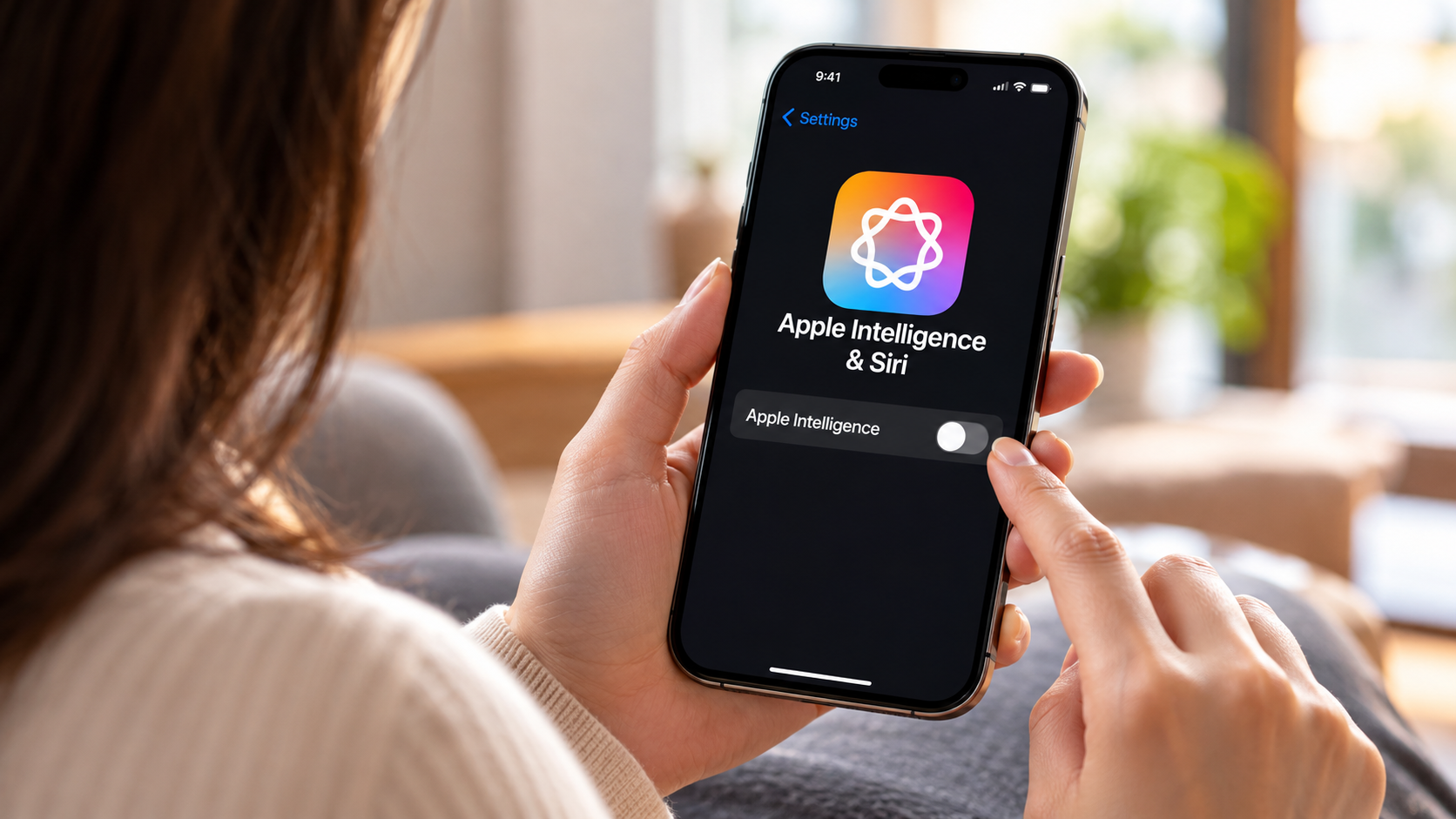
If you want to disable Apple Intelligence on your iPhone, you can turn off Apple’s AI-powered features directly through Settings. These tools can help you rewrite text, summarize notifications, edit images, and interact with Siri. However, if you prefer greater control over your privacy and AI features, you can disable Apple Intelligence or adjust individual settings to suit your needs.
Disabling Apple Intelligence is only one part of managing your iPhone’s privacy. You can also review app tracking permissions, location access, analytics sharing, and content restrictions.
This guide explains how to turn off Apple Intelligence, limit unwanted tracking, manage adult content filters, and adjust background activity. These settings give you more control over your device without requiring you to disable every useful iPhone feature.

Can I Disable Apple Intelligence on My iPhone?
Yes, you can disable Apple Intelligence through your iPhone’s Settings app if your device supports the feature. The exact options may vary depending on your iOS version, region, and device compatibility.
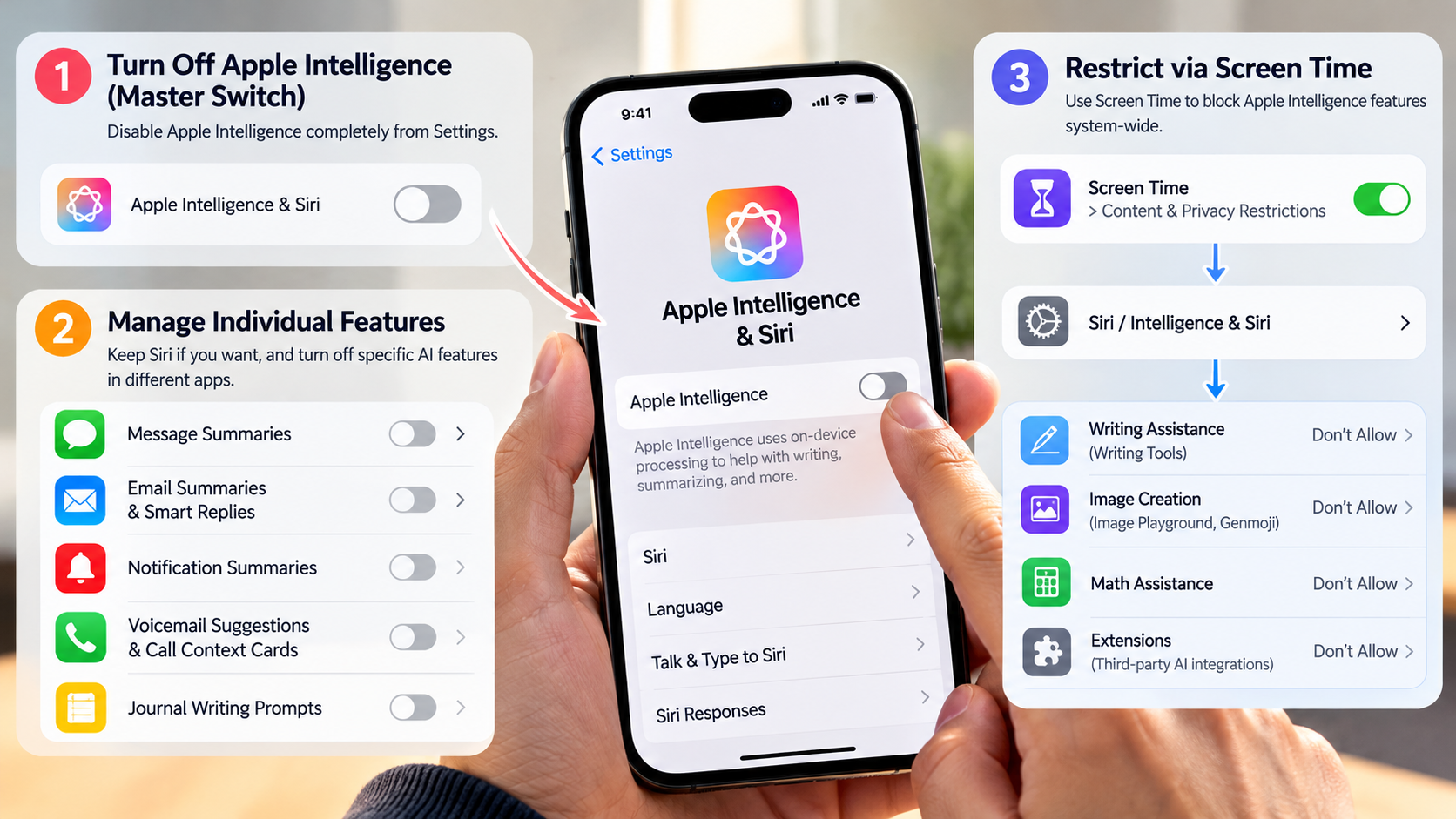
To turn it off, follow these steps:
- Open Settings on your iPhone.
- Tap Apple Intelligence & Siri.
- Find the Apple Intelligence setting.
- Turn off Apple Intelligence and confirm if prompted.
Once disabled, supported Apple Intelligence features will no longer operate as they normally would. Standard Siri functions may remain available, depending on your settings and iOS version.
Keep in mind that turning off Apple Intelligence does not disable every form of machine learning or data processing on your iPhone. Other iOS features and third-party apps may continue to use their own AI capabilities.
You can turn Apple Intelligence back on whenever you want. Disabling it also does not automatically change your app permissions, location settings, or analytics preferences.
Disabling Individual Features While Keeping Siri
You do not necessarily need to disable Apple Intelligence completely to reduce unwanted AI activity. If you still use Siri for alarms, timers, calls, or other everyday tasks, consider reviewing the individual features available on your device. You can also explore popular iOS AI features to understand which tools you may want to keep enabled.
Depending on your iOS version, you may be able to adjust Writing Tools, notification summaries, image editing tools, and other AI-powered functions separately. The available controls differ by feature, so check the relevant settings before making changes.
To reduce interruptions, review notification settings and disable summaries for apps where they are not useful. You can also avoid using Writing Tools when you prefer to edit messages manually.
If your main concern is Siri rather than Apple Intelligence, review the Siri settings separately. Turning off Apple Intelligence and disabling Siri are not necessarily the same action.
This approach lets you retain useful voice assistance while limiting specific AI features. It also avoids changing settings you still rely on every day.
How Do I Turn Off iPhone Tracking?
Your iPhone includes privacy controls that let you limit app tracking, analytics sharing, advertising personalization, and location access. Reviewing these settings can reduce certain types of data collection, although no single switch stops every form of tracking. You can also learn what the green and orange lights on iPhone mean to better understand when apps access your camera or microphone.
Start by opening Settings > Privacy & Security > Tracking. Turn off Allow Apps to Request to Track to prevent apps from requesting permission to track your activity across other companies’ apps and websites.
Next, return to Privacy & Security and open Analytics & Improvements. Turn off the available analytics-sharing options if you do not want to share diagnostic information with Apple or app developers.
You can also open Apple Advertising and disable personalized ads. This limits the personalization of ads delivered by Apple, but it does not necessarily reduce the number of ads you see.
These controls serve different purposes. App tracking permissions do not block every website tracker, and analytics settings do not prevent all diagnostic processing. Review them alongside your browser privacy settings for broader protection.
Limiting Background App Location Access
Location permissions determine when individual apps can access your iPhone’s location. Reviewing these permissions is useful if you want to reduce unnecessary location sharing.
Open Settings > Privacy & Security > Location Services. Select an app to review its available location options.
Depending on the app, you may be able to choose Never, Ask Next Time or When I Share, While Using the App, or Always. Choose the option that matches how you use the app.
For example, a navigation app may need location access while you travel. A simple shopping app may not need continuous access to your location.
You can also disable Precise Location for supported apps. This allows an app to receive an approximate location instead of your precise position.
Review System Services as well if you want to manage location-related system features. Some services support useful functions, so consider their purpose before disabling them.
These adjustments help limit location access, but they do not prevent every possible method of determining your location. Apps may still infer your approximate location from other information, such as your network connection.
How Do I Turn Off 18+ Restrictions on My iPhone?
If you want to remove adult website restrictions on your own iPhone, check the Web Content settings under Screen Time. These controls can limit access to adult websites and other content, depending on how your device is configured.
Follow these steps:
- Open Settings and tap Screen Time.
- Select Content & Privacy Restrictions.
- Open the content restriction options. Depending on your iOS version, these may appear under App Store, Media, Web & Games or a similarly named menu.
- Tap Web Content.
- Select Unrestricted or Unrestricted Access, depending on the wording displayed.
This setting removes the web content filtering imposed by that Screen Time control. It does not guarantee access to every website, because network filters, website rules, and other restrictions may still apply.
You may need the Screen Time passcode to change these settings. If the iPhone is managed by a parent, school, employer, or organization, additional restrictions may also apply.
You can review media ratings separately if you want to change restrictions for movies, television shows, music, or apps. These settings are independent of the web content filter.
Disabling Screen Time Entirely for Full Access
You can turn off Screen Time if you no longer want to use its app limits, downtime schedules, or activity reports. However, doing so is not necessary just to change adult website restrictions.
Open Settings > Screen Time and look for the option to turn off App & Website Activity or Screen Time management. The exact label and location may vary by iOS version.
Before disabling it, consider whether you rely on app limits, scheduled downtime, or other controls. Turning off Screen Time may remove restrictions you still want to keep.
If the device belongs to a child or is managed through Family Sharing, the available controls may differ. You may need the appropriate passcode or account permissions to make changes.
For most users, changing only the Web Content setting is the more targeted approach. It allows you to adjust website access without removing unrelated Screen Time features.
Remember that removing Screen Time restrictions does not disable Apple Intelligence or change your app tracking permissions. Those settings must be managed separately.
What Are Five Things I Should Turn Off on My iPhone?
If you want more control over your iPhone, start by reviewing five settings that affect privacy, background activity, or data sharing. You do not need to disable all of them; choose the options that match your priorities.
- Significant Locations: Review this feature under Settings > Privacy & Security > Location Services > System Services. Turning it off limits this particular location-history feature.
- Background App Refresh: Find it under Settings > General > Background App Refresh. Disable it for selected apps or entirely if you do not want them refreshing content in the background.
- Analytics Sharing: Open Settings > Privacy & Security > Analytics & Improvements and turn off sharing options you do not want enabled.
- Personalized Ads: Go to Settings > Privacy & Security > Apple Advertising and disable Personalized Ads.
- Unnecessary Location Access: Review Location Services and remove access from apps that do not need your location.
These changes can reduce certain background activities and limit some data sharing. However, their effects on battery life and performance depend on your device and usage.
If you also want to address sluggish performance, explore these ways to speed up your iPhone and identify other settings worth adjusting.
Why Disabling Background App Refresh Matters
Background App Refresh allows supported apps to check for updates and refresh content when you are not actively using them. This can make information appear more current when you reopen an app, but it may also involve background network activity. If battery drain is your main concern, follow this guide to improving iPhone battery life for additional ways to manage power consumption.
To manage it, open Settings > General > Background App Refresh. You can disable the feature completely or restrict it for selected apps.
Consider limiting Background App Refresh for social media, shopping, and other apps that do not need frequent updates. Keep it enabled for apps where background refreshing provides a benefit you value.
The effect on battery life varies. Disabling Background App Refresh does not guarantee a major improvement, because screen brightness, mobile signal strength, battery health, and other activities can also affect power consumption.
It is also important to distinguish background refreshing from notifications. Some apps can still deliver notifications when Background App Refresh is disabled.
For better results, check your battery usage under Settings > Battery. This helps you identify which apps consume the most power before deciding which settings to change.
Conclusion
Learning how to disable Apple Intelligence on your iPhone gives you more control over the AI features you use every day. You can turn off Apple Intelligence, manage app tracking permissions, limit location access, and adjust Screen Time restrictions to match your preferences. You can also review Background App Refresh and analytics sharing to manage background activity and data collection.
For detailed guidance on protecting your personal information, visit Apple’s official iPhone privacy and security guide. Keep in mind that these changes do not stop all tracking or guarantee longer battery life. Review your settings regularly and disable only the features you do not need. With a few adjustments, you can create a more private, personalized iPhone experience while keeping the features that matter most to you.