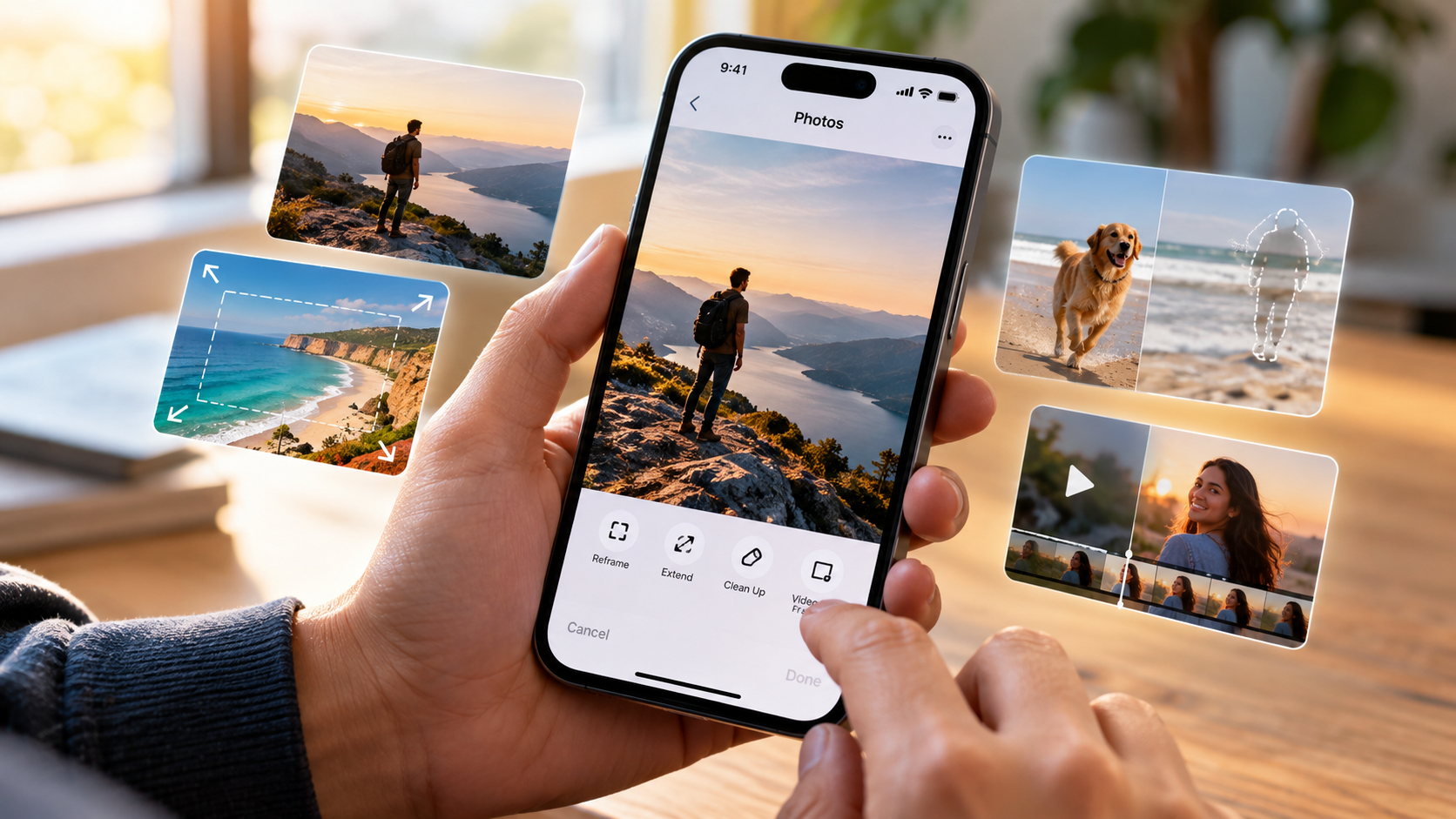
5 Cool New Features To Try In The iOS 27 Photos App
Your iPhone camera can capture incredible photos, but taking the picture is only half the job. Finding the right image, fixing an awkward composition, or removing an unwanted person can take much longer than expected. The iOS 27 Photos app aims to make those tasks easier with several useful new tools.
Apple has added new AI-powered editing options alongside better ways to organize your growing photo library. You can now change the perspective of an existing picture, generate extra space around an image, and remove distracting objects. You can even turn a favorite moment from a video into a standalone photo. For a broader look at the update, check Apple’s official iOS 27 overview.
The update also gives you more control over your library. Star ratings and custom keywords make it easier to identify and find important photos later.
Whether you take hundreds of pictures every month or simply want faster editing tools, these features are worth exploring. Here are five iOS 27 Photos app features that can make your everyday photo workflow easier.
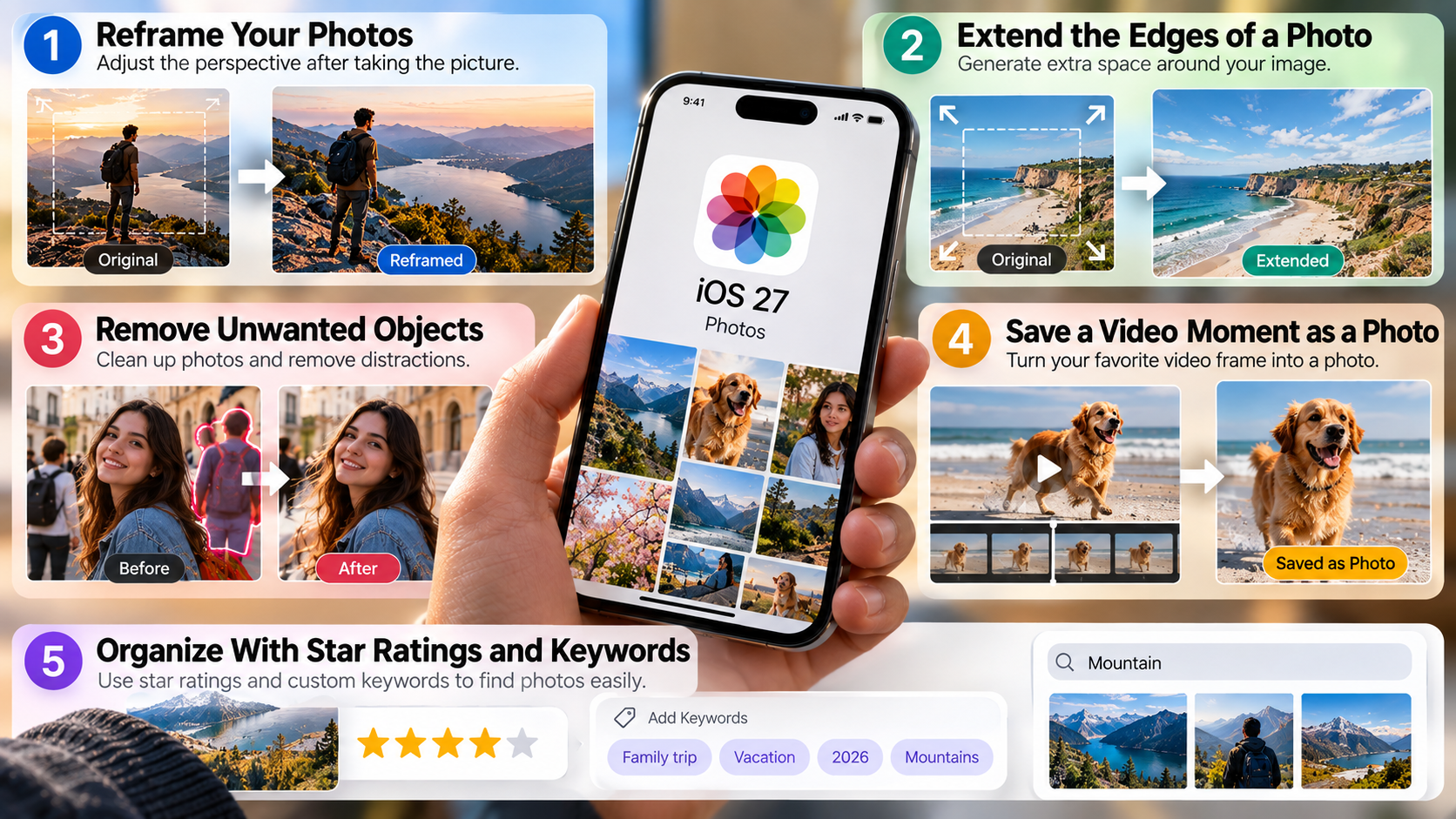
1. Reframe Your Photos After Taking Them
Getting the perfect composition is not always possible when you are taking a photo. A subject might be slightly off-center, or you may wish you had captured the scene from a different perspective.
The Reframe tool in the iOS 27 Photos app gives you a way to adjust the perspective after taking the picture. Instead of simply cropping the image, you can reposition the scene and create a different visual angle.
Apple Intelligence generates additional image content where necessary. This allows the photo to maintain a natural-looking composition after the perspective changes.
To try the feature, open a photo in Photos and select Edit. Go to Tools, then choose Reframe. Move the image until you find a composition you prefer.
You can compare the modified version with the original before saving it. If you later dislike the result, you can return to the original photo through the editing controls.
This makes Reframe particularly useful for travel photos, portraits, and shots where the original framing was not quite right.
2. Extend the Edges of a Photo
Sometimes a photo looks good, but it does not have enough empty space around the subject. This can become a problem when you want to use the image as wallpaper, a social media post, or another design.
The Extend tool addresses this problem by expanding the visible area beyond the original photograph. Instead of simply stretching the existing pixels, Apple Intelligence generates new content around the edges.
Open the image you want to modify and enter the Edit interface. Select Tools, then choose Extend. Adjust the image to determine how much additional space you want.
Photos will process the selected area and attempt to continue the surrounding scene naturally. You can then review the result before saving it.
This feature can be especially useful for photos with simple backgrounds. It can also help when the original composition feels too tight.
If you want to experiment without changing the original, create a duplicate first. That gives you a separate copy for testing different extensions.
3. Remove Unwanted Objects With Clean Up
Unwanted objects can easily ruin an otherwise useful photograph. A stranger walking behind your subject, a distracting sign, or another background element can pull attention away from the main scene.
The Clean Up tool in the iOS 27 Photos app helps remove these distractions directly from your iPhone. Instead of opening a separate editing application, you can work on the image within Photos.
Open a picture and enter the editing tools. Select Clean Up, then identify the part of the image you want to remove. The tool processes the selected area and generates replacement content based on the surrounding scene.
The updated Clean Up experience is particularly useful for busy backgrounds. It can help make travel photos, street photography, and everyday snapshots look cleaner.
However, AI-generated edits are not guaranteed to be perfect. Complex backgrounds can sometimes produce visible inconsistencies.
For the best results, inspect the edited area carefully before saving. If the result looks unnatural, you can undo the change or return to the original image.
4. Save a Video Moment as a Photo
A video can contain a perfect moment that you never captured as a separate photograph. Until now, taking a screenshot was one of the simplest ways to save that moment.
The Save Video Frame as Photo option makes the process much cleaner in iOS 27. You can select a specific frame from a video and save it directly to your Photos library as an image.
Start by opening a video in Photos. Move through the recording until you reach the exact moment you want to capture. Pause the video, then open the three-dot menu and select Save Video Frame as Photo.
The selected frame is saved as a separate photo. You can then edit, share, organize, or delete it like any other image.
This can be useful for action shots, family videos, vacations, and spontaneous moments. You may also find it helpful when someone records an event instead of taking photographs.
The biggest advantage is convenience. You no longer need to take a screenshot and crop away unwanted interface elements afterward.
5. Organize Your Library With Star Ratings and Keywords
Managing a large photo library becomes easier when you can add your own labels. iOS 27 introduces star ratings and custom keywords, giving you more control over how you organize photos and videos. If you also use cloud storage for your library, comparing iCloud Photos and Google Photos can help you choose how to store and access your collection.
You can rate individual media files from one to five stars. This is useful when sorting through several similar images and deciding which ones deserve to stay in your collection.
You can also add custom keywords to make certain photos easier to find later. For example, you could use terms such as family trip, work project, birthday, or 2026 vacation.
To use ratings, enable the relevant rating controls in the Photos settings. You can then assign a star rating while viewing a photo or video.
Keywords can be added from the information panel for individual media. Later, search for a keyword to find the photos and videos connected to it.
These tools are especially useful for large libraries. Instead of relying only on albums or Favorites, you can create a more flexible personal organization system.
What are the new photo features in iOS 27?
The iOS 27 Photos app introduces several tools designed to make photo management faster and more intuitive. Smarter visual organization can help you browse large libraries without manually checking every image. Improved search also makes it easier to locate specific photos using descriptive terms.
The app can recognize visual details and organize related content. This can reduce the time needed to find pictures from trips, events, or everyday activities.
Editing also becomes more convenient with tools designed for quick adjustments. Background and object controls can help you focus on the parts of an image that matter most.
Key improvements include:
- Smarter photo organization for large libraries.
- Natural-language search for more specific queries.
- Object isolation for separating subjects from backgrounds.
- Memory features for creating engaging photo collections.
- Cleanup tools for removing unwanted elements.
Together, these features make everyday photo management simpler and faster.
What are the new iOS 27 features?
The Photos app is only one part of the broader iOS 27 experience. The update also introduces changes across the system, including widgets, customization, communication, battery management, and privacy controls.
Interactive widgets can provide more information without requiring you to open the associated app. This can make simple tasks faster during everyday use.
The system also expands customization options for the Lock Screen. Users can adjust the information displayed and make it better suited to their daily routines.
Other areas receive improvements as well. Translation tools can help with communication across supported apps, while battery features are designed to manage charging more intelligently.
Privacy remains another important part of the update. More detailed controls can help users understand how apps access certain device features.
Some notable areas include:
- Interactive widgets for quicker actions.
- Lock Screen customization for more control.
- Translation features across supported apps.
- Battery optimization based on usage patterns.
- Expanded privacy controls for connected features.
These changes extend the update beyond photography.
What is the 3 finger trick on iPhone?
The three-finger gesture is a useful iPhone shortcut for editing and managing content. It can reduce the need to open menus when performing common actions.
A three-finger pinch inward can copy selected content. Repeating the appropriate gesture can cut content, while an outward three-finger pinch can paste it.
You can also use three-finger gestures for undo and redo. Swiping three fingers to the left can undo an action. Swiping three fingers to the right can redo an action.
These gestures are especially useful when working with text. They can also become helpful during certain editing tasks, depending on the app and supported content.
Common gestures include:
- Three-finger pinch inward: Copy.
- Three-finger pinch again: Cut.
- Three-finger spread outward: Paste.
- Three-finger swipe left: Undo.
- Three-finger swipe right: Redo.
It may take a little practice at first. Once familiar, these gestures can make everyday iPhone interactions faster and more natural.
What are the new features in the latest iOS update?
The latest iOS update also focuses on broader improvements beyond photo management. These include system efficiency, communication features, accessibility tools, and deeper integration with on-device intelligence.
Communication features can improve calls in noisy environments. Audio processing can help separate speech from surrounding sounds, making conversations easier to follow.
Voice-related tools can also help users work with recorded information. Transcription and organization features can reduce the effort required to review longer recordings.
Safari receives additional tools designed to provide a cleaner browsing experience. Accessibility improvements also expand the ways users can interact with their iPhones.
Other areas of interest include:
- Voice isolation for clearer conversations.
- Voice transcription for easier note-taking.
- Safari controls for reducing unwanted page distractions.
- Accessibility improvements for different interaction needs.
- On-device intelligence for supported system features.
- Enhanced connectivity tools for supported devices and locations.
These changes show that the latest update is not limited to the Photos app. Instead, Apple continues to improve different parts of the iPhone experience through smaller system-level enhancements.
Conclusion
The iOS 27 Photos app is more than a place to store your pictures. Its latest tools make everyday editing and organization more flexible, especially when you have a large library.
Features such as Reframe and Extend can help fix composition problems after you take a photo. Clean Up can remove distracting elements, while the video-frame tool lets you save a specific moment as a separate picture.
For organization, star ratings and keywords give you another way to sort and find important media without relying entirely on albums or Favorites.
You do not need to use every feature immediately. Start with the tools that solve your most common photo problems. Once you become familiar with them, they can make managing your iPhone photo library considerably easier.