How to Improve Your iPhone’s Call Quality
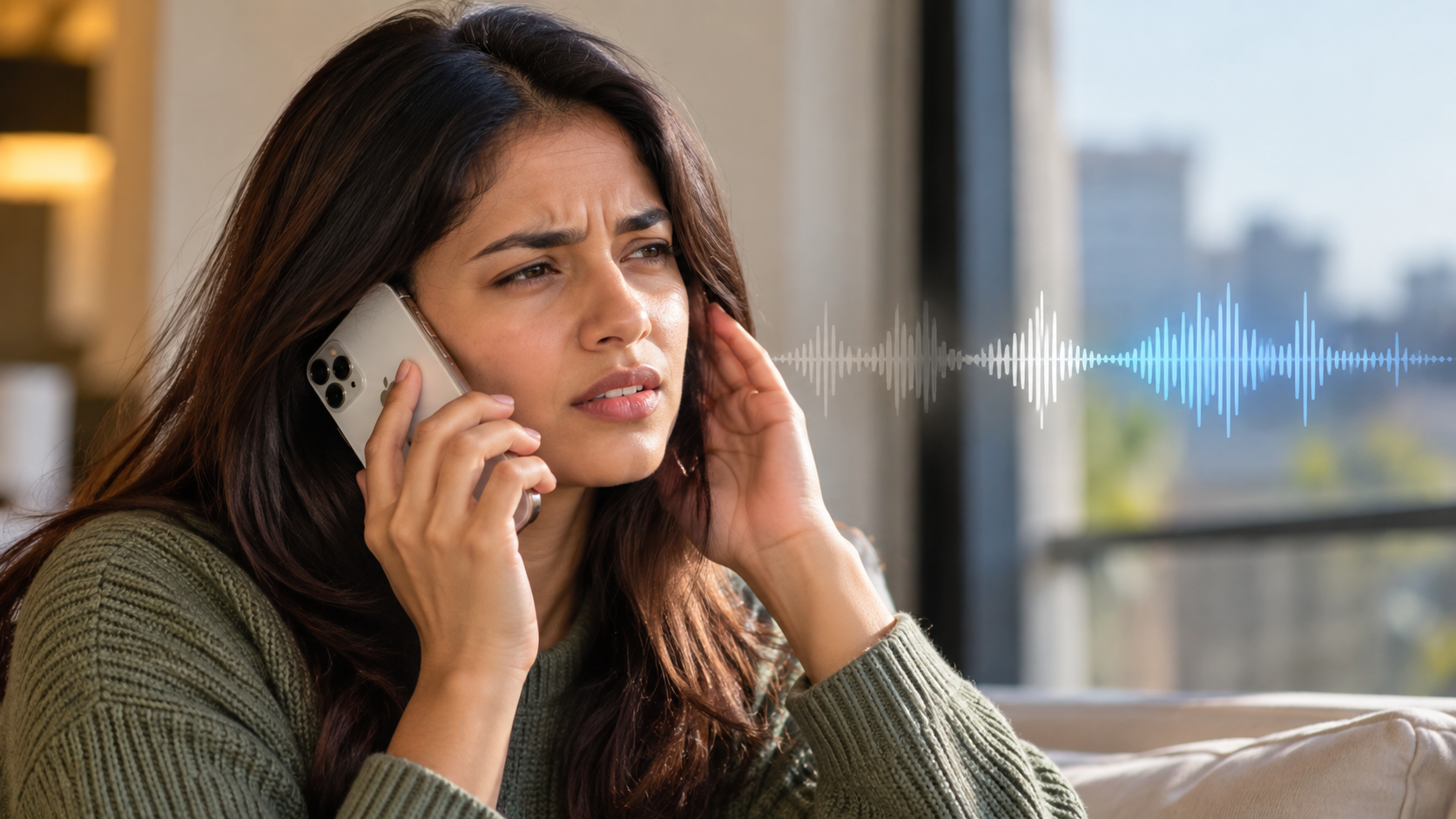
Nothing disrupts an important phone conversation faster than muffled audio, static, or dropped voices. When you use your iPhone for work, family calls, or emergencies, clear audio matters. Learning how to improve your iPhone’s call quality can resolve many common problems without visiting a repair shop.
Modern iPhones use advanced audio processing to improve voice quality. However, poor network coverage, blocked microphones, dirty speaker grilles, and certain settings can still affect calls. Simple changes can often make a noticeable difference.
This guide covers practical ways to improve call quality on your iPhone. You’ll learn how to use Voice Isolation, enable Wi-Fi Calling, check your call settings, clean the microphones and speakers, and understand common dialing codes. These steps can help you identify whether the problem comes from your iPhone, its settings, or the cellular network.
How to improve call quality on iPhone?
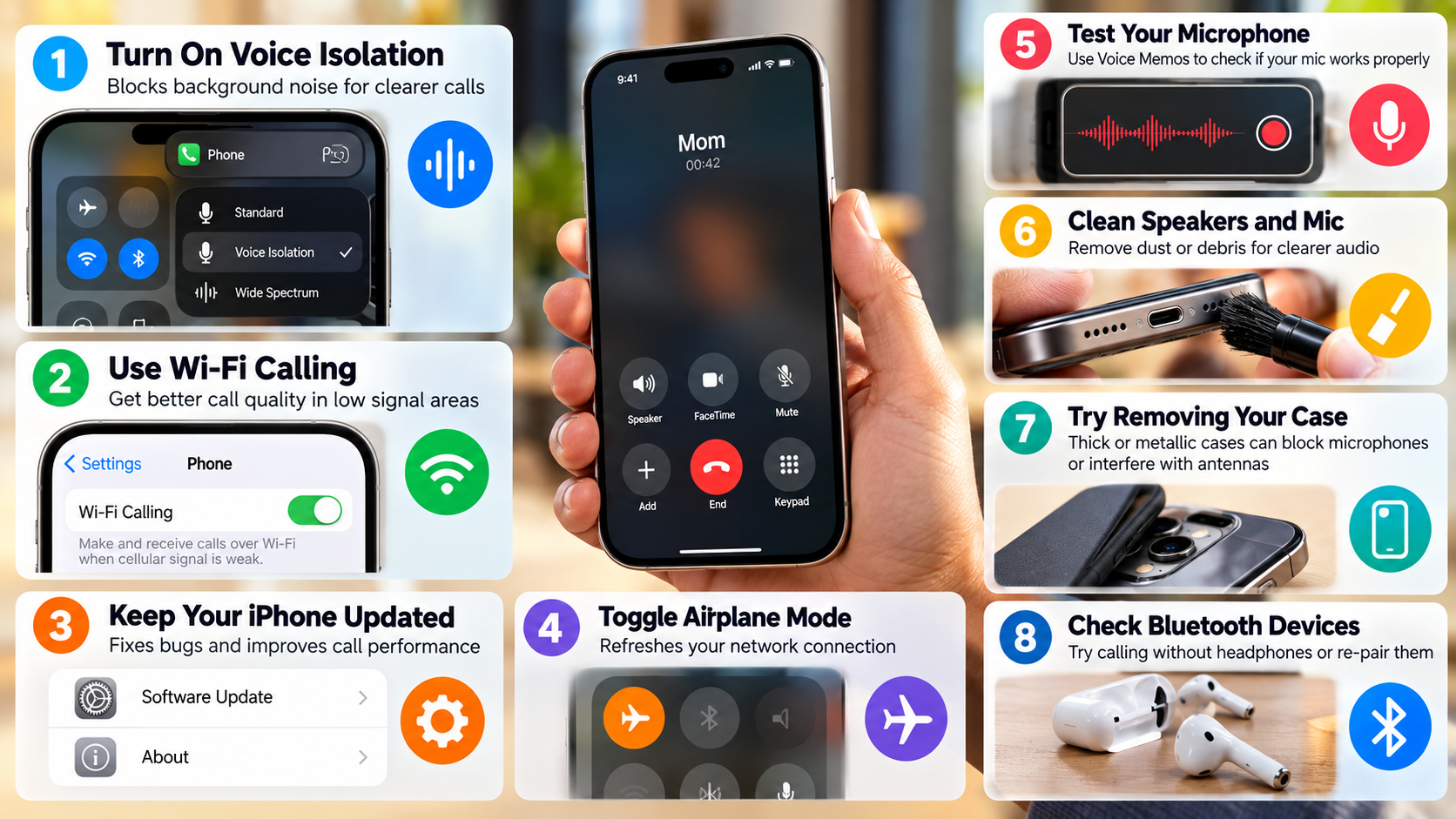
To improve your iPhone’s call quality, start with the features that directly affect voice clarity. During a supported phone call, open Control Center by swiping down from the top-right corner. Tap Mic Mode and select Voice Isolation when the option is available. This feature reduces background sounds so the person on the other end can hear your voice more clearly.
If cellular reception is weak, Wi-Fi Calling can also help. Go to your iPhone’s cellular settings and look for the Wi-Fi Calling option. Availability depends on your carrier and location.
You should also check whether your carrier supports newer voice technologies, such as VoLTE or 5G voice services. These features are generally managed automatically by the network.
If calls remain unclear, test your iPhone in another location. A stronger cellular signal can help determine whether the issue is caused by network coverage rather than your device.
Activate Wi-Fi Calling for Stronger Domestic Audio
Wi-Fi Calling can improve call reliability when your iPhone has weak cellular reception indoors. Instead of relying entirely on a nearby cellular tower, supported calls can use your Wi-Fi connection. This can be particularly useful inside buildings with thick walls or areas with limited cellular coverage.
To enable it, open Settings and access your cellular or mobile service settings. Look for Wi-Fi Calling and turn it on if your carrier supports the feature. The exact menu can vary by iPhone model, iOS version, and carrier.
A stable Wi-Fi connection may reduce problems such as dropped calls or inconsistent voice quality. However, Wi-Fi Calling cannot fix every audio problem. Poor Wi-Fi performance can also affect calls.
If the feature is unavailable, contact your carrier to confirm whether Wi-Fi Calling is supported on your plan. You can also test regular cellular calls in an area with stronger reception to compare the results.
What is *3370 on iPhone?
The code *3370 is a legacy GSM dialing code associated with Enhanced Full Rate (EFR) voice coding on some older mobile phones. It became widely discussed because older devices could use dialing codes to change certain network or voice settings.
However, this does not mean *3370 can improve call quality on a modern iPhone. Current iPhones use newer cellular technologies and automatically work with the voice services supported by the carrier and network. Modern networks may use technologies such as wideband voice and other advanced codecs.
Entering an old GSM code on an iPhone may produce an error or simply have no useful effect. The result can also depend on the carrier and network.
Therefore, *3370 should not be treated as a secret iPhone call-quality setting. If your calls sound poor, focus on current iOS features, network reception, Wi-Fi Calling, microphone cleanliness, and carrier support instead.
Modern Cellular Codecs Replace Legacy GSM Dialing
Modern iPhones do not require users to manually select older GSM voice codecs. The iPhone and carrier network handle voice technology automatically based on the available network and supported services.
This is an important distinction because many online posts still recommend older dialing codes as if they were universal iPhone fixes. They are not.
Voice quality on a modern iPhone depends on several factors. These include your carrier, network technology, signal strength, device configuration, and the capabilities available in your area.
If your carrier supports high-quality voice services, the network normally selects the appropriate technology automatically. You therefore do not need to enter legacy codes to force better audio.
If a call sounds distorted or drops frequently, investigate the actual cause instead. Check your signal strength, try Wi-Fi Calling, restart the iPhone, and test another location. If the problem continues across different networks or locations, hardware or software troubleshooting may be necessary.
What does *#43 do on iPhone?
The code *#43# is commonly associated with checking the status of Call Waiting on GSM-based networks. It does not improve your iPhone’s microphone quality, speaker volume, or call audio.
Call Waiting allows you to receive an alert when another person calls while you are already speaking to someone. Depending on your carrier, dialing the code may return information about the current Call Waiting status.
The exact response can vary between carriers. Some networks may not support the code, while others may handle Call Waiting through their own network systems.
It is also important not to confuse Call Waiting with call-quality settings. Turning Call Waiting on or off does not make your voice clearer or improve your cellular signal.
If you are troubleshooting poor audio, this code is therefore not a solution. Use it only if you specifically want to check Call Waiting and your carrier supports the feature.
For most users, the iPhone’s built-in settings are a simpler way to manage supported calling features.
How to Toggle Call Waiting via Settings
If your carrier supports Call Waiting controls through iOS, you can manage the feature from your iPhone’s settings instead of using a dialing code. Open Settings, access the Phone settings or your carrier-related calling options, and look for Call Waiting. If unwanted callers are also causing interruptions, you can learn how to block spam calls on your phone.
The exact location can vary depending on your iOS version and carrier configuration. Some carriers may control the feature directly through their network rather than allowing the iPhone to change it.
When Call Waiting is enabled, you can receive an alert when another person calls while you are already on the phone. You can then place the current call on hold and respond to the incoming call.
Disabling Call Waiting prevents these interruptions during an active conversation. However, it does not improve the clarity of your existing call.
If you cannot find the setting, contact your carrier. This usually indicates that the carrier controls the feature or does not expose the option through iOS.
How to make iPhone phone quality better?
To make your iPhone phone quality better, check both the device’s physical condition and its audio settings. Start by examining the earpiece receiver grille, speakers, and microphone openings for dust, lint, or other debris.
Clean these areas gently with a clean, dry, soft-bristled brush. Avoid pushing objects into the openings or using excessive pressure. Blocked acoustic openings can make voices sound quieter or muffled.
You should also check your iPhone’s accessibility audio settings. Open Settings > Accessibility > Audio & Visual and review the available balance options. Make sure the left-right audio balance is positioned correctly.
If you use a protective case, remove it temporarily and make a test call. A poorly designed case can partially cover a microphone or speaker opening.
Finally, compare calls in different locations. If the audio improves outdoors or in another area, network coverage may be responsible. If the problem occurs everywhere, investigate the iPhone itself, its settings, or your carrier service.
Keep Protective Cases Clear of Microphones
Your iPhone uses multiple microphones to capture your voice and process surrounding sound. A case with poorly aligned openings can interfere with these microphones. If you notice the orange microphone indicator while using your iPhone, you can learn more about what the orange light on iPhone means and when it appears.
This can make your voice sound distant, muffled, or unclear to the person receiving your call. The problem may be especially noticeable when the case covers a microphone near the camera area or along the bottom edge.
Remove the case and make a test call if callers frequently complain about your voice quality. Ask the other person whether your voice sounds clearer without the case.
If removing the case fixes the problem, replace it with one designed specifically for your iPhone model. Check that every microphone, speaker, and receiver opening remains unobstructed.
You should also inspect these openings for dust or lint. Clean them gently with a soft, dry brush.
Do not insert sharp objects into microphone or speaker openings. You could damage the acoustic mesh or internal components.
A simple case check can therefore eliminate an overlooked physical cause of poor call quality.
Conclusion
Poor call quality does not always mean your iPhone has a hardware problem. In many cases, simple changes can make a noticeable difference. Start by checking your cellular signal, enabling Wi-Fi Calling when available, and using Voice Isolation during supported calls. Apple also recommends checking the speaker and receiver for dirt, removing cases or screen protectors that may block openings, and testing calls from another location.
You should also inspect the microphone and speaker openings for dust or debris. Make sure your protective case does not block any microphone or speaker. If you have been searching for codes such as *3370 or *#43#, remember that these are not general solutions for improving modern iPhone call quality.
If calls remain muffled, distorted, or frequently drop after trying these steps, test your iPhone in another location. This can help determine whether the problem comes from network coverage or the device itself. For more troubleshooting steps, see Apple’s official guide for iPhone sound and speaker problems. If the issue continues across different locations and calls, contacting your carrier or Apple Support may be the next step.