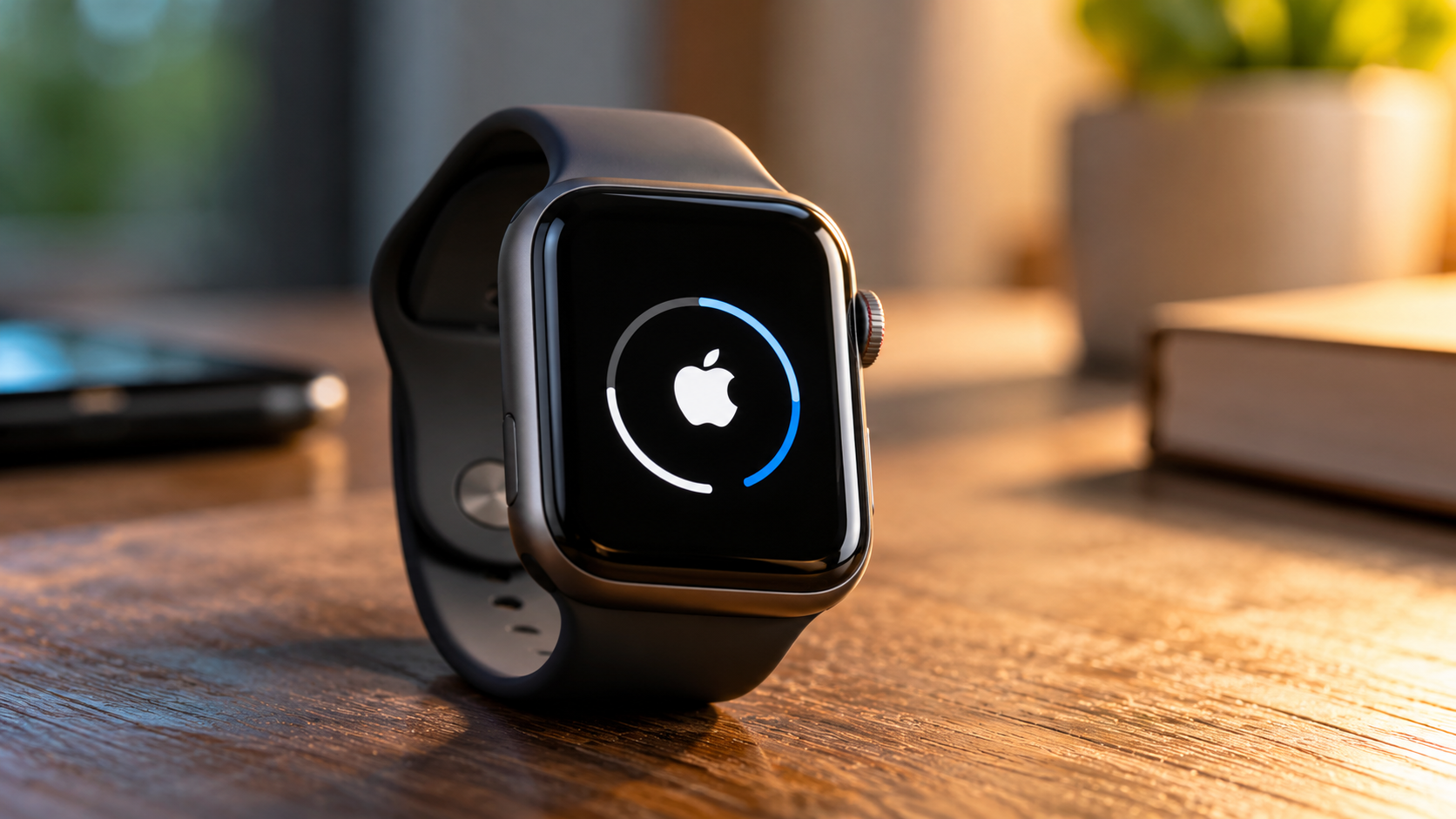
How Often Should You Restart Apple Watch? A Complete Guide
Knowing how often to restart Apple Watch can help you troubleshoot minor software problems and maintain reliable performance. Many users wear their smartwatches throughout the day and night for fitness tracking, sleep monitoring, and notifications. As a result, they rarely think about restarting their devices.
A restart can resolve temporary glitches, unresponsive apps, and certain syncing problems. However, Apple does not require users to restart their watches on a fixed weekly schedule. You can restart your device when you notice performance issues or need to troubleshoot a specific problem. For step-by-step instructions, follow Apple’s official guide to restarting your Apple Watch.
In this guide, we will explore Apple Watch lifespan, restart times, battery-draining features, and everyday maintenance habits. You will also learn when restarting makes sense and how to keep your smartwatch working smoothly.
What Is the Typical Lifespan of an Apple Watch?
An Apple Watch can remain useful for several years, depending on its model, battery condition, software support, and daily usage. Many users consider upgrading after three to five years. However, this is a general estimate rather than a fixed lifespan for every device.
Battery capacity gradually decreases with repeated charging and normal use. Older watches may also experience slower performance or lose access to newer software features. These changes do not necessarily mean you need to replace your device immediately.
You can help maintain your watch by avoiding extreme temperatures, installing available software updates, and keeping its storage manageable. Using compatible charging equipment also supports safe, reliable charging. However, these habits cannot prevent normal battery aging or guarantee a longer hardware lifespan.
Before replacing an older watch, check its battery health and performance. A battery service may be more practical than buying a new device, depending on the model and repair cost. If you are considering an older model, explore whether old Apple Watches are worth buying in 2026 before deciding to upgrade.
Battery Degradation and Hardware Longevity
Apple Watch models use rechargeable lithium-ion batteries. These batteries gradually lose capacity as they age and complete charging cycles. Consequently, an older watch may need charging more frequently, even when you use the same settings.
You can check your battery condition through Settings on your watch. Open Battery, select Battery Health, and review the Maximum Capacity percentage. The available information may vary by watchOS version.
A maximum capacity near or below 80% can indicate substantial battery wear. However, the percentage alone does not determine whether replacement is necessary. Consider battery performance, service recommendations, and your device’s overall condition.
Protecting the screen, avoiding excessive heat, and installing compatible updates can help maintain your watch. Restarting may resolve software problems, but it cannot reverse physical battery degradation or repair damaged hardware.
How Long Should an Apple Watch Take to Restart?
An Apple Watch usually takes around a minute or two to restart, although the exact time depends on its model and software condition. The process may take longer after an update or when the device experiences temporary software problems.
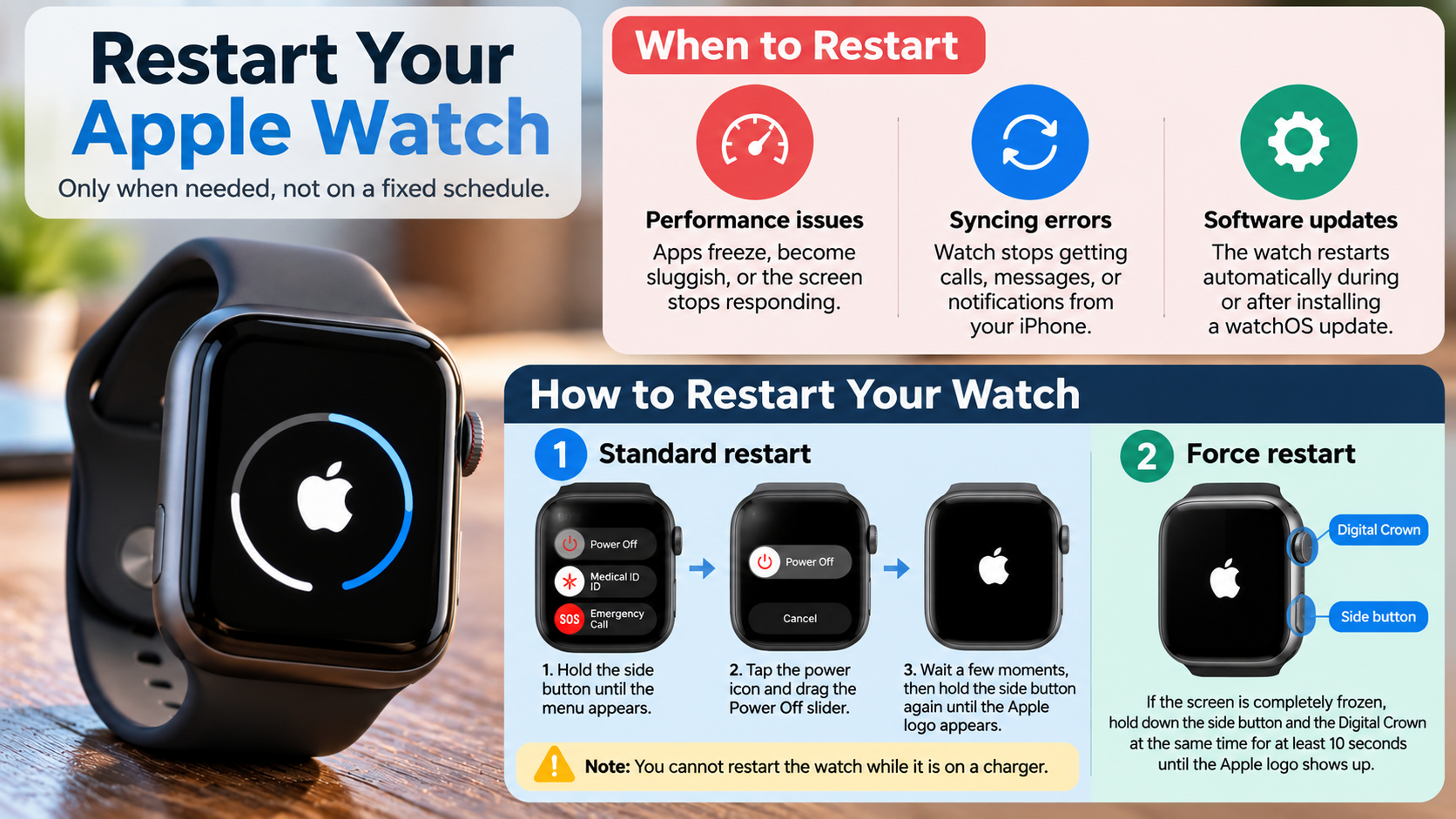
To restart normally, press and hold the side button until the power controls appear. Tap the power button, move the Power Off slider, and wait for the screen to turn off. After the watch shuts down, press and hold the side button again until the Apple logo appears.
If your watch remains on the Apple logo for an unusually long time, avoid repeatedly interrupting the startup process. An update or other background operation may still be running. Give the device time to finish before attempting additional troubleshooting.
If the watch becomes completely unresponsive, a force restart may help. However, avoid forcing a restart during a watchOS update because interrupting installation can create additional problems.
What Causes Slow Startup Times?
Several factors can make an Apple Watch take longer to restart. Temporary software glitches, an interrupted update, and unusually heavy background activity can affect startup performance. Older hardware may also respond more slowly than newer models.
Limited available storage can contribute to general performance problems, although it does not automatically explain every slow restart. Storage issues are also becoming a concern on other devices; read about why phones are running out of storage faster than ever for a broader look at this problem. Similarly, outdated software may contain bugs that affect reliability.
If your watch starts slowly, try these steps:
- Wait for startup: Allow the watch enough time to complete its startup process.
- Check for updates: Install compatible watchOS updates when available.
- Review installed apps: Remove applications you no longer use.
- Restart normally: Use a standard restart when the device responds.
- Check for recurring problems: Note whether slow startup follows an update or happens repeatedly.
If the watch remains stuck on the Apple logo, consult Apple Support for model-specific troubleshooting instructions.
What Kills the Apple Watch Battery Fast?
Several features can increase Apple Watch battery consumption throughout the day. GPS workouts, cellular connections, frequent notifications, and extended screen activity can all contribute to faster battery drain.
Screen brightness and how often the display wakes also affect energy use. Streaming audio or making calls over cellular connections may consume additional power. Weak cellular reception can increase power consumption because the watch needs to maintain its connection.
Battery drain is not always caused by a single setting. A recently installed update, an app behaving unexpectedly, or an aging battery may also explain a sudden reduction in battery life.
Start by reviewing your recent usage and identifying changes. If the battery suddenly drains faster than usual, restart the watch and check whether the problem continues. You can also review battery information in Settings to understand its condition.
Adjusting a few settings may improve everyday battery life without disabling features you rely on regularly.
Managing Power-Hungry Features for Longevity
You do not need to disable every health or fitness feature to preserve Apple Watch battery life. Instead, focus on settings that provide limited value for your daily routine.
Consider these adjustments:
- Reduce screen brightness: Choose a comfortable brightness level that avoids unnecessary power use.
- Limit background activity: Disable Background App Refresh for apps that do not need frequent updates.
- Manage notifications: Turn off alerts from applications you rarely check.
- Review workout settings: GPS workouts and extended exercise tracking can use additional energy.
- Adjust display behavior: Review wake settings and reduce unnecessary screen activations.
- Check cellular usage: Use your iPhone connection when convenient, if your model and circumstances allow it.
Low Power Mode can also reduce energy consumption when you need your battery to last longer. Some features may operate differently while it is enabled.
If battery life remains poor after these adjustments, check Battery Health. An aging battery may need service, and restarting alone will not restore its original capacity.
Do You Need to Restart Your Apple Watch?
You do not need to restart your Apple Watch every day. Under normal conditions, the device can remain powered on continuously without requiring a scheduled reboot. Restarting is mainly useful when you encounter software issues or need to troubleshoot unexpected behavior.
A restart may help when apps freeze, notifications stop arriving, or your watch struggles to communicate with your iPhone. It can also resolve certain temporary performance problems. However, it will not fix every issue, particularly when the cause involves damaged hardware, network settings, or a faulty application.
If your watch works normally, there is no need to interrupt your routine just to restart it. Some users prefer an occasional restart, such as once a week, because it provides a simple troubleshooting opportunity. However, Apple does not prescribe this frequency as a maintenance requirement.
Before restarting, make sure you are not interrupting a software update. If the same problem returns repeatedly, investigate its cause instead of relying on frequent restarts.
When a Reboot Is Absolutely Necessary
A restart is not always necessary, even when your Apple Watch behaves unexpectedly. However, it is a useful first troubleshooting step for several common problems.
Consider restarting your watch when:
- An app repeatedly freezes or becomes unresponsive.
- Notifications stop syncing correctly with your iPhone.
- Certain features become temporarily sluggish.
- A connection problem persists despite basic troubleshooting.
- The watch behaves unusually after normal use.
If the watch responds to your commands, use the standard shutdown procedure first. A force restart should be reserved for situations where normal controls do not work.
If a problem continues after restarting, check your Bluetooth connection, available updates, and relevant app settings. You may also need to restart your paired iPhone or reinstall a problematic application.
For persistent problems involving health tracking, charging, or startup, consult Apple Support. Repeatedly restarting the device without investigating the underlying cause may only provide temporary relief.
Should I Leave My Apple Watch On All the Time?
Yes. Apple Watch is designed for regular, continuous operation, so you generally do not need to turn it off every night. Keeping it powered on allows features such as notifications, activity tracking, alarms, and supported health functions to operate as intended.
Your watch can also support sleep tracking when configured correctly. However, overnight monitoring depends on your model, settings, battery level, and the features you use.
Leaving the device powered on does not automatically damage its hardware. Likewise, turning it off occasionally does not guarantee better battery health or prevent normal battery aging.
Instead of following a strict shutdown schedule, focus on charging, software updates, and resolving problems when they occur. If you notice unusual heating, repeated shutdowns, or persistent performance issues, investigate those symptoms rather than assuming continuous operation is responsible.
You can remove the watch temporarily for charging, cleaning, or comfort. If you wear it throughout the day and night, choose a convenient charging period that leaves enough battery for the activities you care about.
Charging Habits for 24/7 Wearers
A consistent charging routine can make continuous Apple Watch use easier. Many users charge their watches while showering, getting ready in the morning, or winding down at night. The best schedule depends on your model, battery condition, and daily usage.
Rather than relying on a fixed charging duration, check how quickly your watch charges and how much battery you need for the next part of your day. Some models support faster charging than others, so charging times can vary.
Follow these practical habits:
- Use a compatible charger: Choose charging equipment designed for your Apple Watch model.
- Avoid excessive heat: Keep the watch and charger in a well-ventilated location.
- Plan around sleep tracking: Charge before bedtime if you want to monitor your sleep overnight.
- Check battery health: Review Maximum Capacity if your watch needs charging much more frequently.
- Use Low Power Mode when needed: Extend usable battery life when charging is not convenient.
You do not need to wait until the battery reaches zero before charging. If battery performance deteriorates significantly, consider checking service options rather than changing your restart routine.