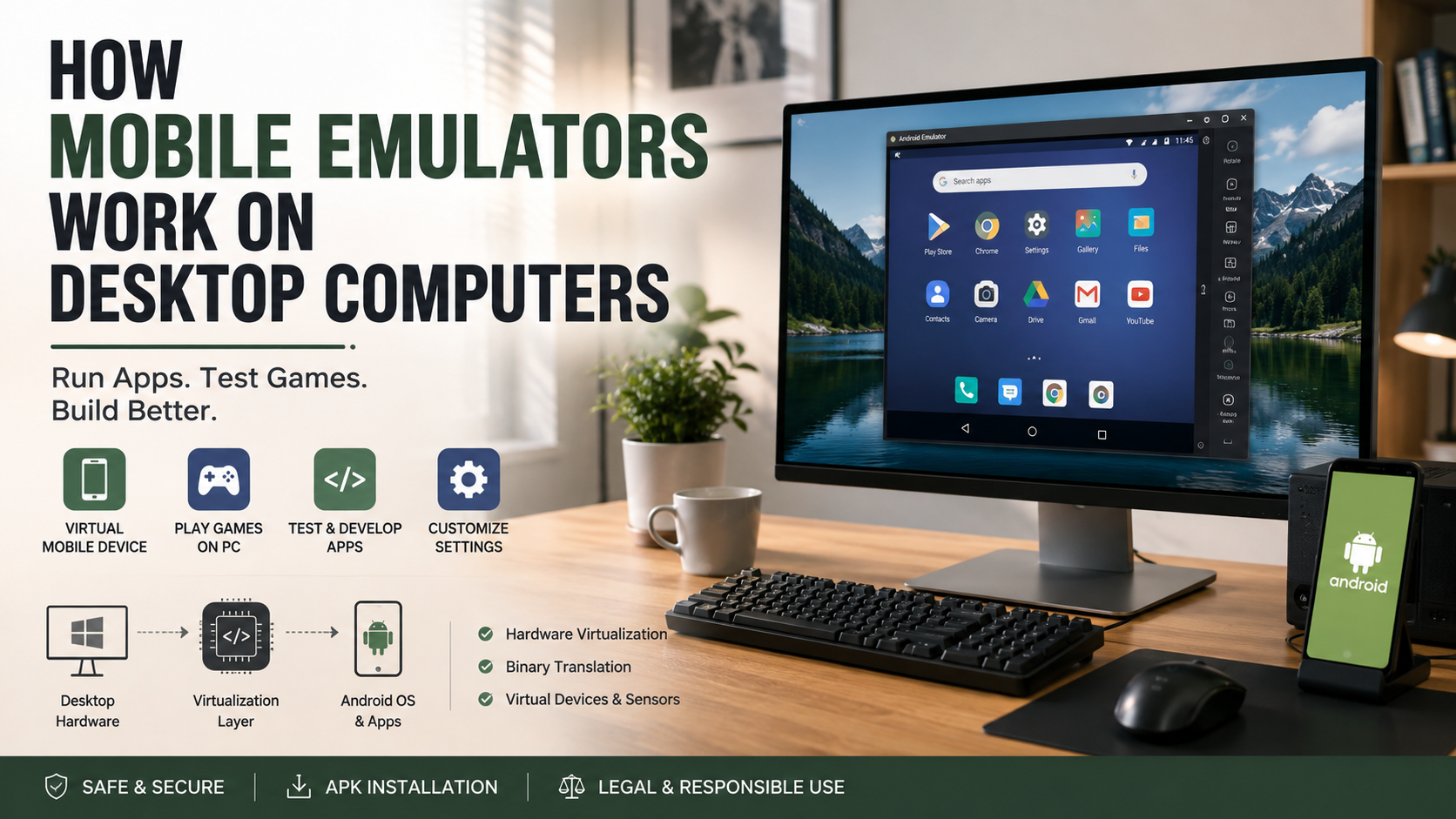
How Mobile Emulators Work on Desktop Computers
Understanding how mobile emulators work on desktop computers opens up useful possibilities for developers, gamers, and everyday users. These software tools create a virtual mobile environment that runs on desktop hardware. They can help users test applications, play mobile games, and explore mobile software without relying entirely on a physical device.
According to Google Android Developers, Android Emulator provides a virtual device for testing applications across different device configurations. This makes emulation especially useful during application development and compatibility testing.
Whether you want to test code, play mobile games on a larger screen, or check app behavior, an emulator can provide a convenient testing environment. This guide explains how to use a phone emulator on PC, how mobile emulators work, and whether you can emulate a phone on your computer.
We will also cover Android APK installation, safe sideloading practices, and the legal considerations surrounding APK files.
How to use phone emulator on PC?
Using a phone emulator on a PC can turn your desktop into a virtual mobile environment. Start by downloading a reputable emulator from its official developer website. Popular options include Android Studio, BlueStacks, and NoxPlayer. Each option offers different features for development, gaming, and general mobile use. If you regularly use Android software, exploring the best free Android apps for 2026 can also help you identify useful applications to test in an emulator.
After installation, open the emulator and complete its initial setup. Depending on the emulator, you may need to sign in with a Google account to access Google Play and related services. You can then install applications, test games, or explore the virtual Android interface.
Most modern emulators include settings for RAM, CPU cores, resolution, and graphics rendering. Adjust these settings according to your computer’s hardware. Giving the emulator too many resources can affect other applications, while insufficient resources can cause lag.
For better performance, keep your emulator updated. Enable hardware virtualization when your computer and emulator support it. These steps can create a smoother and more responsive desktop mobile experience. Keeping applications updated is also important, and what happens if you don’t update apps can help explain why regular updates matter.
Setting up controls and preferences
Correct emulator configuration can make virtual mobile navigation much easier. Most emulators let you customize keyboard controls, mouse actions, display settings, and audio preferences. Gaming-focused emulators may also provide advanced key-mapping tools for touchscreen actions.
You can assign keyboard shortcuts to virtual touchscreen gestures. This makes actions such as tapping, swiping, and moving easier with a mouse and keyboard. Some emulators also let you customize controls for individual games.
Hardware acceleration can improve performance when supported by your system. Check your emulator’s recommended settings before enabling or changing advanced options. Incorrect configurations can sometimes reduce stability.
Consider adjusting these preferences:
- Keyboard mapping for common touchscreen actions.
- Display resolution based on your monitor and GPU.
- Audio settings for games and applications.
- Performance allocation for CPU and RAM.
- Graphics settings for demanding applications.
After making changes, restart the emulator if required. Test your settings with the applications you use most often. A balanced configuration can improve responsiveness without consuming unnecessary desktop resources.
How do mobile emulators work?
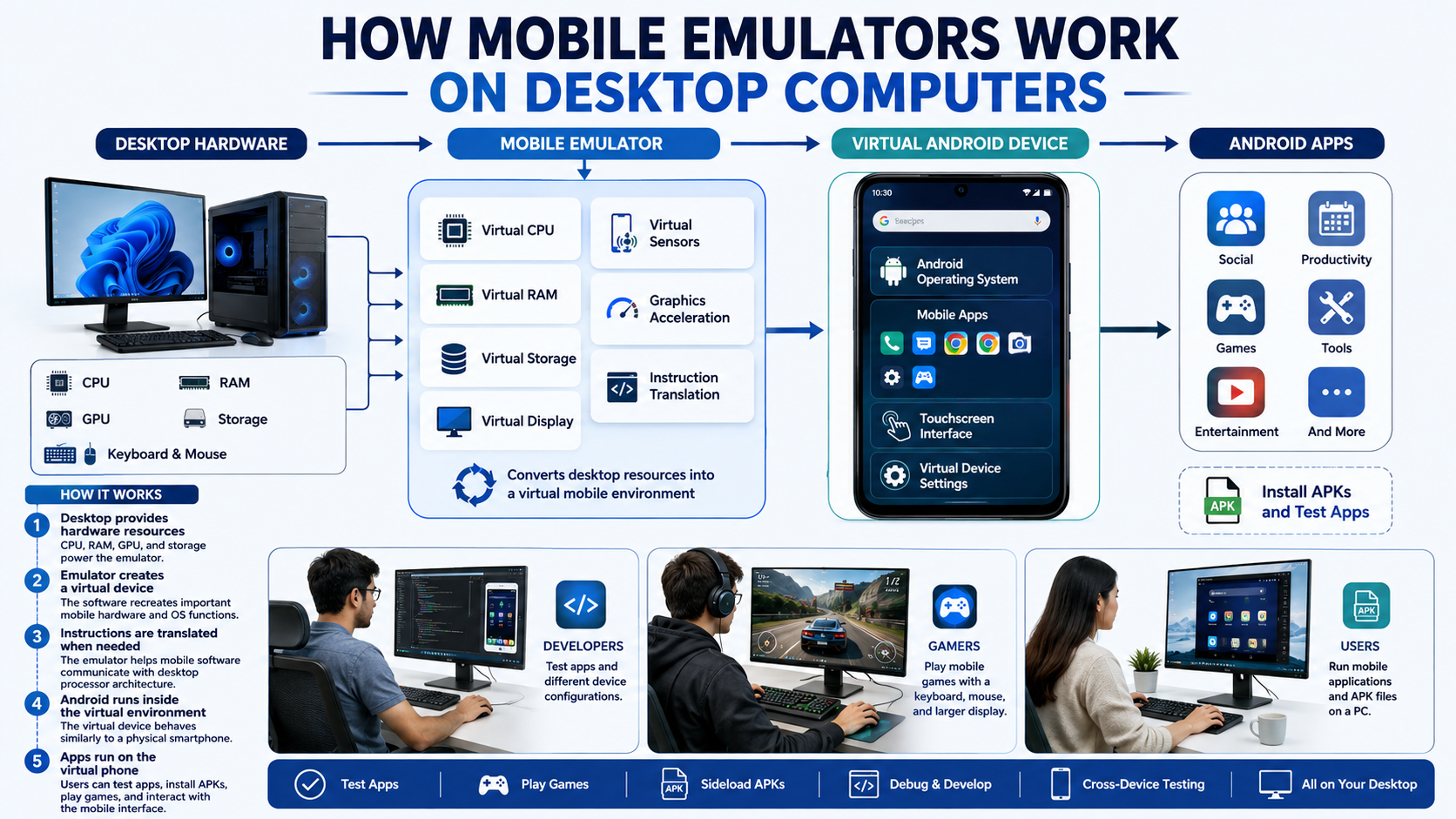
Mobile emulators create a software environment that reproduces important aspects of a mobile device. They allow a desktop computer to run a mobile operating system and applications inside a virtual environment.
The process can involve several technologies. These include hardware virtualization, instruction translation, virtual device drivers, and graphics acceleration. The exact approach depends on the emulator and the processor architecture involved.
Many Android phones use ARM-based processors, while traditional Windows PCs commonly use x86-64 processors. When an application expects a different processor architecture, the emulator may need to translate instructions. Some modern environments can use native or optimized execution for certain workloads.
The emulator also provides virtual hardware components. These may include memory, storage, cameras, sensors, network connections, and display hardware. Applications interact with these virtual components as though they were connected to a mobile device.
Graphics virtualization allows the computer’s GPU to assist with rendering. This can improve performance in applications with demanding visual workloads.
The emulator therefore acts as a bridge between mobile software and desktop hardware. It provides enough of the expected mobile environment for applications to operate without requiring an actual phone.
The role of binary translation
Binary translation helps software designed for one processor architecture run on another architecture. It converts machine instructions into instructions that the host processor can execute.
This process can become important when an application targets ARM architecture but runs within an x86-based desktop environment. The emulator or runtime translates instructions as needed. Some environments use additional optimization techniques to reduce the performance impact.
Translation does require processing resources. The amount of overhead depends on the application, emulator, processor architecture, and optimization methods being used.
Modern virtualization technologies can reduce overhead for supported workloads. However, not every emulator uses the same architecture. Some combine virtualization with translation, while others rely more heavily on native execution.
For users, the goal remains the same: provide a compatible environment where mobile applications can run correctly on desktop hardware.
Efficient translation can improve application responsiveness and compatibility. Poorly optimized environments may experience higher CPU usage or slower performance.
This is why processor architecture and virtualization support matter when choosing a mobile emulator. Checking the emulator’s hardware requirements before installation can help you avoid compatibility and performance problems.
Can you emulate your phone on PC?
You can access your phone environment from a PC through screen mirroring or use a separate virtual mobile device. These approaches are different and serve different purposes.
Screen mirroring displays your actual phone’s screen on your computer. Depending on the software, the connection can use USB or Wi-Fi. Some tools also allow mouse and keyboard control, making it easier to manage messages, notifications, and applications.
Phone emulation works differently. Instead of reproducing your physical phone, it creates a separate virtual device on the computer. This environment has its own operating system, storage, applications, and settings.
Mirroring is useful when you want to work with your existing phone. Your phone remains the source of the applications and personal data. Emulation is more useful when you need an independent environment for testing or experimentation.
Neither method completely replaces the other. Your choice depends on whether you need access to your real smartphone or want a separate virtual device.
For application development, emulation can also make it easier to test different device configurations. For everyday phone access, screen mirroring may be simpler and more convenient.
Choosing between mirroring and emulation
Screen mirroring is usually the better choice when you want to access your physical phone from a larger screen. It can display existing applications, messages, notifications, and other phone content on your computer.
Full device emulation creates an independent virtual mobile environment. This makes it useful for developers, testers, and users who want to run mobile applications without changing their physical phone.
Consider your main purpose before choosing between the two:
- Choose screen mirroring when you need your actual phone.
- Choose emulation when you need a separate virtual device.
- Use mirroring for messages, notifications, and everyday phone access.
- Use emulation for application testing and isolated environments.
- Choose emulation for desktop-based mobile development workflows.
Battery usage is another consideration. Mirroring still relies on your physical phone, so the device continues using its battery. An emulator runs on your computer instead.
The best option depends on your requirements. If you need your personal device, mirroring is generally more practical. If you need a flexible testing environment, an emulator is usually more suitable.
Can I run Android APK on PC?
Yes, you can run Android APK files on a PC using a compatible Android emulator. An APK, or Android Package Kit, is the package format used to distribute and install Android applications. Once you understand how APK-based apps work, iPhone and Android apps to simplify your routine can provide additional examples of useful mobile software.
After installing an emulator, you can often install an APK by opening the file or dragging it into the emulator window. The emulator then installs the application inside its virtual Android environment.
The emulator provides the operating system components that the application expects. However, not every APK works with every emulator. Compatibility can depend on the Android version, processor architecture, Google services, permissions, and required hardware features.
Running APK files on a PC is particularly useful for Android developers. Developers can test application builds before publishing them through official app stores. Users may also sideload applications that are unavailable through their normal app marketplace.
Before installing an APK, verify its source. An emulator does not automatically make an untrusted application safe.
You should also check whether the application requires specific device features. Some apps depend on sensors, cameras, GPS, or other hardware that an emulator may not fully reproduce.
With the right environment, however, running Android APKs on PC can be a practical way to test and use mobile software.
Sideloading applications safely
Sideloading means installing an application from an APK file instead of downloading it through the standard app store. This can be useful, but it also requires additional caution.
The safest approach is to obtain APK files from the application’s official developer or another trusted source. Avoid websites that distribute cracked applications or modified packages without clear authorization. Keeping the emulator and other software current is equally important, particularly given the risks of skipping Windows updates on your computer.
An APK can contain malicious code if someone has modified or repackaged it. Installing such software may expose your computer, accounts, or personal information to security threats.
Follow these basic precautions:
- Download APKs from trusted and authorized sources.
- Verify the application’s publisher and package name.
- Avoid suspicious modified or cracked applications.
- Keep your emulator and operating system updated.
- Review application permissions before using unfamiliar software.
- Scan suspicious files with reputable security software.
You should also avoid granting unnecessary permissions. If an application requests access unrelated to its purpose, investigate before proceeding.
Sideloading itself is not inherently unsafe. The primary risk comes from the source and contents of the package. Careful downloading and sensible security practices can significantly reduce those risks.
Are APKs illegal?
APK files are not illegal by themselves. An APK is simply a standard package format for Android applications. The legal status depends on the software inside the package and how the file was obtained, modified, or distributed.
Downloading an APK from an authorized developer source can be completely legitimate. Open-source applications can also be distributed as APK files under their applicable licenses.
The situation changes when an APK contains pirated or unauthorized software. Downloading cracked versions of paid applications may violate copyright law and the software’s licensing terms. Distributing those applications without permission can also infringe the developer’s intellectual property rights.
Modified APKs require additional caution. Some modifications may be authorized by the developer, while others may remove licensing protections or redistribute copyrighted software without permission.
The safest approach is to use applications from legitimate sources. Always follow the applicable software license and distribution terms.
The key point is simple: the APK format itself is legal. What matters is the content, ownership, licensing, and distribution method associated with the file.
Legal rules can also vary between countries. If you have a specific legal question, consult the laws applicable to your location or seek qualified legal advice.
Understanding copyright and fair use
Copyright protects original software and other creative works. Software developers generally have rights over how their applications are copied, modified, and distributed.
Using an APK does not remove those rights. An application may be packaged as an APK while still being protected by copyright and licensing restrictions.
Downloading software from an authorized source is usually the simplest way to respect these requirements. Users should also read the application’s license when special permissions or restrictions apply.
Keep these principles in mind:
- Copyright protects commercial software and other original works.
- An APK remains subject to the software’s applicable license.
- Unauthorized redistribution can create copyright concerns.
- Cracked applications may violate licensing and copyright rules.
- Open-source applications follow their own license requirements.
Fair use is also a legal concept that varies by jurisdiction and circumstance. It should not be treated as blanket permission to copy or redistribute software.
Respecting developer rights helps support a healthier software ecosystem. It also encourages users to choose legitimate applications and trusted distribution channels.
FAQ SECTION
What is the difference between an emulator and a simulator?
An emulator replicates both the hardware and software architecture of a device, allowing it to run original system code. A simulator only mimics the software behavior and user interface environment without replicating the underlying hardware layer. Emulators offer higher accuracy for app testing, while simulators generally focus on rapid user interface prototyping and visual design checks.
Do mobile emulators require a powerful computer?
Mobile emulators demand moderate system resources, meaning a computer with a multi-core processor and at least eight gigabytes of RAM delivers optimal performance. Running resource-intensive 3D mobile games inside an emulator benefits greatly from having a dedicated graphics card installed. Enabling hardware virtualization settings in your computer BIOS also significantly improves overall emulator speed and stability.
Can I use a mobile emulator for iOS apps on Windows?
Running iOS applications on a Windows desktop computer is notoriously difficult due to Apple proprietary hardware and software restrictions. Most reliable iOS emulators require a macOS host operating system to function correctly and compile application code. Windows users typically rely on web-based preview tools or specialized development environments rather than full consumer iOS emulation.
Are mobile emulators safe for my desktop computer?
Legitimate mobile emulators downloaded from official developer websites are entirely safe for your desktop computer operating system. Safety risks usually arise only when users download modified emulator installations or unverified APK files from suspicious third-party websites. Sticking to reputable software providers ensures your computer remains secure against potential malware infections.
Conclusion
Understanding how mobile emulators work on desktop computers can help you make better use of mobile software. These tools create virtual environments that allow desktop hardware to run and test mobile applications.
This guide explained how to use a phone emulator on a PC. It also covered emulator settings, keyboard controls, hardware virtualization, and graphics performance.
We explored how emulators bridge differences between mobile and desktop hardware. Binary translation can help applications run across different processor architectures. Virtualization and graphics acceleration can further improve performance when supported.
The guide also explained the difference between phone mirroring and full device emulation. Mirroring connects you to your physical smartphone, while emulation creates an independent virtual device.
Finally, we covered running Android APKs on PC, safe sideloading practices, and APK legality. APK files themselves are not illegal. Their legality depends on their contents, licensing, and distribution.
Choose reputable software and download applications from trusted sources. With the right configuration, mobile emulation can provide a convenient environment for testing, gaming, development, and everyday exploration.