
Why You Should Avoid Using a Screen Protector on Your MacBook
Buying a new MacBook is an exciting investment, and protecting its Retina display is a natural priority. You might consider adding a tempered glass protector or plastic film, just as you would on an iPhone. However, a screen protector on your MacBook can introduce risks that are worth understanding before installation.
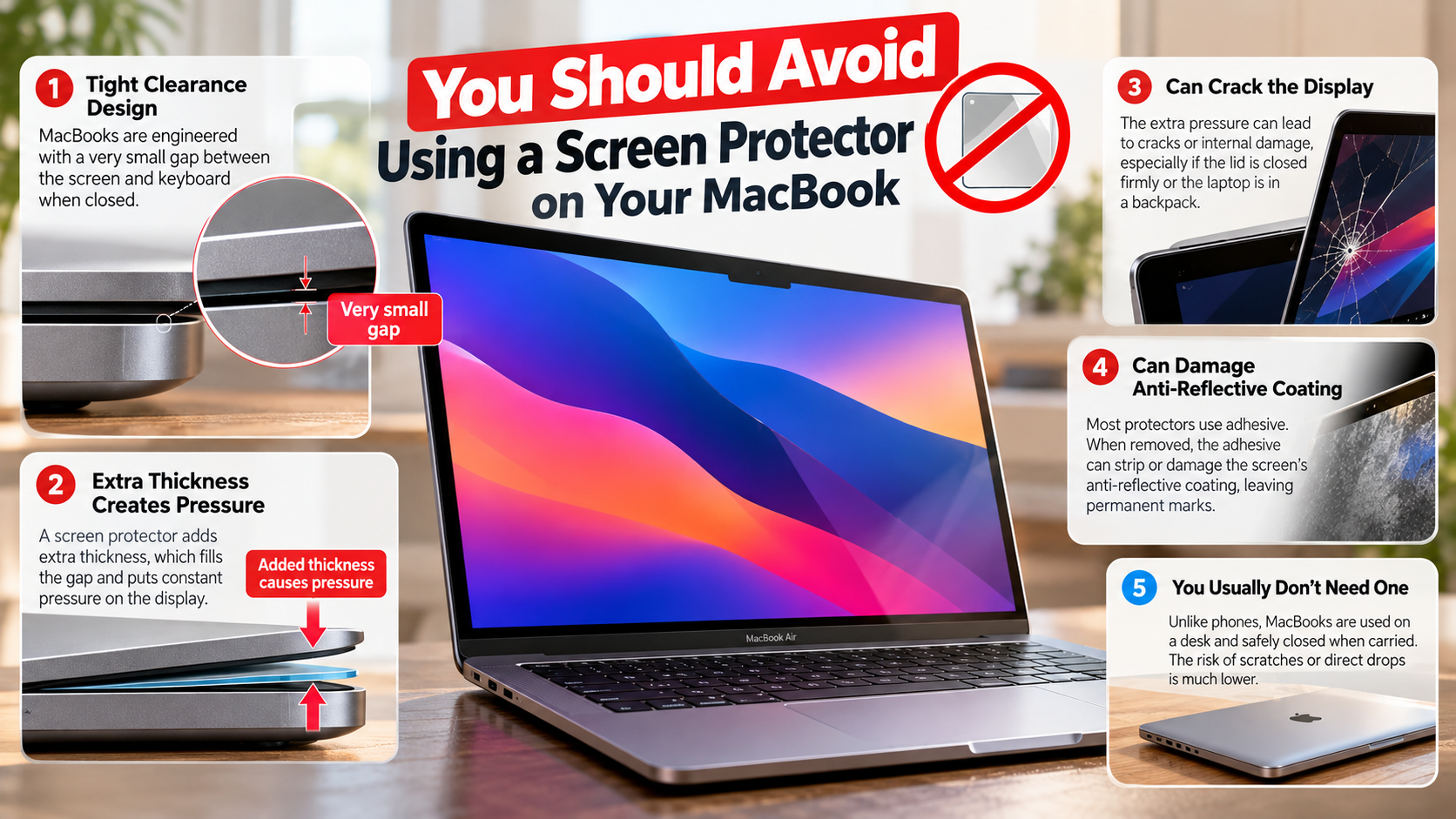
According to Apple Support, placing certain accessories over the display, keyboard, or palm rest can interfere with the laptop’s design when closed. MacBooks have very limited clearance between the screen and keyboard. Even a thin accessory may affect how these surfaces fit together.
A screen protector does not automatically destroy a display, but it can create avoidable problems. Depending on its thickness, adhesive, and removal method, it may contribute to pressure damage or affect the display’s surface coating. This guide explains Apple’s recommendations, the risks of aftermarket protectors, and whether the MacBook Air M4 needs one. You will also learn safer ways to keep your screen clean and protected without compromising your laptop.

Does Apple Recommend Screen Protectors for MacBook Pro?
Apple advises users to avoid accessories that interfere with the space between a MacBook’s display and keyboard. This guidance matters for MacBook Pro owners because the laptop’s slim design leaves little room for additional material when the lid closes. A screen protector may seem harmless, but its thickness and fit can affect the way the display and keyboard meet.
The exact risk depends on the accessory. A thick tempered glass protector creates a different clearance concern from a thin film. Adhesive products may also leave residue or complicate removal. Apple does not recommend adding material that prevents the notebook from closing as designed.
Before installing a screen protector on your MacBook Pro, check Apple’s guidance for your model. Avoid accessories that press against the screen when the lid is closed. Keeping the original display unobstructed is the safer approach and helps preserve the laptop’s intended fit and finish.
Tight Engineering Tolerances Leave No Clearance
MacBook Pro models use a carefully engineered enclosure designed to keep the display and keyboard close together when closed. That compact construction helps the laptop remain thin and portable. However, it also means that additional material inside the closed notebook may create unwanted contact or pressure.
A screen protector adds another layer to the display surface. Although a thin film may appear insignificant, compatibility depends on its thickness, fit, and the specific MacBook model. Tempered glass protectors can introduce a greater clearance concern because they are generally thicker than films.
Do not assume that an accessory is safe simply because it is marketed for MacBooks. Check the manufacturer’s compatibility information and Apple’s recommendations before using it. If the accessory interferes with closing the lid normally, remove it rather than applying extra force.
Protecting the screen starts with respecting the laptop’s original design. Keeping the display free of unnecessary layers avoids introducing a potential source of pressure or contact.
Can I Put a Screen Protector on a Mac?
Technically, you can apply a screen protector to a MacBook, but that does not mean you should. Some aftermarket products are designed specifically for laptop displays. Understanding the differences between tempered glass and plastic screen protectors can help you compare their thickness and material properties. However, compatibility, adhesive, and removal requirements vary, so an accessory that fits one model may not be suitable for another.
One concern is the space between the screen and keyboard when the laptop closes. An unsuitable protector can interfere with that clearance or increase contact pressure. Adhesive films also require careful removal, particularly if they have been installed for a long time or have started to deteriorate.
Apple’s display guidance should take priority over an accessory seller’s marketing claims. Before buying a protector, check whether Apple recommends using that type of accessory with your particular MacBook. If the product’s safety or compatibility is unclear, leaving the display uncovered is the more cautious choice.
Possible Damage to Anti-Reflective Display Coatings
MacBook displays use surface treatments designed to improve viewing comfort and reduce unwanted reflections. Some models have delicate anti-reflective coatings that require careful cleaning and handling. Applying an aftermarket protector may introduce adhesive residue or create complications when the film is removed.
The risk depends on the display, the protector’s adhesive, and the removal method. Damage is not inevitable, but forceful removal or an unsuitable adhesive can affect the screen surface. Existing coating wear may also make removal more complicated.
Before applying an adhesive film, check Apple’s instructions for your specific display. Do not use sharp tools, harsh chemicals, or excessive force to remove residue. If the coating already appears damaged, seek advice from Apple or an authorized service provider before applying another product.
Avoiding unnecessary adhesive products is a practical way to reduce the risk of cosmetic damage. Gentle cleaning and careful handling remain preferable to experimenting with materials that may not suit the display.
Should I Put a Screen Protector on My MacBook Air M4?
A screen protector is generally unnecessary on the MacBook Air M4, and you should avoid installing one without confirming its compatibility. Like other MacBooks, the Air uses a slim clamshell design with limited space between the display and keyboard. Adding material to the screen may affect that carefully designed clearance.
The M4 chip itself does not make a screen protector safer or more dangerous. The main considerations are the laptop’s physical design, the accessory’s thickness, its adhesive, and Apple’s guidance for the model. Claims that the MacBook Air M4 is especially vulnerable because it lacks a cooling fan do not establish that its display is more likely to crack.
For everyday protection, focus on keeping the screen clean and transporting the laptop carefully. A padded sleeve can help protect the closed computer from bumps and scratches during travel. If you are considering an aftermarket protector, verify its suitability first rather than assuming that any product advertised for MacBooks will fit safely.
Thin Enclosures Require Careful Handling
The MacBook Air M4 combines a lightweight enclosure with a slim display assembly. Like other laptops, it can be damaged by excessive pressure, twisting, or impact. Carrying it in an overfilled bag may expose the closed computer to unnecessary stress, particularly if hard objects press against its lid.
A screen protector does not prevent every type of display damage. Depending on its construction, it may also introduce extra material between the display and keyboard. This makes the accessory’s fit and thickness important considerations.
For safer transport, use a well-fitting padded sleeve and avoid placing heavy objects on top of the laptop. Keep chargers, pens, and other hard items away from the screen when packing your bag. Open and close the lid gently, and avoid lifting the laptop by its display.
These habits reduce avoidable physical stress without adding another layer to the screen. They are more practical than relying on a protector to prevent damage caused by pressure or poor handling.
Is a Screen Guard Good for a MacBook?
A screen guard offers limited benefits for many MacBook users, while introducing potential compatibility and maintenance concerns. Some protectors may reduce direct contact with certain contaminants or scratches. However, a laptop screen does not face the same everyday hazards as a smartphone carried in a pocket alongside keys and coins.
An added layer may also affect reflections, image clarity, or the viewing experience. The extent varies by product, so it is not accurate to say that every screen guard noticeably reduces brightness or color quality. More importantly, an unsuitable accessory may interfere with the closed laptop’s clearance or complicate cleaning and removal.
Before buying a MacBook screen guard, consider the actual environment in which you use your laptop. If you mainly work at a desk and transport it in a protective sleeve, careful handling may provide sufficient protection. Avoid adding accessories simply because they are common for phones. Choose products only when their benefits justify the potential drawbacks.
Optical Changes Can Affect the Viewing Experience
MacBook displays are designed to deliver sharp text, accurate colors, and comfortable viewing. Depending on the model, they may support features such as wide color and advanced display technologies. An additional film can change how light passes through the screen, particularly if it has a matte or privacy-focused finish.
Some protectors introduce extra reflections, visible texture, or slight changes in perceived sharpness. Others are designed to reduce glare or limit side viewing angles. If you are considering a matte finish, understanding how a matte screen protector may affect display quality can help you evaluate these trade-offs. Results depend on the product’s materials and construction, so the effect is not identical across all screen guards.
If display quality is important to your work, consider these trade-offs before installing a protector. A film designed for privacy, for example, may be useful in certain public environments but can change the viewing experience. It should still be compatible with your MacBook and should not interfere with closing the lid.
For most everyday users, preserving the original display and following Apple’s care instructions is a sensible starting point.
Is a MacBook Screen Protector Necessary?
A MacBook screen protector is not necessary for most users. Unlike a smartphone, a MacBook closes around its display, providing some protection during storage and transport. The screen can still be damaged by impacts, excessive pressure, abrasive particles, or improper cleaning, but an added protector is not automatically the best solution.
Dust and fingerprints usually require routine cleaning rather than a permanent film. Use a clean, soft microfiber cloth and follow Apple’s instructions for your display. Avoid spraying liquid directly onto the screen or using cleaning products that Apple does not recommend.
For protection during travel, a padded laptop sleeve helps reduce the risk of scratches and minor impacts. Keep the keyboard and display free of debris before closing the lid. These simple habits address common sources of damage without introducing an accessory that may affect screen clearance.
If your work environment presents unusual risks, review the available protective options carefully. Confirm compatibility before buying anything that attaches to the display. For everyday use, careful handling is usually the most straightforward way to protect your MacBook screen.
Proper Clamshell Care Replaces Aftermarket Protective Films
Good MacBook care depends more on consistent habits than on adding a layer to the display. Before closing the lid, check that the keyboard and palm rest are free from debris. Small objects trapped between the screen and keyboard can cause marks or pressure damage, even when the laptop appears to close normally.
When cleaning the display, follow Apple’s instructions for your specific model. A clean, soft microfiber cloth is generally suitable for routine dust and fingerprint removal. Avoid abrasive materials, excessive pressure, and cleaning liquids applied directly to the screen.
During travel, place your MacBook in a padded sleeve that fits properly. Avoid stacking heavy items on the laptop or packing hard objects where they can press against the lid. Handle the screen gently when opening and closing the computer.
These steps help reduce everyday risks while preserving the original display. Instead of installing an unnecessary screen guard, focus on clean surfaces, careful transport, and accessories that do not interfere with the laptop’s design.
Conclusion
Using a screen protector on your MacBook may seem like a good way to prevent scratches, but it can introduce unnecessary risks. MacBooks have a slim design with very little space between the display and keyboard. Adding an extra layer may affect this clearance and potentially cause display damage when you close the lid.
Another concern is the adhesive used in some screen protectors. Removing an unsuitable protector may leave residue or damage the display’s delicate anti-reflective coating. Some protectors can also affect screen clarity, brightness, and viewing comfort.
Instead of using a screen protector, follow Apple’s recommended cleaning instructions and wipe the display gently with a soft microfiber cloth. Use a padded laptop sleeve during travel, keep the keyboard free of debris, and avoid placing heavy objects on your MacBook. These simple habits can help protect your screen without adding unnecessary accessories.