How to Restore the Apps Button on Samsung Galaxy Devices
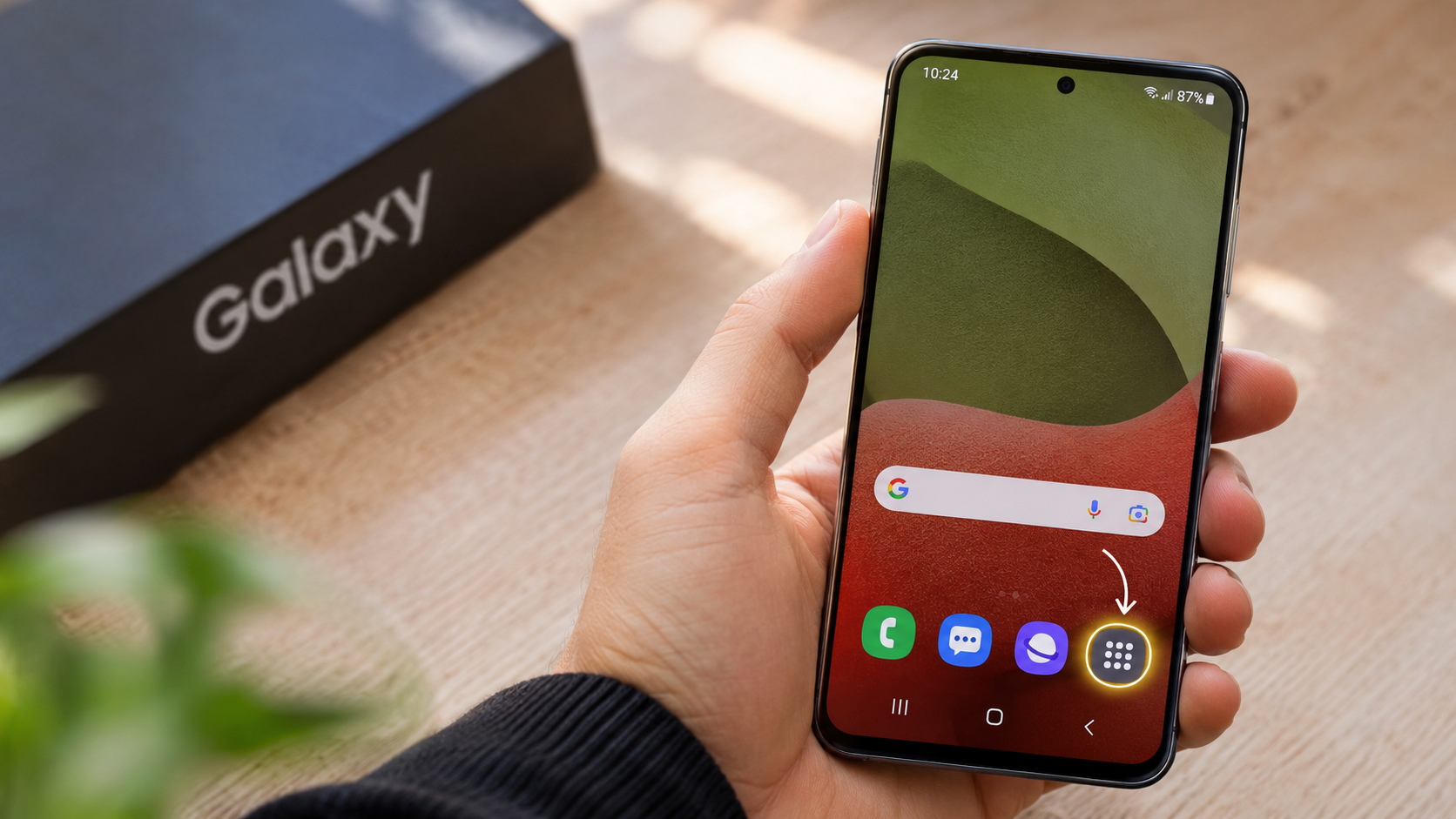
Updating your smartphone can introduce useful features and visual improvements. However, it can also change familiar navigation settings. Many Samsung Galaxy users notice that the traditional Apps button disappears from their home screen after an update. This can make accessing installed applications less convenient.
Samsung’s One UI interface offers several ways to navigate your applications. By default, some configurations use an upward swipe to open the Apps screen. However, you can restore the classic Apps button through the Home screen settings.
You don’t need to install additional software or modify your phone’s system. A simple adjustment can bring back the familiar nine-dot Apps icon. This guide explains how to restore the apps button on Samsung phones, customize One UI, and troubleshoot missing application icons.
We’ll also explore whether you can return to an older Samsung interface, replace One UI with another launcher, and safely customize your device without affecting essential system functions.
How Do I Get My Apps Button Back on My Samsung Phone?
Restoring the Apps button on a Samsung Galaxy phone is usually straightforward. The option is available through the Home screen settings in One UI. You don’t need to download an application or change advanced system configurations.
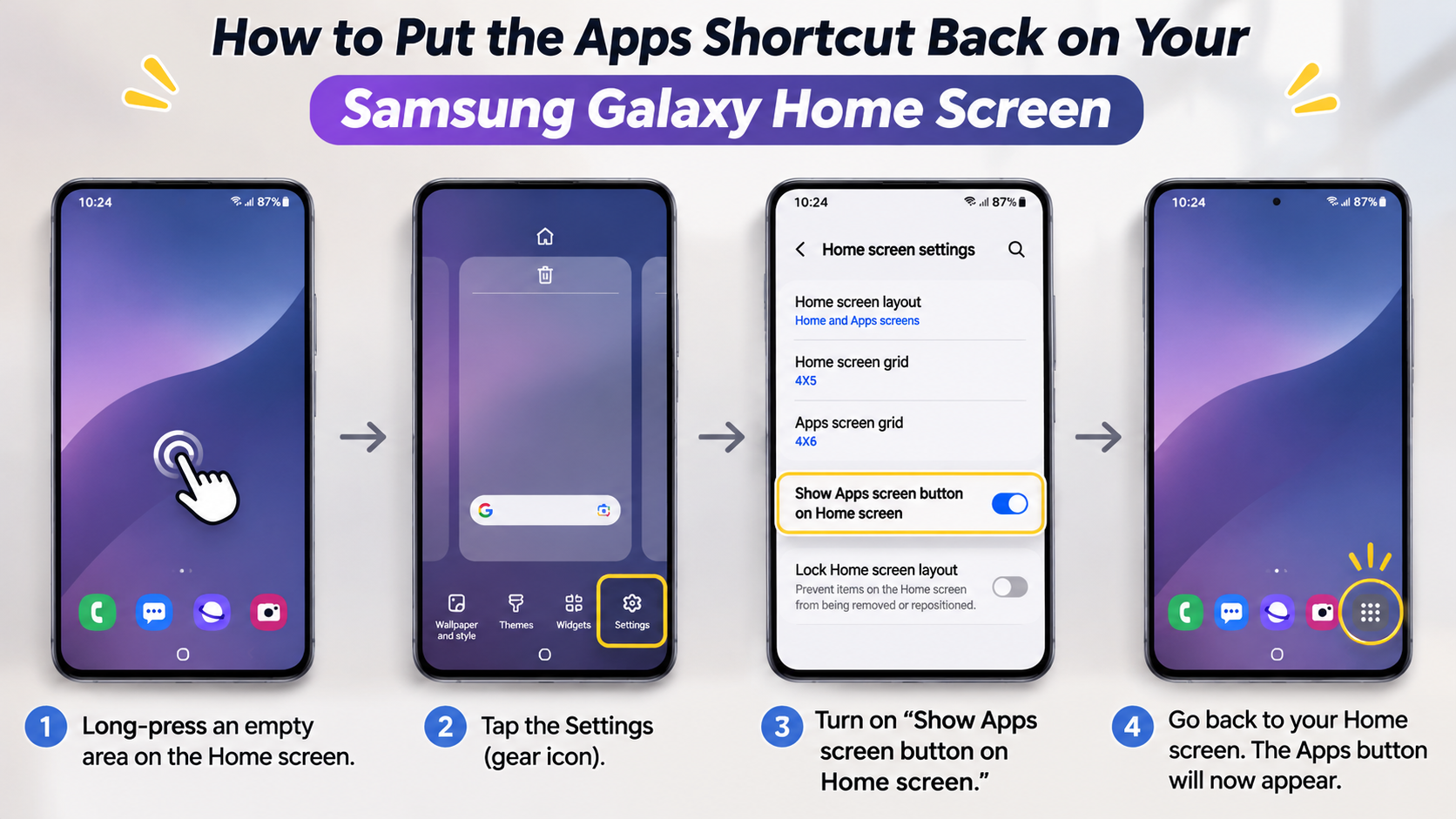
Follow these steps to bring back the traditional Apps screen shortcut:
- Go to your Samsung Galaxy Home screen.
- Press and hold an empty area of the screen.
- Tap the Settings option at the bottom.
- Look for the option named Show Apps screen button on Home screen.
- Turn on the available toggle.
- Return to your Home screen and check the bottom dock.
You should now see the familiar Apps button. Tap it to open your complete application drawer.
The exact setting name and location may vary depending on your One UI version and device model. If you cannot find this option, check the Home screen layout settings.
This adjustment restores convenient one-tap access to installed applications. It also lets you keep your existing home screen shortcuts, widgets, and wallpaper.
Step-by-Step Navigation Through Samsung Home Screen Settings
You can also check your Samsung Home screen settings directly through the Settings application. This is useful when you cannot access the customization menu or prefer navigating through the main settings interface.
Open Settings on your Galaxy phone and scroll down to the Home screen section. Look for available navigation and Apps screen options. Depending on your software version, you may find settings for the Apps screen button, swipe gestures, or Home screen layout.
Here are a few settings worth checking:
- Show Apps screen button: Displays the dedicated Apps shortcut when supported.
- Home screen layout: Controls whether applications appear on separate Home and Apps screens.
- Apps screen grid: Changes the number of application icons displayed.
- Hide apps on Home and Apps screens: Controls which applications remain hidden.
Samsung has changed some menu names across One UI releases. Therefore, your settings may look slightly different.
If the dedicated button option is unavailable, use the upward swipe gesture to access your Apps screen. You can also explore alternative navigation options supported by your device.
How to Get the Old Samsung UI Back?
Returning to an older Samsung interface is not always straightforward. Samsung does not provide a universal option for downgrading One UI through regular system settings. Firmware rollback restrictions can also prevent installing certain older software versions.
However, you can recreate many elements of the classic Samsung interface without changing your phone’s firmware. Third-party launchers offer alternative home screen designs, application drawers, and icon arrangements.
Some popular customization options include:
- Nova Launcher: Offers flexible home screen layouts, icon sizes, and application drawer settings.
- Niagara Launcher: Provides a simplified interface with an alternative application navigation experience.
- Microsoft Launcher: Offers customizable icons, widgets, and home screen arrangements.
- Samsung Good Lock: Provides additional customization options through supported modules.
You can also explore Galaxy Themes for different wallpapers, icon packs, and visual styles.
These alternatives let you personalize your phone while keeping its existing Android and One UI installation. However, third-party launchers cannot completely reproduce every feature of an older Samsung interface.
Replicating the Classic Samsung TouchWiz Appearance Safely
Samsung’s older TouchWiz interface had a different appearance from modern One UI. It featured distinctive icons, layouts, animations, and application drawer arrangements. If you prefer that familiar design, you can recreate several visual elements using customization tools.
Start by selecting a launcher that supports traditional application drawers and flexible home screen grids. Then, explore compatible icon packs that resemble older Samsung designs.
You can also make these adjustments:
- Choose a classic-style wallpaper from Galaxy Themes.
- Install an icon pack with older Samsung-inspired designs.
- Adjust the application drawer grid and icon spacing.
- Customize your home screen widgets.
- Use three-button navigation instead of gesture navigation, if supported.
Samsung Good Lock can provide additional customization through modules such as Home Up and Theme Park. Availability depends on your device, software version, and region.
Remember that visual customization does not downgrade your operating system. Your phone will continue running its installed One UI version and receiving compatible security updates.
Why Did All My Apps Disappear on My Samsung?
Missing application icons do not necessarily mean your Samsung Galaxy phone has deleted your applications. In many cases, the problem involves Home screen settings, hidden applications, or disabled software.
One possible reason is a change in the Home screen layout. Samsung offers different arrangements for displaying installed applications. The Home screen only layout places application icons directly across multiple home pages. Meanwhile, the Home and Apps screens layout provides a separate application drawer.
To check this setting:
- Open Settings on your Samsung phone.
- Select Home screen.
- Tap Home screen layout.
- Select Home and Apps screens, if available.
- Apply the changes and check your Apps screen.
Another possibility is that you accidentally hid certain applications. Open the Home screen settings and find the Hide apps option. Remove any applications you want to display again.
You should also check whether Easy Mode is enabled. This simplified interface changes the appearance and arrangement of your phone’s home screen.
Restoring Disabled or Inactive System Applications
Sometimes, applications disappear because they have been disabled or restricted by device settings. This can happen after software updates, manual changes, or certain battery optimization settings.
Start by checking whether the missing application is still installed. Open Settings, select Apps, and search for its name. If the application appears in the list, open its information page.
Look for an Enable option. If available, tap it to reactivate the application. You can then return to your Home screen or Apps screen and check whether its icon has reappeared.
Also, consider checking the following:
- Disabled applications: Some applications may have been manually disabled.
- Deep sleeping apps: Battery settings may restrict background activity, although this does not normally remove an installed app’s icon.
- Hidden applications: Check the Hide apps section in Home screen settings.
- Secure Folder: Applications installed inside Secure Folder appear separately from your regular application drawer.
- Uninstalled applications: Check the Google Play Store or Galaxy Store to reinstall missing applications.
If the application remains unavailable, restart your phone and check for additional software updates.
Can I Uninstall One UI on Samsung?
You cannot normally uninstall Samsung One UI like an ordinary application. It is an integrated software environment built around Android and Samsung’s device-specific features.
One UI manages several important parts of your smartphone experience. These include the home screen, system settings, notifications, device customization, and Samsung-specific applications. Other system components also handle essential hardware and security functions.
Removing or attempting to delete these components can cause serious software problems. Therefore, uninstalling One UI is not a practical way to change your phone’s appearance.
However, you can replace the default home screen launcher. Applications such as Nova Launcher, Niagara Launcher, and Microsoft Launcher provide alternative navigation experiences.
A custom launcher changes how your home screen and application drawer look. It does not replace the underlying Android operating system or remove every part of One UI.
This approach gives you more control over your phone’s everyday appearance. You can customize icons, layouts, widgets, and application navigation without modifying essential firmware components.
Understanding Launcher Overlays Versus Base Firmware
Before customizing your Samsung phone, it’s important to understand the difference between a launcher and the operating system.
A launcher controls the home screen experience. It determines how application icons, widgets, folders, and the application drawer appear. Installing another launcher changes these elements without replacing Android itself.
Base firmware, on the other hand, contains the software required to operate your device. It includes Android, Samsung’s integrated system components, hardware support, and other essential services.
Here is the main difference:
- Custom launcher: Changes the home screen and application navigation.
- One UI: Provides Samsung’s integrated software interface and device-specific features.
- Android firmware: Contains the underlying operating system and essential system components.
You can install a compatible third-party launcher through the Google Play Store. Then, select it as your default Home app through the Default apps settings.
Your lock screen, system settings, and many Samsung-specific features will continue using their existing system components. This provides customization without requiring potentially risky firmware modifications.
What Happens If I Delete One UI?
Trying to force-delete essential One UI components can cause serious problems with your Samsung Galaxy phone. However, the consequences depend on which package you remove and how your device handles its system dependencies.
One UI is not a single ordinary application. It consists of multiple system components that work together. Some handle the home screen, while others support notifications, system navigation, and other device functions.
Removing the wrong component can make your phone unstable. You might experience application crashes, missing interface elements, navigation problems, or an inability to access the home screen.
In more serious cases, modifying essential system packages can cause boot failures. Recovering the device may require reinstalling compatible firmware or performing a factory reset. This process can result in data loss.
Root access and Android Debug Bridge commands do not automatically make these modifications safe. You should avoid deleting unfamiliar system packages simply to change your phone’s appearance. If you’re concerned about your device’s protection after changing system settings, learn how to check whether your Android phone is still secure.
Instead, use supported customization settings or install an alternative launcher. These options provide more control without unnecessarily modifying critical software components.
Conclusion
Restoring the Apps button on Samsung Galaxy phones is usually a simple process. You can bring back the familiar Apps screen shortcut through your Home screen settings without installing additional software. If your applications disappear, checking the Home screen layout, hidden apps, and disabled applications can help resolve the issue.
Samsung also offers several customization options through One UI and Good Lock. You can use third-party launchers to change your home screen appearance without removing essential system components. For additional guidance, visit the official Samsung Support website to explore device-specific instructions and troubleshooting solutions.
Ultimately, you don’t need to downgrade or modify your phone’s firmware to enjoy a familiar navigation experience. Use Samsung’s built-in settings and safe customization options to keep your Galaxy phone organized, accessible, and comfortable to use.