
Is Your Android Phone Still Secure? Here’s How to Check
Most of us carry our entire lives on our smartphones. Banking details, private emails, photos, contacts, and work files may all live on one device. That makes mobile security an important part of everyday digital safety. Knowing how to check whether your phone is secure can help you identify weak settings, risky apps, and outdated software.
Android includes several built-in security and privacy tools. These include Google Play Protect, permission controls, privacy indicators, and security update information. You can also review account activity and special app access for additional warning signs.
This guide explains how to check your Android phone step by step. You will learn how to review permissions, investigate unusual behavior, check software support, run a security scan, and look for signs of unauthorized monitoring.
How Do I Check if My Android Phone Is Secure?
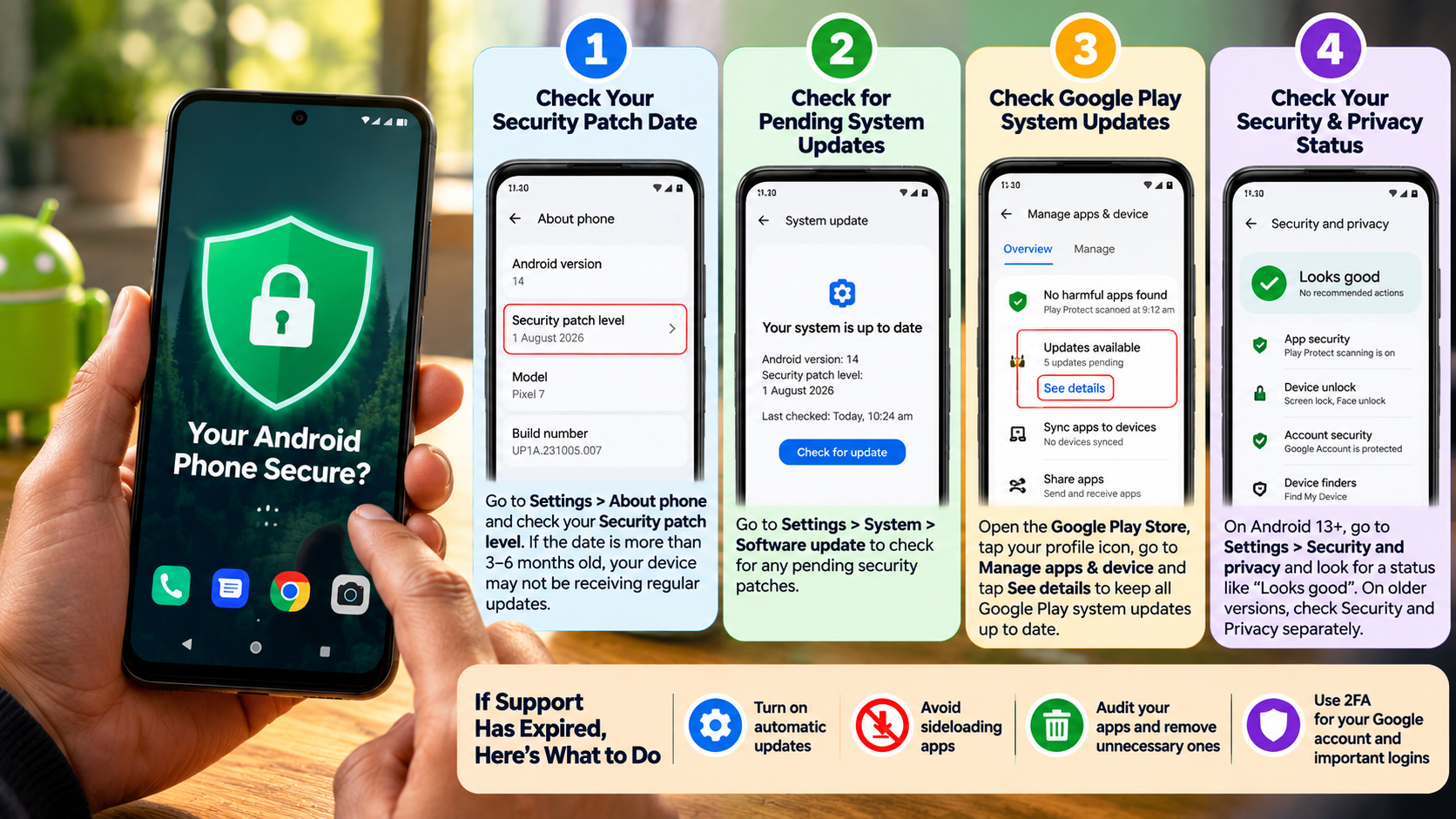
Start by opening Settings and looking for Security & Privacy, Privacy, or a similar option. The exact menu name can vary between Android versions and manufacturers. Review the information shown there and check whether your phone has any recommended security actions. If you also connect your phone to a home network regularly, reviewing secure home network practices can provide another layer of protection.
Next, make sure your phone uses a strong screen lock. A longer PIN or password is safer than an easy-to-guess code. Biometric authentication can also provide convenient protection when supported by your device.
Then review Google Play Protect. Google Play Protect checks apps during installation and periodically scans the device for potentially harmful applications. It can also warn you about harmful apps and take protective action when necessary.
Finally, review your Google Account for unfamiliar devices or security alerts. These checks provide a useful starting point when you want to determine whether your phone is secure.
If everything looks normal, keep checking these settings regularly. Security is an ongoing process rather than a one-time test.
Reviewing Critical App Permissions
App permissions deserve special attention because they control access to sensitive information and hardware. Open Settings and find Privacy Dashboard, Permission Manager, or the equivalent option on your phone.
Android’s Privacy Dashboard can show which apps accessed sensitive permissions and when that access occurred. Depending on your Android version, you can review permissions for the camera, microphone, location, contacts, and other sensitive features.
Pay particular attention to apps requesting access they do not appear to need. For example, a simple calculator should not normally require continuous access to your microphone or precise location.
You can review permissions individually and remove unnecessary access. However, do not disable permissions blindly. Some legitimate apps need specific permissions for their main features.
Also review apps you no longer use. Removing unnecessary applications reduces the number of programs that can access your device. Regular permission checks make it easier to confirm your phone is secure and your private information has fewer unnecessary exposure points.
Can I Test to See if My Phone Is Hacked?
There is no single Android setting that can prove your phone has been hacked. Instead, look for several unusual changes that appear together. These can include unexpected battery drain, unexplained mobile data usage, frequent crashes, overheating, or unfamiliar applications.
Start by checking your battery and mobile data settings. Look for an app that suddenly consumes much more power or data than expected. High usage does not automatically mean malware because legitimate apps can also perform intensive background tasks.
Check your app list carefully. Look for applications you do not remember installing. Also watch for persistent pop-ups, browser redirects, or settings that change without your permission. If suspicious browser behavior concerns you, understanding which browser offers stronger security can also help reduce everyday browsing risks.
If you suspect a specific application, update it or uninstall it when appropriate. Then run Google Play Protect. It can identify potentially harmful applications and provide warnings when it detects suspicious software.
You should also review your Google Account for unfamiliar sign-ins. If you find evidence of account compromise, change your password and secure the account from a trusted device.
Remember that unusual phone behavior is a warning sign, not proof of hacking. Looking at several indicators together gives you a better idea of whether your phone is secure.
Auditing Special Device Access Rights
Some Android permissions provide more control than ordinary app permissions. These include Device Admin Apps, Accessibility, notification access, and other special access settings. Their exact locations vary between manufacturers and Android versions.
Open Settings and search for Special app access or Device admin apps. Review the applications listed there. If an unfamiliar application has powerful access, investigate it before allowing it to remain enabled.
Accessibility access deserves particular care. Legitimate tools use these capabilities for useful features, but malicious apps can abuse them to interact with the screen or access sensitive information.
Do not remove access from a legitimate accessibility tool simply because it appears in the list. Instead, identify the application and confirm why it needs the permission.
If you find an unknown app with powerful access, disable the access and uninstall the app if appropriate. Restart the phone afterward and run Play Protect again.
If the app cannot be removed or the problem continues, consider professional support. A factory reset may also be appropriate after backing up essential data.
Is My Phone Still Safe?
Your phone’s security depends heavily on its software support. Manufacturers release security updates to address vulnerabilities, but the length and frequency of support vary between devices. Therefore, there is no universal rule that a phone becomes unsafe after a specific number of months.
Open Settings and look for Android security update under About phone, Software information, or a similar menu. Check the date of your latest security patch. You should also check whether a newer Android or security update is available.
An older security patch does not automatically prove that your phone has been compromised. However, a device that no longer receives security updates can become harder to protect against newly discovered vulnerabilities.
You should also check the manufacturer’s published support period. If your phone has reached the end of its official security support, upgrading may eventually be the safer option.
Keep Android, Google Play system components, and your apps updated. These steps reduce avoidable security risks and help you determine whether your phone is secure enough for everyday use.
Checking Play Protect Certification
You can also check whether your device is Play Protect certified. Open the Google Play Store, tap your profile picture, select Settings, and open About. Google displays the certification status there.
Do not treat certification as a malware scan. Device certification and Google Play Protect are separate systems. Certification indicates that the device has passed Android compatibility testing and meets Google’s requirements for licensed Google apps.
If your phone says Device is not certified, do not immediately assume that spyware or malware caused the problem. Google lists several possible causes, including an unlocked bootloader, modified Android software, or other certification problems.
If the device is not certified, look for the available troubleshooting options. You can also check for system updates and follow Google’s recommended steps.
Certification is useful information, but it is only one part of an Android security check. Combine it with Play Protect, software updates, permission reviews, and account security checks.
These checks provide a much clearer picture of whether your phone is secure than certification status alone.
How Do I Run a Security Test on My Android Phone?
The easiest security test starts with Google Play Protect. Open the Google Play Store, tap your profile icon, and select Play Protect. From there, review the current security status and run the available scan.
Google Play Protect checks apps when they are installed and periodically scans the device. It can also check applications installed from sources outside Google Play. If it detects potentially harmful software, it can warn you or take protective action.
You should also check for Android and Google Play system updates. Then review your installed applications and remove anything you do not recognize or need.
For a broader manual audit, check these areas:
- Security and privacy settings
- App permissions
- Special app access
- Accessibility services
- Device administrator apps
- Google Account security
- Android security update date
Different manufacturers may provide additional device diagnostics. Samsung, Pixel, and other Android phones can have different maintenance and diagnostic features.
A security test cannot guarantee that a phone is completely threat-free. Instead, it helps identify common security problems and gives you a clearer picture of your device’s protection. After completing these checks, you should have a much better understanding of whether your phone is secure.
Running a Safe Mode Diagnostic Check
Safe Mode can help determine whether a third-party application is causing certain problems. The exact method for entering Safe Mode differs between Android manufacturers, so check your phone maker’s instructions if the usual power-menu method does not work.
When Android starts in Safe Mode, downloaded third-party apps are generally disabled temporarily. Test the phone for the problem that concerned you. For example, check whether unexpected pop-ups, crashes, or unusual battery behavior continue.
If the problem disappears in Safe Mode, a third-party app becomes a stronger suspect. However, this does not prove that the app is malware. A normal application can also cause conflicts, crashes, or excessive background activity.
Restart the phone normally and review recently installed applications. Remove suspicious or unnecessary apps one at a time, then test the device again.
Safe Mode is therefore a diagnostic tool rather than a complete security scan. Combine it with Play Protect, permission reviews, software updates, and careful app management. If a serious malware problem remains, knowing whether a factory reset removes a computer virus can help you understand when a reset may be useful. Together, these steps provide stronger evidence that your phone is secure.
How Do I Check if My Android Phone Is Being Monitored?
Checking for monitoring requires looking for unusual permissions, unfamiliar apps, and unexpected account activity. Start with your Privacy Dashboard and review recent camera, microphone, and location access.
On Android 12 and later, a green indicator appears when an app uses the camera or microphone. You can swipe down and tap the indicator to identify the app or service using the sensor.
Next, review Accessibility, notification access, device administrator settings, and other powerful permissions. An unfamiliar application with extensive access deserves investigation.
Be careful with claims about dialer codes such as *#21#. These codes can show certain call-forwarding information on some networks, but they are not a reliable test for spyware or phone hacking. Their behavior also depends on the carrier and device.
If you suspect serious monitoring, secure your important accounts from a trusted device. Change passwords and enable two-factor authentication to add another layer of protection to your accounts. You should also remove unfamiliar applications and review recent account activity.
If the concern remains, consider backing up essential files and performing a factory reset. You can also seek professional technical assistance if you cannot identify the source of the problem.
Monitoring concerns require careful investigation. No single symptom proves surveillance, so use several security checks before deciding whether your phone is secure.
Detecting Hidden Accessibility Service Abuses
Accessibility services require extra attention because they can provide powerful interaction with a device. Legitimate services use these capabilities for features such as screen assistance, voice control, and other accessibility needs.
Open Settings and search for Accessibility. Review the installed or enabled services and identify every application listed there. If you see an unfamiliar service, investigate the app before leaving it enabled.
Do not assume that every accessibility service is malicious. Some legitimate applications need accessibility access to perform their advertised functions. The important question is whether you recognize the application and understand why it needs that access.
If an unknown app has accessibility access, disable the service and review the app’s other permissions. You can then uninstall the application if appropriate.
Also check notification access, device administrator apps, and other special permissions. These settings can reveal applications with unusually broad control over your device.
If you cannot remove a suspicious application or it continues behaving strangely, avoid entering sensitive passwords on that phone. Use another trusted device to secure important accounts.
After addressing the issue, run Play Protect and install available updates. These additional steps help confirm that your phone is secure and reduce the chance of leaving a suspicious application active.
Conclusion
Keeping your Android phone secure does not require advanced technical knowledge. A few regular checks can help you identify security risks before they become serious problems.
Review Google Play Protect, install security updates, check app permissions, and remove unfamiliar applications. You should also review accessibility services, special app access, and your Google Account for anything unusual.
For additional guidance, you can review Google’s official Android security and privacy recommendations, which explain how to protect your device, accounts, and personal information.
Remember that no single test can guarantee complete protection. Instead, combine several checks to build a clearer picture of your device’s security.
If your phone receives regular updates, uses strong authentication, has trusted apps, and shows no suspicious activity, you have taken the most important steps to keep your phone secure.
Make these checks part of your normal digital routine. A few minutes of regular maintenance can help protect your personal information, accounts, photos, and other sensitive data from avoidable risks.