4 Unexpected Benefits of Your Phone’s Always-On Display
Modern smartphones offer incredible convenience, yet many users immediately disable their always-on display to save battery life. However, this feature offers more than simply showing the time. It keeps essential information visible without fully waking your phone’s screen.
An always-on display (AOD) uses low-power display technology to show information while your smartphone remains locked. Depending on your device, you can view the clock, date, notifications, battery status, and other useful details.
Instead of waking your entire screen to check the time or read an alert, you get information with a quick glance. This small convenience can change how you interact with your smartphone throughout the day.
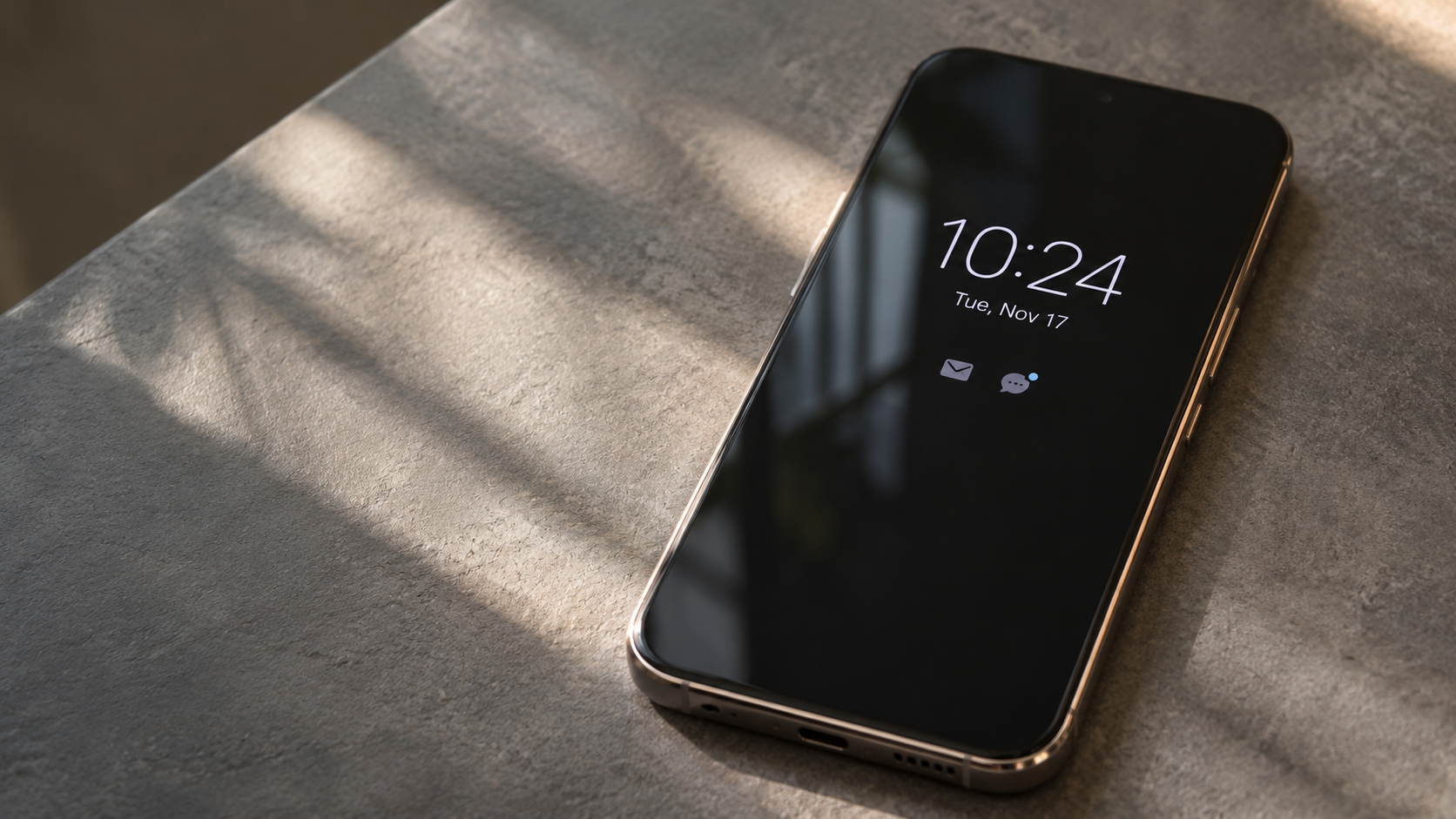
In this guide, we explore four unexpected benefits of an always-on display. We also examine its disadvantages, everyday usefulness, and potential battery consumption.
1. Prevents Accidental Doomscrolling
Picking up your phone to check the time can easily turn into an extended scrolling session. You unlock the device, notice a notification, and suddenly open social media. Before you realize it, several minutes have disappeared.
An always-on display can help reduce these unnecessary interactions. It shows essential information without requiring you to unlock your smartphone. You can quickly check the time, notification icons, and other supported details.
Here are two ways this feature can support healthier phone habits:
- Avoids unnecessary unlocking: You can check basic information without opening your home screen or browsing different applications.
- Reduces potential distractions: Seeing notification details at a glance may help you decide whether something requires immediate attention.
An AOD cannot eliminate doomscrolling by itself. However, it removes one common reason for unlocking your phone. This small change can support better screen-time habits, especially during work or study sessions.
2. Reduces Unnecessary Physical Button Usage
Your smartphone’s power button handles several everyday actions. You use it to wake the screen, lock the device, and sometimes activate additional shortcuts. Repeating these actions throughout the day creates regular mechanical use.
An always-on display reduces the need to wake your screen whenever you want basic information. You can simply glance at your phone to check the time or notification icons. This makes everyday interactions slightly more convenient.
Consider these practical advantages:
- Fewer button presses: You do not need to press the power button every time you check the clock or look for notifications.
- Simpler daily interactions: Important information remains visible while your phone sits on a desk or bedside table.
- Less reliance on screen activation: You can avoid repeatedly waking the display for basic information.
However, modern smartphone buttons are designed for repeated use. An AOD should not be considered a major hardware-preservation feature. Its main advantage is convenience rather than significantly extending your phone’s lifespan.
3. Allows Discreet Checking in Social Settings
Checking your smartphone during meetings, classes, or conversations can interrupt the moment. Picking up your device also makes it easier to become distracted by unrelated applications. An always-on display offers a simpler alternative.
Samsung provides additional options for controlling notifications, clock styles, and display schedules. Explore its official Always-On Display customization guide for supported Galaxy devices.
When your phone rests on a desk, you can glance at its screen without unlocking it. Depending on your settings, you may see notification icons, incoming call information, and the current time.
This creates two useful advantages:
- Avoids unnecessary interruptions: You can check whether an important notification arrived without immediately picking up your phone.
- Reduces app hunting: Supported information, such as music controls or calendar details, may remain accessible through compatible lock-screen features.
Privacy still matters when using this feature. Notification previews can expose personal messages to people nearby. Consider hiding sensitive notification content while keeping basic alerts visible.
This approach works particularly well in professional environments. You remain aware of important updates without constantly interacting with your smartphone.
4. Turns Your Phone into a Customizable Desk Accessory
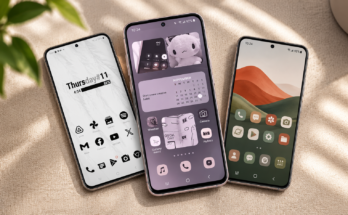
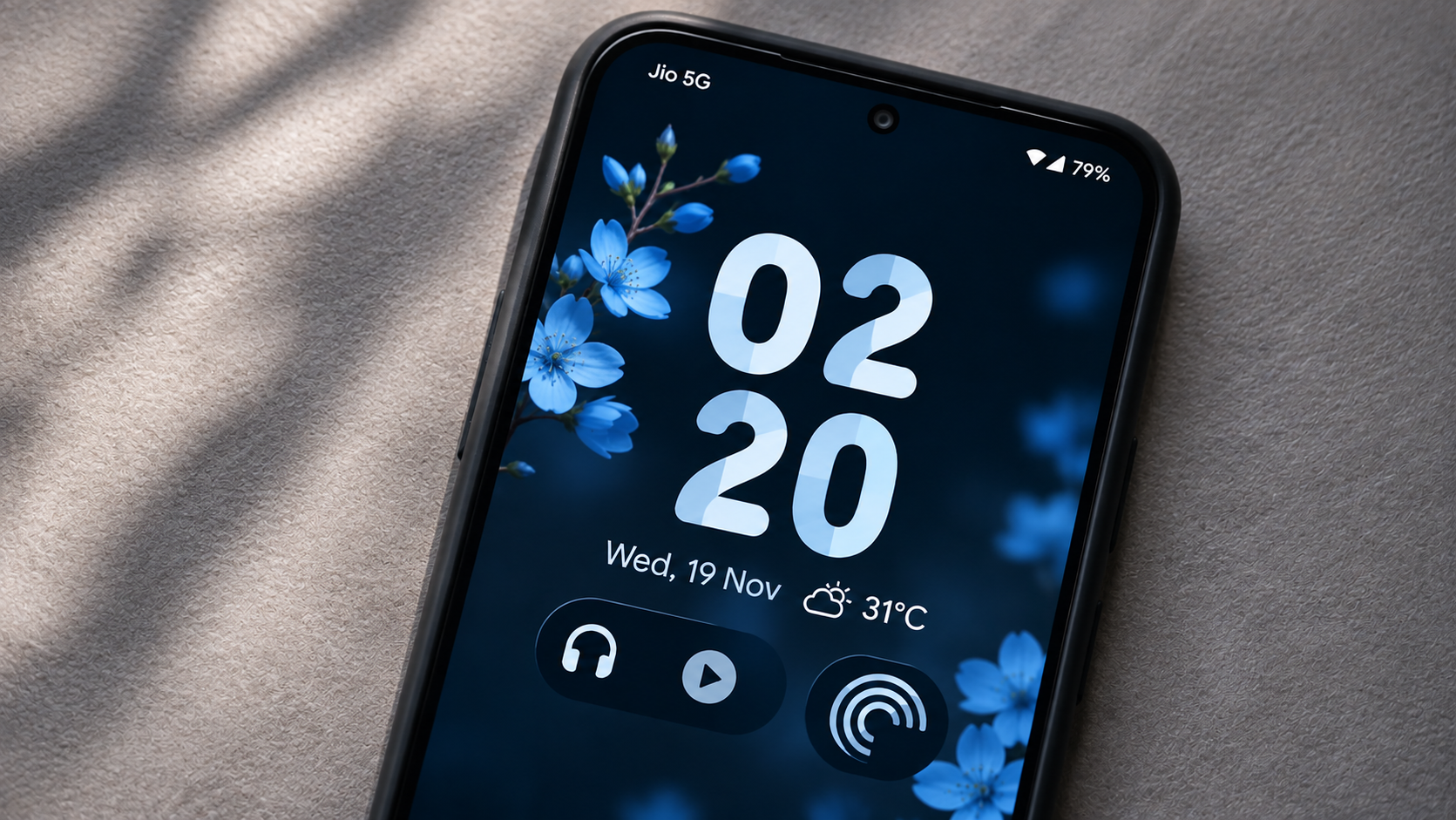
An always-on display can also make your smartphone look more personal. Modern devices offer several customization options, including clock styles, colours, wallpapers, and notification settings. These options let you create a display that matches your preferences.
Depending on the manufacturer, you can customize different elements:
- Clock designs: Choose different fonts, layouts, and colours to change the appearance of your lock screen.
- Personalized artwork: Display selected wallpapers or supported images alongside essential information.
- Notification privacy: Control which alerts appear and whether message previews remain visible.
- Useful information: View supported details such as battery status, date, and notification icons.
Some smartphones offer additional experiences beyond traditional AOD functionality. For example, Apple’s StandBy mode displays clocks, widgets, and photos while an iPhone charges in landscape orientation.
Samsung also offers customizable Always-On Display options. These features turn your smartphone into a more useful bedside or desk companion without requiring constant screen interaction.
What Are the Benefits of Having an Always-On Display on a Smartphone?
An always-on display offers several practical advantages beyond showing the current time. Its biggest benefit is convenience. You can check essential information without repeatedly unlocking your smartphone or activating its full display. This can make everyday phone interactions quicker and simpler.
The feature can also support better digital habits. Checking notification icons without opening applications may reduce unnecessary screen interactions. Additionally, supported lock-screen information helps you stay aware of incoming calls, reminders, and other updates.
Here are the main advantages of using an always-on display:
- Quick information access: Check the time, date, and supported notifications instantly.
- Fewer screen activations: Avoid waking your entire display for basic information.
- Better convenience: Keep important details visible while your phone rests on a desk.
- Personalization: Customize clock styles, wallpapers, and other supported elements.
- Simpler notifications: Decide whether an alert needs attention without immediately opening an application.
These benefits make AOD particularly useful for people who frequently check their phones throughout the day. However, the experience depends on your smartphone’s display technology and available software features.
What Are the Disadvantages of Having an Always-On Display?
Despite its convenience, an always-on display has a few disadvantages. The biggest concern is additional battery consumption. Your smartphone must keep certain display pixels and supporting hardware active while the device remains locked. This can reduce standby battery life, although the actual impact varies between models. Samsung users can explore the actual battery drain caused by Always-On Display to understand its impact on Galaxy devices.
Another potential concern is OLED screen burn-in. Displaying identical elements for extended periods can contribute to uneven pixel wear. However, modern smartphones use techniques such as pixel shifting and brightness management to reduce this risk.
Privacy is another consideration. People nearby might see notification icons, message previews, or other information displayed on your lock screen. Fortunately, most smartphones provide options to hide sensitive content.
Consider these drawbacks before enabling AOD:
- Battery consumption: Continuous display activity uses additional power.
- Potential burn-in: Prolonged static content can contribute to uneven OLED wear.
- Privacy concerns: Visible notifications may expose personal information.
- Limited availability: Some smartphones do not support this feature.
The disadvantages are manageable for most users. You can adjust display settings, notification visibility, and activation schedules to suit your needs.
Is Always-On Display a Good Feature?
Yes, an always-on display can be useful if you regularly check your smartphone for basic information. It provides a convenient middle ground between a completely inactive screen and a fully illuminated display. You can view essential details without repeatedly unlocking your device.
The feature becomes particularly helpful in everyday situations. For example, you can check the time while working at your desk or monitor notifications during a busy day. Supported smartphones may also display music information, calendar reminders, and other useful details.
However, its usefulness depends on your priorities and smartphone model. If you frequently travel without access to a charger, reducing background power consumption might matter more. Samsung Galaxy users can explore ways to maximize their Galaxy S26 battery life to discover additional battery-saving techniques. Disabling AOD can also help minimize unnecessary battery usage.
For everyday use, consider these points:
- Enable AOD if you frequently check the time and notifications.
- Use scheduled activation to limit unnecessary display activity.
- Hide sensitive notification previews to protect your privacy.
- Disable the feature when maximum battery life is important.
Ultimately, AOD is a convenience feature rather than an essential smartphone function.
Does Always-On Display Drain the Battery?
Yes, an always-on display consumes additional battery power. However, the amount depends on your smartphone’s hardware, display technology, and software settings. Modern OLED displays make this feature more efficient than traditional continuously illuminated screens.
With OLED technology, individual pixels produce their own light. Black areas can remain unlit, reducing power consumption. Some smartphones also use LTPO display technology to lower refresh rates when showing static information. Certain models can reduce refresh rates to as little as 1Hz.
However, not every smartphone uses the same technology. Brightness levels, notification activity, movement detection, and display schedules can also affect battery consumption.
You can reduce the impact by following these steps:
- Use automatic brightness: Allow your smartphone to adjust display brightness based on surrounding conditions.
- Set an activation schedule: Keep AOD enabled only during your preferred hours.
- Disable unnecessary animations: Reduce additional display activity where supported.
- Use power-saving settings: Check whether your smartphone offers an AOD option within its battery-saving controls.
There is no universal battery-drain percentage that applies to every smartphone. Check your device’s battery statistics to understand its actual impact.
Conclusion
Your smartphone’s always-on display offers more than a convenient way to check the time. It provides quick access to essential information, reduces unnecessary screen interactions, and makes everyday phone usage simpler.
It can also support better digital habits by reducing the need to unlock your device repeatedly. Customization options make the experience more personal, while compatible lock-screen features provide additional convenience.
However, AOD still consumes battery power and introduces minor privacy considerations. Modern OLED technology helps manage power consumption, while notification controls offer better privacy.
Instead of leaving this feature disabled by default, try using it for a week. Adjust its schedule, customize the clock, and hide sensitive notifications. You can then decide whether its everyday convenience outweighs the additional battery consumption.