What Does It Mean When a Key Icon Just Appeared in Your Android Status Bar?
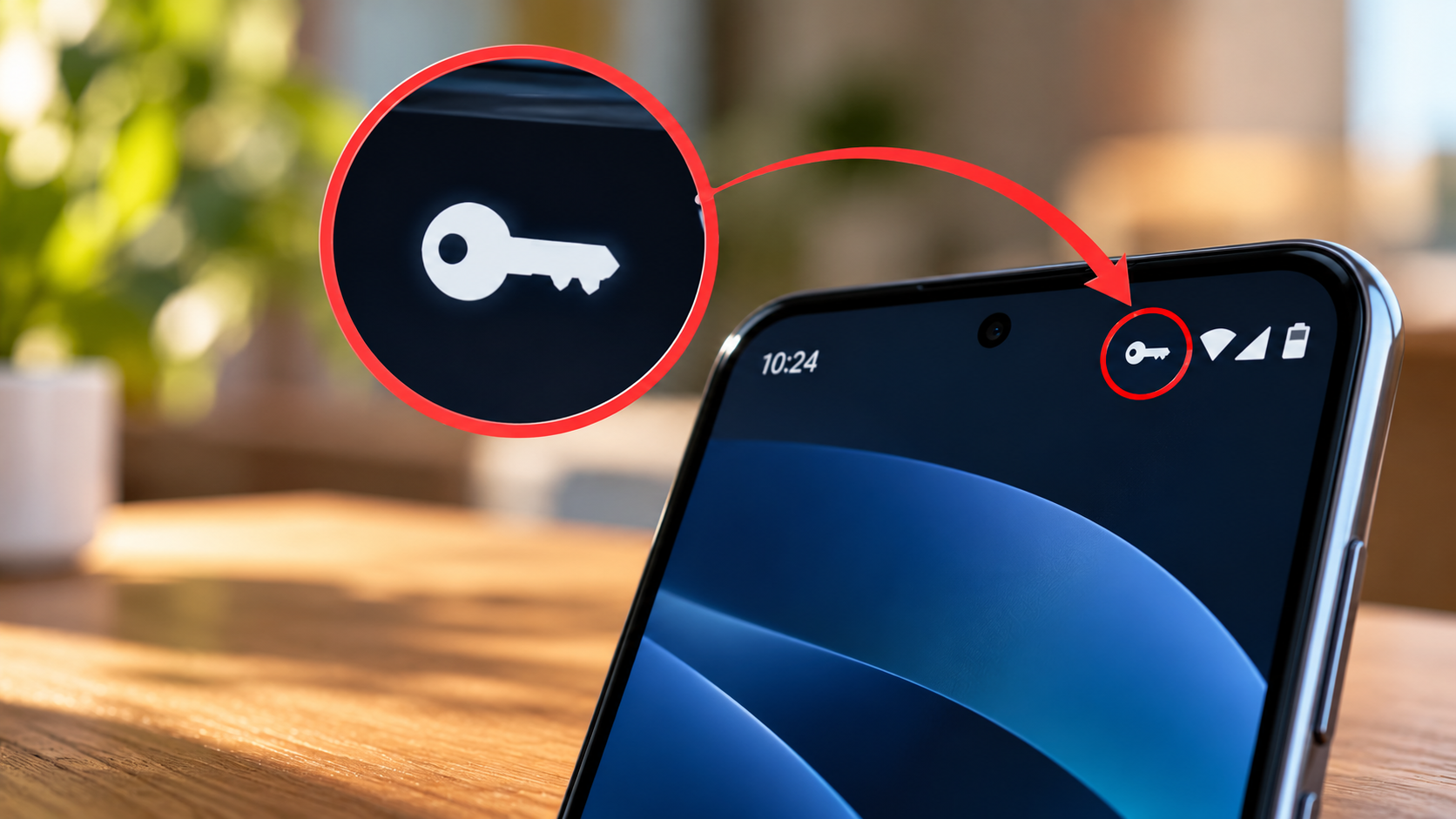
When a key icon just appeared in your Android status bar, it usually means a Virtual Private Network (VPN) is active on your phone. Seeing this unfamiliar symbol can cause concern, especially if you suspect your device has been hacked or monitored.
In most cases, however, the key symbol is a normal indicator of an active VPN connection. A VPN routes your internet traffic through a secure connection, helping protect your data while you browse.
The icon may appear after installing a VPN app, enabling a privacy tool, or connecting to a work or school network. Some ad blockers and security applications also use local VPN connections to filter network traffic.
Understanding this symbol helps you identify which app activated the connection and decide whether to keep it enabled. This guide explains what the Android key icon means, how to investigate unexpected activity, and how to remove the symbol safely.
What Is the Key Symbol on My Phone Status Bar?
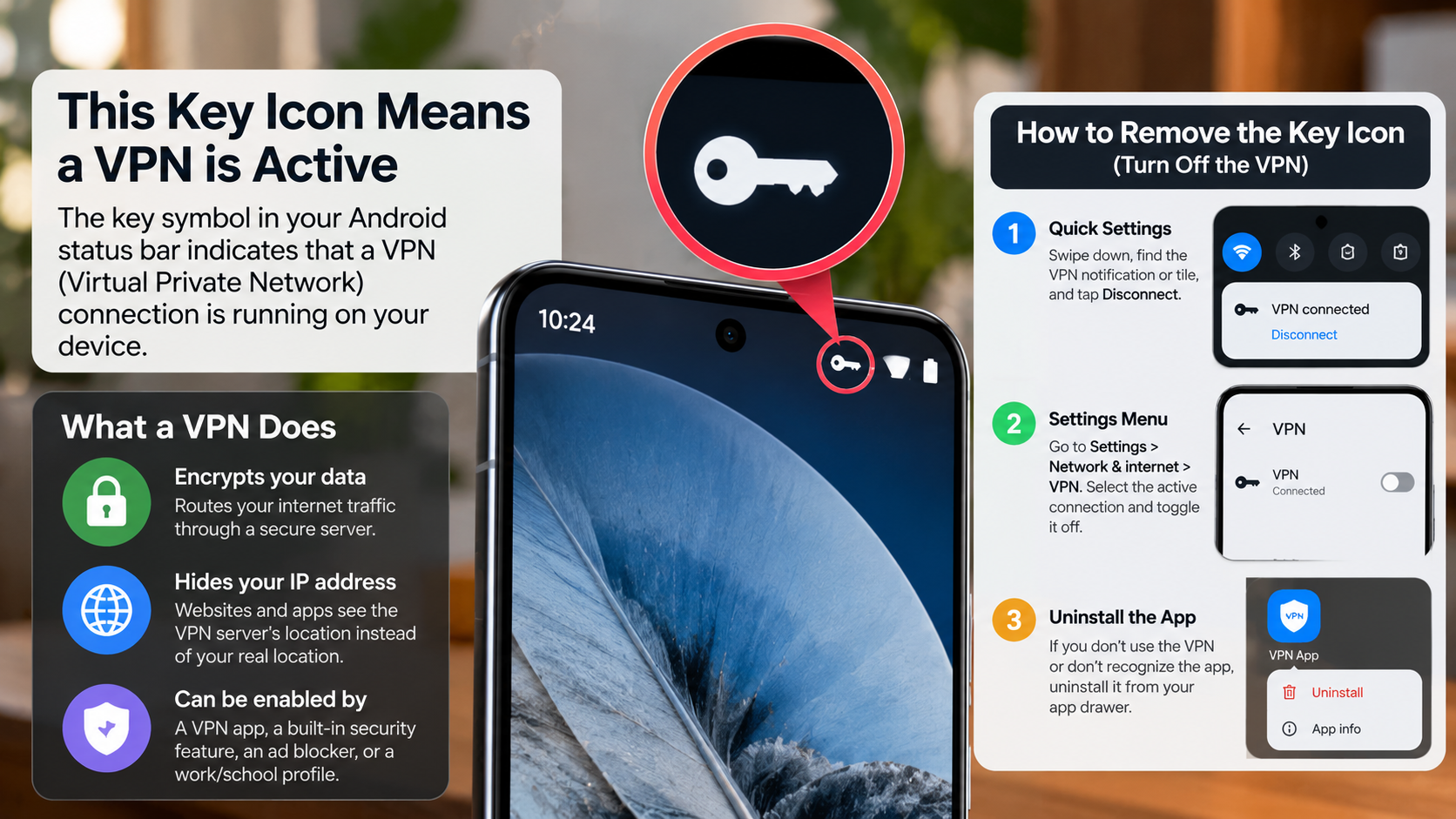
The key symbol on your phone’s status bar usually indicates that a VPN connection is active. This symbol appears when an app or a manually configured setting establishes a virtual private network connection on your Android device. If you’re unfamiliar with this technology, understanding what a VPN is and why you need it can help you decide whether to keep the connection enabled.
A VPN creates an encrypted connection between your phone and a VPN server. This can help protect your internet traffic from people monitoring the same unsecured network. However, the level of protection depends on the VPN service and its configuration.
You might notice the key icon after installing a VPN app or enabling a privacy feature. Workplaces and educational institutions may also require VPN connections to access internal resources securely.
Understanding VPN Connection Status
The key icon helps you recognize when a VPN connection is active. Depending on your Android version and device manufacturer, the exact symbol and its appearance may vary. A VPN can be especially useful on public networks, so review these public Wi-Fi risks and ways to stay safe on open networks before connecting to unfamiliar hotspots.
Keep these points in mind:
- Active VPN: The key icon generally indicates that a VPN connection is running.
- Encrypted traffic: A VPN can encrypt traffic between your device and its VPN server.
- Connection changes: The icon may disappear when you disconnect the VPN.
- Privacy limitations: A VPN does not automatically prevent spyware, phishing, or every form of tracking.
If the icon appears unexpectedly, check your VPN settings and identify the app responsible. You can then decide whether the connection is necessary.
How Do You Know If Someone Is Monitoring Your Phone on Android?
An unexpected key icon does not automatically mean someone is monitoring your phone. It usually indicates an active VPN connection, which can be completely legitimate. However, checking your security settings is sensible if you notice other unusual activity. You can also follow these malware protection tips for home and business users to strengthen your defenses against potentially harmful software.
Start by reviewing your installed apps and identifying any unfamiliar VPN services. Look for applications you do not remember installing or tools with permissions that seem unnecessary.
You should also review your phone’s battery usage and mobile data consumption. Unusual activity can have several causes, including background updates, poorly optimized apps, or unwanted software. These signs alone do not prove that someone is spying on you.
Checking Device Administrators and Profiles
Some monitoring tools request powerful permissions to control certain device functions. You can review these permissions through your Android security settings.
Check the following areas:
- VPN settings: Identify active connections and the apps managing them.
- Device administrator apps: Review applications with administrative privileges.
- Accessibility permissions: Check which apps can access or control parts of your device.
- Installed apps: Remove unfamiliar applications only after confirming they are unnecessary.
- Battery and data usage: Investigate unexplained background activity.
Menu names vary between Android devices. If you find an unfamiliar app, research it before removing it. Avoid disabling essential system services, and seek trusted technical support if you suspect persistent spyware.
Why Have I Got a Key Symbol on My Phone?
You may see a key symbol because an app or setting has activated a VPN connection. Android displays this indicator to help you recognize when a VPN is running. In most situations, it is a normal feature rather than a warning of unauthorized access.
Several types of applications can trigger the Android key icon. Traditional VPN services use it to indicate a connection to a remote server. Some ad blockers, firewalls, and privacy tools create local VPN connections to filter traffic directly on your phone.
A work or school configuration may also activate a VPN automatically. This can happen when you connect to a managed network or open an app that requires secure access.
Common Triggers for VPN Icons
If the key icon appeared recently, consider whether you changed your phone’s settings or installed new software.
Common causes include:
- VPN apps: Services such as personal or corporate VPNs may activate automatically.
- Ad blockers: Some tools use Android’s VPN framework to filter unwanted traffic.
- Privacy applications: Certain security utilities route connections through local filters.
- Work or school profiles: Managed devices may require VPN access to internal resources.
- Manual settings: You may have enabled a VPN without noticing the status icon.
To identify the cause, open your VPN settings and check the active connection. Then compare its name with your installed applications. If the app is unfamiliar, investigate it before disconnecting or uninstalling it.
How Do I Remove the Key Symbol on Android?
To remove the key symbol on Android, disconnect the active VPN or turn off the app responsible for the connection. The icon will generally disappear once the VPN disconnects. However, the exact steps depend on your phone’s Android version and manufacturer.
First, swipe down from the top of your screen and check for a VPN notification. If one appears, tap it to open the connection controls. You may be able to disconnect the VPN directly from that notification.
Alternatively, open your phone’s Settings app and search for VPN. Select the active connection and disconnect it. Some devices place this option under Network & Internet, Connections, or another similarly named menu.
Disabling Active VPNs in Settings
Follow these steps to turn off the connection:
- Open Settings on your Android phone.
- Search for VPN using the Settings search bar.
- Open the VPN menu and select the active connection.
- Tap Disconnect or turn off the connection, depending on your device.
- Check the status bar to see whether the key icon has disappeared.
If the icon returns, an app may be reconnecting automatically. Open the VPN settings and look for options such as Always-on VPN. Disable automatic connections only if you no longer need them.
If an unfamiliar app controls the connection, investigate it before uninstalling it. Remember that disconnecting a VPN may reduce your privacy on public Wi-Fi or prevent access to work resources. Keep the VPN enabled if it is required or provides protection you want to retain.
Conclusion
If a key icon just appeared in your Android status bar, there is usually no reason to panic. This symbol typically indicates that a VPN connection is active on your phone. VPN apps, ad blockers, privacy tools, and work profiles can all trigger it.
To understand why the icon appeared, check your VPN settings and identify the app responsible. If you do not recognize the connection, review your installed apps and permissions before taking action. Remember that the key icon alone does not indicate hacking or phone monitoring.
If you no longer need the VPN, disconnect it through your Android settings to remove the icon. However, keep it enabled if it provides protection or access you need. For additional guidance, visit Google’s official Android Help Center to learn more about managing your device settings and security.
By understanding the Android key icon’s meaning, you can manage your phone’s privacy settings confidently and keep your device secure.