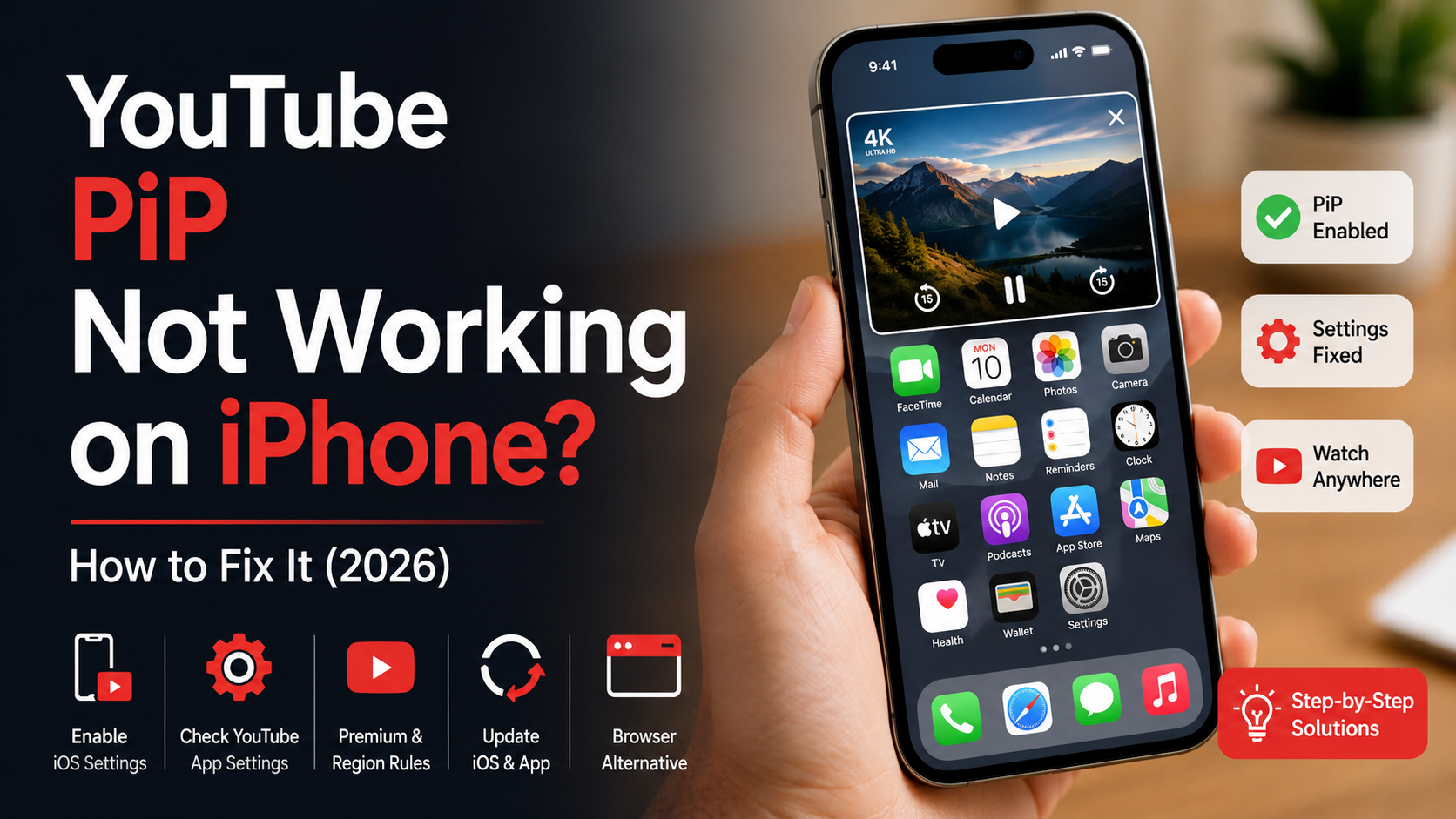
YouTube PiP Not Working on iPhone? How to Fix It (2026)
Few things are more frustrating than watching a video stop the moment you leave the YouTube app. If you are searching for YouTube PiP not working on iPhone, you are dealing with a common issue faced by many iOS users.
Picture-in-Picture (PiP) allows videos to continue playing in a small floating window while you use other apps. It is useful when you want to watch tutorials, follow podcasts, take notes, or browse messages without stopping your video.
Apple introduced system-wide Picture-in-Picture support with iOS 14. However, YouTube’s PiP feature depends on more than just your iPhone settings. It also relies on YouTube app settings, account permissions, regional availability, and software compatibility.
You can confirm iPhone compatibility and supported PiP features through official Apple documentation on Apple Support.
The feature can stop working after an iOS update, a YouTube app update, or an accidental settings change. Sometimes, the issue comes from account restrictions or temporary software bugs.
Fortunately, most PiP problems can be fixed quickly. In this guide, you will learn how to troubleshoot YouTube Picture-in-Picture not working on iPhone using simple steps. These solutions cover iOS settings, YouTube preferences, Premium requirements, app updates, and browser alternatives.
Why is YouTube PiP not working on my iPhone?
Several factors can prevent YouTube Picture-in-Picture from working properly on an iPhone. The feature depends on your iOS settings, YouTube app version, account status, and regional availability. If any of these elements are misconfigured, the video may not shrink into a floating window when you leave the app.
Software updates can also reset certain preferences or introduce temporary bugs. In some cases, an outdated app version may prevent PiP from functioning correctly. Your YouTube account type may also affect feature availability because PiP support differs by country and subscription plan.
Before trying advanced fixes, verify that your iPhone supports Picture-in-Picture and that both iOS and the YouTube app are fully updated. Identifying the actual cause saves time and helps you apply the correct solution instead of relying on trial and error.
App Updates and Account Status
An outdated YouTube app often causes compatibility issues with advanced features like Picture-in-Picture. Updating the app through the App Store can resolve many software bugs.
Also, check whether PiP is available for your account and region. Depending on your location and subscription, some playback features may vary.
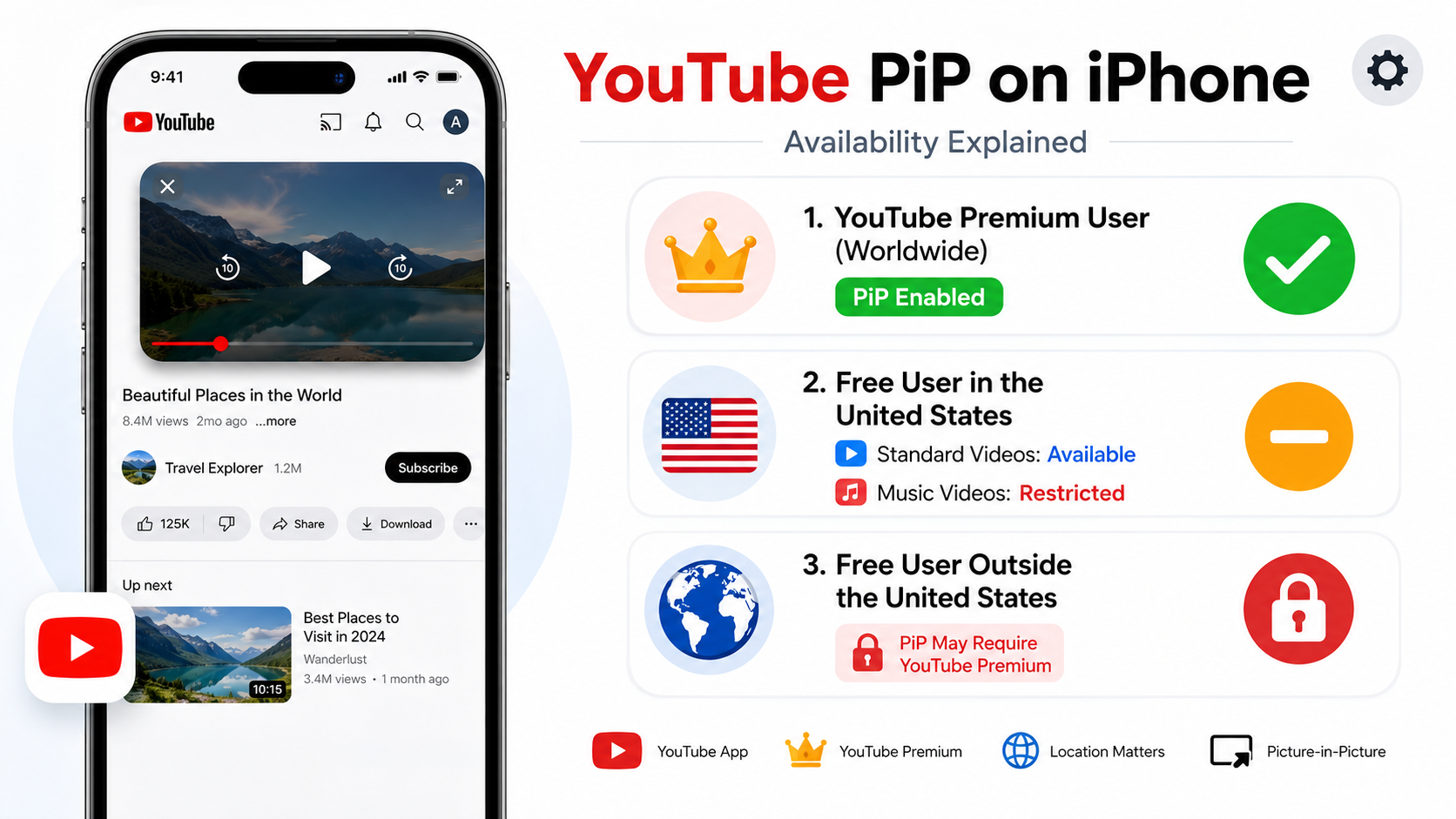
Can YouTube play PiP on iPhone?
Yes, YouTube can play picture-in-picture on iPhone, but availability depends on your region, subscription tier, and app settings. Premium subscribers globally enjoy built-in background playback and picture-in-picture modes directly inside the official iOS app. Free users in the United States historically accessed this feature through the mobile web version using Safari, though official support policies occasionally shift. Ensuring your app is fully updated from the App Store remains essential for seamless compatibility. Understanding these foundational requirements helps you diagnose whether your specific account type or app version is causing unexpected playback roadblocks.
Understanding Premium and Free Access Requirements
Free tier users often experience limitations depending on geographic location and current YouTube feature rollouts. Premium subscribers bypass these regional restrictions effortlessly, making app settings the primary focus for troubleshooting. Always verify that your account status remains active before changing deeper system configurations or reinstalling software packages.
How to fix PiP not working on YouTube?
Fixing picture-in-picture issues usually involves adjusting a few hidden toggles within your iPhone settings menu. Start by opening your general settings, tapping on picture-in-picture, and ensuring the automatic start toggle is actively enabled. If the setting is already turned on, try toggling it off and back on to clear temporary software glitches. Sometimes, closing the YouTube application completely and restarting your iOS device resolves stubborn background playback freezes instantly. Checking for pending app updates in the App Store also ensures you are running the latest bug fixes released by developers.
Verifying Safari Settings for Web-Based Playback
If you primarily watch videos through the Safari browser, specific browser-level configurations must be correctly set. Open Safari settings, check website preferences, and ensure that desktop website requests or automated picture-in-picture permissions are allowed. Clearing your browser cache frequently prevents outdated cookies from interfering with video player controls during active multitasking sessions.
Why is picture in picture not working for YouTube?
Sometimes YouTube PiP not working on iPhone occurs even when everything appears correctly configured. Temporary iOS bugs, background processes, or app conflicts can prevent the video from switching into floating mode.
A simple restart often clears temporary system errors. If that does not help, ensure Start PiP Automatically remains enabled in your iPhone settings. You should also verify that Background App Refresh and required permissions are active for YouTube.
Network interruptions can occasionally affect playback behavior, especially if the app crashes or loses connection while streaming. Testing PiP on another supported video can help determine whether the problem is video-specific or system-wide.
Working through these common troubleshooting steps usually restores normal Picture-in-Picture functionality without requiring more advanced fixes or reinstalling the application.
System Cache and Background Refresh
Minor software glitches can interfere with media playback.
Try these quick fixes:
- Restart your iPhone.
- Update iOS to the latest version.
- Update the YouTube app.
- Enable Background App Refresh.
- Close and reopen YouTube.
These simple actions often resolve temporary PiP issues.
How do I enable PiP on YouTube?
Enabling Picture-in-Picture requires both iPhone and YouTube settings to work together. First, open Settings > General > Picture in Picture and make sure Start PiP Automatically is turned on. Without this setting, YouTube may not enter floating mode when you leave the app.
Next, open YouTube and verify that your account supports PiP in your region. If applicable, enable any available playback settings within your account preferences. Keeping the YouTube app updated also improves compatibility with the latest iOS features.
After confirming these settings, play a supported video and exit the app. The video should automatically continue in a floating window. If it still does not work, restart your device and test again. These checks solve most cases of YouTube PiP not working on iPhone without requiring advanced troubleshooting.
Toggling App and System Settings
Before testing PiP, confirm the following:
- Picture-in-Picture is enabled in iPhone Settings.
- Your iPhone runs a supported iOS version.
- YouTube is updated.
- Your account supports PiP in your region.
- Restart the app after changing any settings.
These steps ensure both iOS and YouTube are properly configured.
How to Fix YouTube Picture-in-Picture Not Working on iPhone
If your YouTube floating window disappears when you leave the app, follow these solutions in order. Most users can restore PiP by adjusting a few settings.
These steps cover both iPhone system controls and YouTube-specific options. They also help identify whether the problem comes from your device, app, or account.
Step 1: Fix YouTube PiP Not Working on iPhone by Enabling iOS Settings
Your iPhone controls whether apps can use Picture-in-Picture mode. If this option is disabled, YouTube cannot create a floating video window.
Follow these steps:
- Open the Settings app on your iPhone.
- Scroll down and tap General.
- Select Picture in Picture.
- Turn on Start PiP Automatically.
After enabling the setting, test YouTube again. Play a video and swipe up to return to the Home Screen.
If the option was already enabled, refresh the setting. Turn it off, wait about 10 seconds, and turn it on again. This can clear minor system-level glitches.
Keeping this option enabled allows supported apps to automatically enter Picture-in-Picture mode whenever you leave the app.
Step 2: Fix YouTube PiP Problems by Enabling the YouTube App Setting
Even when iOS allows PiP, YouTube has its own control for the feature. A disabled app setting can prevent the floating player from appearing.
To check the YouTube setting:
- Open the YouTube app.
- Tap your profile picture in the bottom-right corner.
- Tap the Settings icon.
- Select General.
- Find Picture-in-Picture.
- Turn the option on.
Your iPhone and YouTube app settings must both be enabled for Picture-in-Picture to work correctly.
iPhone Settings → General → Picture in Picture → Start PiP Automatically ON
YouTube App → Settings → General → Picture-in-Picture ON
When both options are enabled, YouTube should be able to open videos in a floating PiP window.
After changing the setting, restart the YouTube app and test a regular video. If PiP still does not work, continue with the next troubleshooting steps.