This Smartphone Habit Can Help Your Wireless Keyboard’s Lifespan Too
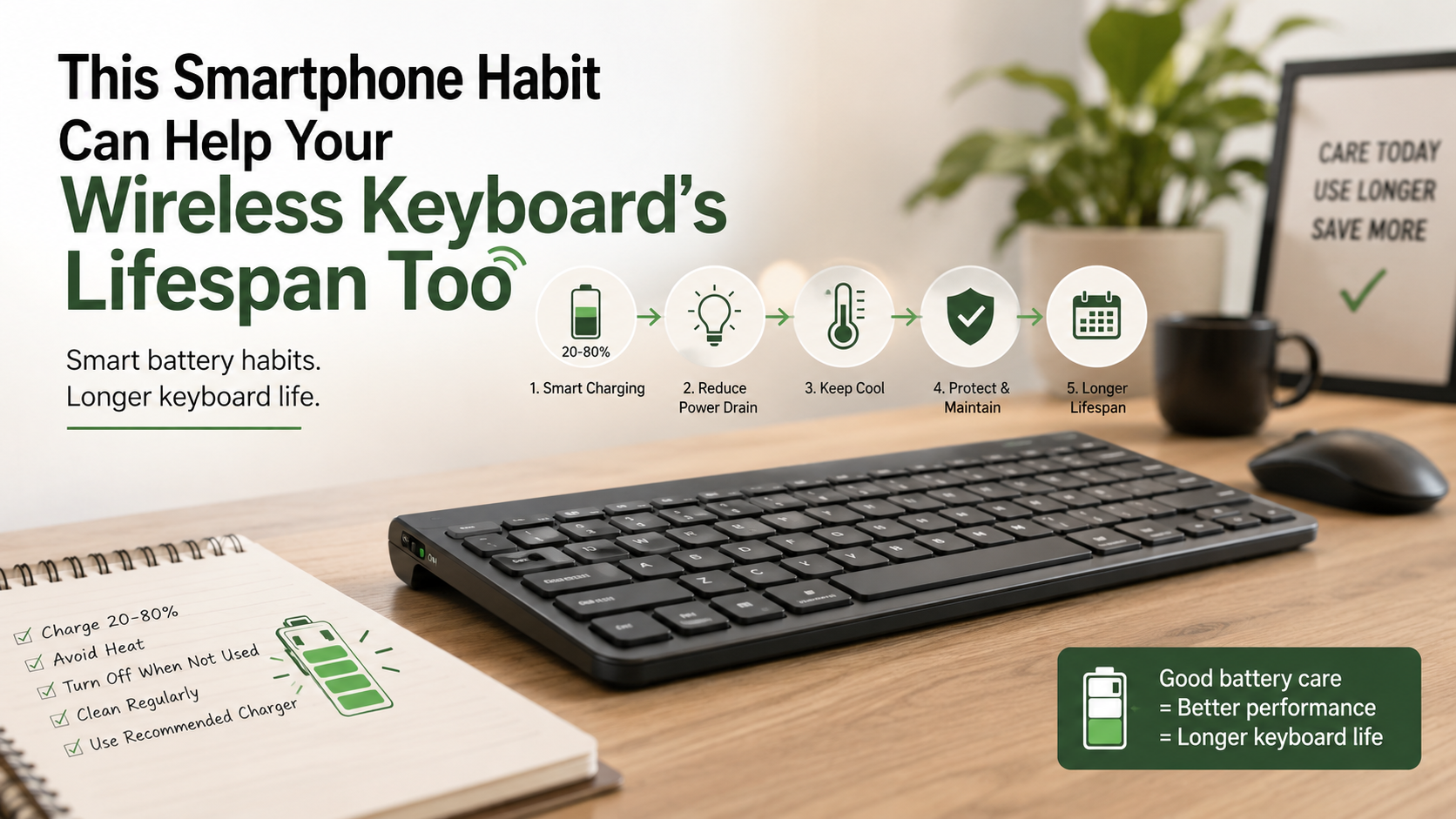
Modern desk setups rely heavily on wireless peripherals. They keep workspaces clean, flexible, and easy to organize. However, many users overlook how battery care affects accessory longevity. A simple smartphone habit can also help protect your wireless keyboard’s lifespan.
Many modern rechargeable keyboards use lithium-ion batteries. These batteries naturally lose capacity over time. High temperatures and prolonged periods at full charge can accelerate that process. Battery University research also notes that moderate charge levels can reduce stress on lithium-based cells.
Good battery habits can therefore help you avoid premature replacements. They can also reduce sudden power loss and poor runtime. However, battery care is only one part of keyboard durability. Switch quality, cleaning, wireless connectivity, and overall construction also matter.
This guide explains how long wireless keyboards typically last. It also covers battery care, storage, troubleshooting, and hardware failure signs. These practical steps can help keep your wireless workspace reliable for years.
How long do wireless keyboards last?
A typical wireless keyboard can last three to eight years with regular use. The exact lifespan depends on its switch type, construction, battery, and usage pattern. Membrane keyboards often remain useful for three to five years. Premium mechanical keyboards can last eight years or longer.
Mechanical switches usually have high actuation ratings. Many are rated for 50 million to 100 million keystrokes. This means the switches may outlast the keyboard’s rechargeable battery. For wireless models, battery degradation often becomes the limiting factor.
Rechargeable lithium-ion batteries gradually lose capacity through normal aging and charge cycles. A battery may still work after hundreds of cycles, but runtime can become noticeably shorter. The battery’s actual lifespan varies by chemistry, temperature, charging habits, and design.
Keyboards using replaceable AA or AAA batteries offer another advantage. You can replace depleted batteries without replacing the entire keyboard. This can extend the useful life of the hardware significantly.
Impact of Switch Types on Durability
Switch design has a major effect on a keyboard’s physical durability. Mechanical switches generally provide greater long-term durability than traditional membrane designs. Each mechanical switch operates as an individual component. Many are rated for tens of millions of keystrokes. For a broader comparison, see Mechanical vs Membrane Keyboard for Gamers: Which Wins?
Membrane keyboards use flexible rubber domes beneath their keys. These materials can gradually lose elasticity with heavy use. As they age, keys may feel softer, less responsive, or inconsistent. This does not mean every membrane keyboard fails quickly. Build quality and usage still play important roles.
Mechanical keyboards can also develop problems. Individual switches may eventually fail, and stabilizers can become noisy or loose. Dust and debris can affect both mechanical and membrane keyboards.
For heavy typists, switch ratings can therefore be an important buying factor. If you are choosing a keyboard for daily work, How To Pick The Perfect Mechanical Keyboard For Your Office can help you evaluate suitable options. However, switch durability does not determine the entire wireless keyboard’s lifespan. Battery condition, charging hardware, circuit boards, wireless components, and physical care also matter.
A durable keyboard combines reliable switches with a strong chassis and serviceable power system. That combination can provide many years of dependable daily use.
How to extend battery life?
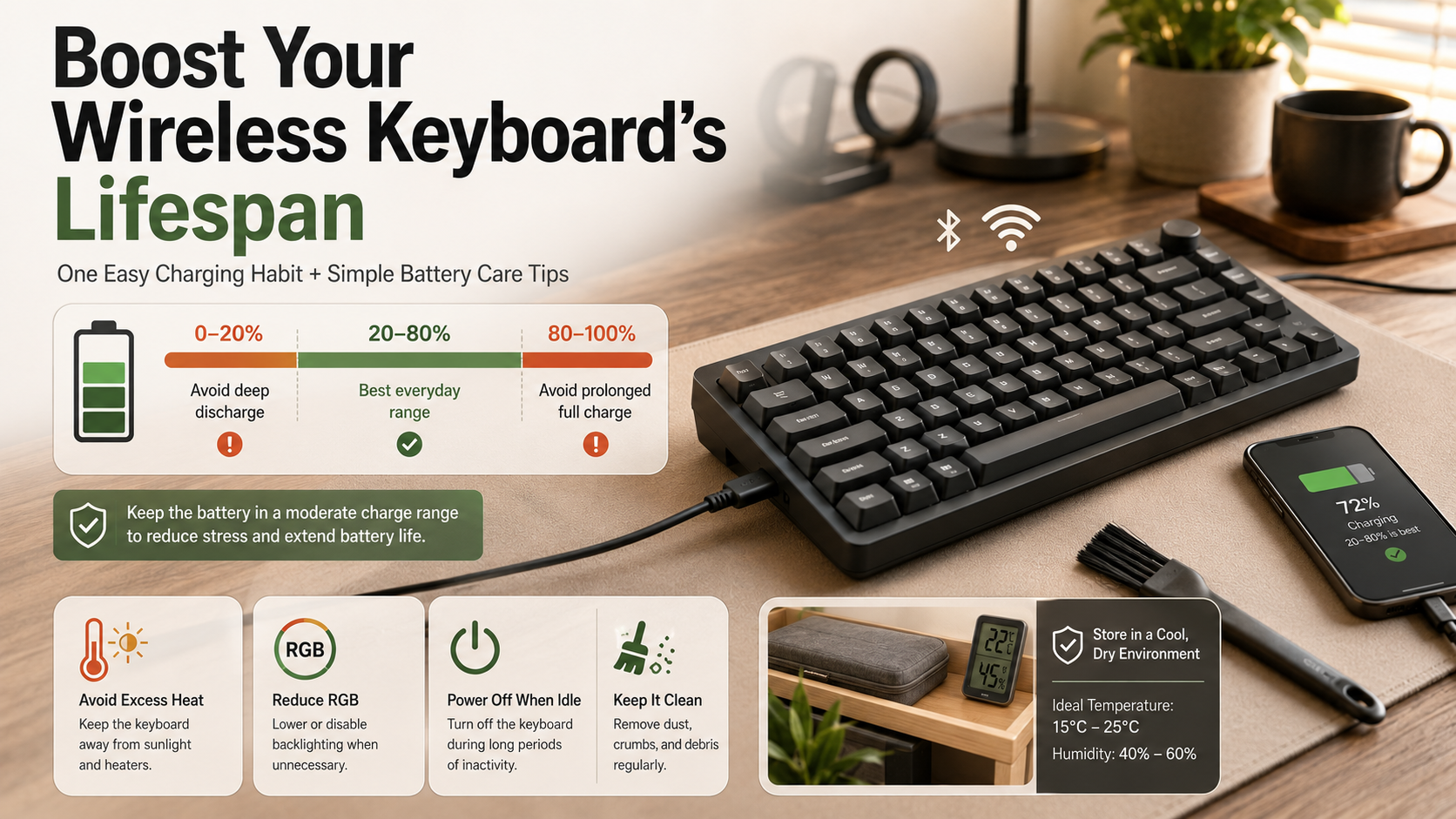
Smart charging habits can help extend battery health and protect your wireless keyboard’s lifespan. Rechargeable lithium-ion batteries generally experience less stress when they avoid prolonged periods at very high or very low charge levels. Keeping the battery around 20% to 80% when practical is a useful guideline.
You do not need to follow those limits perfectly. Modern keyboards usually include charging controls that help manage the battery safely. Still, avoiding unnecessary deep discharges and extended time at 100% can support long-term capacity.
Other habits can also improve runtime:
- Reduce or disable RGB backlighting when you do not need it.
- Turn the keyboard off when you finish working.
- Use lower lighting brightness when possible.
- Avoid exposing the keyboard to excessive heat while charging.
- Use the manufacturer’s recommended charging equipment.
Leaving a keyboard plugged in overnight is not automatically dangerous. Modern charging systems can stop active charging after reaching full capacity. However, keeping a battery at full charge and in a warm environment can contribute to faster aging.
Best Storage Temperatures for Long-Term Battery Health
Temperature plays an important role in rechargeable battery health. Lithium-ion batteries generally perform best at moderate room temperatures. Excessive heat can accelerate chemical aging and reduce long-term capacity. Very low temperatures can also temporarily reduce battery performance.
Avoid storing your wireless keyboard in places that become extremely hot. A parked car, direct sunlight, or an area beside a heater can expose the battery to unnecessary heat. These conditions may shorten battery life even when the keyboard is not being used.
For long-term storage, keep the keyboard in a cool, dry indoor environment. If the keyboard uses a rechargeable battery, avoid storing it completely empty. A moderate charge level is generally better for extended storage.
You should also protect the keyboard from moisture. Humidity and liquid exposure can damage circuit boards, contacts, and other internal components.
Good storage habits are especially useful when you have a spare keyboard or travel frequently. Avoiding extreme temperatures will not stop normal battery aging. However, it can reduce avoidable stress and help preserve usable capacity for longer.
Why is my wireless keyboard dead?
A wireless keyboard that appears completely dead may have several possible causes. The most obvious issue is a fully depleted battery. However, charging problems, wireless pairing errors, and Bluetooth connectivity issues can also produce similar symptoms. For a broader look at these limitations, see 4 Disadvantages Of Using Bluetooth For Everything.
Start with the basics. Check the power switch and connect the keyboard to a compatible charging source. Give a deeply discharged battery some time before testing it again. If the keyboard uses replaceable batteries, install a fresh set and check the contacts.
If the keyboard powers on but does not type, investigate connectivity. Reconnect the Bluetooth device or reinsert the wireless receiver. Try another USB port if you use a 2.4GHz dongle.
Other possible causes include:
- Wireless interference from nearby devices.
- Outdated firmware or device software.
- Dirty or corroded battery contacts.
- Liquid damage or debris.
- A failed internal battery or circuit component.
If basic troubleshooting fails, consult the manufacturer’s reset procedure. Avoid opening a sealed keyboard unless you understand the risks. Internal repairs can damage components or affect warranty coverage.
Resolving Signal Interference and Pairing Glitches
Wireless interference can make a working keyboard appear faulty. Many wireless keyboards communicate through Bluetooth or 2.4GHz wireless connections. Nearby devices can sometimes interfere with these signals, especially in crowded wireless environments.
If you use a USB receiver, try moving it to a different USB port. A short USB extension cable can also position the receiver closer to the keyboard. Keep the receiver away from large metal objects and heavily crowded USB hubs when possible.
Bluetooth keyboards can develop pairing problems after software updates or connection changes. Removing the keyboard from your computer’s Bluetooth device list can help. Restart the computer, then place the keyboard into pairing mode and connect it again.
You can also try these steps:
- Move the keyboard closer to the computer.
- Disconnect unused wireless devices temporarily.
- Restart the keyboard and computer.
- Update compatible keyboard firmware.
- Test the keyboard with another device.
These steps can distinguish a connectivity problem from genuine hardware failure. If the keyboard works normally with another device, the original computer or wireless connection may be responsible.
Does a wireless keyboard go bad?
Yes, a wireless keyboard can eventually fail. Like other electronics, it contains components that naturally age through use and time. Battery degradation is one of the most common concerns for rechargeable wireless models.
A lithium-ion battery gradually loses its ability to store energy. As capacity declines, the keyboard may require more frequent charging. Eventually, the battery may provide too little runtime for practical everyday use.
Physical components can also wear down. Mechanical switches may eventually fail after extensive use. Membrane domes can lose their original feel and responsiveness. Circuit boards and electrical contacts can suffer damage from moisture, corrosion, or accidental liquid spills.
Wireless technology can also become outdated. Older keyboards may eventually have compatibility problems with newer operating systems or computers. However, software updates and adapters can sometimes extend their usefulness.
Common warning signs include:
- Rapid battery drain after a full charge.
- Missed or repeated keystrokes.
- Frequent Bluetooth disconnections.
- Keys that feel unusually soft or inconsistent.
- Charging problems or failure to power on.
Recognizing these symptoms early can help you decide whether cleaning, troubleshooting, or replacement makes the most sense.
Recognizing Warning Signs of Hardware Failure
A wireless keyboard usually shows warning signs before complete hardware failure. Paying attention to these changes can help you identify problems early. Some symptoms point to the battery, while others suggest switch, circuit, or connectivity issues.
Rapid battery drainage is one of the clearest signs of battery aging. If runtime has fallen sharply despite normal usage, the internal battery may have lost significant capacity. A keyboard that frequently disconnects while fully charged may have a different hardware or wireless problem.
Key behavior can also reveal physical wear. Missed keystrokes, duplicate characters, inconsistent actuation, or keys that stop responding may indicate failing switches or membrane components. Cleaning can sometimes resolve these problems when dust or debris is responsible.
Watch for other symptoms as well:
- The keyboard only works while connected to power.
- Charging repeatedly stops or fails.
- Wireless connections drop without an obvious cause.
- Several keys fail at the same time.
- The keyboard shows physical swelling or damage.
Battery swelling requires particular caution. Stop using the device and follow the manufacturer’s safety guidance rather than opening it yourself.
How many years should a keyboard last?
A well-maintained keyboard should generally provide four to six years or more of useful service. Actual longevity varies considerably by design, build quality, workload, and maintenance. Premium mechanical keyboards can remain functional for a decade or longer under favorable conditions.
Mechanical keyboards often have an advantage because their switches can withstand millions of actuations. Some models also feature detachable cables and hot-swappable switches. These features can make repairs and component replacement easier.
Wireless keyboards have an additional limitation. Their rechargeable batteries gradually lose capacity, even when the switches and chassis remain in excellent condition. A keyboard with a replaceable battery or standard AA/AAA cells may therefore remain useful for longer.
Regular care can help protect your wireless keyboard’s lifespan. Keep dust and food particles away from switches. Avoid liquid exposure and store the keyboard at moderate temperatures. Keep firmware updated when manufacturers provide important compatibility or stability improvements.
Budget membrane keyboards may show reduced responsiveness after several years. However, careful use can still extend their practical life. The best measure is not simply age. Consider battery runtime, typing reliability, physical condition, and compatibility when deciding whether replacement is necessary.
Extending Longevity Through Regular Maintenance
Regular cleaning can prevent small problems from becoming expensive repairs. Dust, food crumbs, pet hair, and skin oils can accumulate around keys and switches. Over time, this buildup may affect key movement and typing consistency.
For light maintenance, gently remove loose debris from the keyboard. A soft brush or suitable compressed-air method can help clear particles from between keys. Avoid forcing debris deeper into the keyboard or using excessive air pressure.
Wipe the exterior with a slightly damp microfiber cloth when needed. For compatible surfaces, isopropyl alcohol can help remove oils and sticky residue. Apply cleaning liquid to the cloth rather than pouring it directly onto the keyboard.
A simple maintenance routine can include:
- Light dusting once a week.
- Surface cleaning every few weeks.
- Deeper cleaning every few months.
- Checking battery contacts on replaceable-battery models.
- Inspecting the charging port for debris or damage.
Always follow the manufacturer’s cleaning instructions first. Some keycaps, coatings, and switches require special care.
Routine maintenance protects wireless keyboard’s lifespan. Combined with sensible charging and storage habits, it can help maximize your keyboard’s useful service life.
Frequently Asked Questions
Is it bad to leave a wireless keyboard plugged in all the time?
Yes, leaving a rechargeable wireless keyboard plugged in continuously harms internal battery chemistry. Sustained exposure to maximum charging voltage generates excess heat and accelerates battery capacity degradation. Unplug the charging cable once the battery reaches approximately eighty percent to maintain optimal battery health over time.
Can you replace the battery in a rechargeable wireless keyboard?
Most consumer wireless keyboards feature sealed internal batteries that manufacturers do not design for simple user replacement. While experienced hobbyists can occasionally desolder and replace internal pouch cells, opening the chassis often voids active warranties and risks damaging delicate ribbon cables and plastic housing clips.
How often should I clean my wireless keyboard?
You should clean your keyboard lightly once a week and conduct deep maintenance every few months. Weekly dusting prevents particle buildup around switches, while monthly wipe-downs with isopropyl alcohol eliminate accumulated oils. Regular maintenance protects internal circuit contacts and keeps key travel crisp and responsive.
Does turning off a wireless keyboard save battery?
Yes, switching off the physical power toggle when the wireless keyboard’s lifespan is idle saves measurable battery capacity. Although most modern peripherals enter low-power sleep modes automatically, background connection polling still consumes trickle power. Turning the device off completely prevents accidental wakeups inside bags during daily travel.
Conclusion
Maximizing your wireless keyboard’s lifespan does not require complicated maintenance. A few sensible habits can protect both the battery and the physical components. Good charging practices, moderate temperatures, regular cleaning, and proper storage all contribute to long-term reliability.
Rechargeable batteries naturally lose capacity with age. However, avoiding unnecessary heat and prolonged extreme charge levels can help reduce avoidable battery stress. You should also avoid repeatedly allowing the battery to become completely depleted.
Physical maintenance matters just as much. Keep dust, crumbs, and moisture away from the keyboard. Turn off the device when it will remain unused for long periods. Keep firmware updated when necessary.
If your keyboard starts showing problems, troubleshoot the battery and wireless connection before replacing it. Many apparent failures come from pairing issues, depleted batteries, interference, or dirty contacts.
A reliable keyboard can remain an important part of your workspace for many years. With simple care, you can preserve typing performance, improve battery runtime, and delay unnecessary replacement.