Why Your Phone Slows Down Over Time and How to Fix It
When you wonder why your phone slows down over time, the answer usually involves several factors working together. When you first unboxed your smartphone, it probably felt fast, responsive, and effortless. Months or years later, apps may take longer to open, animations can stutter, and menus may freeze. This gradual decline is common, but it does not always mean your phone is ready for replacement.
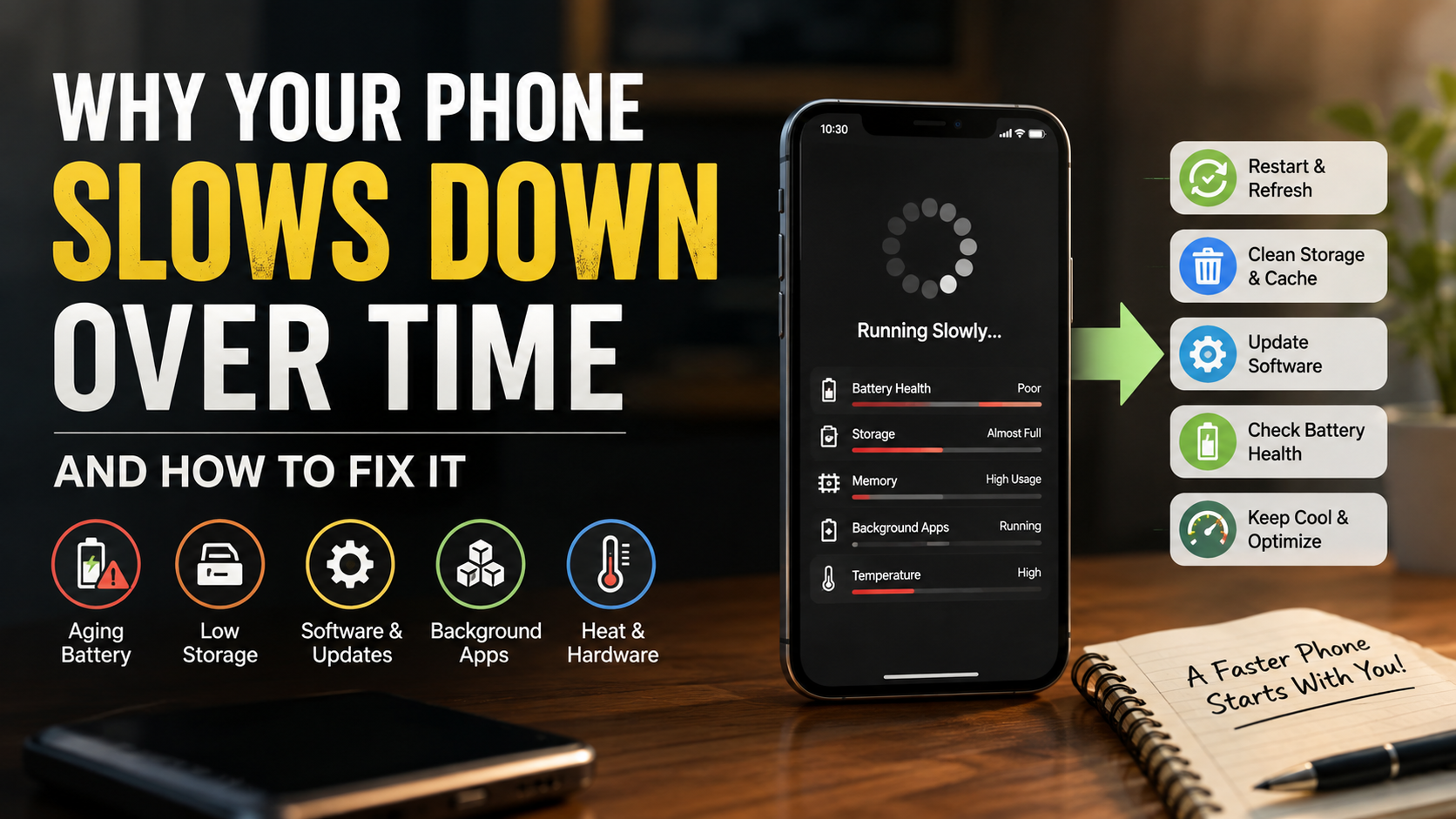
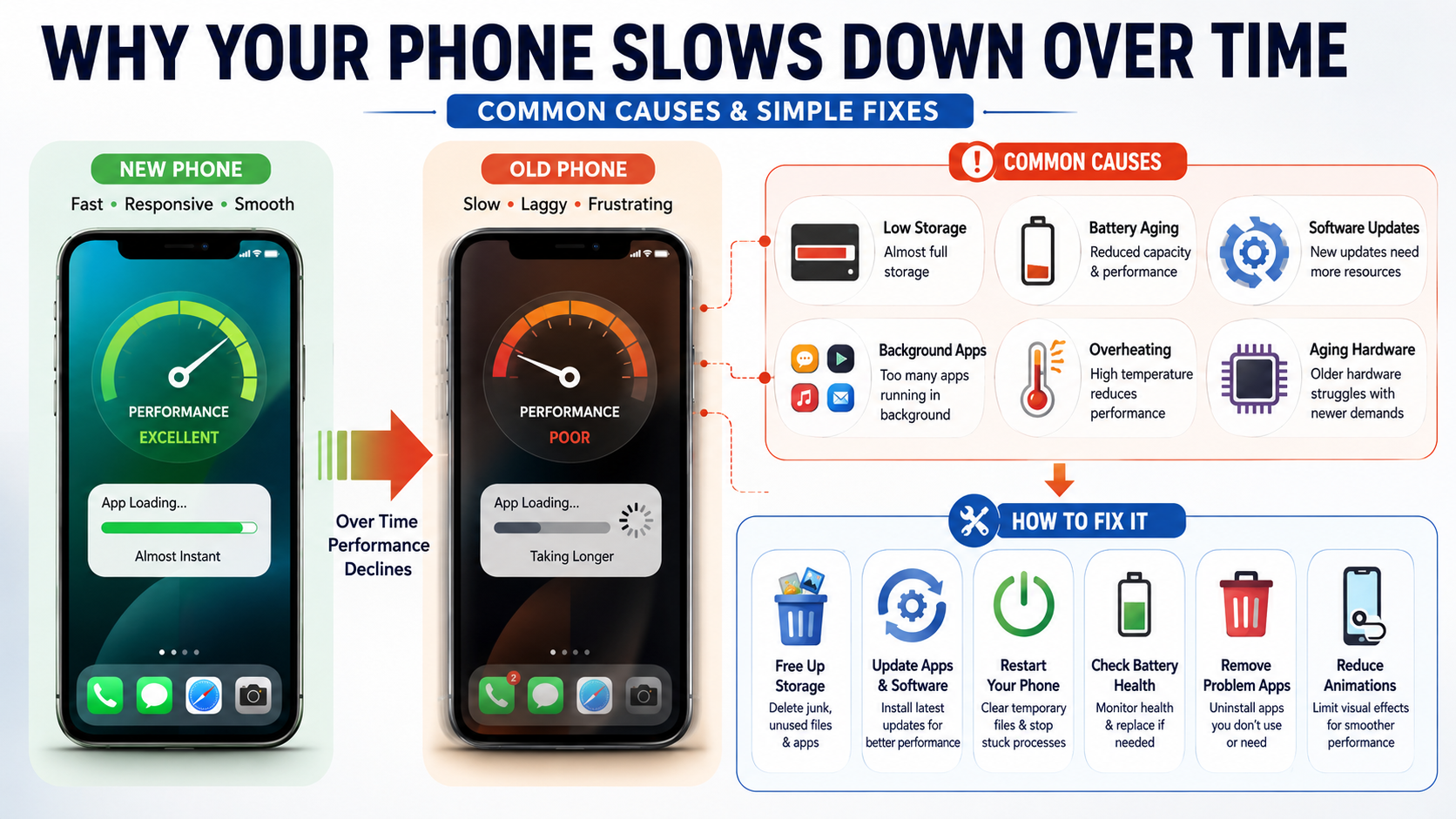
There are several reasons why your phone slows down over time. Aging batteries, limited storage, demanding software updates, background activity, heat, and aging hardware can all contribute. Some slowdowns are also caused by a single poorly optimized app.
According to hardware efficiency guidelines from the Federal Communications Commission, active device management and regular digital maintenance significantly protect both user security and daily processing performance.
Understanding why your phone slows down over time can help you find the right solution. Instead of immediately replacing your device, you can identify the specific problem and address it with simple maintenance.
The good news is that many performance problems are fixable. Simple maintenance can recover storage, reduce background activity, and improve everyday responsiveness. In this guide, you will learn why your phone slows down over time, what causes phone lag, how to speed up a slow smartphone, and when replacing the battery or device makes sense.
How do I fix the slowness of my phone?
You can often make a slow phone feel faster by reducing the workload on its processor, memory, and storage. Start with a simple restart, especially if the phone has been running for days. A restart can stop stuck processes and clear temporary system problems.
Next, check your available storage. Delete unwanted videos, downloads, duplicate photos, and unused apps. Keeping a reasonable amount of free storage gives your phone room to manage temporary files and everyday operations. You can also learn how to speed up your Android phone for additional performance improvements.
Then install available operating system and app updates. Updates can fix bugs and improve compatibility with newer services. Also check battery usage for apps that consume unusual amounts of power.
If you are still wondering why your phone slows down over time, check these common problem areas:
- Remove apps you no longer use.
- Reduce unnecessary background activity.
- Restart the phone when performance problems appear.
- Keep sufficient free storage available.
- Check battery health on supported devices.
- Consider a factory reset only after trying simpler solutions.
These steps address many common causes of smartphone slowdown without requiring a new device.
Clear Cached App Data Regularly
App caches store temporary files that help applications load certain content faster. Over time, these files can become large or cause app-specific problems. Clearing a cache can help when one particular app behaves slowly or incorrectly.
However, you do not need to clear every cache constantly. Modern phones manage temporary data automatically, and clearing caches too often can temporarily make some apps slower. Understanding the difference between clear cache and clear storage can help you avoid deleting important app data.
When troubleshooting why your phone slows down over time, focus on apps that are unusually large or frequently misbehave. Browsers, social media apps, and streaming services can accumulate substantial temporary data.
Before changing an app’s storage settings, read the available options carefully. Clearing a cache removes temporary files, while clearing storage can remove the app’s saved data and settings.
If an app still feels slow after clearing its cache, update it or reinstall it. If several apps have problems, investigate system-wide causes such as low storage, overheating, or outdated software.
Why do phones slow down over time?
The main reason why your phone slows down over time is the combination of aging hardware and growing software demands. New versions of apps often introduce richer graphics, larger files, and additional background features. Older processors and limited RAM may struggle with those demands.
Storage can also become a problem. When internal storage gets very low, phones may experience performance issues. A nearly full storage drive leaves less room for temporary files and normal system operations.
Battery aging is another important factor. Lithium-ion batteries gradually lose capacity and can become less capable of delivering peak power. Some devices can reduce performance when an aging battery cannot reliably provide the required power. Following good charging habits can help minimize unnecessary battery wear, so it is worth avoiding common myths about charging your phone.
Heat can make the problem worse. Phones may reduce performance when temperatures rise to protect internal components from excessive heat.
Software support also matters. A phone may remain physically functional while newer applications become increasingly demanding or unsupported. Together, these factors explain why your phone slows down over time and why an older device may feel less responsive after several years.
The Impact of Chemically Aged Batteries
Lithium-ion batteries naturally lose capacity as they chemically age. Their internal resistance can also increase, which affects how effectively they deliver power during demanding tasks.
This does not mean every old battery automatically slows a phone. Battery-related performance management depends on the specific device and operating system.
On some supported devices, power management can reduce peak performance when an aging battery cannot reliably deliver enough power. This can help prevent unexpected shutdowns during demanding tasks.
If you are investigating why your phone slows down over time, battery health should be one of the factors you check. Look for noticeably poor battery life, unexpected shutdowns, or a battery service warning. A qualified repair provider can determine whether battery replacement is appropriate.
A battery replacement can improve reliability and may restore performance affected by battery-related power management. However, it will not fix problems caused by insufficient storage, outdated hardware, damaged components, overheating, or poorly optimized software.
Avoid assuming that an 80% battery-health reading automatically means your phone is being throttled. That percentage is not a universal performance threshold across all smartphones.
What is the lifespan of a phone?
There is no single lifespan that applies to every smartphone. A phone’s useful life depends on its hardware, battery condition, software support, repairability, and how heavily it is used.
Many modern smartphones can remain useful for several years when they receive security updates and maintain adequate battery health. Premium models may remain capable for longer, while some budget devices can reach hardware limitations sooner.
Storage and RAM also influence how long a phone feels comfortable to use. A device with limited storage can become harder to manage as apps and media grow larger. Newer applications may also perform poorly on older processors.
Physical condition matters too. A damaged charging port, failing display, swollen battery, or water damage can shorten a phone’s practical lifespan.
Software support is particularly important. A phone can still turn on after manufacturers stop providing updates, but compatibility and security may gradually become bigger concerns.
Rather than focusing on a fixed three-to-five-year lifespan, judge your device by its actual condition. If it remains secure, reliable, and fast enough for your needs, there may be little reason to replace it.
Software Support Defines Usable Longevity
Software support is one of the most important factors in determining how long a smartphone remains practical. Manufacturers eventually stop providing operating system upgrades or security patches for older models. At that point, the phone may still work, but its long-term usefulness can decline.
Newer applications may also require operating system versions that older devices cannot install. Some services may eventually stop supporting outdated software. This can affect productivity, payments, communication, and other everyday tasks.
Before buying a new smartphone, check the manufacturer’s stated software and security support period. Longer support can make a device a better long-term purchase, even when its initial hardware specifications are similar to cheaper alternatives.
You should also install available updates while your device remains supported. Updates can address security vulnerabilities, fix software bugs, and maintain compatibility with newer applications.
Still, software support is only one part of longevity. Battery health, storage capacity, processor performance, physical condition, and repair costs also matter.
A phone that receives updates but has a failing battery may need service. Conversely, a healthy phone with limited software support may eventually need replacement for security and compatibility reasons.
Why is my phone so laggy all of a sudden?
Sudden phone lag usually has a different cause from gradual aging. A new app update, background process, overheating, or critically low storage can create an immediate performance problem.
Start by checking whether your phone feels hot. Gaming, video recording, navigation, charging, and other demanding tasks can raise internal temperatures. Phones may reduce performance temporarily to control heat.
Next, check storage. Remove large files and unused applications if space is nearly full. Running out of storage can interfere with normal system operations and make everyday tasks feel sluggish.
You should also review recently installed or updated apps. One poorly behaved application can consume excessive processing power or repeatedly crash in the background.
Try restarting the phone and updating affected applications. If one app continues causing problems, force-stop it or uninstall it temporarily.
If lag affects the entire system, not just one application, look beyond individual apps. Check for overheating, low storage, battery problems, operating system issues, or failing hardware.
Check for Rogue Background Applications
Background applications can affect performance when they repeatedly use processing power, network connections, location services, or other resources. Modern operating systems limit background activity, so simply having many apps installed does not automatically make your phone slow.
The problem is usually an app that behaves poorly. A recently updated application may repeatedly crash, sync excessively, or consume unusual amounts of battery and processing resources.
Start by checking your phone’s battery or app usage settings. Look for applications that consistently rank unusually high without a clear reason. Compare their activity with how often you actually use them.
If one application stands out, update it first. If an update does not help, force-stop the app and monitor your phone. You can also uninstall an application temporarily to test whether it is responsible.
If the lag disappears, reinstalling a clean, updated version may solve the problem. Avoid installing aggressive phone booster or RAM cleaner apps because they can add unnecessary background activity. You can also review how much RAM an Android phone to better understand whether memory limitations are contributing to slowdowns.
The goal is not to keep your recent-apps screen empty. Instead, focus on rogue or unnecessary background activity that actually affects performance.
How can I remove lag?
Removing persistent lag starts with identifying the cause rather than changing every setting at once. Check storage, battery condition, recent applications, software updates, and device temperature first.
If your storage is nearly full, remove large files and unused apps. Keeping a comfortable amount of free space gives your phone more room for normal system operations.
Next, install available system and application updates. If a specific app causes the lag, update, force-stop, or reinstall it.
You can also reduce unnecessary visual effects. Lowering animation scales can make an older phone feel faster because menus complete transitions more quickly. This improves perceived responsiveness rather than increasing the processor’s actual speed.
Avoid relying on aggressive task killers. Constantly closing applications can increase reload times and may use additional battery power.
If the phone remains slow across menus and apps, back up your important data and consider a factory reset. A reset removes personal data and installed apps, so it should be a later troubleshooting step rather than the first solution.
If a clean reset does not improve performance, aging hardware may be the real limitation. At that point, compare repair costs with the price of replacing the device.
Adjust System Transition Animation Speeds
Reducing animation duration can make a slow phone feel considerably more responsive. On Android devices that expose Developer options, users can adjust settings such as window animation scale, transition animation scale, and animator duration scale.
For example, changing an animation from 1x to 0.5x makes the transition shorter. Turning animations off removes the visual transition entirely. These settings do not make the processor faster, but they reduce the time spent watching interface effects.
The exact menu names and available options vary between Android manufacturers and software versions. Avoid changing unrelated developer settings unless you understand their purpose.
If you use an iPhone, the equivalent approach is different. iOS provides accessibility settings that can reduce motion and certain visual effects without exposing Android-style developer animation controls.
Animation changes are most useful when the phone responds quickly but feels slow because of lengthy transitions. They will not solve overheating, failing storage, battery-related performance management, or an overloaded processor.
Use animation adjustments as a finishing touch after addressing the underlying cause of the slowdown.
Frequently Asked Questions
Does factory resetting a phone make it run faster?
Yes, performing a factory reset reliably restores lost speed. Over years of use, operating systems accumulate broken registry entries, orphaned cache files, and fragmented app data. A complete factory reset wipes your internal storage drive entirely, reinstalling a clean, pristine version of the operating system. This process eliminates background bloatware and software bugs, making your phone feel brand new. Just ensure you back up all vital data beforehand.
How much free storage space does a phone need to avoid slowing down?
Your smartphone needs at least ten to twenty percent of its total storage capacity left unallocated to perform optimally. Solid-state storage drives rely on wear leveling and active background file arrangement to write incoming data quickly. When storage fills up completely, the system struggles to create temporary swap memory, leading to severe app crashes, frozen touch interfaces, and sluggish file access.
Will replacing my phone battery fix slow performance?
Replacing a worn-out battery frequently resolves chronic sluggishness on older devices. Both Apple iOS and modern Android platforms utilize intelligent power management software that deliberately downclocks processor speeds when battery health drops below eighty percent. Installing a fresh, certified replacement battery allows the processor to draw maximum voltage safely again, instantly restoring peak processing clock speeds during everyday multitasking.
Do background apps really slow down modern smartphones?
Yes, poorly optimized background apps can noticeably degrade overall system performance. While modern operating systems efficiently freeze idle tasks in random access memory (RAM), apps that continuously fetch location data, sync push feeds, or run unoptimized background scripts keep processor cores awake. This persistent CPU activity drains battery life, raises internal temperatures, and robs foreground applications of necessary processing power.
Conclusion
Understanding why your phone slows down over time can help you avoid an unnecessary upgrade. Slow performance often results from several factors working together. Limited storage, demanding software, background activity, heat, battery aging, and older hardware can all affect responsiveness.
Start with simple fixes. Restart the device, free up storage, update your software, and investigate applications that behave unusually. Clearing an app’s cache can also help with specific app problems, while reducing animations can make an older phone feel more responsive.
If battery health has significantly declined, a professional battery replacement may extend the device’s useful life. A factory reset is another option when software problems persist, but make sure your important data is backed up before resetting.
Aging hardware eventually creates limits that software maintenance cannot overcome. Still, good storage management, regular updates, careful battery use, and timely repairs can help your smartphone remain reliable and responsive for longer.