Why You Should Undervolt Your AMD GPU (And How to Do It)
If you want better efficiency from your graphics card, learning how to undervolt your AMD GPU is worth considering. Modern graphics cards use carefully selected voltage settings to maintain stability across different workloads. However, some GPUs may operate with more voltage than necessary for their specific performance targets. If you want to explore other ways to improve efficiency, discover how to get more out of your GPU without overclocking. This can increase power consumption, temperatures, and fan noise.
Undervolting involves reducing the GPU’s operating voltage while aiming to maintain stable clock speeds. When successful, it can lower temperatures and power consumption without sacrificing noticeable gaming performance. Results depend on your specific GPU, cooling system, workload, and silicon characteristics.
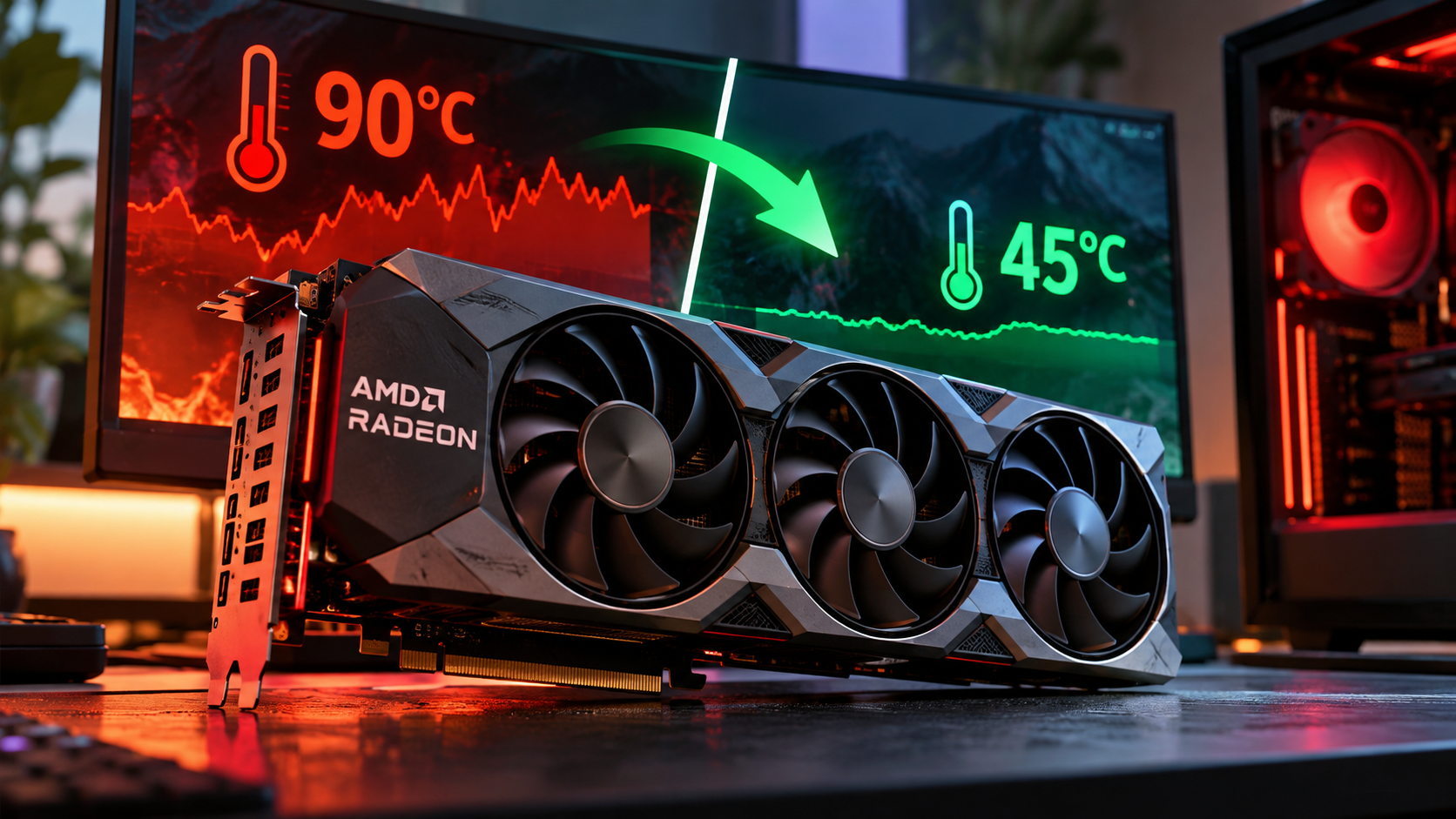
AMD Software: Adrenalin Edition includes built-in tuning tools that make this process accessible to many Radeon users. This guide explains how to undervolt an AMD GPU, test stability, and understand the potential risks. It also answers common questions about GPU safety and operating temperatures, including whether 90°C is too hot and whether 45°C is normal.
How to Properly Undervolt an AMD GPU?
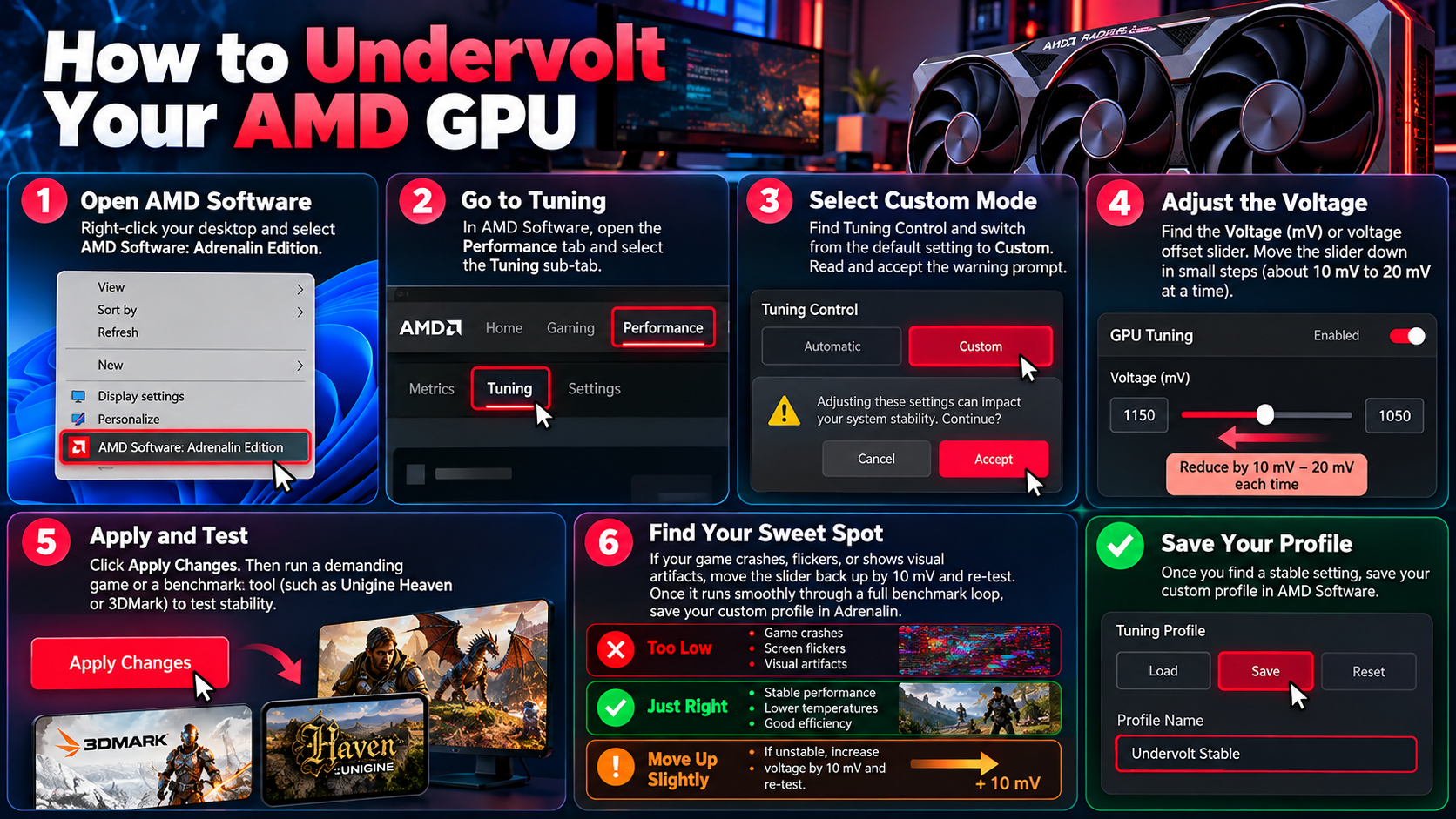
The easiest way to undervolt an AMD GPU is through AMD Software: Adrenalin Edition. This utility provides GPU tuning controls on supported Radeon graphics cards. Before making changes, update your graphics driver and note your current settings. Keeping your drivers current also helps you avoid issues associated with outdated software. Learn what happens if you don’t update your graphics card drivers to understand why driver maintenance matters. The available tuning options may vary depending on your GPU model and software version.
Follow these steps to begin:
- Open AMD Software: Adrenalin Edition and navigate to Performance.
- Select Tuning and switch to a custom tuning profile, if available.
- Find GPU tuning and enable advanced controls when supported.
- Reduce the voltage setting by a small increment, such as 10–25 mV, if the interface permits.
- Apply the change and test your GPU using a demanding game or a suitable stress-testing application.
- Watch for crashes, visual artifacts, driver timeouts, or unexpected performance drops.
- If the system remains stable, consider another small adjustment and repeat your tests.
There is no universal safe voltage for every AMD GPU. Start conservatively and test several games or workloads before accepting a setting. If instability occurs, restore the previous stable voltage or reset the tuning profile to its defaults.
Fine-Tuning Your Power Limits
Adjusting the power limit can complement an AMD GPU undervolt, but it is not always necessary. These settings control different aspects of GPU behavior. Voltage tuning reduces the voltage supplied at particular operating points, while the power limit controls the permitted power consumption.
A modest increase in the power limit may help some graphics cards maintain higher boost clocks. However, it can also increase power consumption, heat output, and fan noise. Combining a higher power limit with an undervolt does not guarantee better performance.
Start by testing your undervolt with the default power limit. Record your temperatures, clock speeds, power consumption, and frame rates. Only adjust the power limit if you identify a genuine performance limitation and your cooling system can handle the additional heat. Make one change at a time to understand its effect.
Is AMD Undervolting Safe?
Undervolting an AMD GPU is generally safe when you use the manufacturer’s supported tuning software and make gradual adjustments. Unlike conventional overvolting, undervolting reduces the operating voltage at selected performance levels. This can lower power consumption and temperatures when the GPU remains stable.
However, undervolting is not completely risk-free. Every graphics card has different voltage requirements, and an aggressive adjustment can make it unstable. You might experience game crashes, visual artifacts, driver timeouts, or unexpected system restarts. These problems usually indicate insufficient voltage for the selected clock speed rather than permanent physical damage.
Before making changes, save your existing settings or understand how to restore the default profile. Test the GPU under several demanding workloads instead of relying on a single benchmark. If you encounter instability, increase the voltage slightly or return to the default configuration. Avoid changing multiple tuning settings simultaneously, as this makes troubleshooting more difficult. Using supported software reduces the risk of incorrect adjustments, but it does not guarantee that every custom profile will work reliably.
The Role of Software Safeguards
AMD Software: Adrenalin Edition provides tuning controls and driver-level protections for supported Radeon GPUs. These features help users adjust operating parameters without manually modifying the graphics card’s firmware. However, they cannot guarantee stability when voltage settings are too aggressive.
If your undervolt fails, the GPU may experience a driver timeout, application crash, or system restart. Some configurations recover automatically, while others require you to reopen the software and reset the tuning profile. Do not assume every failed profile will automatically restore itself after rebooting.
To reduce troubleshooting risks, make small adjustments and test each one before proceeding. Keep a record of the last stable settings so you can restore them quickly. If the system becomes unstable, use the available reset controls to return to the default configuration. Avoid unofficial voltage-modification tools unless you fully understand their risks and limitations.
Is Undervolting Bad for GPUs?
Undervolting is not inherently bad for GPUs. When configured correctly, it can improve energy efficiency while maintaining similar gaming performance. Lower voltage can reduce power consumption and heat output, potentially allowing cooling fans to run more slowly. The actual improvement depends on the graphics card, workload, cooling solution, and selected settings.
However, undervolting does not automatically improve every aspect of GPU performance. An overly aggressive adjustment can cause instability, reduce effective clock speeds, or interrupt demanding applications. Some graphics cards also deliver little improvement because their factory settings are already efficient.
The main goal is to find a stable balance between voltage, clock speed, power consumption, and temperature. Monitor performance before and after making adjustments to determine whether your changes provide measurable benefits. If your GPU runs quietly and maintains comfortable temperatures already, undervolting may offer only modest gains. You should prioritize stability over achieving the lowest possible voltage. A reliable configuration is more useful than a lower voltage setting that causes frequent crashes or inconsistent performance.
Benefits for Long-Term Hardware Health
Lower operating temperatures and power consumption can reduce thermal and electrical stress under certain workloads. This may be beneficial when a graphics card regularly runs hot or consumes substantial power. Reduced heat can also help the cooling system operate more quietly.
However, undervolting does not guarantee a longer GPU lifespan. Component longevity depends on several factors, including operating conditions, manufacturing quality, cooling, and usage patterns. Thermal paste and fan bearings can also wear over time, even when temperatures remain reasonable.
To support long-term reliability, combine sensible voltage settings with regular maintenance. Keep dust filters clean, ensure adequate case airflow, and monitor GPU temperatures during demanding workloads. Avoid aggressive settings that compromise stability simply to achieve a small reduction in power consumption.
If your graphics card already operates within its expected temperature and power ranges, the practical benefit may be limited. Treat undervolting as an efficiency adjustment rather than a guaranteed hardware-longevity upgrade. Consistent stability and appropriate cooling should remain your primary priorities.
Is 90°C Bad for a GPU?
A GPU temperature of 90°C requires context before you can determine whether it is too high. Some graphics cards can operate within their specified limits at this temperature, while others may throttle performance or exceed their recommended operating range. The exact model and the type of temperature being reported matter.
Many modern GPUs report both a core temperature and a hotspot or junction temperature. The hotspot measures the hottest monitored area of the GPU die and can be considerably warmer than the core. Therefore, 90°C at the hotspot does not necessarily mean the same thing as 90°C at the core.
Check your graphics card manufacturer’s specifications before deciding whether intervention is necessary. If the core temperature reaches 90°C during gaming, inspect cooling performance and look for unusual fan behavior. Clean dust filters, improve case airflow, and confirm that the fans operate correctly. An undervolt may help reduce heat and power consumption, but it should not replace fixing a defective cooling system. If temperatures exceed the manufacturer’s limits or performance drops unexpectedly, investigate the cause before continuing demanding workloads.
Managing Junction Temperatures
Monitoring the GPU hotspot temperature is important because it reveals the hottest measured area of the graphics processor. The difference between hotspot and core temperature varies by model, workload, and cooling conditions. A larger-than-usual difference can sometimes indicate uneven cooling or poor contact between the GPU and its cooler. Regular maintenance also matters, so learn how to safely clean your electronics with compressed air to help remove dust from suitable PC components and improve airflow.
There is no single hotspot temperature that applies to every AMD graphics card. Some models support junction temperatures approaching 110°C, while others have different operating limits. Consult your specific model’s documentation rather than relying on a universal threshold.
Use AMD Software: Adrenalin Edition or another reputable monitoring utility to track core temperature, hotspot temperature, clock speeds, and fan behavior. Check these readings during demanding games, not just when the computer is idle. If the hotspot repeatedly approaches its specified limit, review your cooling setup and consider a conservative undervolt.
Keeping temperatures lower can improve noise levels and efficiency, but forcing every GPU below 80°C is not always necessary. Your model’s operating specifications and actual performance should guide your decisions.
Is 45°C Too Hot for a GPU?
A GPU temperature of 45°C is generally normal during idle or light workloads. Modern graphics cards can reach this temperature while browsing the web, watching videos, or performing routine desktop tasks. The exact idle temperature depends on room temperature, case airflow, background applications, and the graphics card’s cooling design.
Many Radeon GPUs also support zero-RPM fan modes. These modes stop the cooling fans when temperatures and power demands are low. As a result, a GPU may remain around 45°C with its fans completely stationary. This behavior is often intentional and helps reduce noise during everyday use.
However, idle temperature alone cannot confirm that a cooling system is healthy. A card that reaches 45°C while idle but overheats during gaming may still have an airflow or cooling problem. Check temperatures under both light and heavy workloads to understand how the card behaves.
If your GPU stays around 45°C during normal desktop use, its fans operate as expected, and gaming temperatures remain within the manufacturer’s limits, there is usually no reason to intervene. You generally do not need to undervolt a GPU simply because its idle temperature reaches 45°C.
Understanding Idle Fan Modes
Zero-RPM fan modes allow compatible graphics cards to operate quietly during light workloads. When the GPU produces little heat, passive cooling may be sufficient to maintain an acceptable temperature. The fans start spinning when the card reaches its configured activation threshold or requires additional cooling.
The activation temperature varies by graphics card and fan-control settings. Some models begin spinning near 50°C, while others use different thresholds. Therefore, stationary fans at 45°C do not automatically indicate a malfunction.
During gaming, the fans should respond to rising temperatures according to the card’s cooling profile. You can monitor their speed through AMD Software: Adrenalin Edition when supported. If temperatures climb unusually high while the fans remain inactive under heavy loads, inspect the fan settings and check for possible hardware issues.
Avoid forcing the fans to run continuously unless your temperatures or workload justify it. Doing so can increase noise and mechanical wear without providing a meaningful benefit during idle use. A suitable automatic fan curve, clean airflow paths, and stable GPU settings usually provide a better balance between cooling and quiet operation.
Conclusion
Learning how to undervolt your AMD GPU can help reduce power consumption, lower temperatures, and minimize fan noise while maintaining stable gaming performance. However, results depend on your graphics card, cooling system, and chosen settings. Make small voltage adjustments, test stability carefully, and avoid pushing your GPU beyond its reliable limits.
Before making changes, save your default settings and monitor core and hotspot temperatures during demanding games. If you experience crashes, visual artifacts, or driver timeouts, restore your last stable configuration. For official software guidance and compatible tuning options, visit AMD Software: Adrenalin Edition Support.
Ultimately, the best AMD GPU undervolt balances performance, efficiency, and stability. You do not need to achieve the lowest possible voltage to see benefits. A stable, well-tested configuration can help your graphics card operate more efficiently while delivering a smooth and reliable gaming experience.