What Does the Orange Dot Mean on a Galaxy Watch?
Seeing an unexpected symbol on your wrist can easily catch your attention. If you notice a small orange dot on your Galaxy Watch, you might wonder what it means.
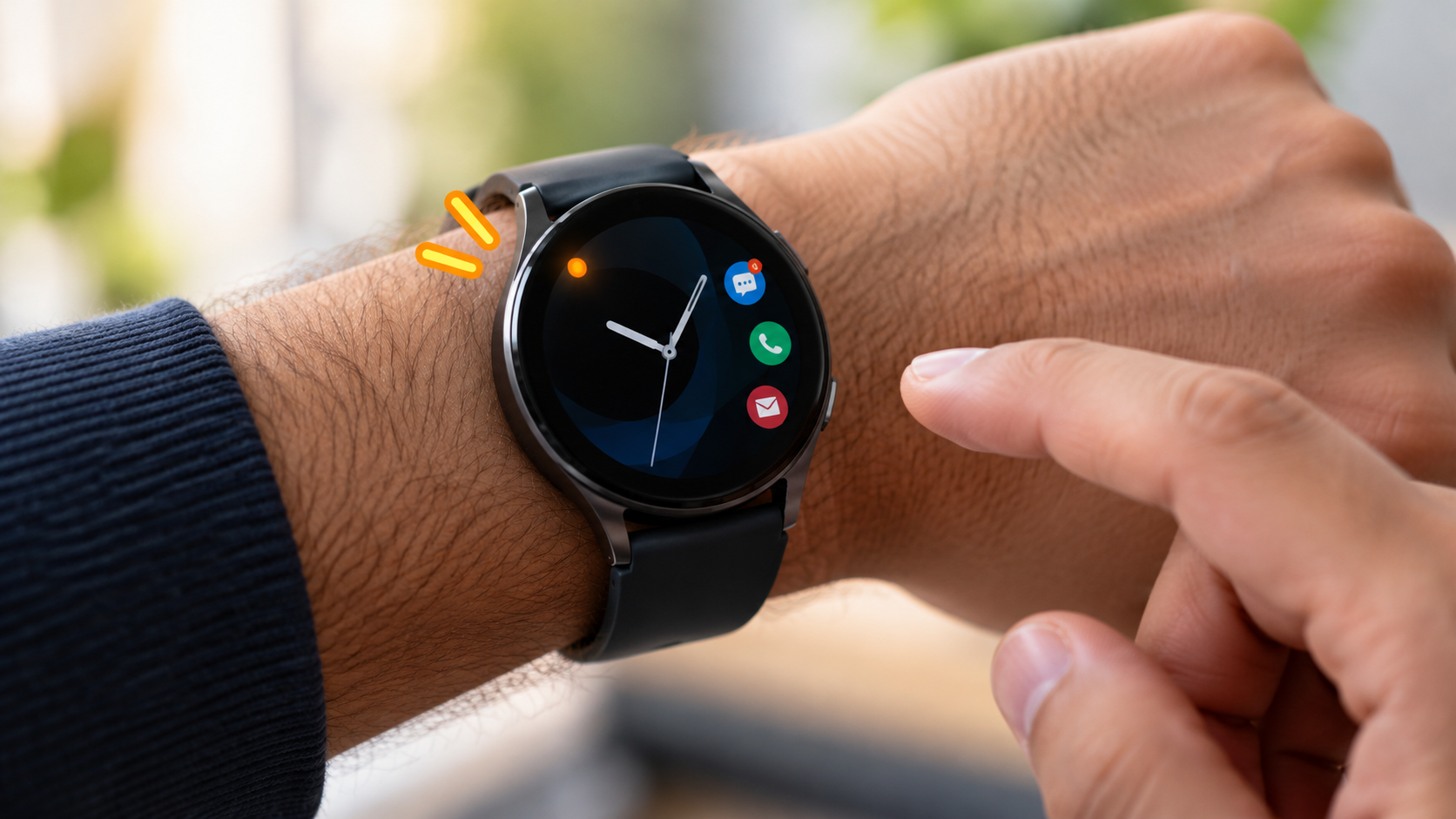
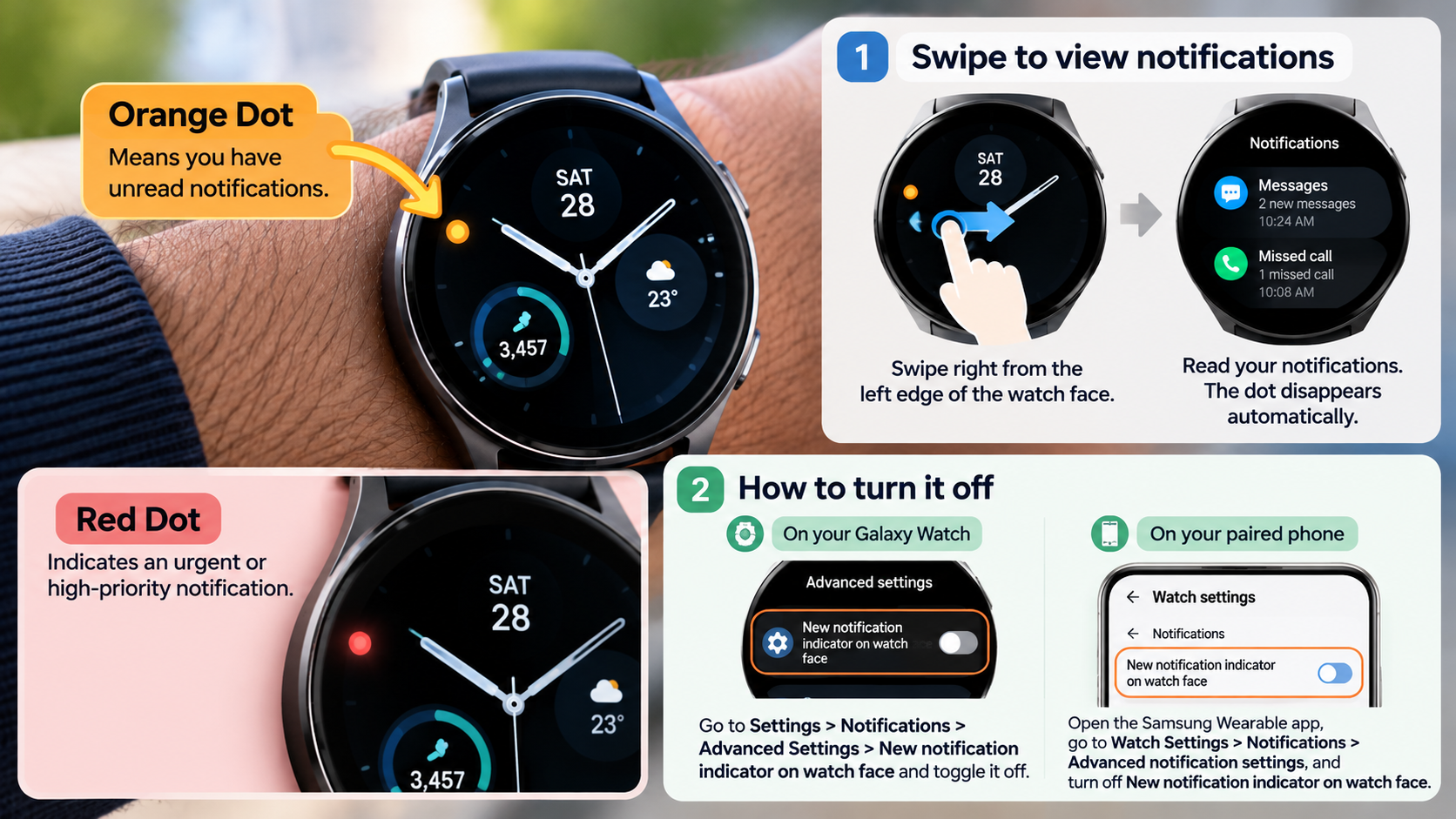
The orange dot on a Galaxy Watch indicates unread notifications. It appears on your watch face when you receive alerts that you haven’t opened yet. These notifications can include text messages, missed calls, emails, and app alerts.
Rather than indicating a hardware problem or security threat, the orange dot serves as a simple notification reminder. It helps you keep track of incoming alerts without displaying every message directly on your screen.
Samsung provides this feature across several Galaxy Watch models. However, its appearance and settings can vary depending on your device and software version.
In this guide, we’ll explain what the orange dot means, how to clear it, and what other Galaxy Watch symbols indicate. We’ll also examine the red dot and yellow ring so you can better understand your watch’s display.
Does an Orange Dot Mean Someone Is Listening?
No, the orange dot on a Galaxy Watch does not mean someone is listening to your conversations. It is generally a notification indicator, not a microphone privacy warning. When you receive an unread notification, your watch displays a small orange dot on the watch face.
This alert can appear after receiving messages, missed calls, emails, or notifications from third-party applications. It remains visible until you check the pending notifications or clear them.
Android devices use separate privacy indicators to show microphone and camera activity. These indicators depend on the device’s operating system and interface. Therefore, you shouldn’t confuse them with Samsung’s traditional orange notification dot.
If you’re concerned about microphone access, check your watch’s app permissions separately. You can review which applications have permission to access sensitive features. This helps you understand how your personal data is being accessed.
How to Check and Manage Microphone Permissions
Although the orange dot usually indicates unread notifications, checking microphone permissions is still useful for privacy. Some applications require microphone access for voice commands, calls, and audio recording. If you’re interested in exploring the available voice assistants, check out our guide to Samsung’s Siri alternatives and voice assistant options. You can review these permissions directly through your Galaxy Watch settings.
Follow these steps to check microphone permissions:
- Open Settings on your Galaxy Watch.
- Scroll down and select Apps.
- Find and open Permission Manager, if available.
- Select Microphone.
- Review the applications that have microphone access.
- Select an application to change its permission.
You can also check camera and location permissions using the same menu. Available options may differ between Galaxy Watch models and software versions.
Remember that microphone access and unread notifications are separate functions. The orange notification dot doesn’t identify which application uses your microphone. Always use the permission settings to review app access.
What Do the Symbols on My Galaxy Watch Mean?
Galaxy Watch symbols provide quick information about notifications, connectivity, battery status, and active features. They help you understand what your smartwatch is doing without opening individual applications.
Some icons appear temporarily, while others remain visible when a particular feature is active. Their appearance can also depend on your watch model, software version, and selected watch face.
Here are some common Galaxy Watch symbols and their general meanings:
- Orange dot: Indicates unread notifications on the watch face.
- Airplane icon: Shows that Airplane Mode is enabled.
- Bluetooth symbol: Indicates Bluetooth connectivity or its current status.
- Battery with lightning bolt: Shows that your watch is charging.
- Moon icon: Indicates that Do Not Disturb mode is active.
- Water droplet: Represents Water Lock or water-related protection features.
- Workout icon: Indicates an active fitness tracking session.
Not every watch face displays these symbols in the same location. Checking your watch’s Quick Panel and settings can help identify unfamiliar indicators.
Decoding Common Status Icons at a Glance
Understanding Galaxy Watch status icons makes everyday use easier. Instead of guessing what an unfamiliar symbol means, you can check the relevant setting or feature.
For example, the airplane icon indicates that Airplane Mode is enabled. This mode restricts wireless connections, depending on your device settings. Similarly, the moon icon generally represents Do Not Disturb mode.
The Water Lock feature helps prevent accidental screen touches during swimming or water activities. You can disable it when you finish your activity by following your watch’s on-screen instructions.
Other indicators provide information about charging, connectivity, and active applications. Some models also display ongoing activity indicators when an application runs in the background.
Keep in mind that third-party watch faces can introduce additional symbols. Their meanings may differ from Samsung’s standard system indicators.
If you cannot identify a particular icon, check your Galaxy Watch user manual. You can also review Samsung’s official support documentation for your specific model.
What Does the Yellow Ring on My Galaxy Watch Mean?
A yellow ring on your Galaxy Watch does not have one universal meaning across every model. Unlike the standard orange notification indicator, its appearance may depend on your selected watch face, application, or active feature.
Some watch faces use colored rings to display activity progress, fitness goals, battery information, or other complications. Third-party watch faces can also introduce their own visual indicators. Therefore, you shouldn’t automatically assume that a yellow ring represents unread notifications.
Start by checking whether the ring appears on your main watch face or inside a particular application. If it appears around an activity complication, it might represent progress toward a daily goal. If it appears after installing a new watch face, check that watch face’s customization options.
The exact meaning depends on where the ring appears and which Galaxy Watch model you’re using. Checking the relevant feature is more reliable than assuming every colored ring has the same meaning.
Customizing and Clearing Your Watch Notification Ring
If a yellow ring appears on your Galaxy Watch, first determine whether it belongs to your watch face or an application. Samsung does not define a universal yellow notification ring across its Galaxy Watch lineup.
If the ring comes from a watch face complication, you can explore its customization settings. Different watch faces provide different options for changing colors, progress indicators, and displayed information.
If you’re actually seeing the standard orange notification dot, follow these steps to clear it:
- Wake your Galaxy Watch and open the watch face.
- Swipe right across the screen to open the notification panel.
- Review your unread notifications.
- Open individual notifications or dismiss unwanted alerts.
- Clear remaining notifications when necessary.
You can also manage the notification indicator through your watch settings. Open the Galaxy Wearable app on your phone, select Watch settings, and tap Notifications. Under Advanced settings, look for New notification indicator on watch face. Turn it off if you don’t want the dot displayed.
What Does the Red Dot on My Galaxy Watch Do?
The red dot on a Galaxy Watch can have different meanings depending on the model and operating system. On Samsung’s older Tizen-based watch faces, notification indicators could use different colors. An orange dot represented regular notifications, while a red dot indicated urgent notifications.
However, this behavior should not be assumed across every Galaxy Watch. Newer Wear OS models generally use an orange dot to indicate unread notifications. Third-party watch faces can also display red dots as part of their own designs.
If you notice a red indicator, check whether it appears on your standard watch face or inside a particular application. You should also consider whether you’ve installed a custom watch face recently.
The position and behavior of the indicator can help identify its purpose. Avoid assuming that every red dot represents an active recording session or GPS tracking. Check the corresponding application or device settings for confirmation.
Interacting with Unread Alerts and Activity Indicators
If your Galaxy Watch displays an orange notification dot, you can access pending alerts directly from the watch face. Samsung provides simple navigation options for checking and managing incoming notifications.
Follow these steps:
- Wake your Galaxy Watch to display the current watch face.
- Swipe right across the screen to open the notification panel.
- Alternatively, rotate the physical bezel counterclockwise on supported models.
- Tap an unread notification to view its details.
- Swipe through the notification cards to review additional alerts.
- Dismiss individual notifications or use the available clear option.
Once you’ve checked or dismissed your unread notifications, the orange indicator should disappear.
If you want to hide the indicator permanently, open the Galaxy Wearable app on your smartphone. Navigate to Watch settings > Notifications > Advanced settings. Find the New notification indicator on watch face option and disable it.
Remember that notification indicators and application activity symbols serve different purposes. Their appearance depends on your Galaxy Watch model and software version.
Final Thoughts
Understanding the symbols on your Galaxy Watch helps you use your smartwatch with confidence. The orange dot generally indicates unread notifications, while other icons provide information about connectivity, battery status, and active features. Red dots and yellow rings may have different meanings depending on your watch model, software version, or selected watch face.
If an unfamiliar indicator appears, check your notification panel and watch settings before assuming something is wrong. For additional guidance, visit Samsung’s official Galaxy Watch support page.
You can also customize your notification preferences to keep your display organized and avoid unnecessary alerts.
Ultimately, learning what these Galaxy Watch symbols mean makes it easier to manage notifications, understand device activity, and get more out of your smartwatch.