
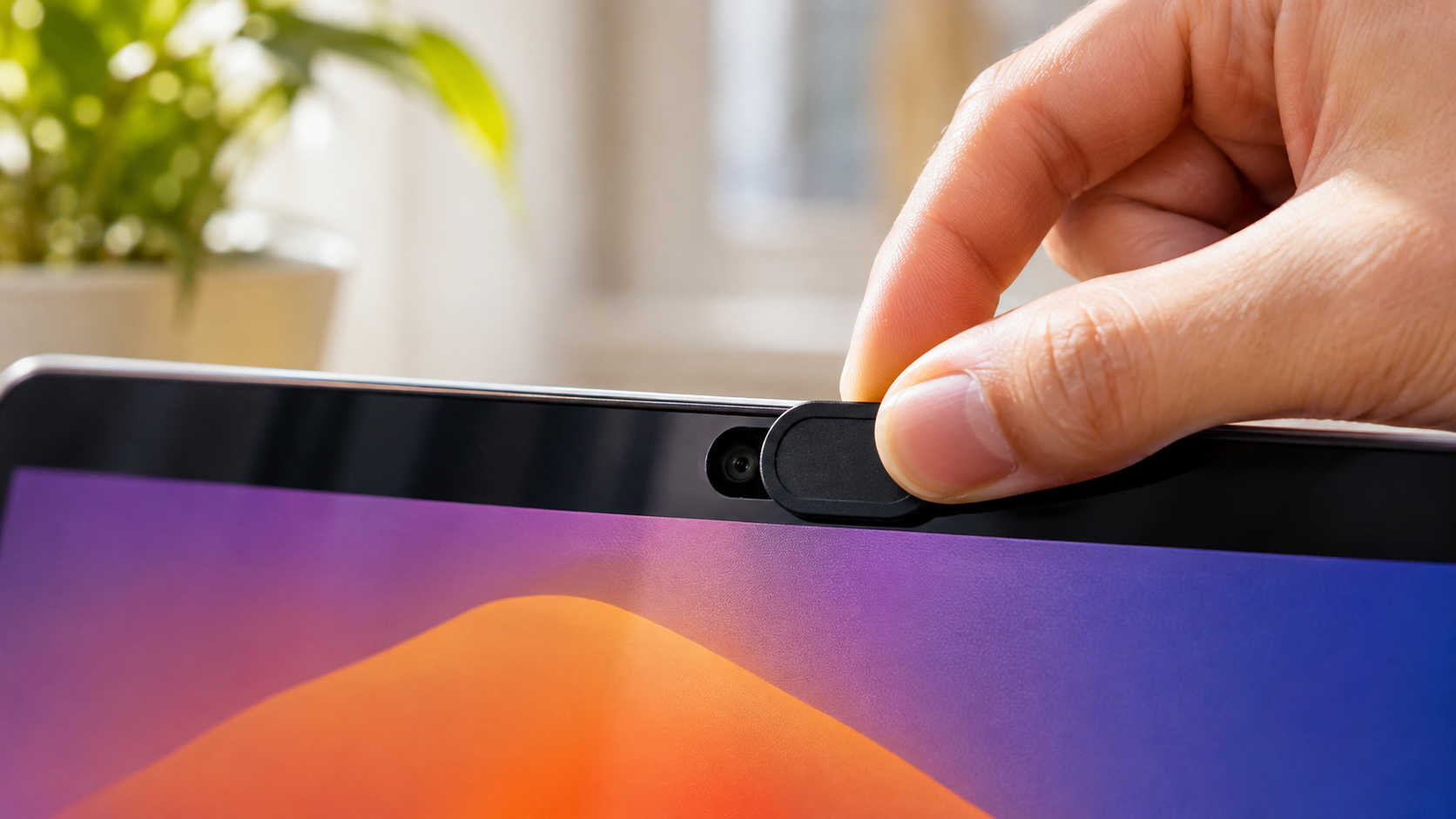
Think Twice Before Using a Webcam Cover on Your MacBook
Even a thin accessory can interfere with this carefully designed clearance. Depending on its thickness and construction, it may put pressure on the display and cause damage. Screen repairs can also become expensive, particularly when accidental damage falls outside warranty coverage.
Apple has officially warned users against closing Mac notebooks with camera covers installed. Its guidance explains that additional materials can interfere with the display when the laptop closes.
Fortunately, you have other ways to protect your camera privacy. Modern MacBooks include a camera indicator light and macOS privacy controls. Understanding these features can help you avoid unnecessary accessories and protect your display.
Should I Put a Camera Cover on My MacBook?
You should generally avoid installing an aftermarket camera cover on your MacBook. The main concern is the limited space between the display and the keyboard. MacBook Air and MacBook Pro models use carefully engineered clearances to maintain their slim designs. Adding an accessory can interfere with this space when you close the lid.
A thicker webcam slider can place pressure on the display. This pressure may damage the screen or other display components. The risk depends on the accessory’s thickness, material, and installation.
Apple specifically recommends removing camera covers before closing your MacBook. It also advises avoiding accessories that leave adhesive residue. Therefore, a permanent plastic slider is unnecessary for most users. If your workplace requires a physical cover, follow Apple’s thickness guidelines and remove it before closing the laptop when necessary.
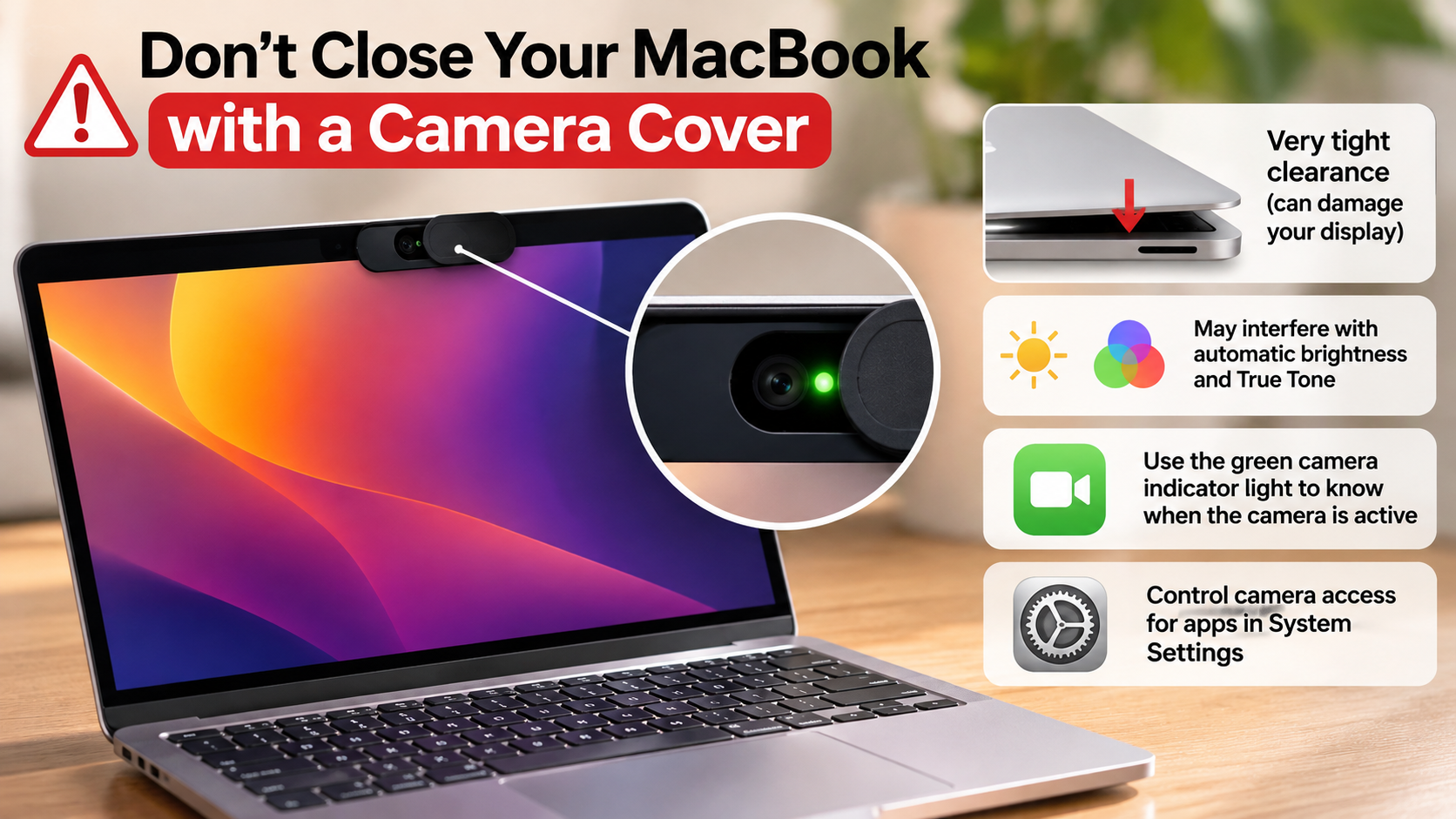

The Problem with Tight Tolerances
MacBooks have very little clearance between the display and the top case. This design helps Apple maintain its thin and lightweight laptop construction. However, it also leaves limited room for additional accessories.
A webcam cover adds material around the camera area. When you close the lid, that extra thickness can interfere with the display’s normal position. Repeated pressure may increase the risk of screen damage.
Consider these potential problems:
- Display damage: An unsuitable camera cover can place pressure on delicate display components.
- Screen cracks: Excessive pressure may cause visible cracks or other display problems.
- Sensor interference: Some covers can obstruct nearby ambient light sensors.
- Adhesive residue: Poor-quality accessories may leave unwanted marks around the camera.
Apple recommends removing camera covers before closing the display. If a physical cover is necessary, Apple advises using one no thicker than 0.1 mm. It should also leave no adhesive residue. These precautions help reduce unnecessary risks.
Do You Really Need a Webcam Cover?
Most MacBook users do not need an additional webcam cover for everyday privacy protection. Apple includes a dedicated camera indicator light with its built-in camera system. This light glows green whenever the camera is active. Apple explains that the camera is engineered so it cannot activate without illuminating the indicator.
macOS also provides camera permission controls. These settings allow you to decide which applications can access your camera. You can review approved applications and revoke access whenever necessary.
However, these protections serve different purposes. The indicator light helps you identify camera activity, while permission settings control application access. Neither feature replaces good security practices. You should still install software carefully and review unfamiliar applications.
For most users, these built-in features offer practical protection without requiring an additional physical accessory.
Built-In macOS Camera Controls
macOS gives you control over which applications can access your MacBook’s built-in camera. You can review these permissions directly through System Settings. This makes it easier to identify applications that have requested camera access.
Follow these steps to review your camera permissions:
- Click the Apple menu in the top-left corner.
- Open System Settings.
- Select Privacy & Security from the sidebar.
- Click Camera.
- Review the applications listed on the screen.
- Turn off camera access for applications you do not trust or use.
You can also manage camera permissions for websites through Safari settings. This helps prevent unnecessary access during browsing sessions.
Remember that applications with camera permission may activate the camera when needed. Check the green indicator light whenever you are concerned about camera activity. You should also avoid downloading unfamiliar applications or granting unnecessary permissions.
These simple habits provide another layer of protection without putting your MacBook display at risk.
Is It Advisable to Put a Cover on a MacBook?
Installing a physical webcam cover on a MacBook is generally not advisable. The display clearance is extremely limited, and additional material can interfere with the closing mechanism. However, screen pressure is not the only concern. Some camera covers can also affect nearby sensors and leave adhesive residue.
Apple specifically warns that covering the built-in camera may interfere with the ambient light sensor. This can affect automatic brightness and True Tone functionality on supported models.
Adhesive-backed accessories introduce another potential problem. Certain adhesives may leave residue around the camera area. Removing them improperly can also create cleaning problems.
Before purchasing a MacBook privacy accessory, consider its thickness, adhesive material, and placement. Avoid bulky sliders and covers that interfere with nearby components. If you need a physical barrier for workplace security requirements, follow Apple’s official recommendations instead of choosing an unsuitable accessory.
Anti-Reflective Coating and Sensor Hazards
The camera area on a MacBook contains more than just the camera itself. Depending on the model, nearby components may include ambient light sensors. These sensors help the computer adjust display brightness according to surrounding lighting conditions.
An incorrectly positioned webcam cover can obstruct these components. As a result, certain automatic display features may not work as expected. Apple specifically warns about interference with automatic brightness and True Tone.
Adhesive quality is another important consideration. Some inexpensive accessories use adhesives that can leave residue after removal. Cleaning the display improperly may create additional problems.
Before installing any camera accessory, consider these precautions:
- Avoid covers that extend beyond the camera area.
- Do not use thick plastic or metal sliders.
- Choose accessories that do not leave adhesive residue.
- Never close your MacBook with an unsuitable cover installed.
- Follow Apple’s instructions for cleaning the display.
These precautions help protect the display, maintain sensor functionality, and reduce unnecessary repair risks.
Why Do People Cover Their MacBook Camera?
People cover their MacBook cameras mainly because they worry about online surveillance and unauthorized access. Cybersecurity incidents involving spyware and malicious software have made camera privacy an important concern. Some users also worry about accidentally activating their cameras during video meetings, making it useful to understand these video interview tips for mastering your next job call.
Physical webcam covers provide a visible barrier between the camera lens and the outside environment. This makes users feel more comfortable when their laptops are not in use. Remote workers, students, and professionals may prefer this additional reassurance.
The practice also became popular after photographs showed technology executives using tape or physical barriers over their laptop cameras. These examples encouraged other people to adopt similar privacy habits.
However, concerns about digital privacy should not automatically lead to unsuitable hardware modifications. MacBooks already include camera indicators and software permission controls. Understanding these features helps users make better privacy decisions without introducing unnecessary display risks.
The Search for Visual Peace of Mind
Software privacy settings can sometimes feel less reassuring than a physical camera barrier. A webcam cover provides an immediate visual indication that the lens is blocked. This can make users feel more comfortable when working remotely or using shared computers.
However, physical reassurance does not always mean better overall protection. A poorly designed camera cover can introduce hardware risks without addressing other cybersecurity threats. It is also worth understanding the disadvantages of using your laptop webcam before relying entirely on your built-in camera for everyday video calls.
For example, covering your camera does not protect your microphone, files, passwords, or online accounts. It only blocks the camera lens.
Instead, combine practical privacy habits with macOS security features:
- Review camera permissions: Remove access from applications that do not need your camera.
- Check the indicator light: Pay attention when the green camera light appears.
- Install trusted software: Avoid downloading applications from unfamiliar sources.
- Update macOS: Install security updates to address known vulnerabilities.
- Review website permissions: Restrict camera access for websites that do not require it.
These measures provide broader privacy protection. They also help you avoid unnecessary accessories that could damage your MacBook display.
Conclusion
Using a webcam cover on your MacBook might seem like a simple way to protect your privacy, but it can create unnecessary risks. Even a thin accessory may interfere with the display’s tight clearance, potentially leading to costly screen damage. It can also obstruct nearby sensors or leave unwanted adhesive residue.
Fortunately, your MacBook already includes useful privacy features. The green camera indicator and macOS camera permission settings help you monitor and control camera access. Instead of relying on a physical slider, review your privacy settings, install trusted applications, and keep macOS updated.
For additional guidance, read Apple’s official article on Closing your Mac laptop with a camera cover. It explains how to review and manage camera permissions for individual applications.
The bottom line: Protecting your privacy should never come at the expense of your MacBook’s display. Avoid unnecessary webcam covers and use Apple’s built-in security features for safer everyday protection.