
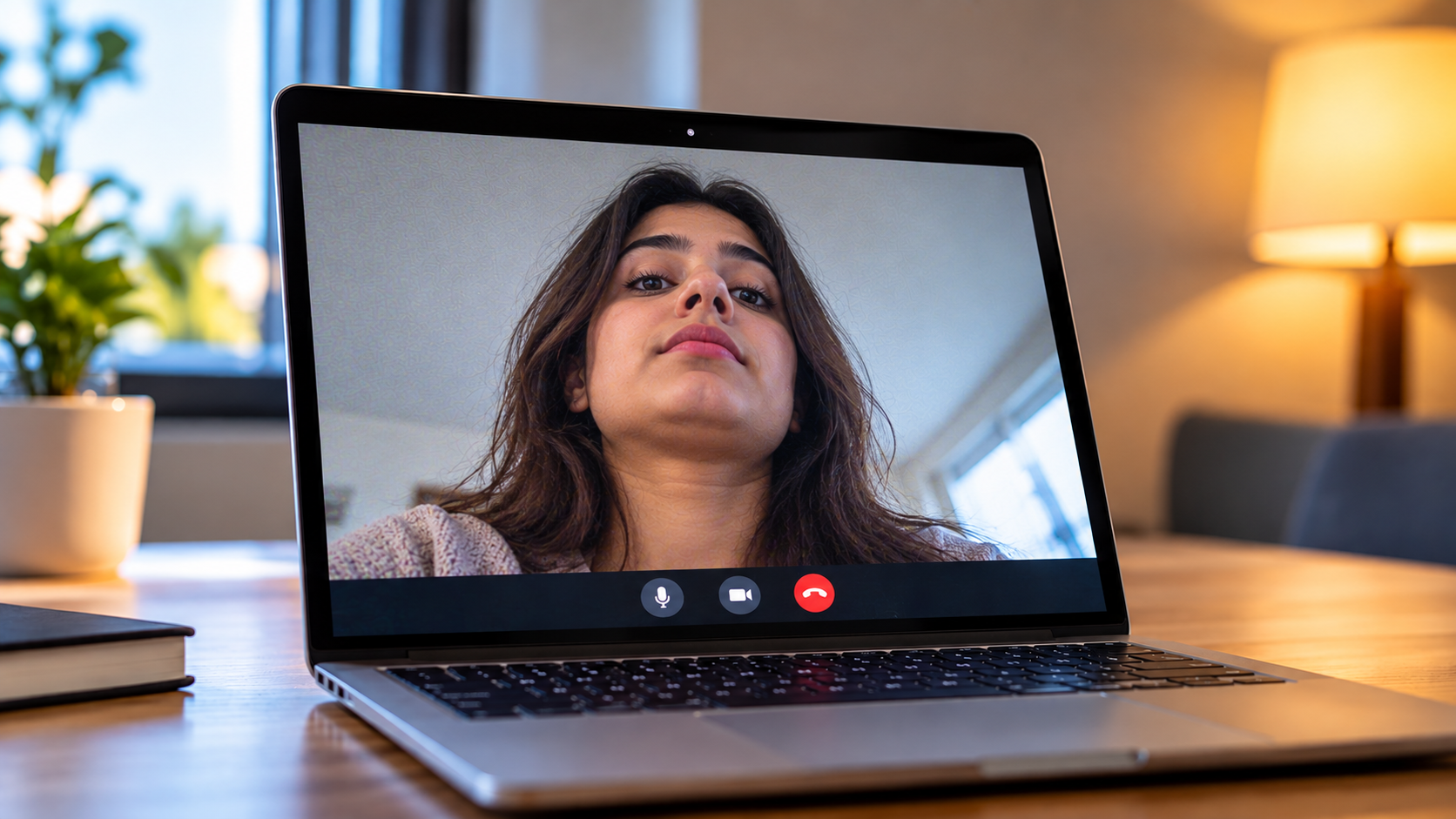
5 Disadvantages Of Using Your Laptop Webcam
Most remote workers rely on their built-in laptop cameras for virtual meetings and client calls. However, understanding the disadvantages of using your laptop webcam can help you make better decisions about video quality and online privacy.
Built-in webcams offer convenience, but manufacturers often compromise on camera quality to keep laptops thin and lightweight. As a result, users may experience poor image clarity, limited camera angles, and weak low-light performance.
According to the Federal Trade Commission (FTC), protecting connected devices against unauthorized access is important for digital privacy. When you rely entirely on factory-installed hardware, you may also face unflattering camera angles and grainy video.
Here are the five main disadvantages of using your laptop webcam:
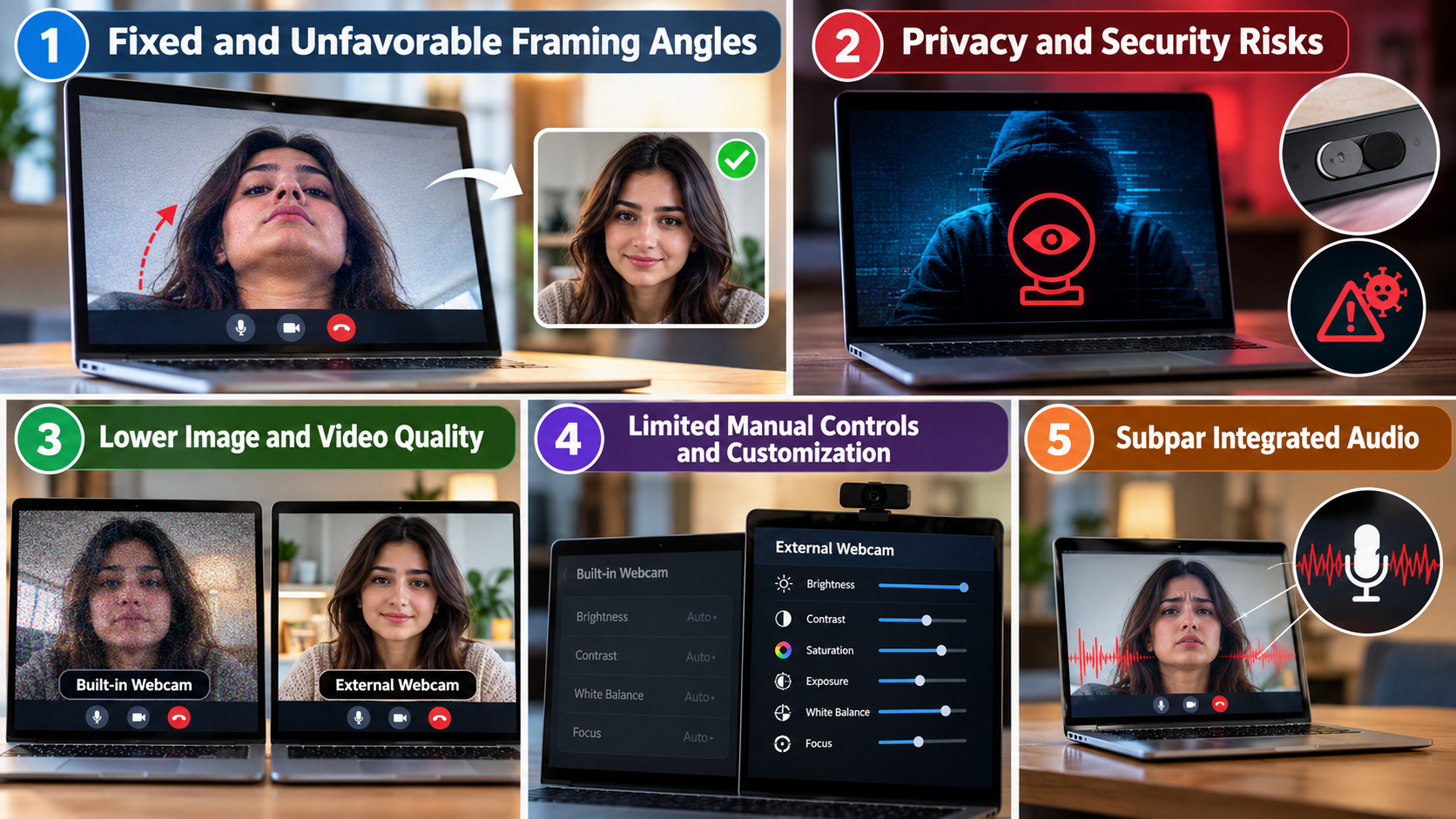

1. Fixed and Unfavorable Framing Angles
Laptop webcams are permanently embedded at the top of the display. You cannot adjust the camera independently from your screen. This limits your ability to find a comfortable viewing angle during video calls.
Placing your laptop flat on a desk often positions the camera below eye level. This creates an upward-facing perspective that can emphasize your chin and nose. Raising the laptop improves camera positioning but may make typing less comfortable.
You may also need an external stand or monitor riser to achieve better framing. These adjustments can make your workspace less flexible.
An external webcam solves much of this problem. You can mount it above your monitor or position it on a tripod. This allows you to maintain natural eye contact without compromising your screen position.
2. Privacy and Security Risks
A built-in laptop webcam remains physically connected to your computer. If malware compromises your system, attackers may potentially gain unauthorized camera access. Phishing attacks, malicious downloads, and remote access trojans are common ways computers become infected. Using reputable antivirus software can help detect these threats, but you should understand whether paid antivirus is worth it for your PC before choosing a security solution.
Unlike an external USB webcam, you cannot simply unplug an integrated camera. You must rely on software permissions, hardware switches, or physical privacy shutters to restrict access.
Although operating systems provide camera privacy settings, these controls cannot guarantee complete protection against sophisticated attacks. Some malware may exploit system vulnerabilities or misuse application permissions.
A physical webcam cover provides an additional layer of protection. It blocks the camera lens even if malicious software gains access. However, it does not protect your microphone from unauthorized access.
3. Lower Image and Video Quality
Most laptop webcams have limited physical space for larger image sensors and advanced optical components. Manufacturers prioritize thin displays and compact designs. Consequently, built-in cameras often use smaller sensors and simpler lenses.
These limitations can affect image sharpness, colour accuracy, and low-light performance. Your video may appear grainy, pixelated, or poorly exposed during indoor meetings. Backlighting can also make your face appear darker.
Some laptops compensate through software-based image processing. However, processing cannot fully overcome the limitations of small sensors and basic optics.
External webcams often provide better sensors, improved lenses, and more advanced image processing. Depending on the model, they can deliver sharper footage and more consistent exposure.
4. Limited Manual Controls and Customization
Most built-in laptop webcams offer limited manual controls. You may have little control over exposure, focus, white balance, and image adjustments. Instead, the camera relies heavily on automatic settings provided by the manufacturer.
This can become frustrating when your lighting conditions change. For example, sitting near a bright window may cause exposure problems. The camera might also struggle to maintain consistent colours in different lighting environments.
Some laptop manufacturers provide companion applications with additional camera settings. However, available features vary between models and operating systems.
Standalone webcams often offer more customization through dedicated software. Depending on the model, you can adjust brightness, contrast, saturation, exposure, and other image settings.
This flexibility makes external webcams more suitable for users who need greater control over their video appearance.
5. Subpar Integrated Audio
Laptop webcams usually work alongside built-in microphones rather than dedicated external audio equipment. These microphones are designed to save space and support everyday communication. However, their performance may not meet the expectations of professional users.
Built-in microphones can capture unwanted background sounds. Keyboard typing, cooling fans, and room echo may become noticeable during meetings. This can make conversations harder to follow.
Audio quality also depends on microphone placement and the laptop’s noise-reduction technology. Some premium laptops perform better than others, but results vary significantly.
External webcams sometimes include improved microphones, although they do not always provide better audio. A dedicated USB microphone or quality headset generally offers more control over sound capture.
If you regularly attend client meetings, webinars, or online presentations, consider using a separate microphone. Clear audio is just as important as sharp video.
What Are the Disadvantages of a Laptop Webcam?
The main disadvantages of using your laptop webcam involve limited image quality, poor positioning, and potential privacy risks. Built-in cameras use compact sensors to fit inside thin laptop displays. These smaller sensors often struggle to capture enough light in dim environments. Consequently, video calls may look grainy, blurry, or washed out.
Camera positioning creates another common problem. Most laptop webcams sit above the display, forcing users to adjust their screen angle for better framing. However, this adjustment can affect viewing comfort and posture.
Other limitations include:
- Limited image quality: Small sensors often produce less detailed footage, especially in low light.
- Fixed camera angles: You cannot easily adjust the camera independently from your laptop screen.
- Limited audio quality: Built-in microphones may capture keyboard sounds and background noise.
- Restricted flexibility: Most integrated cameras lack optical zoom and physical pan controls.
- Privacy concerns: Malware or unauthorized applications can potentially access your camera.
These limitations become more noticeable during professional meetings and client presentations. Understanding them helps you decide whether an external webcam offers better value.
Is an External Webcam Better Than a Laptop Camera?
An external webcam can deliver better video quality and flexibility than a standard laptop camera. However, the actual difference depends on the camera’s specifications and overall build quality. If you are comparing both options, understanding the differences between a laptop camera and an external webcam can help you decide whether an upgrade is worthwhile.
These features can improve facial details, colour accuracy, and low-light performance. Some models also offer autofocus, automatic exposure adjustment, and wider viewing angles. These features make external webcams useful for professional meetings, online presentations, and content creation.
External cameras also provide greater positioning freedom. You can attach them to a monitor, tripod, or adjustable camera mount. This helps you maintain eye-level framing without moving your entire workstation.
Consider these advantages:
- Better image quality: Selected models offer higher resolutions and improved sensors.
- Flexible positioning: Adjustable mounts help achieve more natural camera angles.
- Advanced features: Some webcams include autofocus, HDR, and automatic light correction.
- Independent upgrades: You can replace your webcam without purchasing another laptop.
However, an expensive external webcam is not automatically better. Compare sensor size, resolution, frame rate, and low-light performance before purchasing one.
Do Laptop Webcams Record All the Time?
Standard laptop webcams do not continuously record by default. They generally activate when an operating system feature or application requests camera access. Video conferencing applications, camera software, and browser-based services are common examples.
Modern operating systems provide privacy controls that let users manage camera permissions. Windows and macOS allow you to review which applications can access your camera. Some devices also display an indicator light when the camera operates.
However, permission settings do not eliminate every security risk. Malware, compromised applications, or exploited system vulnerabilities may potentially enable unauthorized camera access. Background processes can also maintain camera access longer than expected. Understanding how PC background processes work and impact performance can help you better understand what happens when applications continue running in the background.
To reduce unnecessary camera activity, follow these precautions:
- Review application permissions: Allow camera access only to applications that genuinely need it.
- Check background processes: Investigate unfamiliar applications using your camera.
- Update your operating system: Install security updates to address known vulnerabilities.
- Close unused applications: Exit video conferencing software after completing meetings.
- Cover the camera: Use a physical webcam cover whenever the camera is not needed.
These precautions help reduce unnecessary exposure. They also give you better control over your laptop’s camera activity.
Can Hackers See Through Your Laptop Webcam?
Yes, hackers can potentially access your laptop webcam if they compromise your computer. Cybercriminals may use remote access trojans (RATs), spyware, or other malicious programs to gain unauthorized control.
These threats commonly enter computers through phishing emails, suspicious attachments, malicious websites, and pirated software. Once installed, certain malware programs can access connected hardware, including microphones and cameras. Recognizing unusual system behaviour is equally important, so learn to identify the warning signs for your laptop before potential problems become more serious.
In some cases, attackers may attempt to disable or bypass camera indicator lights. However, this depends on the laptop’s hardware and firmware design. Not every webcam allows its indicator light to operate independently from the camera sensor.
Unauthorized webcam access creates serious privacy concerns. Attackers could potentially capture images or videos without your knowledge. This becomes particularly concerning when your laptop regularly faces private spaces.
You can reduce these risks by following basic cybersecurity practices:
- Install reputable antivirus and security software.
- Keep your operating system and applications updated.
- Avoid suspicious links, attachments, and downloads.
- Use strong passwords and enable multifactor authentication.
- Review application permissions regularly.
- Cover your webcam when you are not using it.
These steps cannot guarantee complete protection. However, they significantly reduce common security risks.
Final Verdict
Laptop webcams are convenient for everyday video calls, but they come with several limitations. Fixed camera angles, lower image quality, limited customization, and weaker microphone performance can affect your overall video conferencing experience. Privacy and security risks also deserve attention, especially when your laptop handles sensitive personal or professional information. Understanding the disadvantages of using your laptop webcam can help you decide whether your built-in camera meets your needs.
However, a built-in webcam is perfectly adequate for casual meetings, online classes, and occasional video calls. You do not necessarily need to purchase additional equipment if your current camera meets your requirements.
If you regularly attend professional meetings, create online content, or conduct client presentations, an external webcam may be a worthwhile investment. It offers greater positioning flexibility and, depending on the model, better image quality and customization.
Ultimately, choose a camera based on your usage, budget, and video requirements. If convenience is your priority, your laptop webcam will do the job. If better video quality and flexibility matter more, consider upgrading to a dedicated external webcam.