
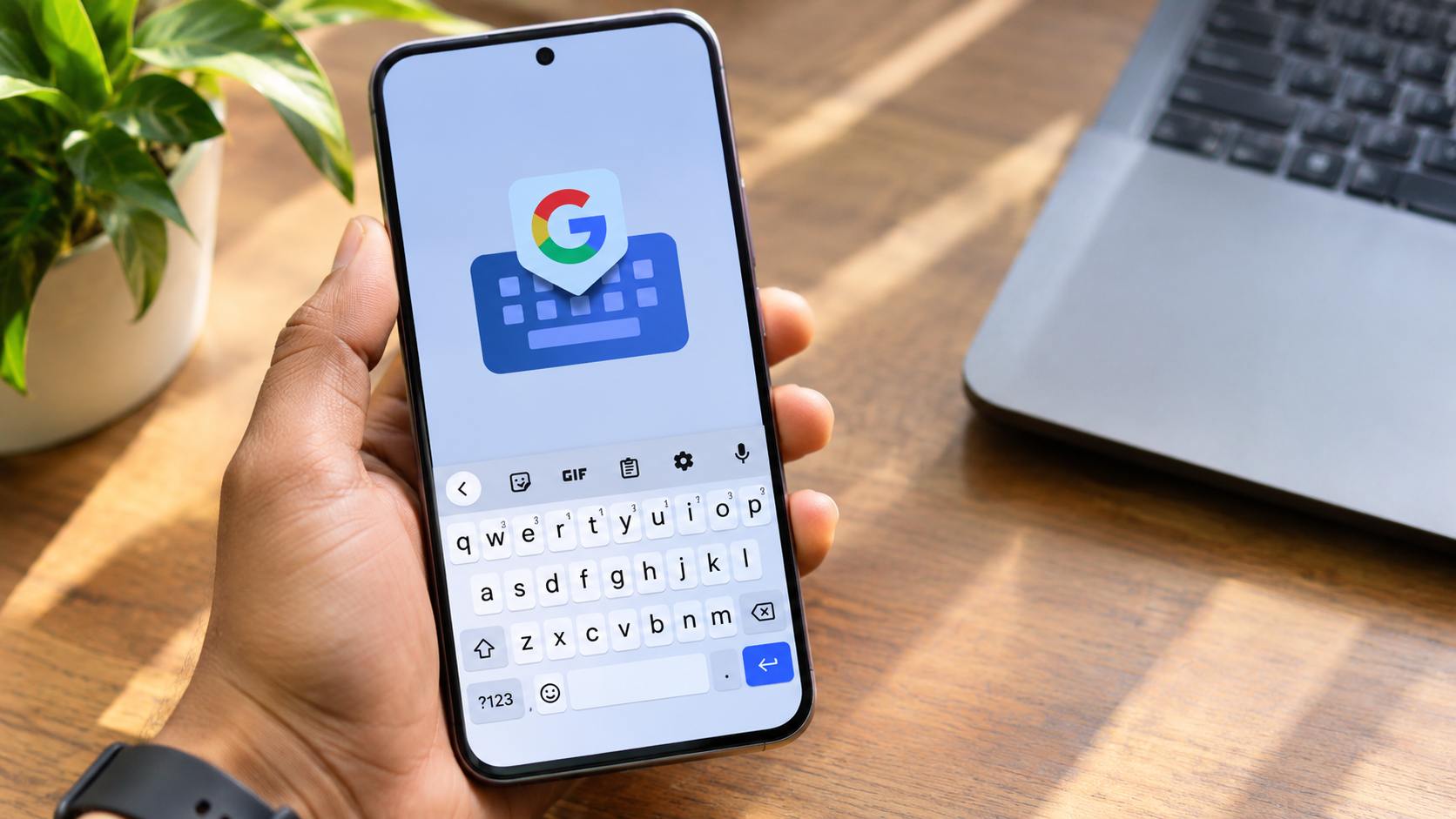
How to Use Gboard to Boost Productivity on Your Android Phone
Most people use their mobile keyboards for basic typing. They write messages, respond to emails, and search for information throughout the day. However, learning how to use Gboard to boost productivity can make these everyday activities faster and easier.
Gboard is more than a standard Android keyboard. It includes useful features such as voice typing, clipboard management, gesture typing, and smart text suggestions. These tools help reduce repetitive typing and simplify everyday communication.
Whether you manage work conversations, respond to customers, or write notes on your smartphone, Gboard can improve your workflow. You can customize its settings to match your typing habits and language preferences.
In this guide, you’ll discover how to use Gboard to boost productivity, explore its most useful features, improve your Android typing experience, and compare it with Microsoft SwiftKey.

How to Use Gboard on Android
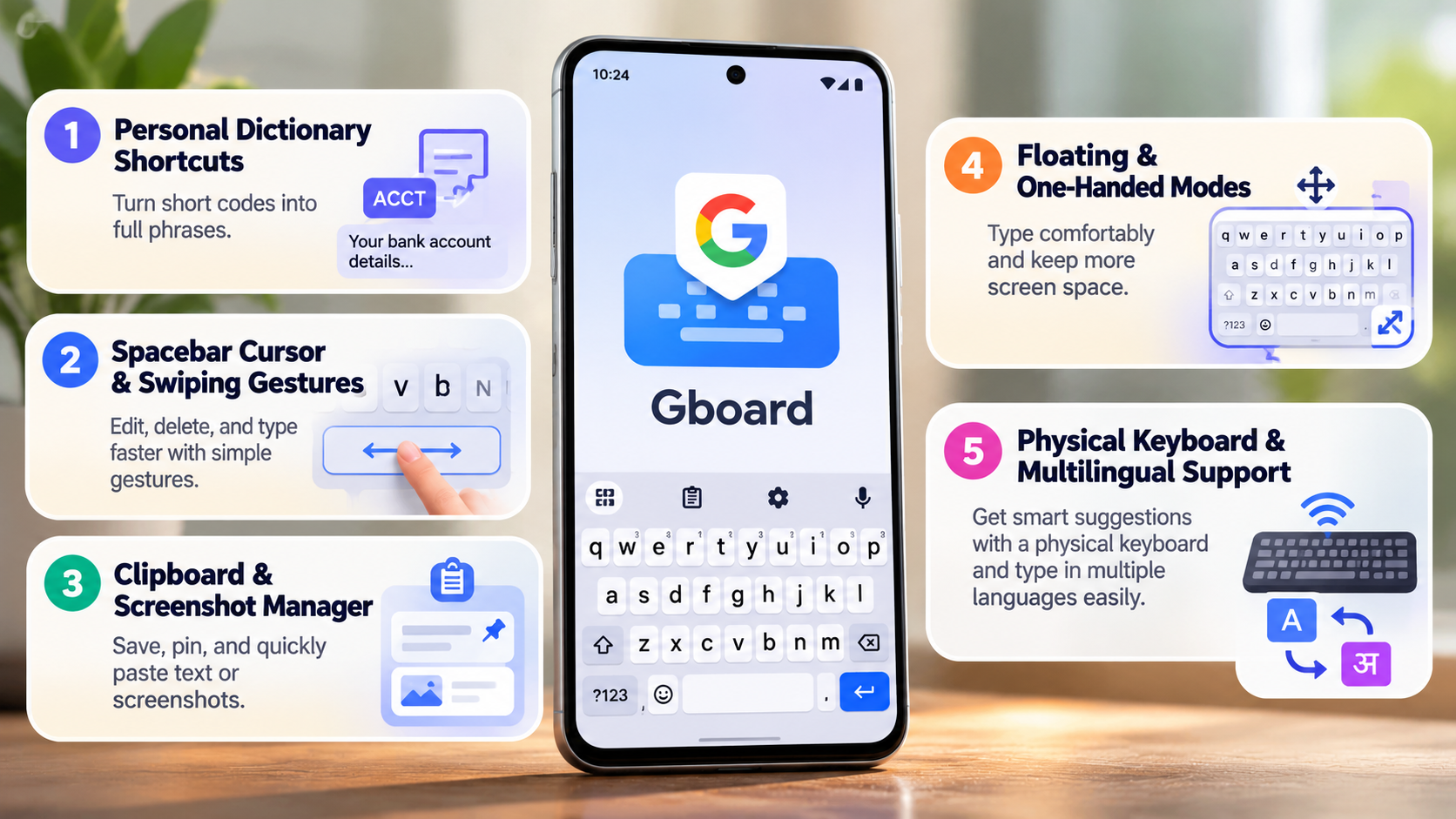
Getting started with Gboard is simple. First, install it from the Google Play Store if your device doesn’t already have it. Open your Android keyboard settings and select Gboard as your default input method. The exact settings may differ between Android manufacturers.
Once activated, open any messaging or writing application. Tap the keyboard’s settings icon to access customization options. You can change the keyboard layout, enable additional languages, and adjust your typing preferences.
Start by enabling these useful features:
- Glide Typing: Slide your finger across letters instead of tapping individually.
- Number Row: Keep numbers visible above the main keyboard.
- Text Correction: Use spelling suggestions and autocorrect to reduce mistakes.
- Multilingual Typing: Switch between supported languages more conveniently.
- Voice Typing: Dictate messages instead of entering every word manually.
These settings can make everyday typing more convenient. If you regularly write messages or emails, learning how to use Gboard to boost productivity can help reduce unnecessary typing and save time.
Streamline Input With the Integrated Clipboard Manager
Gboard’s Clipboard Manager is particularly useful when you frequently enter the same information. Instead of repeatedly typing addresses, email templates, or standard responses, you can copy and reuse saved text.
To access this feature, open Gboard in any application and tap the clipboard icon. If you cannot find it, check the toolbar’s additional options. Enable clipboard access when prompted.
After copying text, open the clipboard panel to view your recent copied items. Long-press an important entry and select the pin option to keep it available.
Here are some practical ways to use this feature:
- Save frequently used email responses.
- Keep commonly shared website links accessible.
- Store delivery addresses and contact details.
- Reuse standard customer support messages.
- Save short work-related instructions.
Pinned clipboard items remain available until you remove them. However, avoid storing passwords, banking information, or other sensitive details.
This feature reduces repetitive typing and unnecessary application switching. It is especially useful for professionals who regularly handle customer inquiries, business emails, and routine communications.
How to Use Your Phone for Productivity
Your smartphone can become a useful productivity tool when you organize it properly. However, unnecessary notifications, social media, and entertainment applications can interrupt your daily routine.
Start by reviewing the applications you use throughout the day. Keep essential tools such as email, calendars, document editors, and task managers easily accessible. Move entertainment applications away from your primary home screen.
You should also review your notification settings. Disable unnecessary alerts from shopping applications, games, and social platforms. This reduces interruptions while you complete important tasks.
Consider these practical changes:
- Organize Applications: Group work-related applications into dedicated folders.
- Use Focus Mode: Limit distracting notifications during working hours.
- Manage Notifications: Allow alerts only from important contacts and applications.
- Create Daily Tasks: Use a task manager to organize assignments and deadlines.
- Use Cloud Storage: Access important documents across supported devices.
Combining these habits with Gboard’s productivity features can make mobile work more organized. You can also use Gboard to boost productivity by composing messages quickly and reusing frequently needed text.
Automate Daily Mobile Tasks Using System Routines
Android offers several automation options that can simplify everyday phone management. Depending on your device, you can use built-in routines, Modes and Routines, or third-party automation applications.
These tools allow you to trigger specific actions based on certain conditions. For example, you might activate Do Not Disturb during working hours or reduce notifications when attending meetings.
Some useful automation ideas include:
- Enable silent mode during scheduled work sessions.
- Activate battery-saving settings when your battery becomes low.
- Turn on Wi-Fi when arriving at a familiar location.
- Open a preferred productivity application at a scheduled time.
- Activate a specific sound profile during meetings.
Samsung devices also offer Modes and Routines for creating personalized automation rules. Other Android manufacturers provide different automation features.
The main benefit is reduced manual device management. You don’t need to repeatedly adjust settings throughout the day.
Automation and keyboard shortcuts serve different purposes. However, combining both can help you use Gboard to boost productivity while keeping your smartphone organized.
Start with a few simple automation rules. Avoid creating unnecessary routines that make device management more complicated.
How to Boost Android Phone Performance
A responsive smartphone makes everyday tasks easier. It also provides a smoother experience when switching between applications, typing messages, and managing documents.
If your Android phone feels slow, start by checking its available storage. Low storage space can affect certain device operations. If you want to understand why this happens, explore why phones run out of storage faster than ever. Remove unnecessary downloads, duplicate files, and applications you no longer use.
You can also review applications running in the background. Some applications consume considerable battery and processing resources, even when you aren’t actively using them.
Try these practical performance improvements:
- Free Up Storage: Remove unwanted files and unused applications.
- Update Applications: Install available updates to fix bugs and improve compatibility.
- Restart Your Phone: Restarting can resolve temporary software issues.
- Review Background Activity: Identify applications consuming excessive resources.
- Check Battery Usage: Investigate applications with unusually high background consumption.
You can also reduce animation scales through Developer Options. This changes how quickly certain interface animations appear, making navigation feel faster. However, it doesn’t increase your phone’s actual processing power.
Maintaining sufficient storage and managing unnecessary applications can help keep your Android experience responsive. A smoother device also makes it easier to use Gboard to boost productivity without unnecessary interruptions.
Monitor Background Processes and Battery Optimizations
Background applications can affect battery life and, in some situations, overall device responsiveness. Monitoring their activity helps identify applications that consume unnecessary resources. Keeping your applications updated is also important for fixing bugs and maintaining performance. Learn why it’s crucial to keep your phone apps updated to understand the benefits of regular updates.
Open your Android settings and navigate to the Battery section. Review the battery usage breakdown to identify applications with unusually high consumption.
You should also check whether applications have unnecessary background permissions. Restrict background activity for non-essential applications when appropriate.
Consider these battery management practices:
- Identify applications with excessive background battery usage.
- Disable unnecessary location access.
- Remove applications you no longer use.
- Enable Battery Saver when necessary.
- Keep essential communication applications unrestricted when reliable notifications are important.
Avoid restricting every background application. Doing so can delay notifications, interrupt synchronization, and affect important services.
Android also manages background processes automatically. Aggressive manual restrictions aren’t always necessary.
The goal is to balance battery efficiency and application performance. A properly configured device can provide a smoother experience throughout your working day.
What Does Gboard Do on an Android Phone?
Gboard is Google’s virtual keyboard for Android and other supported platforms. It allows users to enter text through traditional typing, gestures, and voice dictation.
However, Gboard offers more than basic keyboard functionality. It includes several tools designed to simplify everyday communication and reduce repetitive tasks.
Some of its most useful features include:
- Voice Typing: Convert spoken words into written text.
- Clipboard Manager: Access recently copied text and pin frequently used snippets.
- Glide Typing: Enter words by sliding your finger across the keyboard.
- Text Suggestions: Receive spelling corrections and predictive suggestions.
- Google Translate Integration: Translate messages while composing text, where supported.
- Customizable Keyboard: Adjust themes, layouts, and typing preferences.
- Multilingual Support: Type using multiple supported languages.
These features make Gboard useful for students, professionals, and everyday smartphone users.
For example, you can dictate a longer message instead of typing it manually. You can also reuse saved text through the clipboard manager.
The biggest advantage is convenience. Many useful typing tools remain accessible without leaving your current application. Understanding these features is an important step when learning how to use Gboard to boost productivity on Android.
Bridge Communication Gaps With Real-Time Live Translation
Gboard includes a translation feature that helps users communicate in different languages. It uses Google Translate technology to convert text while you compose a message. You can also explore how to translate text using your phone camera when you need to understand foreign-language signs, menus, or printed documents.
To access it, open Gboard in a messaging application. Tap the toolbar’s three-dot menu and select Translate, if available.
Choose your source and target languages. Start typing your message, and Gboard will display the translated text in the selected language.
This feature can be particularly helpful when communicating with international customers, colleagues, or friends.
For example, you can compose a message in English and translate it into Spanish before sending it. This reduces the need to switch between your messaging application and a separate translation tool.
However, translation results aren’t always perfect. Technical terms, regional expressions, and complicated sentences may require manual corrections.
Language availability and translation functionality can also vary. Review the translated message before sending important business communications.
Overall, Gboard’s translation tool provides a convenient way to handle multilingual conversations directly from your keyboard.
What Is Better, Gboard or SwiftKey?
Gboard and Microsoft SwiftKey are two popular Android keyboard applications. Both offer smart typing features, customization options, and multilingual support. However, their strengths differ depending on your preferences.
Gboard focuses on Google’s keyboard experience. It offers Glide Typing, voice input, integrated translation, clipboard management, and useful text suggestions.
Microsoft SwiftKey focuses heavily on personalized predictions and adaptive typing. It learns from your writing patterns and provides suggestions based on your typing habits. It also offers customization features and Microsoft Copilot integration in supported versions.
Here’s a quick comparison:
| Feature | Gboard | Microsoft SwiftKey |
|---|---|---|
| Voice Typing | Available | Availability varies |
| Gesture Typing | Available | Available |
| Clipboard | Built-in | Built-in |
| Translation | Integrated | Supported features vary |
| Text Prediction | Smart suggestions | Personalized predictions |
| Customization | Themes and layouts | Themes and layouts |
| AI Integration | Google features | Microsoft Copilot |
Choose Gboard if you prefer Google’s typing tools and straightforward Android integration. Consider SwiftKey if you value personalized predictions and Microsoft’s keyboard ecosystem.
Neither keyboard is universally better. Your preferred language, typing habits, and device ecosystem should influence your decision.
Match Your Mobile Keyboard to Your Desktop Ecosystem
Your desktop operating system and daily applications can influence which Android keyboard you prefer. However, choosing a keyboard based entirely on your computer isn’t always necessary.
If you regularly use Windows applications, Microsoft SwiftKey may appeal to you. Its predictive typing features and Copilot integration can complement a Microsoft-focused workflow.
Gboard may be more suitable if you regularly use Google services. Its translation, voice typing, and familiar Android interface provide convenient tools for everyday communication.
Before choosing either keyboard, consider these factors:
- Typing Preferences: Test both keyboards to compare prediction accuracy.
- Language Requirements: Check support for your preferred languages.
- Voice Input: Compare voice typing availability and recognition quality.
- Customization: Explore themes, layouts, and keyboard settings.
- Privacy: Review each application’s data and personalization settings.
Also, don’t assume that clipboard content automatically synchronizes between Android and Windows. Cross-device functionality depends on the specific applications and supported features.
Ultimately, choose the keyboard that makes your everyday typing easier. Both Gboard and SwiftKey offer useful features for improving mobile productivity.
Final Thoughts
Gboard offers several practical tools that can make everyday smartphone communication easier. Features such as voice typing, clipboard management, Glide Typing, and translation help reduce repetitive tasks. You can explore more features through the official Gboard Help Center.
If you want to use Gboard to boost productivity, start by enabling the features you use most frequently. Save commonly used text, explore voice dictation, and customize your keyboard settings. You can also check Google’s official Gboard setup guide for additional configuration instructions.
You don’t need to activate every feature immediately. A few useful adjustments can make a noticeable difference to your daily typing experience.
Combine these keyboard improvements with better notification management and simple automation routines. This will help turn your Android phone into a more organized and efficient productivity tool.