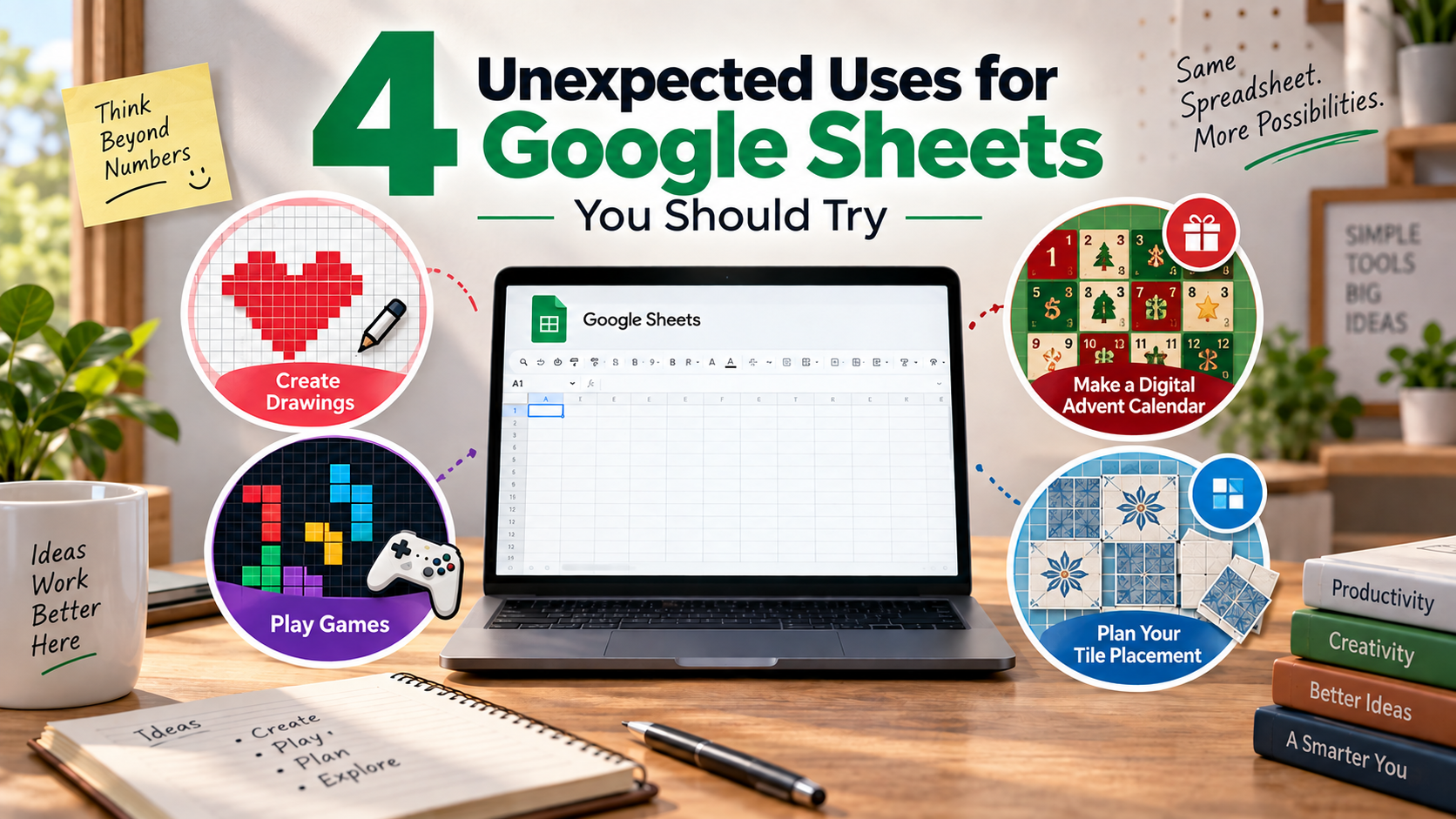
4 Unexpected Uses for Google Sheets You Should Try
Spreadsheets usually bring to mind accounting ledgers, repetitive administration, and routine data entry. However, exploring unexpected uses for Google Sheets reveals a surprisingly versatile creative workspace. With formulas, formatting tools, and built-in functions, Google Sheets can do far more than basic calculations.
Instead of relying on separate apps for every small project, you can turn a spreadsheet into a useful creative tool. You can even use its grid to create games, drawings, floor plans, and home improvement layouts.
Below are four unexpected Google Sheets uses that show just how flexible the platform can be. These ideas are practical, creative, and surprisingly easy to explore.
Turn Google Sheets into an Etch A Sketch
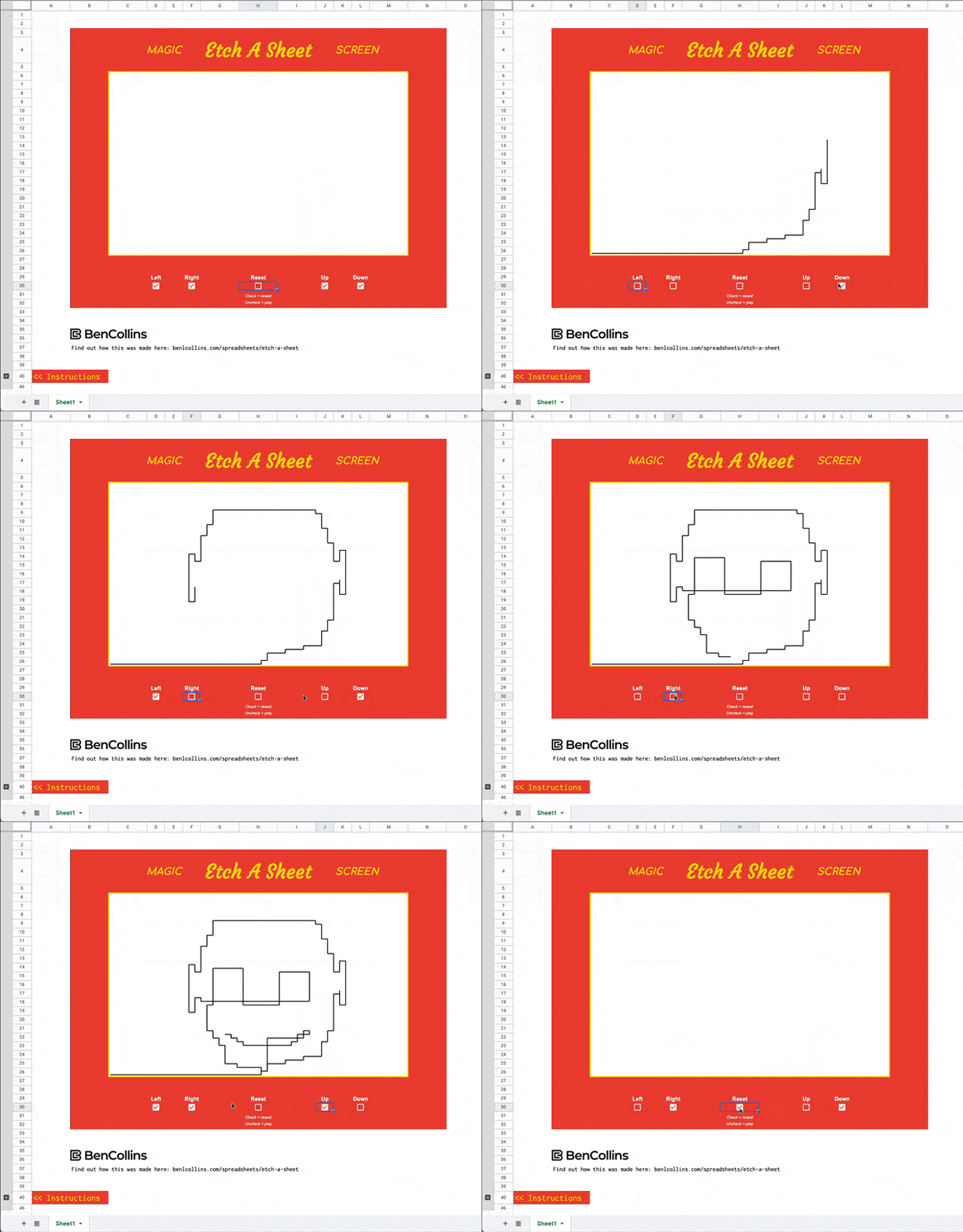
Remember feeling like an artist while drawing pictures on an Etch A Sketch? You can recreate that experience in Google Sheets without buying the classic toy. All you need is a blank spreadsheet and a little creativity.
Google Sheets enthusiast Ben Collins created an Etch A Sketch-inspired project called Etch A Sheet. He developed the idea after watching one of his children use the real toy to draw a treasure map. Instead of physical knobs, the spreadsheet uses five checkboxes as controls.
The Left and Right checkboxes create horizontal lines. The Up and Down checkboxes create vertical lines. The Reset checkbox clears the entire drawing. Unlike a traditional Etch A Sketch, each new drawing starts from the bottom-left corner.
The project uses built-in Google Sheets features rather than external software. These include the IF function, iterative calculations, and a SPARKLINE formula for drawing lines.
You can recreate the project yourself or use a template. It is a fun example of how Google Sheets formulas can become interactive tools.
Play Tetris on Google Sheets
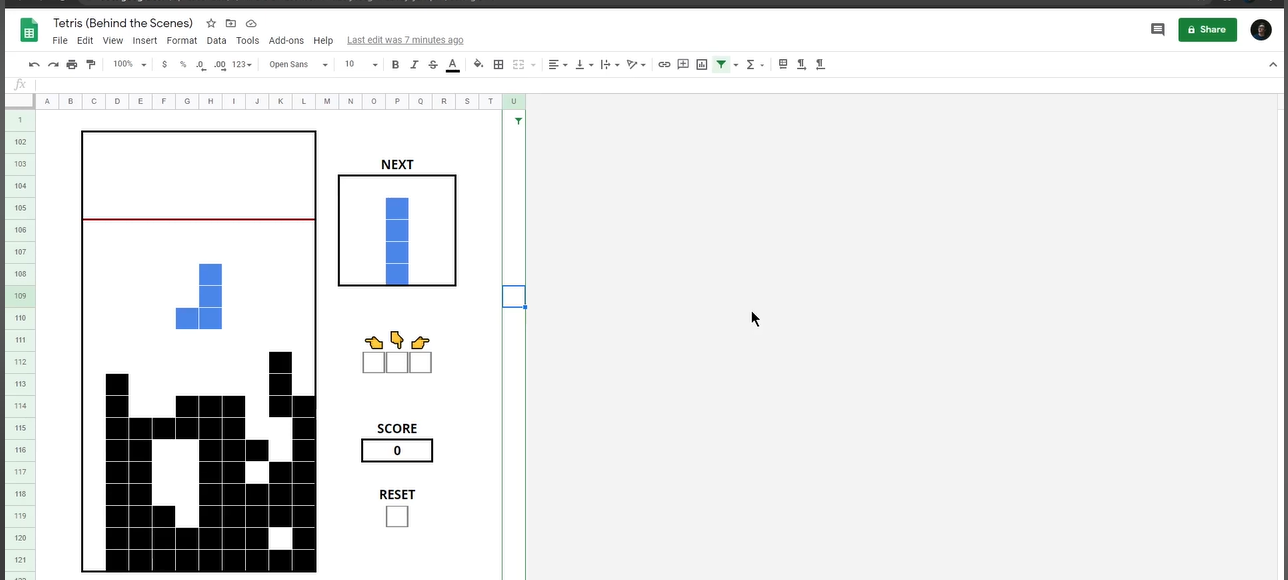
Tetris is available on phones, browsers, and gaming consoles, so Google Sheets may be one of the last places you expect to find it. However, software engineer Tyler Robertson created a playable Tetris-style game using only native Google Sheets functions.
The game looks similar to a traditional Tetris board. Different-shaped blocks appear at the top of the grid and eventually become fixed pieces. However, the blocks do not automatically fall. Instead, you press a button to move them downward.
This makes the game more relaxed, but it still requires strategy. You can move the pieces left or right, although you cannot rotate them. A red line near the top of the grid also marks the game-over point.
Clearing a complete line earns one point. Once your blocks cross the red line, you must reset the game.
The impressive part is that the project does not rely on external scripts or embedded applications. It uses native functions such as AND, COUNTIF, and IF.
If Tetris is not your favorite, similar Google Sheets projects include Chess, Sheetle, Minesweeper, and even an escape room.
Make a Digital Advent Calendar in Sheets
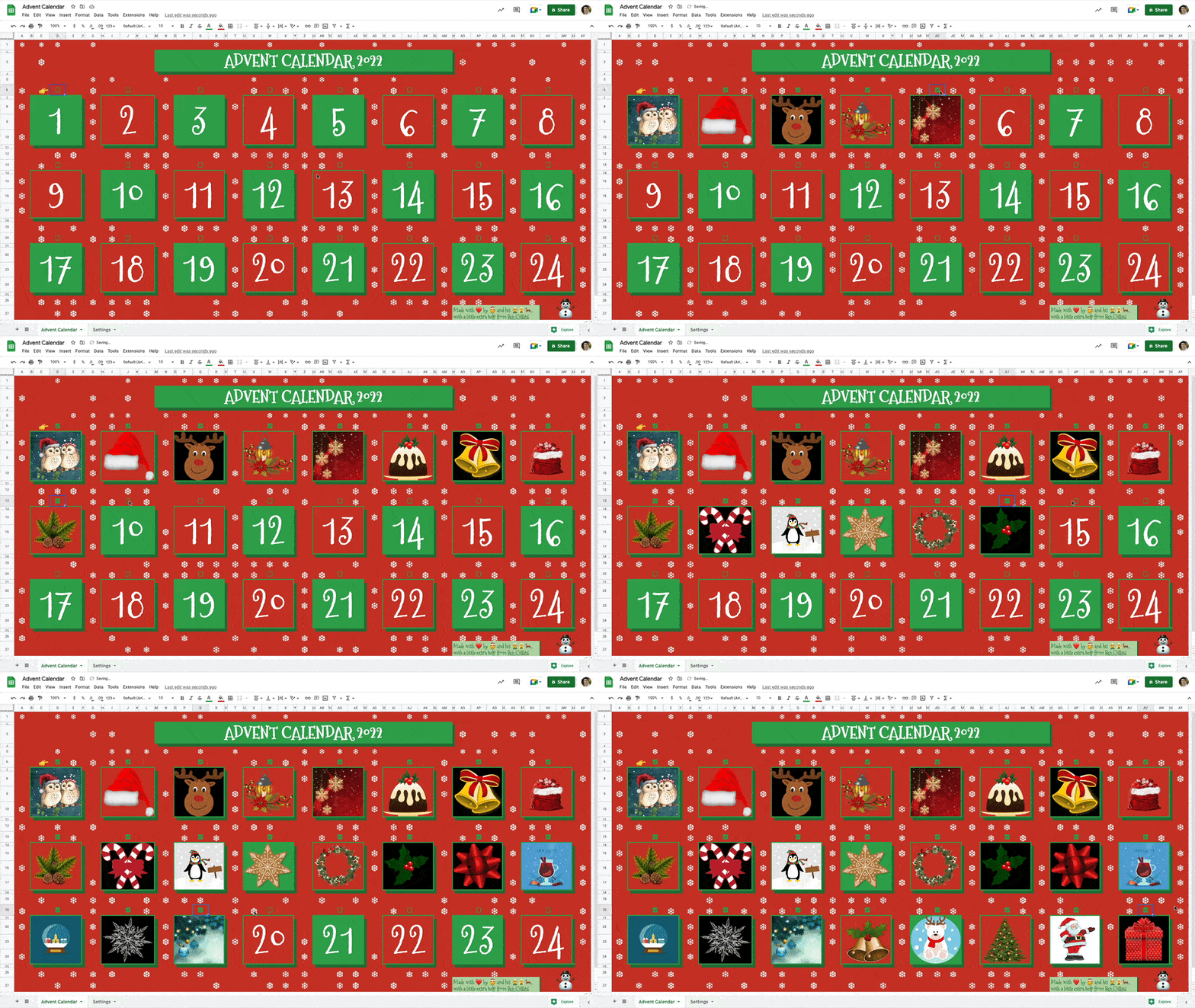
Advent calendars are a popular holiday tradition, with a new surprise waiting behind each door. But you do not need a physical calendar to enjoy the experience. One of the more creative unexpected uses for Google Sheets is turning a simple spreadsheet into a digital advent calendar.
Google Sheets enthusiast and Google Developer Expert Ben Collins created a digital advent calendar that works much like a traditional version. It features 24 windows, with each one hiding a Christmas-themed image. Examples include Rudolph the red-nosed reindeer, candy canes, Santa Claus, and mistletoe.
Each window opens when you click the checkmark above it. However, the calendar prevents users from opening future windows early. An IF function checks the current date against the appropriate opening date.
The calendar can use November 30 as its trigger date. For example, the third window becomes available on December 3. Before then, the hidden image remains locked.
Simple borders, fill colors, and an IF-based snowfall effect complete the festive design. This project shows how Google Sheets can become an interactive holiday tool.
Plan your tile placement in Google Sheets
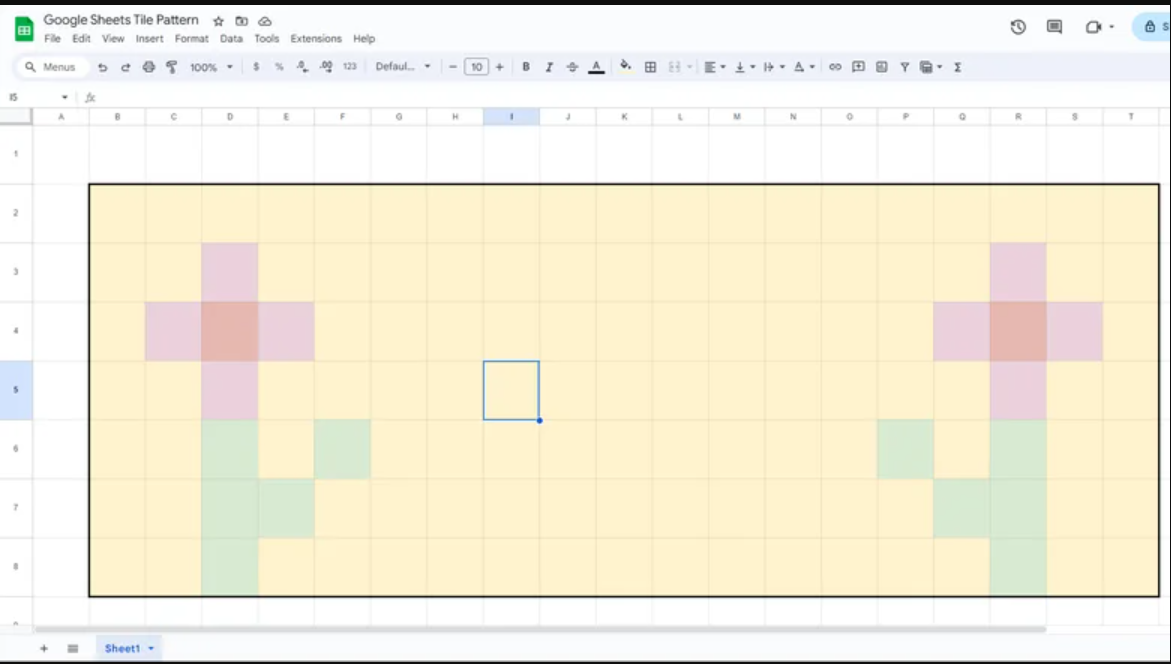
Google Sheets can also help plan tile layouts for bathrooms, kitchens, and other home improvement projects. This can be especially useful when you want to create a custom pattern with different tile colors or designs.
You do not need to draw the layout on traditional graph paper. Instead, adjust the spreadsheet cells to match the general shape of your tiles. Unlike a floor plan, the cells do not necessarily need to be square.
Start by measuring the exact length and width of the area you want to cover. Then measure the length and width of your chosen tiles. Include an allowance for grout spacing when calculating how many tiles will fit.
Divide the space dimensions by the corresponding tile dimensions. The resulting numbers help determine how many cells you need across each row and column.
Create a border around the planned area to keep the layout organized. Then, use different cell colors to represent different tile designs.
This approach makes it easy to test patterns before installation. You can experiment with alternating colors, decorative tiles, borders, and repeating designs.
Google Sheets therefore works as a simple tile layout planner, helping you visualize your design before purchasing materials.
What are some cool things I can do with Google Sheets?
Beyond budgeting, unexpected uses for Google Sheets include media tracking, website monitoring, language learning, and creative projects. Built-in functions let you create useful workflows without constantly switching between applications.
For example, GOOGLETRANSLATE can generate multilingual glossaries directly inside a spreadsheet. You can organize vocabulary, phrases, and translations in one convenient place.
Google Sheets can also work with publicly accessible web data. Functions such as IMPORTXML and IMPORTHTML can retrieve compatible information from websites.
Creative users can explore even more unexpected uses for Google Sheets. You can build habit trackers, study flashcards, interactive checklists, dashboards, and simple games.
Some useful Google Sheets ideas include:
- Creating automated content trackers
- Building personal budgeting systems
- Organizing study materials
- Monitoring selected website information
- Creating interactive project dashboards
- Translating words or phrases in bulk
These examples show how ordinary spreadsheet cells can become practical personal tools. With the right formulas, Google Sheets can handle tasks that normally require separate applications.
Automated Website Uptime Monitoring
One of the more useful unexpected uses for Google Sheets is basic website uptime monitoring. You can use Google Apps Script to create a lightweight system that checks whether a website responds successfully.
When a check fails, the script can send an email notification. You can also record the website address, check time, response status, and response code inside your spreadsheet.
A monitoring sheet might include:
- Website URL
- Check time
- Response status
- Response code
- Notes or alerts
The script can update these details automatically during scheduled checks. You can also configure alerts for failures or repeated problems.
This approach provides a simple monitoring solution without requiring another desktop application. However, dedicated uptime services usually offer more advanced reporting and monitoring features.
For small projects, personal websites, or learning exercises, Google Sheets and Apps Script remain useful. This is another example of how unexpected Google Sheets uses can extend beyond ordinary data entry.
What are the main uses of Google Sheets?
The main uses of Google Sheets include collaboration, reporting, record-keeping, budgeting, project management, and data analysis. However, many unexpected uses for Google Sheets come from combining these basic features with formulas and automation.
Individuals and organizations can use shared workbooks while multiple people work on the same file. Changes are saved to the cloud, reducing problems caused by outdated spreadsheet versions.
Google Sheets also supports comments, filters, charts, pivot tables, and conditional formatting. These tools can turn large datasets into clearer reports and interactive dashboards.
Common Google Sheets applications include:
- Project and task tracking
- Monthly budgets
- Expense management
- Sales pipeline reporting
- Inventory records
- Customer databases
- Performance dashboards
- Team schedules
The platform balances accessibility with powerful spreadsheet functionality. Students, freelancers, small businesses, and remote teams can all use it as a central workspace.
Exploring less obvious features can reveal even more creative uses for Google Sheets. The same spreadsheet can manage information, analyze data, automate tasks, and present results.
Collaborative Financial Modeling
Collaborative financial modeling is another practical use of Google Sheets. Teams can create revenue forecasts, expense plans, budgets, and financial scenarios in one shared workbook.
Instead of passing spreadsheet files between users, everyone can work from the same cloud-based document. Team members can review assumptions, add comments, and adjust figures together.
A collaborative financial model might include:
- Revenue assumptions
- Operating expenses
- Monthly forecasts
- Cash-flow estimates
- Scenario comparisons
- Budget versus actual results
Conditional formatting can highlight important changes. Charts can make financial trends easier to understand, while pivot tables can summarize larger datasets.
This setup can make financial planning more organized and easier to review. It also demonstrates one of the more useful unexpected uses for Google Sheets for small teams.
However, financial models still require careful review. Incorrect formulas or assumptions can produce misleading results.
Larger organizations may need specialized financial planning software with stronger controls. For smaller teams and straightforward forecasting, Google Sheets remains an accessible and flexible option.
Is there a random function in Google Sheets?
Yes. Google Sheets includes native functions for generating random numbers. The two most useful options are RAND() and RANDBETWEEN().
The RAND function returns a random decimal number greater than or equal to zero and less than one. It can help with simulations, randomized selections, and basic probability experiments.
If you need whole numbers, RANDBETWEEN is more convenient. Its syntax is RANDBETWEEN(low, high). For example, RANDBETWEEN(1,30) can generate an integer between 1 and 30.
These formulas can recalculate when the spreadsheet updates. Therefore, they work well for temporary randomization but may not suit situations requiring a permanently fixed result.
You can use random functions to:
- Select random participants
- Create simple simulations
- Shuffle data
- Generate sample values
- Randomize practice questions
- Assign groups
Randomization is another example of unexpected uses for Google Sheets. If you need to preserve a generated result, copy it and paste it as a static value.
Shuffling Data Lists with SORT and RANDARRAY
You can combine SORT and RANDARRAY to create a dynamic way to randomize lists. This can help rearrange names, survey responses, study questions, or other datasets without manually moving rows.
The basic approach involves generating random values alongside your data. Google Sheets can then sort the dataset according to those values.
Each recalculation can produce a different order. This makes the method useful for several unexpected uses for Google Sheets, especially when you need quick randomization.
You can use it to:
- Shuffle a classroom roster
- Randomize survey responses
- Create practice-question orders
- Assign participants to groups
- Mix items in a content list
The main advantage is convenience. You do not need to repeatedly drag rows into different positions.
However, random formulas can recalculate and change the order unexpectedly. If you need to preserve a particular shuffle, copy the results and paste them as values.
This method works well for ordinary spreadsheet tasks. It should not be treated as a security-grade random number generator.
Used correctly, SORT and RANDARRAY provide a quick way to create dynamic randomized lists.
What are the 10 Google tricks?
Google offers many small features that can save time during everyday searches and spreadsheet tasks. Some are browser techniques, while others highlight unexpected uses for Google Sheets through formulas and built-in tools.
Useful Google tricks include:
- Use conversion queries directly in Google Search.
- Put quotation marks around phrases for exact searches.
- Use the
filetype:operator to find specific documents. - Use GOOGLEFINANCE for supported financial information.
- Use IMPORTHTML to import compatible web tables.
- Use GOOGLETRANSLATE for spreadsheet translation.
- Add checkboxes for task and status tracking.
- Use dropdown menus to standardize entries.
- Apply conditional formatting to highlight important values.
- Use voice typing when supported by your device and browser.
These tricks can reduce repetitive work and make information easier to manage. They also show that Google Sheets is not limited to traditional calculations.
Some features depend on external websites, data availability, account settings, or device support. Results can therefore vary between users.
The best approach is to choose tricks that solve a real problem. A small automation or shortcut can often save more time than learning dozens of advanced features.
Instant Stock Tracking with GOOGLEFINANCE
The GOOGLEFINANCE function can bring supported financial information into a Google Sheets workbook. This makes it useful for people who want to organize investment information without manually copying every value.
Depending on the supported security and attribute, the function can return prices, historical information, or other available market data. You can combine these values with formulas to create a simple portfolio tracker.
A basic investment sheet might include:
- Ticker symbols
- Current or recent prices
- Number of shares
- Purchase prices
- Portfolio values
- Gain or loss calculations
Charts can help visualize changes over time. Conditional formatting can highlight gains, losses, or selected thresholds.
This function represents another practical example of unexpected uses for Google Sheets. It can reduce manual data entry and organize financial information in one place.
However, financial data can have delays or limitations. Google Sheets should not be treated as a professional trading platform.
For personal portfolio monitoring, combining GOOGLEFINANCE with standard spreadsheet formulas can create a useful and customizable financial dashboard.
What is the hidden Google 67 trick?
The phrase “Google 67 trick” refers to an internet rumor involving the number 67. Some online discussions suggest that searching for this number activates a hidden Google Easter egg or special animation.
However, there is no established Google feature that makes the number 67 trigger a unique spreadsheet function or secret browser command. Unlike recognized Google Easter eggs, the supposed trick appears mainly connected to viral posts, jokes, memes, and online speculation.
Google has included many playful features throughout its search history. Some have involved animations, games, or unusual search behaviors. These features can change or disappear over time.
It is useful to separate confirmed Google features from internet rumors. A viral claim does not necessarily mean that a feature exists.
The Google 67 trick is therefore best treated as an entertaining search myth rather than a useful Google Sheets feature. If you want genuine tricks, Google Search and Google Sheets offer many documented tools worth exploring.
Understanding real formulas and automation features will provide more practical value. These unexpected uses for Google Sheets can improve everyday workflows without relying on unverified tricks.
Unlocking Authentic Google Easter Eggs
If you enjoy Google Easter eggs, there are genuine examples worth exploring. Google Search has historically included playful features that respond to certain queries with animations, games, or unusual page behavior.
For example, searches associated with Pac-Man have provided interactive game experiences. Other classic Easter eggs have produced visual effects or changed how search results appear.
These features are separate from Google Sheets. They do not provide spreadsheet functionality, but they demonstrate Google’s playful approach to user interaction.
Google Easter eggs can include:
- Interactive games
- Animated search results
- Visual effects
- Special search responses
- References to technology or popular culture
Availability can change because Google occasionally removes, updates, or replaces older Easter eggs. Some features may also behave differently across devices and browsers.
If you encounter a supposed Google trick online, check whether it still works before assuming it is official. Viral claims can spread quickly without reliable confirmation.
Exploring genuine Easter eggs can be fun. However, practical unexpected uses for Google Sheets offer greater productivity value. Formulas, Apps Script, automation, and formatting tools can turn a simple spreadsheet into a useful custom workspace.
Frequently Asked Questions
Can Google Sheets send automatic email notifications?
Yes. You can configure email notifications through Google Sheets features and Google Apps Script. Apps Script provides more control when you need customized alerts based on specific events or conditions.
For example, a script can send an email after a form submission or when a workflow reaches a certain stage. Native notification settings can also provide simpler alerts without custom code.
Is Google Sheets safe for storing sensitive personal information?
Google provides security features for its cloud services. However, that does not make every spreadsheet suitable for sensitive information.
Avoid storing passwords, credit card numbers, or highly sensitive credentials in ordinary spreadsheet cells. Use strong account security, review sharing permissions, and avoid public links when handling confidential information.
How do I pull live cryptocurrency prices into Google Sheets?
You can connect Google Sheets to external cryptocurrency data sources through APIs or compatible import methods. The exact approach depends on the data provider and its access requirements.
Import functions can work with publicly accessible data, but they may not provide reliable real-time pricing. API-based integrations are often better for structured financial data.
Can I build an interactive dashboard using Google Sheets?
Yes. You can combine pivot tables, charts, slicers, filters, and conditional formatting to build interactive dashboards.
These features allow users to explore metrics without changing the underlying dataset. For many small teams and personal projects, Google Sheets can provide a practical alternative to specialized dashboard tools.
Conclusion
Exploring unexpected uses for Google Sheets reveals how much functionality exists beyond ordinary calculations. The platform can support web-data imports, translation workflows, randomization, financial tracking, dashboards, and lightweight automation.
Google Sheets can also replace some simple standalone tools. You can create project trackers, study systems, content databases, games, floor plans, and tile layouts within one cloud-based workspace.
Some of the most useful features include:
- GOOGLETRANSLATE for multilingual spreadsheets
- GOOGLEFINANCE for supported financial information
- RAND and RANDBETWEEN for randomization
- SORT and RANDARRAY for dynamic list shuffling
- Apps Script for custom automation
- Charts, slicers, and pivot tables for interactive reporting
The four creative uses in this guide show another side of Google Sheets. You can turn the grid into an Etch A Sketch, play Tetris, design a floor plan, or plan a tile pattern.
It is also important to separate genuine features from internet myths. The rumored Google 67 trick is not a practical spreadsheet feature.
Start with one idea that matches your needs. Build a tracker, test a formula, or experiment with the spreadsheet grid. With some creativity, Google Sheets can become a surprisingly powerful everyday tool. You can also explore cool things your Wi-Fi router can do to discover more useful technology features around your home.