The Pros and Cons of Using Portable USB Monitors for Your Laptop
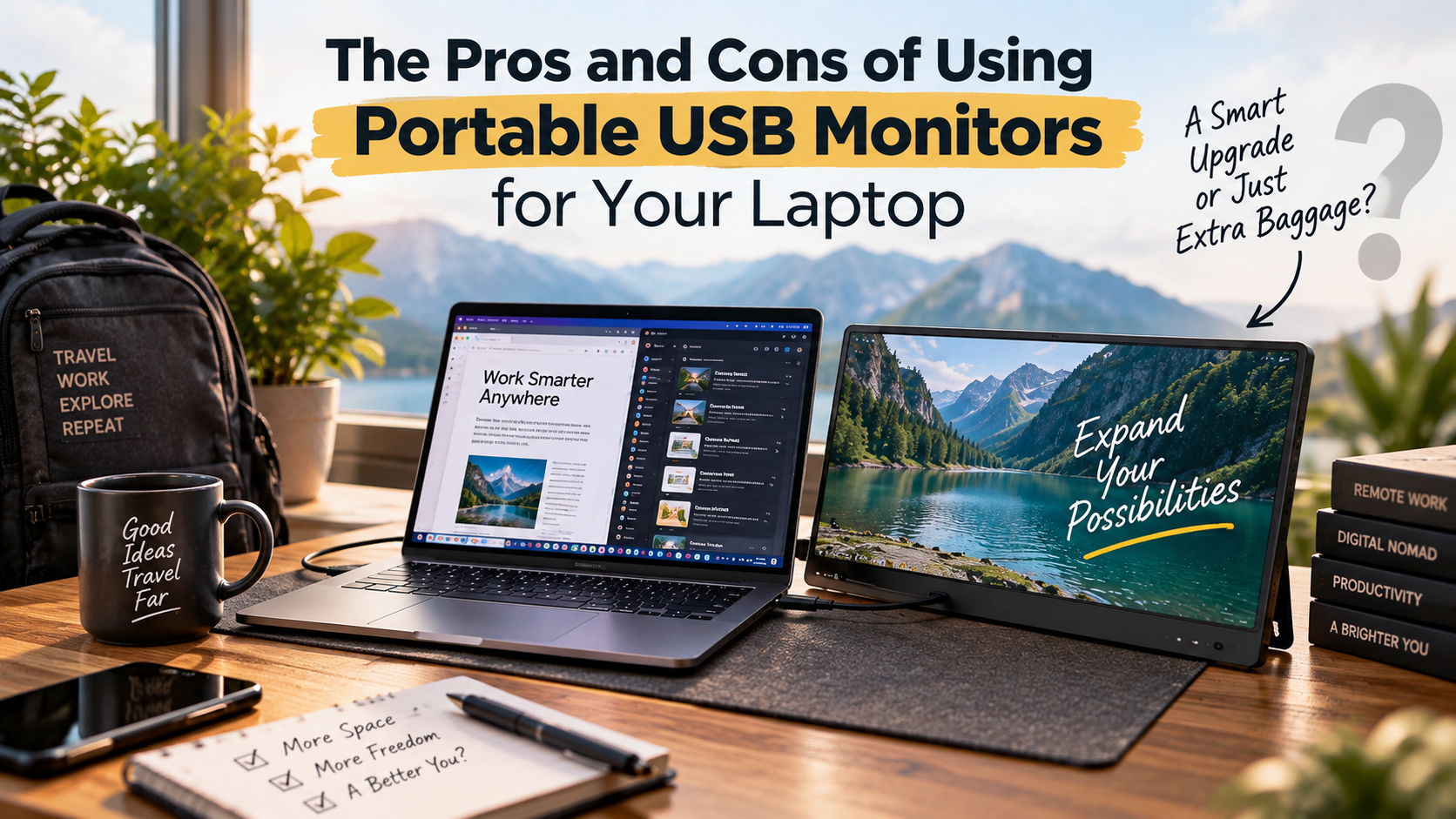
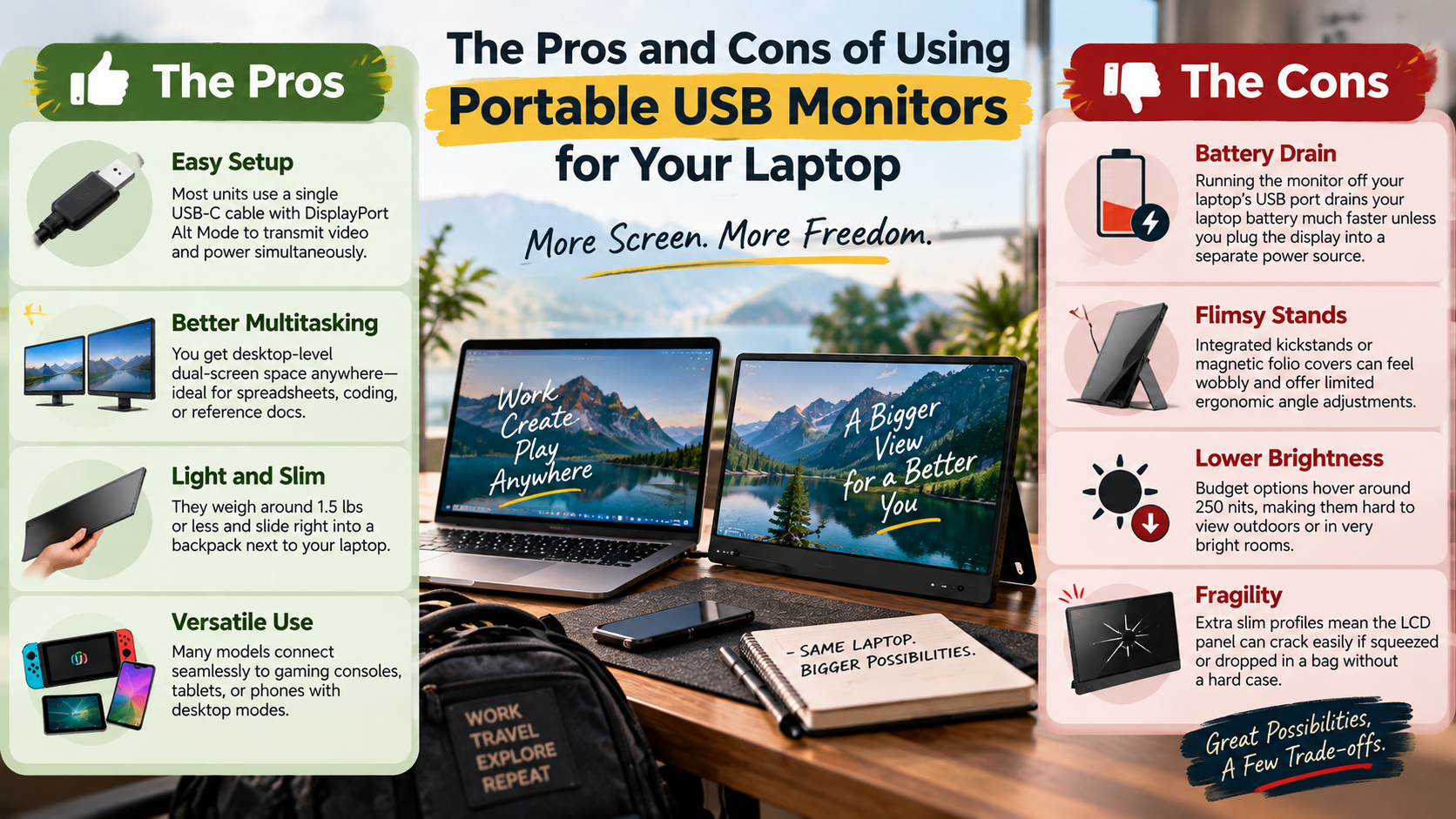
Working on a single compact screen can make multitasking feel cramped and inefficient. Portable USB monitors for your laptop give you more screen space without requiring a permanent desk setup. They are useful for remote workers, travelers, students, developers, and other professionals.
A second display lets you keep documents, browser tabs, communication apps, or reference material visible. This reduces the need to switch between windows constantly. It can also make your workflow easier to manage in hotels, cafes, and shared workspaces. You can learn more about USB Type-C capabilities from the USB Implementers Forum (USB-IF).
However, adding another screen is not always the right choice. You need to consider battery usage, portability, durability, brightness, connectivity, and available space. A portable monitor also adds another device to your travel bag.
This guide explains when a portable monitor is useful. It also covers the key benefits, drawbacks, connectivity considerations, and expected lifespan. These points can help you decide whether a portable second screen fits your needs.
Should I Use a Portable Monitor?
A portable monitor can be useful when your work involves regular multitasking away from a traditional desk. Developers can keep code on one screen while using another for documentation or testing. Researchers can view sources while writing notes. Spreadsheet users can keep data visible while working in another application.
The benefits are smaller for people who mainly browse the web or check email. In those cases, another screen may add weight without providing enough value. Your workflow should therefore guide the buying decision.
Before choosing portable USB monitors for your laptop, consider how often you need additional screen space. Ask yourself:
- Do you regularly work with several applications?
- Do you often work away from a permanent desk?
- Does your laptop support the monitor’s connection type?
- Are you comfortable carrying another device?
- Will you frequently work without access to a power outlet?
If your answers point toward frequent multitasking, a portable laptop monitor can provide useful flexibility. It gives you more workspace without requiring a full desktop monitor.
Matching Your Daily Workflow Demands
Your daily workflow should determine whether a second screen is worth carrying. Programmers can use one display for source code and another for terminals or documentation. Writers can keep research material open beside their drafts. Business users can monitor spreadsheets while handling email or video meetings.
Creative professionals can also benefit from additional screen space. A video editor might use the portable display for timelines or reference footage. Designers can move tool panels to the second screen while keeping the main canvas on the laptop.
Screen size also matters. A compact display may provide less workspace than you expect. If you are comparing displays for different environments, understanding how to choose the perfect gaming monitor can also help you evaluate factors such as screen size and resolution.
Consider these factors before selecting a model:
- Screen size: Larger screens provide more workspace but add weight.
- Resolution: Higher resolution makes text and images sharper.
- Brightness: Higher brightness helps in well-lit environments.
- Connectivity: USB-C is convenient, but compatibility varies.
- Stand design: A stable stand makes long sessions more comfortable.
What Are the Benefits of Using a Portable Laptop Monitor?
The biggest benefit of portable USB monitors for your laptop is the extra screen space. A second display lets you view more information without repeatedly minimizing windows. This can make research, coding, writing, project management, and communication easier.
Portability is another major advantage. Most models are thin enough to fit inside a laptop bag. Many use USB-C connections, which can reduce cable clutter. On compatible devices, one USB-C cable may carry both video and power.
A portable display can also help organize your workflow. You can keep communication tools on one screen while focusing on your main task on the other. This arrangement can reduce unnecessary window switching.
Key benefits include:
- More workspace for multitasking.
- Easy portability compared with desktop monitors.
- Simple connectivity with compatible USB-C devices.
- Flexible positioning in temporary workspaces.
- Better task separation between applications.
However, the experience depends on your specific laptop and monitor. Always check compatibility and power requirements before buying.
Streamlined Single-Cable Connectivity
USB-C has made portable monitors easier to connect, but one cable does not work in every setup. A compatible USB-C port may carry video, power, and data through one connection. This can reduce cable clutter and make your mobile workstation easier to set up.
However, not every USB-C port supports video output. Some ports only support charging or data transfer. If your computer lacks the required ports, understanding whether you should add USB-C ports to your desktop PC can also help when planning a flexible display setup.
Power requirements also vary between displays. Some models can draw enough power directly from the laptop. Others may need an additional USB connection or external power source.
A typical setup involves these steps:
- Connect the monitor to a compatible USB-C port.
- Wait for the laptop to detect the display.
- Select an extended or mirrored display mode.
- Adjust brightness and resolution as needed.
This approach works well for temporary workspaces. You can set up and pack away the display quickly. However, single-cable operation depends on compatibility, not simply on having a USB-C port.
What Are the Disadvantages of Using a Portable Laptop Monitor?
Portable USB monitors for your laptop add valuable screen space, but they also introduce several trade-offs. Power consumption is one of the main concerns. When a monitor draws power from your laptop, it can reduce battery life. The actual impact varies by monitor and laptop.
Portability creates another challenge. Thin displays are easier to carry, but they may be more vulnerable to pressure and impact. A protective sleeve is useful when the monitor travels inside a crowded backpack.
Display quality can also vary between models. Some affordable monitors offer lower brightness or weaker color accuracy than premium laptop screens. If you often work in bright environments, knowing how to fix sun glare on your monitor can also help you get a clearer view without immediately replacing the display.
Other disadvantages include:
- Additional weight and bag space.
- Higher battery consumption.
- Possible connection limitations.
- Lower brightness on some models.
- Unstable stands on cheaper designs.
- Extra cables or adapters in certain setups.
These drawbacks do not mean a portable monitor is a bad investment. They show why the right model depends on your working environment and priorities.
Managing Rapid Battery Depletion
Power consumption is an important factor when using a portable monitor. A display powered directly by your laptop draws additional energy during use. If your laptop already loses power quickly, understanding why your laptop battery drains so fast can help you manage a portable monitor setup more effectively.
Brightness can have a noticeable effect on power consumption. Higher brightness generally requires more energy. Resolution, refresh rate, panel technology, and screen size can also affect overall power use.
You can reduce battery drain with a few simple adjustments:
- Lower the monitor brightness when practical.
- Use external power when an outlet is available.
- Choose an energy-efficient display.
- Disconnect the monitor when it is not needed.
- Use a compatible power bank for longer sessions.
A power bank can extend working time, but it also adds weight. This creates a practical trade-off between extra screen space and portability.
If you regularly work away from outlets, check the monitor’s power specifications before buying. Do not assume every USB-C monitor has the same battery impact. Your laptop’s USB-C power capabilities also influence the overall setup.
What Are the Advantages and Disadvantages of Portable Computers?
Portable computers provide a complete computing environment in a compact form. A laptop combines processing hardware, a display, keyboard, battery, wireless connectivity, and other components. This makes it possible to work from many locations without carrying a desktop computer.
However, this convenience comes with several compromises. Compact laptops have limited internal space, which can restrict cooling and upgrade options. Sustained workloads may cause thermal throttling on some systems.
Ergonomics can also become an issue. A laptop keeps the keyboard and display connected. This can force users into uncomfortable positions during long working sessions.
Portable computers work best when mobility is important. For extended use, adding an external monitor, keyboard, mouse, or laptop stand can create a more comfortable setup.
Their main advantages include:
- Easy transportation.
- Built-in battery power.
- Integrated keyboard and display.
- Wireless connectivity.
- Flexible working locations.
Their main drawbacks include thermal limitations, limited upgradeability, and potential ergonomic problems. Understanding these trade-offs helps you build a portable workstation that fits your workload.
Balancing Thermal Limits and Physical Ergonomics
Laptop design requires a balance between performance, size, cooling, and portability. Smaller enclosures leave less room for cooling components. During demanding workloads, some laptops may reduce performance to manage temperatures.
Ergonomics create another challenge. The keyboard and screen remain connected, so raising the display also raises the keyboard. This can make typing uncomfortable when the screen is positioned at eye level.
A portable monitor can improve part of this setup. You can position the second display at a comfortable height while using the laptop screen for additional information. However, proper positioning remains important.
For longer work sessions, consider:
- Raising the laptop screen with a suitable stand.
- Using an external keyboard and mouse.
- Positioning displays near eye level.
- Keeping the primary screen directly in front of you.
- Taking regular breaks during extended screen use.
A second display improves workspace flexibility, but it does not automatically create an ergonomic workstation. Screen position, viewing distance, and posture still matter.
What Is the Average Lifespan of a Portable Monitor?
There is no fixed lifespan for a portable monitor. A well-built model can remain functional for several years. Heavy travel, frequent handling, and poor storage can shorten its useful life.
Portable displays use electronic components similar to other LCD or LED monitors. Physical damage is often a bigger concern than normal electronic wear. Drops, pressure, cable strain, and damaged ports can affect long-term reliability.
Technology can also make an older monitor feel outdated before it stops working. Newer laptops may support higher resolutions, faster refresh rates, or newer connection standards. Therefore, functional lifespan and useful lifespan are not always the same.
When choosing portable USB monitors for your laptop, durability should be part of the decision. A monitor that travels regularly needs adequate protection and reliable connectors.
To extend its service life:
- Store it in a padded protective sleeve.
- Avoid placing heavy objects on the panel.
- Handle USB-C connectors carefully.
- Keep cables from bending sharply.
- Protect the display from excessive heat and moisture.
- Avoid overpacking your laptop bag.
With proper care, a portable monitor can remain useful for years.
Protecting Delicate Mobile Hardware
Travel is one of the biggest risks to a portable monitor. A display inside an overfilled backpack can experience pressure or bending. Drops and impacts can also damage the panel, frame, or USB ports.
A protective sleeve provides basic protection. Frequent travelers may prefer a rigid or reinforced case. You should also avoid placing books, chargers, or other heavy items directly against the screen.
The USB-C connection needs careful handling too. Repeatedly forcing or sharply bending the cable can place stress on the port. Disconnect cables by holding the connector rather than pulling the cable.
Follow these maintenance habits:
- Use a protective case during transportation.
- Keep heavy objects away from the screen.
- Store cables without tight bends.
- Avoid applying pressure to the display.
- Clean the screen with suitable materials.
- Keep the monitor dry and away from extreme temperatures.
These steps cannot guarantee a specific lifespan. They can reduce avoidable damage and help your portable display remain reliable for longer.