
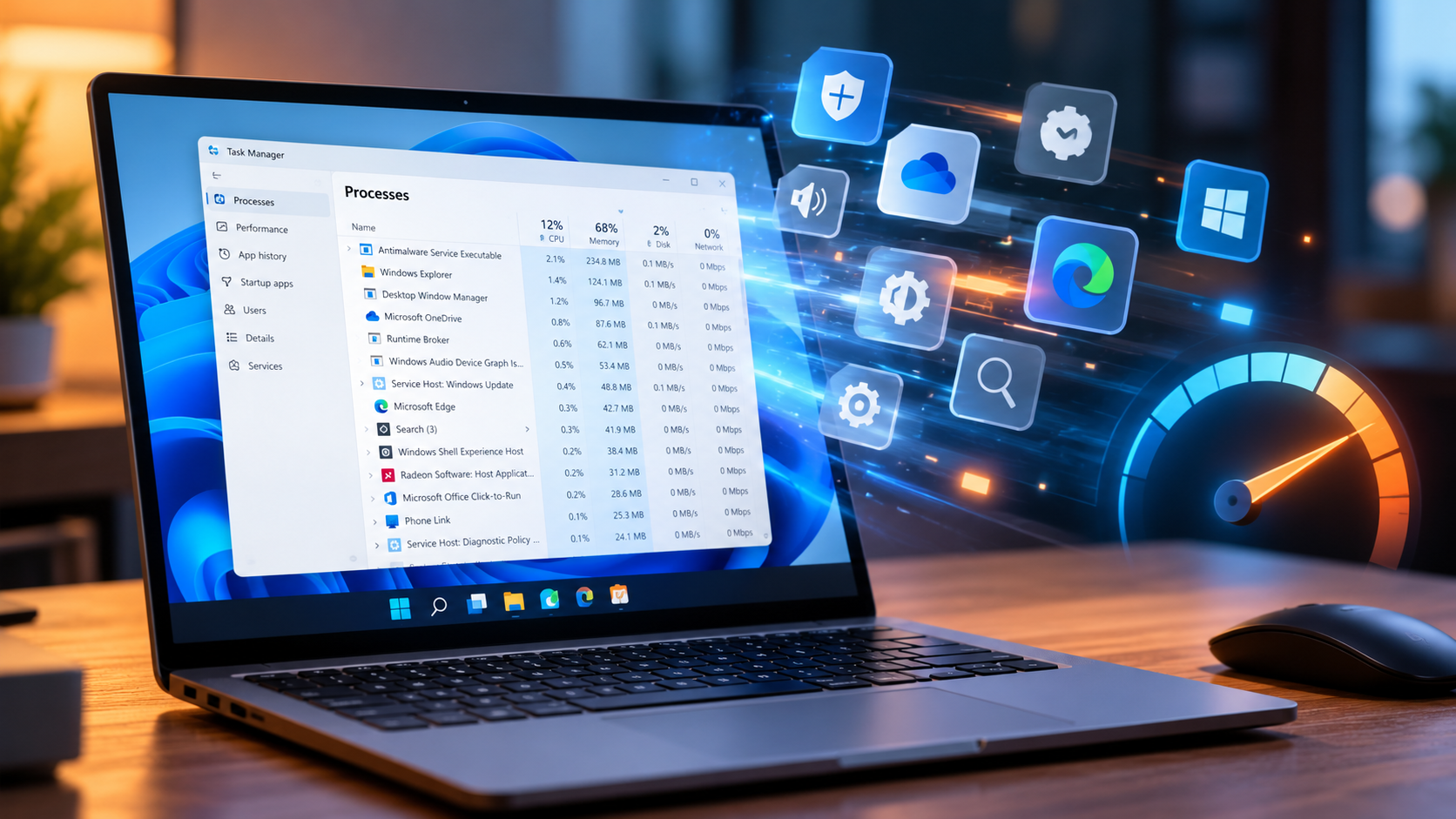
Understanding Your PC’s Background Processes for Better Performance
When you start your computer, many tasks begin running behind the scenes. These tasks are known as PC’s background processes. They help Windows manage updates, synchronize files, maintain security, and support connected hardware.
Although these processes are essential, some applications consume more resources than necessary. This can cause slow performance, delayed responses, and reduced battery life. Understanding how background processes work helps you identify problems without disrupting important system functions.
Your computer needs some background activity to operate correctly. However, unnecessary applications can increase CPU usage, consume RAM, and slow down other programs. Managing these tasks can improve startup times and overall responsiveness.
Microsoft provides guidance on managing startup applications through its official support website. Reviewing your startup settings is a useful first step toward improving system performance.
In this guide, you will discover how many background processes are normal, why your PC runs so many tasks, and which ones you can safely disable. You will also learn how background applications affect computer speed and laptop battery life.

How Many Background Processes Should I Have on My PC?
There is no fixed number of background processes that every computer should have. The total depends on your installed applications, hardware specifications, Windows version, and system configuration. A clean Windows installation may run dozens of processes, while a computer with many installed programs can run well over a hundred.
Having numerous PC’s background processes is normal because modern operating systems rely on multiple services. These services manage network connections, security features, hardware communication, and other essential functions. Therefore, a high process count does not automatically indicate a problem.
Instead of focusing only on the number of running tasks, examine how much memory and processing power they consume. Open Task Manager and check CPU, memory, and disk usage when your computer is idle. If your PC still feels sluggish after checking resource usage, consider whether Performance Mode on your PC is worth using.
If resource usage remains relatively low and your computer responds normally, the process count may not require any changes. However, consistently high resource usage or unexpected performance problems deserve further investigation.
Monitoring Resource Usage Over Raw Numbers
Monitoring system resources is more useful than counting every active process. Windows Task Manager provides a quick overview of how PC’s background processes affect your computer’s performance.
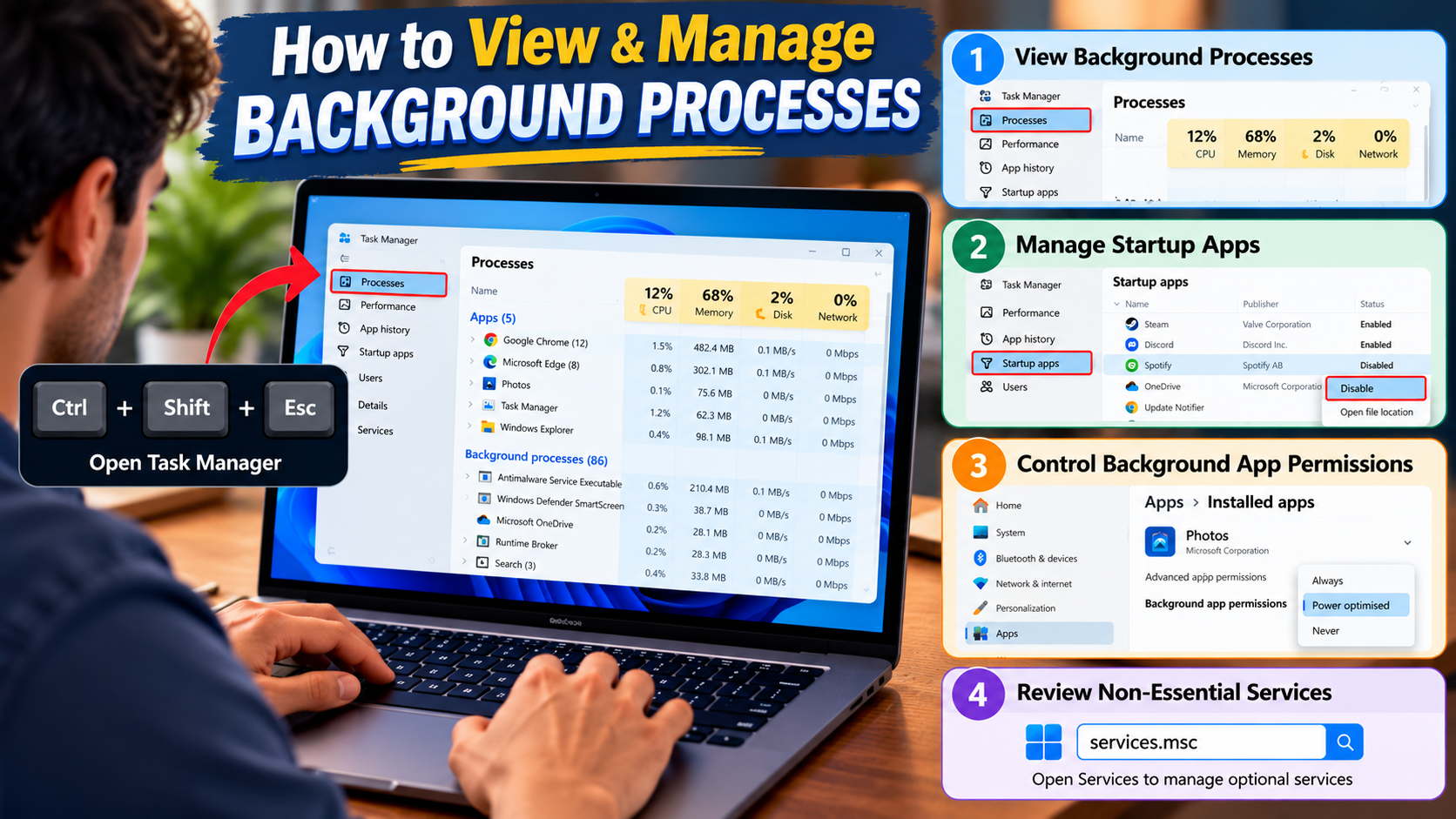
Press Ctrl + Shift + Esc to open Task Manager. Select the Processes tab and review the CPU, Memory, and Disk columns. These figures help you identify applications consuming unusually high resources.
Check these values when your computer is idle and compare them with usage during normal activities. Brief increases are expected when applications launch, updates install, or files synchronize.
If CPU or memory usage remains unusually high, sort the relevant column to identify resource-intensive applications. Investigate unfamiliar processes before ending them.
Remember that acceptable resource usage varies by hardware and workload. A computer with limited RAM may experience pressure sooner than a system with more memory. Focus on actual performance symptoms rather than an arbitrary process limit.
Why Does My PC Have So Many Background Processes?
Modern computers run many background processes because different applications and system components perform separate tasks. Every installed software package may include helper programs, automatic updaters, synchronization tools, or notification services. Some launch when Windows starts, even if you do not open their main applications.
Windows also uses separate processes and services to manage different system functions. This approach helps isolate certain failures and allows multiple components to operate independently. For example, a browser may use separate processes for tabs, extensions, and other functions.
Cloud storage services synchronize files, while antivirus software monitors potential threats. Graphics and audio utilities help manage hardware features. Communication apps may also remain active to receive messages and notifications.
These PC’s background processes help applications work smoothly and keep essential services available. However, not every application needs to start automatically. Reviewing your installed software and startup settings can help reduce unnecessary activity without affecting important Windows functions.
The Role of Software Updaters and Utilities
Many applications install background utilities to check for updates and maintain essential features. These tools help keep software current, improve compatibility, and address security vulnerabilities. Some also support notifications, account synchronization, or connected devices.
However, running multiple updaters simultaneously can increase CPU, memory, disk, and network usage. Their impact is usually temporary, but poorly optimized utilities may consume resources more frequently than necessary.
You can review startup applications in Task Manager to identify programs that launch automatically. Disable automatic startup for optional tools you rarely use, such as game launchers or non-essential communication clients.
Before disabling an updater, consider its purpose. Security software, critical drivers, and important applications may depend on background services for proper operation.
Where possible, adjust the application’s own settings rather than ending its process manually. This approach helps preserve important functions while reducing unnecessary background activity.
Which Background Processes Can I Disable?
You can disable some background processes safely, but you should identify their purpose first. The safest candidates are usually optional third-party applications that you do not need immediately after startup. Examples include game launchers, chat clients, media utilities, and optional software assistants.
Disabling these applications from startup prevents them from launching automatically. You can still open them manually whenever necessary. This reduces unnecessary activity without removing the applications from your computer.
However, avoid disabling unfamiliar Windows services, essential driver components, or security-related processes without confirming their function. Some system tasks support networking, audio, graphics, device communication, and operating system stability.
To manage startup applications, open Task Manager and select Startup apps. Review each application’s name and startup impact before making changes. Disable only programs you recognize and do not need running automatically. If you are also adjusting Windows startup behavior, learn whether to enable or disable Fast Startup on your PC.
If you experience problems after changing a setting, re-enable the application and check whether normal functionality returns. Making one change at a time helps you identify its effects and avoid unnecessary troubleshooting.
Identifying Safe Targets for Restriction
Third-party utilities and optional helper applications are often the best starting points for reducing background activity. These programs may provide convenience without being necessary for everyday computer operation.
Look for applications that launch automatically but offer no immediate benefit. Examples include unused game clients, optional messaging tools, and software that checks for updates unnecessarily often.
You can disable their automatic startup through Task Manager or the application’s settings. To manage startup permissions, open Settings > Apps > Startup in Windows and review the available options.
Pay attention to startup impact when deciding which applications to disable. A high-impact application may noticeably affect startup time, especially on computers with limited resources.
Do not disable a program solely because its name looks unfamiliar or its resource usage appears high. Research its purpose first, particularly if it relates to hardware drivers or Windows security. This cautious approach helps you improve performance without compromising stability.
Will Background Processes Slow Down My Computer?
Background processes can slow down your computer when they consume excessive CPU power, memory, disk activity, or network bandwidth. Every resource-intensive application competes with your active programs for available system resources.
When resources become limited, you may notice slower application launches, delayed browser responses, stuttering games, or reduced multitasking performance. Computers with limited RAM are particularly vulnerable when several demanding applications run simultaneously.
However, PC’s background processes do not automatically cause performance problems. Many Windows services use minimal resources when idle. Modern processors can also handle multiple tasks efficiently when workloads remain within their capabilities.
The real issue is often excessive resource consumption rather than the total number of processes. Poorly optimized software, unnecessary startup applications, and malware can contribute to unusually high usage.
Open Task Manager to identify applications consuming significant resources. If a particular process consistently uses excessive CPU or memory, investigate its purpose and check for software updates. Addressing the underlying cause is usually more effective than randomly closing processes.
The Impact of Memory and Processor Hogging
Resource-intensive background applications can compete with your active programs for CPU time and available memory. When this competition becomes excessive, your computer may respond slowly or struggle with demanding tasks.
High CPU usage can delay calculations and make applications feel unresponsive. Memory pressure creates another problem. When available RAM becomes insufficient, Windows may rely more heavily on disk storage, which can reduce responsiveness.
To investigate these issues, open Task Manager and sort processes by CPU or Memory usage. Check whether a particular application repeatedly consumes an unusually large share of available resources.
Consider closing applications you recognize and no longer need. You can also disable unnecessary startup programs or adjust their background settings. These steps can help reduce the resource demands of PC’s background processes.
If high usage persists, check for software updates, malware, or other underlying problems. Avoid ending unfamiliar system processes simply because they use significant resources. Identifying the cause before taking action helps protect your computer’s stability.
Which Background Apps Should I Turn Off?
The background apps you should disable depend on how you use your computer. Optional applications that provide little value to your daily routine are usually the best candidates. These may include unused social media clients, promotional software, game launchers, and non-essential utilities.
Some applications continue running to deliver notifications, synchronize information, or update content. If you rarely use these features, restricting background activity may reduce resource consumption. On laptops, this can also help conserve battery power.
Start by reviewing your installed applications and identifying programs you seldom open. Then check their startup behavior and background permissions. Windows offers several settings for controlling application activity, although the available options vary by application type and Windows version.
Do not assume every pre-installed application is unnecessary. Some provide essential device features, accessibility tools, security protection, or system functionality.
Disable only applications you recognize and understand. After making changes, monitor your computer’s responsiveness and battery usage. If an important feature stops working, restore the relevant permission or startup setting.
Optimizing Laptop Battery and System Resources
Reducing unnecessary background activity can help laptops conserve energy and maintain smoother performance. Some applications continue using the processor, network connection, or storage even when you are not actively using them. This additional activity may contribute to battery drain.
Start by disabling automatic startup for applications you rarely use. Review background permissions where Windows provides them, and close unnecessary programs when they are no longer needed.
You can also use Windows battery settings to identify applications consuming significant power. On supported devices, Energy Saver or battery-saving features can reduce certain background activities and help extend battery life.
Avoid restricting essential applications that manage security, device drivers, synchronization you depend on, or important notifications. Excessive restrictions may interrupt useful functions without delivering meaningful performance improvements.
For better results, combine background app management with regular software updates and sensible power settings. Monitor battery usage after making changes to determine which adjustments actually help. You can also compare Sleep Mode vs Shutdown to understand which option better suits your computer usage and power-management needs.
A carefully managed system can remain responsive, reduce unnecessary energy consumption, and provide a more consistent experience throughout the day.