Make Your Android Phone’s Home Screen Actually Useful
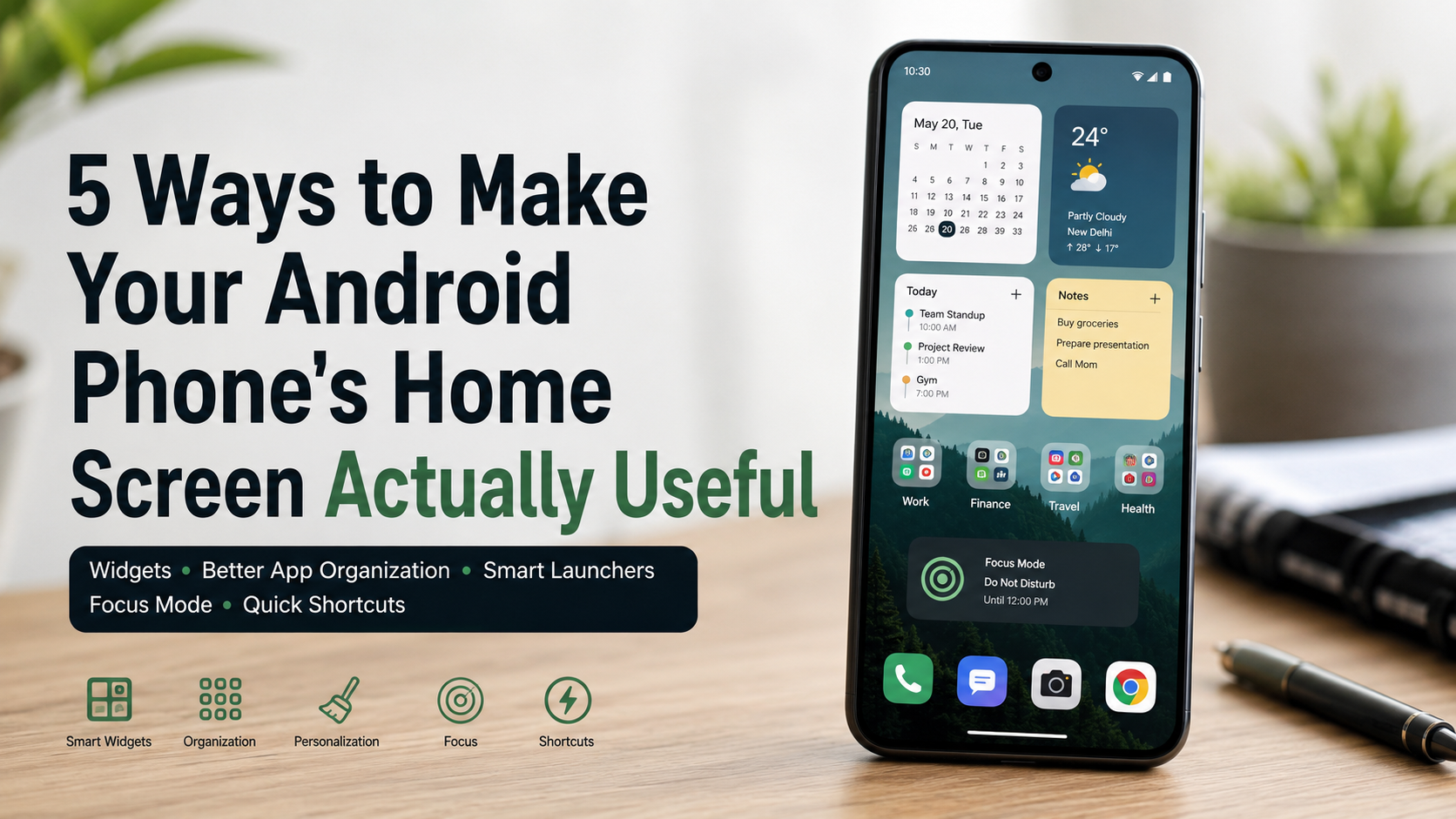
Most Android phones open to a busy grid of colorful app icons. While familiar, this layout often creates unnecessary distractions every time you unlock your device. Instead of helping you get things done, it encourages endless tapping, scrolling, and app switching. You can make Android home screen useful by turning it into a simple command center that highlights the tools and information you need most.
Android offers excellent customization features, yet many people continue using the default layout. As a result, they spend extra time searching for apps or checking basic information that could be visible immediately. A well-organized home screen reduces digital clutter, improves focus, and speeds up everyday tasks. You can explore more personalization options through Android’s official customization features to understand how Android devices support flexible layouts and user preferences.
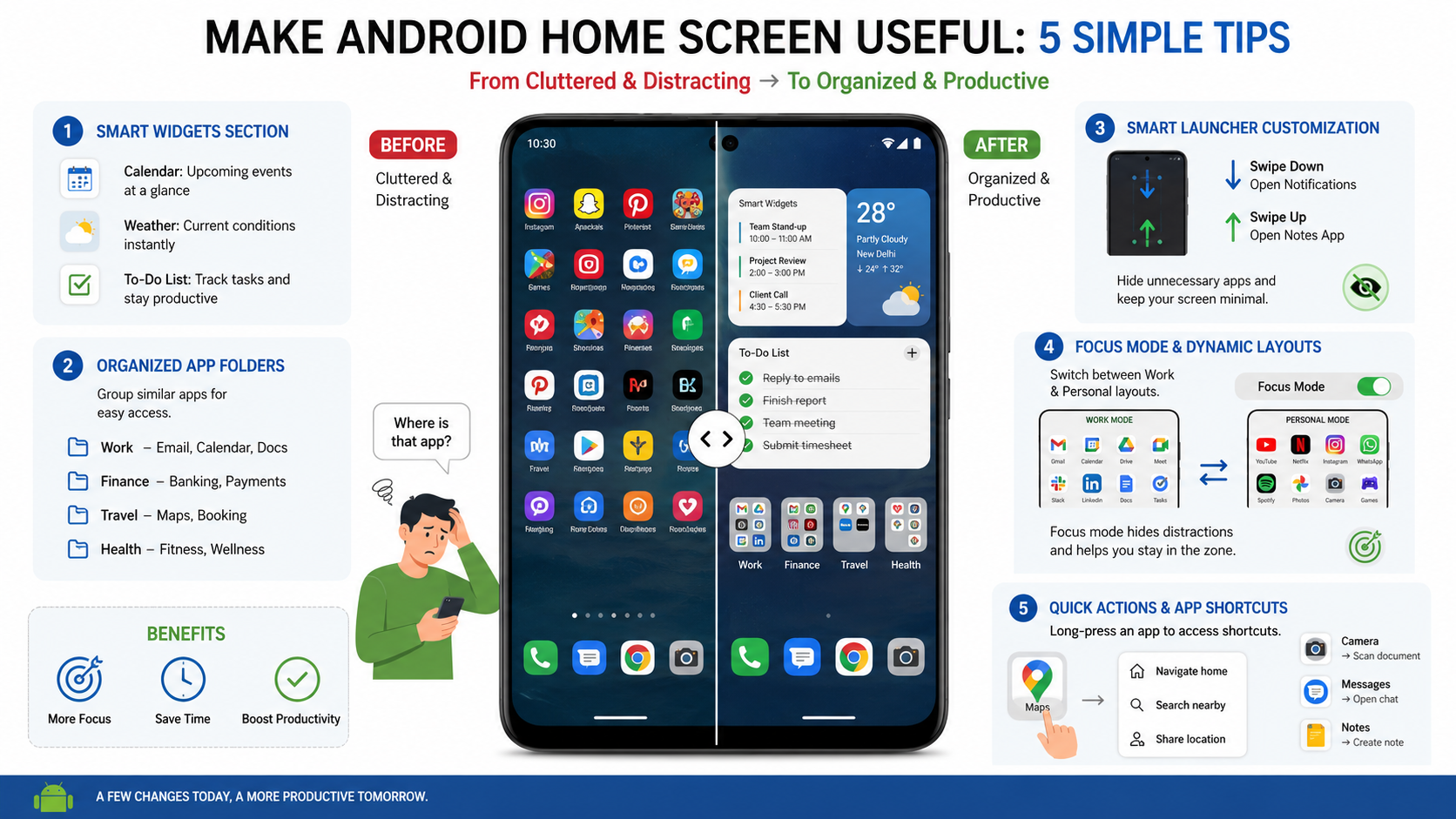
This guide explains five practical ways to create a cleaner, smarter, and more productive Android home screen. You’ll learn how to use widgets effectively, organize apps around your daily routine, customize layouts with launchers, and take advantage of shortcuts that save time throughout the day.
How to make an Android home screen look good?
Creating an attractive Android home screen is about balancing style and functionality. A clean layout looks better and makes your phone easier to use every day. Instead of filling your screen with apps and widgets, focus on keeping only the tools you use most often.
Start with a high-quality wallpaper that complements your icons without making them hard to see. A simple background usually works best because it keeps the screen clean and improves readability. Then remove unnecessary shortcuts from your main page and keep only your daily essentials within easy reach.
Organize the remaining apps into neatly labeled folders or hide those you rarely use. Using a consistent icon pack from the Google Play Store helps create a polished, unified appearance. Pay attention to spacing and icon alignment, as these small details can make your home screen look much more organized without requiring advanced customization skills.
Clean Up Clutter with Minimalist Widgets
Minimalist widgets improve both the appearance and usability of your Android home screen. They provide useful information while maintaining a clean layout. Instead of adding several colorful widgets, choose one or two that match your wallpaper and overall theme.
A simple clock, weather, or calendar widget is often enough for most users. These widgets offer quick access to important information without overwhelming the display. Limiting the number of widgets also leaves more open space, creating a modern and uncluttered look.
Choose widgets with matching colors and clean typography to maintain visual consistency. Resize them carefully so they fit naturally within your grid layout. A balanced arrangement keeps the screen functional while making it easier to find information at a glance.
How to make your Android look like an iPhone for free?
Transforming your device’s interface to match Apple’s clean aesthetic is entirely possible without opening your wallet. You do not need expensive hardware upgrades to enjoy a sleek, minimalist design on your current phone. The secret lies in downloading reliable third-party customization apps from the Google Play Store. Free tools like launcher applications and icon packs let you replicate iOS layouts in minutes. You can easily mimic the iconic app library, clean dock, and smooth grid arrangements found on Apple devices. Customization gives you the best of both worlds by combining Android flexibility with iPhone elegance. Organizing your favorite applications into neatly structured pages instantly reduces visual clutter and boosts daily speed. Taking time to configure these free settings creates a polished look that fools almost anyone glancing at your device.
Using third-party launchers for seamless iOS transitions
Third-party launchers act as complete graphical replacements for your default user interface. Applications like Launcher iOS 17 or Nova Launcher provide instant access to layout grids and icon customization. Simply install your chosen app, grant the necessary permissions, and set it as your default home application. You can swap out standard icons for custom packs that mimic the rounded square design of iOS. This simple adjustment completely alters the visual vibe of your device instantly.
How Can I Efficiently Organize My Android Home Screen?
Efficient organization helps you spend less time searching for apps and more time using your phone. A well-organized Android home screen relies on clear categories, consistent placement, and regular maintenance. Start by grouping similar apps into folders based on their purpose.
Popular folder categories include Finance, Productivity, Social Media, Entertainment, Shopping, and Utilities. Keep your primary page focused on daily essentials while moving less frequently used apps to additional pages or the app drawer. This approach keeps the main screen clean without sacrificing convenience.
Review your layout every few weeks and remove apps you no longer use. Keeping your dock and primary app positions consistent strengthens muscle memory and makes navigation faster. A simple organization system is easier to maintain and improves the overall user experience.
Utilize Alphabetical Grids and Smart Folders
Smart folders and alphabetical organization make managing large app collections much easier. Many launchers automatically organize newly installed apps, reducing the need for manual sorting. This keeps your home screen tidy even as you install more applications.
If automatic folders are unavailable, sort your app drawer alphabetically so every app is easy to locate. Combining folders on the home screen with an organized app drawer creates a simple and efficient navigation system. This method works well for both casual and power users.
Avoid creating too many folders, as that can slow navigation. Instead, keep categories broad and intuitive. A streamlined organization system is easier to remember and maintain over time.
How to Create a Good Home Screen?
A good Android home screen layout should reflect how you use your phone each day. The goal is to reduce unnecessary taps while keeping frequently used apps within easy reach. Before changing your layout, spend a day noticing which apps you open most often.
Place communication apps, productivity tools, and your preferred web browser near the bottom of the screen. This makes one-handed use more comfortable. If your phone’s default launcher offers limited customization, consider using a trusted launcher with adjustable grids and gesture controls.
Remember that your setup does not need to stay the same forever. As your habits change, update your layout to match your daily routine. Small adjustments over time help create a home screen that feels both efficient and personalized.
Prioritize Ergonomics and Thumb Reach
A visually appealing layout should also be comfortable to use. Position your most-used apps within your natural thumb reach, especially if you often use your phone with one hand. Keeping essential apps in the lower half of the display reduces hand movement and speeds up navigation.
Reserve the upper portion of the screen for larger widgets or decorative wallpaper elements. This creates a balanced appearance while improving accessibility. Consistent app placement also builds muscle memory, allowing you to find important apps quickly without searching.
Think about how you hold your phone throughout the day. Adjust your layout to support those habits rather than following trends. A practical design often feels more satisfying than one focused only on appearance.
How do I make my homescreen pretty?
Creating an aesthetically pleasing display requires a careful balance of color harmony and minimal clutter. Many users throw random widgets everywhere, which quickly creates a chaotic and overwhelming visual environment. To make your homescreen pretty, you should start by picking a cohesive color palette that matches your wallpaper. Minimalist icon packs and clean, transparent widget setups help maintain a breathable layout. Hide apps you rarely use inside tidy folders rather than letting them litter your primary working pages. Utilizing high-resolution abstract photography or soft gradient backgrounds adds an instant touch of modern elegance. Remember that less is often more when designing a display that feels calm and inviting. Clean lines, intentional spacing, and unified themes turn an ordinary phone into a stunning piece of pocket art.
Choosing minimalist widgets and clean icon packs
Widgets play an important role in making your Android display both attractive and functional. The right widgets can help you make Android home screen useful by giving quick access to essential information without opening multiple apps. Free tools like KWGT or KWGT Kustom Widget Maker offer incredible design flexibility for custom aesthetics. Pick clock and weather widgets that feature thin typography and muted pastel color tones. Pair these elements with a unified icon pack to ensure every visual asset matches your chosen theme. This cohesive approach prevents visual fatigue and creates a gorgeous, balanced display.
Frequently Asked Questions About Making an Android Home Screen Useful
How do widgets affect battery life on Android devices?
Widgets use a small amount of battery because they refresh information in the background. The impact depends on how often they update and the type of data they display. Weather, stock, and news widgets usually consume more power than simple calendar or clock widgets.
Most modern Android phones manage background activity efficiently, so a few well-chosen widgets have little effect on battery life. To reduce power consumption, choose widgets with manual or hourly refresh intervals instead of real-time updates. Limiting your home screen to two or three essential widgets keeps your device responsive while still giving you quick access to important information.
What is the best way to keep my Android home screen clean?
A minimalist layout is the easiest way to maintain a clean and organized home screen. Keep only your most frequently used apps and one or two useful widgets on the main page. Store less frequently used apps in folders or access them through the app drawer.
Review your home screen regularly and remove shortcuts you no longer use. Organize folders by purpose, such as Work, Travel, or Finance, rather than by app type. Gesture controls and app shortcuts can also reduce the number of icons you need to display, making your interface easier to navigate.
Can custom launchers slow down older Android phones?
Not necessarily. Many lightweight Android launchers are designed to improve performance on older devices. They often use fewer system resources than manufacturer-installed interfaces, which may include extra animations and background services.
Performance-focused launchers let you disable visual effects, simplify layouts, and remove unnecessary features. This can free up memory and make navigation feel faster. Choosing a trusted, lightweight launcher is often an effective way to improve both speed and customization on aging smartphones.
What is the difference between an app icon and an app shortcut?
An app icon opens the application’s main screen. An app shortcut opens a specific feature within that application. This saves time by skipping extra menus and unnecessary taps.
For example, tapping a messaging app icon opens your conversation list. A messaging shortcut can open a chat with a specific contact immediately. Similarly, a camera shortcut may launch document scanning instead of the standard camera interface. These shortcuts help make Android home screen useful by providing faster access to everyday tasks.
How do I stop new app icons from appearing on my home screen?
Many Android devices automatically add newly installed apps to the home screen. While convenient for some users, this can quickly create clutter.
You can disable this behavior through the Google Play Store settings or your device’s home screen settings, depending on the manufacturer. Turn off the option to add new app icons automatically. Once disabled, newly installed apps will remain in the app drawer until you choose to place them on your home screen manually.
Conclusion
Learning how to make Android home screen useful can transform the way you interact with your phone every day. A well-organized layout reduces distractions, speeds up common tasks, and helps you focus on what matters most. Small changes, such as adding a calendar widget, organizing apps by purpose, or using app shortcuts, can make a noticeable difference.
You don’t need to redesign your entire home screen at once. Start with one improvement, evaluate how it fits your routine, and make adjustments over time. As your habits change, your home screen should evolve with them. Additionally, exploring other useful tools can further improve your Android experience. Check out our guide on best free apps for Android to discover more apps that can improve your daily smartphone workflow.
By combining widgets, thoughtful app organization, Focus Mode, smart launchers, and deep shortcuts, you can build a cleaner and more efficient Android experience. These simple changes save time, reduce unnecessary screen use, and create a home screen that truly works for you.