
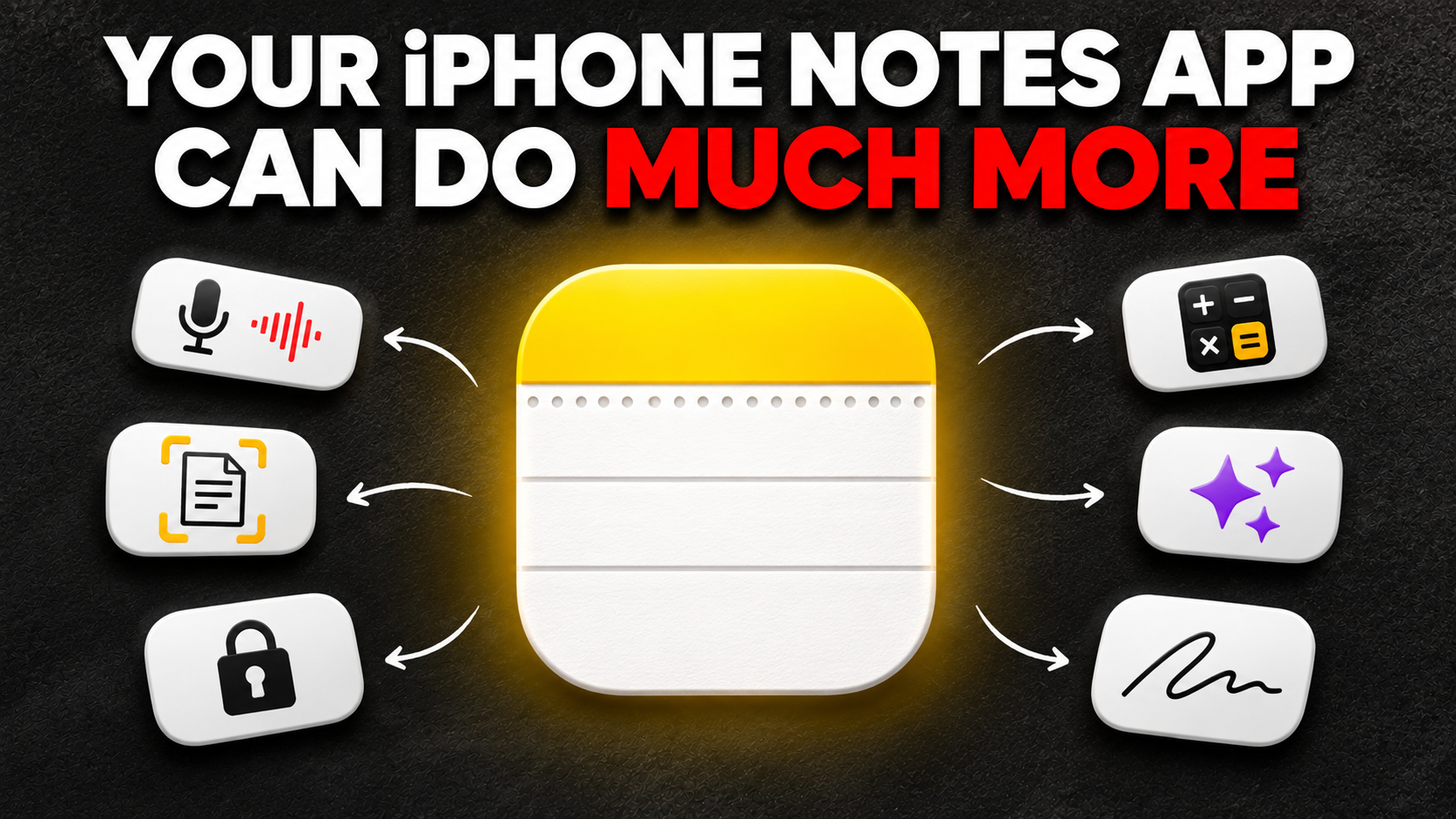
10 Things Your iPhone’s Notes App Can Do Other Than Taking Notes
Most iPhone owners treat the built-in Notes app like a simple digital sticky pad. You open it, write a grocery list, and close it. However, Apple’s Notes app offers much more than basic text storage. It includes several useful tools for productivity, creativity, and everyday organization.
According to Apple Support, you can use Notes to scan documents, record audio, protect private information, and organize ideas. Some features even use Apple Intelligence to improve your writing and summarize information.
Knowing these capabilities can save you money and storage space. You might not need separate apps for document scanning, quick calculations, or handwritten sketches. Many useful tools are already available on your iPhone.
In this guide, we explore ten things you can do with Apple’s Notes app. You’ll discover practical tricks, creative activities, and hidden features worth trying. We’ll also cover useful iPhone tips and interesting facts about Apple’s devices.
1. Solve Math Equations Instantly
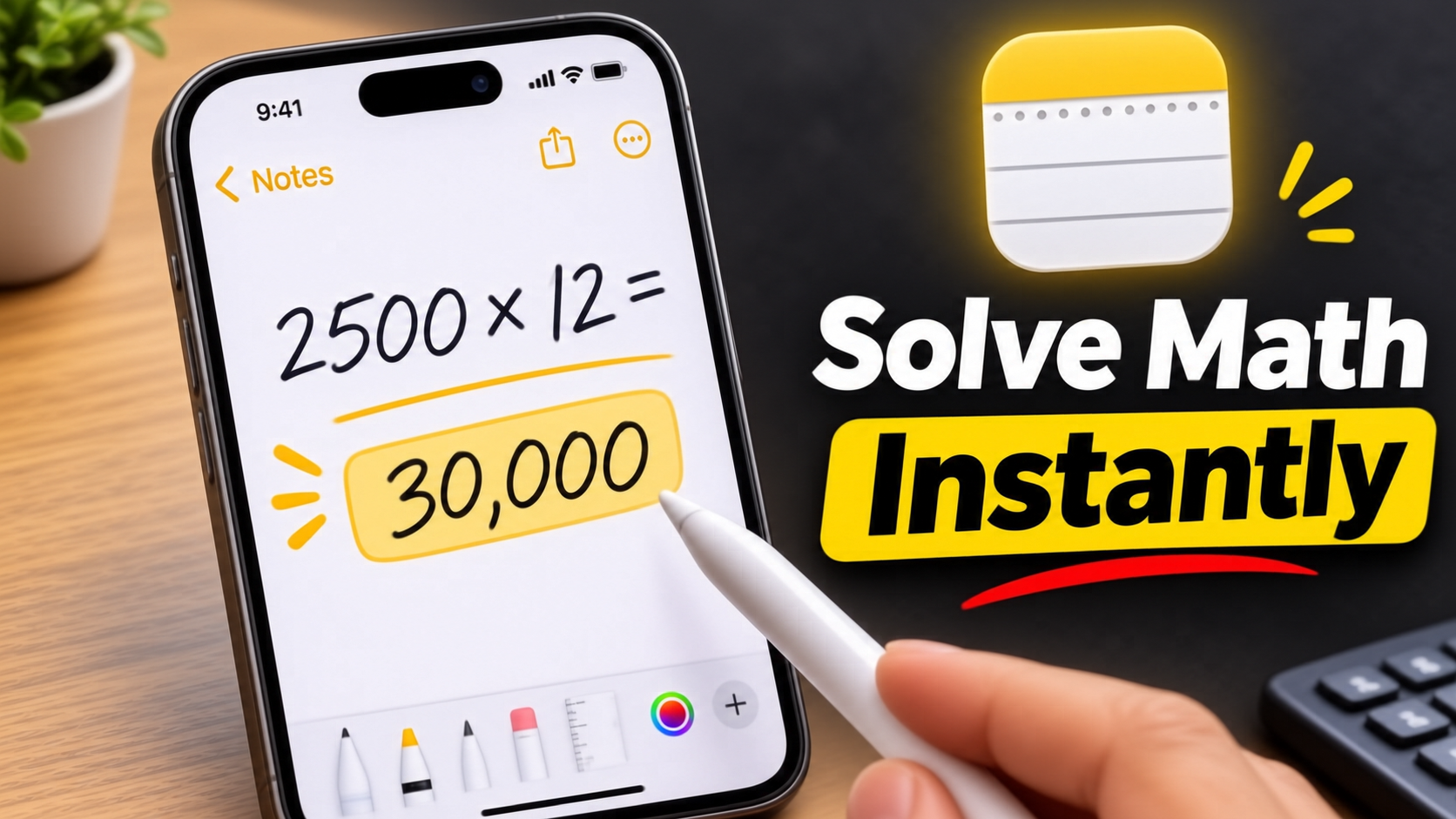

Your iPhone’s Notes app can work as a quick calculator through its built-in mathematical features. Instead of switching between apps, you can solve simple calculations directly inside your notes. This is especially useful when managing expenses, calculating discounts, or planning a budget.
For example, enter a calculation such as 2500 * 12 =. Notes can display the calculated result alongside your equation. You can also use supported mathematical expressions and variables.
Apple introduced Math Notes with iOS 18. It allows users to perform calculations directly within Notes and other supported apps. You can also write equations by hand using your finger or Apple Pencil on compatible devices.
This feature makes handwritten calculations more convenient. Students can solve equations, while professionals can quickly check figures during meetings. However, available calculations depend on the expression and supported software version.
2. Record and Transcribe Audio
You don’t always need a separate voice recorder to capture important conversations. The iPhone Notes app includes an audio recording feature that lets you record directly inside a note. This is useful for meetings, lectures, interviews, and personal reminders.
Open a note and tap the attachment button to find the audio recording option. Start recording when you’re ready, and your audio will appear inside the note. You can revisit the recording whenever you need it.
On supported iPhone models and software versions, Notes can also generate searchable audio transcripts. This makes finding important information easier without replaying the entire recording.
Apple Intelligence can provide summaries of supported recordings on compatible devices. This can help you review lengthy discussions and identify important points. Remember that transcription and summarization availability depends on language, region, device, and software support.
3. Scan and Sign Documents
You can turn your iPhone into a portable document scanner using the built-in Notes app. This feature is useful when you need to scan receipts, forms, invoices, or important paperwork. You don’t need to install another scanning application.
Open a new note and tap the attachment button. Select Scan Documents and point your camera toward the paper. Your iPhone can automatically detect the document’s edges and capture the page.
You can also adjust the scanned document manually. Change its corners, apply filters, and add multiple pages to one document. Once finished, save the scan directly inside your note.
Need to sign a document? Open the scanned file and use the Markup tools to add your signature. You can then share the completed document as a PDF.
This feature is particularly useful for students, freelancers, and office workers. It helps keep important paperwork organized without carrying physical copies everywhere.
4. Summarize and Proofread with Apple Intelligence
Writing long notes can become difficult when your ideas are scattered across multiple paragraphs. Apple Intelligence can help organize your writing using its built-in Writing Tools. This feature is useful for students, professionals, and anyone who regularly creates lengthy notes.
On compatible iPhones, select the text you want to improve. Open the Writing Tools menu to access available options. Depending on your device and software version, you can proofread, rewrite, or summarize selected text. You can also explore popular iOS AI features that make everyday tasks easier and expand what your iPhone can do.
The proofreading option helps identify grammar and spelling mistakes. Rewrite can improve sentence structure and make your writing clearer. Summarize can shorten lengthy content into a more manageable version.
Some supported Writing Tools can also organize information into lists or tables. These options make meeting notes and research easier to review.
However, Apple Intelligence isn’t available on every iPhone. You need a compatible device, supported language, and the required software version. Check Apple’s official requirements before relying on these tools.
5. Lock and Protect Private Notes
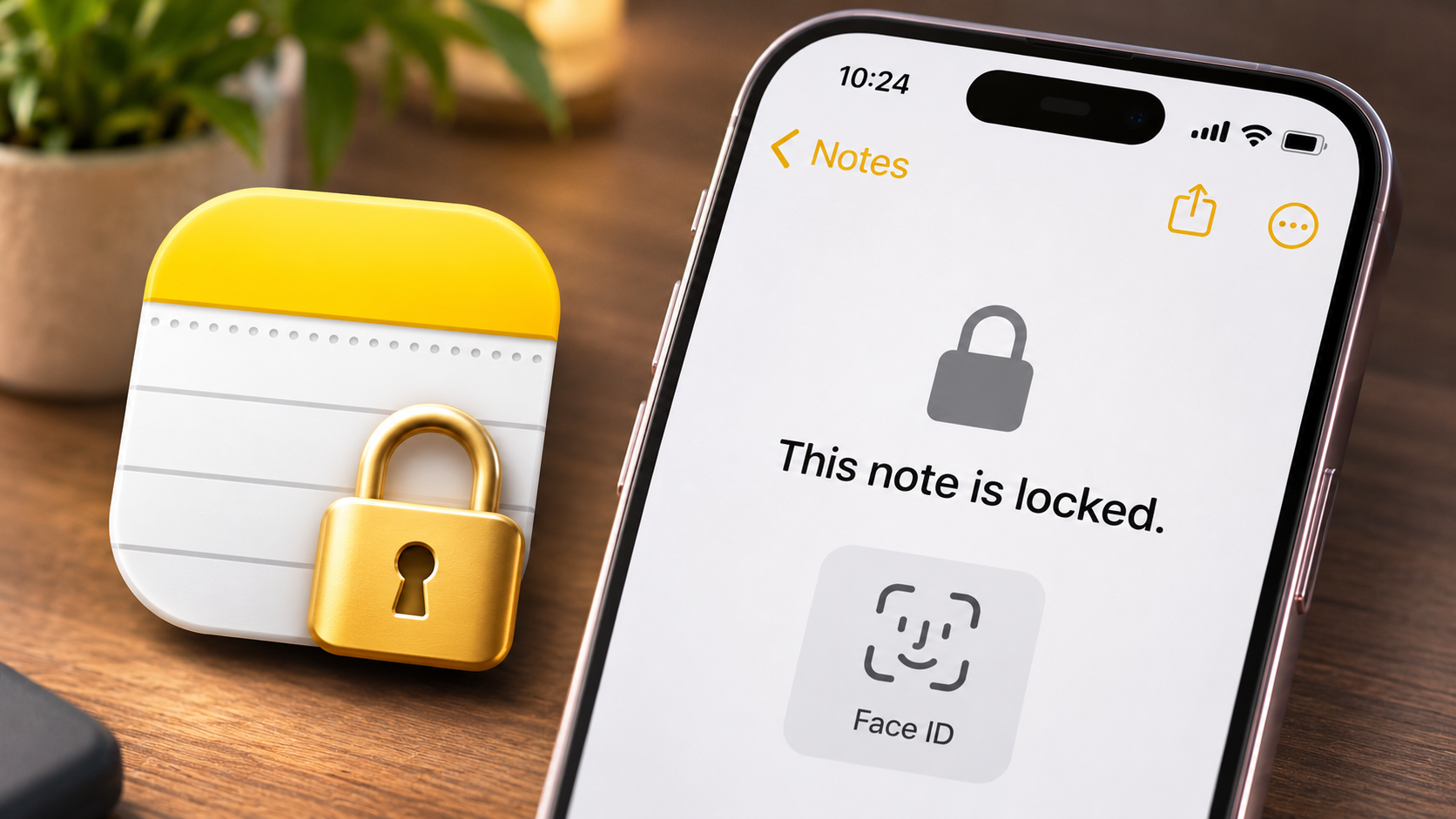
Not every note should be visible to someone who picks up your iPhone. You might store personal reminders, financial information, or private journal entries inside Notes. Apple’s built-in locking feature helps protect this information.
You can lock supported notes using your device passcode or a separate Notes password. Depending on your settings and device, Face ID or Touch ID can also unlock them.
To lock a note, open it and tap the More menu. Select the locking option and follow the instructions on your screen. Once locked, the note’s contents remain hidden until you authenticate.
This feature is useful when you want additional privacy without installing another application. You can also keep ordinary notes accessible while protecting sensitive information separately.
Remember that locking a note doesn’t make every type of information completely secure. Avoid storing passwords or highly sensitive financial credentials in ordinary notes. Also, understand your password recovery settings before choosing a separate Notes password.
6. Link Notes and Web Pages Together
Your Notes app can connect related information instead of keeping everything in separate, disconnected files. This is particularly helpful when managing research, personal projects, travel plans, or study material.
You can create links between individual notes. For example, keep your project overview in one note and connect it to separate notes containing deadlines, research, and meeting details.
On supported versions of iOS, type >> to bring up suggestions for linking another note. You can also use the Add Link option when available. Select the relevant note to create a connection.
Notes also supports links to external websites. This lets you save useful web addresses alongside your research or reminders.
If you want to preserve an entire web article, use Safari’s Share menu and choose the PDF creation or printing option. You can then save the resulting PDF to Files or attach it to a note.
These linking options make Notes more useful as a personal knowledge library. You can connect information without repeatedly searching through individual folders.
7. Snap Rough Drawings into Perfect Shapes
You don’t need professional drawing software to create clean diagrams on your iPhone. The Notes app includes a useful drawing feature called Shape Recognition. It can turn rough handwritten shapes into cleaner geometric designs.
Open a note and tap the Markup icon. Select a pen or drawing tool, then sketch a basic shape using your finger. You can draw circles, squares, triangles, arrows, and other supported shapes.
The trick is to keep your finger pressed against the screen briefly after completing the drawing. Your iPhone can recognize the shape and automatically replace your rough outline with a cleaner version.
This feature is helpful when creating quick diagrams or explaining ideas visually. Students can draw simple geometry figures, while professionals can sketch basic workflows.
You can also combine several shapes to create more detailed illustrations. Use different drawing tools to add labels, arrows, and handwritten explanations.
Although it doesn’t replace dedicated design software, Shape Recognition makes everyday sketches easier and more presentable.
8. Explore Image Wand and Apple’s Image Creation Tools
Apple Intelligence introduces creative image-generation features that can complement the Notes experience. However, Image Wand is not a feature of the iPhone Notes app. It is available in supported iPad experiences, including Notes on compatible devices.
Image Wand can transform a rough sketch into a more polished image. Users can draw an outline, select it with the tool, and generate an illustration based on the surrounding context.
On compatible iPhones, Apple offers other creative options through Image Playground. You can generate images using descriptions and available creative styles. These images can then be shared or added to supported apps, including Notes.
For example, you could create a simple illustration for a travel plan or a visual reference for a personal project. This adds a creative element to otherwise ordinary text-based notes.
Availability depends on the device, software version, language, and region. Check Apple’s supported-device requirements before expecting these features to appear.
9. Collaborate on Entire Folders
Your Notes app isn’t limited to personal information. It can also help you work with friends, family members, or colleagues through shared notes and folders.
Instead of sending several separate documents, you can share a note with other people. Depending on the sharing permissions, participants can view or edit the same content.
You can also share entire folders when you want to organize related information. For example, create a folder for a family vacation and include packing lists, travel plans, and important links.
To collaborate, open the relevant note or folder and use the Share option. Choose the collaboration settings and invite people using an available sharing method.
Participants can make changes, and supported collaboration features keep shared content updated. This is useful for planning events, managing group projects, and organizing household responsibilities.
Remember that collaboration requires appropriate iCloud and account settings. Some sharing options also depend on the recipient’s device and software compatibility.
10. Ask Siri to Save Content Directly
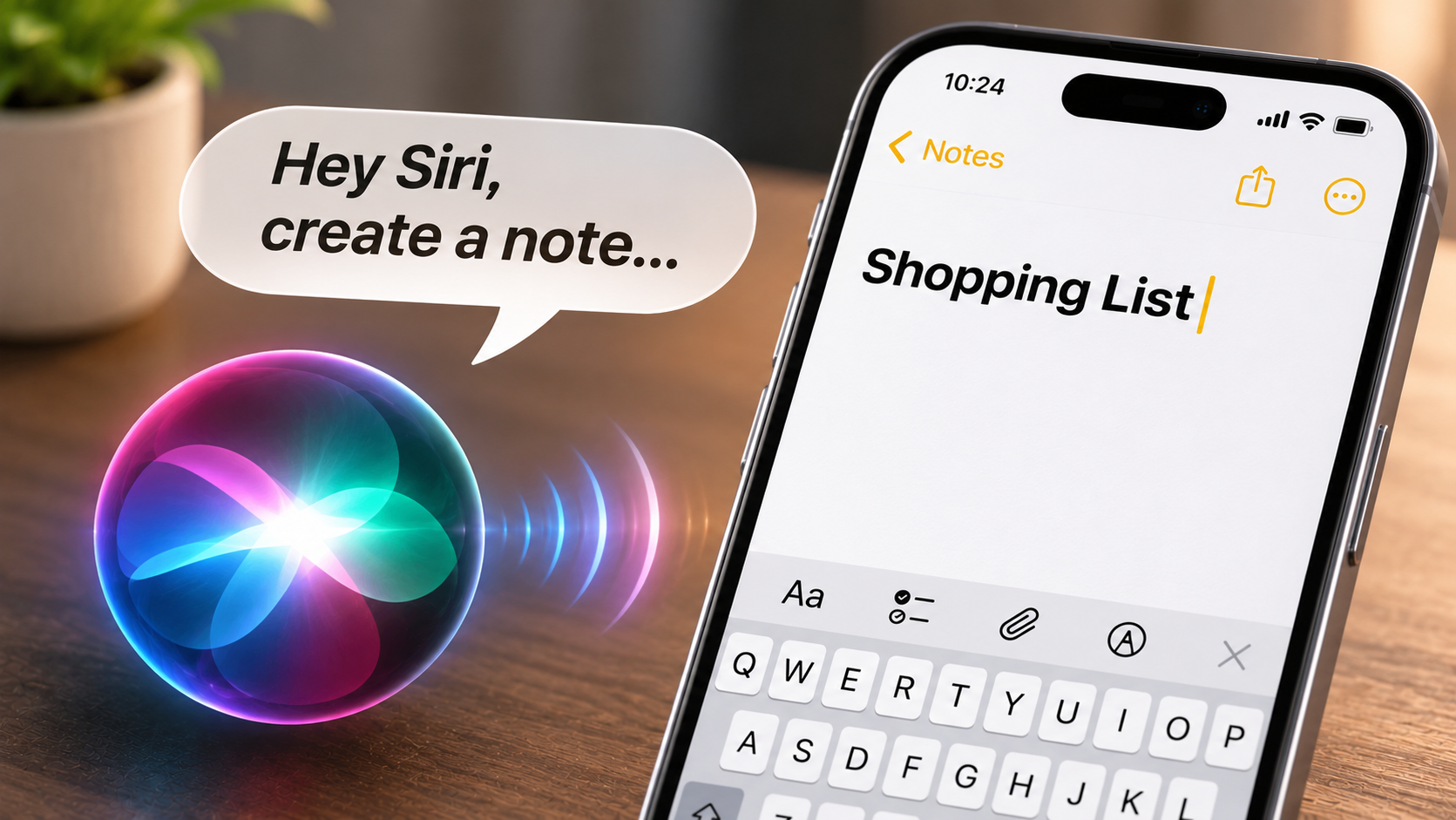

Siri can help you interact with your iPhone Notes app without manually opening every screen. You can use voice commands to create notes, add reminders, and capture information quickly. You can also learn how to make your iPhone respond only to Hey Siri to activate voice commands more conveniently.
For example, say, “Hey Siri, create a note called Shopping List.” Siri can create a new note and let you add information through additional commands.
You can also ask Siri to add something to an existing note. For example, say, “Add milk and bread to my shopping list.” The assistant can update the relevant note when it correctly identifies your request.
This is particularly useful when cooking, driving, or completing another task. You can capture an idea before forgetting it.
Apple’s newer AI features also expand how Siri understands requests on compatible devices. However, don’t assume Siri can automatically generate and save every type of web research or structured response directly into Notes.
The available commands depend on your iOS version, Siri settings, and supported integrations. Check the result to make sure the correct information was saved.
What Are Some Fun Things You Can Do in the Notes App?
The iPhone Notes app can become a small creative workspace when you explore its drawing and collaboration tools. You don’t have to use it only for shopping lists or reminders. Its built-in features offer several ways to experiment with ideas and create something entertaining.
Start by opening the Markup toolbar. You’ll find different pens, markers, and drawing tools for creating simple artwork. You can experiment with colours, handwritten lettering, and geometric shapes.
You can also turn a shared note into a simple multiplayer activity. Invite a friend and try games that involve taking turns adding information or drawings.
Here are a few fun activities worth trying:
- Play tic-tac-toe: Create a grid and take turns marking your moves in a shared note.
- Draw something: Challenge a friend to identify your sketches.
- Create a digital scrapbook: Add photographs, stickers, captions, and memories from trips.
- Make a personal journal: Record daily experiences, ideas, and memorable moments.
- Design a bucket list: Collect activities, places, and experiences you want to explore.
These activities make Notes more engaging. They also demonstrate how a simple productivity application can support creativity and collaboration.
What Are Some Cool Tricks You Can Do With Your iPhone?
Your iPhone includes several hidden features that can make everyday tasks easier. Some are available through accessibility settings, while others are built directly into the keyboard and operating system.
One particularly useful feature is Back Tap. It lets you trigger selected actions by double-tapping or triple-tapping the back of your iPhone. You can configure it to take screenshots, open supported shortcuts, or perform other available actions.
To enable it, open Settings and navigate to Accessibility, Touch, and Back Tap. Choose the action you want to assign to each gesture. Remember that Back Tap detects taps on the back of the device, not specifically on the Apple logo.
Another helpful trick involves your iPhone keyboard. Press and hold the spacebar to activate trackpad mode. You can then move the cursor precisely through your text.
You can also explore drag-and-drop features between compatible apps. These shortcuts make multitasking easier and reduce unnecessary screen switching.
What Are Some Tips and Tricks for Using Notes on My iPhone?
Keeping hundreds of notes organized can quickly become frustrating. Instead of scrolling through an endless list, use the Notes app’s built-in organization tools. They make finding important information much easier.
Start by creating separate folders for different categories. You could organize your notes into work, personal finances, travel, education, and shopping. This simple approach prevents unrelated information from becoming mixed together.
You should also explore tags and Smart Folders. Add hashtags such as #Work, #Travel, or #Ideas inside your notes. You can then find related content through these tags.
Here are some additional tips worth following:
- Pin important notes: Keep frequently used information at the top of your list.
- Use checklists: Track shopping items, daily tasks, and project progress.
- Scan documents: Save receipts and paperwork directly inside Notes.
- Lock private notes: Protect selected information using available authentication options.
- Use note links: Connect related information instead of duplicating content.
- Search efficiently: Use keywords to locate specific notes and information.
These habits make your Notes app easier to manage. A little organization also prevents important information from getting lost.
What Are Some Interesting Facts About iPhones?
Apple’s iPhone has a fascinating history, and some of its design decisions have become recognizable details. One example is the time displayed in many Apple marketing photographs. You’ll often see 9:41 AM on the iPhone screen.
This time has a connection to Apple’s product presentations. Steve Jobs introduced the original iPhone during the January 2007 Macworld keynote. Apple’s presentation timing helped establish 9:41 as a recognizable marketing convention.
Another interesting fact involves the materials inside your iPhone. Its electronic components contain small quantities of valuable materials, including gold and silver. These materials are used in different parts of electronic circuits and components.
Apple has also invested in recovering materials from older devices. Its recycling robot, Daisy, was developed to disassemble selected iPhone models and recover valuable components. The recovered materials can support Apple’s broader recycling and manufacturing efforts.
These details show that an iPhone is more than a communication device. It combines carefully designed software, specialized hardware, and complex manufacturing processes.
Whether you’re exploring hidden software features or learning about Apple’s environmental initiatives, there’s always something interesting to discover about your device.
Conclusion
Your iPhone offers several useful productivity and creative tools, and the Notes app is one of its most versatile features. From scanning documents and protecting private notes to solving equations and creating sketches, it can do much more than store text. These built-in tools can reduce your dependence on separate applications and make everyday tasks easier.
Take a few minutes to explore these iPhone Notes app features yourself. Start by scanning a receipt, organizing your work projects with tags, or protecting a private note with Face ID. You can also experiment with audio recordings and collaborative notes. Once you start using these features regularly, you’ll discover just how useful Apple’s built-in Notes app can be.