
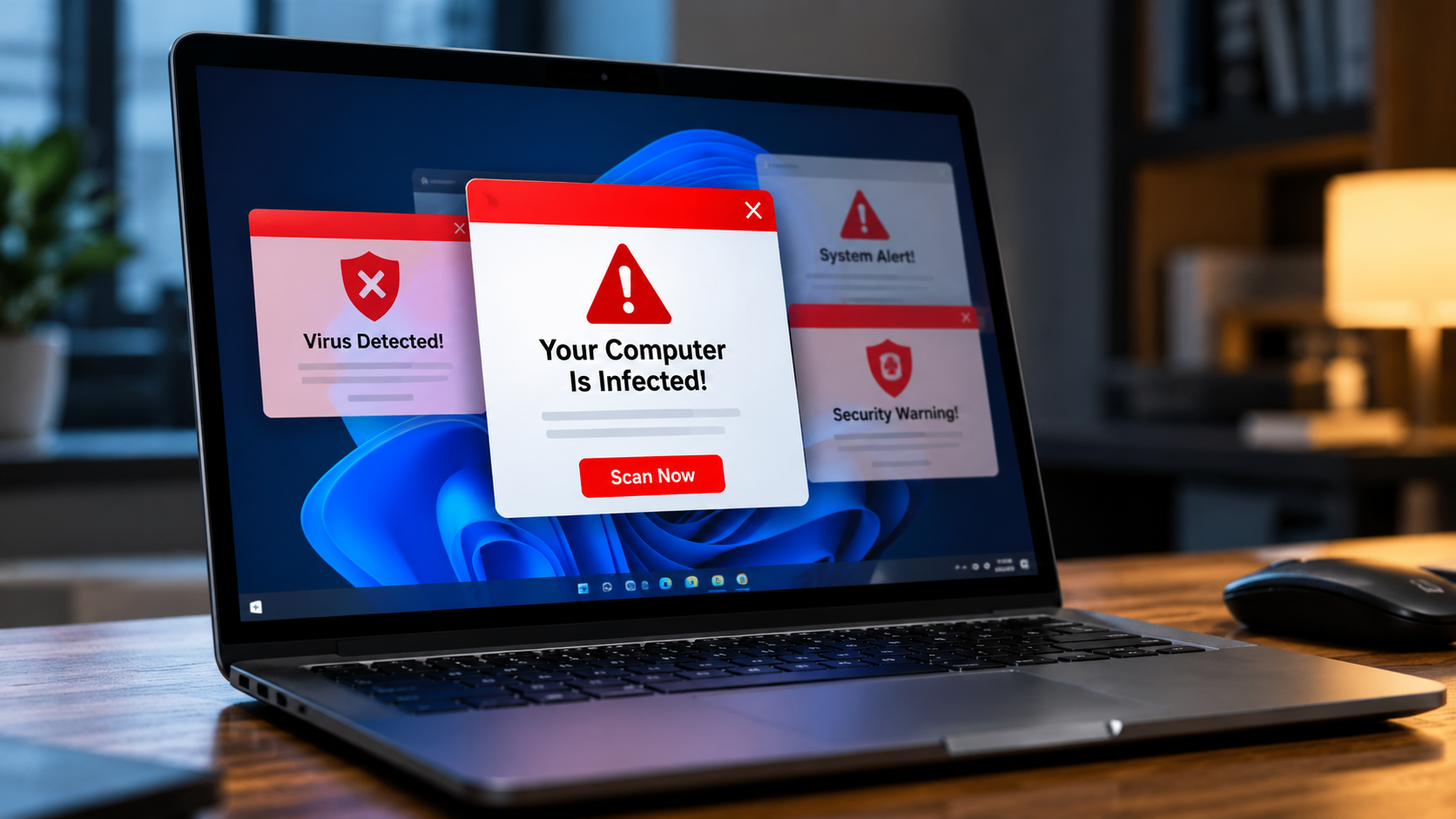
How to Stop Fake Virus Pop-Ups on Your Windows PC
Unexpected security alerts can be alarming, especially when they claim your computer is infected. Learning how to stop fake virus pop-ups on your Windows PC can help you regain control and avoid scams.
These deceptive alerts often urge you to call fake support numbers, download suspicious software, or purchase unnecessary services. They may originate from malicious website notifications, unwanted browser extensions, or adware installed on your computer. According to Microsoft’s guidance on staying protected with Windows Security, built-in security tools can help detect and protect your PC against malware and other threats.
However, fake virus pop-ups do not automatically mean your PC is infected. Some come from websites you previously allowed to send browser notifications. Others may indicate unwanted software that needs attention.
This guide explains how to remove fake virus pop-ups, block suspicious Chrome notifications, and identify potential adware. You will also learn how to manage browser security settings without weakening your computer’s protection.

How to remove fake virus pop-ups on Windows?
The best way to remove fake virus pop-ups is to identify their source first. These alerts may appear inside your browser or as notifications near the Windows taskbar. The correct solution depends on where they originate.
If the warnings appear when Chrome is closed, check whether your browser allows websites to send desktop notifications. If pop-ups continue appearing inside different applications, investigate possible adware or unwanted programs.
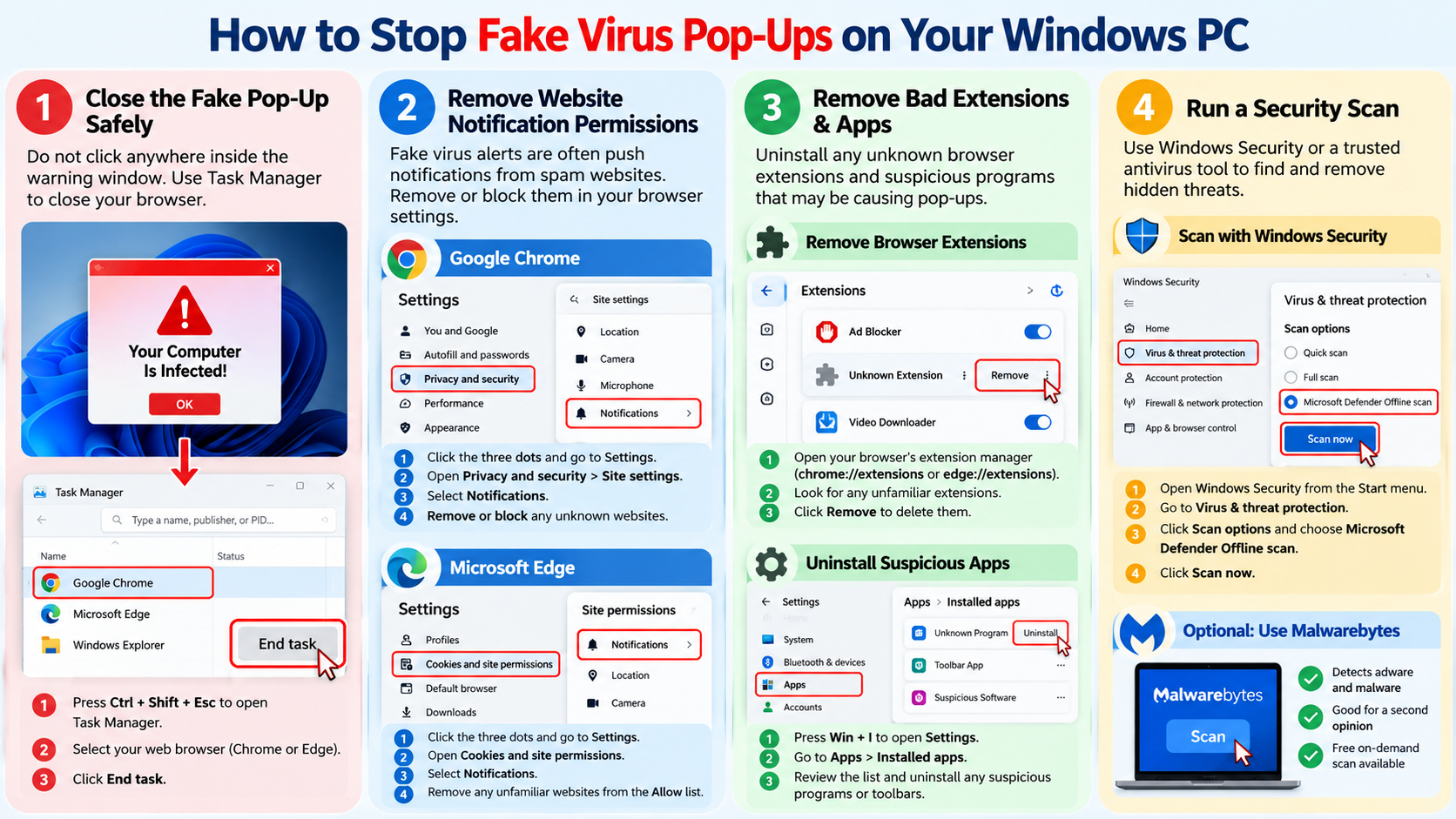
Start with these practical steps:
- Close the suspicious page. Avoid clicking its buttons, links, or telephone numbers.
- Check browser notifications. Remove permission for unfamiliar websites to send alerts.
- Review browser extensions. Disable extensions you do not recognize or trust.
- Uninstall suspicious applications. Check recently installed programs for unwanted software.
- Run a security scan. Use Windows Security or another reputable antivirus program to check for malware.
Avoid downloading software advertised by the pop-up itself. Genuine security tools should come from trusted sources.
Clearing browser notification settings manually
Malicious websites can exploit browser notification permissions to display repeated fake security warnings. Once you click Allow on a deceptive website, it may send alerts even after you leave the page.
To stop these notifications in Chrome:
- Open Google Chrome and select the three-dot menu.
- Choose Settings, then open Privacy and security.
- Select Site settings, followed by Notifications.
- Review websites permitted to send notifications.
- Remove or block unfamiliar and suspicious websites.
Chrome’s settings labels may vary slightly between versions. Removing a website’s permission prevents it from sending further notifications through that permission.
If the alerts continue, review your installed extensions and recently added applications. You should also run a Windows Security scan if you suspect adware or malware. If the scan detects a threat, follow a trusted guide on how to remove malware from Windows 11 safely.
Remember that removing notification permissions addresses browser notification spam. It does not remove any separate malicious software that might already be installed.
Why do I keep getting pop-ups on your computer saying I have a virus?
Repeated virus warnings do not necessarily indicate a real infection. Many scammers use browser notifications to make ordinary advertisements look like urgent Windows security alerts.
This often happens after visiting a website that requests permission to send notifications. Some sites disguise this request as a CAPTCHA, video verification, or download confirmation. Clicking Allow gives the website permission to send notifications through your browser.
These alerts may continue appearing after you close the original website. That behavior can make them seem like genuine Windows system messages.
To identify the cause, consider when and where the warnings appear. Notifications displaying a website name often point to browser notification abuse. Pop-ups appearing across multiple applications may require further investigation.
Check your browser permissions before assuming your computer has a virus. If the warnings persist after removing suspicious permissions, review your extensions and installed applications. A reputable antivirus scan can help identify threats that browser settings alone cannot remove. You can also review these signs your computer has malware to determine whether further investigation is necessary.
Identifying rogue website permissions instantly
The website name shown in a notification can help you identify the source of fake virus alerts. Look carefully at the notification’s heading, logo, or displayed domain.
If the notification names an unfamiliar website, open your browser settings and inspect its notification permissions. Remove or block that website if you do not trust it.
However, a familiar logo does not guarantee that an alert is genuine. Scammers can imitate antivirus brands, Windows notifications, and technical support messages.
Use these clues to investigate suspicious alerts:
- Unexpected website names: The notification comes from a domain you do not recognize.
- Urgent warnings: Messages claim your computer will be damaged unless you act immediately.
- Suspicious links: Buttons direct you to unfamiliar websites or software downloads.
- Payment requests: The alert demands money or asks you to call a support number.
Do not click the warning to investigate it. Instead, open your browser settings directly and review the notification permissions. If you have already clicked a suspicious link, follow these steps to stay safe after clicking a suspicious link and check whether you need to take additional security measures.
If the source remains unclear, run a security scan and check for unfamiliar applications. This approach helps distinguish notification spam from a possible malware infection.
Why am I getting fake virus notifications?
Fake virus notifications are commonly designed to make money through deception. Scammers may promote fraudulent antivirus subscriptions, collect personal information, or direct users toward harmful downloads.
Some alerts encourage victims to call fake technical support numbers. The person answering may demand payment for unnecessary repairs or request remote access to the computer. Giving strangers remote access can expose your files, accounts, and personal information.
Other campaigns use affiliate links or misleading advertisements to generate revenue. In some cases, unwanted software can also change browser settings or display intrusive advertisements.
These tactics rely on making users believe they must act immediately. Recognizing the warning signs can help you avoid costly mistakes.
Legitimate security software can display genuine threat notifications. However, an unsolicited browser alert demanding payment, a telephone call, or an immediate download deserves particular suspicion.
Never share passwords, banking details, or verification codes with someone who contacts you through a suspicious warning. If you already installed software after following an alert, remove anything suspicious and run a trusted security scan.
The psychology behind browser scare tactics
Scammers deliberately create urgency to make people react before thinking carefully. Messages such as “Your computer is infected” or “Your files are at risk” can trigger fear and confusion.
These warnings often imitate Windows security interfaces or well-known antivirus brands. Some use flashing banners, countdown timers, loud sounds, or repeated notifications to increase pressure.
The goal is to make clicking a button feel safer than ignoring the warning. In reality, interacting with the alert may expose you to further scams.
Stay cautious when a notification:
- Claims your computer has multiple viruses without a trusted security scan.
- Demands immediate payment to prevent damage.
- Asks you to call an unfamiliar technical support number.
- Encourages you to install an unknown application.
- Requests remote access to your computer.
Close the suspicious page without interacting with its contents. Then open Windows Security or your installed antivirus directly to check your computer.
Do not rely on spelling mistakes alone to identify scams. Some fraudulent alerts look convincing, while legitimate security warnings can vary in appearance. Verify the message through trusted security software instead.
How do I stop fake virus pop-ups on Chrome?
Google Chrome allows websites to request notification permissions. Unfortunately, scammers can abuse this feature to send fake virus warnings directly to your desktop.
To stop fake virus pop-ups in Chrome, begin by removing notification permissions from suspicious websites. Then check your installed extensions for unfamiliar or unwanted additions.
Follow these steps:
- Open Chrome and navigate to Settings.
- Select Privacy and security, then Site settings.
- Open Notifications and review the permitted websites.
- Block or remove websites you do not recognize.
- Visit Extensions and disable suspicious add-ons.
- Remove extensions you cannot verify or no longer need.
Next, review recently installed applications if the notifications continue. Some adware programs can create persistent advertisements or redirect your browser.
You can also reset Chrome if the problem remains after these checks. A reset restores many browser settings to their defaults, but it does not remove every possible malware infection.
Keep Chrome updated and leave Safe Browsing enabled. These precautions help reduce exposure to malicious websites and suspicious downloads.
Resetting Chrome settings to factory defaults
If fake virus pop-ups continue after you remove suspicious permissions and extensions, resetting Chrome may help. This restores many browser settings to their original defaults without deleting your saved bookmarks or passwords.
To reset Chrome:
- Open Chrome and select the three-dot menu.
- Choose Settings.
- Open Reset settings.
- Select Restore settings to their original defaults.
- Review the changes and confirm the reset.
A Chrome reset can disable extensions, restore default search and startup settings, and remove certain temporary configurations. However, its effects differ from a complete browser reinstall.
Your bookmarks and saved passwords generally remain intact, but review the confirmation screen before proceeding. You may need to re-enable trusted extensions and adjust some preferences afterward.
A reset will not necessarily remove Windows adware or other malicious applications. If pop-ups return, inspect installed programs and run a full scan using Windows Security. If you are considering a more extensive solution, understand whether a factory reset removes a computer virus before resetting your entire PC.
Before resetting, make sure you know how to access your important accounts. Never enter your password into a suspicious pop-up claiming that a reset or security check is required.
How do I turn off virus detection in Chrome?
Turning off Chrome’s security protection is generally unnecessary when dealing with fake virus pop-ups. The usual solution is to remove suspicious notification permissions, check extensions, and investigate unwanted software.
Chrome includes Google Safe Browsing, which helps warn users about dangerous websites, downloads, and other online threats. Disabling these protections can increase your exposure to phishing pages and malicious files.
If Chrome blocks a legitimate download, verify the file’s source before changing any security settings. Visit the developer’s official website and check whether the download is available there.
You should also scan downloaded files with Windows Security before opening them. Do not assume a file is safe simply because a website claims it is.
Chrome’s security options may vary depending on your browser version and operating system. If a setting is unavailable, check Chrome’s current help documentation rather than following instructions intended for an older version.
For most users, keeping Safe Browsing enabled is the safer choice. You do not need to disable virus detection to remove fake browser notifications.
Managing safe browsing protection levels safely
Chrome provides several Safe Browsing options under its privacy and security settings. These options help protect you against malicious websites, phishing attempts, and dangerous downloads.
To review your protection settings:
- Open Google Chrome.
- Select the three-dot menu and choose Settings.
- Open Privacy and security.
- Select Security.
- Review the available Safe Browsing protection levels.
Depending on your Chrome version, you may see Enhanced Protection, Standard Protection, and an option to disable protection.
Enhanced Protection offers additional safeguards, while Standard Protection provides essential warnings against known online threats. Disabling Safe Browsing removes important browser-level protections.
If Chrome incorrectly flags a legitimate file, verify its authenticity through the official developer. Check the file using reputable security software before deciding whether to proceed.
Do not lower your browser’s protection simply to stop fake virus notifications. Instead, remove suspicious site permissions and investigate any unwanted extensions or applications.
Keeping Safe Browsing enabled, updating Chrome, and scanning suspicious downloads provides a safer approach to everyday browsing.