How to Adjust Mouse Sensitivity for Windows
Getting your cursor to move at the right speed can make everyday computing much easier. The correct mouse sensitivity helps you navigate your screen comfortably, work more efficiently, and aim more accurately in games. However, the ideal setting depends on your mouse, display, and personal preferences.
Fortunately, Windows includes built-in settings that let you change pointer speed in just a few steps. Additionally, many gaming mice offer adjustable DPI settings and dedicated software for greater control. Therefore, you can customize your mouse without necessarily purchasing new hardware.
In this guide, you’ll learn how to adjust mouse sensitivity in Windows 10 and Windows 11. You’ll also discover how DPI differs from pointer speed and how to check your current configuration. Finally, we’ll explain how to choose comfortable settings for everyday work, creative tasks, and gaming.
Can I Adjust Mouse Sensitivity?
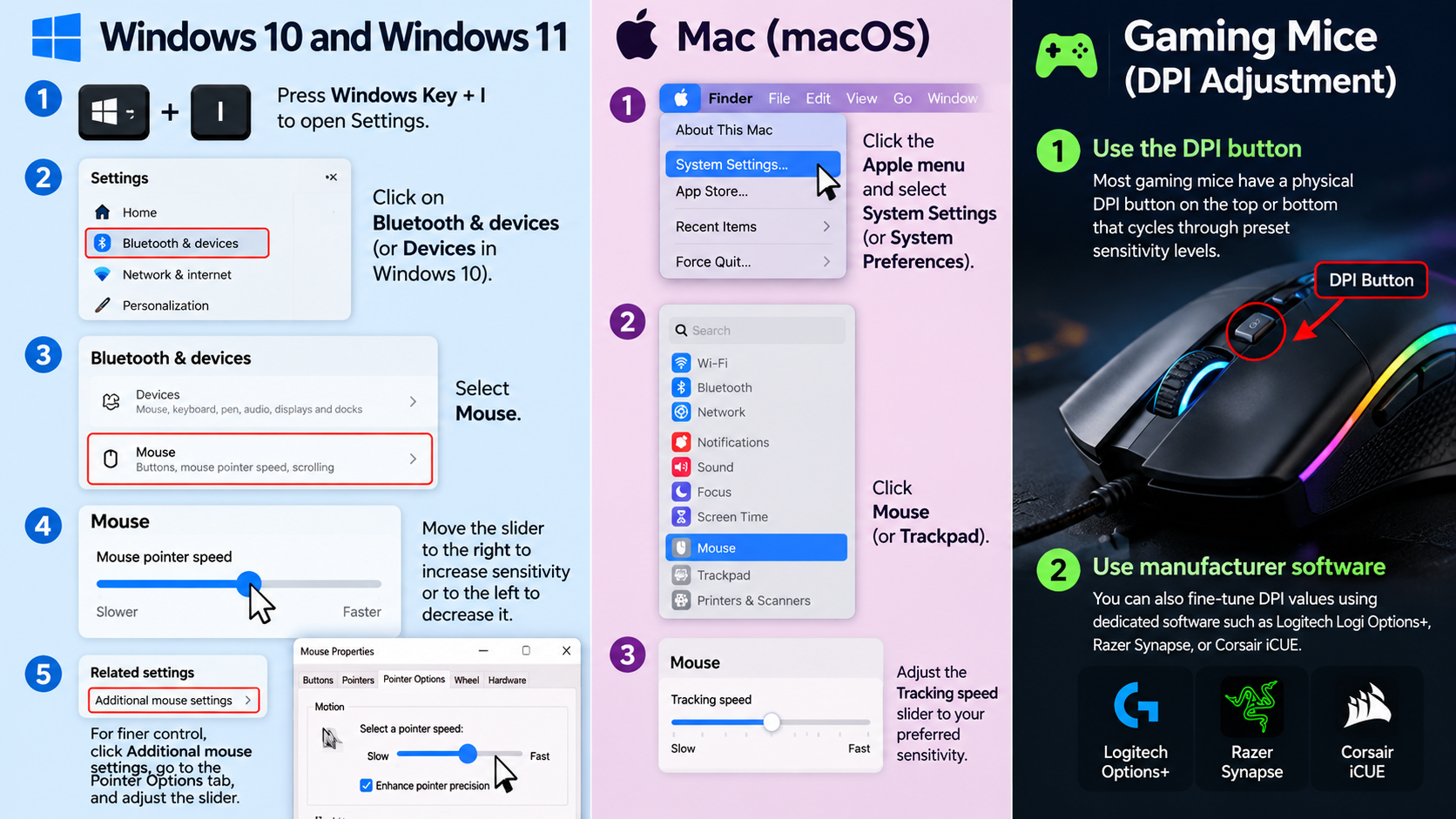
Yes, you can easily adjust mouse sensitivity on most modern computers. Both Windows and macOS provide built-in controls for changing pointer speed. Moreover, many gaming mice include dedicated buttons or manufacturer software for additional customization.
Mouse sensitivity determines how far your cursor moves in response to physical mouse movement. For example, higher sensitivity moves the cursor farther with a smaller hand movement. In contrast, lower sensitivity provides more control over small, precise movements.
The best setting depends on how you use your computer. For everyday browsing, a moderately fast pointer can save time. Meanwhile, graphic designers may prefer slower movement for precise selections. Similarly, competitive gamers often prioritize consistent tracking and accurate aiming.
You don’t need expensive equipment to get started. Instead, begin with your existing Windows settings and adjust the speed gradually. If your mouse supports hardware DPI controls, you can explore those options afterward.
Exploring Your Configuration Options
Before changing your mouse sensitivity, it’s helpful to understand the available settings. Each option affects pointer movement differently. Therefore, choosing the right combination can improve comfort and control. Additionally, understanding the differences between sensor technologies can help you choose the right device. Learn more about optical and laser mice before deciding which type suits your needs.
Here are the main options to consider:
- Windows pointer speed: Changes how quickly the cursor moves across your screen.
- Mouse DPI: Determines how much cursor movement corresponds to physical movement at a given sensor setting.
- Gaming mouse software: Allows you to configure supported DPI levels and other device features.
- Dedicated DPI buttons: Let you switch between preset sensitivity levels without opening an application.
- In-game sensitivity: Controls how mouse movement translates into aiming or camera movement within a game.
For most everyday tasks, adjusting Windows pointer speed is sufficient. However, gaming mice provide additional options when you need more control. You can also combine hardware and software adjustments to create a setup that suits your needs.
Is It Better to Change DPI or Sensitivity?
Neither DPI nor software sensitivity is automatically better for every user. Instead, the right choice depends on your mouse, operating system, and intended activity. Understanding the difference helps you avoid unnecessary adjustments.
DPI (dots per inch) describes the sensitivity setting of your mouse sensor. Generally, a higher DPI makes the cursor travel farther for the same physical movement. Conversely, a lower DPI requires more hand movement to cover the same distance on the screen.
Windows pointer speed controls cursor movement at the operating-system level. Meanwhile, games may provide separate sensitivity settings that affect aiming and camera movement. As a result, your final mouse behavior can depend on several settings working together.
For everyday computing, adjusting the Windows pointer-speed slider is often enough. However, competitive gamers may prefer a consistent DPI setting and fine-tune sensitivity within each game. This makes it easier to maintain familiar aiming movements.
Ultimately, choose settings that provide reliable control rather than chasing a particular DPI number.
Avoiding Pixel Skipping Issues
Pixel skipping can make cursor movement or aiming appear uneven. However, increasing hardware DPI does not automatically eliminate this problem. The result depends on your sensor, software, and overall configuration.
Your mouse sensor reports movement, which the operating system or application then processes. If sensitivity is too high, small physical movements can become difficult to control. On the other hand, very low sensitivity may require excessive hand movement.
To improve consistency, start with a reliable DPI setting supported by your mouse. Next, keep your Windows pointer settings stable while testing changes. If you’re gaming, check whether the game supports raw mouse input. Additionally, choosing suitable peripherals can improve your overall setup. Explore this guide to gaming equipment to learn about other hardware that can support your gaming experience.
When a game uses raw input, Windows pointer acceleration may have little or no effect on aiming. Therefore, changing Windows settings may not solve every sensitivity issue.
Additionally, avoid changing several settings simultaneously. Adjust one setting, test your movement, and compare the result. This process helps you identify the cause of inconsistent tracking and maintain predictable control.
How Do I Adjust the Mouse Sensitivity in Windows 11?
Windows 11 makes it easy to change mouse sensitivity through the Settings app. You can adjust pointer speed without installing additional software. Best of all, the changes take effect immediately.
Follow these steps to adjust your mouse sensitivity:
- Press Windows + I to open Settings.
- Select Bluetooth & devices from the sidebar.
- Click Mouse.
- Locate the Mouse pointer speed slider.
- Move the slider left to decrease pointer speed or right to increase it.
- Move your mouse around the screen to test the result.
If the cursor feels too slow, increase the setting slightly. Conversely, reduce it if the pointer moves farther than you expect. Make small adjustments rather than moving the slider to either extreme.
Once you find a comfortable speed, use your computer normally for a while. This gives you time to judge whether the new setting improves your control. If necessary, return to the same menu and fine-tune the speed.
Accessing Additional Pointer Options
Windows 11 also provides a classic Mouse Properties window. This window includes additional controls for pointer movement and other mouse behaviors. Consequently, it’s useful when the basic speed slider doesn’t provide enough customization.
To open it, navigate to Settings > Bluetooth & devices > Mouse. Next, locate and select Additional mouse settings. Windows will open the classic Mouse Properties dialog box.
Choose the Pointer Options tab to access more settings. From there, you can adjust pointer speed and enable or disable Enhance pointer precision. You can also configure options related to pointer visibility.
Additionally, other tabs let you change double-click speed and customize pointer appearance. These settings can make everyday computer use more comfortable.
However, avoid changing everything at once. Instead, modify one option and test the result before moving to another. This approach helps you identify which settings actually improve your experience.
How Do I Adjust the Mouse Sensitivity in Windows 10?
Windows 10 provides two convenient ways to adjust mouse sensitivity. You can use the Settings app or open the classic Control Panel. Both methods allow you to change pointer speed without installing additional software.
To adjust mouse sensitivity through Settings, follow these steps:
- Click Start and open Settings.
- Select Devices.
- Choose Mouse from the sidebar.
- Locate the cursor-speed setting.
- Move the slider left to slow the pointer down or right to increase its speed.
Afterward, move your mouse around the screen to test the change. If the cursor still feels uncomfortable, adjust the slider again.
Alternatively, you can use the classic Control Panel. Open Control Panel > Hardware and Sound > Mouse. Next, select the Pointer Options tab to access the traditional pointer-speed slider.
This method also provides additional controls for pointer behavior. Therefore, it’s particularly useful when you want to change more than the basic cursor speed. Remember to test each adjustment before settling on your preferred configuration.
Disabling Enhance Pointer Precision
Windows includes a feature called Enhance pointer precision. This feature changes pointer movement according to how quickly you move the mouse. In other words, it introduces pointer acceleration.
To find this setting in Windows 10, open Control Panel > Hardware and Sound > Mouse. Then select the Pointer Options tab and locate the Enhance pointer precision checkbox.
Disabling this feature can help some gamers maintain more predictable aiming movements. With Windows acceleration disabled, pointer movement becomes less dependent on how quickly you move your hand. However, the result also depends on the game and its input settings.
For everyday use, keeping acceleration enabled may feel more convenient. It can help you move the cursor across a large display with less physical effort. Conversely, some users prefer disabling it for greater consistency.
Therefore, test both options before making a decision. If you play competitive games, check whether the game uses raw mouse input. This is important because raw input can bypass Windows pointer acceleration.
How Can I Check My Mouse Sensitivity?
You can check your current mouse sensitivity by reviewing Windows settings and your mouse manufacturer’s software. However, remember that pointer speed and DPI are different measurements. Checking one does not automatically reveal the other.
In Windows 11, open Settings > Bluetooth & devices > Mouse. In Windows 10, navigate to Settings > Devices > Mouse. Then examine the mouse pointer-speed slider to see its current position.
Although this slider shows your configured pointer speed, it doesn’t display your actual hardware DPI. To check DPI, open the official software supplied with your gaming mouse, if available.
Depending on your device, the software may also display polling rate and other sensor settings. Some mice let you switch between several DPI profiles using dedicated buttons. Therefore, check the manufacturer’s documentation if you’re unsure how to access these features.
Once you identify your settings, record them before experimenting. That way, you can restore your previous configuration if a change makes mouse movement less comfortable.
Using Third-Party Testing Tools
Online mouse sensitivity testers can help you evaluate cursor movement and estimate your mouse’s actual DPI. However, their accuracy depends on the testing method, browser, display configuration, and physical measurements.
To test your setup, follow these steps:
- Open a reputable online mouse sensitivity or DPI testing tool.
- Read its instructions carefully before starting.
- Place your mouse on a flat, stable surface.
- Measure the physical distance the mouse travels as instructed.
- Compare the result with your configured DPI, if available.
- Repeat the test to check whether the results remain consistent.
If the estimated DPI differs from your configured value, repeat the measurement before changing anything. Small measurement errors can affect the result. Additionally, browser-based tools may not account for every hardware or software setting.
For more reliable configuration details, consult your mouse manufacturer’s software or documentation. Use online testers as helpful estimates rather than guaranteed measurements.
Finally, remember that the best mouse sensitivity is the setting that provides comfortable, predictable movement. Make small changes, test them in your usual applications, and keep the configuration that works best for you.
Conclusion
Adjusting your mouse sensitivity can make everyday computing smoother and gaming more comfortable. Fortunately, Windows 10 and Windows 11 let you change pointer speed in just a few steps. Additionally, adjusting your mouse DPI and in-game sensitivity can help you achieve more precise control when needed.
However, the best settings depend on your preferences and how you use your computer. Start with the default settings, make small adjustments, and test the results. For more guidance, visit Microsoft’s official guide to changing mouse settings in Windows.
Ultimately, finding the right mouse sensitivity will help you enjoy a more comfortable and controlled computing experience.