
How Audacity Affects the Results of Your Audio Projects
Recording vocals or instruments is only the first step in creating high-quality audio. The way you edit and process those recordings shapes the final listening experience. Whether you produce voiceovers, podcasts, or music demos, understanding how Audacity affects the results helps you make better editing decisions.
Audacity is a free audio editor with tools for cleaning recordings, adjusting volume, and refining sound quality. However, applying effects without a clear purpose can introduce distortion, harsh frequencies, or unnatural dynamics. You can explore its features through the official Audacity Support Documentation.
Every gain adjustment, filter, and noise reduction setting changes how your audio sounds. Excessive compression can reduce natural vocal expression, while poorly adjusted equalization can emphasize unwanted sibilance. Used carefully, these tools can remove background noise, balance volume, and improve clarity.
This guide explains how Audacity affects audio quality, which effects it offers, and how to remove unwanted processing. It also covers the software’s disadvantages, its usefulness in 2026, and practical ways to improve your recordings.

What effects does Audacity have?
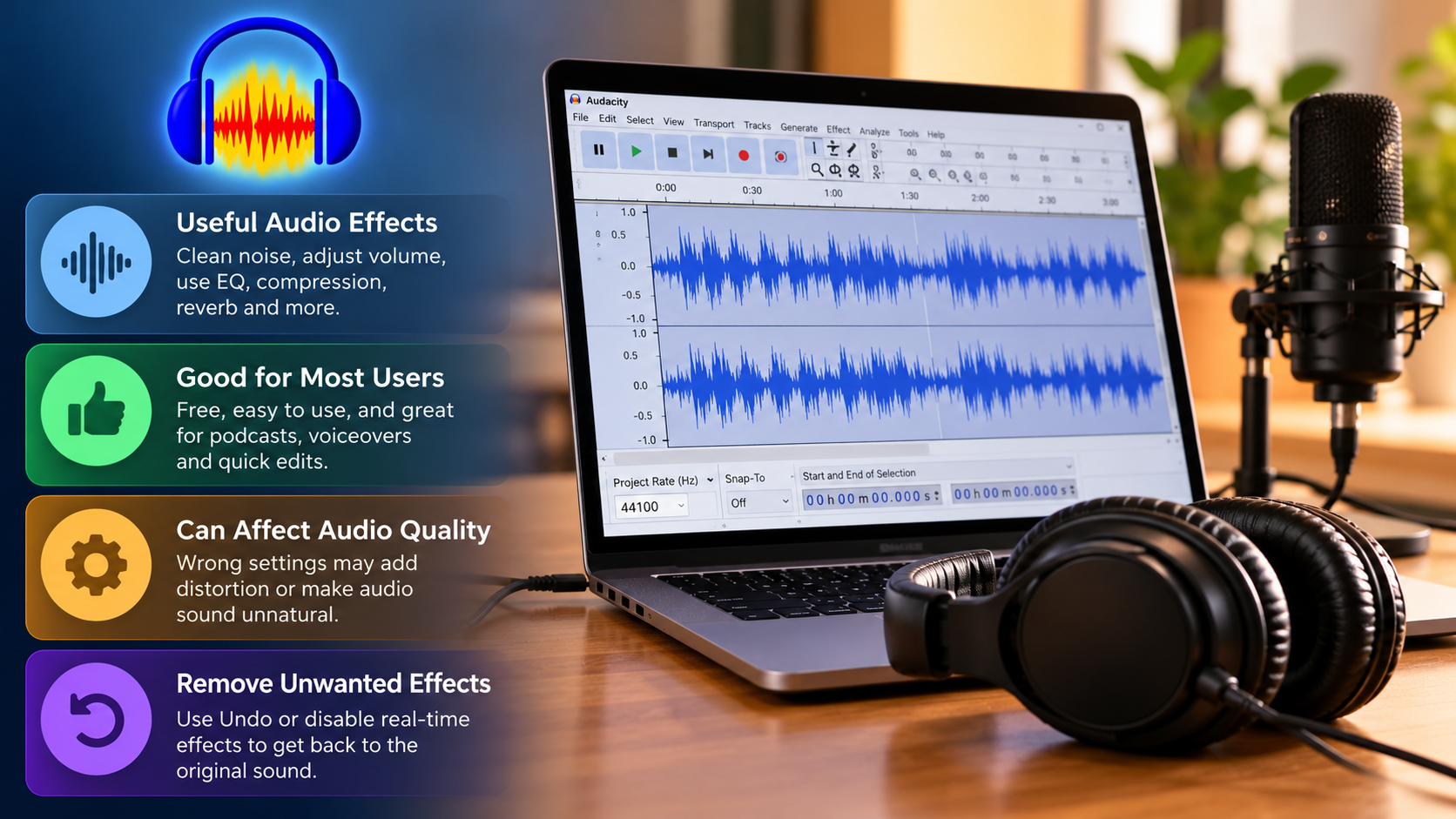
Audacity includes a range of audio effects that change frequency balance, volume dynamics, and the overall character of a recording. These tools help users correct recording problems, improve clarity, and create a more consistent listening experience. Understanding each effect makes it easier to choose the right settings for your project.
Dynamic processors, such as the Compressor and Limiter, help control volume differences and reduce peaks. Equalization tools, including Graphic EQ and Filter Curve EQ, let you reduce unwanted frequencies or emphasize useful details. Reverb and Delay introduce ambience or echo when a recording needs additional depth.
Audacity also offers repair tools for common recording problems. Noise Reduction can reduce steady background sounds, while Click Removal helps address certain unwanted clicks in audio. The results depend on the recording and the settings you choose.
Each effect changes some aspect of the audio signal. Subtle adjustments can improve a recording, but aggressive processing may introduce artifacts or make voices sound unnatural. To understand how Audacity affects the results, listen to the original and processed versions before exporting your final file.
Is having Audacity a good thing?
Having Audacity installed is useful if you regularly record, edit, or clean up audio. It provides essential editing features without requiring a paid subscription, making it accessible to beginners, students, podcasters, and independent creators. You can record voiceovers, trim interviews, remove unwanted sounds, and export files in supported formats.
The software also runs on a wide range of computers, making it practical for people who do not have powerful recording hardware. Its straightforward editing workflow suits many everyday tasks, including preparing audio for websites, presentations, and social media.
However, Audacity is not the ideal solution for every production. Complex music projects may require advanced MIDI sequencing, flexible routing, and integrated virtual instruments. Dedicated digital audio workstations can offer these features more conveniently.
For basic recording and editing, Audacity provides a practical starting point. Its value depends on your needs, the complexity of your projects, and how much control you require over the production process.
Lightweight Accessibility for Fast Tasks
Audacity is particularly useful when you need to complete simple audio tasks quickly. Instead of opening a large music production project, you can launch the editor and work directly with a recording. This approach is convenient for podcasters, developers, journalists, and content creators who frequently handle audio files.
For example, you can trim an interview, remove unwanted pauses, inspect a waveform, or adjust the volume of a voice recording. You can also export audio into a supported format without building a complicated multitrack session.
These small tasks can save time when preparing audio for publication. Audacity also supports batch processing through available workflows, making repetitive file conversions and similar operations more manageable.
However, performance depends on your computer, project size, and the effects being used. Large recordings and demanding processing chains may require more resources than simple edits.
For creators who need a lightweight audio editor, Audacity offers a convenient balance between accessibility and functionality. It is especially useful when speed and straightforward editing matter more than advanced studio features.
How to remove effects from Audacity?
Understanding how Audacity affects the results also means knowing how to remove unwanted effects. The correct method depends on how you applied the processing. If you used a traditional destructive effect, select Edit > Undo or press Ctrl+Z on Windows or Command+Z on macOS. This reverses the most recent supported editing action.
Undo is useful when you notice an unwanted change before making further edits. However, closing a project or continuing with other operations can make restoring an earlier version more difficult. Saving a project after destructive processing does not automatically preserve the original, unprocessed waveform.
For supported real-time effects, you can disable or remove processors through the track’s effects controls. This allows you to compare processed audio with the original without permanently applying every adjustment to the waveform.
The exact controls depend on your Audacity version and the effect type. To understand how Audacity affects the results of your edits, keep an untouched copy of your original recording. This precaution helps you restore the audio if your processing does not produce the desired sound.
Mastering Non-Destructive Real-Time Stacks
Real-time effects provide greater flexibility because you can adjust processing without permanently changing the underlying audio samples. In supported Audacity versions, you can manage compatible effects through the track’s effects controls. This makes experimenting with equalization, compression, and other processors easier.
For example, you might apply an equalizer to reduce low-frequency rumble, then add compression to control vocal peaks. You can revisit the settings as your project develops. Depending on the available controls, you can also disable individual effects to compare different sound profiles.
The order of effects matters because each processor receives the signal produced by the preceding stage. Equalization before compression can produce different results from equalization after compression. Understanding how Audacity affects the results of different effect combinations helps you choose a processing sequence that sounds natural.
Real-time processing does not provide unlimited editing flexibility. Compatibility and available controls depend on your Audacity version and the effects involved. Save your project regularly and maintain an original audio copy when working on important recordings.
What are the disadvantages of Audacity?
Audacity has several limitations that become more noticeable as audio projects grow in complexity. One consideration is its traditional destructive editing workflow. Some operations change the waveform directly, so recovering the original recording may require undo history or a separate backup. Real-time effects provide a more flexible option for supported processing tasks.
The software also lacks the comprehensive MIDI sequencing and virtual instrument workflow found in many music production applications. Producers creating arrangements with numerous software instruments may find dedicated digital audio workstations more suitable.
Another limitation is its interface. Although functional, the layout may feel less streamlined than newer production software. Complex routing, auxiliary buses, and sidechain workflows can also be less convenient than in applications designed around advanced studio mixing.
These drawbacks do not make Audacity unsuitable for everyday audio editing. However, how Audacity affects the results of a complex production depends on its available tools and your workflow. It remains useful for recordings, podcasts, voiceovers, and straightforward sound cleanup. Understanding audio compression and what to avoid for better sound can also help you preserve sound quality.
If you primarily edit existing recordings, its limitations may have little effect on your work. If you need extensive music production capabilities, compare Audacity with a full-featured DAW before choosing your main editing environment.
Is Audacity still good in 2026?
Audacity remains a practical option in 2026 for people who need free audio recording and editing software. It supports common tasks such as trimming recordings, adjusting volume, applying effects, and preparing audio for publication. Its open-source model also makes it accessible without a recurring software subscription.
For podcasters, journalists, voice artists, and hobbyists, these capabilities cover many everyday requirements. You can edit spoken-word recordings, reduce certain types of background noise, and export audio for different uses. The software can also serve as a secondary editor alongside other production tools, including when preparing audio for wired headphones.
However, suitability depends on your workflow and the features available in your installed version. Real-time processing, plugin compatibility, and other capabilities can change between releases. Check the official Audacity Support Documentation for current guidance rather than assuming every feature is available in every version.
Professional studios may prefer other digital audio workstations for advanced routing, MIDI composition, and large music sessions. Still, how Audacity affects the results of everyday editing tasks makes it worth considering for simpler projects where accessible recording and cleanup tools are sufficient.
If you want a straightforward audio editor without subscription costs, Audacity is worth considering. Test it with your actual recordings to determine whether its workflow meets your needs.
How to improve sound quality with Audacity?
Improving audio quality starts with recording clean sound. Use a suitable microphone, reduce background noise in your recording space, and avoid recording at levels that cause clipping. Understanding how Audacity affects the results of audio processing and how bitrate affects audio quality helps you improve recordings without introducing unnecessary distortion.
Begin by listening to the original track and identifying specific problems. If you hear steady background hiss, capture a noise profile from a section containing only that sound. Then apply Noise Reduction conservatively and listen for artifacts. Excessive reduction can make voices sound metallic or unnatural.
Next, use Filter Curve EQ to reduce unwanted low-frequency rumble. A high-pass filter around 80 Hz may help some spoken-word recordings, although the appropriate cutoff depends on the speaker and microphone. Avoid removing useful vocal body by applying the filter too aggressively.
Apply moderate compression to control inconsistent volume. A ratio around 2:1 or 3:1 can be a useful starting point, but adjust the threshold and other settings by listening. Finally, use Normalize to set an appropriate peak level, such as -1 dBFS, when suitable for your delivery requirements.
Export the recording and listen to it on different devices. Compare it with the original to confirm that your processing improves clarity without introducing distortion or reducing natural expression. This final comparison shows how Audacity affects the results and whether your edits have improved the overall listening experience. Test playback through different devices and learn how to clean and maintain your premium headphones for consistent listening.
Frequently Asked Questions
Does applying too many filters distort my recording?
Yes, stacking multiple aggressive processing stages easily degrades fidelity. Every destructive pass recalculates sample values, which can introduce digital clipping, harsh metallic artifacts, and phase smearing. If your original capture sounds clean, rely on gentle equalization curves and transparent dynamic controls rather than stacking excessive corrective filters onto your master bus.
Can Audacity run modern professional VST3 plugins?
Yes, recent releases support standard 64-bit VST3, AU, and LV2 audio plugins alongside legacy formats. You can install your favorite third-party equalizers, analog-modeled compressors, and de-essers, then scan them directly through the Plugin Manager window. This lets you access advanced sound processing within a familiar, open-source workstation environment.
Why does my exported file sound quieter than in the editor?
Exported files sound quiet when tracks lack proper peak leveling and dynamic management before rendering. Audacity displays raw peak meters during playback, but streaming networks measure perceived loudness in LUFS. If you skip compression and normalization, natural dynamic dips cause the rendered file to sound hollow and quiet on playback devices.
What is the ideal export format for high-quality audio?
Always export your master mix as an uncompressed 24-bit or 16-bit WAV file at a 44.1 kHz or 48 kHz sample rate. Uncompressed WAV containers preserve full dynamic frequency information without compression loss. You should only convert files to MP3 or AAC when sharing online or meeting tight file-size limits.
Conclusion
Understanding how Audacity affects the results of your audio enables you to produce pristine recordings without spending money on expensive studio software. As we have seen, the program provides comprehensive tone shaping, repair utilities, and real-time processing tracks capable of transforming rough takes into clean, professional assets. However, achieving superior fidelity requires restraint; applying aggressive noise suppression or excessive dynamic squashing quickly damages organic acoustic tone.
Audacity continues to earn its place on creator hard drives by pairing approachable recording tools with modern open-source stability. Whether you are balancing levels for a weekly podcast, salvaging a noisy interview, or mastering an acoustic song demo, prioritizing clean recording habits and subtle adjustments yields the best playback performance. Take time to experiment with gentle equalization slopes, observe proper gain staging, and monitor changes with accurate headphones. By mastering these core production steps, you will consistently generate clear, dynamic tracks that keep your audience fully engaged.