
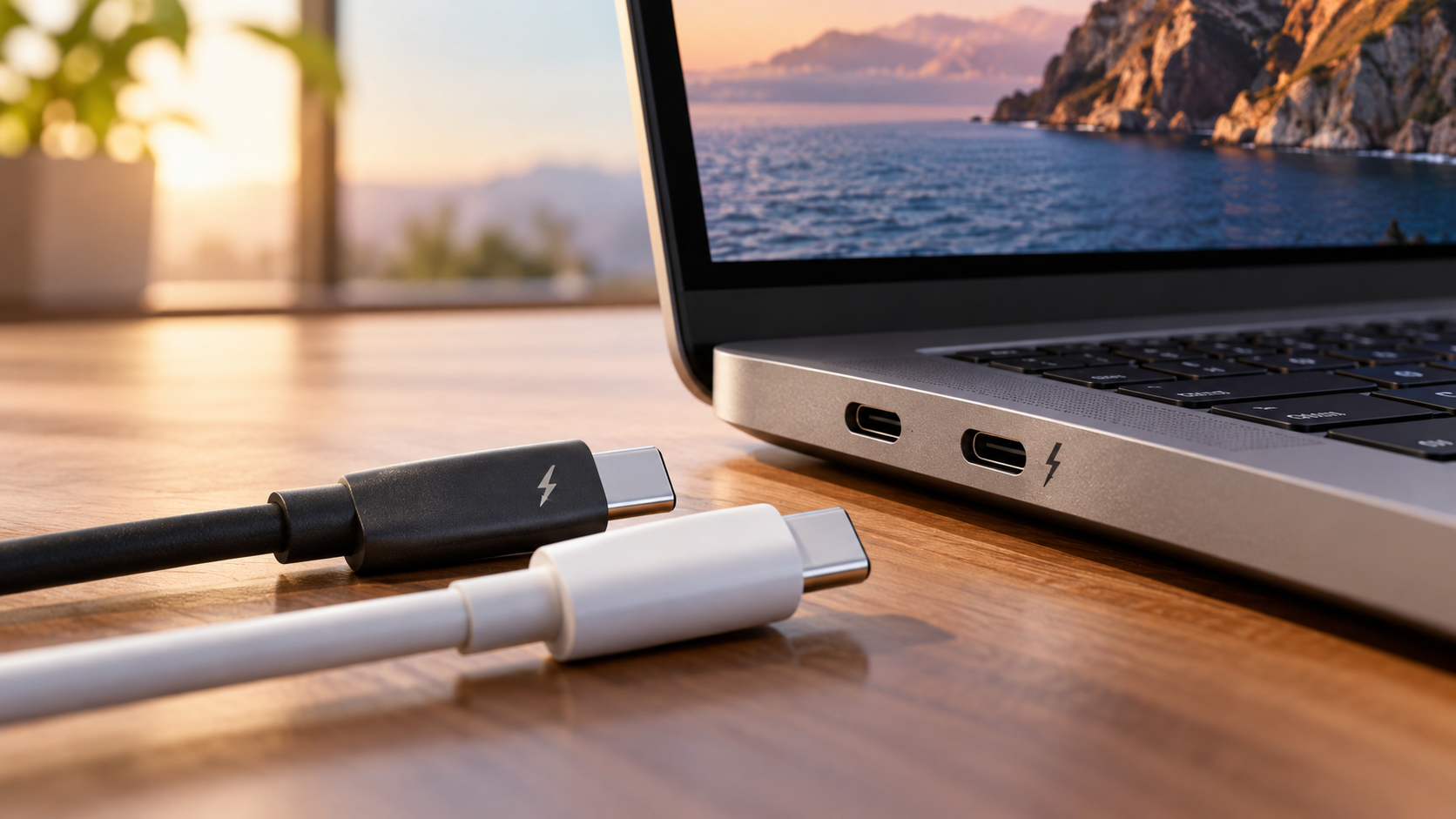
How Apple’s Thunderbolt Ports Are Different from USB-C
Modern Apple devices have a sleek, uniform design, with many ports sharing the same oval shape. However, their appearance can be misleading. Understanding how Apple’s Thunderbolt ports are different from USB-C helps you avoid incompatible cables, slow file transfers, and display connection problems.
USB-C describes the physical connector, while Thunderbolt defines the technology used to transfer data, connect displays, and support compatible devices. The capabilities of your Mac’s port determine which features you can use. As explained in Apple Support’s hardware documentation, checking your Mac’s specifications is essential because a matching connector does not guarantee the same performance.
This distinction matters to creative professionals, remote workers, and everyday users. Connecting a fast external SSD or multiple monitors through an unsuitable cable can limit performance. This guide answers five common questions about Thunderbolt and USB-C, including compatibility, transfer speeds, cable requirements, and Thunderbolt 4 support.

Are Apple Thunderbolt and USB-C the Same?
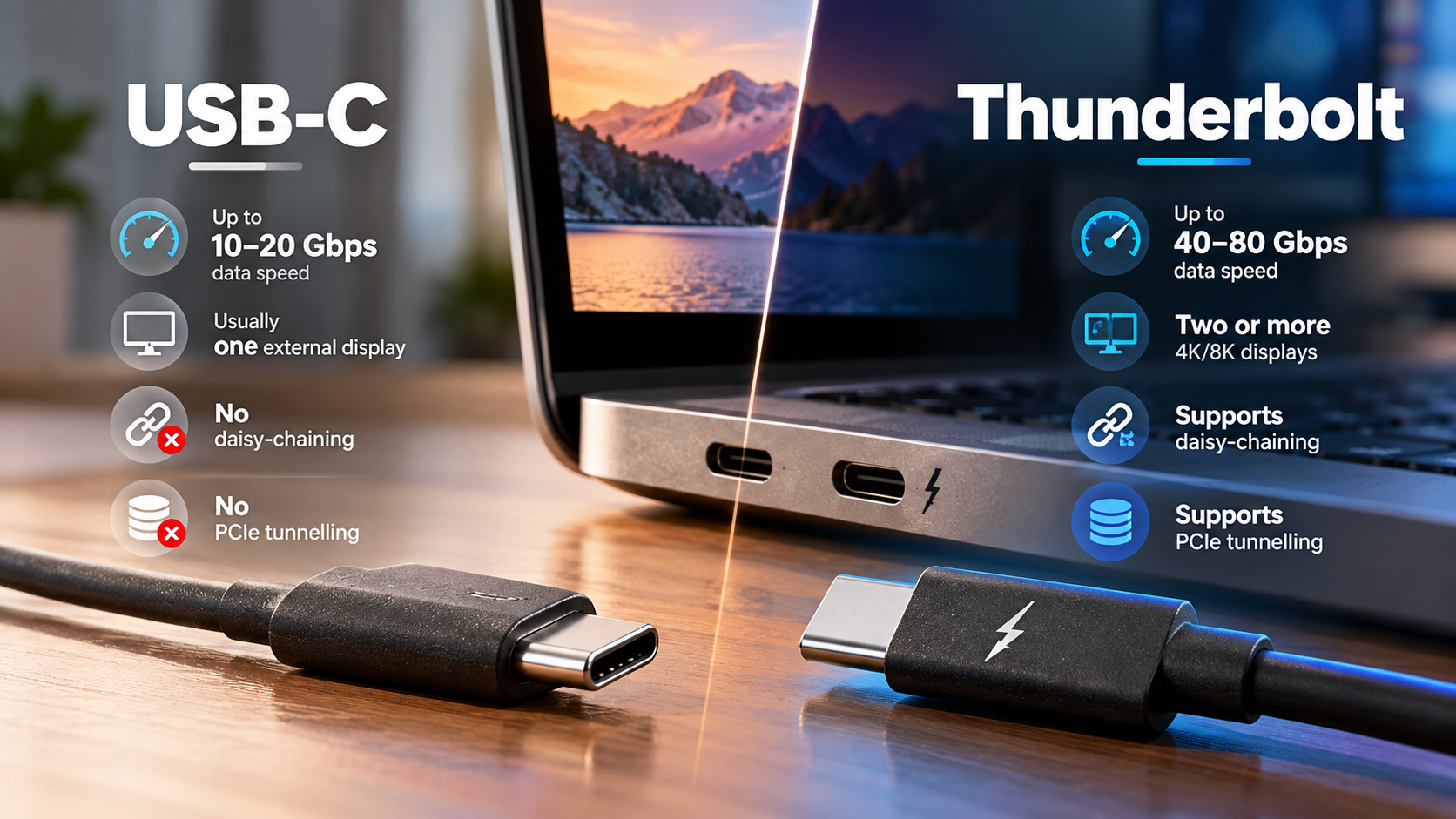
No. USB-C and Thunderbolt are different, but compatible, technologies. USB-C describes the physical connector, while Thunderbolt is a connectivity standard that supports high-speed data transfers and other advanced features.
The main difference is bandwidth and supported functionality. Thunderbolt 3 and Thunderbolt 4 support data rates of up to 40 Gbps. USB-C connections can support different speeds, depending on the USB standard and hardware involved. Some USB-C ports support only USB 2.0, while others support USB 3.2 or USB4. Understanding why some USB ports are color-coded while USB-C isn’t can also help explain why connector appearance alone does not reveal a port’s capabilities.
Thunderbolt also supports PCI Express and DisplayPort tunnelling. This allows compatible devices to transfer data and transmit video through one connection. However, not every USB-C port supports these features.
Dedicated PCIe Channels and Protocol Tunnels
Thunderbolt can carry multiple types of traffic over one connection. These include PCI Express data, DisplayPort video, and USB traffic. This capability makes it useful for demanding professional workflows.
For example, compatible Thunderbolt docks can connect external storage, monitors, audio interfaces, and other peripherals through a single cable. Supported devices can also connect in a daisy chain. If you want a lightweight second screen for your laptop, consider the pros and cons of using portable USB monitors for a laptop before choosing a display.
Standard USB-C ports may offer many of these features, but their capabilities depend on the supported USB standard and video output functionality. Always check your Mac’s specifications before purchasing accessories.
What Happens If You Plug a USB-C Device Into a Thunderbolt Port?
A standard USB-C device generally works safely when connected to a compatible Thunderbolt port on your Mac. The connection uses a protocol supported by both the host and the accessory. However, the device does not automatically gain Thunderbolt performance.
For example, a USB flash drive connected to a Thunderbolt 4 port operates according to its supported USB standard. A slower drive cannot achieve Thunderbolt’s maximum bandwidth simply because you connected it to a faster port.
The same principle applies to external SSDs, keyboards, mice, and USB hubs. Their performance depends on the device, cable, and port working together. If your laptop needs more space for files and applications, explore how to add more storage to a laptop before choosing a suitable storage solution.
Intelligent Hardware Handshakes Protect Devices
When you connect a peripheral, the host and device establish a compatible connection. They negotiate supported capabilities and power requirements through the relevant interface protocols.
USB-C cables can also contain electronic markers, known as e-markers, that communicate supported cable capabilities. However, not every USB-C cable contains one.
This process helps devices operate within supported electrical limits. It does not mean every accessory automatically supports every available feature. If a device fails to connect, check the cable specifications, port capabilities, and accessory requirements before assuming the hardware is damaged.
Can an Apple USB-C Cable Work as a Thunderbolt Cable?
Sometimes, but not every USB-C cable supports Thunderbolt. A cable’s connector shape alone cannot tell you which data speeds or protocols it supports.
Some USB-C cables support only charging and USB 2.0 data transfers. Others support faster USB connections, USB4, or Thunderbolt. Therefore, you should not assume that a cable supplied with an Apple device can handle every Thunderbolt accessory.
If you connect a Thunderbolt drive using a cable that does not support Thunderbolt, the drive might not operate at all in that configuration. Depending on the device and cable, it may support a slower USB connection instead.
For the best results, choose a cable that explicitly supports the Thunderbolt version required by your device.
Spotting Certified Thunderbolt Markings
Look for the Thunderbolt lightning-bolt symbol and the cable’s stated specifications. Certified Thunderbolt cables are designed and tested to meet the requirements of the relevant standard.
Some Apple Thunderbolt cables, including certain Thunderbolt 4 Pro models, feature braided exteriors. However, the material and appearance alone do not establish compatibility.
Before buying a cable, check:
- Thunderbolt support: Confirm that the cable supports the required standard.
- Data speed: Check the maximum supported bandwidth.
- Charging capacity: Verify the cable’s power delivery rating.
- Length: Make sure the cable supports the required performance at your chosen length.
These checks help you avoid paying for a premium cable that does not meet your needs.
Will a USB-C Cable Fit in a Thunderbolt Port?
Yes. USB-C cables use a reversible connector that physically fits compatible USB-C and Thunderbolt ports. Apple adopted the USB-C connector with Thunderbolt 3, replacing the Mini DisplayPort-shaped connector used by earlier Thunderbolt generations.
This shared design makes connecting accessories straightforward. You can insert a compatible USB-C plug into a Thunderbolt 3, Thunderbolt 4, or Thunderbolt 5 port, provided the devices use the same connector.
However, physical compatibility does not guarantee full functionality. A cable may fit perfectly but lack the bandwidth required for fast storage or high-resolution displays.
The connection’s capabilities depend on the Mac’s port, the cable, and the connected device. Checking all three specifications helps ensure reliable performance.
Universal Mechanical Standards Eliminate Friction
The reversible USB-C connector removes the need to align a plug in one specific direction. You can insert it either way, making everyday connections more convenient.
However, the connector’s physical design does not determine the available data speed. USB-C ports can support different USB standards, video capabilities, and charging levels.
For example, a basic USB-C cable may charge a device and transfer files but lack support for Thunderbolt data transfers. A suitable Thunderbolt cable can provide additional capabilities when paired with compatible hardware. If you plan to connect an external display, learn how to tell if a USB-C cable supports video before buying a replacement cable.
Before connecting demanding accessories, check the specifications of your Mac, cable, and peripheral. This is especially important when using external SSDs, docking stations, and multiple displays.
Can I Plug a USB-C Cable Into a Thunderbolt 4 Port?
Yes. A standard USB-C cable can connect to a Thunderbolt 4 port, provided it is suitable for the intended use. Thunderbolt 4 supports USB connectivity, making it compatible with many everyday USB accessories.
You can use suitable USB-C cables to connect storage devices, keyboards, mice, hubs, and charging accessories. However, the cable’s capabilities determine which features are available.
For example, a cable designed only for USB 2.0 data transfers cannot deliver 40 Gbps Thunderbolt performance. Similarly, connecting a Thunderbolt accessory through a non-Thunderbolt cable may limit its functionality or prevent a Thunderbolt connection from being established.
For high-speed storage, advanced docking stations, or demanding display setups, use a cable that explicitly supports the required Thunderbolt standard.
Universal Workstation Flexibility
Thunderbolt 4 supports a range of USB devices and connectivity options, making it useful for home offices and professional workstations. It can connect compatible storage devices, docks, displays, and other peripherals through a single port.
Its backward compatibility helps users keep using many existing USB accessories. However, features such as charging speed, display output, and data transfer rates still depend on the connected hardware and cable.
Before buying accessories, consider the tasks you perform most often. A basic USB-C cable may be sufficient for charging and everyday peripherals. A certified Thunderbolt cable is more suitable when your setup requires Thunderbolt-specific features or maximum supported bandwidth.
Understanding these differences helps you choose the right accessories without spending money on capabilities you do not need.
Conclusion
Understanding how Apple’s Thunderbolt ports differ from USB-C helps you choose the right cables and accessories for your Mac. Although both use the same USB-C connector, their data speeds and supported features can vary. Thunderbolt offers advanced connectivity for compatible external SSDs, displays, and docking stations, while standard USB-C connections handle everyday tasks effectively. Before purchasing a cable or accessory, check your Mac’s port specifications and the device’s compatibility requirements. Choosing the right combination ensures reliable connections, better performance, and fewer compatibility issues.
Remember that a USB-C connector does not automatically support Thunderbolt speeds or features. Your connection’s performance depends on the port, cable, and connected device. For demanding tasks, such as transferring large files or connecting multiple displays, choose a cable that supports the required Thunderbolt standard. For everyday activities, including charging devices and connecting basic peripherals, a compatible USB-C cable may be all you need.
Ultimately, understanding these differences helps you avoid unnecessary purchases and get the most out of your Apple device. Check your Mac’s technical specifications before buying new accessories, especially if you plan to use external storage or a docking station. With the right combination of ports, cables, and devices, you can enjoy reliable connectivity and the performance your setup is designed to deliver.