How to Read Deleted Messages on Android Using a Native Setting
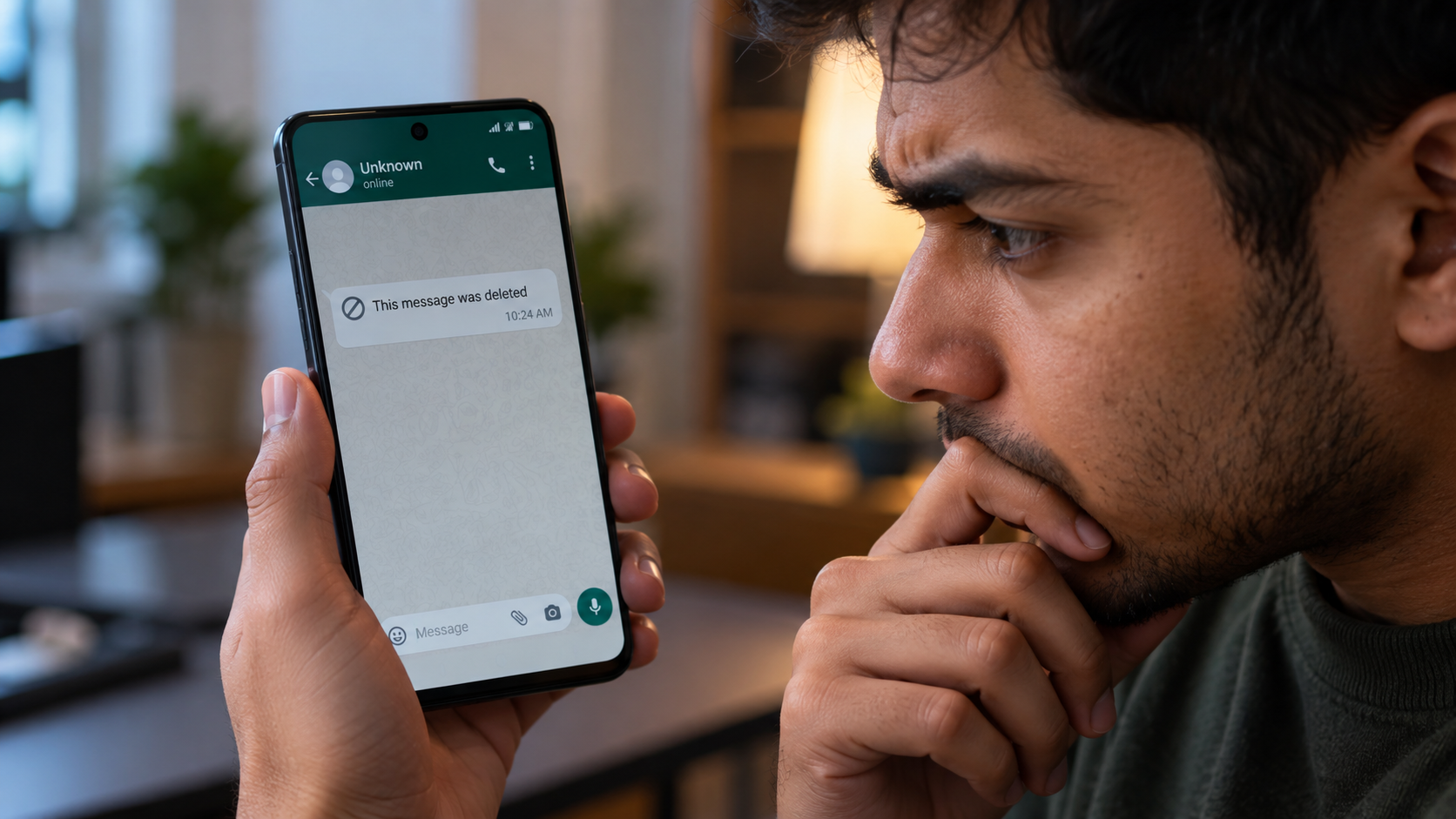
Few things spark curiosity like seeing “This message was deleted” in a chat. If you want to know how to read deleted messages on Android, your phone may already offer a useful built-in feature. A friend may have changed their mind, or someone may have removed a simple typo. Either way, the missing text can leave you wondering what it said.
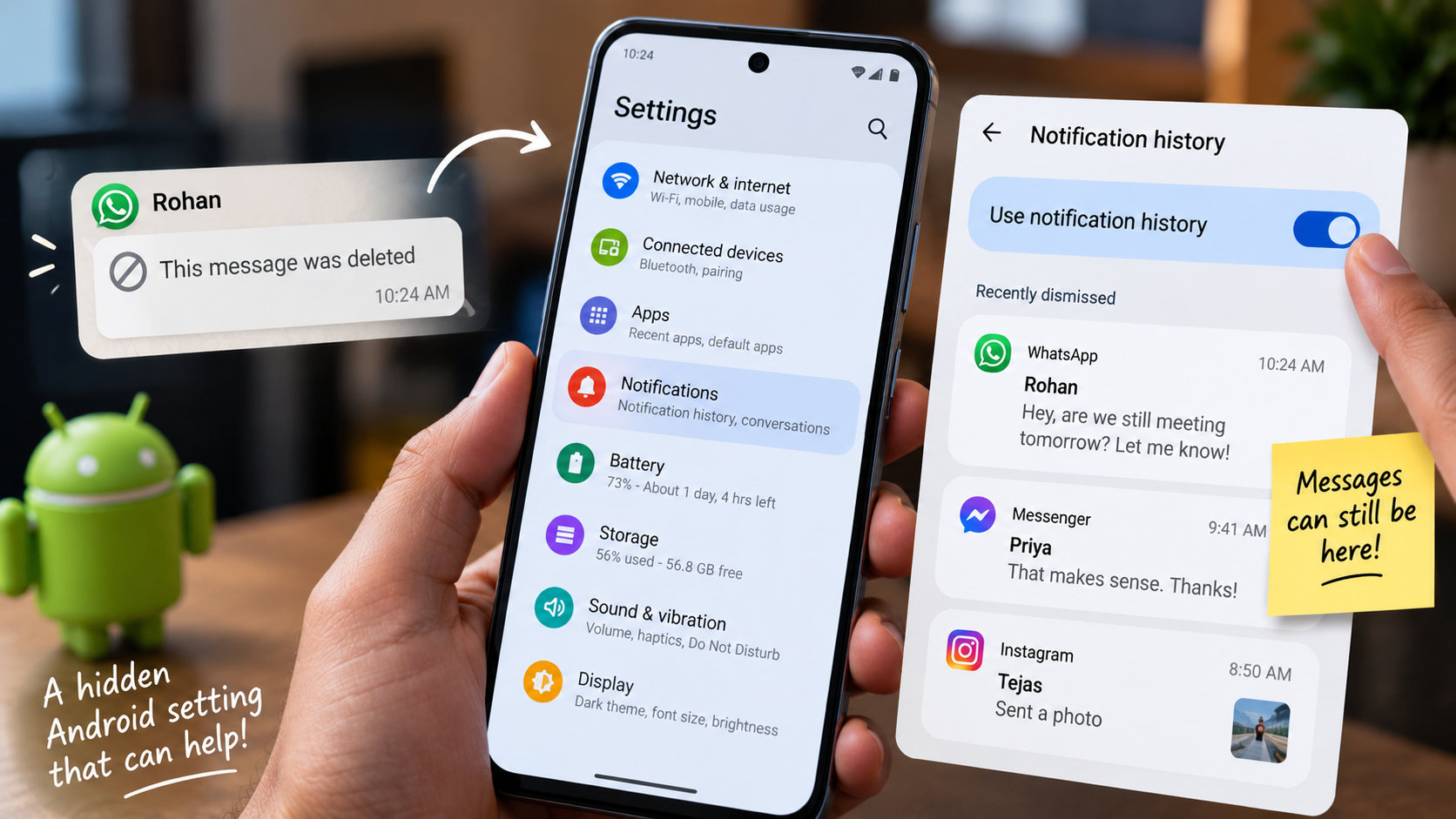
Fortunately, some Android phones offer Notification History. This feature keeps a record of recent notifications, including some message previews. According to the official Android Help Center, supported devices can show recently dismissed notifications and notifications from the last 24 hours.
Google also notes that Notification History availability varies by device. Some phones may not include the feature or may use different menu names.
In this guide, you will learn how to use Notification History to check deleted messages on Android. You will also learn when backups or third-party apps may help. Finally, we will cover the limits of each method.
Is There a Way to Read Deleted Messages on Android?
Yes, but Android cannot guarantee message recovery. You usually cannot retrieve a deleted message directly from the sender’s messaging app. Instead, Android’s Notification History may keep the notification preview that appeared before the sender deleted the message.
On supported phones, open Settings > Notifications > Notification History. Your phone may use slightly different menu names. Google also notes that some Android devices do not offer Notification History.
If you enabled the feature before the message arrived, you may find the earlier notification in the history. The notification can sometimes show the original text that appeared in the preview.
Several factors can affect the result:
- Your phone must support Notification History.
- You must enable the feature before the notification arrives.
- The messaging app must send a notification.
- The notification must show useful preview text.
- Android may remove older notification records.
- Media and disappearing messages may not appear completely.
Therefore, deleted messages on Android can sometimes remain visible through notification history. However, this method cannot recover every deleted message.
Activating Your Android Notification Log
First, check whether your Android phone supports Notification History. Open Settings and search for “Notification History” if you cannot find the option under Notifications.
On supported devices, open Settings > Notifications > Notification History. Then turn the feature on. Google says the feature can show recently dismissed notifications and notifications from the last 24 hours.
Timing matters here. If you turn on Notification History after someone deletes a message, Android cannot normally recreate that earlier notification. The feature needs to record the notification when it arrives.
Once you enable the feature, Android can keep recent notification information from your apps. If a messaging app displays a message preview, Android may save that preview in the history.
However, Notification History does not break encryption or open an app’s private database. It only gives you access to notification information that Android already recorded.
If your phone does not offer this setting, do not assume another hidden Android option can recover the message.
What Is the Best Secret Message App for Android?
No single private messaging app works best for every Android user. Your choice should depend on the privacy features you need and how you communicate. If you are comparing different Android applications more broadly, you can also explore these best free apps for Android users.
Signal remains a prominent option for private communication. Signal uses end-to-end encryption for conversations and calls. This prevents the service from accessing the contents of those communications. Signal also publishes its client and server source code for public inspection.
Signal supports disappearing messages as well. You can set a timer for individual conversations or new chats. However, disappearing messages cannot stop someone from making a separate copy.
For example, a recipient could photograph the screen before the message disappears. Signal itself warns users about this limitation.
When comparing private messaging apps, consider these features:
- End-to-end encryption
- Disappearing messages
- Open-source software
- Device and account security
- Privacy controls
- Backup options
A private messenger should offer more than automatic message deletion. You should also consider how the app handles encryption, devices, backups, and notifications.
Signal’s Privacy and Encryption Approach
Signal protects message contents with end-to-end encryption. According to Signal, its encryption system allows only the intended participants to access message contents. Signal also makes its client and server source code publicly available.
Signal also supports disappearing messages. When you enable the feature, Signal removes messages after the selected timer expires. For received messages, the timer starts after the recipient reads the message.
However, disappearing messages cannot guarantee permanent deletion. A recipient can photograph the screen before the timer expires. Signal specifically warns users about this possibility.
You should also avoid describing Signal as a completely “zero-knowledge” system without qualification. A more accurate description focuses on its approach to message privacy and its limited access to message contents.
Encryption also represents only one part of messaging privacy. Your device security matters too. Notification previews, backups, linked devices, and recipient behavior can all affect the privacy of a conversation.
If you want a private messaging app, examine its complete security model instead of focusing on one feature.
Is There Any Way to Read Deleted Messages?
Sometimes, but the available method depends on where the message still exists. Notification History can help when Android recorded the notification preview before deletion. A backup can also help when it contains an earlier version of the conversation.
WhatsApp says you may recover a deleted message if a backup contains that message. However, WhatsApp does not keep your complete chat history on its servers for restoration.
This distinction matters. Restoring a backup does not ask WhatsApp to retrieve a deleted message. Instead, you restore an earlier version of your own chat history.
You should also consider the risks before restoring an old backup. An older backup may not contain your newest conversations.
Other possible sources include:
- A notification preview that Android already recorded.
- A backup that you created before deletion.
- Media that you saved separately.
- A message that still exists on another authorized device.
If none of these sources contain the original content, you may not have a reliable recovery option.
Therefore, deleted messages on Android do not always disappear without a trace. However, you need an existing copy or notification record to recover anything.
Recovering Texts Through Existing Backups
A backup can sometimes help you recover a deleted message. The key factor is when you created the backup.
Suppose you created a WhatsApp backup before someone deleted a message. That backup may contain the earlier version of the conversation. WhatsApp says users can recover deleted messages when the relevant backup contains them.
However, restoring an older backup can affect your current chat history. Check the backup date before you start the restore process. Also consider which newer conversations may disappear from your current chat state.
The same principle applies to other messaging apps that offer backups. A backup can restore only the information that the app saved at that time.
Keep these points in mind:
- Check the backup date first.
- Confirm that the conversation existed at that time.
- Protect newer conversations before restoring an older backup.
- Follow the messaging app’s official restore process.
- Do not assume every backup contains deleted messages.
Think of a backup as a previous snapshot of your chat history. It does not function as a special deleted-message recovery system.
Which App Automatically Deletes Messages After They Are Read?
Several messaging platforms support automatic deletion, but each platform follows different rules. Snapchat automatically deletes many Snaps after users view them or the Snap expires. it explains that most Snaps sent to friends follow this automatic deletion behavior.
Snapchat handles Chat messages differently. By default, one-on-one and group Chats generally disappear 24 hours after everyone views them, or 31 days after sending, whichever comes first. Users can change the setting to delete Chats after viewing, after seven days, or never.
Telegram also offers self-destruct timers through Secret Chats. Telegram says the timer starts when the recipient displays the message. The platform then removes the message when the timer expires.
These features support temporary communication. However, they cannot prevent every form of copying. Someone can capture the content before it disappears.
For that reason, do not treat disappearing messages as a guarantee that nobody can preserve the content. Always check the exact retention rules for the platform you use.
Setting Ephemeral Timers in Telegram Secret Chats
Telegram’s Secret Chats include a self-destruct timer for messages. To start one, open the contact’s profile, tap the menu, and select Start Secret Chat. Telegram says Secret Chats remain tied to the devices where users create them rather than syncing through the cloud.
After you start the Secret Chat, choose the timer option and select how long messages should remain available. Telegram starts the countdown when the recipient views the message. When the timer expires, Telegram removes the message from both devices.
Telegram also includes screenshot-related protections, but they cannot guarantee complete protection. Telegram says screenshot detection does not work perfectly on every platform. Someone can also use another device to photograph the screen.
Self-destruct timers therefore reduce how long a message remains available. They do not guarantee that nobody can preserve a copy.
Also remember that the timer applies to messages sent after you configure it. It does not automatically change the behavior of earlier messages in the conversation.
What App Can Reveal Deleted Messages?
Some third-party Android apps attempt to reveal deleted messages by saving notification content. WAMR is one example. Its Google Play listing says the app monitors notifications and creates local copies of incoming message information. If you regularly use third-party Android tools, it also helps to understand how Android apps can simplify your everyday life.
However, WAMR does not normally retrieve deleted messages directly from an encrypted messaging database. Instead, it relies on information that notifications already displayed.
This limitation can affect its results. If you disable notifications, hide their contents, or never receive a notification, the app may have nothing useful to save. Media recovery also depends on whether the device downloaded and stored the media.
Notification access also creates a privacy concern. An app with this permission may see information from many other applications.
Before installing a notification-monitoring tool, check:
- The permissions it requests.
- The information it stores.
- The developer behind the app.
- Its privacy policy.
- Its Google Play listing.
- Whether you actually need the feature.
When your phone provides Notification History, consider using that native option first. It avoids giving another app access to your notifications.
Safe Habits When Using Notification Scrapers
Notification-monitoring apps can help in some situations, but they create a clear privacy trade-off. These apps need notification access to perform their main function. Notifications can contain message previews, emails, authentication codes, and other private information.
WAMR’s Google Play listing explains that the app uses notification access to create copies of incoming message information. Before installing similar software, understand exactly what access you provide.
Follow these safety practices:
- Download apps from the Google Play Store.
- Avoid unknown APK websites.
- Review every permission before granting access.
- Read the developer’s privacy information.
- Avoid unnecessary notification access.
- Remove notification access when you stop using the app.
- Never assume a third-party app can recover every deleted message.
These tools cannot recover content that never appeared in a notification. Their results depend on the notification information available to them.
For many Android users, Notification History offers a simpler starting point. When your phone supports it, the native feature can provide notification records without another app.
Treat every notification-monitoring app as a privacy-sensitive tool. It can potentially access far more information than the deleted message you want to recover.
Conclusion
If you want to read deleted messages on Android, start with Notification History. When you enable the feature before a message arrives, Android may save its notification preview. That preview can sometimes reveal text after the sender deletes the original message.
Backups offer another possible solution when they contain an earlier version of the conversation. Third-party notification apps can also save message previews, but they require access to sensitive notifications.
No method guarantees complete recovery. Your results depend on whether Android saved the notification, a backup contains the message, or another copy still exists.
Use Android’s built-in features before installing third-party recovery tools. Check app permissions carefully and understand what information each tool can access. Most importantly, remember that deleted messages on Android may remain visible only when another record already exists.