
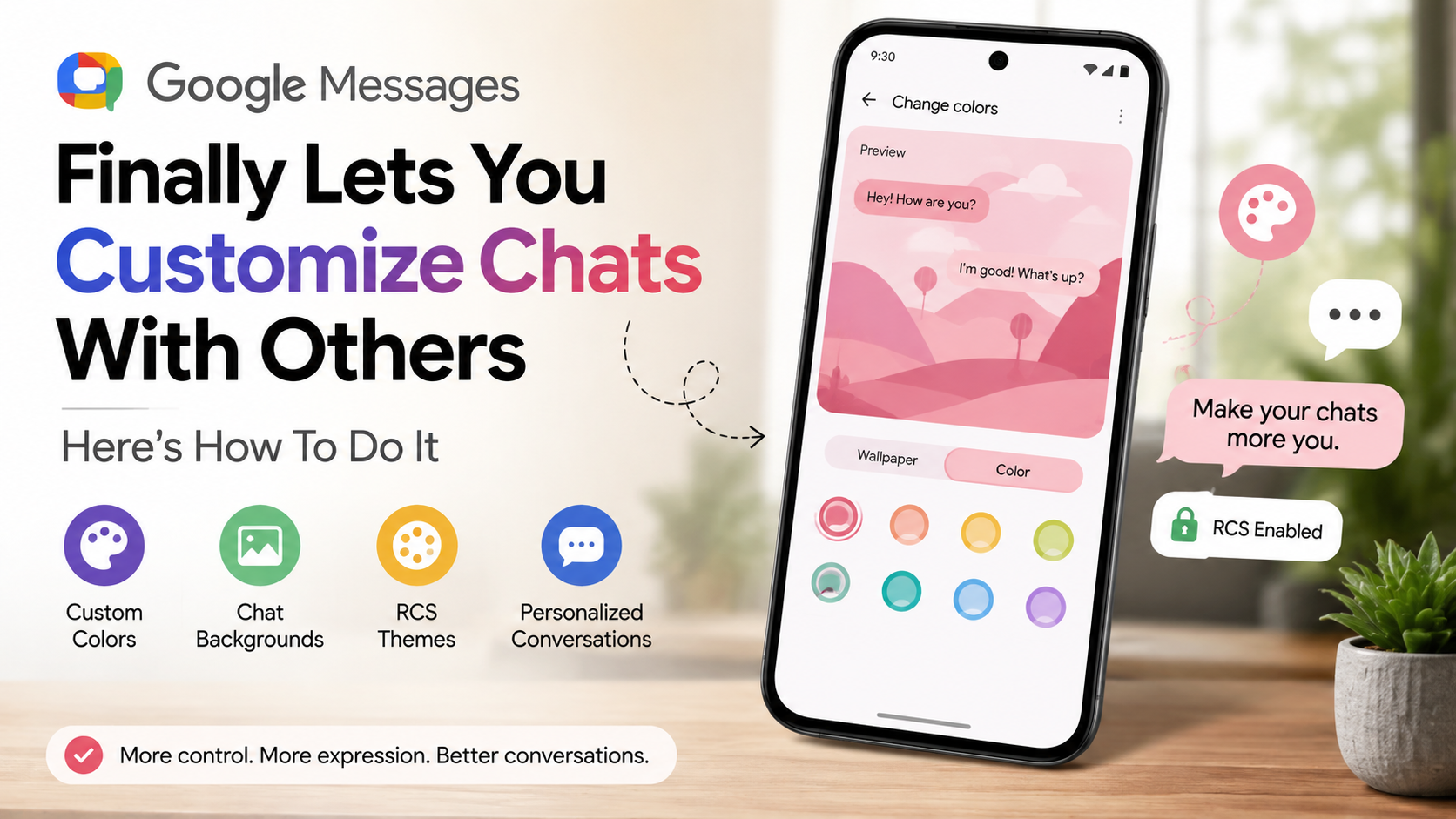
Google Messages Finally Lets You Customize Chats With Others – Here’s How To Do It
For years, Android users have wanted more expressive texting options. Now, customize chats in Google Messages with visual themes and custom color palettes for individual conversations. These options give users more control over how their chats look and feel.
Modern Rich Communication Services (RCS) also support features that go beyond traditional SMS and MMS. According to Google Messages Help, RCS enables enhanced messaging features that make conversations more interactive. These include delivery indicators, message editing, and other improvements over traditional texting.
Learning how to customize chats in Google Messages can make your conversations easier to identify. You can use different colors for personal, family, or group chats. This can also help you recognize the right thread before sending a message.
However, these features have some requirements and limitations. RCS must be available for supported customization and editing features. This guide explains how chat customization works, what you need to use it, and how message editing differs from Google Chat.
Will Google Messages ever allow customization?
Google Messages now allows supported conversations to use custom bubble colors, backgrounds, and RCS themes. Previously, the app mainly followed your phone’s system-wide Dynamic Color settings. The newer customization options give individual conversations a more personalized appearance.
You can assign different color schemes to supported one-on-one and group conversations. This means your chats no longer need to share the same visual style. A unique theme can also make important conversations easier to recognize at a glance.
The feature depends on RCS chats rather than traditional SMS or MMS. Both the app and conversation must support the required RCS functionality. Availability can also vary based on device, carrier, region, and app version.
As Google continues developing Messages, additional personalization features may become available. For now, supported users can customize compatible conversations with available colors and themes. These options provide a simple way to make everyday texting more distinctive without changing the phone’s overall appearance.
Requirements for Custom Theming Features
Before customizing a conversation, make sure RCS chats are enabled in Google Messages. RCS provides the connection needed for supported enhanced messaging features. Traditional SMS and MMS conversations do not provide the same customization capabilities.
You should also use the latest available version of Google Messages. Keeping the app updated can help ensure that newly released features appear correctly. For more context, see our guide on What Happens If You Don’t Update Apps? Both participants may need compatible RCS support for certain conversation features to work as expected.
An active internet connection is also important. RCS relies on mobile data or Wi-Fi instead of the traditional carrier-only connection used by SMS.
Check these requirements before troubleshooting customization problems:
- RCS chats: Make sure RCS is enabled and connected.
- Updated app: Install the latest Google Messages version.
- Internet connection: Use Wi-Fi or mobile data.
- Compatible conversation: The chat must support RCS-based features.
If a conversation falls back to SMS or MMS, some customization and editing options may disappear. If Google Messages is not behaving normally, clearing temporary app data may help. See Clear Cache and Clear Data Difference: What to Know for more information. Carrier and regional availability can also affect which features you see.
How to customize chats in Google Messages?
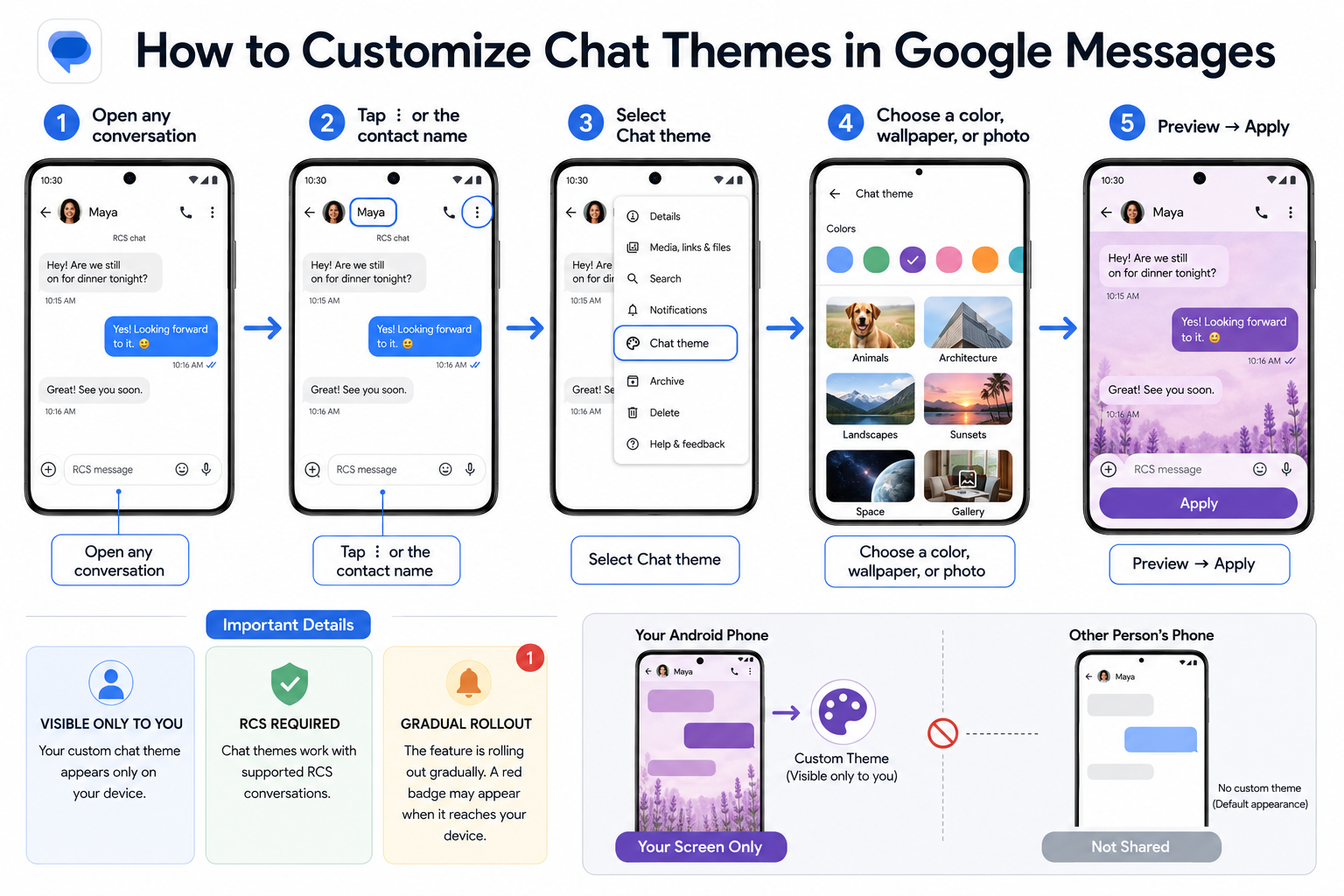
To customize chats in Google Messages, first open the individual or group conversation you want to change. Tap the three-dot menu in the upper-right corner. If the feature is available, choose Change Colors from the menu.
Google Messages will display the available color options. Select a theme or color to preview the conversation’s new appearance. Once you choose your preferred option, the app applies the change to the supported chat.
The customization is designed for individual conversations rather than your entire phone interface. This lets you give different threads their own visual identity. For example, you could use one color for family conversations and another for work-related chats.
Keep in mind that availability depends on supported RCS functionality. If you cannot find the color option, check your RCS connection and app version first.
If the feature is available, changing a conversation’s appearance takes only a few taps. You can also return to the color settings later if you want to choose a different theme.

Selecting the Right Theme for Your Threads
Choosing different colors can make busy inboxes easier to navigate. A distinctive theme helps you recognize a conversation before reading its latest messages. This can be particularly useful when several chats have similar names or frequent activity.
Prioritize text readability when selecting a color. A visually attractive theme is less useful if message bubbles become difficult to read. Preview each available option before applying it permanently.
You can also create a simple color system for your conversations. For example, one shade could represent family chats, while another could identify work or group conversations. This approach can make your message list easier to scan.
If you dislike a selected color, you can return to the conversation’s customization settings. Choose another available option or restore the default appearance when supported.
Remember that chat themes are mainly visual. They do not replace notification controls, privacy settings, or other message-management features. Use colors as an organizational aid rather than relying on them for important communication details.
Why can’t I edit my Google Messages anymore?
If you cannot edit a message in Google Messages, the 15-minute editing window may have expired. Google Messages limits supported message edits to a specific period after sending. Once that window closes, the edit option may disappear from the message menu. If the app itself is malfunctioning, troubleshooting common app problems may also help.
Message editing also depends on RCS. If the conversation uses standard SMS or MMS instead, editing may not be available. This is one of the main reasons the feature can appear in one conversation but not another.
Your RCS connection can also affect editing. If the service is disconnected or the conversation falls back to SMS, supported RCS features may become unavailable.
To avoid common editing problems, check the following:
- Confirm that RCS chats are connected.
- Make sure Google Messages is updated.
- Check that the conversation supports RCS.
- Edit the message within 15 minutes of sending it.
- Maintain an active Wi-Fi or mobile-data connection.
If all requirements are met, the edit option should remain available during the supported time window. Feature availability can still vary by device, carrier, and rollout status.
Understanding the Technical Limits of Message Editing
Message editing in Google Messages depends on RCS-based communication. Unlike traditional SMS, RCS can support richer interactive features and message updates. This makes it possible to modify supported messages after they have been sent.
However, editing is not unlimited. Google Messages provides a 15-minute window for changing an eligible message. After that period, you must send a new message if you need to correct the information.
Compatibility also matters. If the conversation does not maintain an RCS connection, editing may not be available. Temporary connectivity problems can also prevent RCS features from working normally.
Keep these limitations in mind when sending important information. If you notice a mistake, correct it promptly instead of waiting until later.
The exact behavior can also depend on the recipient’s device and messaging setup. Keeping Google Messages updated on your device helps ensure you have access to supported features as Google releases improvements.
Will the other person know if I edit a message in Google Chat?
Yes. In Google Chat, edited messages are identified with an Edited indicator. This lets other participants know that the message content changed after it was originally sent.
The updated message appears across supported devices and platforms. However, Google Chat does not provide a public version history that lets other participants browse every previous version of the message.
This distinction is important because Google Chat and Google Messages are separate communication products. Google Messages focuses primarily on personal texting, including SMS, MMS, and RCS conversations. Google Chat is designed for direct messages and collaborative spaces.
If you edit a message in Google Chat, other participants can therefore see that an edit occurred. They may not, however, be able to view the exact text you originally entered.
For professional communication, this can make editing useful for correcting small mistakes. It also preserves transparency because recipients can identify edited content.
If a change affects important project information, consider sending a follow-up message instead. That approach can preserve additional context for everyone involved.
Best Practices for Editing Work Conversations
Use message editing mainly for minor corrections, such as spelling mistakes, grammar issues, or outdated links. These changes usually improve clarity without altering the meaning of the original conversation.
For important decisions or project changes, a separate reply can be more useful. A follow-up message creates a visible record of the new information. It also gives other participants more context about why the information changed.
Before editing a workplace message, consider whether the change could affect someone else’s understanding. If it changes a deadline, requirement, responsibility, or decision, sending a clarification may be safer.
Keep your edits concise and accurate. Avoid repeatedly changing the same message when a new reply would communicate the update more clearly.
These practices are especially useful in busy Google Chat spaces. Team members may read messages at different times, so context matters.
The goal is not to avoid editing. Instead, use it appropriately. Small corrections are ideal for edits, while significant updates are often better handled through a clear follow-up message.
How do you know if someone viewed your message on Google Chat?
Google Chat can indicate that someone has viewed a message through their profile avatar. When a participant reads a conversation, their small profile image can appear near the relevant messages.
In group conversations and spaces, multiple profile icons may appear as different participants view the discussion. This gives you a quick visual indication of who has seen the conversation.
The indicator does not necessarily mean that someone carefully read every word. It generally shows that the person opened or viewed the relevant conversation.
Read-status indicators can also behave differently depending on the platform and connection. A notification preview, for example, does not necessarily produce the same result as opening the conversation itself.
If an avatar has not moved to the latest message, you may not yet have a viewing indication for that participant. However, this should not always be treated as proof that the person has not seen the content.
Network delays can also affect when status information appears. Google Chat may need time to synchronize activity across devices.
Understanding these indicators can help you interpret message status without assuming more than the feature actually confirms.
Factors That Affect Read Receipt Visibility
Several factors can affect when read-status indicators appear in Google Chat. The most important is whether the recipient actually opens the conversation. Viewing a notification does not necessarily produce the same indicator as opening the chat.
Network connectivity can also cause short delays. If the recipient has a weak connection, status information may take longer to synchronize. Similar delays can occur when your own device temporarily loses connectivity.
The platform being used may also influence how quickly status changes appear. Google Chat supports multiple environments, including mobile and web access.
In group conversations, several profile avatars may appear as different participants view the thread. This makes the indicators useful for understanding general participation, but they should not be treated as detailed read tracking.
Privacy preferences and product behavior can also change as Google updates its services. If a read indicator does not appear immediately, avoid assuming that the recipient deliberately ignored the message.
Instead, allow time for synchronization. If the status remains unchanged, the recipient may not have opened the conversation yet, or the viewing indicator may not have updated.
Frequently Asked Questions
Can I set different themes for every contact in Google Messages?
Yes, supported conversations can have different custom colors. You can assign separate themes to individual and group chats when the customization feature is available. This lets you visually distinguish family, personal, and work conversations. The changes apply to the selected conversation rather than changing your phone’s entire color scheme.
Do custom chat colors work on traditional SMS text messages?
No. Custom chat themes depend on supported RCS functionality. Traditional SMS and MMS do not provide the same framework for these enhanced visual features. If a conversation falls back to SMS or MMS, customization options may not appear.
How long do I have to edit a sent message in Google Chat?
Google Chat’s editing behavior differs from Google Messages. The 15-minute editing limit applies to supported message editing in Google Messages. Google Chat has different editing functionality and does not use that same 15-minute limit.
Does turning off read receipts hide my viewing activity in Google Chat?
Google Chat’s viewing indicators work differently from a simple on/off read-receipt setting. Profile avatars can indicate when participants have viewed messages. The exact behavior can depend on the conversation type, platform, and current Google Chat functionality.
Conclusion
Personalizing your messaging experience can make everyday communication easier to navigate. Google Messages now offers supported users more visual control through custom conversation colors and themes. These options can help distinguish individual chats without changing the phone’s overall appearance.
Knowing how to customize chats in Google Messages is also useful when managing multiple conversations. Different colors can help you identify personal, family, and group threads more quickly. However, customization depends on supported RCS functionality.
Message editing provides another useful feature, but it has important limitations. In Google Messages, eligible messages can be edited within the 15-minute window. Google Chat uses separate editing and viewing features, so the two services should not be confused.
For the best experience, keep Google Messages updated and maintain a stable RCS connection. Check your conversation type when a feature is missing. You can also explore how Google Wallet could solve digital identity problems as Google continues expanding its digital services.