

Why Apps Keep Crashing and How to Fix Them Permanently
Have you ever wondered why apps keep crashing when you need them most? Unexpected freezes and sudden closures can interrupt work, communication, and entertainment.
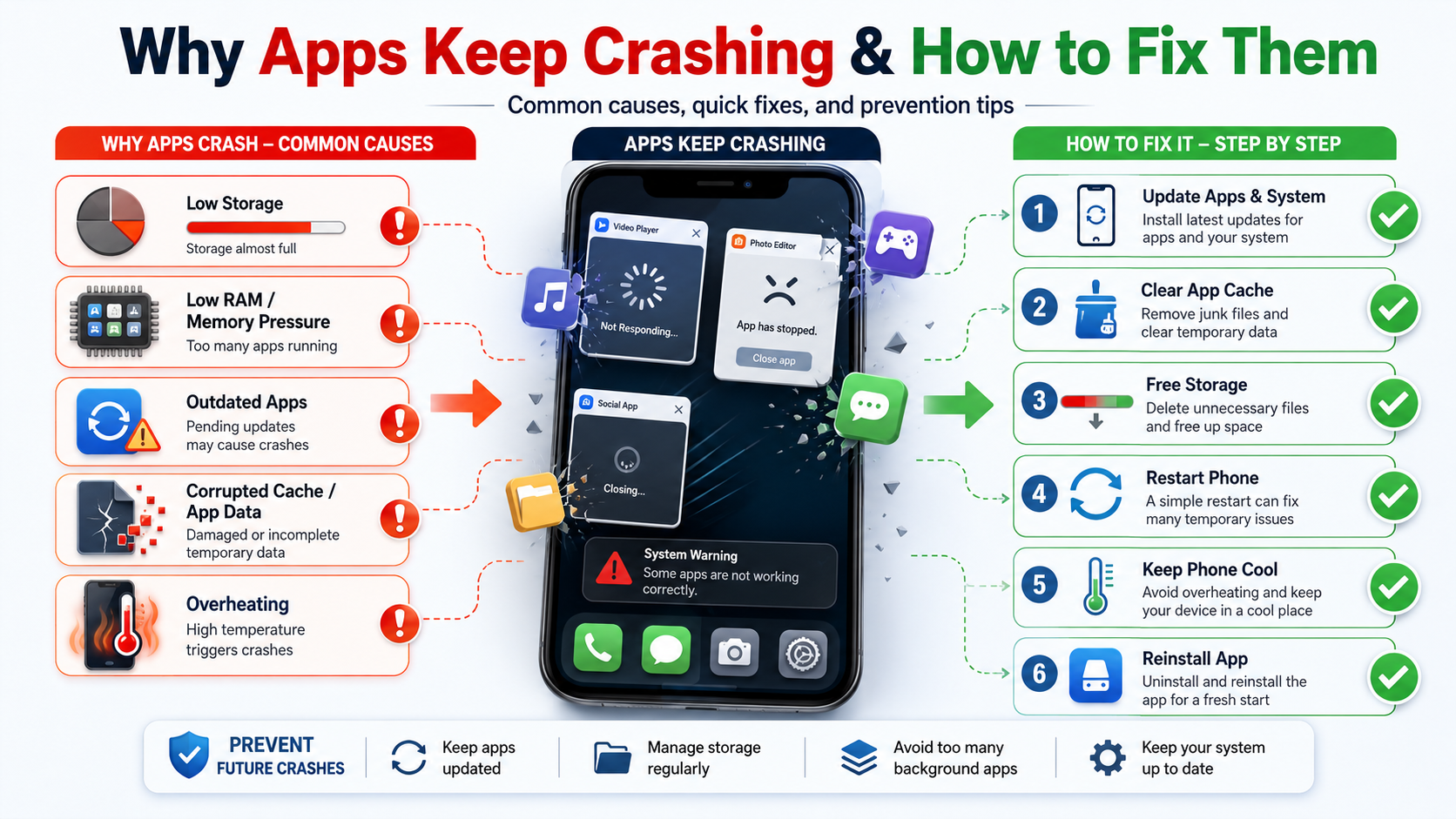
Common causes include outdated apps, software bugs, corrupted temporary data, limited storage, and system-level problems. Google Android Help also recommends checking updates, restarting the device, and troubleshooting affected apps.
According to Google Android Help, software bugs, outdated versions, and low device storage are common culprits behind these frustrating glitches.
If apps keep crashing on your phone, the right solution depends on whether one app crashes or many apps fail. This guide explains the most common causes and practical fixes.
You will learn how to fix an app that constantly crashes, free storage, manage system components, and reduce unnecessary interruptions. You will also find answers to common questions about app crashes, RAM, storage, and factory resets.
How to Fix an App Constantly Crashing
When apps keep crashing in only one application, the problem often affects that app rather than the entire phone. Corrupted cache files, outdated software, and damaged app data are common causes. Compatibility problems can also appear after an operating system update.
Start with the simplest fixes. Restart your phone, then open the app again. If it still crashes, check whether an update is available. Developers often release updates that correct bugs and improve compatibility.
If updating does not help, clear the app’s cache. This removes temporary files without normally deleting your personal information. If the problem continues, clearing the app’s storage can provide a deeper reset. However, this may remove saved settings or account data.
Before clearing storage, make sure important information is synchronized with your account.
If none of these steps work, reinstall the app. A fresh installation can replace damaged files and resolve persistent errors. Also check for available system updates.
Clear Cache and Update Your Software
Clearing an app’s cache is one of the safest ways to troubleshoot repeated crashes. Open your phone’s settings, select the affected app, and find its storage options. Choose Clear cache and then reopen the app.
Next, visit your device’s official app store. Search for the affected app and install any available update. Also check your phone’s system settings for an operating system update, especially if you need to speed up your Android phone.
Updates can fix known bugs, security problems, and compatibility issues. They can also improve performance after major system changes.
If apps keep crashing after an update, consider clearing the app’s storage or data. Remember that this step can remove locally stored information. You may need to sign in again afterward.
Reinstalling the app is another useful option. Uninstall it, restart your phone, and download the latest version again.
If only one app continues crashing after these steps, the problem may involve the app itself. Check the developer’s support information for known issues.

What Caused All the Apps to Crash?
When apps keep crashing across your entire device, the cause may be broader than a single application. System services help apps perform basic tasks, so problems with those services can affect multiple programs.
A recent operating system update can sometimes introduce compatibility problems. Corrupted system data or a malfunctioning system component can also cause widespread crashes. On Android devices, Android System WebView and related system components have historically been involved in some multi-app crashing problems.
Start by restarting the phone. Then install pending system and app updates. If several apps began crashing after a recent update, check for newer patches before making major changes.
Avoid immediately deleting system components or performing a factory reset. Some system apps are essential, and changing them incorrectly can create additional problems.
Safe Mode can help identify whether a downloaded app is interfering with the system. If crashes stop in Safe Mode, a recently installed application may be responsible.
For persistent system-wide crashes, back up important data and contact the device manufacturer’s support team.
System Component Failures and Corrupt Updates
A malfunctioning system component can cause multiple apps to crash simultaneously. This happens because many applications depend on shared services to display content, process data, or communicate with the operating system.
Android System WebView is one example of a shared component. It allows apps to display web-based content within their interfaces. If it develops a compatibility problem, several unrelated apps may behave unexpectedly.
First, restart your phone and check for updates. Look for updates to both your installed apps and system components. Installing the latest versions may resolve the issue without further troubleshooting.
If apps keep crashing after a particular system update, search your device manufacturer’s support resources for a confirmed fix. Some devices may provide an option to uninstall updates for certain system components. However, this option varies by device and Android version.
Do not remove critical system packages unless official instructions recommend doing so.
If widespread crashes continue, try Safe Mode. This temporarily disables downloaded apps and can help identify third-party software conflicts.
Why Is My Phone Kicking Me Out of Every App?
If apps keep crashing and your phone repeatedly returns you to the home screen, several factors may be responsible. Low available storage, software bugs, overheating, and system instability can all contribute to unexpected app closures.
Storage problems are especially important. Apps need some free space for temporary files, updates, and normal operations. When storage becomes critically low, the device may experience performance problems and failed processes.
Memory pressure can also affect multitasking. Modern phones manage RAM automatically and may stop background processes when resources are needed. This does not always indicate a hardware fault.
Start by checking your available storage. Remove unnecessary downloads, duplicate files, and large media you no longer need. Then restart the phone and test the affected apps.
If the device feels unusually hot, let it cool before using demanding applications again. Avoid prolonged heavy workloads while the phone is overheating.
If every app continues closing, check for system updates. Persistent problems may indicate a deeper software issue that requires manufacturer support.
Free Up RAM and Storage Space
Keeping enough free storage can improve overall device stability. Open your phone’s storage settings to see which categories consume the most space. Large videos, downloads, photos, and unused applications often account for substantial storage use.
Delete files you no longer need, but back up important photos and documents first. You can also remove unused apps and clear unnecessary downloads.
RAM works differently from storage. RAM is temporary working memory used by active processes. If you’re unsure how much memory your device needs, see our guide to Android phone RAM needs. Android generally manages RAM automatically, so constantly force-closing background apps is not usually necessary.
If apps keep crashing when your phone becomes sluggish, restarting the device can temporarily clear active processes. However, frequent crashes are unlikely to be solved permanently by repeatedly closing apps.
Try to keep the operating system and applications updated. Also avoid running demanding tasks when the phone is overheating.
If crashes continue despite sufficient storage and current software, investigate the specific app or system component involved. Persistent device-wide failures may require professional or manufacturer support.
Why Is My Phone Suddenly Closing Apps?
A phone may suddenly close an app because of software errors, memory pressure, overheating, or system restrictions. These problems can explain why apps keep crashing without warning.
For example, an app that closes during heavy use may be struggling with a software bug or resource demand. An app that closes after the phone becomes very hot may be affected by thermal protection.
Battery-saving features can also restrict background activity. However, they do not normally force-close an app that you are actively using. Their effects are more noticeable with background syncing, notifications, and other background tasks.
Check whether the issue occurs only with one application. If so, update, clear the cache, or reinstall that app.
If several apps close unexpectedly, check storage and system updates. Also note whether the problem began after installing a new application or update.
Avoid using demanding games, cameras, or video editors while your phone is excessively hot. Give the device time to cool before continuing.
These steps can help identify whether the problem comes from an individual app, system software, or device conditions.
Manage Battery Saver and Thermal Limits
Battery-saving features can limit background activity to extend battery life. Depending on your phone, these settings may delay notifications, restrict synchronization, or limit background processes. Understanding battery health and cycle count can also help when evaluating how your device’s battery is performing over time.
If an important app does not work correctly in the background, check its battery or background-usage settings. Some devices let you choose less restrictive settings for individual applications.
Do not disable battery optimization for every app. Doing so can increase battery consumption without fixing ordinary crashes.
Heat is another important factor. Phones can reduce performance when temperatures become too high. Heavy games, video editing, navigation, or camera use can generate substantial heat, especially while charging.
If your phone becomes hot, stop demanding tasks and allow it to cool naturally. Avoid placing it in extreme temperatures or using unsafe cooling methods.
A protective case can also retain heat in some situations, although this depends on the device and case design.
If apps keep crashing even when the phone is cool, check for updates and available storage. Persistent crashes may require reinstalling the app or contacting the developer or device manufacturer.
How Do I Stop Apps From Closing?
If apps keep crashing, preventing repeated closures starts with regular device maintenance. Keep your apps and operating system updated so known bugs and compatibility problems can be corrected.
Storage management also matters. Try to keep a reasonable amount of free space available for temporary files, updates, and normal system activity. Remove unused apps, downloads, and large files when storage becomes crowded.
Restarting your phone can resolve temporary software problems. It is also useful after installing major updates or when the device begins behaving unusually.
Avoid installing apps from untrusted sources. Third-party software can contain bugs or conflict with other applications. Use official app stores whenever possible.
Pay attention to patterns. If crashes began after installing one application, updating the operating system, or changing a battery setting, that information can help identify the cause.
You should also keep your phone at a reasonable temperature. Avoid prolonged heavy workloads when the device is already hot.
If one app continues crashing after basic troubleshooting, contact its developer. If every app fails, seek manufacturer support before performing a factory reset.
Maintain Routine Device Maintenance
Routine maintenance can reduce many common causes of app crashes and poor phone performance. Start by checking for operating system and application updates regularly. Updates often contain bug fixes, security improvements, and compatibility changes.
Review your storage periodically. Delete unnecessary downloads and large files, and remove applications you no longer use. Back up important data before making major changes.
You can also restart your phone when it becomes unusually slow or unstable. A restart can clear temporary processes and resolve minor system glitches.
Avoid repeatedly clearing RAM or force-stopping every background app. Modern operating systems manage memory automatically, and aggressive task management can sometimes reduce efficiency.
Monitor your phone’s temperature during demanding activities. If the device becomes very hot, pause the activity and let it cool.
Finally, watch for patterns. Note which applications crash, when the crashes occur, and whether they started after an update.
If apps keep crashing despite regular maintenance, the issue may require deeper system troubleshooting or professional support.
FAQ
When apps keep crashing, the right solution depends on the symptoms. A single crashing app usually requires app-level troubleshooting. Several crashing apps may indicate a system or storage problem.
Before taking drastic action, start with simple fixes. Restart the device, install available updates, check storage, and test the affected applications again.
If an app still crashes, clear its cache or reinstall it. For widespread crashes, investigate system updates and shared components. Safe Mode can also help identify conflicts caused by downloaded applications.
A factory reset should remain a last resort. It removes personal data and requires you to restore your device afterward.
The questions below cover common concerns about app crashes. They also explain when storage, background apps, or system problems may be responsible.
Why Do My Apps Crash Immediately Upon Opening?
Apps that crash immediately after opening may have corrupted data, outdated software, or compatibility problems. Start by restarting your phone and checking for an available app update.
If the problem continues, clear the app’s cache through your device settings. This removes temporary files without normally deleting your account information or personal files.
If apps keep crashing immediately after opening, clearing the app’s storage may provide a deeper reset. This can remove saved settings and require you to sign in again.
Reinstalling the application is another effective option. Uninstall the app, restart your phone, and download the latest version from the official app store.
If several apps crash immediately, investigate system updates, available storage, and shared system components. A device-wide problem requires different troubleshooting than an isolated app failure.
When only one app continues crashing after reinstallation, the issue may be specific to that app. Check its official support resources for known problems.
Can a Lack of Storage Space Cause Apps to Crash?
Yes, critically low storage can contribute to app crashes and poor device performance. Applications need available space for temporary files, updates, cached content, and other operations.
When storage becomes nearly full, the phone may struggle to complete routine tasks. You may notice failed updates, slow performance, freezes, or unexpected app closures.
Check your storage through the device settings. Identify large files, unused applications, downloads, and other unnecessary data.
Before deleting anything important, create a backup. Photos and videos often consume the most space, so reviewing large media files can quickly free capacity.
Do not confuse storage with RAM. Storage holds files and applications, while RAM provides temporary working memory for active processes.
If apps keep crashing despite having enough storage, investigate other causes. Corrupted app data, software bugs, overheating, or system conflicts may be responsible.
After freeing storage, restart your phone and test the affected apps. If crashes continue, update the apps and operating system.
Should I Factory Reset My Phone If Apps Keep Crashing?
A factory reset should be a last resort when apps keep crashing despite other troubleshooting steps. It removes personal data, installed applications, settings, and other information from the device.
Before considering a reset, try less destructive solutions first. Restart the phone, install updates, check storage, clear problematic app data, and reinstall affected applications.
If many apps crash, test the phone in Safe Mode when that feature is available. Safe Mode can help determine whether a downloaded application is causing system instability.
Also check whether the crashes began after a recent update or installation. This timing can provide useful clues.
If you decide to perform a factory reset, back up important information first. Save photos, contacts, documents, authentication information, and other essential data.
Make sure you know the account credentials needed to set up the phone again. After the reset, reinstall applications gradually rather than restoring everything at once.
If crashes continue even after a factory reset, the problem may involve hardware or deeper system issues. Contact the device manufacturer’s support team or an authorized repair provider.
Do Background Apps Affect Performance and Cause Crashes?
Background apps can use RAM, battery, storage, and processing resources, but modern phones manage these resources automatically. A large number of installed apps does not necessarily mean they are all actively consuming RAM.
When memory becomes limited, the operating system may stop background processes. This helps keep the current task responsive and does not automatically mean the phone is malfunctioning.
However, poorly designed or buggy applications can continue performing background tasks. These may increase battery use, consume resources, or interfere with other software.
If you notice unusual behavior after installing an application, uninstalling it can help determine whether it is responsible. You can also review battery and background-usage settings on your device.
Restarting the phone may resolve temporary performance problems. Keeping apps and system software updated is also important.
If apps keep crashing while multitasking, investigate storage, overheating, system updates, and possible software conflicts. Avoid task-killer apps that constantly force-stop background processes.
If every app keeps closing, manufacturer support may be necessary.
Conclusion
When apps keep crashing, the cause can range from simple app bugs to broader system problems. The most effective solution depends on whether one application or the entire device is affected.
For a single crashing app, start by restarting the phone and installing updates. Then clear the app’s cache and consider clearing its data or reinstalling it.
If several apps crash, check your available storage and system software. Shared components and faulty updates can sometimes cause widespread failures.
Device temperature also matters. Let an overheating phone cool before running demanding applications again. Battery settings may affect background activity, but they are not usually the main cause of active-app crashes.
Regular maintenance can reduce recurring problems. Keep software updated, maintain sufficient storage, and avoid untrusted applications.
A factory reset can help with severe software corruption, but it should remain a final option. Always back up important information first.
If apps keep crashing after trying these fixes, look for patterns and check your manufacturer’s support resources. With the right troubleshooting steps, you can identify common causes and keep your phone more stable and reliable.