
Why Can’t You Decline Calls on iPhone Sometimes? The Real Reason
Have you ever wondered how to decline calls on iPhone when the red reject button suddenly disappears? Instead of seeing the familiar green and red buttons, you might see a single slider on your screen. This difference often confuses users who want to reject incoming calls quickly.
The reason is usually your iPhone’s current screen state. Apple changes the incoming call interface depending on whether your device is locked or unlocked. This is a standard iOS design choice, not necessarily a software problem.
According to Apple Support, a locked iPhone displays a slider for answering calls. When your phone is unlocked, you can access the familiar call controls.

This guide explains why the decline button disappears and how to reject unwanted calls. You’ll also learn about physical button shortcuts, call screening, and Focus settings. These methods help you manage incoming calls without unnecessary interruptions.
Why Do I Not Have the Option to Decline Calls on My iPhone?
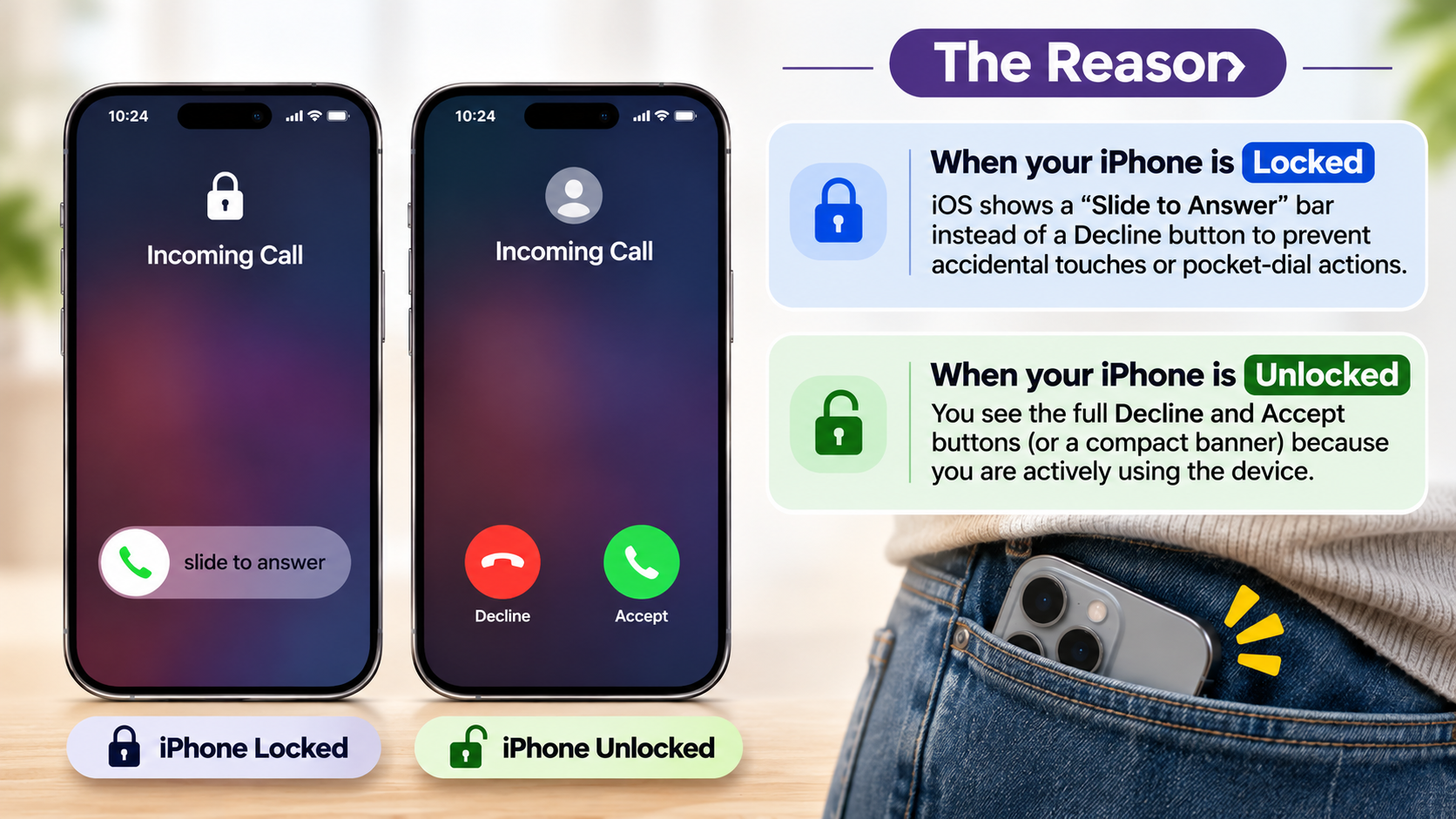
You might not see a red decline button because your iPhone is locked. Apple uses different incoming call interfaces for locked and unlocked devices. When your iPhone is locked, the screen generally displays a full-width slider instead of separate answer and decline buttons.
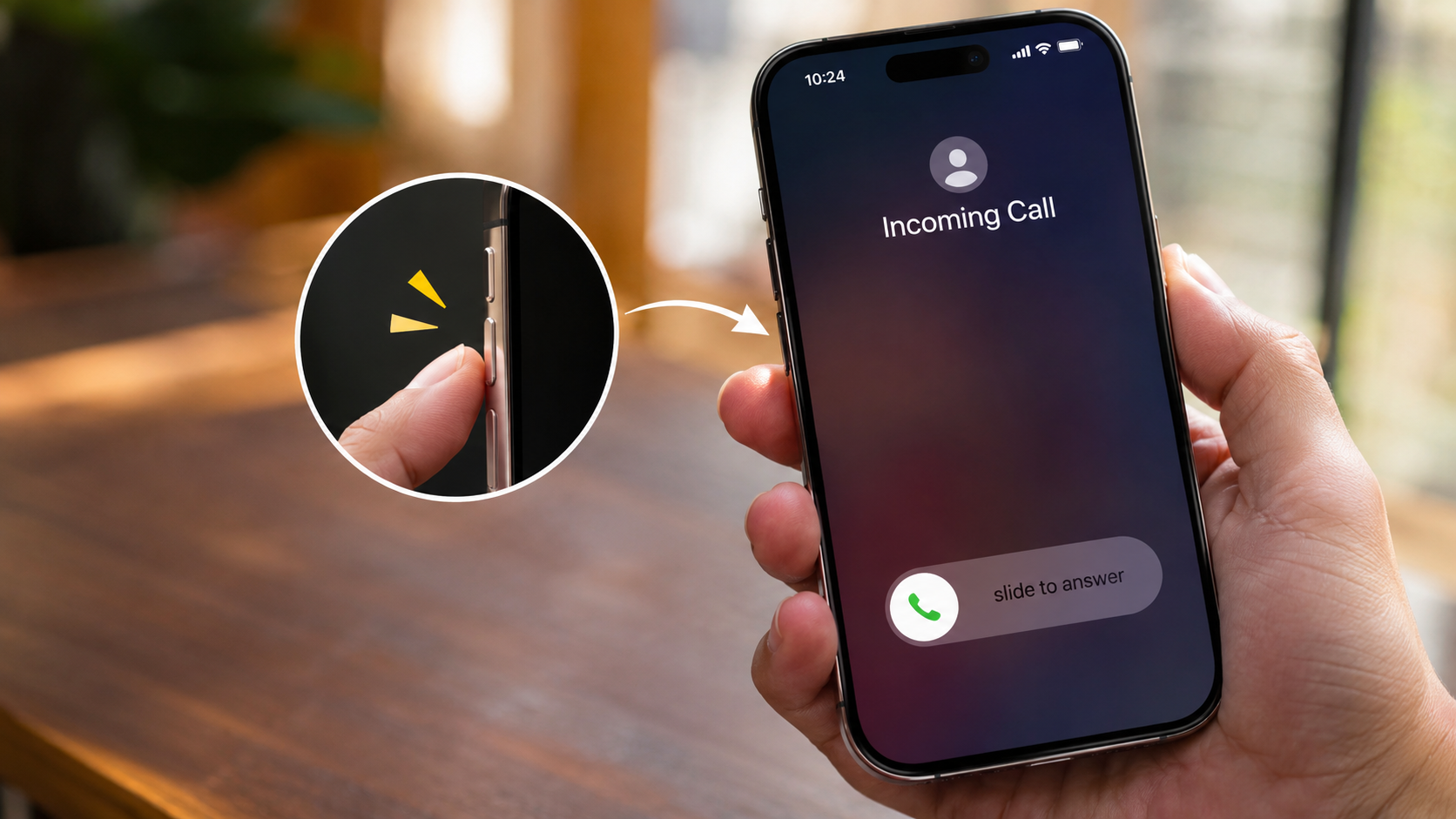
This design helps prevent accidental screen interactions. You can answer by dragging the slider across the display. However, you don’t need to unlock your phone to reject the call. Simply press the side button twice quickly.
When your iPhone is already unlocked, the interface changes. You’ll usually see separate buttons for accepting or declining incoming calls. Some calls also appear as compact banners while you’re using another application.
Preventing Unintended Screen Contact in Pockets
Apple’s locked-screen interface requires a deliberate sliding gesture to answer incoming calls. This reduces accidental interactions when your iPhone is inside a pocket or bag.
Imagine walking outside with your phone in your pocket. A simple screen tap could accidentally trigger an action. A sliding gesture requires more intentional contact.
This approach helps prevent unwanted answers while carrying your device. However, it doesn’t mean that Apple completely disables call rejection on the Lock Screen.
You can still reject calls without touching the display. Press the side button twice quickly to decline an incoming call. Alternatively, press the side button or either volume button once to silence the ringtone.
Remember the difference between these actions:
- One press: Silences the incoming call.
- Two quick presses: Declines the incoming call.
- Volume button press: Silences the ringtone without rejecting the caller.
These shortcuts work without opening the Phone app.
Why Do Some Calls Not Allow You to Decline?
Sometimes, incoming calls appear without an obvious red decline button. This can happen when your iPhone displays the full-screen locked interface. However, it doesn’t mean that certain callers have restricted your ability to reject their calls.
The incoming call layout primarily depends on your device’s current interface state. Your contact list and the caller’s identity don’t determine whether the physical decline shortcut works.
When your iPhone is unlocked, you can usually tap the red decline button directly. When it’s locked, use the side button twice quickly.
Some calls may also appear as compact notification banners. In these situations, you can swipe up on the banner to decline the call. You can also tap the banner to access additional options.
Understanding these interface differences makes managing incoming calls much easier.
The Contrast Between Locked and Unlocked States
Your iPhone displays incoming calls differently depending on whether you’re actively using the device.
When your iPhone is locked, you generally see a full-screen incoming call interface. The screen provides a slider for answering. To decline the call, press the side button twice quickly.
When your iPhone is unlocked, the interface provides more direct controls. Depending on your settings and iOS version, you might see a full-screen interface or a compact incoming call banner.
Here are the main differences:
- Locked iPhone: Drag the slider to answer or double-press the side button to decline.
- Unlocked iPhone: Tap the red decline button when available.
- Incoming call banner: Swipe up to decline or tap for additional options.
These differences are part of Apple’s standard calling interface. They aren’t necessarily signs of a software malfunction.
How to Enable the Decline Option on iPhone?
Unfortunately, iOS doesn’t provide a dedicated setting to permanently display the red decline button on the locked screen. You cannot simply enable this option through the Settings application.
However, you can still decline incoming calls quickly without unlocking your device. The easiest method involves using your iPhone’s physical side button.
When an incoming call appears, press the side button twice quickly. Your iPhone will decline the call and send it to voicemail when supported by your carrier and region.
If you press the side button only once, the ringtone stops. The caller can still continue ringing until the call reaches voicemail.
You can also use the red decline button whenever it appears on your display. For additional options, tap the incoming call banner and choose Message or another available action.
These methods provide practical alternatives when the red button isn’t visible.
Using AssistiveTouch for Virtual Screen Controls
AssistiveTouch is an accessibility feature that provides virtual controls on your iPhone. It helps users perform certain actions without repeatedly pressing physical buttons.
To enable AssistiveTouch:
- Open the Settings application.
- Select Accessibility.
- Tap Touch.
- Select AssistiveTouch.
- Turn on the AssistiveTouch option.
A floating button will appear on your screen. You can use its menu to access supported device controls and gestures.
However, there’s an important limitation. Selecting Device and then Lock Screen does not decline an incoming call. It simply locks your iPhone.
Therefore, AssistiveTouch shouldn’t be treated as a dedicated call-rejection shortcut. If your goal is to decline incoming calls quickly, the physical side button remains the more direct option.
You can also explore Voice Control and other accessibility features if physical button operation is difficult.
How to Make Your iPhone Auto-Decline Calls?
You can reduce unwanted interruptions using several built-in iPhone features. However, iOS doesn’t offer one universal setting that automatically rejects every incoming call.
For unknown callers, Apple provides call-screening and silencing options. Depending on your iOS version and region, you can configure these features through Settings.
To silence unknown callers, follow these steps:
- Open Settings on your iPhone.
- Select Apps.
- Tap Phone.
- Find the section for unknown callers.
- Enable the available screening or silencing option.
The exact options depend on your iOS version. Silencing unknown callers sends eligible calls to voicemail rather than ringing normally.
You can also block specific phone numbers through the Phone app. This prevents blocked numbers from contacting you through standard phone calls.
Focus mode provides another option. It helps silence calls and notifications during meetings, work, or sleeping hours.
Activating Driving Focus for Auto-Replies
Driving Focus helps reduce distractions while you’re driving. It can silence incoming calls and notifications according to your configured settings.
However, Driving Focus doesn’t automatically decline every incoming call. Its primary purpose is to minimize interruptions while you concentrate on the road.
You can also configure automatic replies for incoming messages. This feature informs selected contacts that you’re currently driving and cannot respond.
To configure Driving Focus:
- Open Settings.
- Tap Focus.
- Select Driving.
- Configure the people allowed to contact you.
- Customize automatic reply settings when available.
- Choose how Driving Focus activates.
You can enable automatic activation when your iPhone detects driving conditions.
Remember that automatic replies apply to messages, not every incoming phone call. Always prioritize road safety and avoid interacting with your phone while driving.
How Can I Reject Incoming Calls?
There are several ways to reject incoming calls on your iPhone. The method you choose depends on whether your device is locked, unlocked, or connected to another Apple device.
If your iPhone is unlocked, tap the red Decline button when it appears. This immediately rejects the incoming call.
If your iPhone is locked, press the side button twice quickly. This is one of the fastest ways to decline calls without unlocking your device.
You can also use the incoming call banner to access additional options. Depending on your interface, you may find options for sending a message or managing the call.
Apple also supports text replies for incoming calls. These replies allow you to inform callers that you’re unavailable.
For example, you can configure default responses through Settings, Apps, Phone, and Respond with Text.
These options make it easier to manage unwanted calls without answering them.
Dismissing Calls With Apple Watch and Remotes
An Apple Watch provides another convenient way to manage incoming calls. You can accept or decline calls directly from your wrist without reaching for your iPhone.
When an incoming call appears on your Apple Watch, tap the red end-call button to decline it. The call will be sent to voicemail when supported.
Apple Watch also provides additional ways to silence incoming calls. You can cover the display with your palm or perform a wrist flick.
However, these gestures should not be confused with declining a call. Covering the display or performing a wrist flick silences the call and sends it to voicemail according to Apple’s supported behavior.
Connected headphones may also provide call controls. However, the available controls depend on the headphone model and its configuration. If you use AirPods, remember that switching from AirPods to Samsung Galaxy Buds can change which familiar features and call controls are available.
For compatible AirPods, you can use the supported touch or stem controls to manage calls.
These alternatives are useful when your iPhone isn’t immediately accessible. They also help you manage incoming calls more discreetly during meetings and other activities.
Conclusion
Knowing how to decline calls on iPhone becomes easier once you understand how the incoming call screen works. The red decline button may disappear when your device is locked, but you can still reject calls using the physical side button. Press it twice quickly to decline an incoming call, or press it once to silence the ringtone.
You can also manage unwanted interruptions through call screening, blocked numbers, and Focus settings. Apple Watch and compatible headphones provide additional ways to control incoming calls.
Although iOS doesn’t offer a setting to permanently display the red decline button on the Lock Screen, these simple alternatives make call management easier. Choose the method that best fits your daily routine and stay in control of your incoming calls.