4 Simple Tricks to Create a Password You Will Remember
Getting locked out of your favorite online accounts is frustrating. You reset your password, create a new one, and forget it a few days later. To break this cycle, you need to create a password you will remember without compromising your digital safety.
Many people rely on pet names, birthdays, or familiar words. Unfortunately, attackers can guess these details or find them online. Security guidelines from the National Institute of Standards and Technology (NIST) emphasize password length and recommend avoiding predictable choices.
Protecting your personal information does not have to be complicated. Remembering dozens of unique passwords can be difficult, especially when every website has different requirements. Fortunately, a few practical techniques can make password creation easier.
This guide explores four tricks for creating memorable passwords. You will also find five password examples, seven security tips, and advice about common passwords. Finally, we explain how 1Password helps you manage your credentials safely.
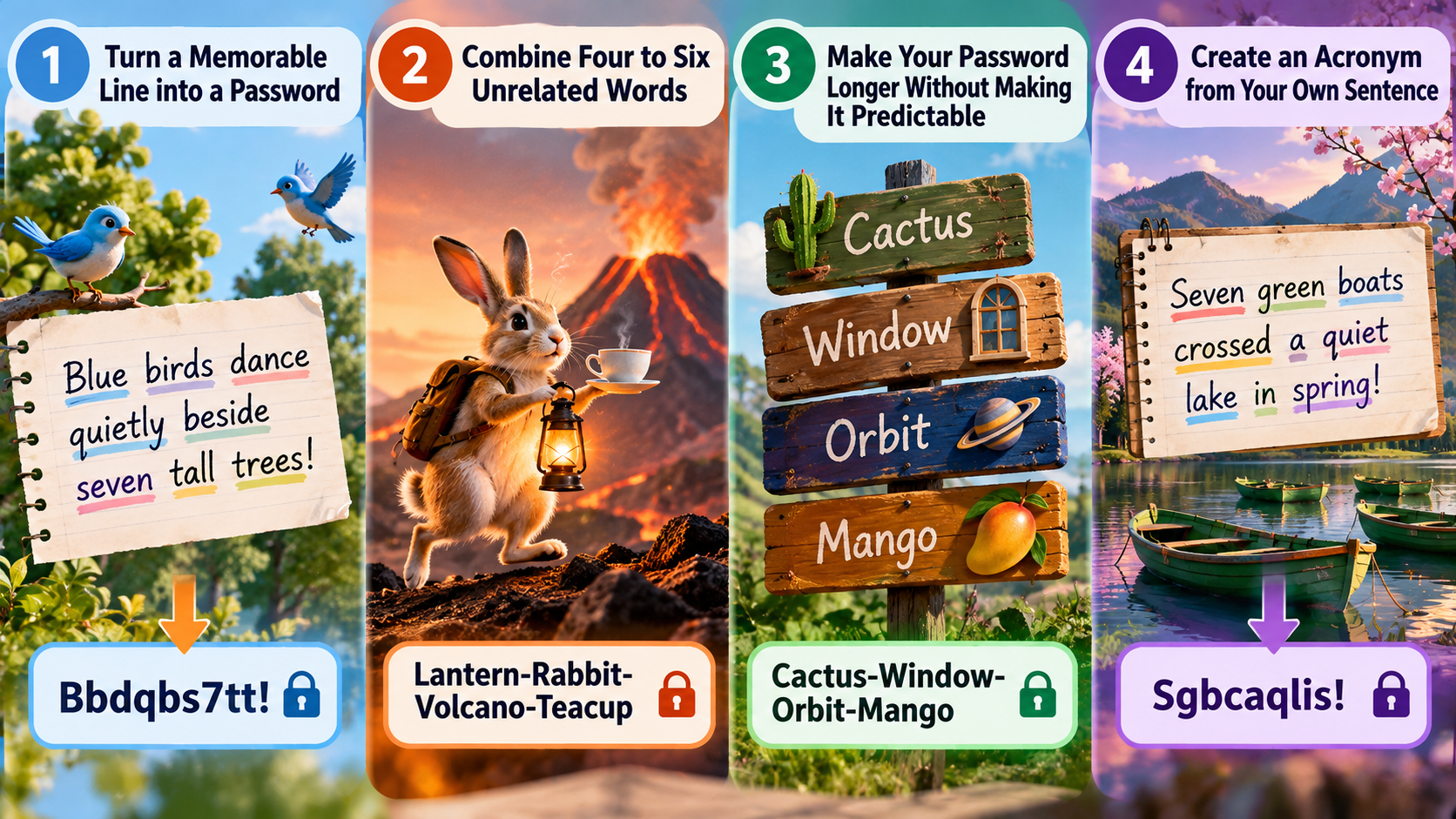
1. Turn a Memorable Line into a Password
The trick: Use a sentence or personal memory that is easy for you to remember.
How to do it: Write an original sentence and take the first letter of each word. You can include punctuation and numbers to create a longer password. Avoid famous quotes, song lyrics, and personal details that others could discover.
Example: Imagine the sentence, “Blue birds dance quietly beside seven tall trees!” You could use its first letters as a starting point: Bbdqbs7tt!.
This method gives you a memory cue instead of a random string. However, predictable sentences and familiar quotations can be guessed. For better security, consider a randomly generated passphrase or password manager.
2. Combine Four to Six Unrelated Words
The trick: Join several random words to create a memorable passphrase.
How to do it: Choose four to six unrelated words that do not naturally belong together. Connect them with hyphens or another separator if your account allows it. Random selection is important because familiar phrases are easier to guess.
Example: Lantern-Rabbit-Volcano-Teacup
Picture a rabbit carrying a lantern up a volcano while balancing a teacup. This unusual image can help you remember the words in order.
A longer passphrase made from randomly selected words can provide strong protection while remaining easy to recall. Do not use this published example as your actual password. Create your own unique combination instead.
3. Make Your Password Longer Without Making It Predictable
The trick: Focus on password length rather than adding random characters to a familiar word.
How to do it: Start with a unique passphrase or use a password manager to generate a long password. If you need to memorize it, add another randomly selected word rather than a predictable number sequence or keyboard pattern.
Example: Instead of extending a short password with 123!, use a randomly selected phrase such as Cactus-Window-Orbit-Mango.
Longer passwords generally provide more possible combinations, making them harder to guess when their components are unpredictable. However, length alone does not guarantee security.
Avoid adding your birth year, house number, or a sequence such as qwerty. Attackers commonly test these patterns. Your goal is to create a password that is both long and difficult to predict.
4. Create an Acronym from Your Own Sentence
The trick: Turn an original sentence into a memory code.
How to do it: Think of a sentence describing an imaginary event or a personal achievement that is not publicly known. Take the first letter of each word, then consider adding punctuation or numbers. Avoid relying on predictable substitutions such as replacing every “E” with “3”.
Example: Consider the sentence, “Seven green boats crossed a quiet lake in spring!” Its initials are Sgbcaqlis!.
This gives you a simple way to recall a sequence of characters by remembering the sentence. However, a short acronym may not provide enough protection on its own.
For stronger security, use a longer sentence or a password manager. Never reuse the same password across multiple accounts, even when the original sentence is easy to remember.
What Is an Easy Way to Create a Password You Will Remember?
The easiest way to create a password you will remember is to use a memorable passphrase or a reliable password manager. Both methods reduce the burden of memorizing complicated character combinations. Here are four techniques you can try.
- Create a passphrase: Combine several unrelated words into a memorable phrase. For example, imagine a giant lemon riding a bicycle through a cloudy sky. Use randomly selected words rather than familiar phrases.
- Use a sentence mnemonic: Start with an original sentence and take selected letters from it. Add enough length and unpredictability to make the result difficult to guess. Avoid sentences based on information others know about you.
- Build a vivid mental image: Connect unrelated objects, colors, or actions in an unusual scene. The stranger the image, the easier it may be to recall.
- Use a password manager: Generate a random password and store it securely. You only need to remember your manager’s master password.
What Are 5 Strong Passwords?
Strong passwords combine sufficient length with unpredictability. They should also be unique to each account. The following examples illustrate different approaches, but never copy these exact passwords because they have been published here.
- Passphrase:
Telescope-Pancake-River-92!illustrates unrelated words with additional characters. - Sentence mnemonic:
Iw2P&s4tEt!2019illustrates a password derived from a sentence. However, predictable dates and recognizable patterns can weaken it. - Mental image:
Ch0c0l@te_Frogs_Jump_High!demonstrates a memorable visual concept. Predictable letter substitutions do not automatically make passwords stronger. - Mixed characters:
98*Blueberry*Muffin*Traindemonstrates varied character types and a longer structure. - Random password:
xK9#mP2$vL5@nQ8illustrates a random-looking string that a password manager could generate.
These examples are teaching templates, not passwords to adopt. A password manager can generate and store unique credentials without requiring you to memorize each one.
What Are Your 7 Best Tips for Creating a Strong Password?
Creating a strong password involves more than adding symbols to a familiar word. Your choices should make passwords difficult to guess while keeping account management practical. Follow these seven tips to improve your password security, and explore this comprehensive password security guide for more ways to protect your digital life.
- Prioritize length: Use long passwords or passphrases. A password manager can generate longer credentials when you do not need to memorize them.
- Never reuse passwords: A breach at one website could expose other accounts if you share credentials.
- Avoid personal information: Do not use birthdays, pet names, addresses, or other publicly available details.
- Avoid predictable patterns: Passwords such as
123456,qwerty, and familiar substitutions are easy to test. - Use a password manager: Generate and store unique passwords rather than relying on memory alone.
- Enable multifactor authentication: Add another verification step, preferably a passkey or security key when supported.
- Check for breaches: Replace exposed passwords promptly, especially if they were reused elsewhere.
What Is the Simplest Password?
The simplest passwords are usually short, predictable, or widely used. Examples include 123456, password, and qwerty. These choices are easy to remember, but they offer little protection against automated guessing attacks.
Common-password lists and leaked credential databases help attackers identify likely passwords quickly. A password does not become safe simply because you add a familiar number or replace a letter with a symbol.
If you want a simple password strategy, focus on memorability without predictability. A long passphrase made from randomly selected words is one option. For home network security, learn how long your router password should be to help protect your Wi-Fi and router settings. A password manager is even more practical when you have many accounts to protect.
For important accounts, such as email and banking, avoid shortcuts that could expose sensitive information. Use unique credentials, enable multifactor authentication, and keep recovery information secure. These habits help protect your accounts without requiring you to memorize dozens of complicated passwords.
What Is the Top 1Password?
1Password is a password manager that helps you generate, store, and manage credentials for different websites and applications. Instead of memorizing every login, you protect your stored information with a master password and the service’s security features.
The main benefit is convenience without relying on password reuse. You can create a unique, randomly generated password for each account and retrieve it when needed. Avoid sharing sensitive account details with AI tools, and understand the security risks of letting an AI chatbot pick your password before using one for account security.
To get started, visit the official website. Review its plans, supported devices, and security features before choosing a subscription.
Your master password deserves particular attention because it helps protect access to your vault. Use a long, unique passphrase that you do not use anywhere else. Enable available multifactor authentication and follow the service’s account-recovery guidance.
No password manager can guarantee complete protection against every threat. Your security also depends on your devices, account recovery practices, and ability to protect your master credentials.
Conclusion
Learning to create a password you will remember does not have to be difficult. Simple techniques, such as using unrelated words, memorable sentences, or mental images, can make passwords easier to recall. However, memorability should never come at the expense of security.
Choose long, unpredictable passwords and use a different one for every account. A trusted password manager can generate and store complex passwords, while multifactor authentication adds another layer of protection. Avoid common phrases, personal information, and predictable number patterns that attackers can easily guess.
Start by improving the passwords you use for important accounts, especially your email and banking accounts. With the right habits, you can make your online accounts easier to manage and harder for unauthorized users to access.