
What Happens If You Run Your CPU Without a Cooler?
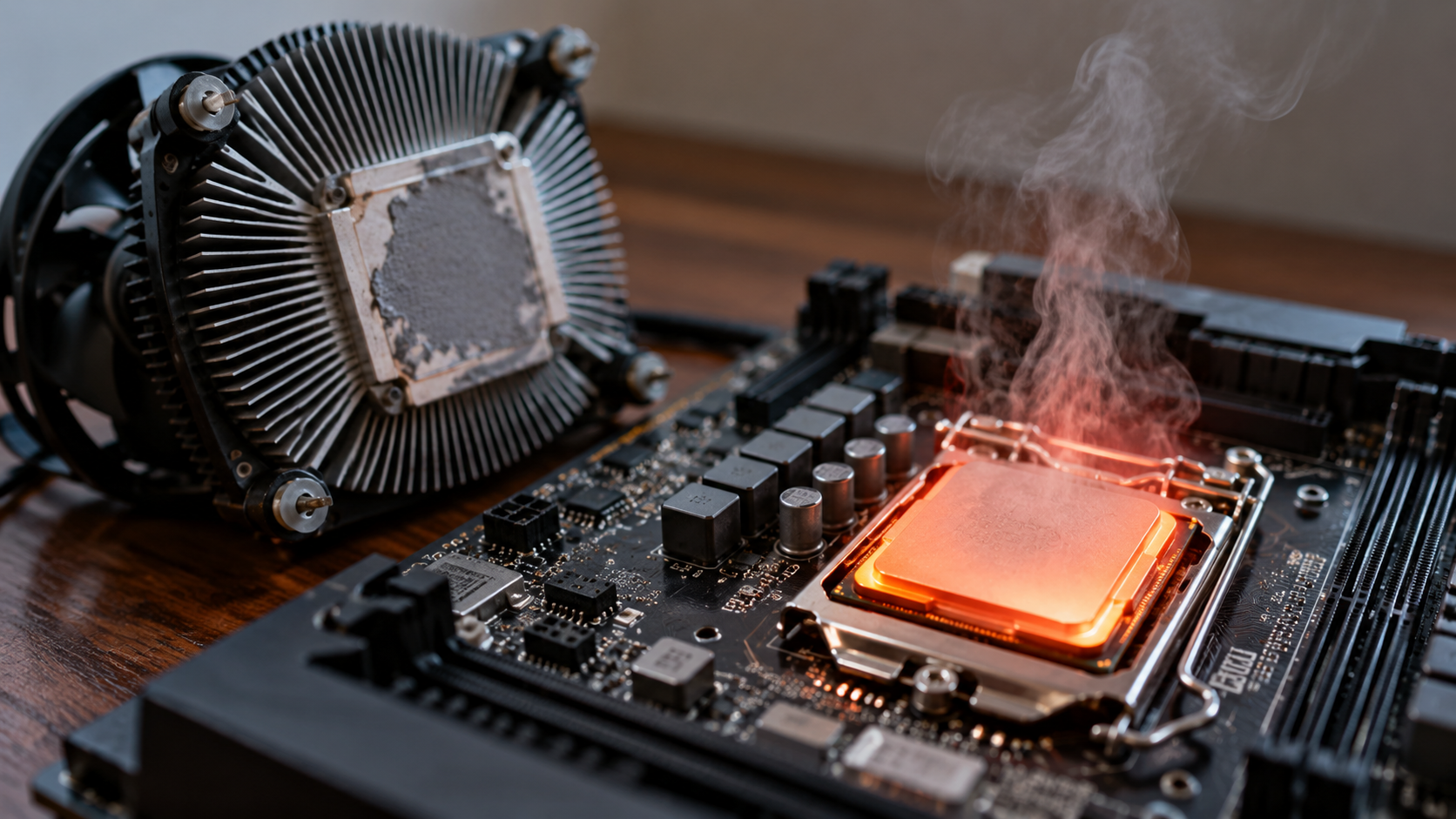
Running a CPU without a cooler can cause rapid overheating, reduced performance, and unexpected shutdowns. Modern processors generate significant heat, even during basic tasks. Without proper cooling, that heat can build up faster than the system can dissipate it.
Processors rely on heatsinks, fans, or liquid cooling systems to maintain safe operating temperatures. According to manufacturers such as Intel, processors have specific thermal limits that users should respect. Built-in thermal protection can reduce performance or shut down the system when temperatures become too high.
However, these safeguards are not a substitute for proper cooling. Running a processor without an appropriate cooling solution can put your hardware at risk, particularly if protective mechanisms fail or the system cannot respond correctly.
This guide explains what happens when you run a CPU without a cooler, how quickly overheating can occur, and whether leaving a gaming PC running continuously causes damage. You’ll also learn whether 80°C is too hot for a processor and how to identify potential cooling problems.

Is It Safe to Use a CPU Without a Cooler?
No, you should not run a modern CPU without an appropriate cooling solution. As soon as the processor starts working, it generates heat. Without a heatsink or another effective cooling system, that heat cannot escape efficiently.
Temperatures can rise rapidly, even when the computer is only starting up or displaying the BIOS screen. The exact rate depends on the processor, its power consumption, and the surrounding hardware.
Most modern processors include thermal protection features. These can reduce clock speeds, limit power consumption, or shut down the system when temperatures approach unsafe levels. However, these safeguards do not make operating without a cooler safe.
Even a brief test can cause overheating or trigger an emergency shutdown. Repeated overheating may also affect long-term reliability, especially if the processor operates beyond its intended thermal limits.
For safe operation, install a compatible CPU cooler and apply thermal paste when required. If you’re deciding between different cooling methods, compare air cooling and liquid cooling to understand which option suits your system. Ensure the cooler is mounted correctly and that the system can move hot air away from the processor.
The Immediate Risks of Thermal Runaway
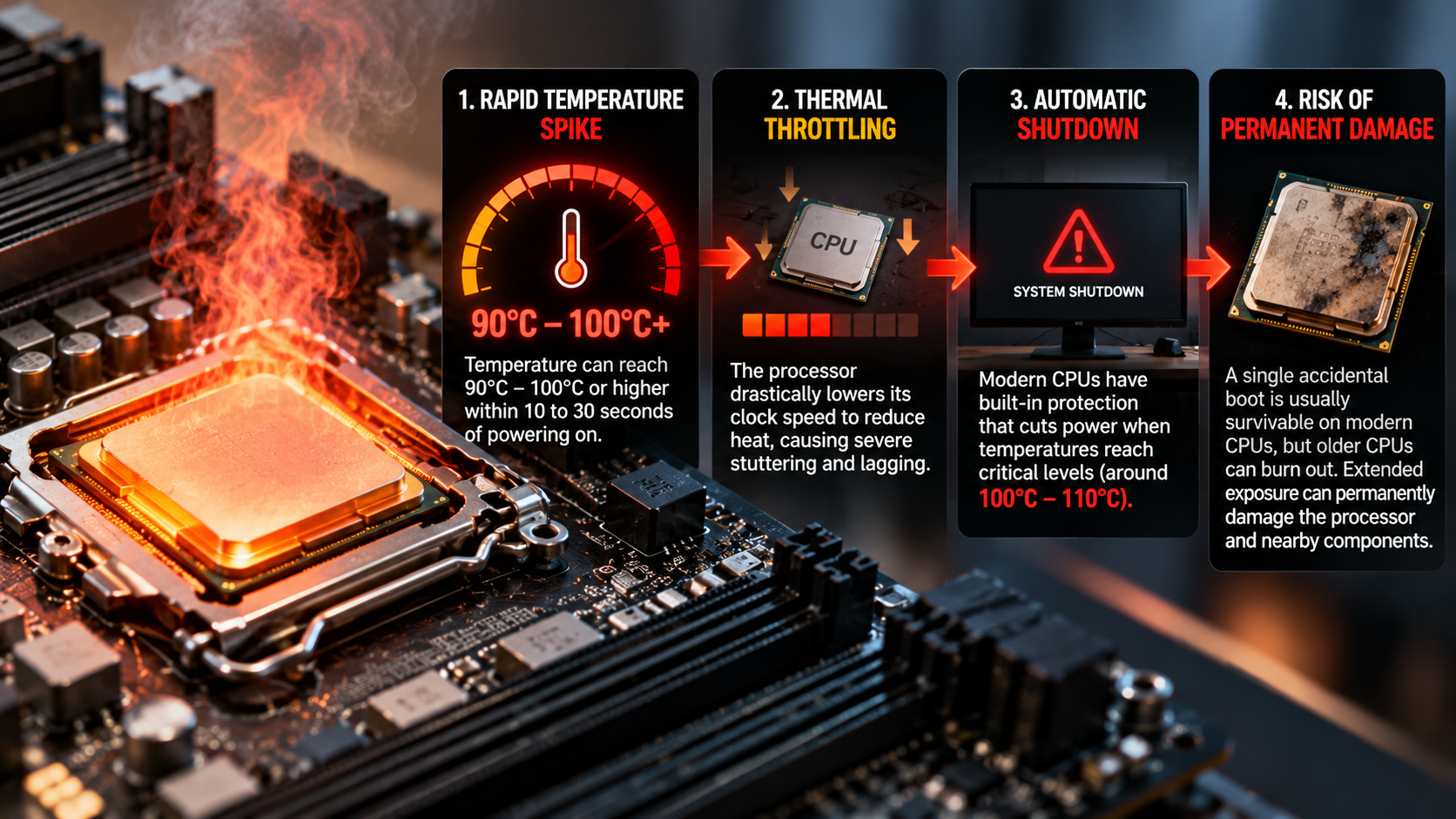
Thermal runaway describes a situation in which increasing temperatures contribute to further heat generation, potentially creating a dangerous feedback loop. In a CPU, overheating can also increase leakage current and cause the processor to exceed its thermal limits.
Without a cooler, a processor may reach its thermal threshold very quickly. The exact time varies with its design, power consumption, and workload. There is no universal number of seconds that applies to every CPU.
Possible consequences include:
- Thermal throttling: The processor reduces its speed to control temperatures.
- System instability: The computer may freeze, restart, or shut down unexpectedly.
- Hardware stress: Repeated exposure to excessive temperatures may reduce long-term reliability.
- Potential damage: If thermal safeguards fail or cooling remains inadequate, the processor or surrounding components may be damaged.
Do not rely on thermal protection as your primary cooling method. Install the appropriate cooler before powering on the computer, and make sure your case provides enough space and airflow for the cooling hardware. This is especially important when choosing a PC case for air and liquid cooling.
How Long Can I Run My CPU Without a Cooler?
You should not run a CPU without a cooler for any length of time. Some processors may trigger thermal protection or shut down quickly, while others may behave differently depending on their hardware and firmware.
There is no reliable universal time limit. The processor’s power consumption, workload, cooling arrangement, and thermal protection mechanisms all influence how quickly temperatures rise.
Modern CPUs can reduce their clock speeds or power consumption when they become too hot. Many systems also have emergency shutdown mechanisms. These features help protect hardware, but they cannot guarantee that every component will remain safe under every condition.
Even entering the BIOS without a cooler can generate enough heat to trigger thermal protection. Therefore, avoid using the BIOS screen as a way to test whether an uncooled processor can operate safely.
If you have already powered on a CPU without a cooler, switch off the system and install a compatible cooling solution before using it again. Check that the heatsink is mounted securely, the thermal interface is applied correctly, and the fan or pump operates as intended.
Understanding Thermal Cutout Protection
Thermal cutout protection helps prevent a processor from overheating beyond its intended operating limits. Depending on the system, the processor may reduce its operating speed, limit power consumption, or initiate a shutdown.
These responses are designed to control excessive heat. However, the exact behavior varies by CPU model, motherboard, firmware, and cooling configuration.
Thermal protection does not always mean the motherboard immediately cuts power when a temperature threshold is reached. Some processors first attempt to control their temperature through thermal throttling.
You should also understand that a shutdown does not automatically mean the hardware has been damaged. Likewise, a computer that continues running has not necessarily avoided thermal stress.
To reduce risk, follow these precautions:
- Install a compatible heatsink or liquid cooling system before starting the computer.
- Apply thermal paste according to the cooler manufacturer’s instructions.
- Check that the CPU fan or liquid cooling pump is connected and working. If you use liquid cooling, avoid common maintenance mistakes that can affect cooling performance. Review mistakes to avoid with liquid cooling systems before troubleshooting your setup.
- Monitor temperatures after installation to confirm that cooling is effective.
Never deliberately disable thermal protection to keep an overheating processor running.
Is It Bad to Leave a Gaming PC On 24/7?
Leaving a gaming PC running 24/7 does not automatically damage its components. Modern computers can operate continuously when properly cooled, maintained, and used within their intended limits. However, continuous operation has some disadvantages.
A PC that remains on all day consumes electricity, even when you are not actively using it. The amount depends on its hardware, power settings, and background activity. Gaming desktops may draw considerably more power than lightweight computers during demanding tasks.
Continuous operation also keeps fans running when active cooling is needed. Over time, fans can wear out, and dust may accumulate inside the case. Mechanical hard drives can experience additional operating hours, although component lifespan depends on several factors.
Heat management matters more than simply counting how many hours the PC stays powered on. A well-cooled system operating within its temperature limits can handle extended use more safely than a poorly cooled computer running for shorter periods.
If you do not need your PC overnight, sleep mode or shutdown can reduce electricity consumption and operating hours.
Managing Power Draw and Component Wear
Managing power consumption and component temperatures helps keep your gaming PC reliable. You do not necessarily need to shut down your computer after every short break, but leaving it running continuously without a reason can waste electricity.
Consider these practical steps:
- Use sleep mode: Sleep reduces power consumption while allowing you to resume your session quickly.
- Shut down when appropriate: Turn off the computer when you will not need it for an extended period.
- Clean the case regularly: Remove accumulated dust from filters, fans, and heatsinks according to the manufacturer’s guidance. Follow this guide on cleaning electronics safely with compressed air to remove dust without damaging sensitive components.
- Monitor temperatures: Check CPU temperatures during gaming, rendering, and other demanding workloads.
- Maintain airflow: Keep case vents clear and ensure fans operate correctly.
Thermal paste does not necessarily become ineffective after just a few months. Its lifespan depends on the product, operating temperatures, and installation quality.
Likewise, leaving a PC on overnight does not automatically shorten its lifespan significantly. Proper cooling, sensible power management, and routine maintenance matter more than a strict rule about daily shutdowns.
Is 80°C Too Hot for a CPU?
A CPU temperature of 80°C is not automatically too hot. Many modern processors can operate at this temperature during gaming, video editing, rendering, and other demanding workloads. However, acceptable temperatures vary by processor model and manufacturer specifications.
Some CPUs are designed to operate near 90–100°C under heavy loads. Others have lower recommended operating limits. Check your processor’s official specifications before deciding whether a temperature is safe.
An 80°C reading during gaming may be normal, particularly in a compact case or during a demanding workload. However, the same temperature at idle deserves investigation.
High idle temperatures may indicate poor cooler contact, inadequate airflow, excessive background CPU usage, or a malfunctioning fan. Incorrect thermal paste application can also contribute to the problem. If you’re comparing processors for a gaming build, understanding which AMD CPU is best for gaming in 2026 can help you evaluate performance alongside cooling requirements.
Temperature alone does not tell the whole story. You should also consider CPU utilization, clock speeds, power consumption, and whether thermal throttling occurs.
If temperatures remain unusually high, inspect the cooling system before attempting demanding tasks. Keeping the processor within its specified operating limits helps maintain stable performance and reliability.
Safe Temperature Thresholds for Modern Chips
There is no single temperature range that applies to every modern CPU. The processor model, workload, power settings, and cooling system all influence its operating temperature.
The following ranges provide general guidance rather than universal safety limits.
| CPU operating condition | General temperature guidance |
|---|---|
| Idle or light use | Often around 30–50°C |
| Gaming or demanding applications | Often around 60–85°C |
| Heavy workloads | Some processors may reach 85–95°C or higher |
| Near the thermal limit | Check the manufacturer’s specifications and monitor for throttling |
These ranges are approximate. Room temperature, cooler design, and processor generation can change what is normal for your system.
If your CPU reaches 80°C during gaming, check whether performance remains stable and temperatures stay within the manufacturer’s limits. it approaches its maximum operating temperature frequently, inspect the cooler, airflow, and fan settings.
If your CPU reaches 80°C while idle, investigate the cause rather than assuming the reading is harmless. Check background processes, cooler mounting, thermal paste, and fan operation.
Use a reliable monitoring tool to track temperatures under different workloads. Comparing idle and load readings can help you identify cooling problems before they affect performance or reliability. When evaluating processor performance, understanding CPU cores and threads can also help you interpret how different workloads affect CPU usage and heat output.
Conclusion
Running a CPU without a cooler can lead to rapid overheating, reduced performance, and unexpected shutdowns. Although modern processors have built-in thermal protection, these safeguards cannot replace proper cooling. Always install a compatible CPU cooler before powering on your computer. If your CPU reaches 80°C during gaming, it may be operating normally, depending on its specifications and workload. However, consistently high temperatures at idle may indicate a cooling problem. To keep your processor running safely, maintain proper airflow, monitor temperatures, and follow the manufacturer’s thermal guidelines. Proper CPU cooling is essential for stable performance and long-term hardware reliability.