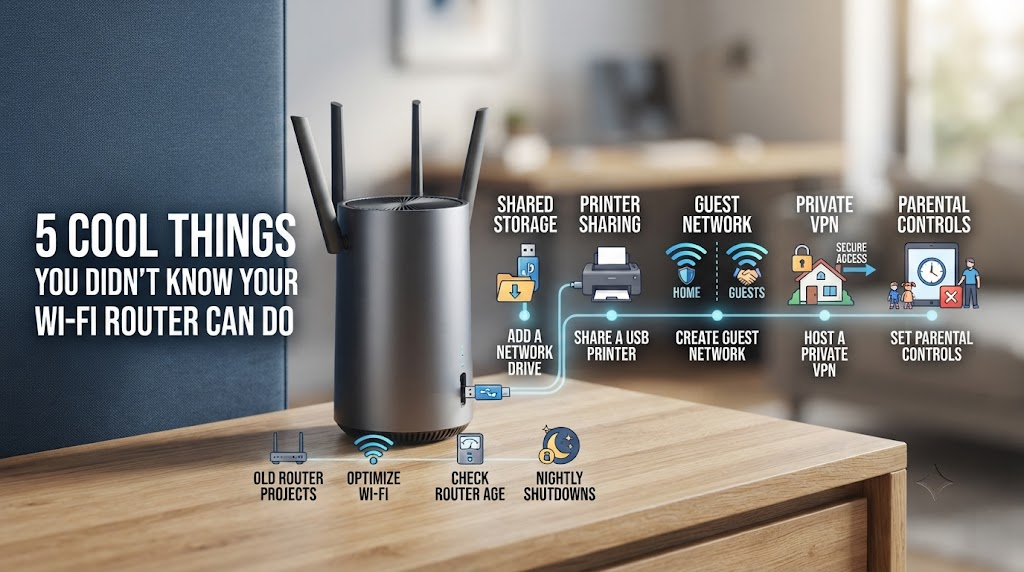
5 Cool Things You Didn’t Know Your Wi-Fi Router Can Do
Most people plug in their networking gear and forget about it. However, a Wi-Fi router is more capable than it may seem. It manages network traffic, connects devices, and often includes useful controls.
Modern routers can also offer features for security, parental controls, bandwidth management, and network storage. IEEE Spectrum has highlighted how routers have evolved beyond simple packet forwarding.
That makes your router worth exploring before you replace it or ignore its settings. You may find tools that can improve coverage, manage devices, or make better use of older hardware.
In this guide, we will explore several practical questions about Wi-Fi routers. We will cover old-router projects, router age, network information, Wi-Fi optimization, and nighttime shutdowns.
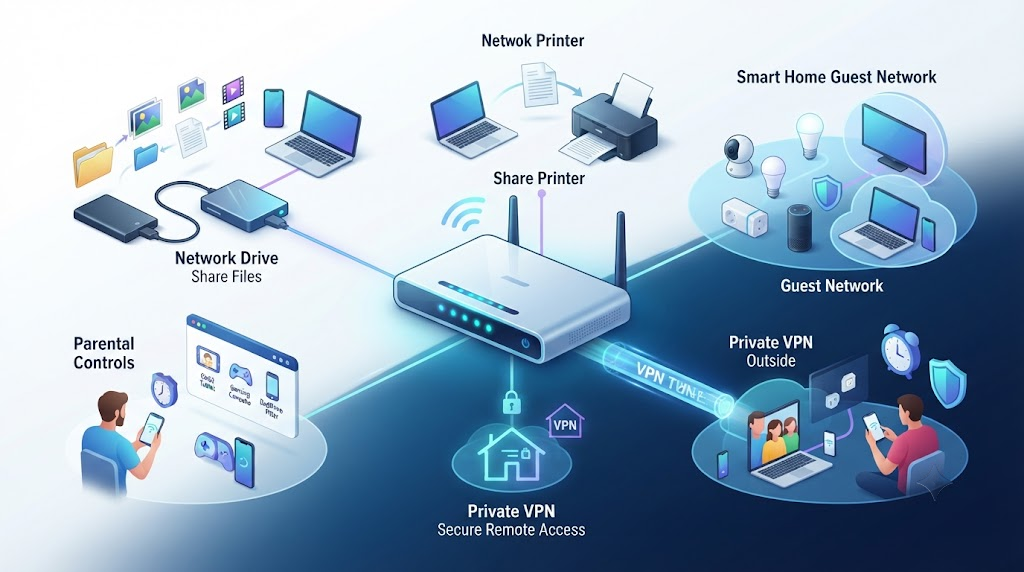
1.Add and Share a Network Drive
Your Wi-Fi router may let you share files across your home network. Some routers include a USB port that supports external storage. When supported, you can connect a USB flash drive, hard drive, or SSD to the router.
After enabling storage sharing, compatible devices on your network can access the shared drive. This can make it easier to exchange documents, photos, videos, and other files without moving them between devices manually.
A shared network drive can be useful for families, home offices, and small households. You can keep commonly used files in one central location instead of storing separate copies on every computer.
However, router-based storage is not always as fast as a dedicated NAS. Performance depends on the router’s processor, USB port, storage device, and firmware.
Before enabling file sharing, check the router’s storage and security settings. Keep important files backed up somewhere else. A network drive should not be your only copy of valuable data.
2.Add and Share a Network Printer
A compatible router can sometimes turn a regular USB printer into a shared network printer. This lets multiple computers use the same printer without connecting it directly to each device.
Some routers provide built-in USB printer-sharing features. Others may require specific firmware, software, or operating-system support. Check your router and printer documentation before setting up the connection.
Once configured, computers on your home network may be able to send documents to the shared printer. This can be especially convenient when the printer sits in a central location.
A shared printer can reduce the need for extra hardware. It also makes printing easier for family members using different computers.
However, router-based printer sharing has limitations. Modern network printers often provide better wireless features and broader compatibility.
If your router supports printer sharing, review its access controls first. Keep the printer available only to trusted devices on your home network. Also update the router firmware to reduce security risks.
For an older USB printer, this feature can provide a simple way to extend its useful life.
3.Create a Smart Home-Friendly Guest Network
A guest network can help separate smart-home devices from your primary devices. This is useful when your home contains cameras, TVs, speakers, plugs, appliances, and other connected equipment.
Instead of placing every device on the same network, you can use the router’s guest Wi-Fi feature. Depending on the router, guest networking can restrict access between guests and devices on your main network.
This separation can provide an additional layer of protection. For example, your laptop and personal files can remain on the primary network while compatible smart devices use the guest network.
You can also create a separate guest network for visitors. This lets guests access the internet without giving them your main Wi-Fi password.
When configuring a guest network, use a strong password and modern security settings. Disable options that allow unnecessary access to your private network. For additional guidance, follow a secure home network guide when configuring your devices and connections.
Remember that guest-network capabilities vary by router. Some models offer better isolation than others.
For larger smart-home setups, VLANs or more advanced network segmentation may provide stronger control. For many households, however, a properly configured guest network is a useful starting point.
4.Host a Private VPN (Virtual Private Network) for Your Family
Some routers can host a VPN (Virtual Private Network) server. This feature can allow authorized family members to connect securely to the home network while away.
For example, a VPN connection may let you access certain devices or services on your home network while traveling. You could potentially reach a home file server or other resources without exposing those services directly to the internet.
The exact capabilities depend on the router and VPN technology it supports. Some routers offer WireGuard or OpenVPN, while others provide their own VPN-server implementation.
Before enabling a VPN server, make sure the router receives security updates. Use strong authentication and avoid exposing unnecessary services.
A VPN does not automatically make every online activity private. When connected to your home VPN, your traffic still passes through your home internet connection.
You should also understand the difference between a VPN server and a commercial VPN service. A home VPN primarily gives you secure access back to your network. It does not provide the same anonymity or server-location options as a commercial VPN.
When configured correctly, however, a home VPN can be a practical way to access trusted network resources remotely.
5.Build Custom Network Parental Controls to Protect Your Family
Your router can provide more than basic internet access. With the right features, it can become part of your family’s parental-control system.
Many modern routers allow you to create profiles for individual family members or groups of devices. You can then apply schedules, content filters, internet pauses, or usage limits to those devices.
For example, you might restrict a child’s tablet during school hours. You could also schedule internet access to stop at bedtime.
Some routers provide category-based filtering. Others can block specific websites, services, or domains. The available controls vary significantly between manufacturers.
Custom network controls can also help manage gaming consoles, streaming devices, and other connected equipment. This gives parents more control without changing settings on every individual device.
However, router-level controls are not foolproof. Encrypted connections, alternative DNS services, mobile data, and other technologies can affect filtering.
Use these features alongside clear family rules and age-appropriate supervision. Protect the router’s administrator account with a strong password so children cannot simply change the settings.
When used thoughtfully, custom parental controls can make your home network safer, more manageable, and easier to supervise.
What Are Some Cool Things I Can Do With an Old Router?
An old router does not always belong in the electronic waste bin. If its hardware and firmware are still supported, you can give it a useful second life.
One popular option is turning it into a secondary access point. Connect it to your main router with Ethernet, then use it to provide Wi-Fi in another room. This approach can improve coverage without buying a dedicated access point. OpenWrt documents this type of setup in detail.
You can also configure compatible hardware as a wireless repeater. OpenWrt supports several repeater methods, including AP+STA and relay-based configurations.
Another option is installing OpenWrt, where supported. Custom firmware can provide additional networking controls and packages.
Depending on the hardware, you could use an old router for:
- A secondary access point
- A wireless repeater
- A separate test network
- A basic VPN gateway
- A small network-storage project
- A dedicated network for older smart devices
Always check compatibility before flashing firmware.
Build a Network-Attached Storage Drive
Some compatible routers can connect to a USB hard drive or SSD. With suitable firmware and packages, the drive can provide shared network storage.
OpenWrt supports USB storage and documents using external drives for file sharing and other storage applications.
This setup can let devices on your local network access shared files. You might store documents, photos, backups, or media on the connected drive.
However, an old router is not necessarily a replacement for a dedicated NAS. Performance depends heavily on its processor, USB interface, memory, and firmware. For a better understanding of the infrastructure behind networked storage, see what a data center does.
Before starting, check whether your router has a USB port and supports the required software. Also, back up important files elsewhere. A reused router and external drive should not become your only copy of valuable data.
For a simple home project, though, this can be a useful way to reuse older hardware. It also gives you a practical introduction to network storage without buying a full NAS immediately.
Is a 10-Year-Old Router Outdated?
A 10-year-old router is usually outdated, especially if it remains your primary home gateway. Its age alone does not make it unusable. However, older hardware may lack newer Wi-Fi standards, faster Ethernet, modern security features, and current firmware support.
For example, newer Wi-Fi generations can provide better efficiency and capacity with compatible devices. An older router may also struggle with many connected devices or faster broadband plans.
Security is the bigger concern. Manufacturers eventually stop providing firmware updates for older models. Once security support ends, newly discovered vulnerabilities may remain unpatched.
That does not mean every old router becomes dangerous overnight. Instead, you should check its exact model, firmware version, and manufacturer support status.
Consider replacing the device if it:
- No longer receives security updates
- Uses outdated wireless security
- Regularly drops connections
- Cannot handle your internet plan
- Lacks features your household now needs
A modern router can improve reliability and capacity. However, it cannot make your internet plan faster than the speed supplied by your ISP.
The Security Risks of Old Firmware
Running unsupported firmware can create unnecessary security risks. Router vulnerabilities can expose management interfaces, network services, or connected devices when attackers successfully exploit them. It is also important to recognize the warning signs of computer malware when protecting devices connected to your network.
That is why firmware updates matter. Updates can fix security flaws, improve stability, and sometimes add useful features.
If your router no longer receives updates, replacing it is usually safer than relying on outdated software. You should also disable unnecessary remote-management features and use a strong administrator password.
Check these settings regularly:
- Firmware version
- Automatic update options
- Remote administration
- Wi-Fi encryption
- Administrator password
- Connected-device list
Avoid installing unofficial firmware unless the device is fully supported. A failed firmware installation can make a router unusable.
If you repurpose an unsupported router, consider limiting its role. For example, using it as an isolated access point may be more sensible than making it your primary internet gateway.
Security should always come before saving a few dollars on old equipment.
What Information Can You Get From a Wi-Fi Router?
Your Wi-Fi router can provide useful information about your home network. The exact details depend on the manufacturer, firmware, and model.
Most router dashboards show currently connected devices. You may see device names, IP addresses, MAC addresses, connection types, and other basic information.
Many routers also provide traffic statistics. These can help you identify devices consuming unusually large amounts of bandwidth.
Depending on the router, you may also find:
- Connected-device history
- Data-usage statistics
- Signal information
- DHCP leases
- Connection status
- Parental-control activity
- DNS or domain-related logs
- Firewall events
However, router visibility has limits. A router does not automatically provide a complete record of everything someone does online. Encryption, browser behavior, DNS configuration, router software, and privacy features all affect what information is available.
Some modern devices also use privacy-focused DNS settings or encrypted DNS. That can reduce what traditional router logs can reveal.
Still, the administrator dashboard is valuable for troubleshooting. It can help you identify unknown devices, locate bandwidth-heavy clients, and understand how your network is being used.
Monitoring Parental Control Logs
Parental-control features can give families more control over internet access. Depending on the router, these tools may allow you to set schedules, pause devices, block categories, or restrict specific services.
Some systems also record blocked requests or activity summaries. However, the level of detail varies widely between manufacturers.
Do not assume that every router can show a complete browsing history. Many routers only record domains, categories, connection events, or blocked requests.
Parental controls work best when combined with clear household rules. Explain why limits exist and use age-appropriate settings.
Useful controls may include:
- Bedtime schedules
- Device-specific limits
- Website or category blocking
- Internet pauses
- Guest-network restrictions
- Usage reports
Keep your router administrator account protected. Anyone who gains access to that account may be able to change parental controls or network settings.
Also remember that parental controls are not foolproof. Apps can use encrypted connections, alternative DNS services, or other technologies that affect filtering.
Use these features as one layer of household supervision rather than a complete monitoring solution.
What’s the Wi-Fi Trick?
There is no single Wi-Fi trick that works for every home. However, several simple changes can improve wireless performance.
Start with router placement. Put the router in a central, elevated location when possible. Keep it away from thick walls, large metal objects, and sources of radio interference.
Channel selection can also help. Nearby networks may compete for the same wireless spectrum, especially in crowded areas. Some routers can automatically select channels, while others let you choose manually.
Modern routers may also offer Quality of Service (QoS) controls. These features can prioritize certain types of traffic or devices when your network becomes busy.
For better results, consider these practical steps:
- Place the router in an open location.
- Keep antennas positioned as recommended.
- Use the appropriate Wi-Fi band.
- Update router firmware.
- Reduce unnecessary interference.
- Test speeds near and far from the router.
- Consider wired Ethernet for demanding devices.
Remember that Wi-Fi speed depends on more than the router. Your device, distance, walls, interference, broadband plan, and network congestion all matter.
Changing Wireless Channels for Speed
Changing the wireless channel can sometimes improve performance. This is especially useful when nearby networks create heavy interference.
On the 2.4 GHz band, overlapping networks can cause congestion. A cleaner channel may reduce interference and improve connection stability.
However, manually changing channels is not always necessary. Many modern routers can scan the surrounding wireless environment and select a suitable channel automatically.
Before changing anything, check your router’s wireless settings. Some models offer an automatic channel-selection feature or a built-in network analyzer.
You can also use a Wi-Fi analyzer on a compatible device to identify nearby networks. The goal is to reduce unnecessary overlap, not simply choose a channel that looks empty for a moment.
Keep in mind that channel options vary by region and wireless band. Some 5 GHz channels also have special requirements, such as DFS rules.
If your router supports automatic optimization, try that first. If performance remains poor, investigate channel congestion and router placement.
A channel change cannot fix every Wi-Fi problem. Weak signals, poor router placement, outdated hardware, and interference from physical obstacles can still limit performance.
Why Do People Shut Their Wi-Fi Off at Night?
Some people turn their Wi-Fi router off at night for practical or personal reasons. One reason is reducing energy use. However, the savings from a typical home router are usually modest.
Another reason is managing screen time. Parents may switch off the network to discourage late-night gaming, streaming, or social media use.
Some people also prefer shutting down wireless equipment when nobody needs an internet connection. It can provide peace of mind, but it is not required for most homes.
Turning Wi-Fi off does not automatically make a network secure. It simply stops wireless connectivity while the router is powered down. Wired devices or other network equipment may still remain active.
There is also an important trade-off. If you regularly switch off your router, connected devices lose internet access during those hours. Some smart-home products may also depend on continuous connectivity.
For most households, leaving a modern router powered on is perfectly reasonable. The more important security steps are keeping firmware updated, using strong Wi-Fi encryption, and securing the administrator account.
Promoting Better Sleep Hygiene
Turning off Wi-Fi at bedtime can be useful as a behavioral tool, especially in households trying to reduce nighttime screen use.
The benefit may come less from the wireless signal itself and more from removing easy internet access. A scheduled internet pause can create a clear boundary between daytime and bedtime.
You do not necessarily need to unplug the entire router. Many modern routers offer device schedules or parental-control settings. These can restrict specific devices while leaving essential smart-home equipment connected.
For example, you might schedule phones, tablets, or gaming consoles to lose internet access after bedtime. This approach can be more convenient than powering down the whole network.
If you choose to turn off the router completely, remember that devices will disconnect. Automatic updates and cloud-based smart-home functions may also stop until the connection returns.
The main goal should be a healthier nighttime routine. Reducing notifications, setting device limits, and keeping screens away from bedtime can all support that goal.
Wi-Fi shutdowns are optional. They are not a required security practice for a properly maintained home network.
FAQ SECTION
Can I use an old router as a repeater?
Yes, you can easily configure an old gateway to act as a wireless repeater or bridge. This process extends your primary network coverage to hard-to-reach areas like basements, garages, or distant backyards without requiring expensive mesh system purchases.
How often should I reboot my router?
Experts recommend restarting your gateway once every month to clear cached memory, fix minor software glitches, and restore optimal connection speeds. A simple power cycle often resolves sluggish browsing performance instantly.
Does a better router increase internet speed?
A modern gateway cannot exceed the maximum download speed provided by your internet service provider plan. However, it significantly improves Wi-Fi range, reduces latency, and handles multiple simultaneous device connections much more efficiently.
Is it safe to leave my router on 24/7?
Leaving your hardware powered on continuously is entirely safe and recommended. Continuous operation ensures your devices receive crucial security updates, maintain smart home automation schedules, and stay connected without interruption.
Conclusion
Your Wi-Fi router is much more than a plastic box that connects your devices to the internet. Its features can help you improve coverage, manage traffic, monitor connected devices, and reuse older hardware.
An old router may work as a secondary access point, repeater, or small storage server when its hardware supports those functions. OpenWrt provides several documented ways to repurpose compatible devices.
You can also improve your current network by checking router placement, managing wireless channels, and using available traffic controls. Regularly reviewing security settings is equally important.
If your router is around a decade old, check its firmware support before continuing to use it as your primary gateway. Unsupported software can leave your network exposed to known vulnerabilities.
Finally, remember that there is no single Wi-Fi trick that fixes every connection problem. Good placement, updated firmware, suitable hardware, and sensible configuration usually deliver the best results.
Take a few minutes today to open your router’s administrator dashboard. You may discover useful features you have never used. For additional protection when connecting to unfamiliar networks, see our guide to public Wi-Fi risks and how to stay safe.