
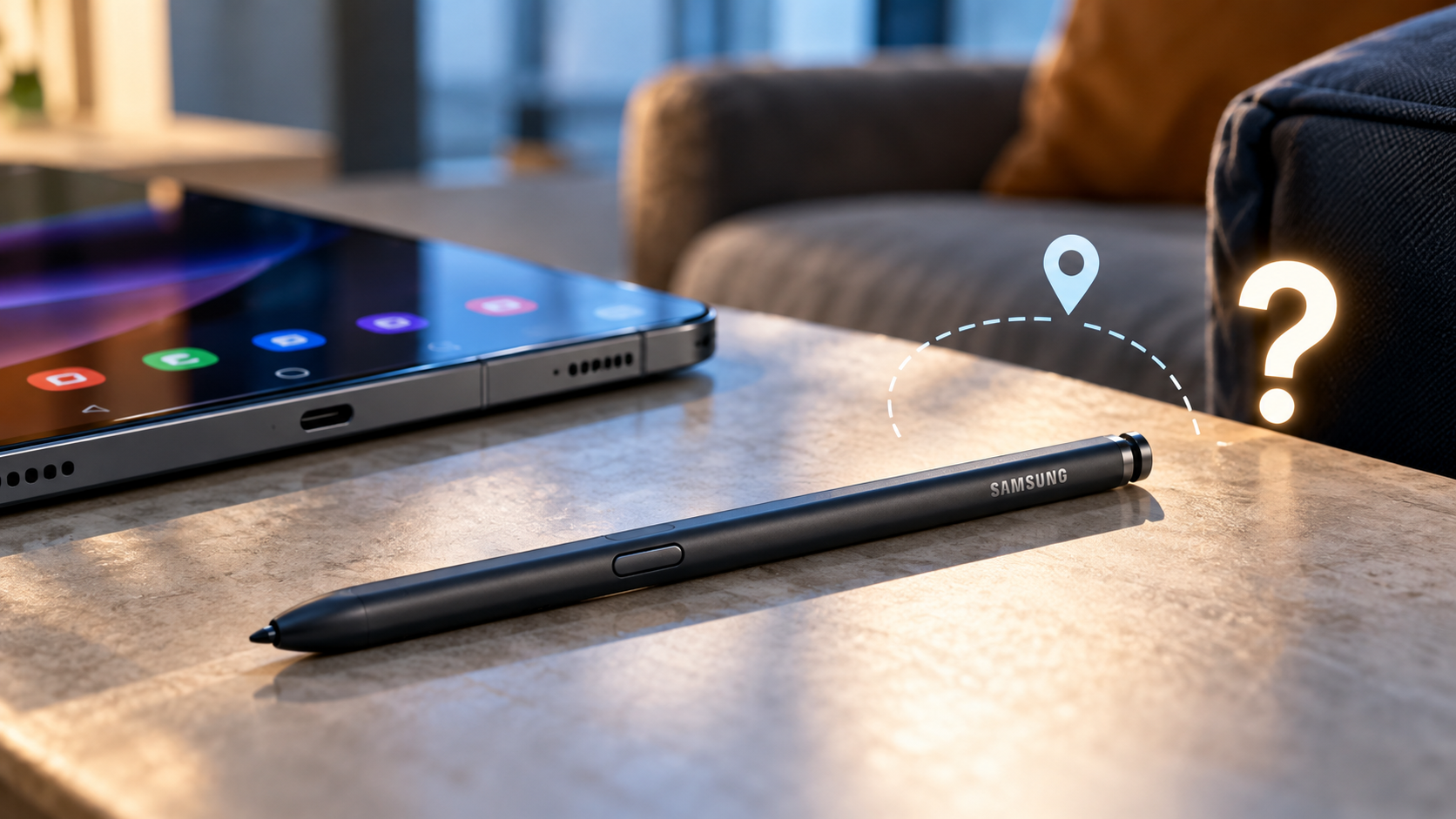
Can Your Samsung S Pen Be Traced?
Losing your stylus can disrupt your day, especially when you use it for notes, sketches, or navigation. Many Samsung users wonder whether they can track a missing S Pen using their phone or tablet.
The answer depends on your Samsung S Pen model and its connectivity features. Some S Pens support Bluetooth Low Energy (BLE), while others work without Bluetooth. Standard S Pens generally rely on electromagnetic resonance to interact with compatible screens.
However, Bluetooth connectivity does not automatically mean you can track a stylus on a map. Certain models offer disconnection alerts, but these features cannot provide GPS coordinates. Samsung’s available features also vary by device generation.
In this guide, you will learn how to track your Samsung S Pen, find a missing stylus, check its connectivity, and choose a compatible replacement. If you mainly use your stylus for writing, explore the 5 best note-taking apps for Android in 2026 to find apps that suit your workflow. These practical steps will help you understand your options and avoid wasting time on tracking methods your device does not support.
How Can I Track My Samsung Pen?
Whether you can track your Samsung pen depends on its hardware and the features supported by your device. Some S Pens include Bluetooth Low Energy technology, while others only support writing, drawing, and screen interactions.
A Bluetooth-enabled S Pen can communicate with a compatible Samsung phone or tablet when it remains within wireless range. Depending on the model, your device may offer connection status information or alerts when the stylus disconnects. These features can help you prevent future losses.
However, Bluetooth connectivity is not the same as location tracking. Most S Pens do not contain independent GPS hardware that can transmit their precise location. Once a compatible Bluetooth connection ends, your phone generally cannot determine the stylus’s exact position.
Before attempting to locate your pen, check your device’s S Pen settings and user manual. Confirm which features your specific model supports. This will help you choose a realistic recovery method instead of relying on unavailable tracking tools.
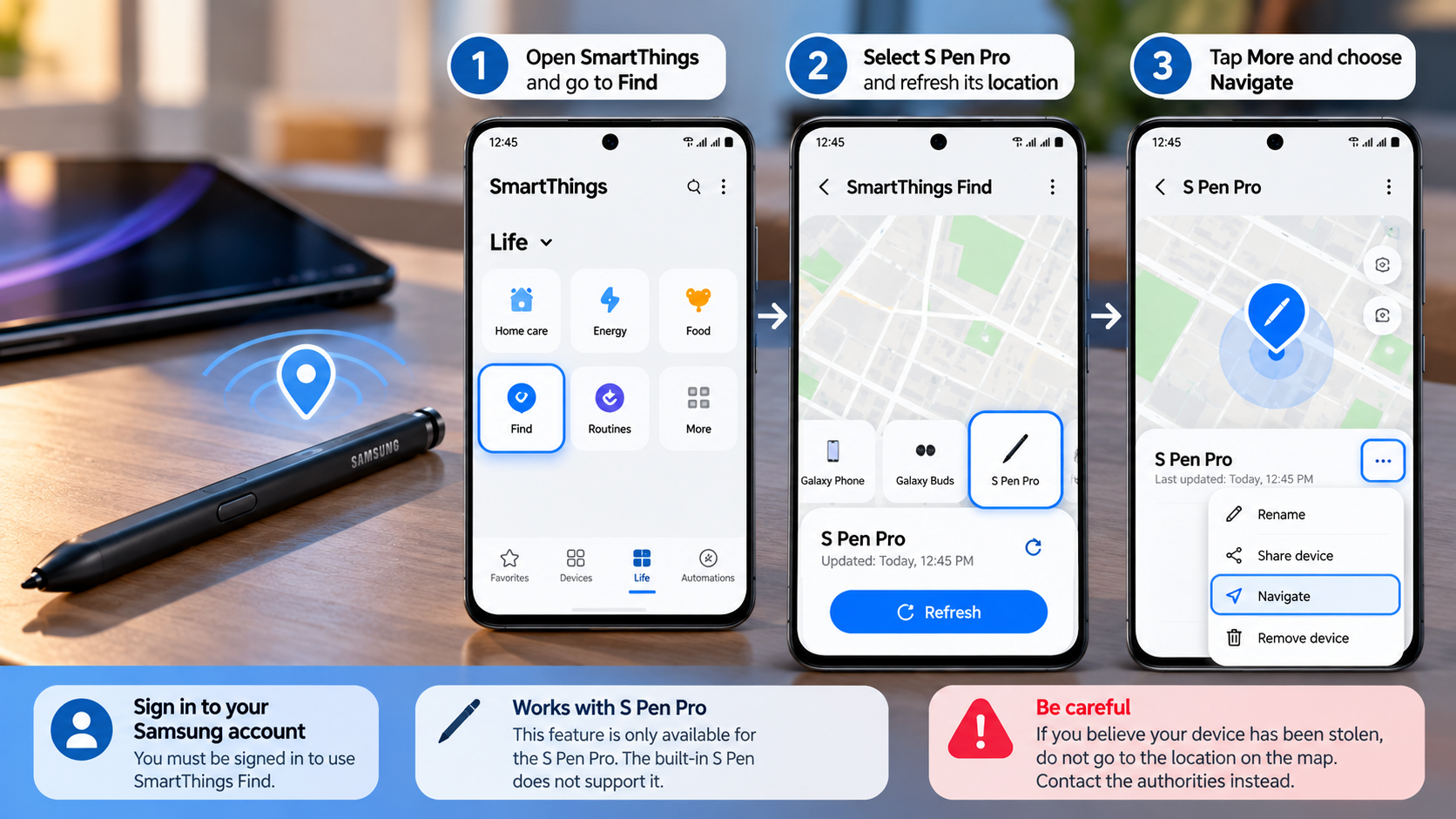

Understanding BLE Tracking Limitations
Bluetooth Low Energy helps compatible S Pens communicate wirelessly with supported Samsung devices. Depending on the model, this connection may support remote commands, charging-status information, or disconnection warnings. However, these functions do not necessarily include a way to locate a missing stylus.
A proximity or disconnection alert can warn you that your S Pen is no longer connected. This feature is particularly useful when you accidentally leave the stylus behind. However, the alert does not tell you the pen’s exact location or show its position on a map.
Keep these limitations in mind when searching for your missing accessory:
- Bluetooth range: The connection works only within a limited wireless range, which varies with the device and surrounding conditions.
- Disconnection alerts: Supported devices may warn you when the S Pen moves out of range.
- GPS tracking: Bluetooth support alone does not provide independent GPS tracking.
- Model compatibility: Available features differ between S Pen generations and Samsung devices.
Check your device documentation before assuming that a tracking or alert feature is available.
I Lost My Samsung S Pen. How Can I Find It?
If you have lost your Samsung S Pen, begin with a physical search rather than relying on digital tracking. Most S Pens cannot transmit their location independently, so retracing your recent movements is usually the most practical approach.
Think about where you last used the stylus. Check your desk, bedside table, sofa, backpack, and clothing pockets. Also inspect the area around your phone or tablet, especially if you usually store the S Pen inside its designated slot.
If your model supports Bluetooth, check whether your device still recognizes the stylus. A connection may help you determine whether the pen is nearby, but it will not necessarily reveal its exact position. Keep in mind that walls, furniture, and other obstacles can affect wireless connectivity.
Work through one area at a time to avoid repeating the same search. If you cannot recover the stylus, confirm your device model before exploring replacement options. This approach saves time and helps you avoid buying an incompatible accessory.
Utilizing Proximity Alerts Effectively
Proximity alerts can help prevent future losses when your Samsung S Pen and device support the relevant feature. However, they are not universal, and they may not help you recover a stylus that is already missing.
Start by opening your device’s settings and locating the S Pen options. Look for available alerts or notifications related to leaving the stylus behind. The exact menu names and available controls depend on your Samsung device and software version.
If your device supports an alert, make sure the feature is enabled. Follow the manufacturer’s instructions to understand when the warning appears and what conditions affect it.
When searching for a missing pen, keep your phone or tablet nearby and check whether the stylus reconnects as you move around. A connection may indicate that you have entered wireless range, but it does not confirm the pen’s exact distance or direction.
For future protection, enable supported disconnection warnings and return the S Pen to its designated storage slot after use. These habits can reduce the risk of losing your stylus again.
Can Your Phone Locate Your S Pen?
Your phone may detect a compatible Samsung S Pen through Bluetooth, but that does not mean it can locate the accessory like a smartphone or smartwatch. The available capabilities depend on the specific S Pen and the Samsung device you own.
Some Bluetooth-enabled models support features such as remote commands and alerts when the stylus disconnects. These functions can help you understand the connection status and reduce the chance of leaving the pen behind.
However, most S Pens do not have independent GPS tracking. Your phone therefore cannot rely on GPS coordinates to show the stylus’s precise location on a digital map. Standard passive S Pens also cannot transmit a wireless location signal.
If you have misplaced your stylus, check your device settings for supported S Pen features. Do not assume that your phone maintains a complete location history or records the pen’s last known position. Such information may not be available on your model.
The most reliable approach is to combine any supported connectivity features with a careful physical search. If you cannot find the pen, check compatibility before purchasing a replacement.
Checking Connection Information on Your Device
Checking your Samsung device’s settings can help you understand whether your S Pen supports Bluetooth and whether the relevant connection features are available. However, do not expect every device to display a last-connected timestamp or a recoverable location history.
Open your phone or tablet’s settings and look for the S Pen menu. Review the available options for Bluetooth connectivity, remote functions, and disconnection alerts. Menu names and features can differ between models and software versions.
If your stylus has Bluetooth capabilities, follow your device’s instructions to check its connection status. A connected status may suggest that the pen is nearby, but it does not establish its exact distance or direction.
If the S Pen appears disconnected, remember that this alone cannot tell you where you lost it. The pen might be nearby, outside wireless range, or unavailable for connection.
Use the information you can verify to narrow your physical search. Check the places you visited after last using the stylus, including your workspace, vehicle, and bags. Avoid relying on location logs unless your specific device explicitly supports them.
How Do I Find My Missing Pen?
Finding a missing Samsung S Pen usually requires a systematic physical search. Since most models cannot transmit their location independently, checking your surroundings is more useful than trying unrelated phone-tracking applications.
Begin with the places where you regularly use your stylus. Look around your desk, tablet stand, charging area, and bedside table. Check sofa cushions, furniture gaps, drawers, and bags where the pen could have slipped unnoticed.
Dark-colored S Pens can blend into furniture, clothing, and vehicle interiors. Use a flashlight to inspect shadowed areas and spaces beneath furniture. Check jacket pockets, notebook covers, and compartments where you store your phone or tablet.
If you recently travelled, retrace your movements and contact places you visited. Ask whether anyone found a small stylus and handed it in. If your device supports Bluetooth connectivity, you can also check for a possible reconnection while searching nearby areas.
Search one section at a time and avoid moving to another until you have checked the current area thoroughly. If the pen remains missing, identify your device model and explore compatible replacement options.
Systematic Room Sweeps for Success
A structured search can improve your chances of finding a missing S Pen without wasting time. Instead of searching your entire home repeatedly, divide the area into smaller sections and inspect each one carefully.
Start with the location where you last remember using the stylus. Check the desk surface, nearby drawers, chair cushions, and the space beneath your furniture. Then move to other areas where you recently carried or used your device.
Use this checklist to organize your search:
- Workspaces: Check desks, notebooks, tablet stands, drawers, and nearby shelves.
- Living areas: Inspect sofa cushions, rugs, furniture gaps, and side tables.
- Clothing and bags: Search pockets, backpack compartments, handbags, and laptop sleeves.
- Vehicles: Check seat gaps, door pockets, centre consoles, and floor mats.
- Recent destinations: Contact offices, classrooms, cafés, or other places you visited.
Use a flashlight to inspect dark spaces and move objects carefully. If you find the pen, check its condition before using it again. For future prevention, return it to its designated slot or a consistent storage location whenever you finish using it.
Can a Samsung S Pen Be Replaced?
Yes, you can replace a lost or damaged Samsung S Pen, but you must choose a model compatible with your phone or tablet. Not every S Pen works with every Samsung device, even when the accessories look similar.
Different generations support different features, including pressure sensitivity, Bluetooth functions, charging requirements, and remote commands. A replacement designed for another device may offer basic writing functionality without supporting every feature you expect.
Before purchasing, identify your exact phone or tablet model. Check Samsung’s official compatibility information and compare it with the replacement stylus specifications. If you use an S Pen with Bluetooth features, confirm that the replacement supports the required functions.
You can explore genuine Samsung accessories through the manufacturer’s official channels or authorized retailers. Third-party alternatives may also be available, but their compatibility and capabilities can vary.
Review the product description carefully before placing an order. Matching the stylus to your device helps prevent unnecessary spending and functionality problems. If you are unsure which replacement to buy, consult Samsung Support or check your device’s user manual first.
Verifying Compatibility Before Purchase
Checking compatibility before buying a replacement Samsung S Pen can help you avoid problems with writing, drawing, and wireless features. The safest starting point is your device’s exact model number, rather than its general product name.
Open your device’s settings and look for the model information under the device details section. You can also check the original packaging or user manual. Use this information to find the S Pen models Samsung identifies as compatible.
Before purchasing, verify these details:
- Device compatibility: Confirm that the replacement supports your exact phone or tablet model.
- Writing and drawing: Check whether it supports the required screen interaction and pressure sensitivity.
- Bluetooth functions: Confirm compatibility if you use supported remote commands or other wireless features.
- Charging requirements: Check whether the stylus requires charging or uses a different power arrangement.
- Authenticity: Consider genuine Samsung accessories or reputable retailers with clear product specifications.
Do not assume that a stylus will support every feature simply because it fits inside the phone. When compatibility information is unclear, ask Samsung Support or the seller to confirm before ordering.
Choosing the correct replacement helps restore the features your device supports without paying for unnecessary accessories.
Conclusion
A Samsung S Pen can be difficult to find when it goes missing, especially because most models do not support independent location tracking. While some Bluetooth-enabled S Pens offer connectivity features and disconnection alerts, these functions cannot provide precise GPS locations.
If you lose your stylus, start by retracing your steps, checking common hiding spots, and using any supported connectivity features. If you cannot recover it, verify your device model and choose a compatible replacement from Samsung or an authorized retailer.
For accurate information about supported features and compatible accessories, visit Samsung’s official Support page. You can check device-specific guidance before purchasing a replacement.
The key is to understand your S Pen’s capabilities before trying to track it. With the right search approach and a compatible replacement, you can get back to taking notes, drawing, and using your Samsung device without unnecessary delays.