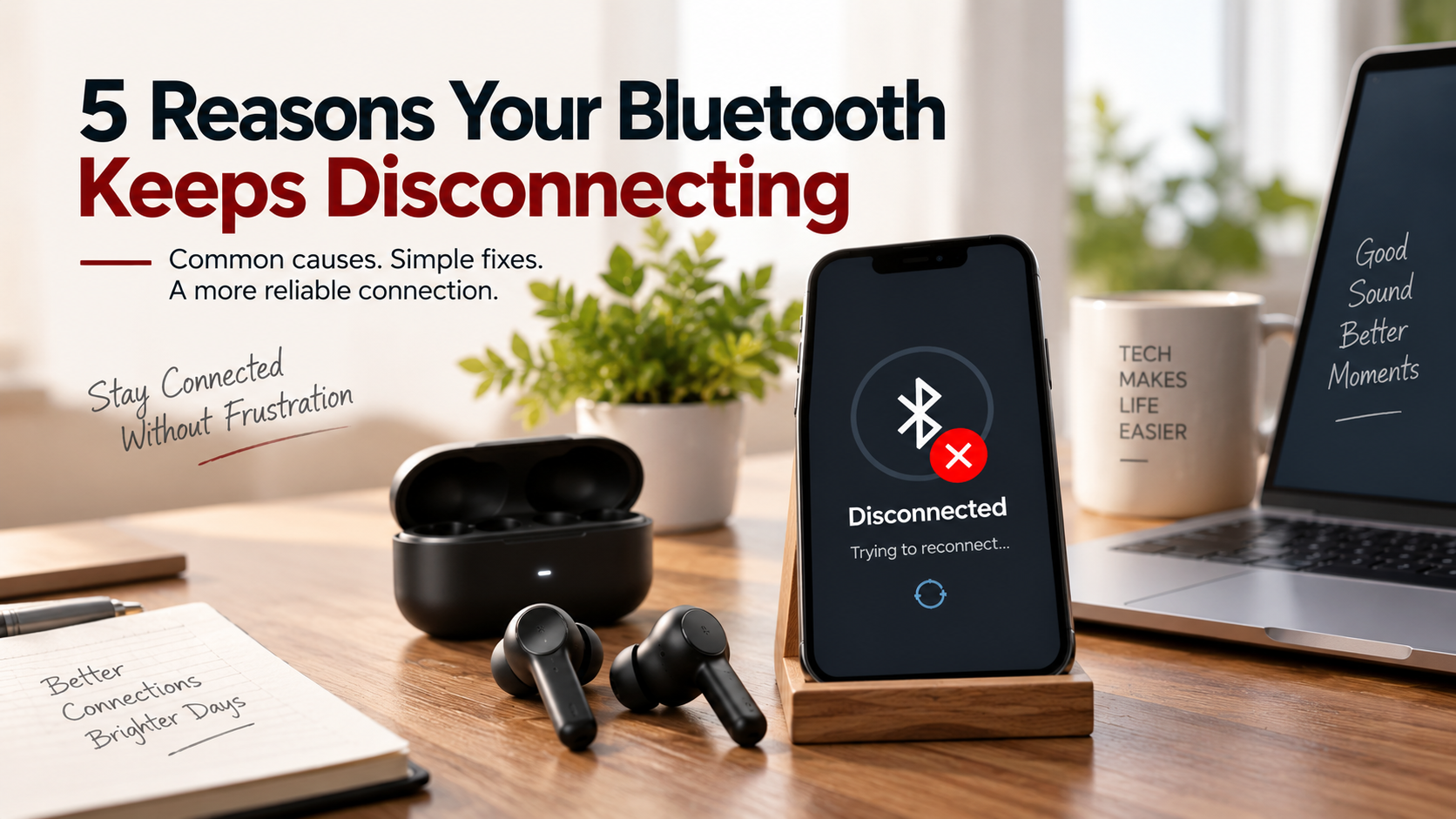
5 Reasons Your Bluetooth Keeps Disconnecting
Few tech problems are more frustrating than audio cutting out during a favorite song or a call dropping mid-sentence. If your Bluetooth keeps disconnecting, the problem is usually caused by interference, power settings, software issues, or pairing conflicts.
Bluetooth uses short-range radio communication in the 2.4 GHz frequency band. Physical barriers, nearby wireless devices, and other signals can affect connection stability. The Bluetooth SIG guide to Bluetooth reliability explains how interference from technologies such as Wi-Fi can affect wireless communication.
The good news is that frequent Bluetooth disconnects do not always mean your headphones, speaker, or phone is damaged. In many cases, a few simple changes can restore a reliable wireless connection.
Below are the five most common reasons your Bluetooth keeps disconnecting, followed by practical steps to diagnose and fix each problem.
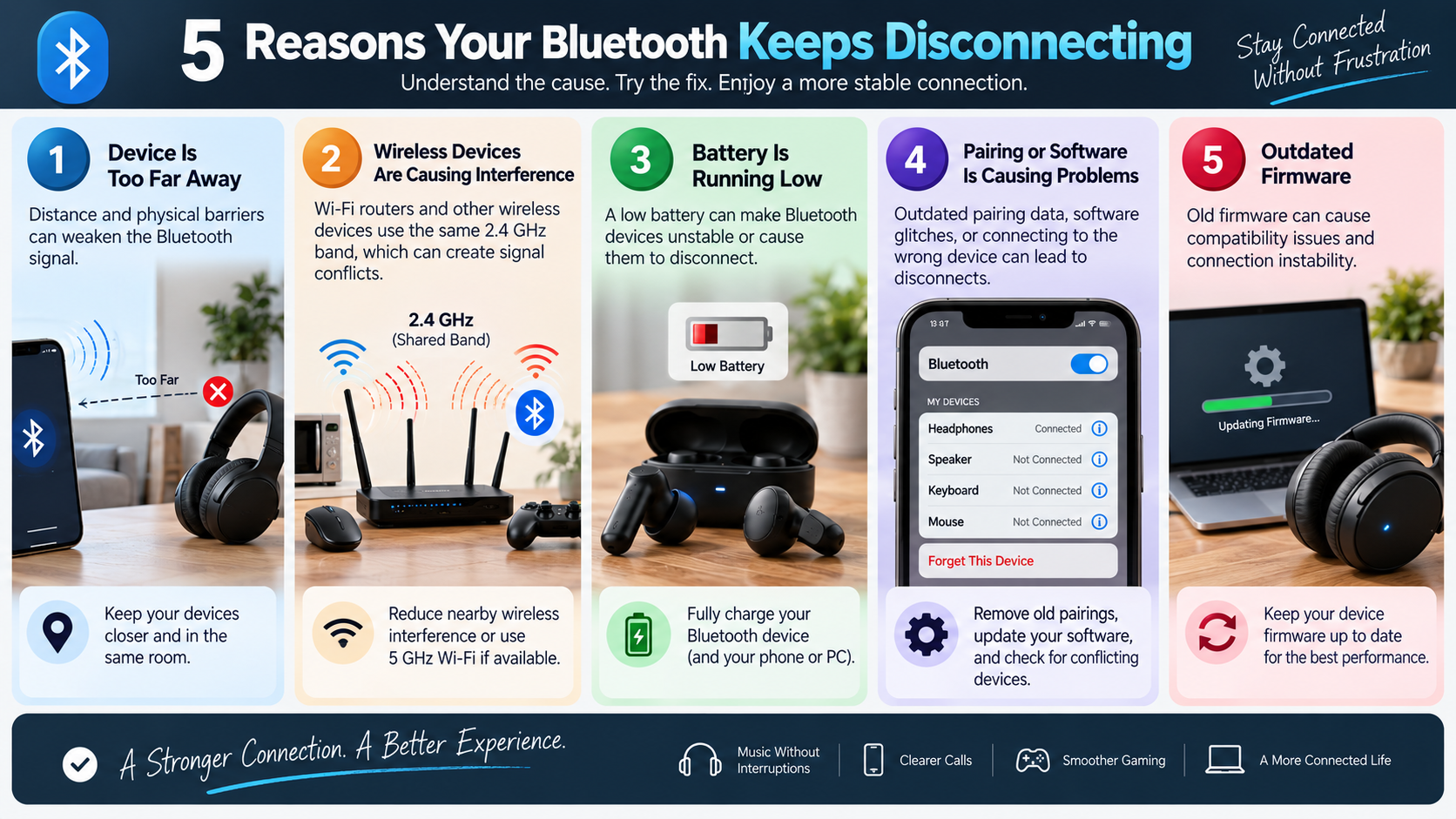
1. Your Bluetooth Device Is Too Far Away
Bluetooth works best when the connected devices stay within a reasonable range. Many consumer Bluetooth devices can work across a typical room, but actual range varies by device, antenna design, Bluetooth class, and surroundings.
Distance becomes a bigger problem when walls or other obstacles sit between the devices. Concrete walls, metal objects, and dense materials can weaken Bluetooth signals. Even your body can affect the connection when your phone is buried inside a pocket or bag.
Try moving your phone, tablet, or computer closer to the Bluetooth accessory. Keep both devices in the same room while troubleshooting. If the connection becomes stable at close range, distance or physical obstruction is likely contributing to the problem.
You should also avoid placing Bluetooth accessories behind televisions, inside cabinets, or beside large metal objects. These locations can reduce signal strength.
If your Bluetooth connection drops only when you move away from the host device, range is one of the first things to investigate.
2. Other Wireless Devices Are Causing Interference
Bluetooth shares the 2.4 GHz spectrum with several other wireless technologies. Nearby Wi-Fi networks, wireless peripherals, smart devices, and other electronics can create a crowded radio environment.
This issue is especially noticeable in busy offices, apartments, gyms, airports, and other public places. When many wireless devices operate nearby, Bluetooth may experience more interference. You may notice audio stuttering, delayed responses, or brief connection drops.
Your Wi-Fi router can also contribute to local congestion. If your router supports 5 GHz Wi-Fi, move compatible devices to that band. This can reduce activity in the 2.4 GHz spectrum used by Bluetooth. For more context, see our guide on 4 Disadvantages Of Using Bluetooth For Everything.
You should also keep Bluetooth accessories away from routers and other wireless equipment where possible. Test the connection in a quieter location to determine whether interference is responsible.
If your headphones work perfectly at home but disconnect frequently in crowded areas, wireless interference is a strong possibility.
3. Your Battery Is Running Low
A low battery can cause Bluetooth accessories to become unstable. This is particularly common with wireless earbuds, headphones, speakers, keyboards, mice, and game controllers.
As battery levels fall, some devices activate power-saving features. Depending on the hardware, these features may reduce wireless performance or eventually shut down the Bluetooth radio.
A low battery can also make troubleshooting confusing. Your device may appear connected for several minutes before suddenly disconnecting.
The easiest test is to fully charge both devices. Charge your phone, tablet, or computer if its battery is also low. Then reconnect the Bluetooth accessory and test it again.
If the connection becomes stable after charging, power management was likely contributing to the problem.
However, repeated disconnects after a full charge can indicate another issue. An aging battery may also struggle to maintain normal operation even when the battery indicator shows a reasonable charge.
If your accessory disconnects regularly despite being fully charged, continue troubleshooting distance, interference, pairing settings, software, and firmware.
4. Your Bluetooth Pairing or Software Is Causing Problems
Bluetooth connections can become unreliable when saved pairing information becomes outdated or inconsistent. This can happen after operating system updates, device changes, or repeated failed connection attempts.
Your accessory may also be trying to connect automatically to another device. For example, your earbuds could connect to a tablet while you are trying to use them with your phone.
Start by checking your saved Bluetooth devices. Remove accessories you no longer use. Also turn off Bluetooth on nearby phones, tablets, laptops, and other devices that may automatically connect.
For the problematic accessory, select Forget This Device, Remove Device, or Unpair. Put the accessory back into pairing mode and connect it again.
You should also check for available operating system, Bluetooth driver, and firmware updates. Manufacturers often release updates that improve compatibility and connection stability. Keeping your wireless accessories properly maintained can also help, as explained in our guide on how to clean and maintain your premium headphones.
If the accessory works correctly with another phone or computer, the problem may be related to your original device’s software or Bluetooth configuration.
5. Your Bluetooth Device or Driver Needs an Update
Outdated Bluetooth software can cause compatibility and connection problems. This is particularly important after upgrading your phone, tablet, or computer to a newer operating system.
Your Bluetooth accessory has firmware, while your computer may use a dedicated Bluetooth driver. If either component is outdated, communication between the devices may become unreliable.
Start by checking your device for available system updates. On Windows, open Device Manager, locate the Bluetooth adapter, and check for driver updates. You should also check the accessory manufacturer’s app or support page for firmware updates.
Updating the accessory can improve compatibility with newer phones and computers. It may also fix known bugs that cause random disconnects, audio stuttering, or failed reconnections.
If your Bluetooth keeps disconnecting after every other basic fix, outdated software is worth investigating.
Do not immediately assume that the accessory is defective. Test it with another compatible device after installing updates. If it remains unstable across multiple devices, the hardware itself may need further inspection.
Why does my Bluetooth keep disconnecting for no reason?
A Bluetooth connection usually drops because something interrupts communication between the two devices. The most common causes include distance, interference, low battery, software problems, and outdated firmware.
Bluetooth uses short-range radio signals, so physical obstacles can weaken the connection. Concrete walls, metal surfaces, and other dense materials may reduce effective range. Nearby Wi-Fi networks and other 2.4 GHz devices can also create interference.
Battery level matters as well. Some devices reduce wireless performance when power becomes low. Others may shut down their Bluetooth radio to preserve battery life.
Software can cause problems too. An outdated operating system, Bluetooth driver, or accessory firmware may create compatibility issues. Saved pairing information can also become corrupted after updates or repeated connection attempts.
Before replacing your headphones or speaker, check these common causes:
- Move the devices closer together.
- Charge both devices fully.
- Reduce nearby wireless interference.
- Remove unused Bluetooth pairings.
- Install available system and firmware updates.
How do I clear my Bluetooth cache?
Clearing Bluetooth cache data can help when temporary system information becomes corrupted. The exact process depends on your operating system and device manufacturer.
On many Android phones, open Settings > Apps and enable system apps if necessary. Find the Bluetooth system service, open its storage settings, and select Clear Cache. Menu names can vary between Android versions.
Restart your phone after clearing the cache. This allows the system to rebuild temporary Bluetooth data.
On Windows, Bluetooth problems are usually addressed through driver troubleshooting rather than a traditional cache-clearing option. Open Device Manager, find your Bluetooth adapter, and check for driver updates. You can also uninstall the adapter and restart Windows so it can reinstall the driver.
On macOS, Bluetooth troubleshooting options vary between macOS versions. Use the built-in wireless troubleshooting tools available on your system.
Be careful with reset options. Some procedures can remove saved Bluetooth pairings or network settings.
Clearing temporary data is useful when connections became unstable after an update or repeated pairing attempts. Try it before performing a complete network reset.
How to fix a disconnected Bluetooth?
When Bluetooth keeps disconnecting, start with the simplest troubleshooting steps. First, check that both devices have enough battery. Then move them closer together and remove obvious sources of interference.
Turn Bluetooth off on the host device. Wait several seconds, then turn it back on. If the accessory does not reconnect, restart both devices. This simple step can often restore a temporary Bluetooth connection problem.
If Bluetooth keeps disconnecting after restarting, remove the existing pairing. Select Forget This Device or Unpair in your Bluetooth settings. Put the accessory into pairing mode and search for it again.
Also check whether another phone, tablet, or computer is connecting to the accessory. Temporarily disable Bluetooth on those devices during testing. This prevents another paired device from taking over the connection.
Install available operating system and accessory firmware updates. These updates can resolve Bluetooth compatibility and stability problems.
You can also test the accessory with another compatible device. If it disconnects everywhere, the accessory may have a hardware or firmware problem. If it works normally elsewhere, focus on the original host device.
Working through these steps in order can help identify why Bluetooth keeps disconnecting without immediately resetting everything.
How to fix an unstable Bluetooth connection?
An unstable Bluetooth connection usually involves interference, power management, software, or device settings. If Bluetooth keeps disconnecting, start by reducing wireless congestion around your devices.
If possible, connect compatible Wi-Fi devices to the 5 GHz band. This can reduce competition in the 2.4 GHz spectrum. Keep your Bluetooth accessory away from routers, wireless hubs, and other sources of radio interference.
Next, review your phone or computer’s battery settings. Aggressive power-saving features can restrict background activity for some companion applications. Disabling unnecessary battery restrictions may help maintain a stable connection.
On computers, confirm that the correct Bluetooth audio output and microphone are selected. Calls require two-way audio and may change the Bluetooth audio profile.
Install pending operating system, driver, and firmware updates. These updates can resolve known Bluetooth connection problems and improve compatibility.
If audio continues to stutter, try a lower-bandwidth Bluetooth codec when your device provides that option. Higher-quality codecs can be more sensitive to interference. If you’re comparing wireless and wired listening more broadly, our guide to Wired vs Wireless Audio can help explain the trade-offs.
Finally, test the accessory in another location. A stable connection elsewhere suggests environmental interference. A problem across multiple locations points toward software, firmware, battery, or hardware issues.
If Bluetooth keeps disconnecting despite these changes, move on to resetting the Bluetooth or network settings.
How do I reset my Bluetooth?
A complete Bluetooth or network reset can help when standard troubleshooting fails. However, it should be one of your final steps because it can remove saved connections.
On an iPhone or iPad, go to Settings > General > Transfer or Reset [Device] > Reset > Reset Network Settings. This removes saved Wi-Fi networks and related network settings.
Android devices vary by manufacturer. Many provide an option such as Reset Wi-Fi, mobile & Bluetooth under System or Reset Options. Check your phone’s exact menu before confirming the reset.
Windows includes a Network reset feature under network settings. This reinstalls network adapters and returns network settings to their default state.
Bluetooth accessories can also have their own factory-reset procedures. The button combination varies by manufacturer and model. Always follow the instructions for your specific accessory. If you’re troubleshooting headphones specifically, you may also find our guide on how noise cancellation works useful for understanding related wireless audio features.
Before performing a reset, make sure you know your Wi-Fi passwords. You should also be prepared to pair your Bluetooth accessories again.
A reset can resolve persistent configuration problems when Bluetooth keeps disconnecting despite normal troubleshooting. However, it will not fix a physically damaged Bluetooth radio, faulty battery, or defective accessory.
If the problem continues after a complete reset, test the accessory with another compatible device. This can help determine whether the issue is with your device or the Bluetooth accessory itself.
Frequently Asked Questions
Why does my connection drop only in crowded places?
Public spaces like transit hubs, shopping malls, and gym floors contain hundreds of competing active signals. Smartphones, smartwatches, and public Wi-Fi routers transmit across identical 2.4 GHz frequency bands. This intense RF congestion causes severe packet collisions, overwhelming your device’s error-correction buffers and forcing your hardware to disconnect briefly until cleaner frequencies become available.
Can a dying battery cause connection drops?
Yes, low battery levels directly disrupt signal stability. When your headphones, controller, or phone battery falls below twenty percent, onboard microcontrollers trigger aggressive power-saving protocols. The device reduces radio transmission strength to conserve power, drastically shortening signal range. Consequently, even minor physical movements can sever the weak, low-power link entirely.
Does turning off Wi-Fi improve connection stability?
Disabling Wi-Fi or moving your router onto a 5 GHz network significantly improves peripheral stability. Both Wi-Fi and Bluetooth share the 2.4 GHz radio frequency spectrum. When Wi-Fi transfers high-bandwidth data like 4K video streams on that same channel, it creates transmission collisions that disrupt continuous audio streaming.
Why do my wireless headphones disconnect during calls?
Phone calls require two-way audio transmission, forcing your device to switch codecs into Hands-Free Profile (HFP) or Headset Profile (HSP). These legacy communication protocols operate at lower bandwidths with strict latency controls. If your hardware encounters brief driver conflicts or poor cellular signal handshakes, the operating system drops the peripheral link completely.
Conclusion
If your Bluetooth keeps disconnecting, the cause is usually something you can identify and fix. Distance, wireless interference, low battery levels, pairing conflicts, and outdated software are among the most common reasons.
Start with the basics. Move your devices closer together and charge both batteries. Then remove unnecessary pairings and restart the host device.
Next, reduce 2.4 GHz interference where possible. Move compatible Wi-Fi devices to 5 GHz and keep Bluetooth accessories away from routers and other wireless equipment.
Check for operating system, driver, and firmware updates as well. If you experience audio stuttering, testing a different Bluetooth codec may improve stability on supported devices.
Use a network or Bluetooth reset only when simpler fixes fail. Remember that resets can remove saved Wi-Fi networks and Bluetooth pairings.
By working through these solutions systematically, you can identify why your Bluetooth keeps disconnecting. In most cases, a few configuration changes can restore a stable connection without replacing your hardware.
By working through these solutions systematically, you can identify why your Bluetooth keeps disconnecting. In most cases, a few configuration changes can restore a stable connection without replacing your hardware. If you’re considering switching away from wireless audio, Why Is Gen Z Using Wired Headphones? The Retro Trend offers a look at the growing preference for wired headphones.