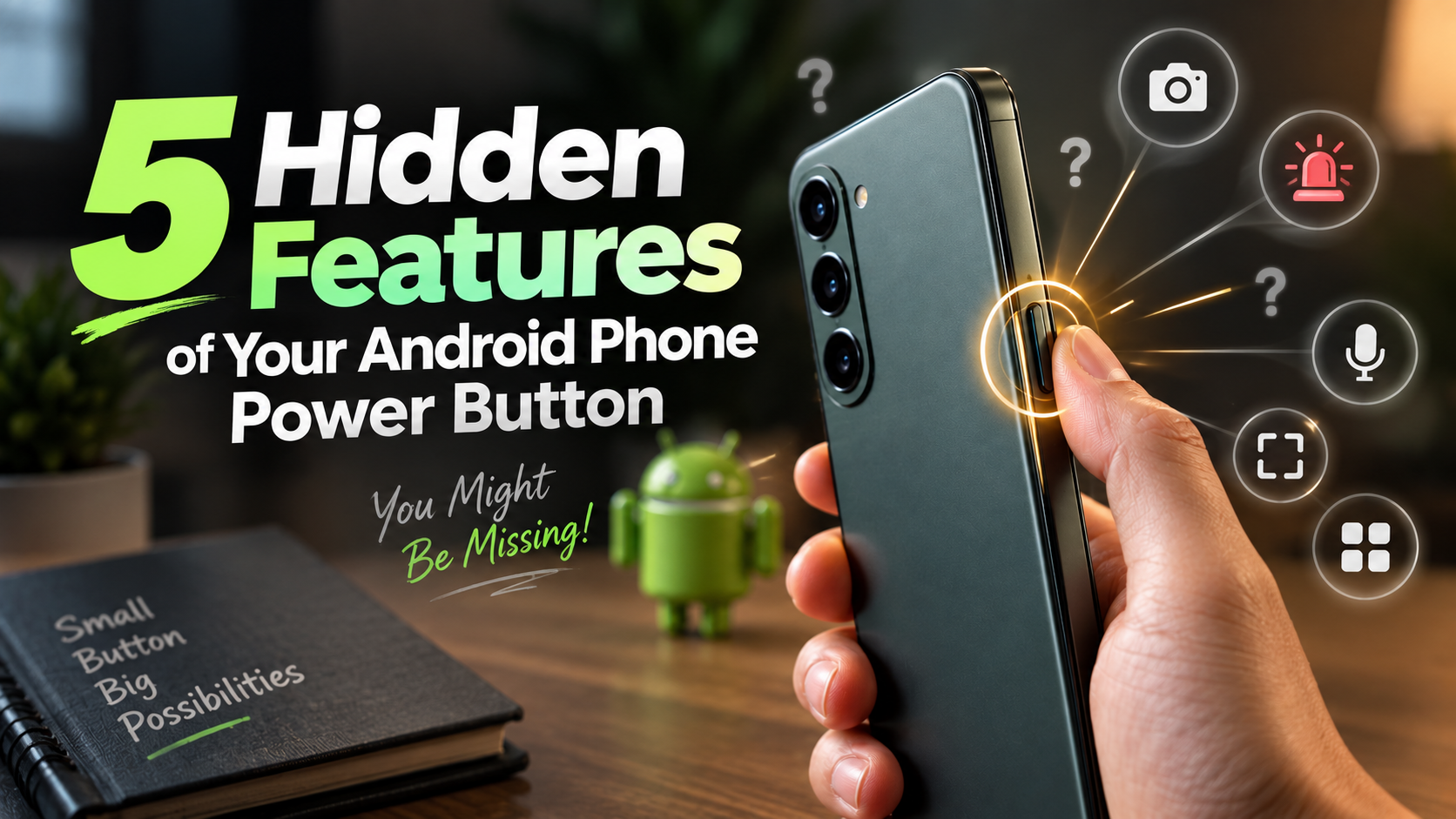
5 Hidden Features of Your Android Phone Power Button
Depending on your phone model, Android version, and manufacturer, several hidden features can make your Android phone more useful. You may be able to launch the camera, activate Emergency SOS, open an assistant, take screenshots, or access other shortcuts in seconds.
There are also hidden features available through diagnostic menus on some Samsung Galaxy phones. These tools can help you test the display, touchscreen, sensors, speakers, buttons, and other hardware. For additional guidance, troubleshooting, and device settings, visit the Android Help Center.
In this guide, we’ll look at five useful hidden features involving your Android phone’s power or side button. We’ll also explain what happens when you press the button five times and what several Samsung diagnostic codes are designed to do.
Keep in mind that Android hidden features vary between manufacturers and software versions. A shortcut available on a Samsung Galaxy phone may not work on a Google Pixel, OnePlus, Motorola, Xiaomi, or another Android device.
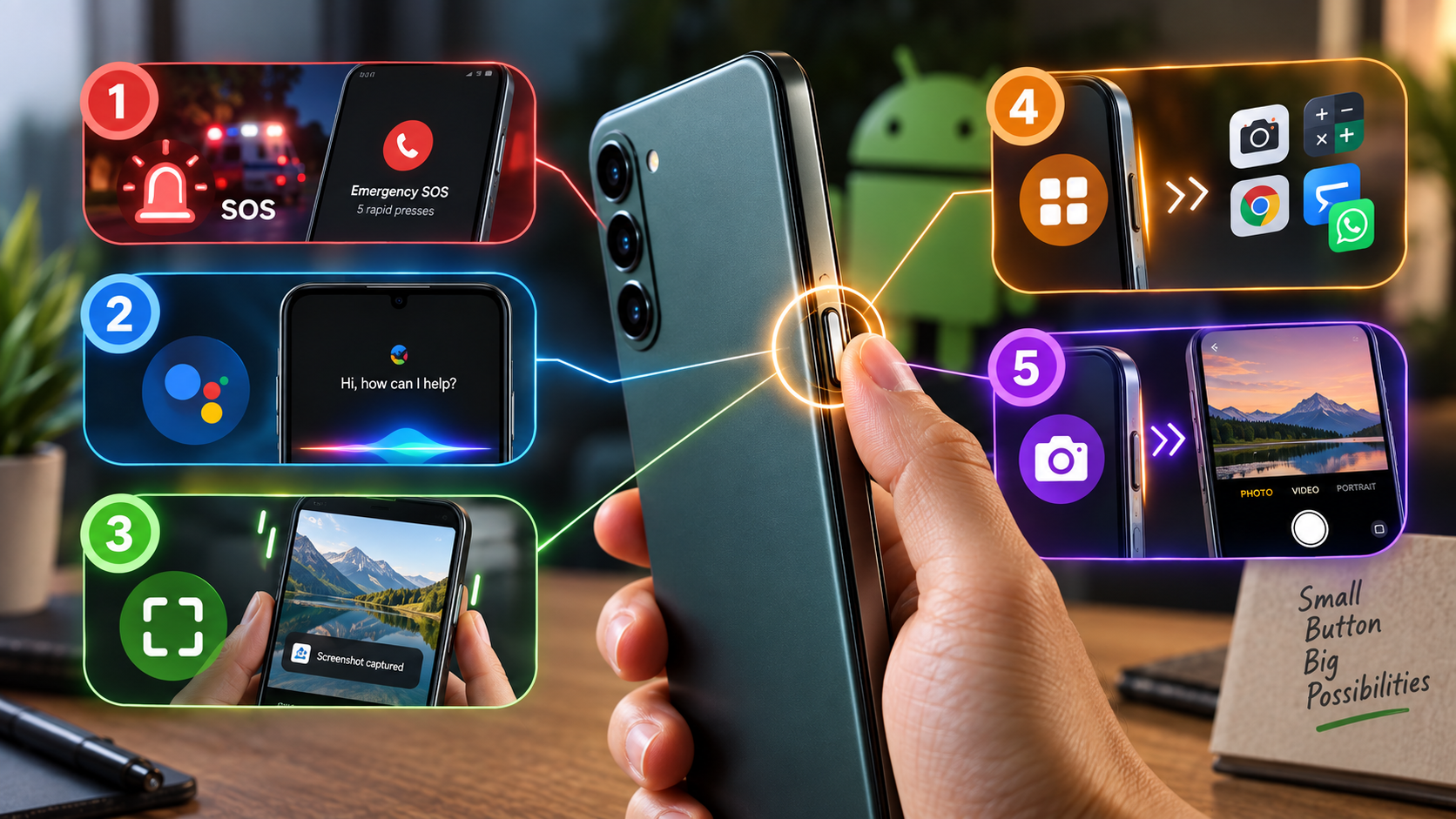
1. Five Rapid Presses Can Activate Emergency SOS
One of the most important hidden features on supported Android phones is Emergency SOS.
Pressing the power button five times quickly can activate Emergency SOS on compatible devices. The feature is designed for situations where you need emergency assistance but cannot comfortably navigate through your phone.
Depending on your phone, location, and settings, Emergency SOS may:
- Contact emergency services.
- Notify selected emergency contacts.
- Share your location.
- Start an emergency recording.
- Display a countdown before taking action.
The exact behavior depends on the device and region. Some phones may require confirmation, while others can begin emergency actions automatically after the five presses.
On supported Android devices, you can usually review Emergency SOS by going to Settings > Safety & emergency > Emergency SOS.
Before relying on this feature, check your settings and understand exactly what your phone will do. You should not intentionally test the shortcut by calling emergency services.
This is one of the most useful hidden features because it can provide quick access to emergency assistance when normal phone navigation is difficult.
2. A Long Press Can Launch Your Digital Assistant
Another useful hidden feature is the ability to launch a digital assistant by pressing and holding the power or side button.
On some Google Pixel phones, the power button can be configured to launch an assistant such as Google Assistant or Gemini, depending on the device and software version.
On compatible Pixel phones, check:
Settings > System > Gestures > Press and hold the power button
The available options can vary between Pixel models and Android versions.
Samsung Galaxy phones use the term Side button for many of these controls. On supported Galaxy devices, you can check:
Settings > Advanced features > Side button
The press-and-hold action may allow you to access a digital assistant or another available function.
These controls can change after software updates, so don’t worry if your phone’s settings look different from another Android device.
If a long press doesn’t launch an assistant, search your Settings app for Power button, Side button, or Gestures.
This is another example of Android hidden features that can save time when you frequently use voice commands.
3. Press Power + Volume Down for an Instant Screenshot
One of the most widely supported Android hidden features is the physical button combination for taking screenshots.
Press the Power and Volume Down buttons at the same time and release them quickly.
Your phone should capture the current screen. Depending on the device, a preview may appear with options to edit, crop, share, or delete the screenshot.
This shortcut works on many Android phones, including devices from Google, Samsung, OnePlus, Motorola, Xiaomi, and other manufacturers.
If it doesn’t work, make sure you press both buttons at approximately the same time. Holding the buttons for too long can produce a different result, such as opening the power menu or changing the volume.
Some manufacturers also provide alternative screenshot hidden features. For example, Samsung Galaxy phones may offer gesture-based screenshot options through their settings.
You can search Settings for Screenshot, Motions and gestures, or Gestures to see which options your phone supports.
4. Double-Press the Side Button to Open an App
Other manufacturers may provide their own versions of these hidden features, including hidden features on OnePlus phones that can add extra shortcuts and controls.
On supported Samsung Galaxy phones, you can customize the Side button so that a double press performs a particular action. Depending on your model and software version, available choices may include launching the camera, opening an app, or using another shortcut.
To check the available options on a compatible Samsung phone, open:
Settings > Advanced features > Side button > Double press
You may be able to select an app or choose from the functions provided by your phone.
Google Pixel phones also support a double-press power-button shortcut, although the available actions can be more limited. On many Pixel devices, the shortcut is primarily designed to open the camera.
Other manufacturers may provide their own versions of these hidden features.
If you want to find out whether your phone supports customizable button shortcuts, search Settings for:
- Side button
- Power button
- Gestures
- Shortcuts
A double press can be especially useful for apps you use frequently, such as the camera, calculator, messaging app, or payment application.
5. Double-Press the Button to Open the Camera
Quickly opening the camera is one of the most practical hidden features on many Android phones.
On supported devices, double-pressing the power or side button can launch the camera even when the phone is locked.
This is useful when you need to capture a photo quickly and don’t want to unlock your phone and search for the Camera app.
Samsung Galaxy phones can provide this option through:
Settings > Advanced features > Side button > Double press
If the option is available, select Camera or the relevant camera shortcut.
On Google Pixel phones, camera shortcuts can be found under the phone’s gesture settings, although the exact location and wording can change with Android updates.
Once the shortcut is enabled, quickly press the button twice. The camera should open, allowing you to take a photo, record video, or switch to the front-facing camera.
It’s important to understand that the shortcut normally opens the camera rather than automatically taking a photograph.
This makes the camera shortcut one of the most useful hidden features for anyone who takes photos frequently.
What Are Some Hidden Features on an Android Phone?
Android phones contain many hidden features that aren’t immediately obvious.
Some are connected to physical buttons, while others are found inside settings, accessibility options, gesture controls, or diagnostic menus.
For example, supported phones may let you:
- Double-press the power button to open the camera.
- Press the power button five times to activate Emergency SOS.
- Hold the power or side button to launch an assistant.
- Press Power + Volume Down to take a screenshot.
- Customize certain side-button actions.
Samsung Galaxy phones can also include diagnostic tools that are not visible in the standard Settings menus.
Because manufacturers customize Android, these hidden features aren’t identical on every phone. The same button combination may perform one action on a Samsung phone and a different action on a Google Pixel or another Android device.
What Happens If You Press the Power Button 5 Times on Android?
On supported Android phones, pressing the power button five times quickly can activate Emergency SOS.
Emergency SOS gives you rapid access to emergency functions when you cannot easily operate your phone.
Depending on your device and configuration, it may contact emergency services, notify emergency contacts, share your location, or perform other emergency actions.
Some devices display a countdown or confirmation screen before they complete an emergency action.
Your Android version, phone manufacturer, country, and personal settings can determine which functions you can use.
To review the feature on supported devices, check:
Settings > Safety & emergency > Emergency SOS
Because accidental activation can happen, review the feature before you need it.
These important hidden features work differently from ordinary shortcuts because they can initiate real emergency actions.
What Does #0# Do on Android?
The *#0*# code is one of the better-known Samsung diagnostic codes.
On supported Samsung Galaxy phones, entering the code in the phone dialer can open a hardware testing menu. However, it does not work as a universal Android code, and other manufacturers’ phones may simply ignore it.
Depending on the device, the diagnostic menu may provide tests for components such as:
- Display
- Touchscreen
- Vibration
- Speakers
- Cameras
- Sensors
- Physical buttons
The menu can help you troubleshoot basic hardware problems.
For example, if you suspect that part of your touchscreen isn’t responding, a diagnostic test may help you determine whether the problem comes from software or hardware.
However, Samsung can change the available tests between Galaxy models and software versions.
These diagnostic options rank among the lesser-known hidden features of Samsung phones, but you should use them carefully. Avoid changing settings or selecting options you don’t understand.
If a hardware test suggests a serious problem, consider using Samsung’s official support options or an authorized service center.
What Does *#9900# Do to Your Phone?
The *#9900# code can open a SysDump or System Dump menu on some Samsung Galaxy devices.
This menu primarily serves diagnostic and troubleshooting purposes rather than everyday Android use.
The menu can contain options related to system logs and diagnostic information. One commonly referenced option, Delete dumpstate/logcat, removes certain diagnostic log files that the operating system creates.
Deleting these logs may recover some storage space, but the amount varies from device to device. Don’t treat this option as a guaranteed way to free gigabytes of storage.
The SysDump menu can also contain advanced options that Samsung designed for troubleshooting and engineering purposes.
For that reason, don’t randomly change settings simply because you can access them.
If you only need to clear diagnostic logs and understand the specific option you’re selecting, use that option instead of experimenting with unrelated controls.
The code may not work on every Samsung phone. Software versions, regional configurations, and security changes can affect access to these hidden features.
What Is *#2663# Used For?
The *#2663# code can open a touchscreen firmware information or update screen on some Samsung Galaxy devices.
The term TSP generally refers to the Touch Screen Panel.
Depending on the device, this menu may display information about touchscreen firmware and, on some models, provide a firmware-related update option.
This tool can help when you investigate certain touchscreen problems, but it doesn’t provide a universal solution for touch issues.
A touchscreen problem can have many causes, including:
- Physical screen damage
- Software bugs
- Moisture
- A faulty screen protector
- Hardware failure
- Other system problems
Before you use an advanced firmware option, check for available system updates and restart your phone. You can also remove a problematic screen protector or accessory to determine whether it causes the issue.
Most importantly, don’t select firmware-related options unless you understand what they do.
Samsung may also restrict or remove these diagnostic hidden features on newer devices, so a code that doesn’t work doesn’t necessarily indicate a problem with your phone.
Why Do Android Hidden Features Vary Between Phones?
One reason Android hidden features can seem confusing is that Android doesn’t work identically across every manufacturer.
Google, Samsung, OnePlus, Motorola, Xiaomi, and other companies modify Android to create their own interfaces and features.
As a result:
- A button shortcut may exist on one phone but not another.
- Settings menus can have different names.
- Diagnostic codes may work only on specific manufacturers.
- Emergency features can vary by country.
- Software updates can change button behavior.
- Newer phones may remove older engineering menus.
Therefore, don’t assume that a shortcut you see online will work on your particular device.
If a code or shortcut doesn’t work, check your phone’s model-specific documentation or search your Settings app for the relevant feature.
Final Thoughts
Your Android phone’s power or side button can do much more than simply turn the screen on and off.
These hidden features give you quick access to Emergency SOS, digital assistants, screenshots, customizable shortcuts, and the camera.
On supported Samsung Galaxy phones, additional diagnostic hidden features can appear through codes such as *#0*#, *#9900#, and *#2663#. These codes can provide hardware tests, diagnostic information, or touchscreen-related information.
However, not every feature works on every Android phone. Your manufacturer, model, Android version, software update, and region can all affect availability.
The safest approach involves checking your phone’s settings before changing advanced options. Use diagnostic menus only when you understand what they do, and avoid experimenting with unfamiliar engineering controls.
Once you know which hidden features your particular Android phone supports, the power button can become a surprisingly useful shortcut for everyday tasks and troubleshooting.