If Your Amazon Alexa Is Glowing Red: Here’s What It Means
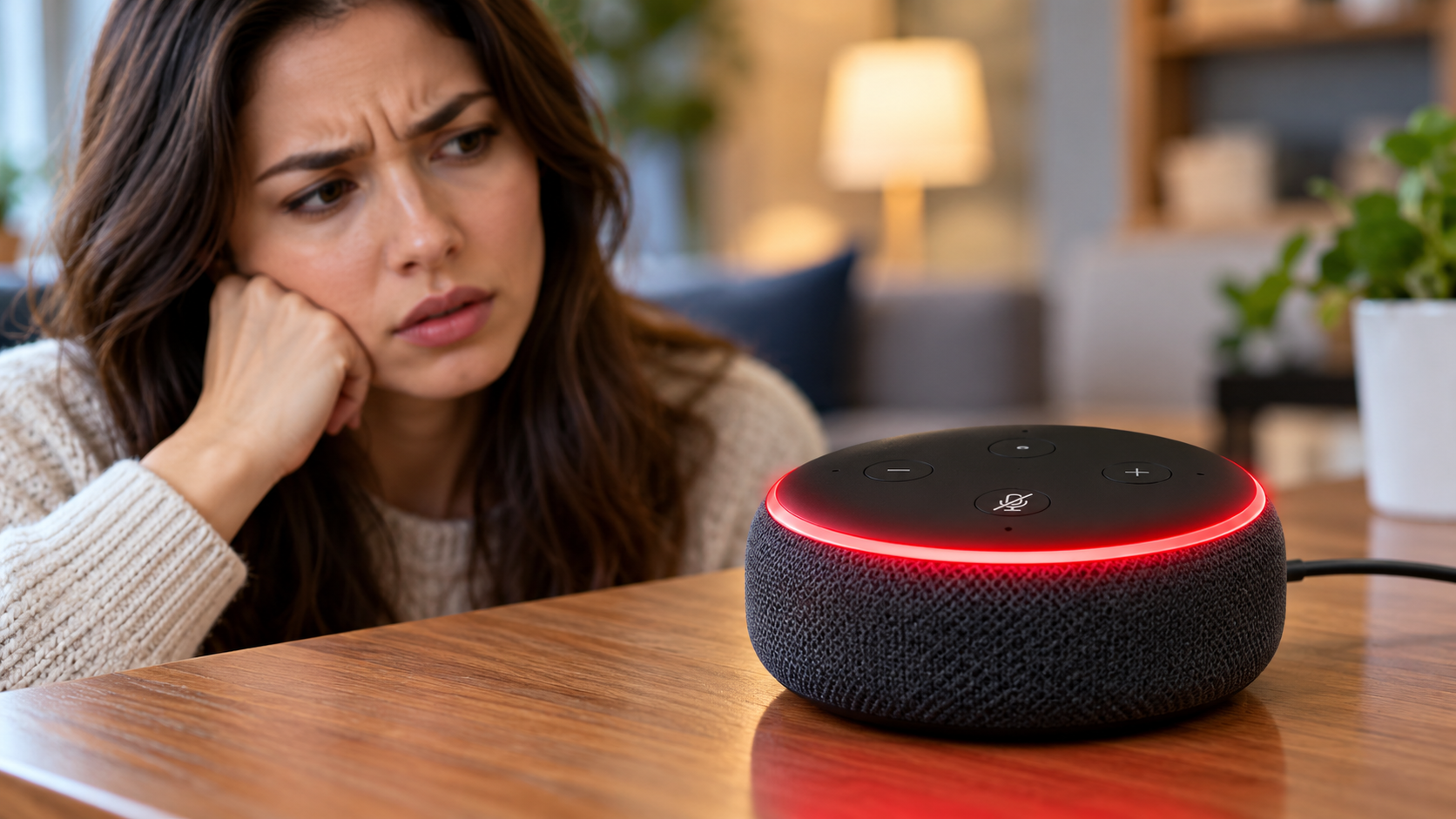
Seeing a red light ring on your smart speaker can be confusing. However, when your Alexa glows red, it usually means the microphone is muted. This is a normal device status, not necessarily a sign of a malfunction.
Amazon uses different light colors to communicate what your Echo device is doing. A red light indicates that Alexa cannot hear your voice commands through its muted microphone. You can check the official Amazon Device Support guide for more information about Echo light indicators.
In most cases, fixing the problem takes only a few seconds. You simply need to press the microphone button on your Echo speaker. However, if the red light stays on after you unmute the microphone, you may need to restart your device.
This guide explains why Alexa glows red, how to turn off the red light, and what to do when your Echo stops responding. You’ll also learn how Alexa’s privacy features work and how to recognize other important light signals.
What Does It Mean When Alexa Glows Red?
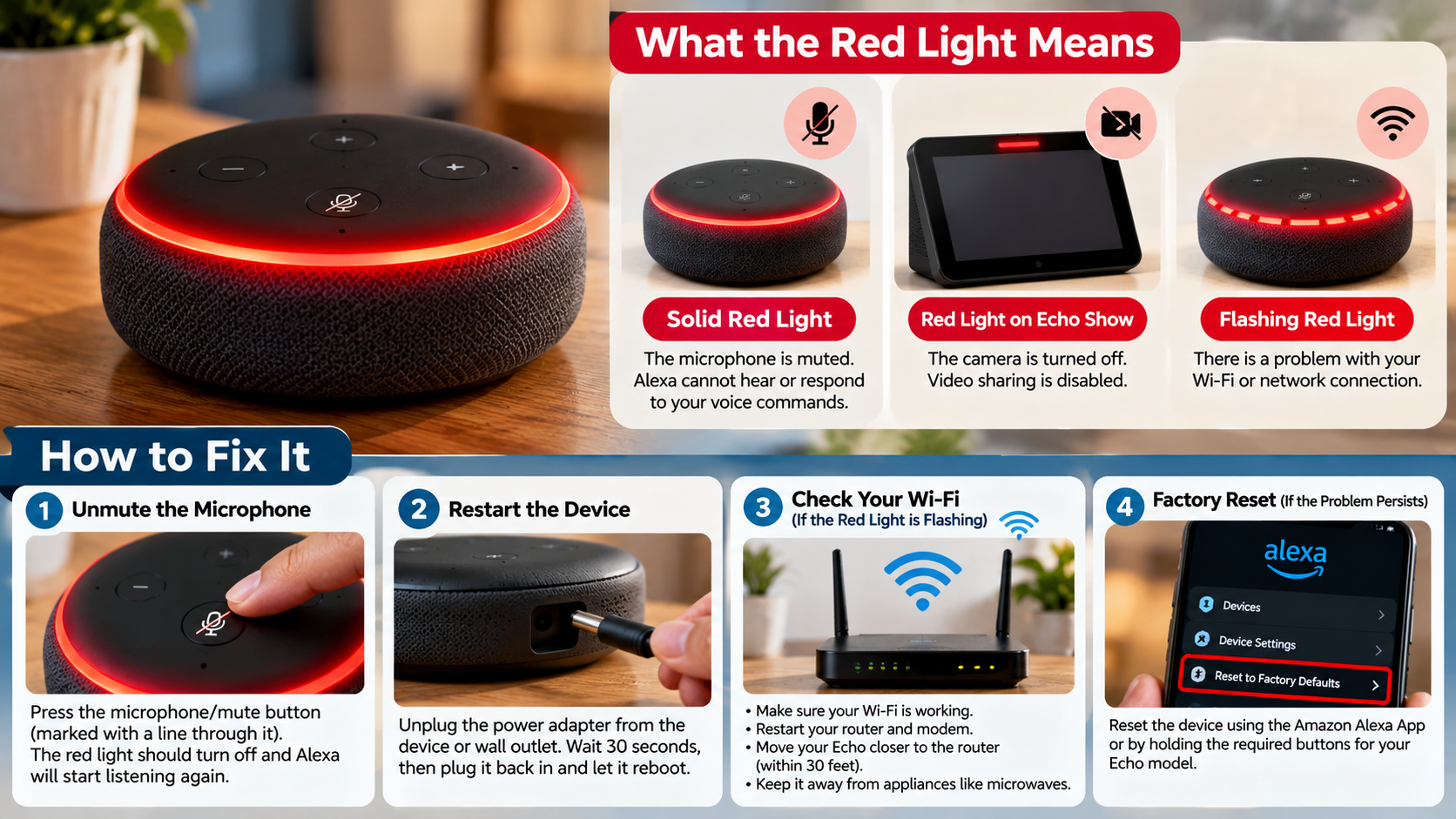
When your Alexa glows red, your Echo device’s microphone is muted. The device cannot hear your wake word or respond to voice commands until you unmute the microphone. Amazon uses this visual indicator to show that you’ve disabled the microphone.
On most Echo speakers, the red light appears as a ring around the device. On Echo Show smart displays, you may see a red indicator near the screen’s lower edge or another designated area, depending on the model.
The red light usually appears after someone presses the physical microphone-off button. You don’t need to assume that your speaker has malfunctioned when you see this indicator.
How to Turn Off Alexa’s Microphone Mute Feature
Follow these steps to remove the red light:
- Locate the microphone button on your Echo device.
- Look for the microphone symbol with a line through it.
- Press the button once to unmute the microphone.
- Wait for the red light to disappear.
- Say “Alexa” and try a simple voice command.
If the red light disappears, your device should respond normally again. If it remains red, restart the Echo and check whether the microphone button moves freely.
What Color Is Alexa If Someone Is Listening In?
Alexa uses different light signals to indicate calls and other activities. A red light generally means the microphone is muted, while a green light indicates calling activity on compatible Echo devices.
A spinning green light typically indicates an active call or Drop In session. A pulsing green light generally signals an incoming call. These indicators help people nearby recognize when calling features are active.
A red light differs from the indicators associated with calls. However, the light alone cannot prove that every aspect of your device’s privacy is secure. It indicates the microphone’s muted state, not the overall security of your Amazon account or network.
Identifying Active Call and Drop In Indicators
Learn to recognize these common Alexa light signals:
- Pulsing green: An incoming call.
- Spinning green: An active call or Drop In session.
- Solid red: The microphone is muted.
- Blue light: Alexa is generally processing a request or responding, depending on the light pattern.
If you want to prevent unexpected Drop In connections, open the Alexa app and review your communication settings. Disable Drop In where available, and check which contacts have permission to connect.
Why Is My Alexa Stuck on the Red Light?
If your Alexa stays red after you press the microphone button, the device may not respond correctly. However, a persistent red light doesn’t automatically indicate a firmware problem. Start by checking the physical controls before trying more complicated fixes.
Press the microphone button again and watch for a change in the light. Make sure the button moves freely and that dust or a protective cover doesn’t obstruct it. If the light remains red, unplug the Echo’s power adapter from the wall.
Wait approximately 30 seconds before reconnecting the power. Give the device a minute or two to restart, then check the light ring again.
If the problem continues, check the power adapter and cable for damage. Use the original or a compatible adapter that meets your Echo model’s requirements. Avoid repeatedly resetting the device without first identifying the problem.
Performing a Clean Echo Factory Reset
A factory reset may help if your Echo remains unresponsive after restarting. However, treat a factory reset as a last resort because it can remove device settings and require you to complete setup again.
The reset procedure varies by Echo model. Some devices use physical buttons, while others require a specific button combination or an option in the device settings.
Before resetting your speaker, identify its exact model and consult the relevant Amazon Device Support instructions.
After resetting, follow the Alexa app’s instructions to reconnect the device to your account and Wi-Fi network. Check whether the red light disappears, then test the microphone with a voice command.
If the microphone remains muted or the device still fails to respond, contact Amazon support for model-specific troubleshooting.
Why Is My Alexa Red and Not Responding to Me?
When Alexa glows red and ignores your voice, check the microphone mute setting first. A muted microphone prevents your Echo from detecting its wake word, such as “Alexa,” “Echo,” or “Computer,” depending on your selected setting.
Speaking louder won’t solve the problem because the microphone has been disabled. Press the microphone button and wait for the red indicator to disappear before trying another command.
If Alexa still doesn’t respond, check the power supply and Wi-Fi connection. A red light alone doesn’t mean your internet connection has failed. Microphone problems and network issues can occur separately, so troubleshoot each one independently.
Checking Device Network Status in the Alexa App
Use these steps to check your Echo’s connection:
- Open the Alexa app on your smartphone.
- Select Devices and choose your Echo speaker.
- Review the device status and available settings.
- If the device appears offline, check your home Wi-Fi connection.
- Restart your router if you identify a network problem.
- Restart your Echo and test a voice command again.
If Alexa responds after you unmute the microphone, you probably don’t need to change your network settings. If the device remains offline, investigate the Wi-Fi connection separately.
Is Alexa Always Listening to Me?
Alexa devices use their microphones to detect the configured wake word. Amazon states that compatible Echo devices process wake-word detection locally before sending a recognized request for cloud processing.
The device must monitor incoming sound to identify the wake word while the microphone remains enabled. After detecting the wake word, Alexa typically records and sends the request for processing.
When your Alexa glows red, the microphone mute feature prevents the device from detecting its wake word through its microphones. This feature provides a convenient way to stop Alexa from responding to nearby speech.
However, the red light doesn’t prove that your entire device, account, or network has no security risks. For additional protection, review your privacy controls, account security, and connected-device settings.
Managing Stored Audio Recordings and Privacy
You can manage available voice-history and privacy controls through the Alexa app or your Amazon account. These settings help you review recordings and choose how Amazon handles your voice data.
Follow these steps to review your privacy settings:
- Open the Alexa app.
- Go to Settings or Alexa Privacy, depending on your app version.
- Find the voice-history or activity-review options.
- Review available recordings and delete any you no longer want to keep.
- Check whether your account offers automatic deletion options.
You can also review how Amazon uses your voice recordings to improve its services. The available options may vary by device, account, and region.
For additional privacy, press the physical microphone mute button during sensitive conversations. You can also review Drop In permissions and strengthen your Amazon account security.
Final Thoughts
When your Alexa glows red, the most common explanation is that the microphone is muted. In most cases, pressing the microphone button restores voice control and turns off the red indicator.
If the light remains on, restart your Echo, check the physical button, and verify the device’s status in the Alexa app. Avoid a factory reset until you’ve tried simpler troubleshooting steps and identified your device model.
Understanding Alexa’s light signals also helps you distinguish microphone muting from calls and other activities. For better privacy, review your voice-history settings and control which contacts can use Drop In.
With these steps, you can identify the cause of the red light and get your Echo working again without unnecessary troubleshooting. If you’re planning to upgrade your smart speaker or buy another device, read our guide on the 30-day rule for buying new gadgets to make smarter purchasing decisions and avoid unnecessary spending.