How to Check SSD Health: A Complete Guide to Drive Lifespan and Warning Signs
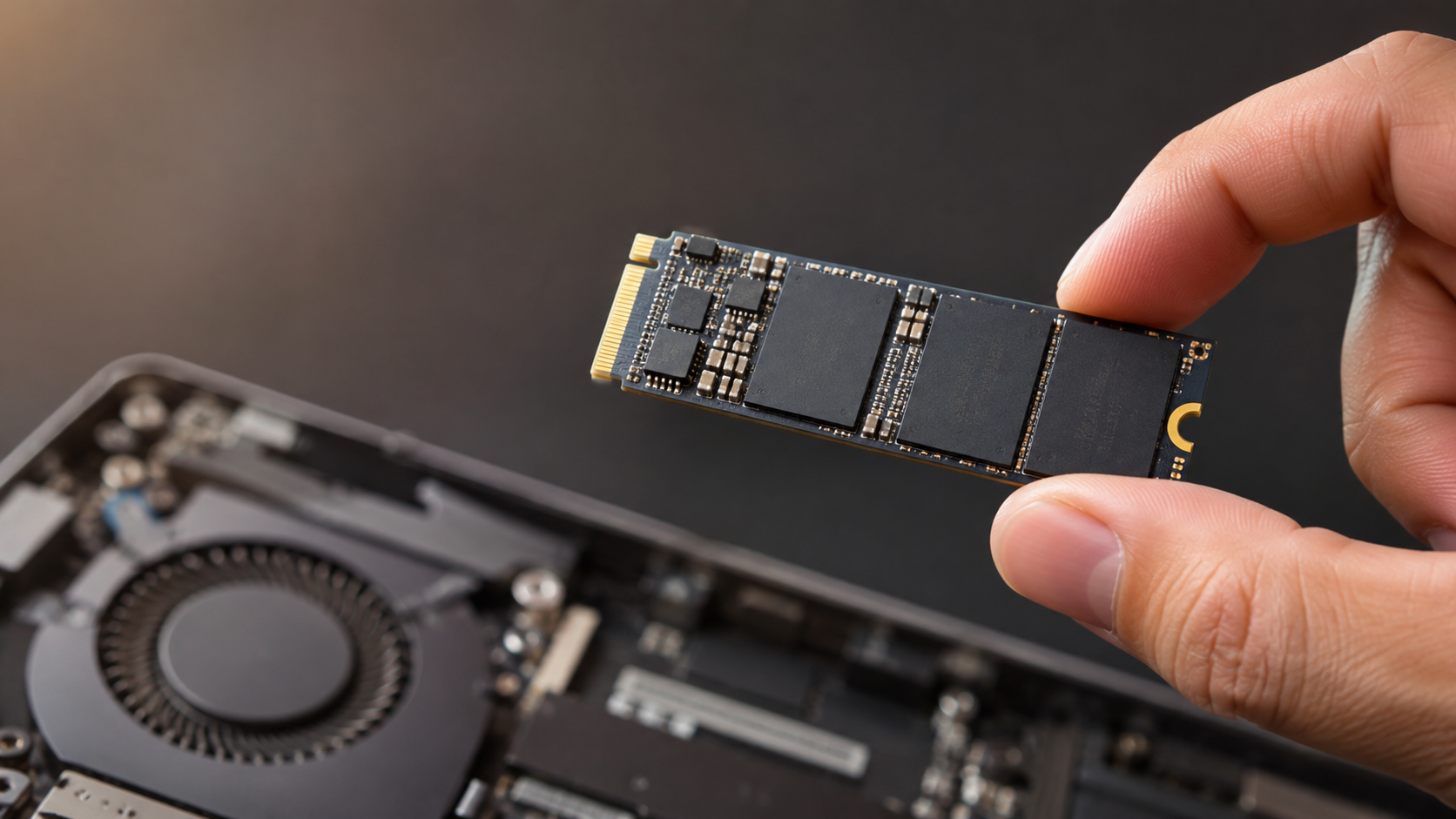
Knowing how to check SSD health is essential for protecting your files, photos, and operating system. Solid-state drives (SSDs) offer excellent speed and reliability. However, their flash memory cells gradually wear out after repeated write operations.
Unlike traditional hard drives, SSDs have no moving parts or mechanical warning noises. A failing SSD may suddenly become read-only, corrupt files, or disappear from your computer. Regular health checks help you identify potential problems before they cause data loss.
Modern operating systems and manufacturer utilities provide useful information about drive condition. These tools can report estimated remaining life, temperature, available spare capacity, and hardware errors.
In this guide, you will learn how to check SSD health on Windows and Mac. We will also explain SSD lifespan, SMART attributes, wear percentages, common failure symptoms, and the expected lifespan of a 1TB SSD.
How Can I Check the Health of My SSD Hard Drive?
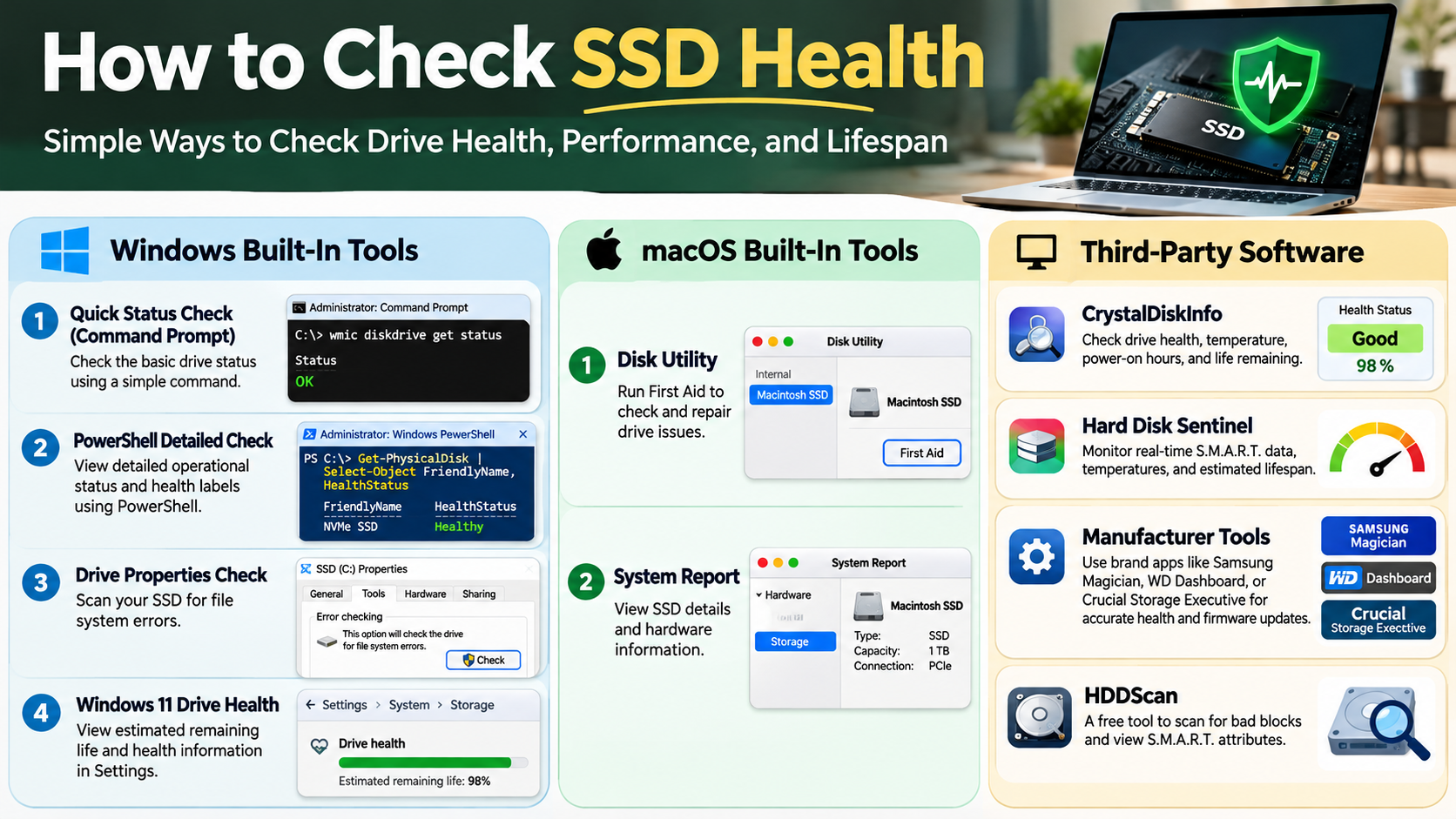
You can check SSD health using built-in operating system tools or dedicated diagnostic software. These tools help you monitor drive condition, temperature, remaining endurance, and potential hardware problems.
On Windows 10 and 11:
- Open Settings on your computer.
- Select System, then click Storage.
- Open Advanced storage settings.
- Select Disks & volumes.
- Choose your SSD and click Properties.
- Check the available drive health information.
Windows displays estimated remaining life, available spare capacity, and temperature for supported NVMe SSDs. This built-in feature does not monitor SATA SSDs or traditional hard drives. Microsoft explains these limitations in its storage health documentation.
On Mac: Open Disk Utility, select your drive, and click Info. Check for any reported hardware failure warnings. You can also use compatible SMART monitoring software for additional details.
For Windows users, CrystalDiskInfo provides another convenient way to inspect SMART information.
Using Official Manufacturer Software for Deeper Diagnostics
Manufacturer utilities provide detailed information about compatible SSDs. They can interpret drive-specific health metrics and identify potential problems that basic operating system tools might not display.
Consider these official applications:
- Samsung Magician: Monitors compatible Samsung SSDs, displays drive health, and provides diagnostic and firmware tools.
- Crucial Storage Executive: Checks compatible Crucial SSDs, monitors health, and provides firmware updates.
- Western Digital Dashboard: Provides health information, performance monitoring, and diagnostic features for supported WD drives.
These applications can display information such as temperature, total bytes written, firmware version, and SMART attributes. Some also provide short and extended diagnostic tests.
However, not every feature works with every SSD model. Check your manufacturer’s compatibility information before installing a utility. Always download diagnostic software directly from the manufacturer’s official website.
Using the manufacturer’s tool alongside a SMART monitoring application gives you a clearer picture of your drive’s condition.
How Do I Know If My SSD Is Bad?
A failing SSD can show several warning signs before it stops working. Recognizing these symptoms early gives you time to protect your important files.
Watch for these common problems:
- Frequent system crashes: Unexpected blue screens or repeated operating system errors may indicate storage problems.
- Slow performance: Unusually slow boot times, file transfers, or application loading can signal underlying issues.
- File corruption: Documents, photos, and other files may become damaged or unreadable.
- Unexpected freezes: Your computer may stop responding when accessing files or opening applications.
- Read-only mode: Some SSDs enter read-only mode to protect existing data when serious hardware problems occur.
- Drive detection problems: Your computer may occasionally fail to recognize the SSD during startup.
These symptoms do not always indicate SSD failure. Software conflicts, overheating, faulty cables, and operating system problems can produce similar issues.
However, repeated storage errors deserve immediate attention. Back up your important files as soon as possible if you notice these warning signs. You can compare cloud storage and external hard drives for backups to choose a suitable way to protect your important files. Do not wait until your SSD becomes completely inaccessible.
Checking SMART Attributes for Early Failure Warnings
SMART (Self-Monitoring, Analysis, and Reporting Technology) allows storage devices to monitor their internal condition. It records information about drive usage, errors, temperature, and other health-related measurements.
Checking SMART attributes can help identify potential SSD problems before complete failure. However, attribute names and interpretations vary between manufacturers and drive models.
Pay attention to these indicators when your monitoring software supports them:
- Percentage Used: Shows the estimated portion of the SSD’s rated endurance already consumed on supported NVMe drives.
- Available Spare: Indicates the remaining reserve capacity available for replacing worn memory blocks.
- Media and Data Integrity Errors: Records certain errors involving stored data or media.
- Temperature: Helps identify overheating that could affect performance and reliability.
- Uncorrectable Errors: May indicate problems that the drive’s error-correction system cannot resolve.
A rising error count or critical SMART warning deserves investigation. One isolated value does not always mean failure is imminent.
Check your manufacturer’s documentation before interpreting individual attributes. Back up your data immediately if the drive reports a critical warning.
Is 98% SSD Health Good?
Yes, 98% SSD health is generally an excellent reading. It usually indicates that the drive has consumed only a small portion of its rated endurance. However, the exact meaning depends on the software and manufacturer reporting that percentage.
Many monitoring applications estimate SSD health using SMART attributes, manufacturer-specific wear indicators, or remaining write endurance. Therefore, a 98% reading does not always mean exactly 2% of the drive’s guaranteed write cycles have been consumed. Understanding common SSD myths and misconceptions can also help you interpret health readings more accurately.
For example, some NVMe drives report a Percentage Used value. This indicates the estimated proportion of rated endurance consumed, rather than a universal health score.
A 98% rating alone cannot guarantee that an SSD will never fail. Electronic components, controllers, firmware, and other hardware can develop faults independently of flash memory wear.
Continue monitoring temperature, error reports, and drive performance. Keep regular backups regardless of the displayed percentage.
Understanding How Wear Leveling Protects Your Drive
Wear leveling is an important technology that helps extend SSD lifespan. It distributes write operations across available NAND flash memory cells instead of repeatedly using the same storage blocks.
Without this process, frequently updated data could cause certain memory cells to wear out much faster than others. Wear-leveling algorithms help balance this usage and improve overall endurance.
Modern SSD controllers also use additional techniques to maintain performance and reliability. These include garbage collection, error correction, and spare block management.
As a result, SSD wear does not necessarily increase at a constant rate. Your usage patterns, available storage space, workload, and drive design all influence memory degradation.
You can support efficient SSD operation by avoiding unnecessary continuous writes and maintaining sufficient free storage space. If you are unsure how much capacity to leave unused, learn how much free space you should leave on an SSD. However, modern SSDs manage most wear-related processes automatically.
A gradual decline in the reported health percentage is generally expected. Investigate sudden changes or new critical warnings rather than focusing on every small percentage reduction.
Is a 10-Year-Old SSD Still Good?
A 10-year-old SSD can still function, but its age alone cannot determine whether it is reliable. Actual condition depends on write activity, operating temperature, storage conditions, component quality, and previous usage.
Some older SSDs continue working without noticeable problems. Others develop controller faults, firmware issues, or memory degradation much earlier.
Before continuing to use a decade-old drive, check its SMART information and run an appropriate manufacturer diagnostic test. Pay attention to remaining endurance, reported errors, and unusual performance changes.
You should also consider whether the drive still meets your performance requirements. Older SATA SSDs generally offer lower transfer speeds than modern NVMe models. If you are comparing the long-term reliability of different storage technologies, explore which storage drive lasts longer: HDD or SSD.
For everyday browsing and basic office work, an older SSD might remain usable. However, avoid relying on it as your only storage location for important documents, financial records, or family photographs.
Age is not a substitute for a health assessment. Keep multiple backups and consider replacing an older drive used for critical work.
Risks of Data Retention Loss on Older Flash Drives
SSDs store information using electrical charges inside NAND flash memory cells. Over time, these charges can gradually change, making stored information harder to read correctly.
This process is known as data retention loss. It becomes more concerning as flash memory wears out through repeated program and erase cycles.
Temperature and storage conditions also influence how long an unpowered SSD retains its data. JEDEC endurance standards include data-retention requirements for different SSD categories and operating conditions.
For example, client SSDs have a specified retention requirement of one year at 30°C under defined endurance conditions. This does not mean every old SSD automatically loses data after one year.
A heavily worn drive stored in a hot environment may face greater retention risks. Therefore, avoid treating an old SSD as permanent offline storage.
If you store an SSD for an extended period, maintain another verified copy of its contents. Periodically reconnect the drive, inspect its condition, and refresh your backups when necessary. If your older SSD remains healthy, you can also turn it into a portable drive for convenient file storage and transfers.
How Long Will a 1TB SSD Last?
A 1TB SSD can last five to ten years or longer, depending on its quality, workload, and operating conditions. However, there is no fixed lifespan for every drive.
Manufacturers specify endurance using Terabytes Written (TBW). This measurement indicates how much data can be written to an SSD during its rated endurance period.
For example, consider a hypothetical 1TB SSD rated for 600TBW. This means the drive has a specified endurance rating of 600 terabytes written.
Your daily writing activity determines how quickly you approach that limit:
- Writing 30GB daily takes approximately 55 years to reach 600TBW.
- Writing 100GB daily takes approximately 16.4 years.
- Writing 160GB daily takes approximately 10.3 years.
These are mathematical estimates, not guaranteed drive lifespans. They assume consistent daily writes and do not account for other hardware failures.
Most everyday users write considerably less data than intensive workstation users. Consequently, an SSD’s controller, electronics, or other components may fail before its rated write endurance is exhausted.
Factors That Accelerate SSD Wear and Tear
Your daily computer usage directly influences how quickly an SSD consumes its rated write endurance. Activities involving frequent data transfers and repeated writes can increase flash memory wear.
Some workloads generate significantly more writes than ordinary browsing or document editing.
Common examples include:
- Video editing: Frequently writing large video files, temporary renders, and project exports.
- Gaming: Downloading large games, installing updates, and repeatedly moving files.
- Virtual machines: Running multiple virtual environments that continuously write data.
- Database workloads: Performing frequent transactions and intensive write operations.
- Heavy file transfers: Regularly copying, extracting, and processing large amounts of data.
Temperature also matters. Excessive heat can affect SSD performance and long-term reliability.
Keeping some storage capacity free can help the controller manage background operations. However, leaving exactly 20% free is not a universal requirement.
For better longevity, avoid unnecessary write-intensive workloads, maintain adequate cooling, and install firmware updates when recommended by the manufacturer. Most importantly, maintain regular backups because even a healthy SSD can fail unexpectedly.
Conclusion
Knowing how to check SSD health helps you protect your data and avoid unexpected storage failures. Regularly monitor your drive using Windows tools, macOS utilities, or manufacturer software. Pay attention to SMART warnings, remaining endurance, temperature, and unusual performance changes. These indicators can help you identify potential problems before they become serious.
Remember that even a 98% healthy SSD can experience unexpected hardware failure. Do not rely entirely on health percentages or wait for warning signs before protecting your files. Maintain regular backups, keep your SSD firmware updated, and replace your drive when diagnostics indicate serious problems.
A simple SSD health check today can save you from losing important data tomorrow.