How to Maximize Samsung Galaxy S26 Battery Life
If you want to maximize Samsung Galaxy S26 battery life, you need the right settings and charging habits. Small adjustments can improve daily battery performance without sacrificing essential features.
According to Samsung, managing background activity and charging behavior helps maintain battery performance. Adjusting display settings and limiting unnecessary connectivity can also reduce power consumption.
Many Galaxy users experience unexpected battery drain without knowing its cause. Others worry about charging habits and long-term battery health. This guide addresses both concerns.
We will explain how to extend daily battery life, troubleshoot sudden battery drain on the S26 Ultra, and identify common power-consuming features. You will also learn how to protect battery health and decide whether charging to 90% or 100% makes more sense.
How to Make Samsung Galaxy Battery Last Longer?
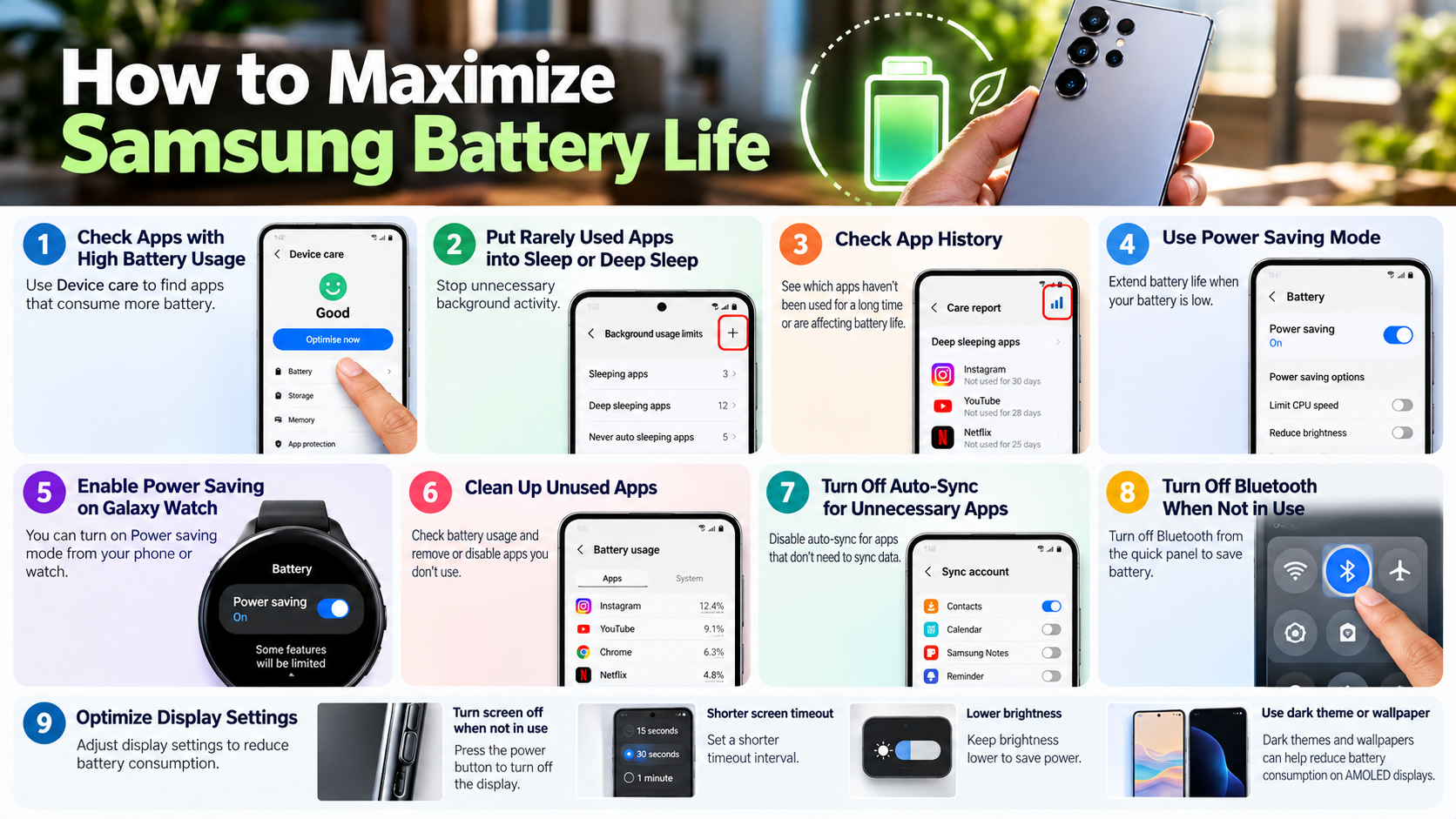
To maximize Samsung Galaxy S26 battery life, start with the built-in One UI power management settings. These features help control background activity and unnecessary power consumption. You don’t need to disable everything to improve battery performance.
Consider these adjustments:
- Enable Adaptive Battery: Allow your phone to manage background activity based on your usage patterns.
- Reduce screen refresh rate: Switch to Standard (60Hz) when battery life matters more than smooth scrolling.
- Adjust screen brightness: Use adaptive brightness or lower brightness manually when possible.
- Enable Dark Mode: AMOLED displays can consume less power when displaying darker content.
- Limit background syncing: Disable automatic syncing for accounts you rarely use.
- Manage connectivity: Turn off Bluetooth, Wi-Fi, or location services when you don’t need them.
The standard Galaxy S26 already uses an FHD+ display. If you own an S26 Ultra, reducing its QHD+ resolution to FHD+ can help reduce display power consumption.
These changes can make a noticeable difference during travel or busy workdays. If you regularly use Always-On Display, consider checking its power consumption as well. Understanding the battery impact of Samsung’s Always-On Display can help you decide whether keeping this feature enabled is worthwhile.
Configure Deep Sleeping Apps in Device Care
Background applications can consume battery even when you aren’t actively using them. Social media platforms, shopping apps, and unused services may continue syncing data or checking for notifications. Samsung provides a built-in feature to control this activity.
You can move rarely used applications into the Deep Sleeping Apps list. These apps won’t run in the background and will only work when you open them manually. This helps prevent unnecessary background activity.
Follow these steps:
- Open Settings on your Galaxy S26.
- Tap Battery.
- Select Background usage limits.
- Open Deep sleeping apps.
- Tap the Add (+) icon.
- Select the applications you rarely use.
- Confirm your selection.
Avoid adding messaging, banking, or other important applications. Deep sleeping apps may not deliver notifications until you open them. Review this list occasionally to ensure essential services remain accessible.
Why Is My Samsung S26 Ultra Battery Draining So Fast?
Several factors can explain sudden battery drain on the Samsung Galaxy S26 Ultra. Background applications, high screen brightness, demanding games, and continuous network activity are common causes.
Poor cellular coverage can also increase power consumption. Your phone may use additional energy while maintaining a connection in areas with weak signals. This becomes particularly noticeable when travelling through locations with inconsistent 5G coverage.
Software problems can create similar symptoms. An outdated application may repeatedly run background processes or fail to enter its normal sleep state. Recently purchased devices may also consume additional power during initial setup, downloads, and data synchronization.
Display settings deserve attention, too. High brightness and QHD+ resolution can increase energy consumption during extended screen use.
However, don’t assume your battery is damaged immediately. First, identify which applications and features consume the most power. Checking battery statistics can help you distinguish normal consumption from unusual background activity.
Diagnose Battery Usage with Built-in Metrics
Samsung provides built-in battery statistics that help identify applications responsible for excessive power consumption. Instead of randomly changing settings, review these figures first. They can reveal whether an application uses too much energy while running in the background.
Follow these steps:
- Open Settings.
- Select Battery.
- Review the battery usage information.
- Identify applications with unusually high consumption.
- Check their background activity and permissions.
Pay particular attention to applications showing high battery usage despite limited screen time. These may indicate unnecessary background processes, frequent synchronization, or location access.
If you identify a problematic application, try the following:
- Update the application to its latest version.
- Restrict unnecessary background activity.
- Review location and notification permissions.
- Clear its cache if the application behaves unexpectedly.
- Reinstall it if other troubleshooting steps fail.
You should also install available system updates. Software updates can address bugs and improve power management.
If battery drain continues across multiple applications, consider restarting your phone or contacting Samsung Support. Persistent problems may require further diagnosis.
What Kills the Phone Battery the Most?
Several everyday activities can drain your smartphone battery quickly. However, heat and sustained power consumption deserve particular attention because they affect both daily runtime and long-term battery health.
High screen brightness, demanding games, video recording, and continuous GPS usage increase power consumption. Background applications and frequent mobile network searches can also reduce battery life. Avoiding common smartphone mistakes that reduce battery life can help you prevent unnecessary power consumption and maintain better daily battery performance.
Heat creates an additional problem. Lithium-ion batteries naturally degrade over time, but prolonged exposure to high temperatures can accelerate this process. Charging your phone while playing demanding games can increase internal temperatures.
Direct sunlight, hot car interiors, and poorly ventilated charging spaces create similar risks. These conditions make temperature management especially important.
You cannot eliminate battery degradation completely. Every rechargeable battery gradually loses capacity through normal use. However, reducing unnecessary heat and avoiding prolonged high-temperature exposure can help preserve usable battery capacity.
Understanding these factors makes it easier to identify habits that shorten battery runtime and contribute to premature battery wear.
Mitigate High Ambient Heat and Thermal Buildup
Temperature management plays an important role in maintaining your Galaxy S26 battery health. Your smartphone generates heat during gaming, video recording, navigation, and fast charging. Combining several demanding activities can increase internal temperatures further. If you regularly use fast charging, understanding how fast charging affects your phone battery can help you make better charging decisions.
Samsung devices include thermal management systems to help protect internal components. However, good charging habits still matter. Avoid exposing your phone to unnecessary heat during everyday use.
Follow these precautions:
- Avoid direct sunlight: Never leave your phone on a hot dashboard or near a window.
- Avoid charging under pillows: Keep your device in an open, ventilated space.
- Limit gaming while charging: Demanding games can increase heat during charging.
- Use suitable chargers: Choose compatible, reputable charging accessories.
- Remove thick cases if necessary: If your phone becomes unusually warm, remove its case temporarily.
- Pause demanding activities: Give your phone time to cool when it becomes excessively hot.
Occasional warmth during charging is normal. However, persistent overheating deserves attention. If your phone repeatedly becomes unusually hot, check its battery usage and contact Samsung Support if necessary.
How Do I Keep My Battery 100% Healthy?
Keeping your smartphone battery at exactly 100% health permanently isn’t realistic. Lithium-ion batteries gradually lose their original capacity through charging cycles and natural chemical aging. Understanding the relationship between battery health and cycle count can help you understand why battery capacity decreases over time. However, you can slow this process with sensible charging habits.
The most important factors are temperature management, charging limits, and avoiding unnecessary deep discharges. Keeping your phone connected at 100% for extended periods can increase battery stress. Similarly, regularly allowing the battery to reach 0% isn’t necessary.
Samsung offers a Battery Protection feature that helps manage charging behavior. Depending on your software version and available settings, you can limit the maximum charging level.
You should also avoid running demanding applications while charging. Gaming, video editing, and other intensive activities can generate additional heat.
Remember that battery health depends on several factors. Your charging routine, daily usage, environment, and device age all influence long-term performance. Focus on consistent habits rather than trying to maintain a perfect battery health percentage.
Maintain Consistent Partial Discharge Cycles
Lithium-ion batteries generally benefit from avoiding frequent full discharges and prolonged periods at maximum charge. You don’t need to follow a strict charging schedule. Instead, aim for a practical routine that reduces unnecessary battery stress.
A 20%–80% charging range is a useful guideline when your daily usage allows it. This approach is commonly associated with the 80-20 rule for rechargeable batteries. Understanding the 80-20 battery charging rule can help you learn why partial charging may support long-term battery health. Charging within this range can reduce the time your battery spends at higher charge levels.
Consider these everyday habits:
- Recharge your phone before it regularly reaches critically low levels.
- Avoid leaving your phone at 100% for extended periods.
- Use a charging limit when you don’t need the full battery capacity.
- Disconnect the charger when convenient.
- Keep your phone away from excessive heat during charging.
You don’t need to panic if your battery occasionally reaches 10% or charges to 100%. These situations won’t automatically damage your device.
The goal is to reduce repeated exposure to stressful conditions. A flexible charging routine is more practical than constantly monitoring every percentage point.
Should I Charge My Phone to 90% or 100%?
The choice between charging to 90% and 100% depends on your daily usage. If you prioritize long-term battery health, limiting your regular charging level can help reduce battery stress. However, charging to 100% remains useful when you need maximum runtime.
Lithium-ion batteries experience greater voltage-related stress near full charge. Keeping a battery at a high charge level for extended periods can accelerate chemical aging. This is why charging limits are useful for people who regularly charge their phones overnight. If you usually leave your phone plugged in overnight, understanding how overnight charging affects smartphone battery health can help you make more informed charging decisions.
For everyday use, a charging limit around 80%–90% can provide a practical balance. The exact limit depends on your phone’s available Battery Protection settings.
However, don’t sacrifice convenience unnecessarily. If you travel frequently or spend long hours away from charging points, a full charge may be more practical.
Charging to 100% occasionally is perfectly acceptable. Focus on your overall charging habits rather than treating one full charge as harmful.
Utilize Samsung Battery Protection Modes
Samsung provides a built-in Battery Protection feature to help reduce battery wear. It offers different charging behaviors depending on your device and installed One UI version.
On supported Galaxy devices, the available modes include:
- Basic: Charging stops at 100% and resumes when the battery drops to approximately 95%.
- Adaptive: The phone adjusts charging behavior around your estimated sleep schedule. It can limit charging during sleep and complete charging before your usual wake-up time.
- Maximum: Charging stops at the selected maximum charging level. Available limits depend on the device and software version.
To access this feature:
- Open Settings.
- Tap Battery.
- Select Battery Protection.
- Enable the feature.
- Choose your preferred charging mode.
If you regularly charge overnight, Adaptive mode may suit your routine. If you prefer a fixed charging limit, choose Maximum and select an available percentage.
Samsung notes that feature availability and behavior can vary across Galaxy models and software versions. Check your device’s actual settings before following a specific charging limit.
Final Thoughts
Learning how to maximize Samsung Galaxy S26 battery life doesn’t require complicated changes or disabling essential smartphone features. Focus on managing screen brightness, controlling background applications, and reducing unnecessary connectivity.
For long-term battery health, avoid excessive heat and use Samsung’s Battery Protection feature. Choose an appropriate charging limit based on your daily routine.
For additional guidance, visit Samsung’s official resources:- Get the Most Out of Your Galaxy Phone Battery – Explore battery usage statistics, charging protection, and other battery-saving features.
You don’t need to maintain a perfect charging percentage every day. Consistent habits and sensible power management will help you get more from your Galaxy S26.