
What Do F1–F12 Keys Do? A Complete Guide to Function Keys
Have you ever wondered what does F1 to F12 do on a keyboard? These function keys sit at the top of most standard computer keyboards. Yet, many users rarely take advantage of them.
Learning these shortcuts can save time, reduce mouse use, and improve your daily workflow. Whether you are a student, programmer, writer, or office worker, function keys can make common tasks easier.
Their behavior depends on the operating system, application, and keyboard settings. Some keys open help menus, refresh web pages, or manage application windows. Others provide specialized commands in programs such as Microsoft Word and Excel.
Modern laptops may also assign media controls and brightness settings to these keys. You might need to press the Fn key to access their traditional functions.
In this guide, you will discover what F1 through F12 do, how to use them, and which shortcuts are worth learning first.
What does F1 to F12 do on a keyboard?
The F1–F12 keys are known as function keys. They provide quick access to commands in Windows, web browsers, productivity tools, and other applications. Their behavior can also differ between operating systems, so users comparing platforms may find it helpful to understand the drawbacks of switching from Windows to Mac.
Each key can perform a different action depending on the software you are using. For example, F1 commonly opens help, F2 renames selected files, and F5 refreshes many web pages.
Here is a quick overview of their common uses:
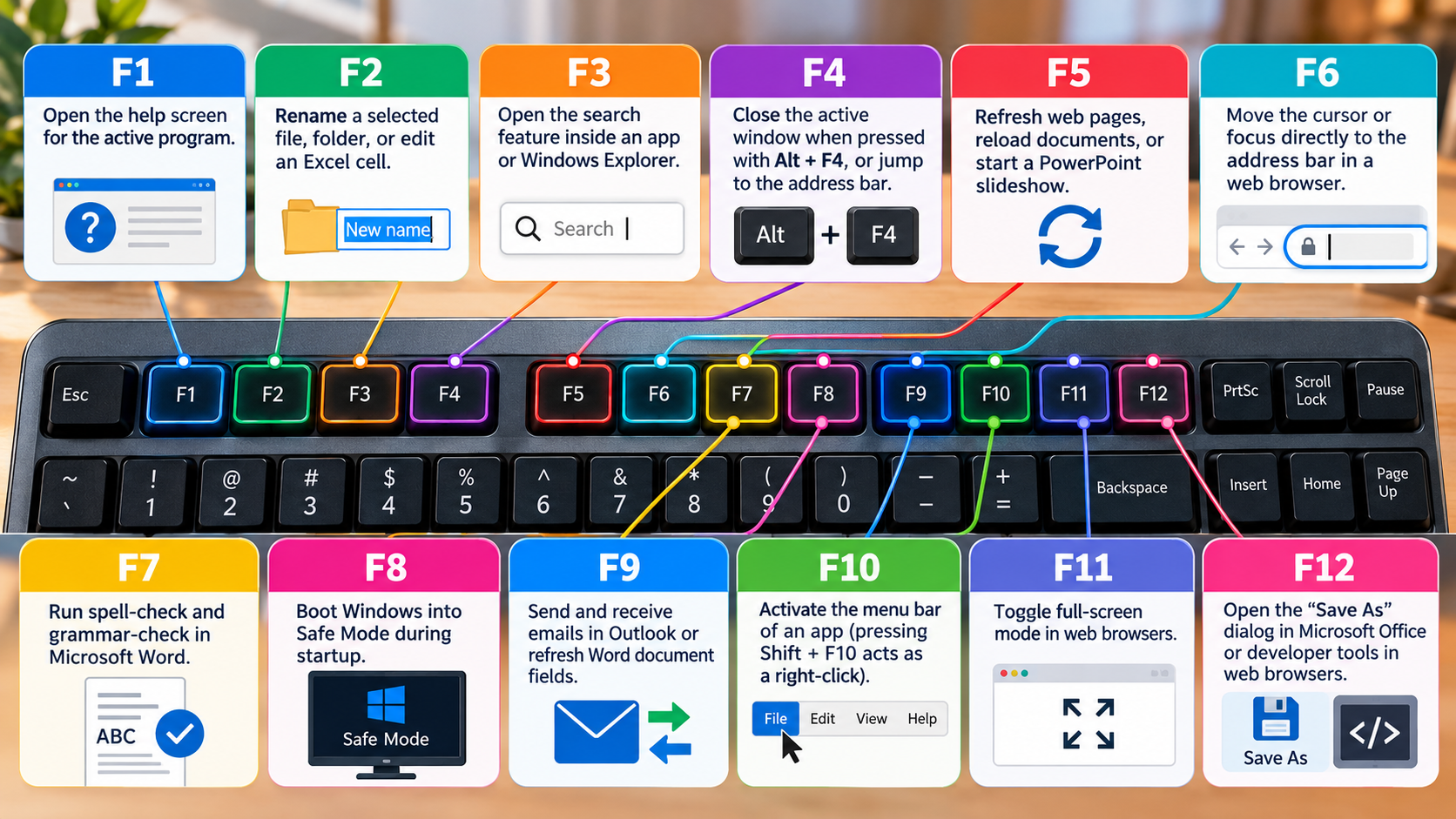
These are common examples, not universal rules. Some applications assign different actions to the same keys.
Understanding Dual Function Keys
Many modern laptops use function keys for two purposes. The primary action may control screen brightness, speaker volume, media playback, or keyboard lighting.
The traditional F1–F12 commands may require you to hold the Fn key while pressing a function key. On some laptops, you can reverse this behavior using the Fn Lock feature or keyboard settings.
For example, pressing F5 might adjust brightness on one laptop but refresh a webpage on another. The difference depends on the keyboard’s configuration.
To use these keys correctly, check the icons printed on your keyboard. Your keyboard’s physical layout also affects comfort and usability, so consider how to choose the right keyboard size when selecting a keyboard for your setup. You can also consult your computer manufacturer’s support documentation for the exact shortcuts available on your model.
What are F1, F2, F3, F4, F5, F6, F7, F8, F9, F10, F11, F12?
Each function key offers a different shortcut. Understanding their common uses helps you navigate applications more efficiently and complete routine tasks with fewer clicks.
Here is a closer look at all twelve function keys:
| Key | Common function |
|---|---|
| F1 | Opens help in many applications. |
| F2 | Renames a selected file in Windows File Explorer. |
| F3 | Opens search in supported applications. |
| F4 | Works with Alt + F4 to close the active window. |
| F5 | Refreshes many webpages and application views. |
| F6 | Moves focus between interface elements, often including the address bar. |
| F7 | Starts spelling and grammar checks in supported software. |
| F8 | Offers legacy Windows startup options and application-specific commands. |
| F9 | Updates certain fields in Microsoft Word. |
| F10 | Activates menus in many applications. |
| F11 | Toggles full-screen mode in many web browsers. |
| F12 | Opens Save As in Microsoft Word and similar Office applications. |
Remember that the exact behavior can vary by program and operating system. Some commands also require additional keys, such as Alt, Ctrl, or Shift.
Memorizing Key Layouts
Memorizing all twelve function keys may seem difficult at first. Start with the commands you use most often instead of trying to learn everything at once.
For example, remember F2 for renaming files, F5 for refreshing pages, and F11 for full-screen browsing. These shortcuts are easy to practise during everyday computer use.
You can also group related tasks together. Learn file management shortcuts first, followed by browser navigation and application-specific commands.
Practise each shortcut in the appropriate program to understand how it behaves. This approach is more reliable than memorizing a fixed list because function keys can behave differently across applications.
What are the functions of F1, F2, F3, F4, F5, F6, F7, F8, F9, F10, F11, F12?
Each specific function key carries unique responsibilities across various software applications and modern operating systems. F1 opens help screens, F2 renames files, F3 launches search tools, and F4 closes active windows when paired with alt. Moving further along the row, F5 refreshes web browsers, F6 highlights address bars, F7 checks spelling in documents, and F8 manages startup settings. Finally, F9 sends emails in specific programs, F10 opens application menus, F11 enables full screen views, and F12 saves files. Knowing these specific operational functions empowers users to maximize daily efficiency and execute commands rapidly without ever touching a computer mouse right here today.
Practical Software Shortcuts
Function keys become more useful when you apply them to everyday tasks. Instead of reaching for your mouse, try using shortcuts to navigate files, browse websites, or edit documents.
For example, use F2 to rename files quickly in Windows File Explorer. Press F5 to refresh a webpage when you need updated content. In Microsoft Word, F7 can help you check spelling, while F12 provides quick access to Save As.
Programmers and technical professionals may also encounter function keys assigned to debugging, navigation, and development commands. These depend on the editor and its configuration.
Start with two or three shortcuts that match your daily routine. Practise them until they become familiar, then add more as needed. This gradual approach makes function keys easier to remember and use consistently.
What is the F8 key used for?
The F8 key has several uses, depending on your operating system and application. One of its best-known historical functions is opening advanced startup options on older versions of Microsoft Windows.
On systems such as Windows 7, repeatedly pressing F8 during startup could display the Advanced Boot Options menu. This menu provided access to Safe Mode and other troubleshooting tools.
However, F8 does not reliably open Safe Mode on modern Windows 10 and Windows 11 computers. Their startup processes generally use other recovery methods. You can usually access recovery options through Windows Settings or the Windows Recovery Environment.
F8 can also perform different tasks in individual applications. For example, some editing programs assign it to selection or navigation commands.
Its exact behavior depends on the software, keyboard configuration, and operating system. If you are troubleshooting a computer, check the official support instructions for your Windows version rather than relying on older startup shortcuts.
Troubleshooting and Recovery
When Windows fails to start normally, you may need to access its recovery environment. Although F8 was useful on older systems, modern Windows computers typically provide other ways to reach troubleshooting tools.
If Windows still starts, open Settings and look for the recovery options. In supported Windows versions, you can also hold Shift while selecting Restart from the Start menu’s power options.
If Windows cannot start, the Windows Recovery Environment may appear after repeated unsuccessful startup attempts. You can also access it using suitable Windows installation or recovery media.
From the recovery environment, you may find options for Startup Repair, System Restore, and Startup Settings. Available options depend on your device and configuration.
Before changing startup settings, understand what each option does. If you are unsure, consult Microsoft’s official support documentation or seek help from a qualified technician.
Learning these recovery methods is more useful than relying on F8 alone. It helps you troubleshoot modern Windows systems when ordinary startup methods fail.
Conclusion
Understanding what F1 to F12 do on a keyboard can make everyday computer tasks faster and easier. From renaming files and refreshing webpages to checking spelling and accessing application features, these function keys offer useful shortcuts that save time and effort. However, their exact functions may vary depending on your operating system, software, and keyboard settings.
Start by practising frequently used shortcuts, such as F2 for renaming files, F5 for refreshing webpages, and F11 for full-screen browsing. For more keyboard tips and accessibility features, explore Microsoft’s official guide to keyboard shortcuts in Windows.
Mastering function keys is a simple way to improve your productivity and use your computer more efficiently.