
Where Should You Place Your Wi-Fi Router for the Best Internet?
Struggling with slow downloads and buffering videos? The problem might come down to one simple question: where should you position your wireless equipment? Knowing where to place your Wi-Fi router can make a noticeable difference in your home’s internet coverage. Many people hide their networking equipment in corners, cabinets, or closets to keep their living spaces tidy. Unfortunately, these locations can weaken wireless signals before they reach your devices.
According to the Federal Communications Commission (FCC), several factors affect home Wi-Fi performance, including router placement and physical obstacles.
Moving your router just a few feet can sometimes improve coverage and reduce dead zones. You do not always need an expensive internet upgrade or new hardware to improve your connection. Understanding how wireless signals travel through your home can help you make better placement decisions.
Before changing your internet plan, consider where you place your Wi-Fi router. Its position directly affects wireless coverage throughout your home.
In this guide, we explain the best locations for your router and whether upstairs or downstairs works better. You will also discover locations to avoid, materials that block Wi-Fi signals, and common factors that reduce internet speeds.
Where Should I Put My Router for the Best Internet?
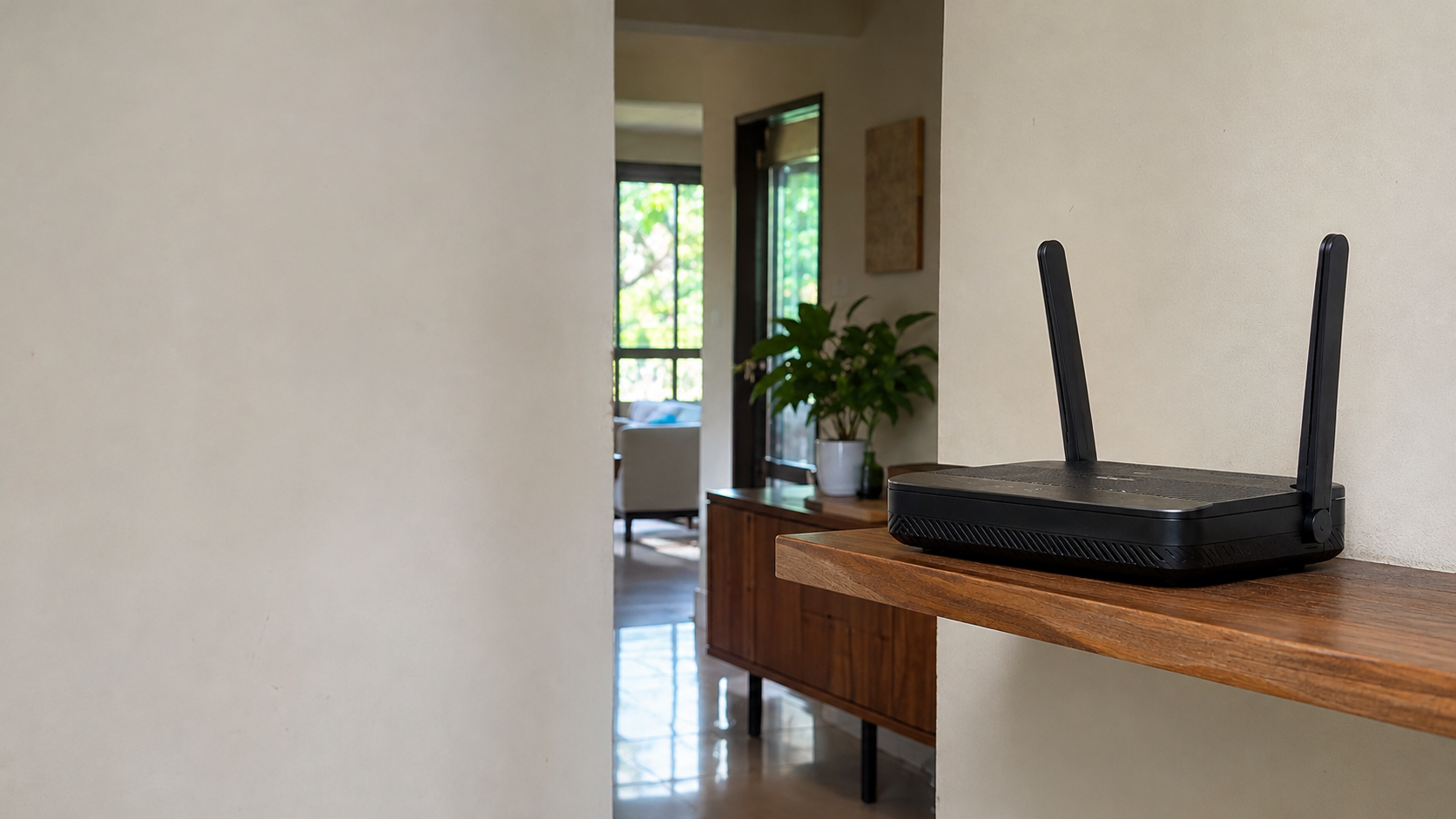
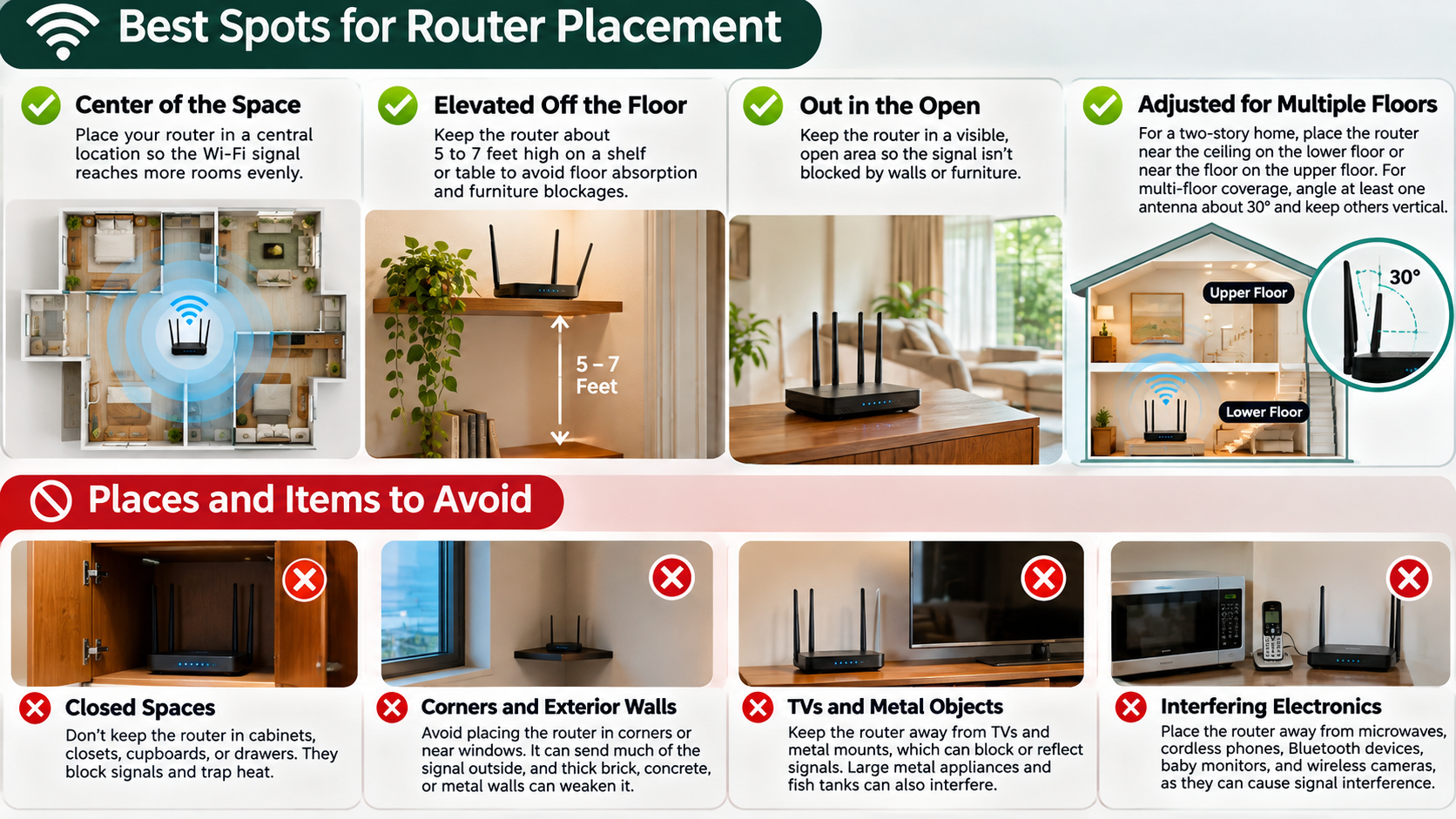
The best place for your router is a central, elevated, and open location inside your home. This position helps distribute wireless signals more evenly across different rooms. Instead of placing your equipment in a corner, choose a location closer to the areas where you regularly use connected devices.
When deciding where to place your Wi-Fi router, prioritize an open area with minimal obstacles between the router and your connected devices.
An open hallway, central living room, or elevated shelf can work well. Avoid surrounding the router with furniture, thick walls, or other objects. These obstacles can weaken signals and create inconsistent coverage.
Height also matters when choosing the best router location. Place the device on a shelf or table rather than directly on the floor. This helps reduce nearby obstructions and allows signals to reach more areas.
Your home’s layout should guide the final decision. Consider where you use laptops, smartphones, smart TVs, and gaming consoles most frequently. Positioning your router near the center of these activities can improve everyday connectivity.

Optimizing Antenna Angles for Maximum Reach
If your router has external adjustable antennas, their orientation can influence wireless coverage. Start by checking the manufacturer’s recommendations because antenna designs differ between models. Understanding why routers have external antennas can also help you make better decisions about antenna positioning.
For routers with multiple adjustable antennas, try positioning one vertically and another horizontally. Different antenna orientations can help provide coverage to devices with different orientations and locations. This can be useful in multi-story homes where devices operate on different floors.
A vertical antenna generally helps distribute coverage across the same horizontal level. A horizontally positioned antenna may help improve coverage in other directions, depending on the router’s design.
However, antenna positioning alone cannot overcome thick concrete walls or major physical obstacles. Test different arrangements and compare signal strength in frequently used rooms. Small adjustments can sometimes improve coverage without requiring additional equipment.
Is It Better to Put Your Wi-Fi Router Upstairs or Downstairs?
Whether your Wi-Fi router belongs upstairs or downstairs depends on your home’s layout and internet usage. There is no universal rule that placing a router upstairs always produces better coverage. Wireless signals travel in multiple directions, but floors, walls, and construction materials affect their strength.
For a multi-story home, placing your router near the center of the property can provide more balanced coverage. If you regularly use the internet downstairs, positioning the router on the ground floor might be more practical. Similarly, an upstairs location can work better when bedrooms and home offices are your main internet usage areas.
Consider where your most demanding activities happen. Video conferencing, online gaming, and 4K streaming benefit from stable connections. Position your router closer to these frequently used areas whenever possible.
If your home has several floors, test signal strength in different rooms. A mesh Wi-Fi system or additional access point may help when one router cannot cover the entire property.
Balancing Multi-Floor Signal Strength
Getting consistent Wi-Fi coverage across multiple floors can be challenging. Thick flooring, reinforced concrete, and metal structures often weaken wireless signals. Therefore, simply moving your router upstairs may not solve every connectivity problem.
Knowing where to place your Wi-Fi router becomes especially important in multi-story homes with thick floors and walls. The right position can help reduce signal loss between different levels.
If your internet connection enters through the ground floor, consider placing the router on an elevated shelf in a central area. Keep it away from large furniture and enclosed spaces. This arrangement can improve signal distribution throughout the main floor.
For upstairs coverage, test the connection in bedrooms, hallways, and other frequently used spaces. Identify locations where the signal becomes noticeably weaker. This helps determine whether repositioning the router will solve the problem.
If you still experience dead zones, consider installing a mesh Wi-Fi system. Alternatively, you can turn your old router into a Wi-Fi extender to expand wireless coverage without immediately purchasing another networking device. A wired access point can also provide a more reliable connection to distant floors.
Where Not to Put a Wi-Fi Router?
Knowing where not to put your Wi-Fi router is just as important as finding its ideal location. Certain household objects and building materials can weaken wireless signals. Placing your equipment in the wrong location may cause slow connections, inconsistent coverage, and frustrating dead zones.
Avoid placing your router inside closed closets, cabinets, or entertainment units. These enclosed spaces restrict signal distribution and can also reduce ventilation. Excessive heat may affect the router’s performance and long-term reliability.
The kitchen is another location worth avoiding. Large appliances, metal surfaces, and nearby electronic devices can interfere with wireless connectivity. Similarly, placing your router behind a television or near thick concrete walls can reduce coverage.
Windowsills are not necessarily ideal either. A router positioned near an exterior window may direct some wireless coverage outside your property. Choose an interior location that provides better coverage across your frequently used rooms.
Why Electronics Cause Severe Interference
Some household electronics can interfere with Wi-Fi connections, particularly when they operate on overlapping radio frequencies. Devices such as cordless phones, baby monitors, Bluetooth equipment, and microwave ovens may affect wireless performance.
The 2.4 GHz frequency band is particularly vulnerable because many household devices use this frequency. When several devices operate nearby, interference can reduce connection stability and increase delays.
Microwave ovens deserve special attention. Many operate around the 2.45 GHz frequency, which overlaps with the 2.4 GHz Wi-Fi band. Using a microwave near your router can temporarily affect nearby wireless connections.
Keep your router away from these devices whenever possible. Avoid placing it directly beside wireless speakers, cordless phone bases, or baby monitors. A little separation can reduce interference and improve connection reliability.
Remember that not every electronic device causes noticeable problems. The actual impact depends on its operating frequency, distance, and signal strength. If you experience sudden connection drops, test your network after moving nearby electronics.
What Blocks the Wi-Fi Signal the Most?
Dense building materials such as concrete, brick, stone, and metal can significantly weaken Wi-Fi signals. Wireless frequencies lose strength when passing through physical barriers. The more obstacles between your router and connected device, the weaker the connection may become.
Concrete walls and reinforced floors are particularly challenging. Their density and internal metal reinforcement can reduce signal strength considerably. Homes with several thick walls may experience poor coverage even when the router is relatively close.
Metal objects also create problems because they can reflect or obstruct wireless signals. Large mirrors, metal cabinets, and appliances may affect coverage in nearby areas. Aquariums can also weaken signals because water absorbs some radio-frequency energy.
The effect depends on the material, thickness, and distance from your router. Avoid placing your equipment behind large obstacles whenever possible. An open location with fewer physical barriers usually provides more consistent wireless coverage.
Identifying Hidden Signal Killers in Walls
Some obstacles affecting Wi-Fi coverage are not immediately visible. Certain building materials contain metal components that can interfere with wireless signals. These hidden barriers may explain why your connection works well in one room but becomes unreliable in another.
For example, foil-backed insulation, metal wall studs, and reinforced concrete can reduce signal strength. Large ventilation ducts and metal utility cabinets may also obstruct wireless coverage.
Modern energy-efficient windows sometimes contain metallic coatings. These coatings help improve insulation but can also affect radio-frequency transmission. If your router sits near such a window, nearby rooms may receive weaker signals.
Pay attention to locations where your connection consistently drops. Compare signal strength in different rooms and identify walls or structures between your device and router. Moving the router a few feet may help avoid an obstruction.
If the problem continues, consider using a mesh system or wired access point. These solutions can provide better coverage when building materials prevent wireless signals from reaching distant areas.
What Slows Down Wi-Fi the Most?
Several factors can reduce Wi-Fi speeds, including network congestion, outdated hardware, wireless interference, and poor router placement. Even a fast internet plan cannot guarantee excellent wireless performance when your home network has these problems.
Network congestion occurs when multiple devices compete for available bandwidth. Smartphones, gaming consoles, smart televisions, and connected appliances may all use your connection simultaneously. Background activities such as cloud backups and automatic software updates can consume additional bandwidth.
Your router’s age and specifications also matter. Older models may lack modern Wi-Fi standards and efficient traffic-management features. As a result, they might struggle to handle multiple connected devices.
The frequency band you use can influence performance too. The 2.4 GHz band generally provides better range, while 5 GHz can deliver higher speeds over shorter distances. Choosing the right band for each device can improve your overall experience.
Switching to Faster Frequency Bands
Most modern dual-band routers support both 2.4 GHz and 5 GHz Wi-Fi. Some newer models also support the 6 GHz band through Wi-Fi 6E or Wi-Fi 7 technology. If you are considering upgrading your networking equipment, understanding the differences between Wi-Fi 6 and Wi-Fi 7 can help you choose the right technology. Each frequency band offers different advantages.
The 2.4 GHz band generally provides longer range and better wall penetration. However, it often experiences more interference because many household devices share this frequency.
The 5 GHz band usually offers higher speeds and more available channels. It works particularly well for devices located relatively close to your router. Consider connecting laptops, gaming consoles, and streaming devices to this band when signal strength is sufficient.
For compatible devices, the 6 GHz band can provide additional capacity and less interference. However, it has a shorter effective range and requires compatible hardware.
Choose the frequency based on your device’s location and requirements:
- 2.4 GHz: Suitable for smart plugs, basic smart-home devices, and distant devices.
- 5 GHz: Useful for video streaming, gaming, and everyday high-speed internet activities.
- 6 GHz: Suitable for compatible modern devices that need additional wireless capacity.
Selecting the appropriate frequency can improve network performance without changing your internet subscription.
Final Thoughts
Finding the right router location does not require expensive equipment or complicated networking knowledge. Start by choosing an elevated, central, and open position. Keep your device away from thick walls, metal objects, and electronics that may cause interference.
If you are unsure where to place your Wi-Fi router, experiment with different positions and test your connection in frequently used rooms. Small adjustments can improve coverage and reduce frustrating dead zones.
For larger homes, consider a mesh Wi-Fi system or an additional access point. These solutions can extend coverage when a single router cannot reach every room. With proper positioning and a few practical adjustments, you can build a more reliable home wireless network.