
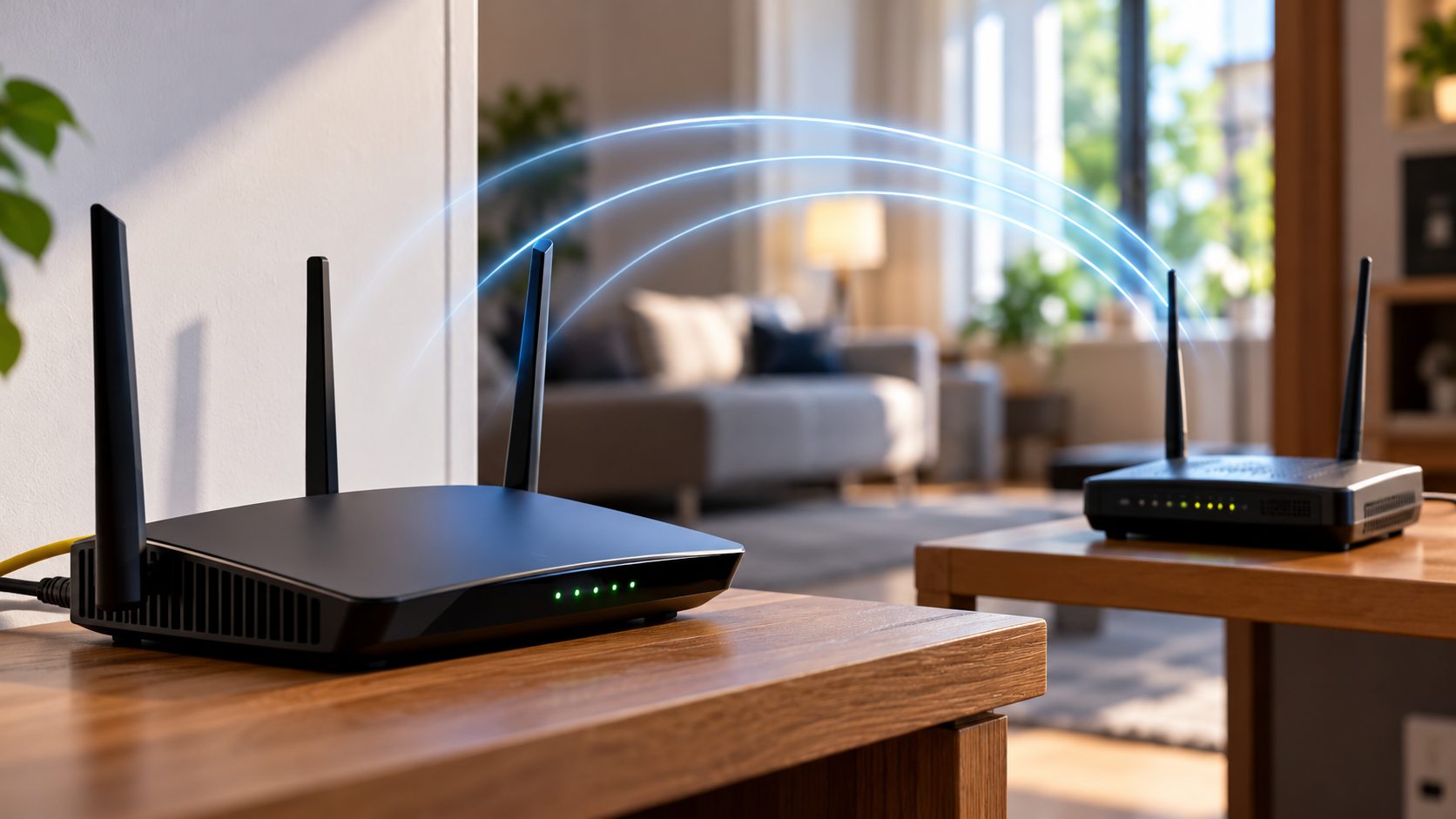
How to Turn Your Old Router Into a Wi-Fi Extender
If you struggle with frustrating Wi-Fi dead zones at home, you don’t necessarily need expensive mesh networking equipment. You can often turn your old router into a Wi-Fi extender using hardware you already own. Many households replace their routers every few years, leaving older devices unused. However, those devices may still provide reliable network connectivity.
Repurposing an old router offers a practical and affordable way to improve wireless coverage. You can extend your network into a garage, bedroom, backyard, or home office. The exact setup depends on your router’s supported features and available connections.
Before starting, check whether your spare router supports access point, repeater, or wireless bridge mode. These features determine how you can connect it to your existing network.
In this guide, we’ll answer several common questions:
- Can I turn my old router into a range extender?
- How do I turn a second router into an extender?
- Are old routers useful for anything else?
- How can I use an old router as a Wi-Fi extender without a cable?
Let’s explore the different methods and configuration steps.
Can I Turn My Old Router Into a Range Extender?
Yes, you can convert many older routers into Wi-Fi extenders or additional access points. However, the process depends on the router’s hardware and firmware. Some models include built-in repeater mode, bridge mode, or access point mode. These features allow the device to extend your existing network without performing all the functions of your primary router.
Before changing any settings, check your router’s manual or manufacturer’s website. Look for supported wireless operating modes and compatibility information. If your router supports access point mode, you can connect it to your primary router using an Ethernet cable.
Wireless repeater mode offers another option. It allows the secondary router to connect to your existing Wi-Fi network wirelessly. However, not every router supports this feature.
Checking Firmware and Operating Modes
Start by identifying your router’s exact model number and hardware revision. Visit the manufacturer’s website to check its specifications and available firmware updates. Look specifically for repeater, wireless bridge, WDS, or access point functionality.
If the original firmware lacks these features, third-party firmware may provide additional configuration options. Popular examples include DD-WRT and OpenWrt. However, compatibility varies between router models and hardware revisions.
Before installing alternative firmware, consider these precautions:
- Confirm that your exact router model is supported.
- Read the installation instructions carefully.
- Download firmware from the official project website.
- Back up your existing configuration.
- Understand the risks of incorrect installation.
Installing incompatible firmware can permanently damage your router. Therefore, check compatibility before attempting this method.
How to Turn a Second Router Into an Extender?
Using an Ethernet cable is generally the most reliable way to convert a second router into an additional Wi-Fi access point. This setup provides a dedicated wired connection between both devices. If you want to keep your installation neat, explore these 5 clever ways to hide Ethernet cables around the house. It also avoids the wireless bandwidth limitations associated with traditional repeaters.
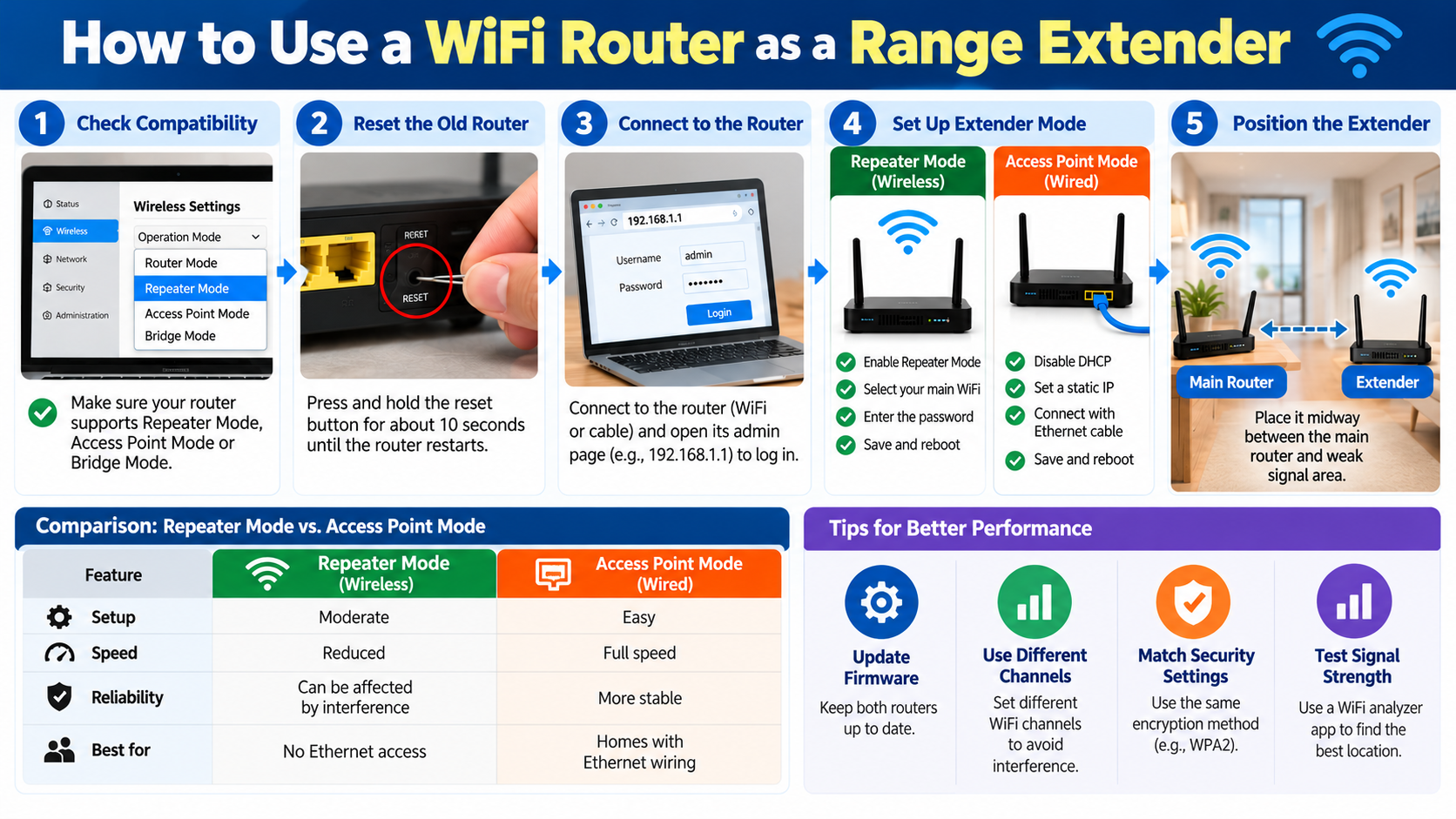
First, reset your secondary router if necessary. Connect a computer to it and open its administration page using a web browser. Find the LAN settings and assign the secondary router a static IP address within your primary network’s subnet. Make sure the address does not conflict with another device.
Next, disable the DHCP server on the secondary router. Your primary router should remain responsible for assigning IP addresses to connected devices.
Finally, connect an Ethernet cable from a LAN port on your primary router to a LAN port on your secondary router. Configure its wireless settings and save your changes. Your second router should now provide additional Wi-Fi coverage.

Match Your Wireless Network Settings
After connecting both routers, configure the secondary router’s wireless settings. You can use the same network name (SSID) and password as your primary router. When choosing a password, consider how long your router password should actually be to maintain better network security. This makes connecting devices easier because they can recognize both access points as the same network.
For a consistent setup, consider matching these settings:
- Network name (SSID): Use the same name if you want a shared network identity.
- Wi-Fi password: Keep the password identical on both devices.
- Security encryption: Use compatible security settings, preferably WPA2-AES or WPA3 where supported.
- Frequency bands: Configure compatible 2.4 GHz and 5 GHz bands where available.
- Wi-Fi channels: Use appropriate channels to reduce interference between nearby access points.
Using identical network names does not guarantee seamless roaming. Your phone or laptop usually decides when to switch access points. Some devices may remain connected to a weaker signal until they reconnect.
Are Old Routers Good for Anything?
Yes, old routers can serve several useful purposes beyond extending your Wi-Fi coverage. Even if your previous router cannot support repeater mode, you may still find other practical uses for it. For example, you can configure it as a wired access point, network switch, or separate guest network. There are also 5 cool things you didn’t know your Wi-Fi router can do, which are worth exploring before replacing older networking equipment.
Some routers also include USB ports that support external storage devices. Compatible models may allow you to share files across your local network. This can provide basic network storage without purchasing dedicated equipment.
Another option is using an older router to connect wired devices. Gaming consoles, desktop computers, and smart TVs can benefit from stable Ethernet connections. However, check the router’s port speeds before relying on it for demanding applications.
Before repurposing older equipment, check its firmware support and security updates. An outdated router may introduce security risks if it no longer receives manufacturer support.
Creating an Isolated Smart Home Hub
An older router can also help organize your smart home devices. Many households use connected products such as smart plugs, security cameras, televisions, and lighting systems. These devices require network connectivity, but they don’t always need access to the same network resources as personal computers.
You can create a separate network for IoT devices using a compatible router. However, simply connecting a second router does not automatically isolate devices securely. Proper network segmentation and firewall configuration are important.
Consider these precautions when creating a separate smart home network:
- Use a different network name and password.
- Enable WPA2 or WPA3 security where supported.
- Install available firmware and security updates.
- Change default administrator credentials.
- Restrict access to your primary network where possible.
For stronger isolation, use a router that supports VLANs or dedicated guest-network functionality. This helps separate connected devices from computers containing personal information.
How to Make an Old Router a Wi-Fi Extender Without a Cable?
You can connect an old router to your existing Wi-Fi network without running an Ethernet cable. However, your secondary router must support wireless repeating, WDS, or a compatible wireless bridge mode. This method allows the secondary device to receive an existing wireless signal and extend coverage.
Start by connecting your computer to the secondary router. Open its administration dashboard and locate the wireless operating mode settings. Select the appropriate repeater or wireless bridge option.
Next, scan for available wireless networks. Select your primary Wi-Fi network and enter its password. Depending on the router, you may also need to configure the wireless band, security settings, and network address.
Once configuration is complete, save the settings and restart the secondary router if required. Place it between your primary router and the area with weak coverage. Avoid placing it directly inside the dead zone because it needs a sufficiently strong signal.
Managing Bandwidth Overhead on Wireless Connections
Wireless repeating has an important limitation: the secondary router must receive and retransmit data over a wireless connection. On traditional single-radio repeaters using the same channel for both operations, this can significantly reduce available throughput. The actual reduction depends on the router’s hardware, wireless configuration, and network conditions.
To improve performance, follow these practical placement tips:
- Position the repeater where it receives a strong signal from your primary router.
- Avoid placing it behind thick walls or large metal objects.
- Use the 5 GHz band when the distance and signal conditions allow.
- Choose a less congested wireless channel where possible.
- Keep high-bandwidth devices closer to your primary router or a wired access point.
Remember that 5 GHz generally offers higher speeds but shorter range than 2.4 GHz. Choosing the right frequency band depends on your home’s layout and signal strength. If you’re unsure which configuration suits your needs, compare dual-band vs. tri-band routers before choosing your networking equipment. If performance matters more than cable-free installation, an Ethernet-connected access point is usually the better option.
Final Thoughts
Repurposing an old router is a practical way to improve your home’s Wi-Fi coverage without immediately purchasing new networking equipment. Depending on its supported features, you can configure it as an access point, wireless repeater, or bridge.
An Ethernet connection generally provides more consistent performance. Wireless repeating offers greater installation flexibility but may reduce available bandwidth. You can also check the DD-WRT router database to see whether your device supports alternative firmware.
Before starting, check your router’s compatibility, firmware support, and security features. With the right configuration and placement, your old router can become a useful addition to your home network.