What Is the SC Port on Your Laptop For?
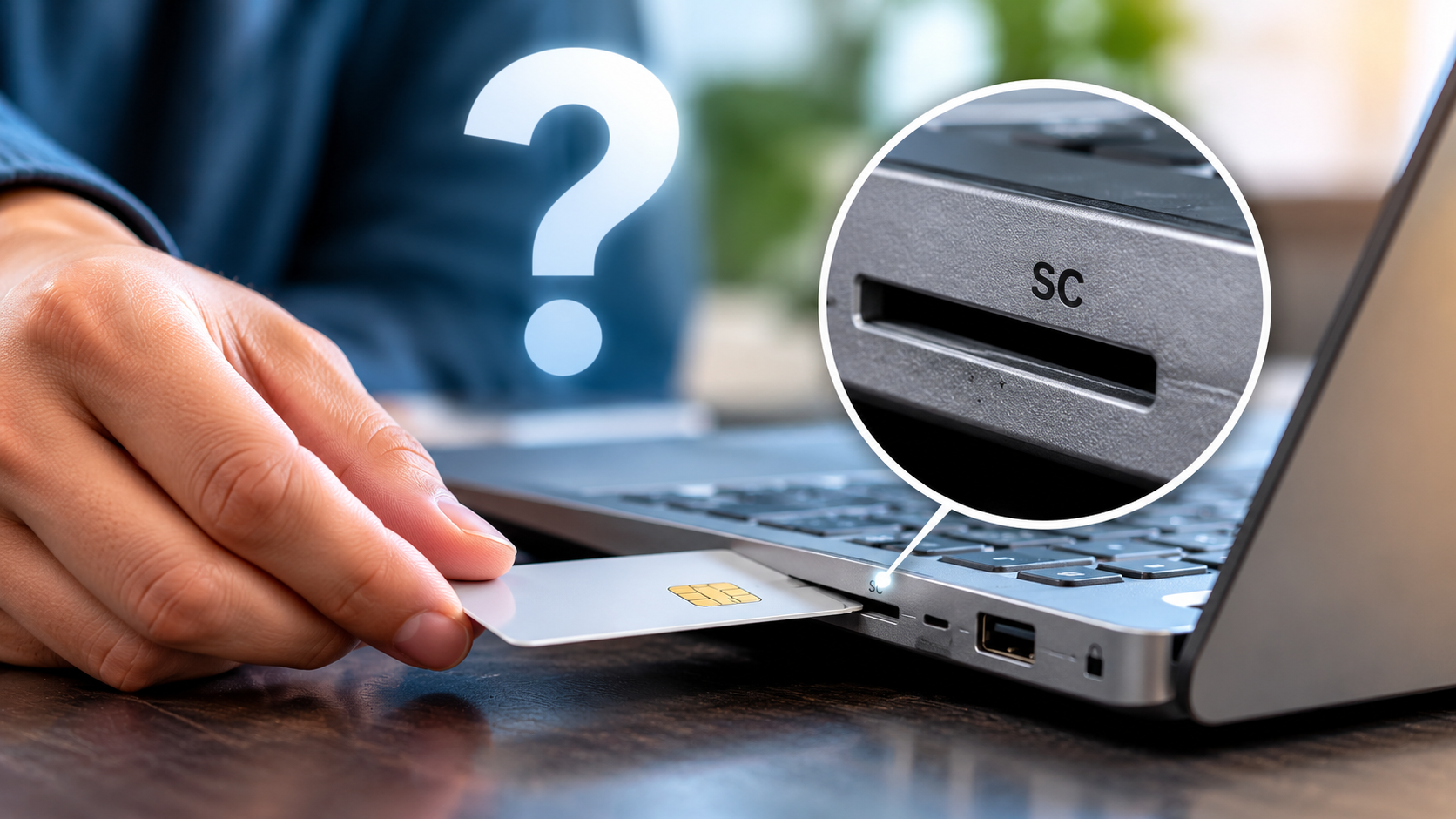
Have you ever noticed a narrow slot labeled “SC” on the side of your work laptop? If you have wondered what the SC port on your laptop is for, you are not alone. This small feature often confuses users who are unfamiliar with enterprise laptop hardware.
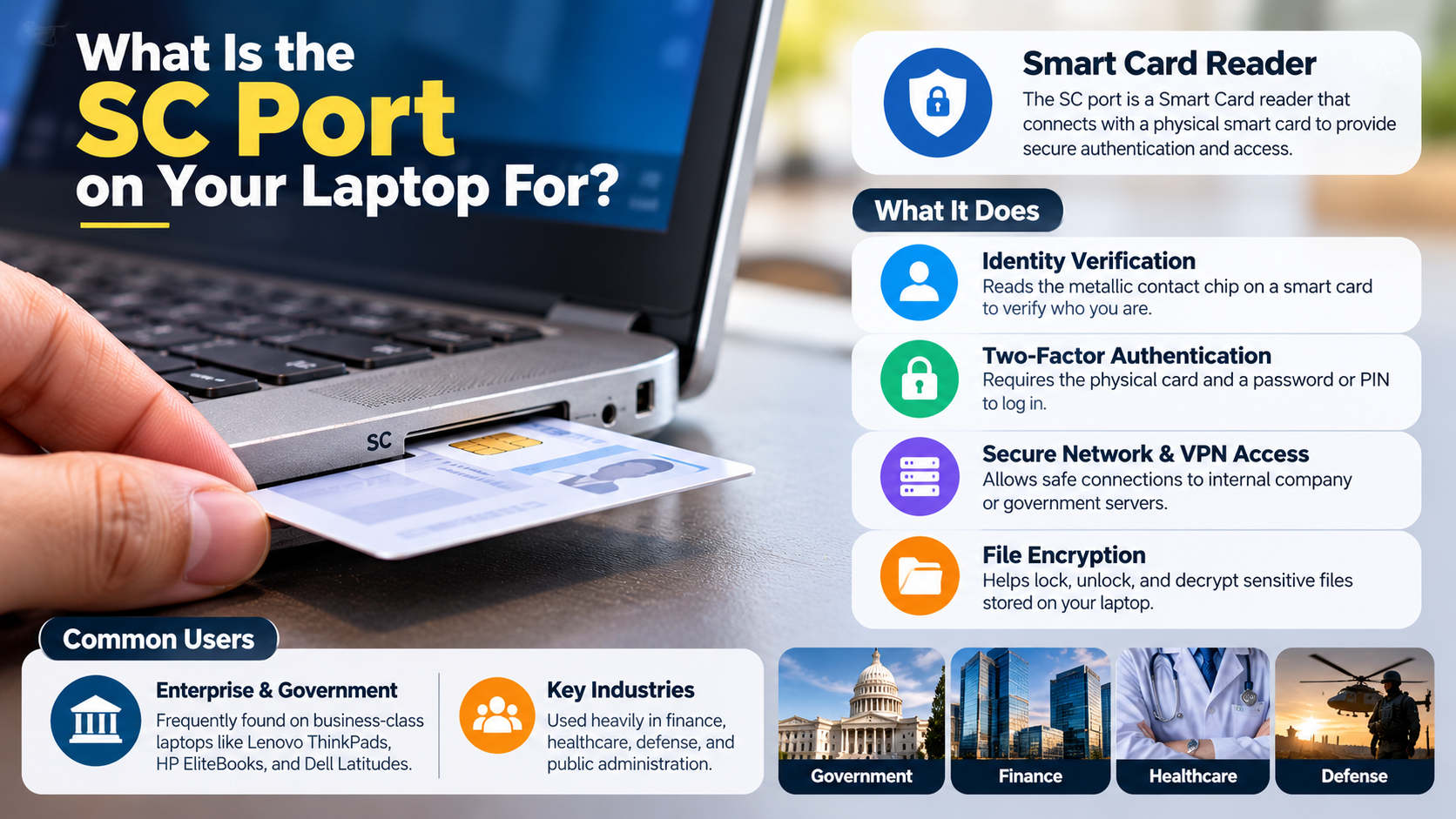
In most business laptops, SC stands for Smart Card. The slot houses a reader that communicates with compatible smart cards. These cards support secure authentication, digital signatures, and access to protected systems.
Smart card readers are common in corporate, government, healthcare, and financial environments. Organizations use them to strengthen security and protect sensitive information. However, not every laptop includes this feature, and most personal users rarely need it.
This guide explains what an SC port does, what SC means on different laptops, and how to use the reader. You will also learn about HP laptop compatibility, smart card drivers, and alternatives for personal security.
What Is an SC Port For?
An SC port on a laptop is generally a Smart Card reader slot. It allows the computer to communicate with compatible cards containing an integrated circuit chip. These cards can store credentials and perform cryptographic operations used to verify a user’s identity.
When you insert a supported card, the reader communicates with its chip. Compatible software then uses the card during authentication or other approved security operations. Depending on the setup, you may need to enter a personal identification number (PIN).
Organizations use smart card authentication to protect corporate networks, confidential records, and sensitive applications. It can also support digital signatures and secure remote access. The reader provides a convenient way to use physical authentication cards without connecting an external USB device.
However, the reader does not provide security automatically. Your organization must configure compatible software, credentials, and authentication policies. Smart cards work best as part of a broader security system that may also include encryption and multi-factor authentication.
Smart Card Authentication Security Benefits
The main benefit of a smart card reader is its support for stronger authentication. A typical setup requires a physical card and a PIN. These two elements combine something you possess with something you know.
This approach can reduce the risks associated with stolen or reused passwords. An attacker generally needs access to the card and the required credentials to impersonate its owner. Smart cards can also protect private cryptographic keys inside the card’s chip.
Key benefits include:
- Stronger authentication: Combines physical credentials with a PIN or another required verification method.
- Secure access: Helps organizations control entry to protected networks and applications.
- Digital signatures: Supports signing documents and emails when compatible certificates and software are available.
- Convenience: Allows users to authenticate without carrying a separate USB reader.
Security still depends on proper configuration, card management, and organizational policies.
What Does SC Mean on Laptops?
On many business laptops, SC stands for Smart Card. The label identifies a slot designed to accept compatible smart cards. These cards commonly use contact-based technology defined by standards such as ISO/IEC 7816.
Smart card readers are more common on enterprise laptops than on ordinary consumer or gaming models. Businesses often require them to meet internal security policies or support specific authentication systems. Manufacturers may therefore include readers in selected professional laptop configurations.
An SC label can help you identify the slot’s intended purpose. However, the label alone does not confirm which cards the reader supports. Compatibility depends on the reader hardware, card type, operating system, drivers, and security software.
A built-in reader also differs from a standard memory card slot. It is not intended for storing photos, transferring files, or reading ordinary SD cards. Instead, it communicates with the chip on a supported security card.
If you are unsure about your laptop’s capabilities, check the manufacturer’s specifications or user manual. This is particularly important when buying a refurbished business laptop or setting up a device for workplace authentication.
Identifying Enterprise Laptop Hardware Features
Business laptops often include hardware features designed for professional environments. These may include smart card readers, fingerprint sensors, facial recognition cameras, and a Trusted Platform Module (TPM).
A smart card reader provides an interface for communicating with compatible security cards. The TPM serves a different purpose by supporting protected cryptographic operations and security functions. Although both components can contribute to a secure computing environment, they are not the same device.
Manufacturers may offer a smart card reader only on selected models or configurations. Therefore, two laptops from the same product family may have different security features. An SC label or dedicated slot can help identify a reader, but the manufacturer’s documentation provides better confirmation.
When evaluating enterprise laptop hardware, check the specifications for smart card support, available drivers, and operating system compatibility. You should also confirm whether your organization requires particular cards or authentication software. These checks help prevent compatibility problems before deployment.
How to Use SC in a Laptop?
To use the SC port on your laptop, you need a compatible smart card and the necessary software. Your employer, government agency, or other organization may issue the card for authentication. A standard bank card or loyalty card is not a suitable substitute.
Follow these steps to get started:
- Check compatibility: Confirm that your smart card works with your laptop’s reader and operating system.
- Install the required software: Check whether your device needs a driver, smart card middleware, certificates, or other authentication components.
- Locate the reader: Find the SC label or smart card slot on your laptop. Consult the user manual if necessary.
- Insert the card carefully: Follow the manufacturer’s instructions for the correct orientation. Never force the card into the slot.
- Complete authentication: Follow the on-screen instructions and enter your PIN if requested.
- Remove the card safely: Follow your organization’s security policy when leaving your workstation or ending your session.
The exact process depends on your laptop, operating system, and card configuration. Some systems authenticate automatically, while others require additional software or administrator setup.
Installing Smart Card Drivers and Services
Many modern operating systems support standard smart card readers through built-in drivers and services. However, recognizing the reader does not guarantee that every smart card will work immediately.
Some setups require additional middleware, certificate configuration, or authentication software. You may need to obtain these components from your employer’s IT department or the card issuer. Always use trusted sources and follow the recommended installation process.
If your laptop does not detect the card, check whether the reader appears in your system’s device settings. Confirm that the required smart card service is running and that the card is inserted correctly. You should also verify that the card is valid and compatible with the reader.
Avoid downloading unofficial drivers from unfamiliar websites. If the reader still fails to work, contact your organization’s IT support team. Administrators can check driver compatibility, certificates, access policies, and other configuration issues.
What Is SC on an HP Laptop?
On an HP laptop, SC generally refers to a Smart Card reader. Selected professional models, including configurations in the HP EliteBook and ZBook families, may include this hardware. It allows compatible smart cards to support authentication and other security tasks.
The exact features depend on your laptop’s model and configuration. Not every HP EliteBook or ZBook includes a built-in reader. You should therefore check the product specifications or user manual before assuming your device supports smart cards.
In supported environments, an HP smart card reader can work with compatible operating system services and enterprise security software. Depending on the installed certificates and applications, it may support secure logins, digital signatures, or access to a corporate virtual private network (VPN).
Some older HP documentation references HP Client Security software. Available tools and management features vary by model, operating system, and software version. Do not assume that every HP laptop uses the same security suite.
If your HP laptop has an SC slot, ask your IT administrator which cards and software are supported. This will help you determine whether the reader is ready to use or requires additional configuration.
HP Client Security Software Integration
HP has offered security management tools that support different enterprise security features. Depending on the laptop generation, these tools may include HP Client Security or other security management applications.
Smart card functionality may depend on the operating system, card middleware, certificates, and organizational policies. The reader itself does not automatically manage every security function. Compatible software must be configured to use the card for the intended purpose.
Some enterprise environments can enforce policies that lock a workstation when a smart card is removed. However, this behavior depends on the authentication software and administrator settings. It is not a universal feature of every HP laptop.
If you cannot find the relevant security software, check your model’s support page and documentation. You can also ask your IT department whether your device requires a particular application or driver. Use software intended for your exact model and operating system to avoid compatibility issues.
Can I Use an SC Port on My Laptop?
Yes, you can use an SC port on your laptop if it has a compatible reader, a supported smart card, and the necessary software. However, having the slot does not mean you can use it for everyday identification or file storage.
These readers are primarily intended for users who receive smart cards from an organization. Common examples include corporate employees, government personnel, healthcare workers, and financial professionals. Their cards may provide access to protected applications, workplace networks, or digital signing tools.
If you do not have a compatible smart card, you probably do not need to do anything with the slot. Leaving it unused will not affect your laptop’s normal operation.
Never force a credit card, memory card, or other incompatible object into the reader. Doing so may damage the internal contacts or the card itself. If you need to identify the slot, check your laptop’s manual rather than testing it with random cards.
For personal security, other authentication options may be easier to set up. The best choice depends on the services you use and the security requirements you need to meet.
Finding Alternatives for Personal Security Needs
If your personal laptop lacks an SC port, you still have several ways to improve account security. The right option depends on whether you need smart card compatibility or simply stronger authentication for online accounts.
Consider these alternatives:
- External USB smart card reader: Useful when you already have a compatible smart card and need a separate reader.
- Hardware security key: Supports phishing-resistant authentication on compatible services without requiring a traditional smart card.
- Built-in biometric authentication: Fingerprint readers and supported facial recognition systems can simplify device sign-in.
- Multi-factor authentication: Authenticator apps and other supported verification methods add protection to online accounts.
These options are not interchangeable in every situation. An external reader may require specific drivers or middleware, while a hardware security key works only with supported authentication standards and services. If a damaged USB port prevents you from connecting an external reader, you can check how much it costs to replace a USB port on a laptop.
If your employer requires a particular smart card, follow its approved setup instructions. For personal accounts, a hardware security key or passkey may provide a simpler alternative. Always choose an authentication method that matches your devices, accounts, and security needs.
Conclusion
The SC port on your laptop is generally a built-in Smart Card reader designed to support secure authentication and protect access to sensitive information. It is commonly found on business laptops used in corporate, government, healthcare, and financial environments. With a compatible smart card and the required software, you can use this feature for secure logins, digital signatures, and protected network access.
If you use a personal laptop without a smart card, you probably do not need to worry about this port. However, if your organization requires smart card authentication, check your laptop’s specifications and follow the recommended setup instructions. For further guidance, explore the NIST Digital Identity Guidelines, which explain authentication requirements and digital identity security.
Understanding what the SC port on your laptop is for helps you identify its purpose and make better use of your device’s security features.